Can can select points but I cannot manipulate them to reshape the image. Nothing happen when I try to manipulate the selected dots. I had to use the standalone app to get something done. In Photolab it does not work at all. From other posts in VP forum seems like VP 5.5.1 broke things.
maybe you like to check my revised comment here …
Thanks for the reply. I think the issue is something else. I tried something else and can confirm that VP Fusion in DPL8 does not work on a RAW image (Canon CR3) but works file if used on a TIFF or JPEG of the same photo.
There’s no reason why a .cr3 raw file shouldn’t be supported by ReShape Fusion in PhotoLab 8. I just checked it with a Canon raw file (PL8 - Windows 11).
The only possibility I can see is using a raw file type not supported by DxO, such as mRAW or sRAW. But in that case, it wouldn’t even open…
Do you have an example file that fails to share?
I tried to attach it but it exceeds the 48MB limit even when zipped. I will try to find a way.
Here is a link that should work to download the RAW file. I was trying to use Fusion to reshape/resize the two people in the upper corner of the photo where the 14mm lens caused distortion. You can generate a tiff or jpeg if you want to try those. Thanks for helping.
I may be wrong but surely the best way to do that is with the volume deformation feature in ViewPoint?
I’ve certainly fixed ‘fat’ people at the edge of a wide angle shot using that feature.
OK thanks I will try another time. But that was not the point of the post. Fusion should work - bug or user (me) error ?
Absolutely!, but I can’t help you with that as I only have VP3. I only mentioned the volume deformation feature because it’s my understanding that this feature is specifically aimed at fixing the edge deformations that you get with wide angle shots. In other words, that is the tool to use to fix the problem with your image, rather than trying to achieve the same thing in a more complex manner with the aid of the fusion feature.
Your picture is insanely distorted, even → trees are falling “uphill” *)
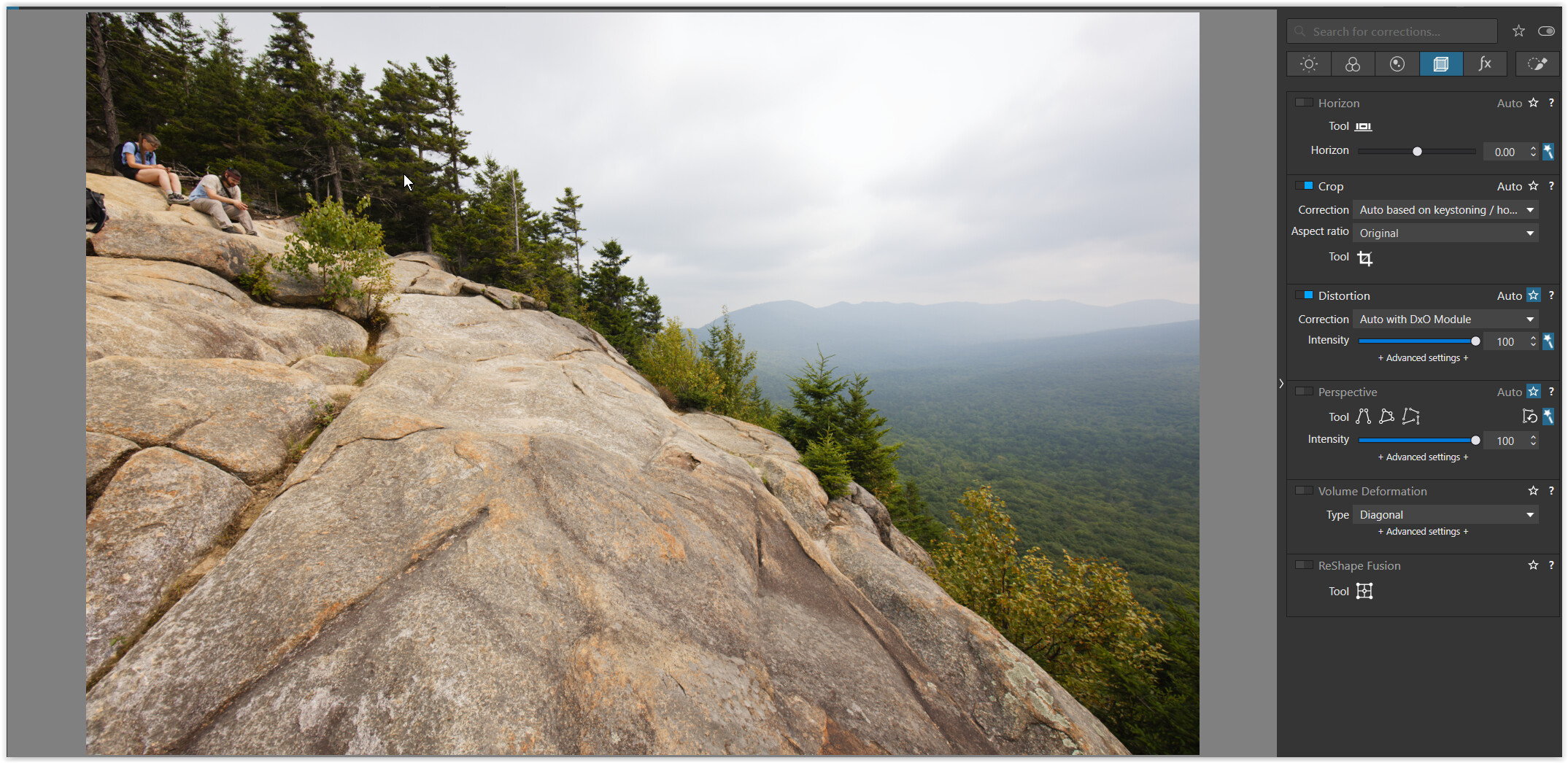
and I think you are just expecting too much.
.
That said, the general volume deformation works sufficiently in my opinion,
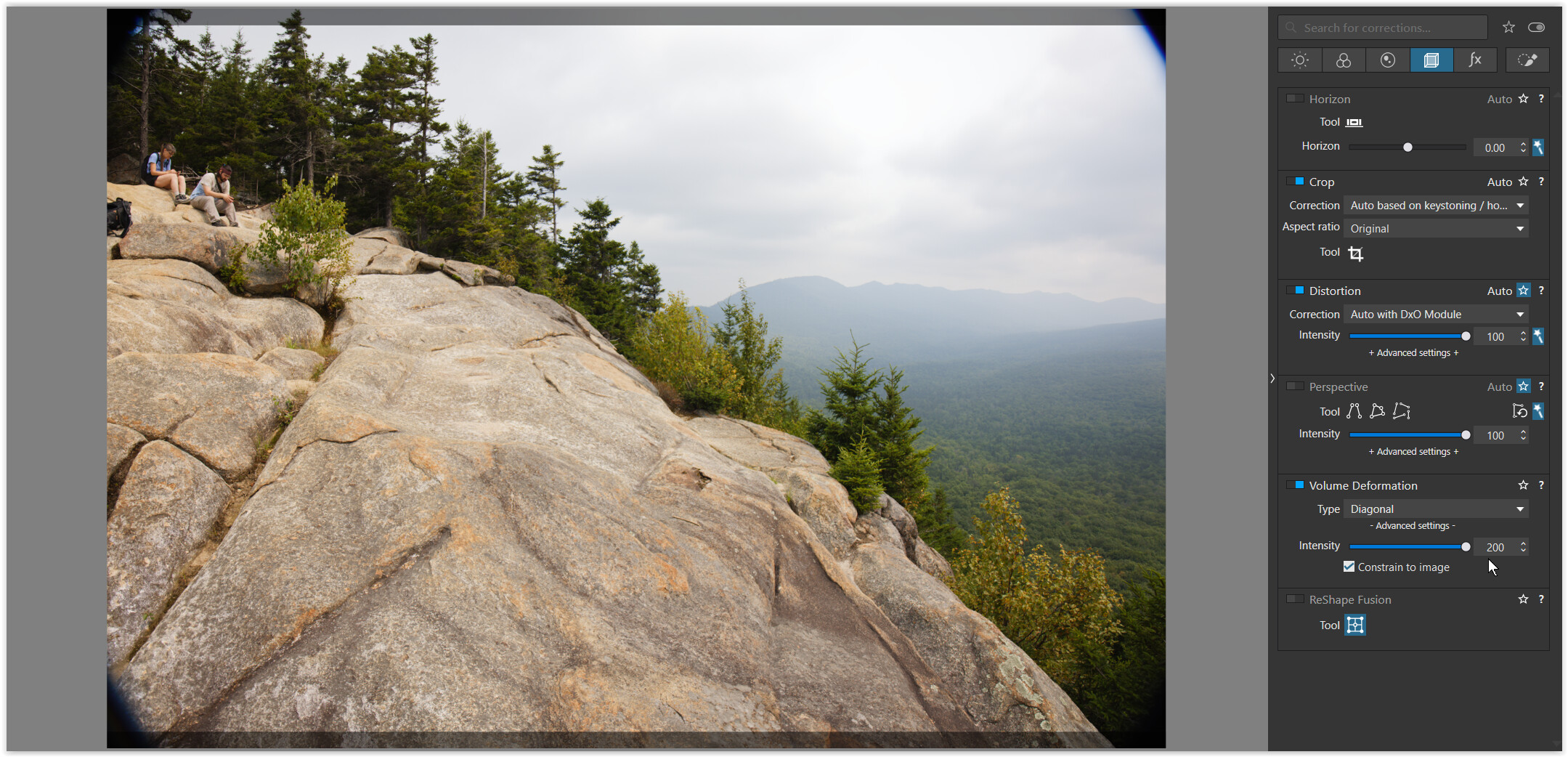
( general volume deformation at max )
.
while the local one crashes if not used VERY carefully.
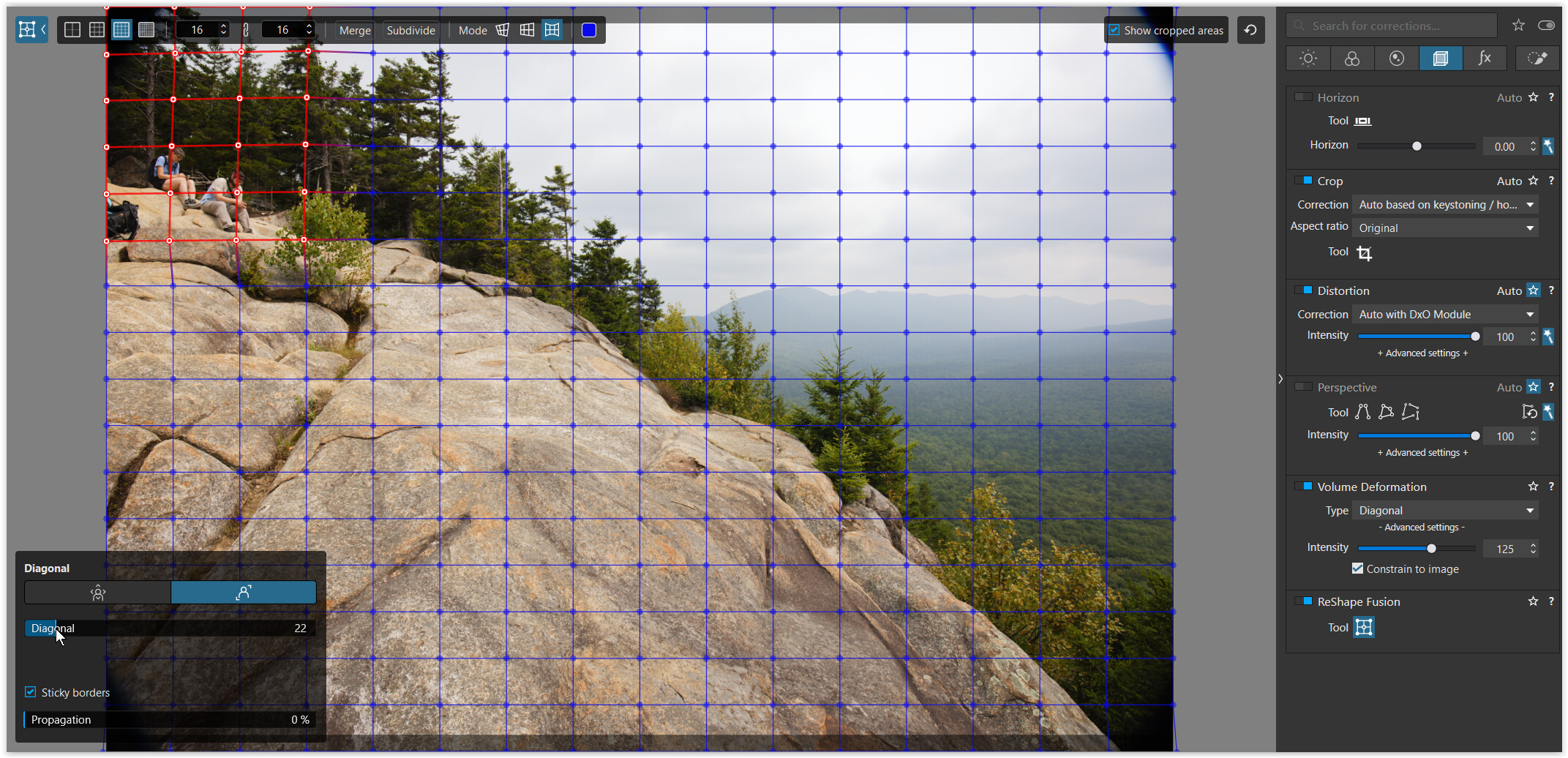
( here combined with general volume deformation at 125 )
.
You still need to correct the vignetting corners, e.g. with the Clone tool.
- my dop-file in case it’s usefull → 0O5A0013.CR3.dop (63,5 KB)
*) original added (with DxO Standard preset, no vignetting)
Thanks for the tip on volume distortion. Did you have vignetting turned on ? I see a vignette in the corner that is not shown on my edit. But beyond that you seem to confirm the Fusion tool is not working in the latest DVP and DPL releases, as of today. My post was not about if the results were good or bad, but simply about the fact that Fusion is not working
As I said, local Volume Deformation crashes if you don’t use it VERY carefully.
But unlike the local Perspective, it at least allows for some gentle corrections, which could be the appropriate use case for it (??) → see the quoted excerpt from the manual.
The vignetting (I think) comes from your lens. You might want to start with my dop file (your original + 2 VCs), which btw uses the DxO default preset.
I recommend removing the dark corners using the clone tool as it is easier and you may avoid further crashes … unless your goal is to “test” VP5 (for that I’m out of the game).
The vignetting you see is not there for me, it is totally correction by the DXO optical module (vignetting turned on, and distortion turned in). I am not sure you had the DXO lens module downloaded.
As for fusion requiring to be VERY careful, I have no clue what that means. Never mind.
Cheers
I’m the last person to be described as using any tool carefully, but Volume Deformation in PL never crashed in my case. It’s one of those most important tools that I most rarely use, but still use  Never had a crashing problem.
Hi Wolfgang,
I tried recreating the issue you reported but was unable to do it. I tested several times with high and low settings but nothing I did caused a crash. Maybe you can post a specific example of settings you used that caused the crash. Perhaps it was a combination of Local Volume Deformation with some other local or global tool setting.
Mark
I’ve added your original as first screenshot. Your file is rendered with DxO Standard preset and shows no vignetting.
The other two,
- the one (VC 1) with general Volume Deformation (VD) at 200
- and the third (VC 2) with combination of general VD at 125 + local VD (= the red grid),
both showed up with darkened corners (= the vignetting). And contrary to your statement “VP Fusion in DPL8 does not work with a RAW image…”, it does work.
However, I had to use the local VD very carefully (= not covering too much area with the red grid & not dragging the → “Diagonal” slider too far).
.
While this surprised me, it may be due to the intended (?) use of the local adjustments … and led me to use the local correction after / in combination with the general one.
Check for yourself what works for you. – I don’t know why the tool reacts this way.
.
for the problem with the Reshape Fusion: local Perspective
see → Viewpoint 5 crashes - #23 by Wolfgang
I am not saying Fusion does not work with RAW images in general, I have done that in the past. What I am saying is with the latest updates on my system, on this image, it does not work. I can select the dots but cannot do anything with them, Here are the steps.
- Open the raw with DXO Style - Natural preset applied so you have the same corrections applied
- Go to Geometry, Reshape Fusion, and activate the tool
- Set the fusion grid to the smallest size
- Select a set of 6x6 dots covering the two persons in the upper left corner of the photo
- Activate the Scale tool in the fusion panel (the double arrow), leave Progagation to zero and Sticky Borders disabled
- try to resize the selected area
On my system at that point I cannot do anything with the selected area. It is not responding. Even if I switch to the Move or Rotate options and try to manipulate a single point instead of a selection of many, nothing happen.
I do not have a crash NEVER, that was not what my post was about, things got confused by some responses above. But the tool does not allow to manipulate the image,
As I said previously if I export a TIFF or JPEG of the image, on that tiff or jpeg I have no issue doing the exact same thing, Only on the RAW file that things are not working.
What I was hoping to figure is if it is something with my setup caused by the multiple updates, or it is a problems other users can also replicate easily. As a workaround I can complete my edits on the raw and reshape an exported copy after that. But that extra step should be needed obviously.
Hopes that is detailed enough. Cheers
Yes, that crashed here.
I tried with the next coarser grid and selected 4 x 6.
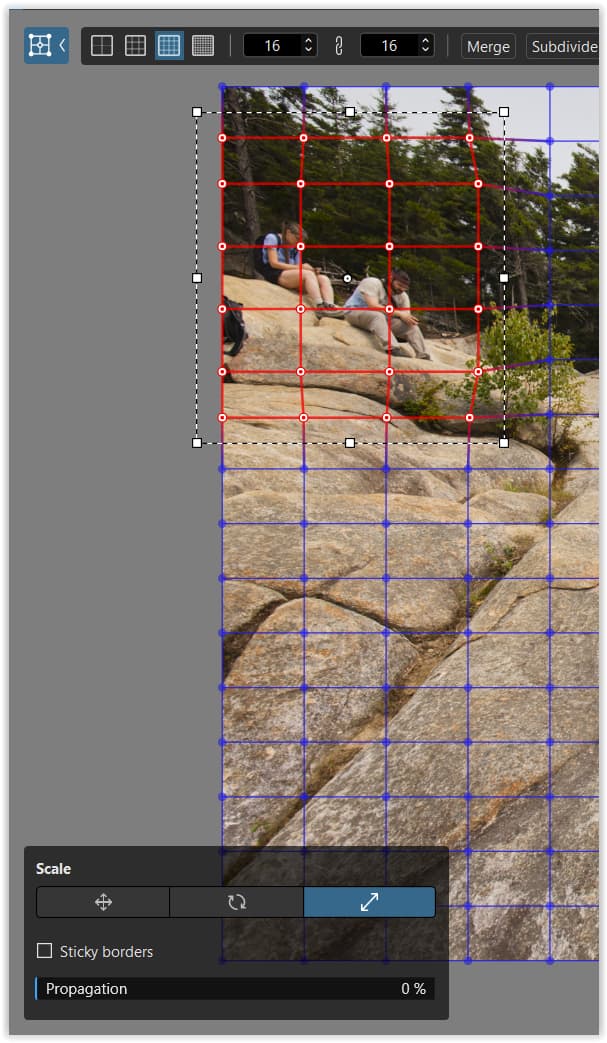
and “carefully” resized the two people, but not by too much.

Strange mine does not crash, simply does nothing. Either way this thing is broken. Thanks for trying the steps.
1 Like
It occurred to me that if fusion was working on my JPEG and not on my RAW maybe another image shaping setting was preventing it. So on the RAW I tried turning off Lens Distortion correction, then doing VP Fusion. And BINGO it worked just fine. So the workaround is actually simple. 1) Turn off Lens Distortion correction 2) Do the fusion modifications and 3) Turn Lens Distortion correction back on. So if you have the same issue here is the solution. Cheers.