These objects are all linked to each other, and the photo shows exactly the moment when the objects meet. When an object is removed, the link is also deleted and the history becomes invisible. This is certainly not so important for car photography, but for historians in the distant future it could be interesting to see that there are leaves and stones on the road in front of the car – so there must have been trees.
No not really. There are rules to follow if you will claim a picture as “Not manipulated / Documentary”. Earlier we used “Not manipulated” but the last years, at least were I´m from many have started to use “Documentary” instead since “Manipulated” is such a negatively “loaded” expression in everyday language. These rules can differ slightly between countries and cultures but has a lot of these conditions - if not all of them - in common:
As you also can see the first two rules/conditions is not to add or remove of elements from a picture. That is NOT allowed.
Proposed Conditions for a Photo to Be Deemed “Unmanipulated / Non-Manipulated”
- No addition of elements
Nothing may be added to the image that was not present in the original scene (no “cloning in” of objects, people, animals, etc.). - No removal of elements
Nothing may be removed that was present in the original scene (no erasure, cloning out objects, “healing” out distractions, etc.). - No relocation or shifting of elements
You may not move objects or subjects within the frame (e.g. shifting a tree, repositioning a figure, or “compositing” parts from different exposures). - Only basic tonal / exposure / color correction (within limits)
Adjustments to exposure, contrast, brightness, white balance, and color correction may be acceptable if they do not alter the factual content or misrepresent the scene. (This is often considered “development / correction,” not manipulation.) - No selective manipulation of parts of the image beyond correction
For example, dodging or burning (selectively lightening or darkening local areas) may be acceptable in moderation—provided it doesn’t mislead the viewer about the scene’s reality. - No digital compositing / layering of images
You may not combine separate images, layers, or exposures into a single final image in a way that changes reality (e.g., HDR merging taken at different times if that changes the actual lighting, or combining two skies from different shots). - No distortions to misrepresent geometry
Artificial warping, geometrical distortion, or manipulations that misrepresent perspective or proportions are not allowed. - No content-altering filters or effects
Artistic filters, lens flares, textures, or effects (unless present in camera) that change the appearance beyond truthful representation are disallowed if they alter content interpretation. - Transparency / disclosure (if any manipulation occurs)
If any departure from the “unmanipulated” standard is made (beyond simple corrections), it should be disclosed. A graphic or statement “this image has been manipulated” is required in such cases. - Original metadata / EXIF should remain intact (where feasible)
The original capture metadata (like exposure, timestamp, camera, lens) should not be stripped or altered in ways that obscure the origin of the file. - No misleading cropping / selective framing to change context
Cropping is often acceptable (it doesn’t add or remove scene content, only frame it), provided it doesn’t deliberately change the interpretation of the scene (e.g. removing context that changes meaning). - Consistency with reality
The final image should be consistent with what an observer could have seen at the time, under the lighting and spatial conditions present.
6 Likes
That doesn’t contradict what I wrote. In that respect, we don’t disagree.
But now we’re getting a little off-topic 
2 Likes
This is interesting. In connection of no. 7, PL offers perspective correction (for example of a moderate wide angle). Would that be allowable?
Probably not This is interesting for real. First we have the reality I see - then I take a picture say with my Sony 10-18mm lens that really can distort and screw up the geometry of a picture of say architecture badly with just the slightest tilt - and then we try to correct that screwd up geometry with our tools in Photolab. At least both paragraph 7 and 12 will cause me problems here.
A list like that assumes that the camera sees what we see too - and it for sure doesn’t all the time - if that had been the case there would not have been a need for restitution tools in Photolab.
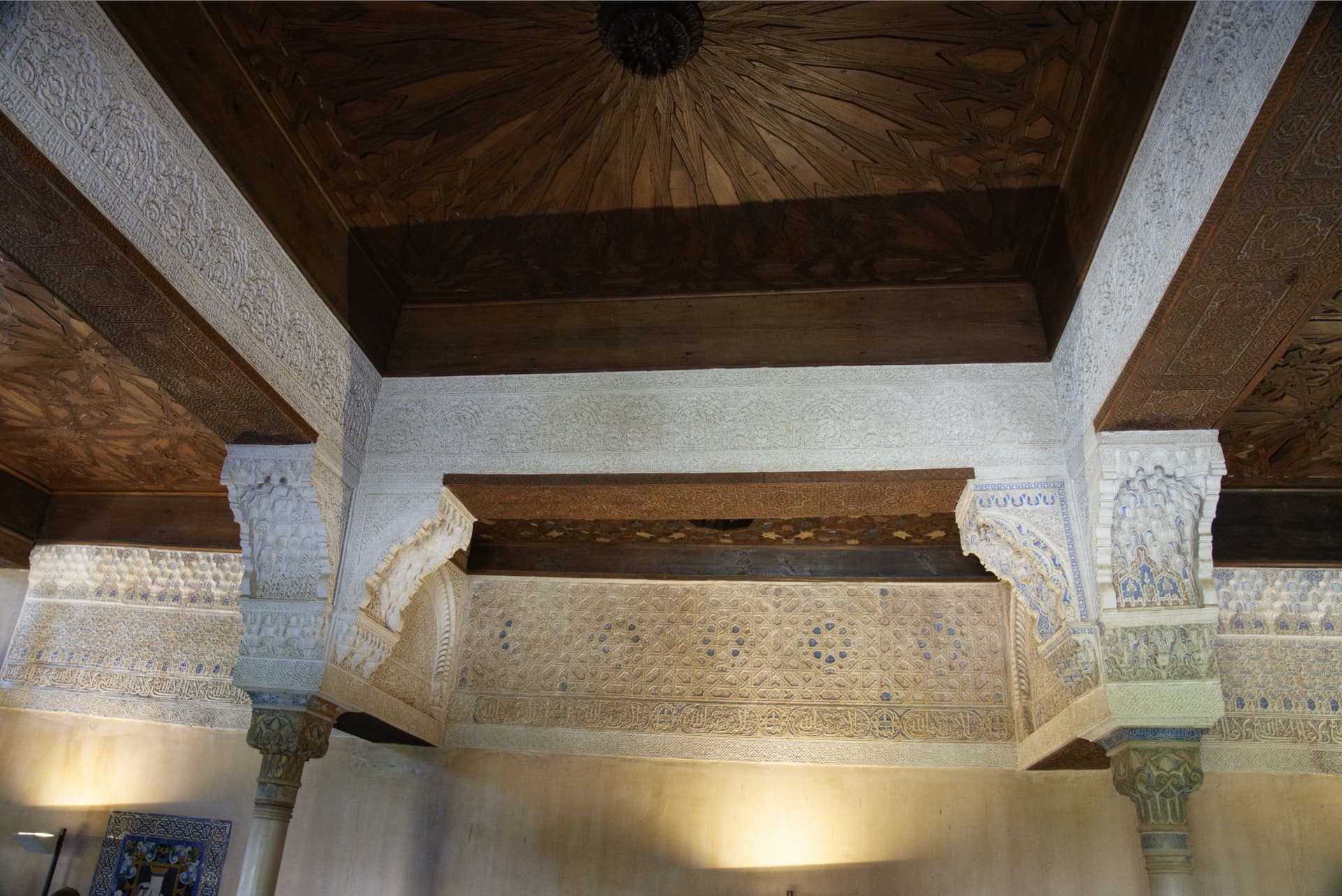
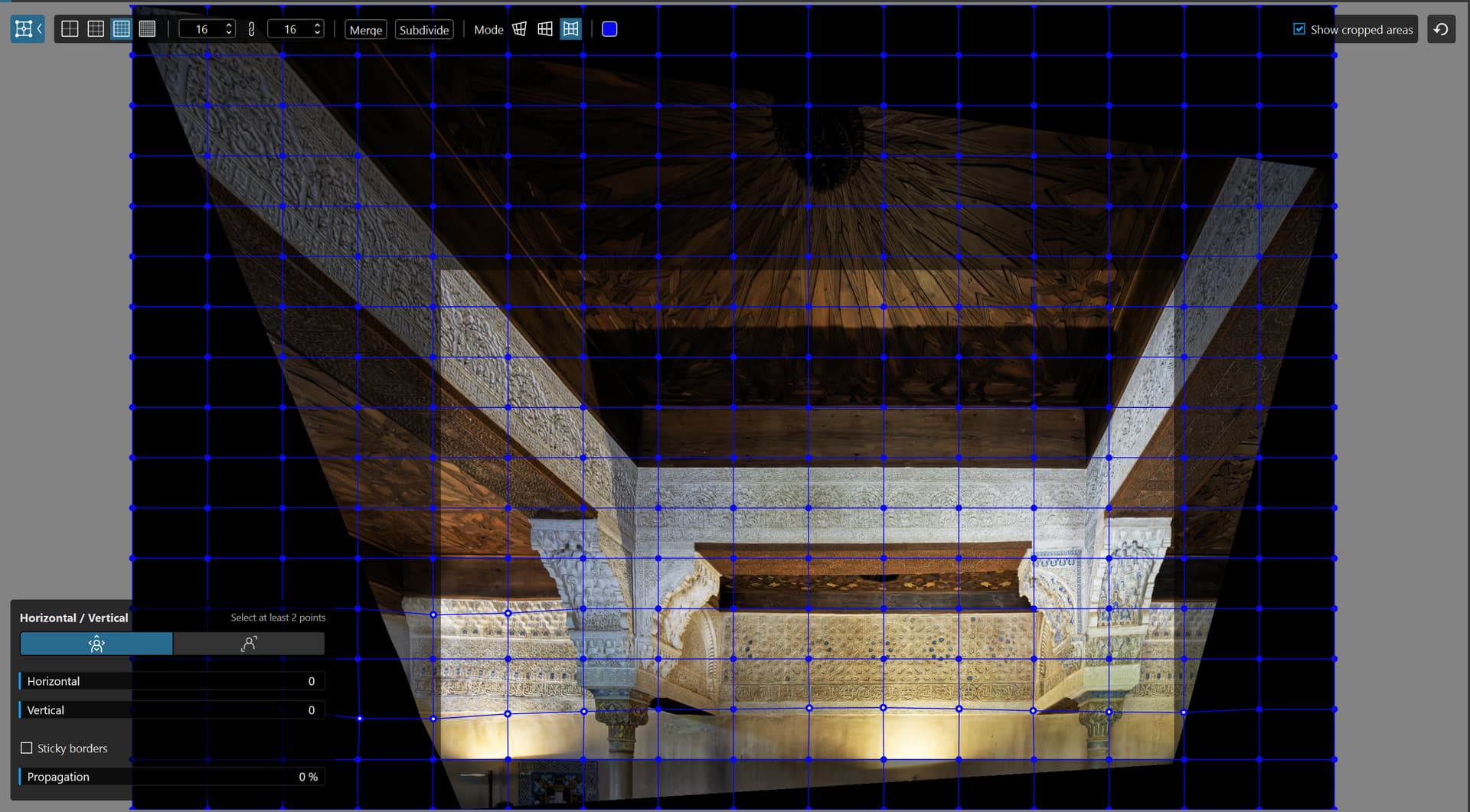
I took some pictures inside Al Hambra with 24mm last year that got very distorted which forced me to really use all the tools there is in Photolab to restore these pictures to something more in synch with reality. It worked but took quire some time and efforts.
I rarely use this Reshape Fusion Tool in Photolab and I saw some time ago a text where somebody wondered what is was good for but when you really need it, it is just
fantastically useful.
This was NOT what I saw but the camera did see:
Reshaped with the Rshape Fusion Tool:
Cropped and ready made
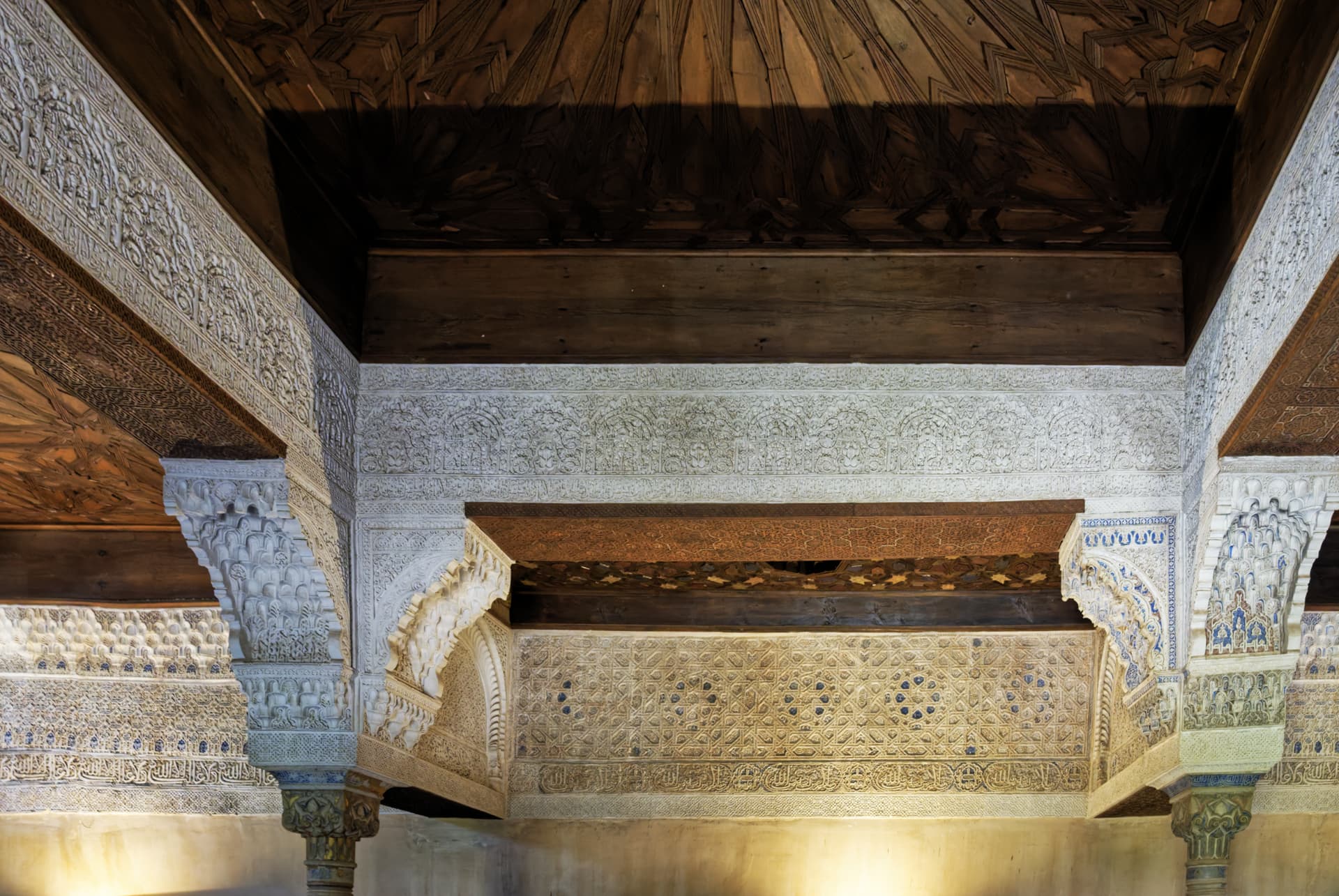
When I look at a series of pictures like these I think that the list above is pretty problematic even if I have nothing better to say or add to taht text myself.
1 Like
Hi. I’ve got a win 11, Ryzen 9, 64gb ram, rtx2070 8gb gpu and experiencing similar problems as others.
Did your upgrade to rtx5060 16gb work for you?
If so I will take the plunge.
Cheers
Andrew
I’ve got the 5060ti 16GB and combined with 64GB ram it has been flawless. No crashes, no failed exports, smooth performance. Very happy.
2 Likes
Brilliant! Personally I think DxO need to be more realistic in terms of minimum specs. With the introduction of AI masks I think they will always be pushing an 8GB boundary whatever tweeks they make to the software. Their AI sky mask has a lot to be desired, so my guess is that demands on VRAM will only get worse.
I’m going to take the hit and buy an RTX 5060 ti 16GB at £400. Obviously not a planned purchase but my old 2070 has served me well.
Many thanks for your input on the forum.
Cheers
Andrew
Yeah, “minimum specs” are always tricky. When I see that phrase I always read it as “it will technically work but you’ll probably be miserable”. “Recommended specs” should provide a pleasant experience but still not be as good as it could possibly be. I think their 6GB min spec is way off. 8GB is the min in my mind.
The key thing here is that without sufficient RAM things simply don’t work. But with slower GPU processing, it works, it just takes a few seconds longer. That’s why the 5060ti was the ideal config for me. Double the “recommended” RAM so plenty of headroom without the crazy costs (and power and heat) associated with a true top of the line GPU.
I hope your experience is as successful as mine has been!
I managed to get a Gigabyte GeForce RTX 5060 Ti WINDFORCE OC 16GB GPU this afternoon. Basic testing of AI masking utilised around 8GB of VRAM. Photolab did stop at one point and offered to send debugging data to DxO. I declined cos it could have just been a one-off. Some more complex AI masking utilised about 14GB of VRAM which was a real surprise. Anyway I’m not getting the errors as previously experienced. I’ll keep an eye on VRAM utilisation. If it often requires 14GB I think DxO will be in big trouble as very few people will want to invest in cards with greater than 16GB.
For info I went with the most recent games driver on offer.
If I encounter further issues I’ll post info on the forum.
Cheers
Andrew
2 Likes
Just one thought:
Shouldn´t the “Cache”-setting where say 50% or more than my VRAM take care of the excessive need of memory - with a price of a slower performance? I expect the system NOT to crash when the “physical” level of VRAM is exceeded. It it do crash I would expect that to be a bug.
1 Like
take care of the excessive need of memory - with a price of a slower performance? I expect the system NOT to crash when the “physical” level of VRAM is exceeded.
That’d be my guess too. A hard crash/error shouldn’t be happening, instead we should be seeing reduced performance and a message advising us that physical VRAM is exceeded.
I also agree with @AWhale that if 16GB is the new safe minimum for GPU VRAM when using DxO then it’s a concern for DxO and their users. That is a high minimum requirement. By contrast, Adobe LR has a minimum posted need for 2GB VRAM or 8GB dedicated VRAM / 16GB shared memory for full AI, denoising etc. removal. Capture One also recommends 8GB VRAM.
I just can’t understand why DxO aren’t more open regarding this problem. They must have a good idea as to root cause and the steps they are taking to mitigate it. Not being open just increases speculation and damages the brand.
1 Like
Indeed. It’s great to see nVidia has taken steps to correct driver issues at their end (although I have to wonder if there’s a little chicken/egg there, as other AI-masking applications worked fine), but nothing was said (to us) by DxO, we were left to fault find, beta test, and suffer a fault product.
Hard to pat them on the back for that, or for unusually high system requirements (vs. competition) and reduced performance (vs. competition).
I’ve just done some more testing using my new GeForce RTX5060ti 16GB…
Taking a fairly simple photo…
Export with STD denoising - 4GB VRAM used
Export with DeepPRIME - 5GB VRAM used
Export with DeepPRIME XD/XD2s - 6GB VRAM used
Add Sky AI mask - 8GB VRAM used (just to display the mask)
Export with STD denoising - 12GB VRAM used
Export with DeepPRIME - 12GB VRAM used
Export with DeepPRIME XD/XD2s - 12GB VRAM used
Delete all masks…
Export with STD denoising - 12GB VRAM used (previously 4GB with no masks)
Export with DeepPRIME XD/XD2s - 12GB VRAM used (previously 6GB with no masks)
Delete all masks and add random AI masks…
Export with DeepPRIME XD/XD2s - 14GB VRAM used
Close Photolab, open Photolab - retain all masks
Repeat Export with DeepPRIME XD/XD2s - 13.5GB VRAM used
So it is clear to me that VRAM is not being released even when simple edits are applied later in the editing session.
I managed to utilise 14GB VRAM, but I didn’t manage to blow the 16GB available (I did try to blow it).
No wonder my RTX2070ti 8GB couldn’t cope.
I hope the above info is of interest to others.
4 Likes
Ran some tests 4 virtual copies of flowers both PC with RTX 4070 12Gb and laptop with RTX 4050, 6 GB. Both had AI flowers select the flowers did miner adjustment and exported. The PC exported nearly as fast as usual the laptop a total failure. Even doing a sleep couldn’t lose the error. After a reboot manual selecting with AI the flowers and the same miner change they exported a little slowly but it worked. Clearly, if of use, AI has a vast difference between manual and the auto selections.
I have an data point that might be something but I can’t confirm at the moment. It relates to Virtual Memory Page File size.
I had an AMD 6700xt which worked great with PL 8 but with PL9, resulted in frequent “Internal Execution Error” message even though it was AMD not Nvidia. Often a reboot was required to reset everything.
Unfortunately, soon after the AMD stopped working (not related to crash) and had to temporarily use a very old GPU. Now I have a 5070ti with 16GB. I fired up a couple of games just to try it out and one crashed repeatedly as soon as it started to render the game itself. It had also given some problems with AMD. A reboot was sometimes required to return to stability.
Turns out, my page file was set to manual 2GB even though I have 32GB of RAM and changing it to be 24GB minimum completely removed the crash.
Is it possible that some PCs with the PL9 issue have too low page files?
To check, in the windows search type “View Advanced system settings”, open the dialog, click on the “Advanced” tab then in the “Performance” panel, click on settings. On the Advanced tab, click on “Change” in the “Virtual Memory” panel.
I was sceptical as it doesn’t make sense to my understanding of virtual memory, but it worked.
I can’t test in DXO yet as I waiting for better news on drivers/bug fixes before upgrading, demo has expired and support is giving ambiguous messages about being able to extend it.
On Win11 better stay at defaults for pagefile. “Good advices” carried over from ancient Windows may actually bring harm on Win11. See this:
How to Prevent DxO PhotoLab from Crashing During Intensive Processing Tasks – Help center
Maybe some PL8.x versions suffered from heavy virtual memory leaks, just guessing. I have 32GB RAM and sometimes virtual memory reservation went over 50GB.
The main problem with AI masks is related to VRAM, Video RAM located on the graphic card, so it’s a different story. Btw, VRAM allocation is adaptive, so much of the discussion above doesn’t make sense, imho.
On Win11 better stay at defaults for pagefile.
Absolutely, but if people have upgraded to win11 in place instead of doing a reinstall then this setting may still be set to manual.
Also, just changing it to automatic didn’t actually result in a change in page-file size. I had to manually set it bigger. Again, doesn’t make sense, memory wasn’t full, but it does seem like it was at least potentially GPU related.
Just flagging it in case it may help…
I’ve just done some more testing using my new GeForce RTX5060ti 16GB…
Taking a fairly simple photo…
Export with STD denoising - 4GB VRAM used
Export with DeepPRIME - 5GB VRAM used
Export with DeepPRIME XD/XD2s - 6GB VRAM used
…
Export with DeepPRIME XD/XD2s - 14GB VRAM used
I like to mention a few thing.
Export sessions count may important, i suggest to try with ‘maximum number of simultaneously process’ with 1 (one) to get more precise VRAM usage.
May also good idea to quit from PL before each test.
For 1 (one) photo export, no AI mask, DP3 (my measurements)
- DxO.Photolab.exe → its the main client application: 0.7 GB (usually between 0.5-1.4GB)
- DxO.PhotoLab.ProcessingCore.exe → Its does the Export processing: 1.3 GB
- Overall - DxO Client + DxO Processing (export) is approx 2.0 GB
Note: Export process VRAM usage stay in VRAM for 2 hour (of course if you quit from PL, its free up).
AI masking (manual, not keyword like ‘Sky’) may takes up approx 2-2.5-3GB VRAM.
Usually DxO Client + AI mask model takes around 3++GB VRAM (but less than 4GB)
I don’t know how AI Keyword mask (Sky) takes up VRAM (i have only 4GB GPU), seems its definitely has some more than manual AI masking, as i read in this forum, may 6GB VRAM in the edge (however, for some its just works fine), may some cases 8GB also in the edge.
Once you open 1 (one) photo, even with 1 (one) AI mask the AI model loaded up to VRAM, and stay there. So, if you has two photos, one with some AI mask, one with no AI mask, if you click on AI mask photo, AI Model loaded and stay there. I suggest to take account this also in measurements.
So, approx (at least in my measurement, win11):
- if you work on 1 (one) photo
- High quality preview and DP rendering turned off
- and OpenCL enabled
- and the export process paralel set to: 1 (one)
- and you use manual AI mask(s)
- and export with DP3
- its takes approx 5-6GB VRAM.
So it is clear to me that VRAM is not being released even when simple edits are applied later in the editing session.
Basically yes. May you can do some trick to lower VRAM usage, like the ‘put to sleep’ (under windows, may not works out for everyone) or kill the DxO.PhotoLab.ProcessingCore.exe export process(es) (not afraid, its restart automatically, but with minimum VRAM usage)
Please take also note the other applications also ‘eat up’ some VRAM. For example Opera web browser (if HW acceleration enabled) and some Youtube video played, sometime use approx 0.4GB VRAM, etc.
Also PL client itself VRAM usage can vary - if its in the foreground, may use 0.7-1.3 GB VRAM, if you put down to the task bar, after a little time its goes down to like 0.3-0.5GB VRAM. At least as i measure.
I hope its add a bit of additional info.
I not check the last like week posts/comments on that, may some nice measurements also come up in the meantime (in other forum threads)