PL 10 - initial thoughts on the new "Whites" slider

The PL 10 trial installed without incident and, so far, is running properly - just a little slow on my system. PL 9.7.0 is also on this computer as is Win 11 Home 25H2

  • 32gb, i5-10400F CPU, GTX1660 Super 6GB, Driver 511.09 - OpenCL is enabled

I have never updated the driver. I don’t usually update drivers as I learnt many years that updating drivers usually causes more headaches than it is worth.

See my posts here:

I tried out the new “Whites” slider and the auto “People” mask on new photos and I also reprocessed many previous photos that have lots of masks. All were exported without issue.

The “People” mask worked well and I was able to select one or several people in the image.

The new “Whites” tool, however, leaves a lot to be desired. After years of asking DXO for this slider, it is finally here. The problem is that in addition to adjusting the White level, it also adjusts the entire band as can be seen in the Histogram and the photo.

This makes it not too good for clipping recovery as, depending on the amount of correction required, it can darken the rest of the image.

In a previous discussion on clipping, I presented my method of using the Tone Curve.

I took an image with slight clipping. A “Whites” value of -5 was required. I created a VC, reset the -5 to 0 and applied my custom Tone curve of Hi -5. The results were very close.

However, on another image where “Whites” -26 was required to remove all clipping, my preset of Hi -5 did the same job and produced an overall brighter image without having to increase Midtones to compensate.

So, for me, the new “Whites” slider has very limited use as the existing Highlights slider covers most of the same (non clipping) range.

Allan
I don’t have that same experience, Allan … I’m finding that the new Whites slider is enabling recovery of blown highlights that were impossible to satisfactorily correct with the Highlights slider alone.

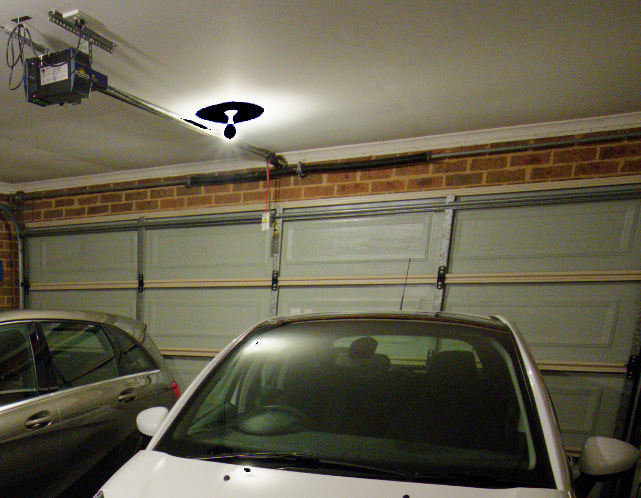
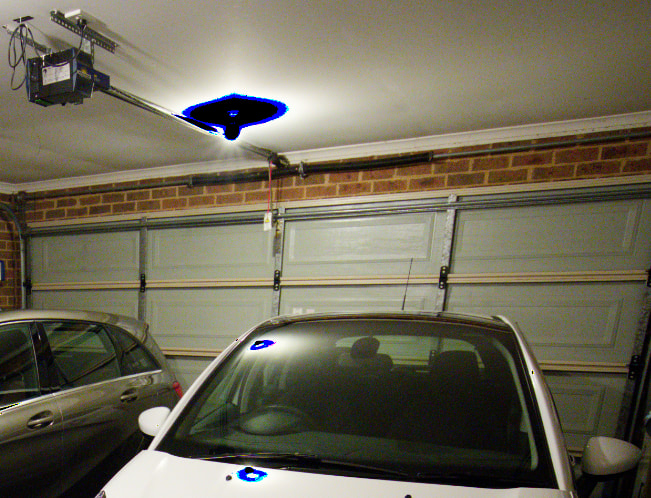
Here’s my test image (taken inside my garage, with overhead light on) … with Highlights-Clipping toggled ON, to show blown highlights;

Now with Highlights = -50 … there’s still clipping, plus unwanted impact on other areas of the image

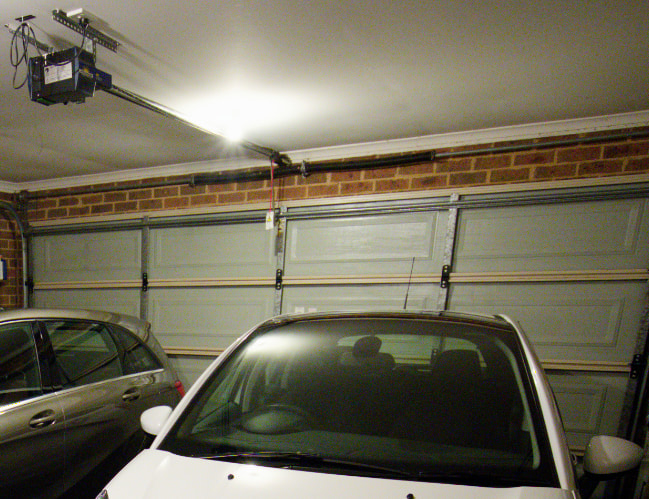
Finally, with Highlights re-set to zero and Whites = -10

I reckon that’s a pretty good result …

However, there IS a mystery related to the new Whites slider in PLv10;

Background … Consider this; I open an image using PLv09 …

  • I set Highlights slider to -50 using PLv09 - and export to disk
  • I open same {image + sidecar} using PLv10 - and export to disk
  • The resulting file sizes are very slightly different (related, I suspect, to revised NR algorithm) … but, they look exactly the same.

This is a good result - providing forward compatibility between PLv10 and settings applied to an image (for Selective Tone) by an earlier version of PL … However;

  • If PLv09 construed Highlights as a range covering the complete RHS of the histogram

  • BUT, PLv10 now construes Highlights as being only part of that range - with Whites now covering the far RHS of the histogram …

  • Then, how is it that setting in PLv09 for Highlights = -50 has the same result in PLv10 with Highlights = -50 AND Whites = 0

I reckon there must be some compensating logic within PLv10 going on “beneath the covers” - Such as, say;

  • If Whites = 0 then apply the PLv09 logic … using the Highlights setting.

  • Otherwise, apply new PLv10 logic … with separate consideration for Whites & Highlights.

I like the way the white sliders works in photolab and I prefer it this way. It’s so easy to tweak the extremes in the curve tool for clipping recovery that this does not need other tool. And this new white slider is very usefull.

I am not saying that the “Whites” slider is not working for clipping, rather that it may be having an effect on the other tone ranges depending on the value applied.

For a smallish value of, say -5, there is not much of a change. However, if you use larger values of -20 or more, then the remaining tones are darker. You may then have to adjust “Midrange” for example.

In my example, when I compared the clipping effect of “Whites” -26 (required to remove all clipping in my sample photo), my preset of Hi -5 did the same job and produced an overall brighter image without having to increase Midtones to compensate.

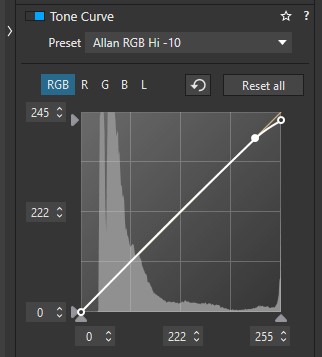
This is my preset that I am talking about. Shown is the -10 preset, but I also have one for -5 and it is this one that I am comparing the “Whites” with.

For other functions of a “Whites” slider, it is working OK. I just don’t think I will use it for clipping removal.

I’ve also observed other tones getting darker when I adjust the Whites slider (same thing happens with the Blacks slider incidentally) BUT I have found it useful in tackling harsh blown-out highlights FWIW.

What I’m not clear on is which gives us a more pleasing look: adjusting the Whites slider or setting up a Tone Curve as you have in your latest reply:

Presumably because of the control dot you’ve placed on that curve, stopping other tones from adjusting themselves, the effect could be more “crunchy” than the Whites slider and its knock on effect on other sliders?

That said I’m not sure which outcome is ultimately more pleasing aesthetically. I’m not so good at the maths of it, but ultimately it’s whatever produces a better image (or does so more quickly/simply)?

With a couple of photos, I created VCs where one was “Whites” -5 and the other was my Hi-5 preset. There is a subtle difference. Which is better ?? I guess it would really depend on the subject. However, The technique that I describe is not mine and it has been around for a very long time. I have used it since my Lightroom days.

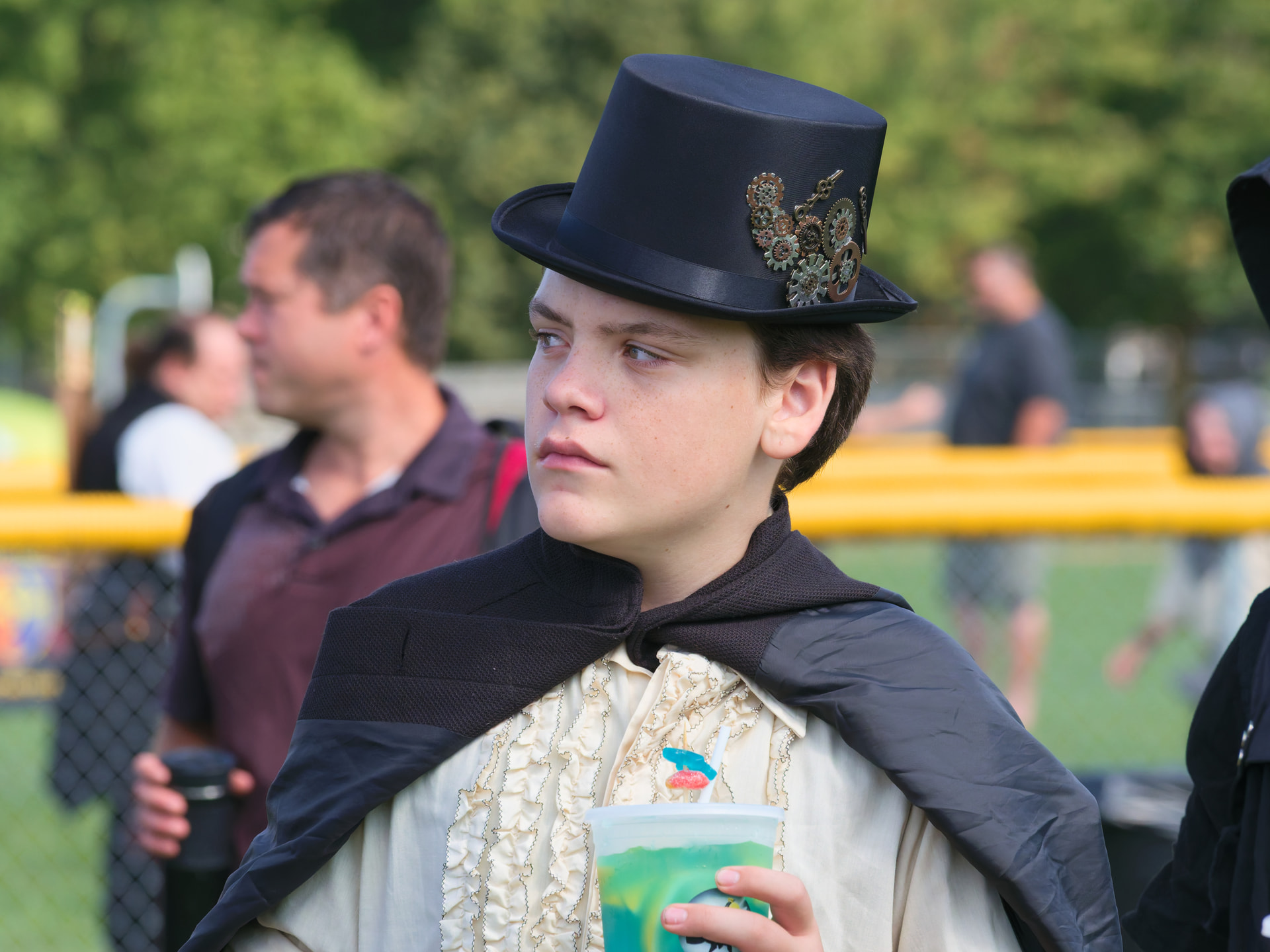
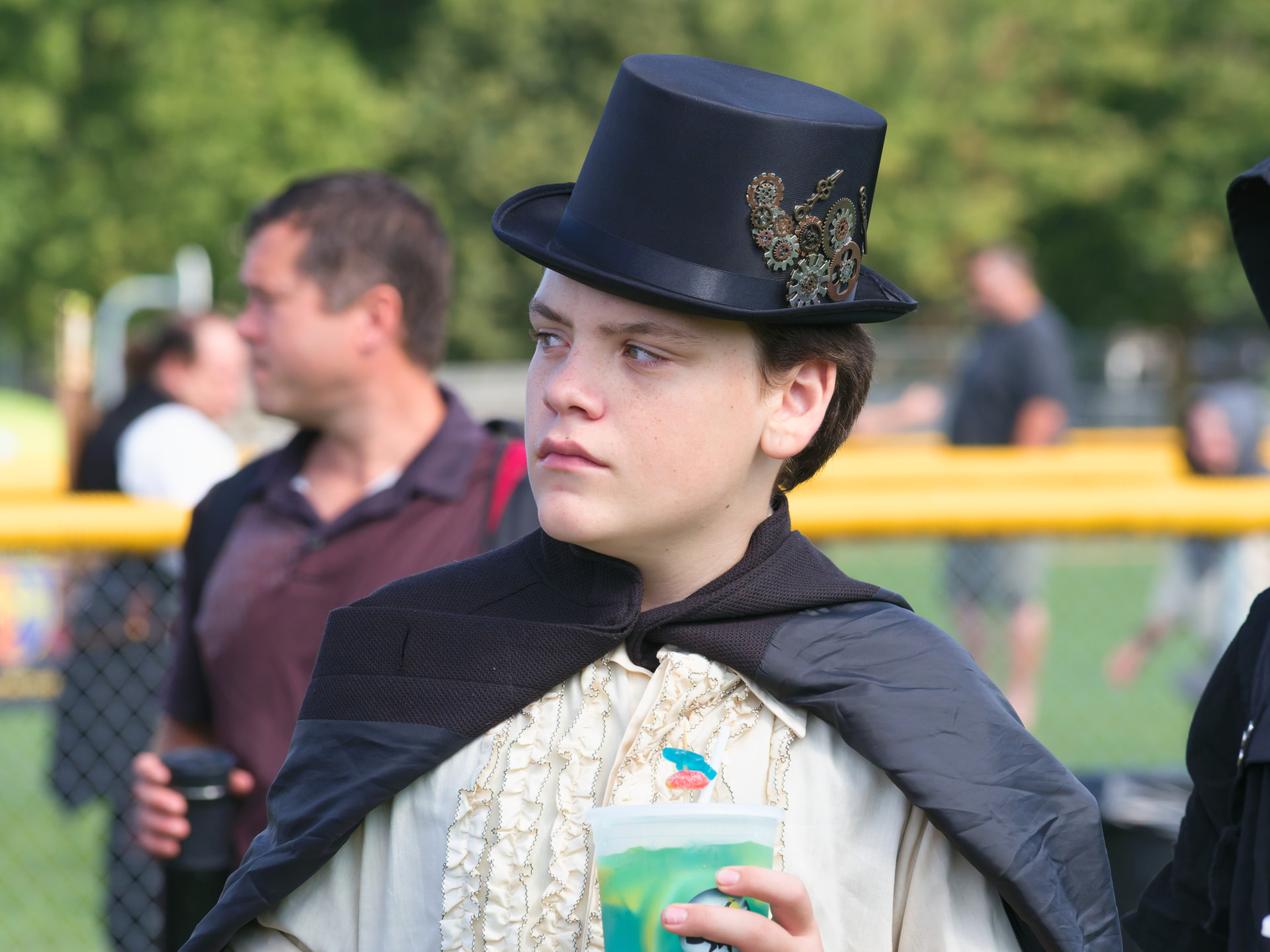
Here is a pair. The first one is “Whites” -26 that still has very slight clipping left on the yellow railing. The second one is with my Hi -5 preset, no clipping. I think that the first one would need a further adjustment of either “Highlights” or “Midrange” to match the second one. (Personal preference aside, that is, the first one is darker but still has clipping.)

What do you think?

@Allan (and all)

The “Whites” slider is available under “Selective Tone Correction”:

  • as a global setting for the white point
  • and as a setting for a local correction of the white point *)

*) reduce the opacity … to create a seamless transition

Yes, but how does this change what I have observed and shown in my examples?

The “Whites” slider adjusts the white point globally for the entire image.

Combined with a local selection, however, only the corresponding areas are adjusted, while the overall brightness remains (more or less) unchanged.

Overexposed areas cannot be salvaged. No attempt can restore the lost details.

Yes, as it should and, as you noted, it is also available in Local Adjustments.

This is a lot more work compared to the method I presented and may not produce any better results but it is an option if required.

It depends on which channels and how many are over exposed and to what extent. If all channels are over exposed, then there is nothing left. If one or more channels are not over exposed, then some information may be recoverable. It depends on the photo and where and what in the photo.

Have a look at a previous thread on this topic where recovering to 255 or just below can be desirable even if it is just a shade of grey.

However, none of this addresses my observations regarding the “Whites” slider behaviour in regards to reducing clipping.

Hi Allan, no argument with you.

The tone curve is far more flexible than the Whites slider. The latter is great for quickly setting the white point, but less so for recovering overexposed areas (dimming with a shade of grey …).

Yes, exactly

cheers

Allan