Most of my images aren't worth a 15-minute loading time

,

That is why you ought to follow “best practise” and avoid really big folders with more than 1000 pictures (and especially not RAW-pictures) and rather use an external DAM or a File Viewer like XnView that prepare the previews of a smaller size in advance - it normally does that just once and not everytime it opens the same folder like Photolab has a habit to do.

I don´t always do that myself since I rarely have that many pictures in my picture folders. Today I it took about 10 seconds to open a folder with 500 Sony ARW raw-files and I have no problem with that.

Normally I never use the method of selecting the premade AI-presets in the list either since it - at least in my computer - takes about five times longer to handle per picture when exporting and probably takes the same kind of extra time and resources when opening a folder, than when I use the other method of just pointing and clicking “on freehand” to create the masks.

As I see it I see only one reason to use the other method with premade presets and that is IF and just IF you want to copy your AI-masks from one picture and paste them to a selection of other files (works just with the premade ones in the drop down list of some reason). Only with that method AI will apply the masks correctly on the destination files.

I have worked a lot with my animal pictures the last days and it works really well and efficient. I have no problems at all to export either. I don´t think you either need to have these problems if you adapt to the conditions we live under for the moment.

I use 2-3 masks per picture normally and do what most people do I guess,
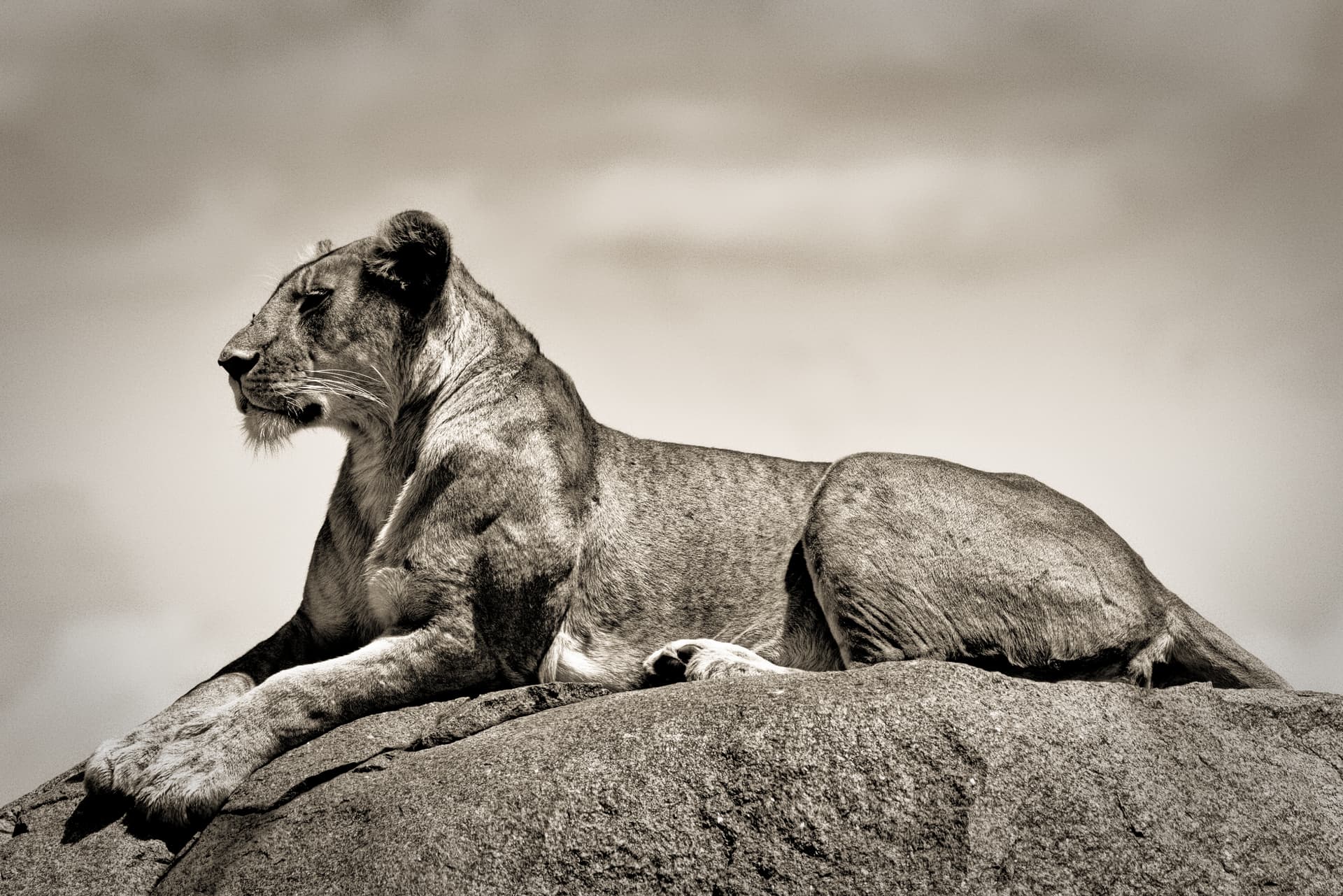
This was made with three masks, one for the animal, one for the sky and one for the rock.
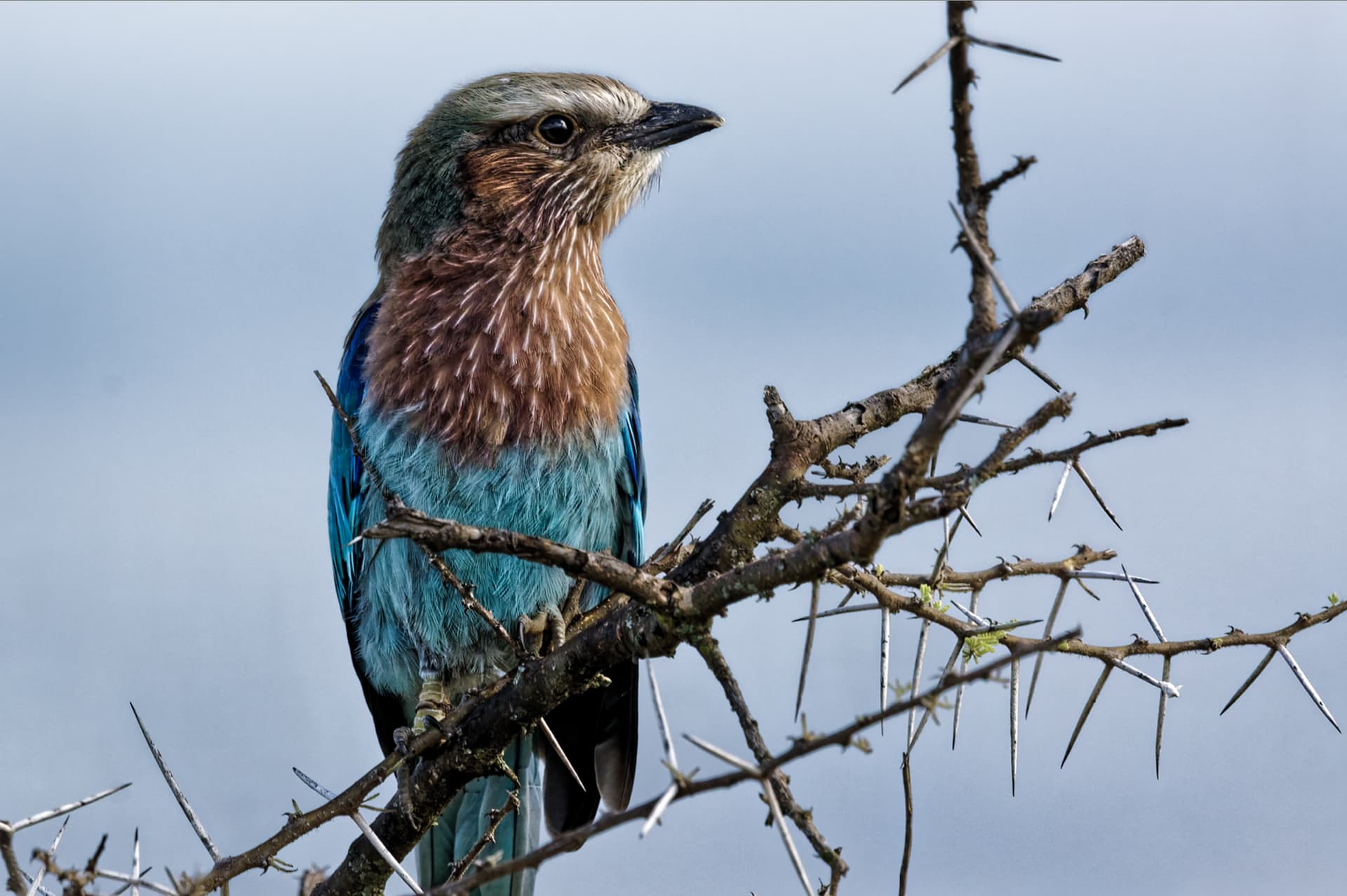
The other with one mask for the bird and one Control Line
3 Likes

One thing I would say is: I hate that I have to limit or change how I use masks because of the performance impact it’ll have.

I don´t because the other method is much faster and generic. But that choice is yours. Then you have decided to live in that chaos you seems to have no matter what and then there is not all that much we can help you with here really.

Photolab is not like Capture One or Lightroom that both have import-functions that preprocess the previews in order to increase speed and protect you from the problems you seem to have. Photolab will always start to render the previews automatically as soon as you open a new folder and it will always render new previews of the pictures that happens to be on the folder you last used with Photolab too regardless of if you are intrested in them or not. Nothing to do about that for now - it is by design for good and bad.

If one can´t live with that or are prepared to use external tool to handle that problem than Lightroom might be a far better choice after all.

1 Like

I prefer not to be so resigned to apathy. Change might take time, but I’m hopeful that consistent feedback that a product needs change to improve might not fall on deaf ears.

If your editing process falls neatly within the best that (this application) can do then that’s great for you. Unfortunately that’s an awful look where users of Lightroom or Capture One don’t have to make that call so much.

Wanting a photo editing product that works efficiently and is up to the demands of modern users is not a lot to ask, in fact, DxO needs to catch up.

Click on the expand, and you will see. If just folder clicked, its do just the standard things.

I think there’re more subjects in this thread. @SchorschGaggo and me are talking of opening PL from an external program with 1 or more selected images. No indexing or things like that. Just the simple fact that PL opens with a selected image.

George

There are plenty examples of how to do that. That isn´t really a problem.

Read the first post.

George

@Fineus, I still think you have a point and I have also had some thoughts about that.

There is one thing I don’t understand and that is why Photolab always is starting to render new previews as soon as we open Photolab. What is really the point with that? It opens the same pictures that you left the last time you closed down Photolab. Why not just use the ones already in that preview-cache until the user starts to update a picture and then it is only necessary to refresh the previews of that picture ore group of pictues that has been updated.

It must be good enough to skip that initial scan. Already today I can scroll over my open folders pictures without the system starts to refresh all previews of those pictures - in fact it just refreshes the picture you stop at to start the editing.

In fact, we already have possibilities to import both metadata from the files and refresh data from the .DOP-files. So why not a command for initiating a forced refresh of previews for example if we know that we have added pictures to a folder? Then @SchorschGaggo and you would not have these problems. I suggest you write a Feature Request to DXO. Even their R&D might think that is a good idea.

This is a typical example of a problem that falls under the cathegory of “optimizing” or “polishing” of suboptimal workflows. For example Capture One has worked a lot with issues like that during the last years and DXO will have to do the same. The really big job is already done but we still need some fine tuning in order to get a Photolab that really delivers.

1 Like

Because the followings (at least in may opinion) this ‘full preview in progress’ happen:

  • The ‘preview cache folder’ jpg file is not 1:1.
  • DxO provide full quality (and not just some jpg quality, think about users start to complain about that)
  • And i think because few things cant be done without this (see later in the ‘Compare button’ section)

In my opinion (and based on my check), seems the ‘preview cache folder’ jpg does only one (1) thing: PL display this until its read up the RAW file (RAW image part) and create the full 1:1 preview ‘in-memory’. I think this its ‘preview cache folder’ jpg only for ‘fill the void’ - avoid ‘empty image on the screen’ until PL render the photo to 1:1 (in-memory). Created ‘preview cache’ folder jpg’s size around: 1366x972 (created from 4:3 .ORF) → so, its definitely not 1:1 preview.

At general (main points) the followings happen (as far as i check) in PL when you open a folder (RAW files). In this example the folder was never opened, no raw touched, edited, no geometry applied, no some preset applied, etc. First photo is opened in large by default (if no filter and similar applied).

  • Scan the folder for files (like raw) - check creation date of the file and similar’s (not the photo, the file)
  • Scan the folder for files (raw) - read up photo (image) metadata (like Exposure settings, lens info, etc).
  • Check for lens info, etc - to check (and may download) DxO modules for lens+body
  • Try to check for .dop files and also for xmp files. (what is not exist in this example)
  • Create to the thumbnail’s jpg to the ‘thumbnail cache folder’ - but only for photos what in the ‘filmstrip’ (so, not for all photos in the folder if you have more than in the ‘filmstrip’)
  • Create preview jpg to ‘preview cache folder’ only for the main/displayed photo
  • Read the embedded jpg from the RAW file - and display it → you can see for a second
  • Read the RAW file ‘RAW image’ content and render 1:1 to the memory (RAM) - Its the ‘full preview in progress’ → that’s what you see in the end.

If you click to another (like next) photo the followings happen (some points similar with the previous points):

  • Re-Write the previous (displayed) image ‘thumbnail cache folder’ jpg. I think its logical and smart (as its already in-memory).
  • Create preview jpg ‘preview cache folder’ for the ‘new’ main/displayed photo.
  • Read the embedded jpg from the RAW file - and display it.
  • Read the RAW file ‘RAW image’ content and render 1:1 to the memory (RAM) - Its the ‘full preview in progress’ → that’s what you see in the end.

Ok, what happen with this example when you close PL, and start again (in main points):

  • Its read up the ‘thumbnail cache folder’ the thumbnail jpg’s (and display in the filmstrip)
  • Its read up for the selected photo the ‘preview cache folder’ related preview jpg and display it - but display only for the small time until the next point is done.
  • Read the RAW file ‘RAW image’ content and render 1:1 to the memory (RAM) - its the ‘full preview in progress’ -When its done, its display this 1:1.

In the cases of .dop, edited photos, things going a bit more complex, but basically the same happen (please see the ‘Compare’ section below, but basically its render 1:1 preview in-memory for 3 (three) instance if you has geometry correction and some local adjustments)

At general if you click on one photo, seems PL always does ‘full preview in progress’. Because its does full quality to memory.

I think this ‘full preview in progress’ happen also due the following reason:

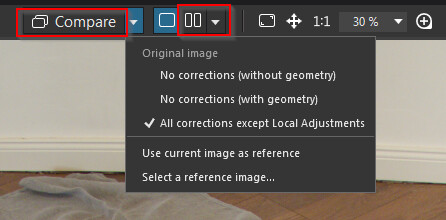
Yep, the ‘Compare’ features
I think PL create multiple version of 1:1 - in-memory

  1. No correction wo geometry
  2. No corrections
  3. Except Local adjustments
  4. And of course for compare with another (reference) photo - in this case the reference photo also in-memory.

That’s why is so fast when you click on ‘Compare’

Note: i not check jpg , tiff or similar source photos - only for raw, but it think its some similar

It must be good enough to skip that initial scan. Already today I can scroll over my open folders pictures without the system starts to refresh all previews of those pictures - in fact it just refreshes the picture you stop at to start the editing.

Where you ‘scroll over’? In the ‘filmstrip’?

I have fixed 200 animal pictures today and exported them. Almost all of them with 1-3 masks. It took 1205 seconds to export all of them in one batch, which gives almost exactly 6 seconds per picture including exporting with Deep Prime 3. That is even faster than with Photolab 8 exporting with older Deep Prims XD2s that has an average output of 7 seconds per picture on my system. I´m really surprised how good that is with my three years old Acer with 16 GB RAM and Nvidia RTX 3060 Ti with 8 GB VRAM.

Note! That is of course with not using the premade AI-presets in the list. I also think the freehand masking works with surprisingly good precision for animals and it is really instant compared to the premade AI-presets. I can´t honestly see any general differences in quality between a mask created by using the premade AI-preset for animal or by selecting the same animal manually on free hand.

So, I don´t think I have all that much to complain about right now. It is surprisingly efficient and I haven´t seen one single crash using these methods for masking and exporting these days after the new Nvidia-driver was installed. Photolab also opens my present work-folder with 450 pictures in 8-10 seconds (with High Res. and Deep Prime rendering on) - even that is no problem for me.

So, what I can see it seems it is “only” the premade AI-presets and masks created with them that is the root of the problems I have seen with my system. With the other masking method there are no problems really for me.

I agree with your analysis, my question is this; Why should the AI mask processing take longer ?

Once AI has determined the mask it should not be handled differently from any other mask therefore processing time should be the same. Or am I missing something ?

I sometimes wish that folks would not mention that.

It’s only a matter of time before LR import to catalog becomes disabled without a sub.

1 Like

The impact on the system of a single mask might differ because we “fill” that single mask with a lot of different adjustments. In Photolab we for instance can apply both Deep Prime and Lens Correction selectively and both rely on AI.

As I have written the use of the AI-presets put a much heavier load on the system than the other method does and used on a single picture it is much more efficient to use the latter than the first. Using the manual selection method is much faster in many ways - to apply, to export, to print and to scroll.

1 Like

I agree with what you said here>

There is one thing I don’t understand and that is why Photolab always is starting to render new previews as soon as we open Photolab.

Not only that but, for me, PhotoLab will render a preview - taking time - when:

  1. I make a change to Photo #1
  2. I click off Photo #1 and on to Photo #2
  3. I click BACK on to Photo #1, without having made any changes in step 2 above.

That’s time taken to make previews at every step, even though the only time I made change to either photo was step 1, and the only photo I made a change to was Photo #1.

It’s inexplicably excessive, and slows things down considerably.

Back to what you said about AI masking here:

As I have written the use of the AI-presets put a much heavier load on the system than the other method does and used on a single picture it is much more efficient to use the latter than the first.

I have to agree with LVS that it shouldn’t be that way once the mask is initially calculated. I appreciate it might be slow to do that - annoying but it’s the first time it’s running it.

Having run it… why is it needing to think so much more? It feels as though it’s calculating it again for the first time, every time, and not saving what it’s calculated.

I don’t know what computational method PhotoLab uses to store its mask information per image, but it must keep track of which pixels (per image) are impacted by (a mask, or many masks). If it can do that for gradient masks and Control Points and Auto-Brush that it’s already calculated then… why not AI masks?

Unfortunately at this point for many users this is another reason AI masks are not ready for release, nor realistically usable. They cripple a smooth workflow, when they work at all.

As you rightly say, we can not use them but… aren’t they the big highlight of what PhotoLab 9 is worth spending money on?

I’m starting to feel that early adopters of PL9 should be getting some kind of extra discount towards PL10, on the basis maybe PL10 will significantly improve all this. Although… I hope we don’t have to live with it for a whole year…!

1 Like

As has been said before, it would be appreciated if DxO communicated their plans. Their silence is deafening and only serves to drive users away. Admitting there are issues and how they are to be dealt with is a positive thing - but perhaps not for DxO if those issues are expected behaviour. This is not cheap software - premium prices should be coupled with premium support.

1 Like

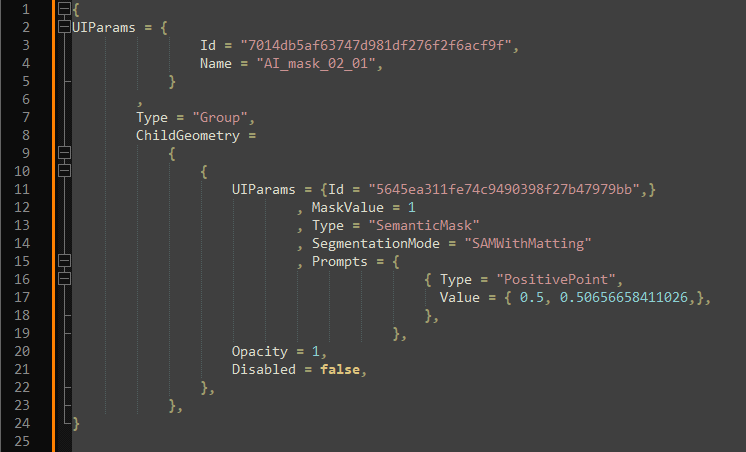
PL in the .dop not use pixel level information, everything just metadata, like: U point in this position, this radius, that luma, etc.
Please see one of my older comment ( i copy below):

In the DOP for AI masks only the mask general description, not the full mask pixel level. And as i see, for all mask is a similar manner.
Example: AI_MASK_02_01 described in DOP file (not my best formating, but i think its visible enough):

So, its in the DOP its don’t has pixel level info.
Its save the AI mask basics (like enabled or not, etc.) AI Prompt, etc.

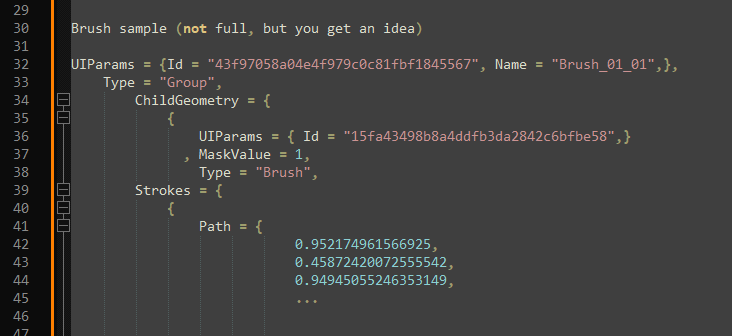
Example for Brush, works in similar manner:

So, its seems recalculated in export, or at least its recalculated, or some magic happen.

What you suggest, its may works if its flatten all mask to one. However, i’m pretty sure that’s happen (flattening) before export, or at least in the very end of export. But its calculate.

2 Likes

Got you, that’s really interesting thank you!

So I guess it’s safe to assume that the masks are being recalculated with every change? That PhotoLab is being told “there’s an AI mask centred here” but it’s still having to go in and re-run its masking algorithms to make that mask anew?

If so, that would go a long way to explain why everything slows to a crawl when you turn AI masks on…

So I guess it’s safe to assume that the masks are being recalculated with every change? That PhotoLab is being told “there’s an AI mask centred here” but it’s still having to go in and re-run its masking algorithms to make that mask anew?

Yes and Yes.
In a few comment back, i describe how PL works at general (without masks, but i think its not different at all) and why its cant be works other way (at least how PL designed)
Link to my comment: Most of my images aren't worth a 15-minute loading time - #151 by andras.csore

Usually i write like: ‘My opinion’ ‘May’ and so on to be a safe side. But actually i’m pretty sure on things… I do lot of ‘reverse-engineering’ in the past weeks…

I like to note, some other app may we think its use AI in some point, but i’m pretty sure some cases its not real AI. Example: Lr ‘sky’ → i’m pretty sure its use chroma/luma mask, with some very-very fine tuned algorithm (or very-very small very-very fine tuned AI) That’s why in LR ‘sky’ so fast and result is pretty good. PL chroma/luma/control line provide for ‘Sky’ very-very similar than LR ‘Sky’ mask - that’s why it think Lr ‘Sky’ mask not AI.

Pixel level mask storing (like caching to file) can be complex, and may situation (performance) may goes even worse. First, you need to render to file like .tiff (for quality, no jpg artifact):

  • Photo without any correction
  • Photo without geometry correction
  • Photo with generic corrections
  • Photo with local corrections. Or at least full 1:1 alpha channel file. (it’s usually called ‘mask flattening’ - and afaik its one of the ‘most requested’ Lr feature request, Lr also has masking issues afaik)
  • And if you turn on ‘Deeprime rendering’, and set NR to DP XD2s - you need to render all version with that DP XD2s…
  • And if you change anything (!!!) its need to re-render all of it or similar (or at least need to save when you click to another photo, select other folder, etc.)

PL does In-memory for selected photo. But first need to ‘render’ the RAW, the corrections, etc.

Actually i think, PL is very-very-very-very fast on RAW rendering (without corrections, etc). Pretty fast to apply Geometry correction. Very fast on NON AI mask rendering (like Control point, etc.). Very-Very fast on ‘standard’ (HQ) NR. And even fast (on local SDD) (or at least acceptable performance) on file I/O, like list 1000 folder, show 1000 RAW and so on. Export performance is good, as its is based mainly on hardware performance and i think its acceptable performance for the quality its provide.

May cache (store) to In-Memory multiple photos (but of course its takes memory) can be a nice idea. However, its may also raise some problem, like: you still need to render in-memory for first click on photo. But can save some time if you does back and forth between two or few photos. You cant be store like 1000 photo In-Memory (in today realistic memory, most of us has 16GB, 32GB, but 64GB seems very rare (i have 32GB), what can be the memory purging method, etc.

Add-on: i guess PL do some in-memory caching, but i not measure/test it.
I guess its store in-memory the displayed (visible) photo image. When you click back-and-fort between images, one one is '‘full preview in progress’ done, and click another photo, click back - you see the nice ‘rendered’ image, but its still does re-render (and until its not finished, you can click like 1:1 view. But to behave like this PL need to does some in-memory caching.

I have some idea how to test it, once i have time.

Nice photos. (20 character filler)

1 Like