I am unable to get AI masking working reliably unless I select CPU only and then it taks 45 sec to a minute each time to do a “full preview”. I have 64GB Ram and a ultra7 Intel chipset. I have the latest drivers installed (Intel Arc Graphics 32.0.101.8991 and Intel NPU Driver 32.0.100.5540 on Windows 11).
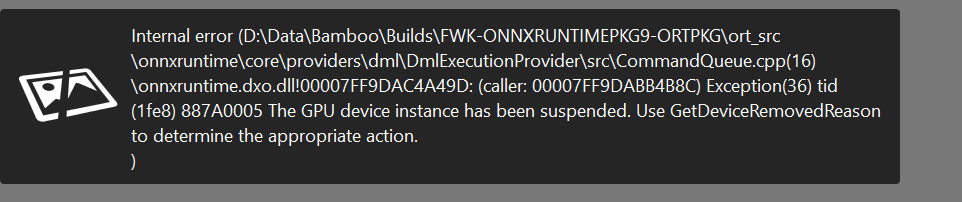
The most recent error references a path that is not on my machine at all - see attached. I think this is not quite finished. I simply cannot use the AI Depth Mask unless in CPU only mode and that takes forever. Using Intel Arc Graphics or AI Boost simply do not work - the eyedropper will not create any mask at all. I am looking for help as the upgrade is worse for me and I have paid for it.
Microsoft® Windows®
SYSTEM REQUIREMENTS
Minimum system configuration:
• Intel® Core™ 10000 series or Intel® Core™ Ultra 7 165H or AMD Ryzen™ with 4 cores
• 16 GB RAM
• 30 GB available disk space
• 1280 x 768 display
• Microsoft® Windows® 10 version 22H2
• Microsoft® Windows® 11 version 24H2 (For AI masks feature)
• For AI Features:
o NVIDIA RTX™ 3000 with 8GB of VRAM with latest drivers
o AMD Radeon RX6000 series with 8GB of VRAM with latest drivers
o Intel ARC with 8GB of VRAM with latest drivers
o Intel® AI Boost for Core™ Ultra
Recommended system configuration:
• Intel® Core™ 10000 series or Intel® Core™ Ultra 7 165H or AMD Ryzen™ with 8 cores
• 32 GB RAM
• 50 GB available disk space
• 1920 x 1080 display
• Microsoft® Windows® 11 version 24H2
• For AI Features:
o NVIDIA RTX™ 4060 Ti 16 GB with latest drivers
o AMD Radeon™ RX 7800 XT 16 GB with latest drivers.
See below for link to PL10 release notes.
In my experience you need a graphics card with sufficient VRAM, for the AI features to work smoothly.
These seem like insanely high GPU requirements. Surely the DxO crew could create a light configuration option in preferences which would allow most of PhotoLab 10 to run fine with older strong GPU and disable the few features which won’t run right on anything but the latest and greatest.
It seems the team is just lazy again to optimise for our hardware and are batting for DxO users to have to spend huge dollars on hardware upgrades. Personally I find this approach disturbing and slightly dishonest. DxO should be working for its paying users and not hardware manufacturers.
Stenis
(Sten-Åke Sändh (Sony, Win 11, PL 6, CO 16, PM Plus 6, XnView))
7
Agree, that wouldn´t be all that hard.
Probably disbale the premade masking model menu and just allow the hoovering selection method. I guess we all have figured that out already when the version 9 was released.
I did have a few responses from DXO Support (AI Bot I think) and sent them the results of their diagnostic reporting tool. They want a photo + DOP file from me but I have explained to them this is not a specific photo issue.
TLDR: for AI Masking everything is working now without errors - just dog slow.
In any case I installed the recent Windows DXO Photo version update (10.0.1 Build 153) which became available yesterday and this has improved things. I no longer get that bizarre error and I also am no longer getting GPU Ram errors. I have 47GB of shared memory available to the Intel Arc GPU and it has never ‘taken’ more than 10GB (64GB Total).
I did notice that the performance option of “Dynamically optimize memory usage” can now be selected (was greyed out previously) and this may have improved things. Still crazy slow if using AI Masking but no more errors and the depth mask and dust removal features are functional.
Known PhotoLab 9 errors have not been fixed (PL 10 Build 23 on Mac OS 26.6.2).
This includes using AI masks, then making changes to horizon, distortion, perspective, or volume deformation → the masks are never recalculated and now apply to a shifted part of the image.
AI mask tool sometimes shows selection (in red) while moving the mouse and before assigning the mask, sometimes only after the fact.
Not a bug, but not what I need: Color temp via mask is not an offset vs. global setting, but only an absolute value. In the majority of cases a linked offset would be much preferred (e.g. background or non-subject cooler vs. subject/foreground).
I am really missing the AI mask selection technique found in other apps to drag a rectangle over an area → is that not implemented, or am I doing something wrong?
Sometimes, initial click on depth mask creates a mask at infinity, only second click selects the depth plane I click on.
That’s all AI masking issues so far - better than initial PL 9 release, but still room for improvement (and quality assurance).
Any changes to the image content should be made first.
AI mask tool sometimes shows selection (in red) while moving the mouse and before assigning the mask, sometimes only after the fact.
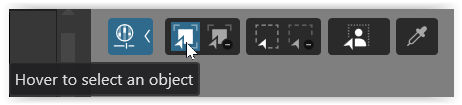
Yes, that’s annoying … and it’s due to the default setting “Hover to select an object”
(active by default, even if one of the AI-preset masks has been selected)
as soon as you move the mouse cursor over the image to the right,
for instance, to adjust the mask’s selectivity (Chroma/Luma).
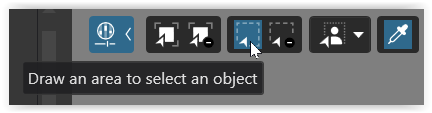
I am really missing the AI mask selection technique found in other apps to drag a rectangle over an area → is that not implemented, or am I doing something wrong?
You can activate / switch to “Draw an area to select an object” instead.
Thanks - I now found the little bar at the bottom that allows for area selection, as you pointed out. It is still strange that e.g. expanding it sometimes removes parts from selection inside of the mask - a bit unpredictable, but better for sure than clicking on multiple points separately without being able to predict how far the mask will extend.
I have suggested to DXO that the order of the tabs in the develop module be changed to put geometry on the left, leading users to do this first.
it would be preferable to make the changes automatic, but this is more programming effort and would likely slow processing down as every additional change may need to be recalculated.
Richard
They seem to have “accepted’ the ssugestion to be implemented “whenever”.
I think they could make AI mask more intelligent, for example in Ligthroom when I use the predefined mask, sky, subject, background… I can copy the mask to a different photo, and automatically it detects the same stuff and apply it and if something is not present, it shows an error. I think something similar for manually recalculate the masks after transformations could be really good.
Some masks (like AI “detect vehicles” or “detect people”) certainly did recalculate based on new image data when copy/pasted to a new image (at least in PL9 - I’m not sure how the people one would work in PL10 since there’s more options there now).
But I agree, if you change the crop/rotation of an image then all the masks should follow the same translation.
This seems to come when I am using AI masks. Radeon RX 7600 with 8GB ram, latest drivers installed; machine is Intel i9 with 16 GB ram. This has happened multiple times.
This is my first foray into AI masks as I skipped v9. When they work they are good, but v10 seems just too unreliable to use with my system. I might just wait for a couple of updates before trying again. One of the things I am liking a lot in v10 is a small update - the white slider. Much more subtle than the highlights slider.
I have raised a ticket with DxO and have had some email exchanges with the people dealing with such things. This included using their diagnostic tool, and also some detailed reporting by me of exactly what I was doing when the problem arose (which is repeatable, fortunately). This has now been escalated to the development team. I will update if there any developments.
The evidence seems to be pointing to some sort of conflict between my Radeon video driver, the AI masking tools, and maybe DirectX.
Over the past month I have been in communication with DxO on this issue. From their emails, it seems that they view the problem as being in the video driver, and have told me that (in contrast to nVidia) AMD are not being very responsive in terms of coming up with a fix. The issue only applies to use of AI masking; AI noise reduction (DeepPrime) does not appear to be affected. DxO advised that it could be some time before the issue is resolved. So if anyone else is having issues with AI masking and an AMD Radeon 7000 series, it does not look as though your problem will be solved quickly.
Simon
mwsilvers
(Mark - New Jersey, USA, Win10, RTX 4060, PL9, FP8, VP5, Nikon Zf )
20
That is unfortunate. How often does AMD release new drivers? Nvidia usually updates the drivers on a monthly basis. I would download the latest AMD drivers as soon as they are released. Maybe the fix won’t be that difficult for them and it is just a case of them putting some effort into doing it. Of course, that was probably obvious to you, but just in case… Is there an older driver available that will work, or have the AI masks never worked properly with your card?