Your comments have merit but I don’t see how they address the questions raise in this topic. The OP is already using PL9 and has no need of PureRAW, even as a trial. Also, as yet, he has not indicated he is having problems that could be attributed to an under-spec GPU. Have you replied to the wrong topic?
1 Like
To add to @stuck’s comments…
Yes, when you re-open the image you see all your previous edits. This is a feature. If you want to simply throw them away, open it to the Customize tab and click the Reset button. They are gone.
If you want to just try something different, you have two nearly identical options.
- Make a virtual copy and reset that, from where you can start again from scratch.
- Make a virtual copy and reset the master, from where you can start again from scratch.
The only difference there is which one is the “Master”.
The thing to consider when creating virtual copies, particularly when you create a third or subsequent one, is that the new copy gets all the adjustments of the copy you have selected when you create it.
If your intent is to “try a bunch of different edits” then it might make sense to leave the master always unedited (as it will always be the first one) and always select that before making a new copy. Even if you do it another way around, they are all functionally equivalent.
Oh, and you can also rename virtual copies.
With everything I have described… you still have just one, untouched, RAW file on disk.
1 Like
Welcome to the club Allan.
There is no such thing as altering a RAW file. Pratically all if not all Raw processors do a non-destructive work. Some write the edits in the header within the file, others keep them in a database, others like DPL keep them in a sidecar file with a .dop extension.
Therefore you must keep both the RAW file and its .dop file together. If you want to rename your image you need apply the same name to both.
In my workflow the first thing I do with a new batch of images is selecting them all and making virtual copies. It’s a no cost operation: there is still one RAW file and all the data are kept in the sidecar. You can make as many as you wish with different edits in each. There is an “M” (for “master”) image and a “1” image and so on. I keep the master untouched so I constantly have the original one handy and I work on the #1 and in some cases on the subsequent ones. A virtual copy is a clone of the image you copied but they keep no relationship. For example you made edits on one copy and you want to try some variations on the same basis. So you make a VP of it and tweak it. It can also be for a publication purpose if it needs a different crop for example.
What did you do? You can export to jpg or tiff. Normally the exported image is identical to the original.
The dng formats are reserved for use in Lightroom.
1 Like
Thank you everybody. I clearly had a blind spot for this issue, and the light bulb is now switched on. To explain (to justify my stupidity) I was looking at the wrong file in Explorer (face palm). It was one of those occasions where, having seen the wrong information, the effect was simply compounded each time it was viewed because it was assumed to be correct. Apologies for wasting your time.
I greatly appreciate your time and patience. I understand what you are all saying about sidecar files and that processing is non-destructive. I also appreciate that I can work on a virtual copy (thank you saint-112). I also appreciate that I can simply reset to start with the original image.
It is therefore with trepidation I ask about the Unprocessed image status! I hope the screen grab illustrates what I’m seeing.
I export to disk. The RAW image is the same as the processed image (OK) and the .tif processing status is Unprocessed. Do I need to worry about this?
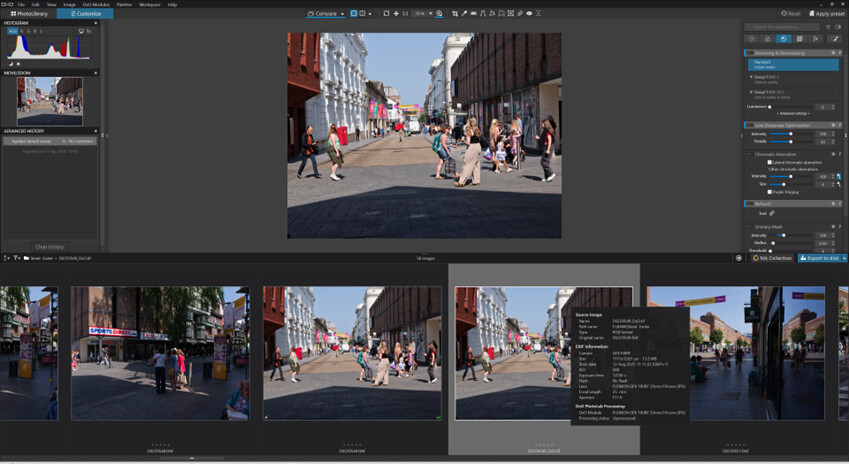
The .tif is cropped but appears ‘soft’. If I go to print, the print preview is positively blurred. I have yet to print as I don’t want to waste ink or paper!
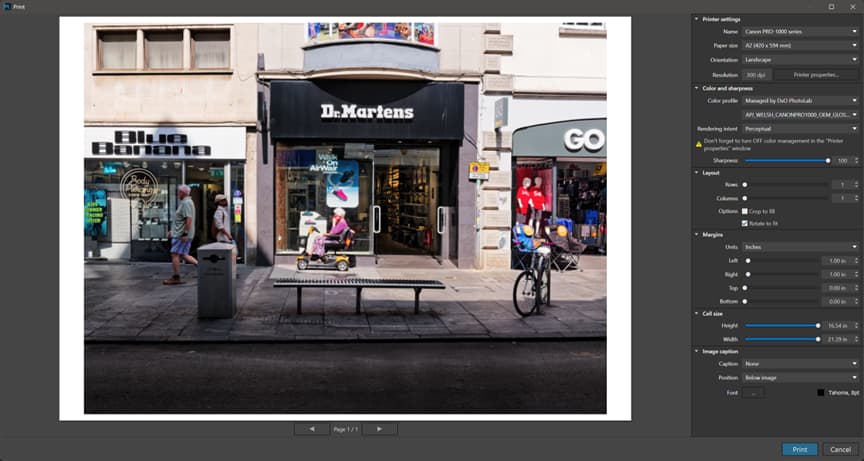
I (again) missing something obvious?
An exported image, whether JPG or TIF, is a new file so it’s still unprocessed. You can process them with DPL. DPL treats such images the same way it does with RAW files: in a non-destructive way by creating a .dop sidecar. So if you want to use a processed JPG or tif file you must export it just like you do with RAWs. Of course you can’t expect the same results by editing a JPG as you would with a RAW. Certain features are available only with RAWs and are not with JPGs. You are better off with TIFs which store more data than JPGs.
Yet as a rule of thumb edits should be done on the RAWs whereas JPGs and TIFs should not need corrections. So if you feel a TIF needs corrections, do them on the original RAW and re-export it.
Now and then I edit JPGs that were given to me. DPL does a nice job with them but one can’t expect miracles.
I also edit TIFs that are exported by my panorama soft. They need some geometry and composition corrections but very little if any in terms of color, exposure and so on. I do these on the RAWs before I export them for the panorama soft.
BTW, it’s the RAWs you need to save. I keep practically no exports because it’s so easy to produce them again from the original.
1 Like
You may already know some if not all of them but it may be useful to recall some facts of life in the realms of RAW in general and of DPL in particular.
As it name suggests a RAW file contains the raw data produced by the camera sensor. The image you see on the camera screen and later on your monitor is a JPG produced by the processor and embedded in the file. So this image is totally dependent on the way its firmware developped was by the vendor.
DPL doesn’t take that into account. It processes the RAW data and makes corrections to the defects of the sensor and the lens as well as to exposure, WB, etc. Therefore the image it displays may have some differences with the inbedded JPG displayed by a standard viewer.
1 Like
Some people here use PL for printing. Others don’t, myself included. I find Affinity Photo 2 or an ancient version of Photoshop give superior prints.
1 Like
No. The processing status refers to whether or not the image in question has been changed by PL. A freshly exported image of any type will not have been edited by PL.
1 Like
Thank you all.
I guess what I’ve been asking is not critical to using PL, just wondering why things are the way they are!
I was going to ask about printing in Affinity, but I won’t now (thank you stuck).
Hopefully, I’ll be leaving you all in peace (I’ll try not to bother - for a while).
Thank you again.
For printing I export from PL to a 16bit TIFF with an Adobe RGB profile.
1 Like
@ALLAN1
Coming in here a little late, and it looks like many of your questions have already been answered.
But to your point:
I would suggest that you watch all of the videos in the “learn” section of DxO’s site:
And I’d also recommend to read through the user manual, as much as you can:
My observation has been that many of the terms used in PhotoLab are not as clear as they could be. For example, I too was confused about the “processed” status. I thought (as I think you may have thought) that “processed” would mean I had “done things” to the image (i.e. “edited”) – not that it had been exported.
If you watch through lots of videos and read as much as you can in the manual, and here on the forums, and simply play around with the software a lot, then you’ll start to learn what these terms mean in DxO-ese.