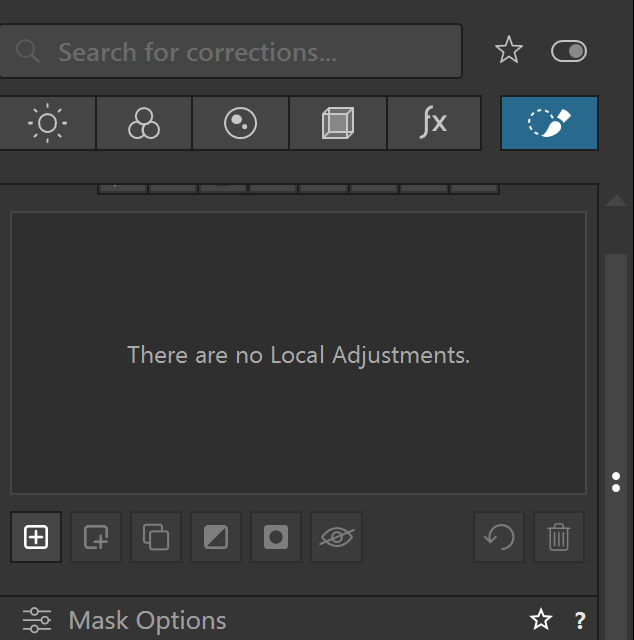
After downloading a fresh PL9 copy, editing with subject detection has a bug that renders editing problematic and cumbersome at best.
The problem manifests as follows:
Make a subject selection (any, eg. sky, animal, etc.)
Edit your selection
The default selection confirmation color in PL9, at least for me, is red. As I edit the subject, the red masking indicator disappears as desired, but only in the process of an actual change, such as modifying exposure. The red indicator returns immediately after what is likely to be an intermediate edit, like bumping exposure 1/3 stop. After the increase, the red indicator returns immediately and I cannot review the effect of the change. There is no static review possible without saving the mask for review and possible further modification.
Prior to the last download, every incremental changes were visible in real time, without the subject reverting the the red selection indicator completely covering the subject.
Ah, spoke to soon? To the left of the mask selection options is “show masks?” toggle. It is selected and I cannot change this - like a grayed out control.
I’ve also encountered this and I’m not sure what causes it but - as you say - I’ve created masks and applied some edits to the mask (which should automatically hide the “show mask” function and just show me the image itself) but instead the masked area remains in my chosen colour (red).
I am on Mac and I have the same issue. Cmd-M does sometimes turn the mask colour on and off, but other times it just Beeps. Also trying to display the mask colour by hoving over the list of masks is very hit and miss.
I hope it will be sorted soon because it is frustrating…..