I’m coming from PL7. When I wanted to remove an image, including from the hard drive I used command+delete and hit return to delete. In PL9 when I use command+ delete the remove button on the screen is red and clicking the return key does nothing, I have to use my mouse and tap on the remove button on the dialogue box. Surely I’m doing something wrong because there would be no reason to add this extra complexity to something that already worked logically. In addition when I’m going through a series of images I want to delete one after the other all of a sudden command+ delete no longer brings up the dialogue box and I have to click on the image and from the pop-up menu select remove and then use my mouse to click on the remove button to delete the image. If I quit the app and relaunch it, command+ delete works again until it doesn’t. Has anyone else experienced this? Can anyone steer me to how to fix this? Many thanks.!
I can confirm that pressing Return after Cmd + Delete does nothing (except oddly highlight the Image menu item in the menu bar – presumably indicating it’s attempting a command for some action inside the Image menu, but I don’t know what it could be since nothing happens).
I can’t speak to the issue of the dialogue box not appearing when pressing Cmd + Delete because I haven’t seen that occur yet.
FYI I’m on Sequoia, not Tahoe, so I think this is not a macOS Tahoe-specific issue, but a PL9-specific issue.
Thanks! I think if someone else also confirms on Tahoe, I’ll post a bug report.
I guess they changed it as a default button should not be or perform a destructive action.
Running Tahoe.
Cmd+Delete opens a popup window showing Cancel (white) or Remove (red).
Cancel is the default.
Pressing the Tab key toggles the selection between Remove and Cancel.
When the selection is on Remove, pressing the Return key deletes the images.
When the selection is on Cancel, pressing the Return key does nothing.
Pressing the Esc key clears the popup.
So to delete:
Press Cmd+Delete, then Tab, then Return.
This applies to PL8 and PL9. Don’t know how it worked on PL7.
Interesting.
I tried this (albeit on Sequoia) and I was unable to Tab between the options. I, too, thought that would let me select the Remove button so that I could press Return.
Seems to be a bug if you cannot use the keyboard to get to the Remove selection without resorting to the mouse/keypad.
DxO surprises me sometime though! I’m never sure of the “expected” behavior, just what I am experiencing.
On occasion I’ve been successful clearing a “bug” by deleting the PL program and supporting files, then re-installing from a fresh download.
No idea what else to suggest other than filing a service request.
I wasn’t able to duplicate your suggestion using the tab key to move the default from cancel to remove and then using the return key to delete the image… For me pressing command+delete with cancel in white in the resulting dialogue box and then pressing return doesn’t cancel, it does nothing. The only key which seemed to have any effect is the escape key which cancels the action entirely.
I have filed a service request.
This is not a PL9 fault, or any other software come to that. It is default macOS behaviour for a potentially destructive choice.
The red button can only be accessed with a mouse click, deliberately to avoid folks accidentally confirming the deletion of wrong or multiple items.
The tab key does nothing because it wouldn’t serve any purpose. It is quicker to simply press the Esc key to cancel the dialog.
See Apple’s developer guidelines…
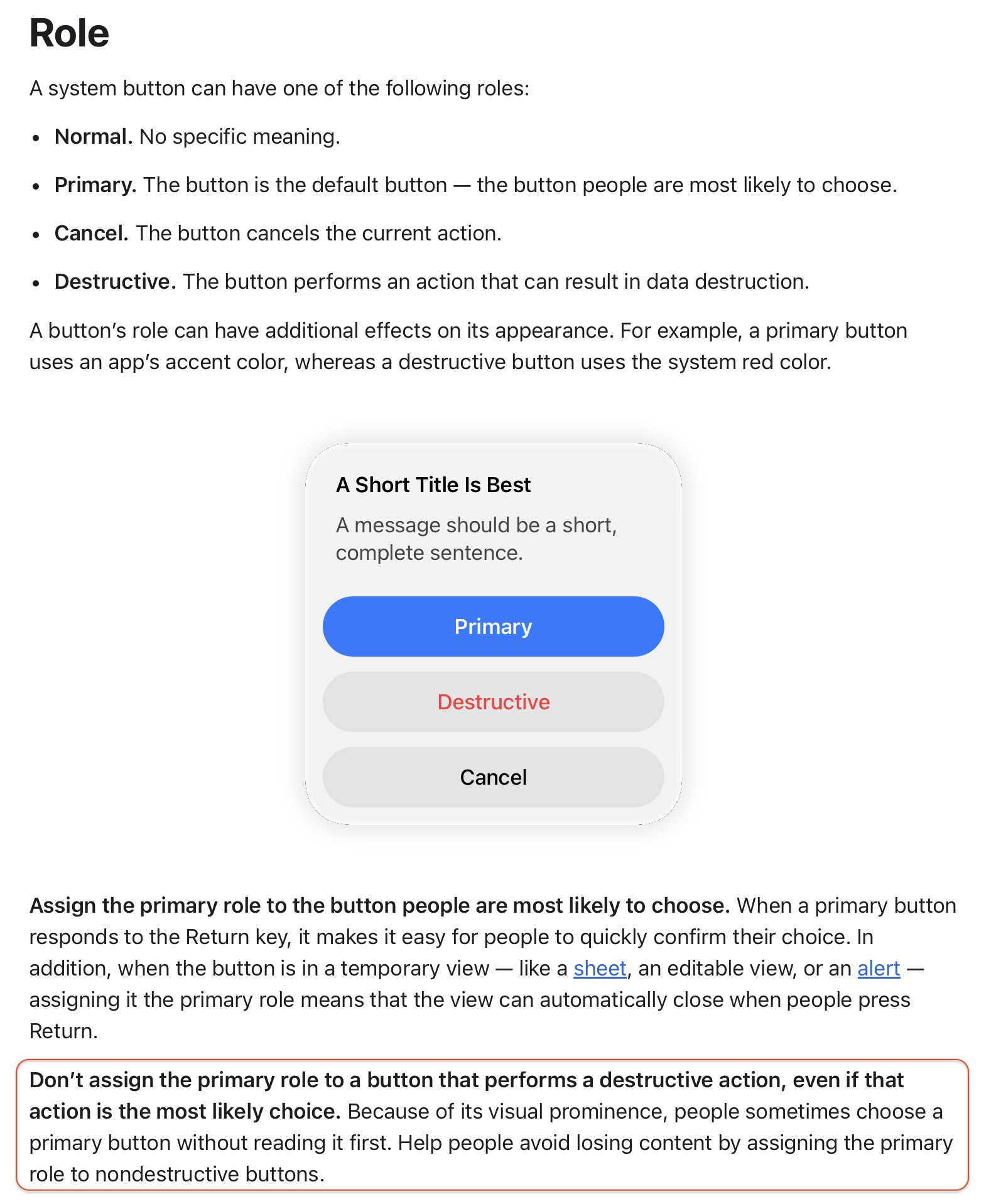
Two comments, Joanna. First this is a change of behaviour at least in terms of PL7 so if you are correct, then they were violating this rule several years ago. I never had PL8 so I can’t comment on that. Secondly, the behaviour I described of using the return key to confirm the dialogue box for delete an image is the behaviour that is currently used in FilmPack 8. .
One could see it as a bug fix to comply with the UX guidelines for macOS.
Actually non-destructive default button have been in Apple Design Guidelines since forever. Definetly since early '90s
I’ve no idea what actions are intended by either DxO or Apple.
Here’s the behavior on my Mac M4, running Tahoe and PL9.1.1 build 26.
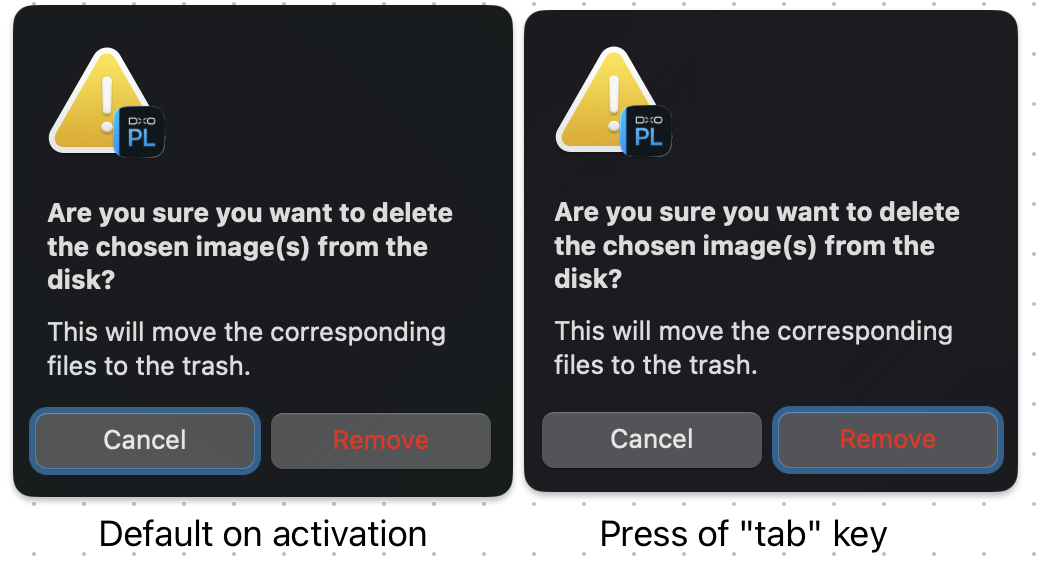
The default button (logic state) in the popup is “Cancel”. Note the white lettering and the blue outline of the Cancel button which also suggests DxO set “Cancel” as the “primary” button as defined in this guideline.
The inactive button in the popup is “Remove”. Note the red lettering consistent with the “destructive” button state described in the guideline.
The “return” key is inactive in the default state as this button does not have a "positive, non-destructive action. It becomes “useable” only after the user has taken action to move the active button to “Remove”. This is also consistent with the last part of the guideline provided.
There is no third button option offered.
Since a “default” button seems necessary, the choice of “Cancel” as the “primary”, or default button also seems a logical design choice and meets the guidelines as presented by @Joanna.
The guideline does not indicate how the user should toggle between buttons (active states) from the keyboard. The guideline does not indicate how to indicate the active button on the display. It appears DxO is using the “tab” key to toggle between buttons and the blue outline to show the active button.
Since the “return” key is inactive in the “default” state and requires the user make another action to move to the “destructive” state seems to see this design guideline. To me, it seems illogical NOT to provide a way to toggle between buttons (state in the popup) from the keyboard.
Works as expected with PL9 on macOS 14.8.1 on 5K iMac 2019
Toggle between buttons with the tab key. Nevertheless, presseng ENTER will not initiate the action. All of this is logical in protecting objects from quickdraw users.
Having to use the pointer for confirmation of a destructive actions is the secure choice again, albeit annoying at times.
BTW: red text is a bad idea, red text on a grey background is even worse…but this can be fixed by switching the UI to differentiate without colours:

Absolutely. It is actually an accessibility issue if one cannot.
I am confused why on my Mac I’m unable to do this when I’m pretty sure I used to be able to before. And I’m not just speaking about PL, I’m unable to for other dialog boxes as well.
I can’t at the moment, but perhaps I need to check my accessibility settings – I wonder if there’s something that needs to be toggled there in order to have keyboard selection of buttons?
Okay, I was able to check faster than I thought, meeting ended early 
AHA!
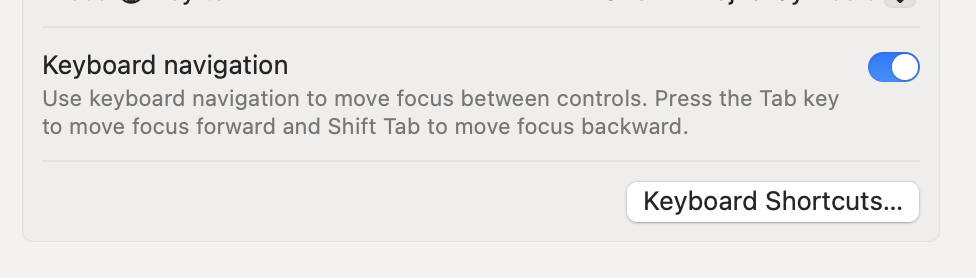
This, under “Keyboard” in System Settings needs to be turned ON.
Now, I get exactly what @swmurray has:
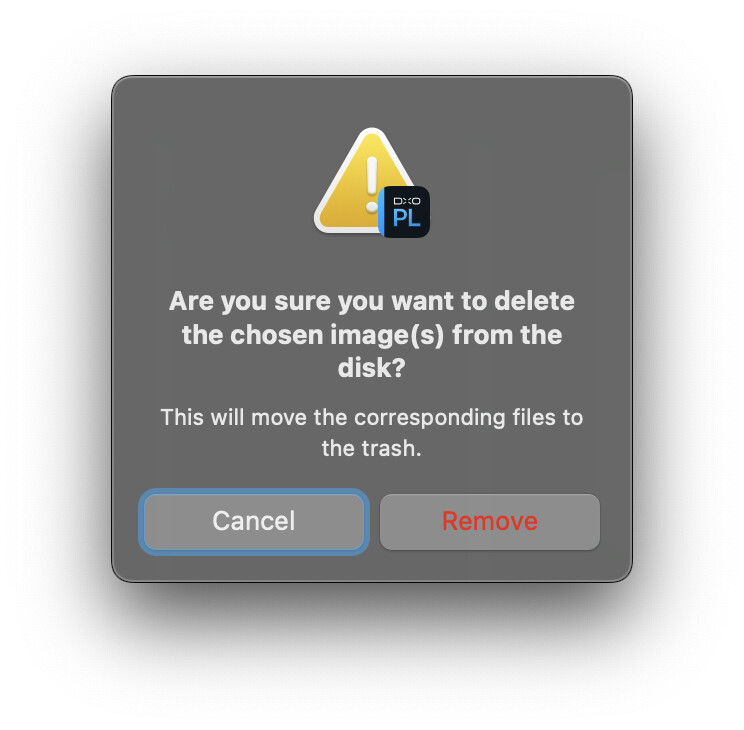
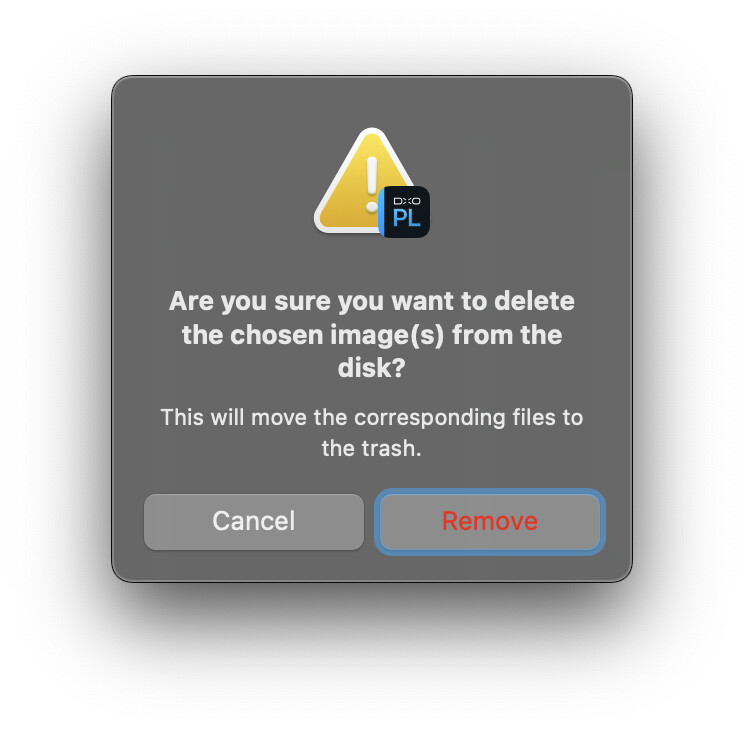
The only odd difference is that I have to press the Spacebar to confirm “Remove.” Pressing “Return,” even with “Remove” selected with the blue outline, does nothing.
@Swoquix
It’s possible that, when updating to Tahoe, this Keyboard settings selection was switched off for you?
Well, keyboard navigation on my Mac running Tahoe is off by default. I can’t say what it was under sequoia because I don’t have that anymore but in any case turning it on does behave as you suggest both using the tab key to move the focus and the space key to activate the focus… however this is an entirely different set of behaviours from what I described above for how PL7 worked to remove an image and I’d like to underline again that the way the remove an image in FilmPack 8 works the way I initially described how remove image worked in PL7 above ie command+delete to bring up the dialogue box and clicking return to remove. 
It is possible that DxO is now complying with Apple’s guidelines and that they were not before.
I’ll also point out that the dialog box in FP is not a macOS system dialog box, but actually a DxO-created “dialog box,” whereas the dialog in PL9 is a macOS system dialog.
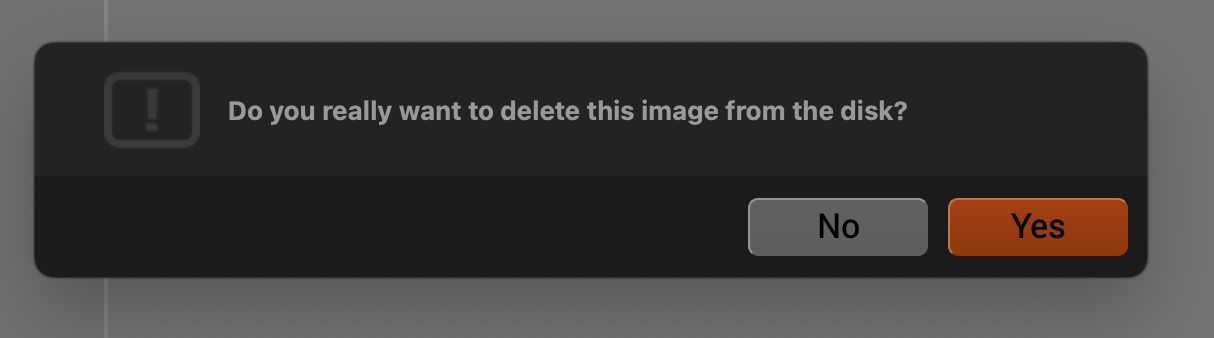
You can see it’s the FP “look,” not macOS.
In that sense, they would have entirely different ways in which they were called and coded in the application, so it is not entirely odd that they behave differently.
I’m not sure what you mean by works as expected. Do you mean the way it worked in PL7 and the way it works inFilmPack 8 or the way it works using the mouse to click on remove?
What I do think is odd if what you say is correct is a) they changed the behaviour of their app on their own longterm users without notifying them and b) they aren’t consistent between their own applications. If they changed the behaviour in PL9 to comply with Apple guidelines why not also change the behaviour in FilmPack 8? I know it’s not up to you to answer that question let’s say it’s rhetorical.