Printing isues in DxO

Hi. just bought an Epson 8550.

Having some issue with printing. When the print is done there are finel lines horizontally about 50mm apart. Tried head cleaning, and have done every combination of print head alignment but cannot get rid of these lines.

When I export to Photoshop I get perfect prints with no lines.

What’s going on with DxO and how do I fix it?

try and download epson print layout and try from there. I never print from DXO so cant help. but I find the free epson software great. and I have recently started using Qimage which is even better but you have to pay for it

4 Likes

+1 for Qimage if you are into printing your photos.

3 Likes

The DxO print dialog/system is rubbish. I use Canon’s print utility and Epson provide their own.

Export to a 240ppi TIFF and print that.

BTW, 240ppi is fine because it is pixel based. Things like 300 or 360dpi are printer dot based resolutions. The drivers interpolate.

I suggest to try with Epson Print Layout to see its fine in there (or not).

Tip: how to add EPL to Export ‘button’

The Canon print utility is great if you print one image at a time on a matching paper size. Unfortunately one cannot build easy to use templates or elaborate multi image pages except as one-offs. It’s just too slow and clunky. Final results are great though.

With Qimage One (the macOS version, Ultimate is for Windows), printing is much faster as it’s easy to recall full profiles and switch paper sizes and build custom layouts.

Sadly trying to print directly from DxO PhotoLab turned out to be a waste of paper, ink and time. No matter what I did I couldn’t get good colours consistently. DxO should partner with Qimage and have them write the macOS printer drivers or offer a slightly improved version inside PhotoLab with an upsell (at discounted rate) to the full version.

As the posts so far in this topic clearly indicate, the fix is not to print using PL.

I have an Epson printer but it’s not compatible with Epson Print Layout so I export from PL as a TIFF and then print using either Affinity Photo 2 or an ancient version of Photoshop.

Interesting that you find that.

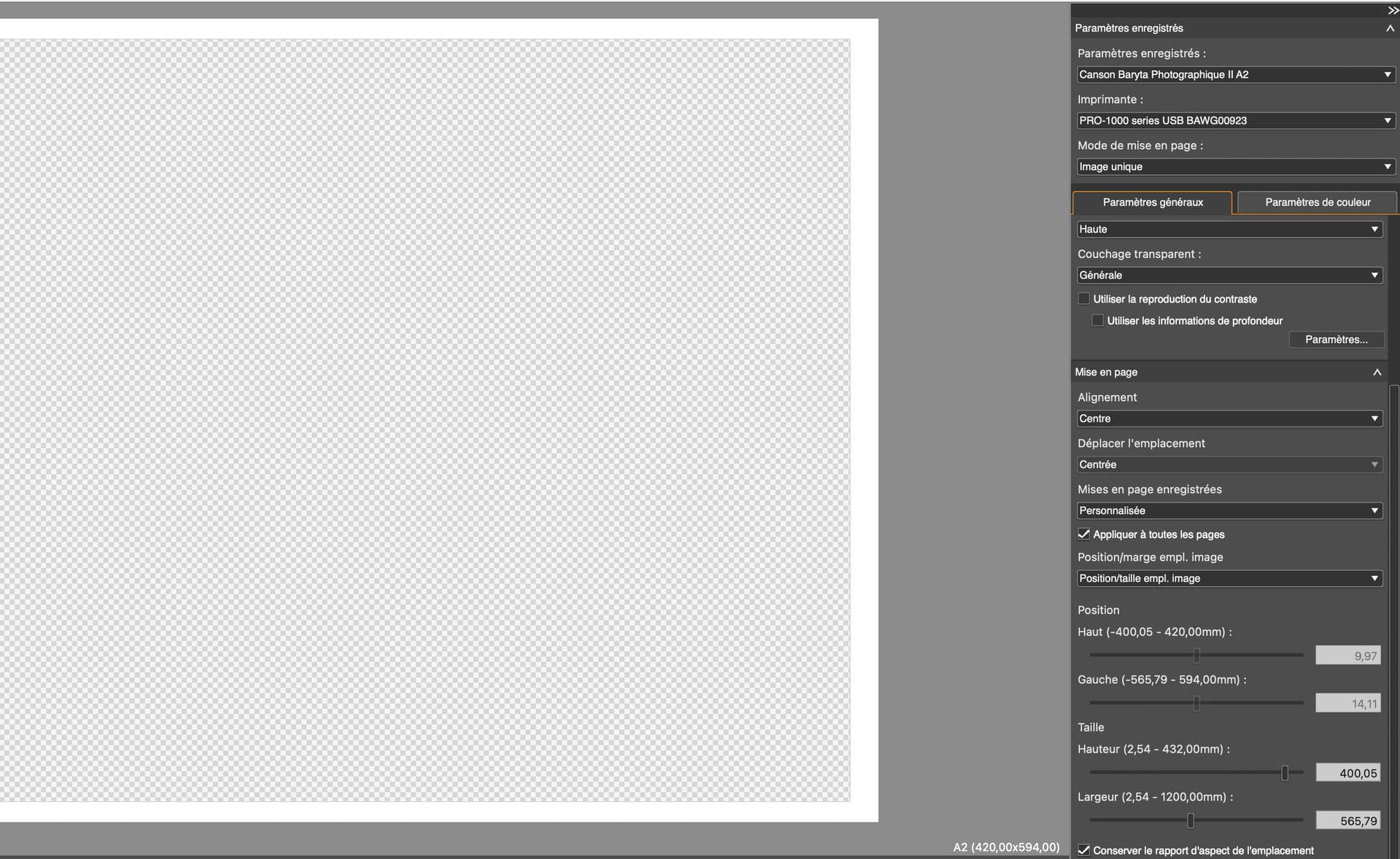
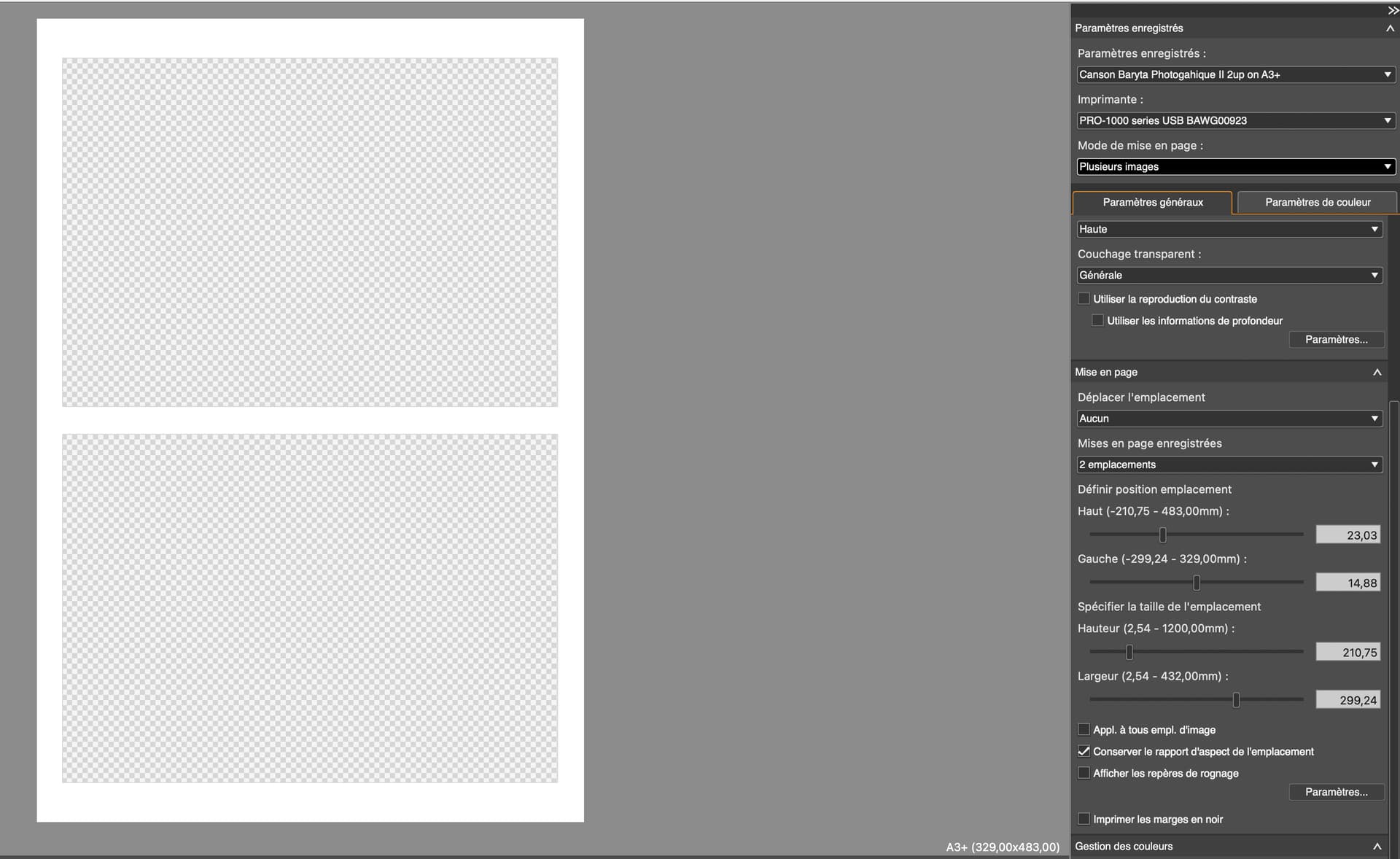
I use saved parameter sets with Canon Professsional Print & Layout…

1 Like

Thanks all for the replies - most helpful.

Looks like DxO isn’t the platform for printing! So I have two choices - either carry on with Photoshop / Lightroom and pay £120 a year for the pleasure or buy a forever licence for Qimage at a lifetime cost of £92.

A no brainer really, but I’ll play with the trial version of Qimage before IU buy.

stuck : somehere in the depths of my house I might still have an old copy of Photoshop, and maybe even Lightroom both pre-subscription era. Time to go hunting.

They said years ago the print modual was going to be redone but no extra sales were seen in that so never was done. Even DXO at that time admitted as many have said here the existing one is rubbish

I don’t think so. Its just do the job. Fit/rotate, rows/cols, sharpening, perceptual/relative, etc. - all there. In the past i use PL for printing occasionally - just works fine. As a long time Epson print layout user, i just use EPL, as i do for ages.

Few improvements thing can be fine in PL, like add ‘layout presets’, etc.

So I have two choices - either carry on with Photoshop / Lightroom and pay £120 a year for the pleasure or buy a forever licence for Qimage at a lifetime cost of £92.

You have lot of choices, like Epson Print Layout, also various software’s can do the job.
Keith Cooper youtube channel - he a guru on printing! And he say: ‘Using Epson Print Layout - the et-8550 IS supported’ Youtube video. Dont get a heart attack if EPL not listed as supported in Epson website.

The reason for forum colleagues say Epson/Canon related software’s, as its works fine, they use it for ages, and they use it ‘universally’. Also, like RIP alike softwares, like QImage not a surprising to come up - for the money they add things: layout presets, better workflow, all is more shiny, etc.

Regarding what cause the lines, hard to say. I guess, its caused by some roller (that’s why its some up in 5cm) or print head (pizza marks), and may more often come up in thicker papers, may also paper feed path also impact (try to use rear slot, etc.). I’m pretty sure, if you go to printing forums, you can find one thing or two about this.
May for start see this thread on DpReview:
https://www.dpreview.com/forums/threads/re-epson-et-8550-thicker-papers.4651849/page-2
1 Like

You don’t have to buy anything. IrfanView, free browser, has a good printing page. Other browsers too I’m sure off. The only thing is that you must export the image first.

George

Err, no. As an owner of an Epson ET-8550 you have a third choice, which will cost you nothing, and that’s the Epson Print Layout software.

NB despite what you might read on the Epson website, your printer is supported. See this topic on DPReview that explains how Epson’s left hand doesn’t know what its right hand is doing:
https://www.dpreview.com/forums/threads/epson-print-layout-supported-printers-the-bogus-compatibility-list.4763464/

1 Like

I have the 8550 and you can use EPL, but I have never regretted purchasing Qimage. Qimage automatically resizes your image to optimise it for the printer you are using, layout options are fantastic and it keeps an eye on you and when you make a mistake with colour management etc it corrects you :grinning_face: Saves money and a lot of frustration.
Lifetime licence means that the cost becomes negligible over time.

Just asking … you didn’t (accidentally) use draft mode on cheap paper to get to know the machine?

As said, check for “northlight images 8550” and see / read what Keith Cooper has to say. From one of his videos → Use High Quality to print on (not too thick, but flexible) quality paper.

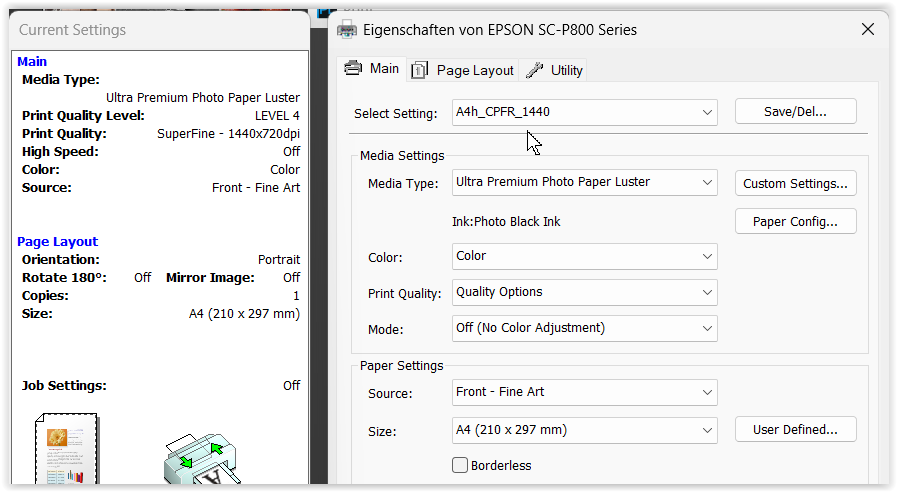
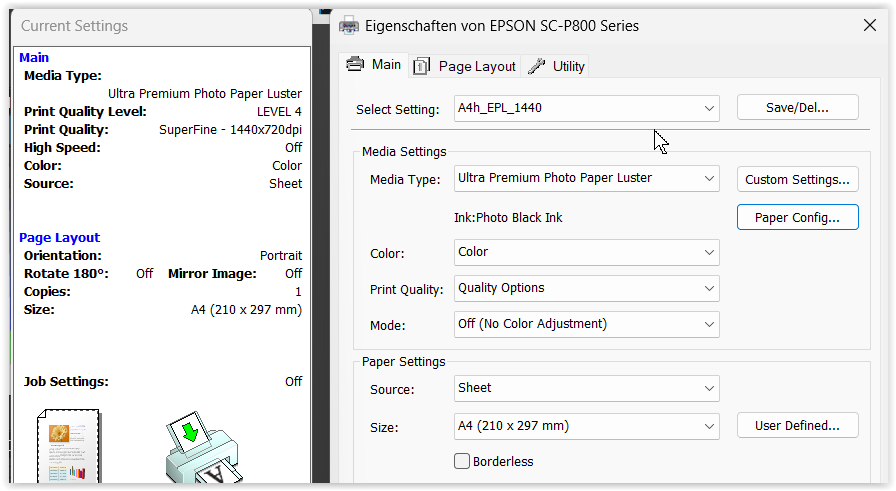
Since I haven’t used my Epson P800 for a while, I tried printing directly from PL 9 … again, NO problem.
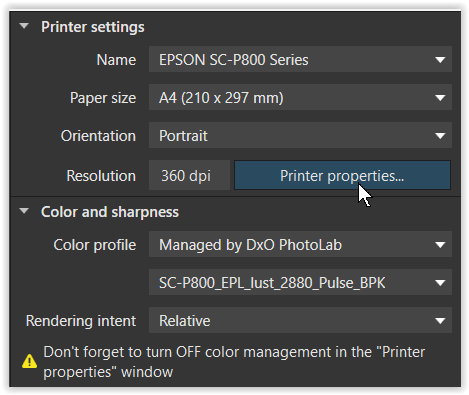
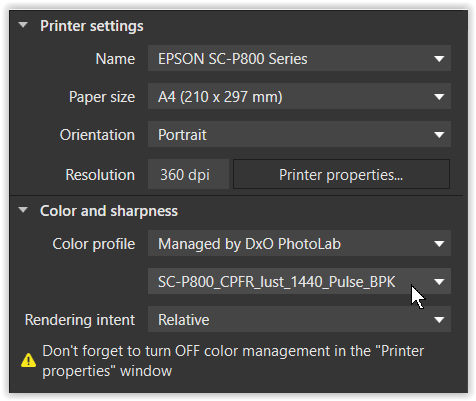
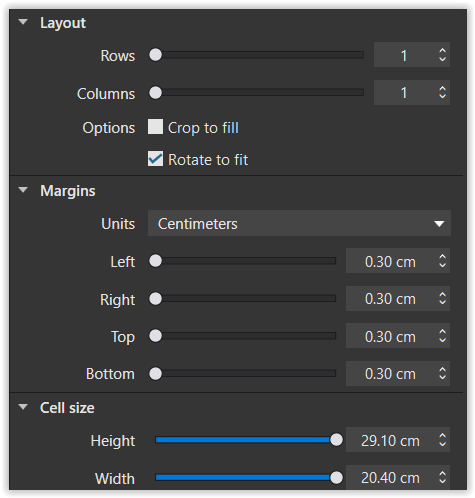
I didn’t even bother exporting the correct output size, etc., but simply selected “Fit to Page” “Rotate to fit” for a landscape format test image, which is in the ProPhoto color space, and just used my paper profile in PL (then color management off in the printer driver !).

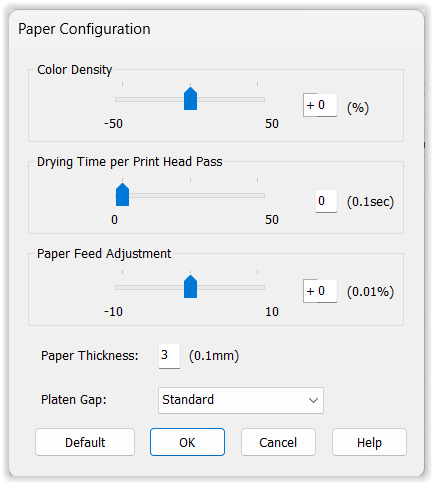
Normally, though, I print from old PS (for other reasons). Aside from that, PL, like PS, uses the printer driver, which needs to be configured correctly. But since you say you’re getting good results with PS, you should know what to do.

Epson Print Layout also works well, especially when using the ABW part, where you now get a full-size preview instead of the tiny “preview” in the driver where you just have to guess.

Have fun!

1 Like

Epson Print Layout is the answer. Free. Effective.

I don´t see any color problems at all BUT I don´t understand that if I print A2 and click on no margins in the driver for P900 and then setts the margins to 0 why I still get margins by 10 mm on top and bottom when I have selected A2. THAT irritates me a lot sometimes dependig on motif. Yes I can scale to fit but that is something I rather avoid if not necessary.

Different ratios probably. Either a white margin or missing some part of the picture.

George

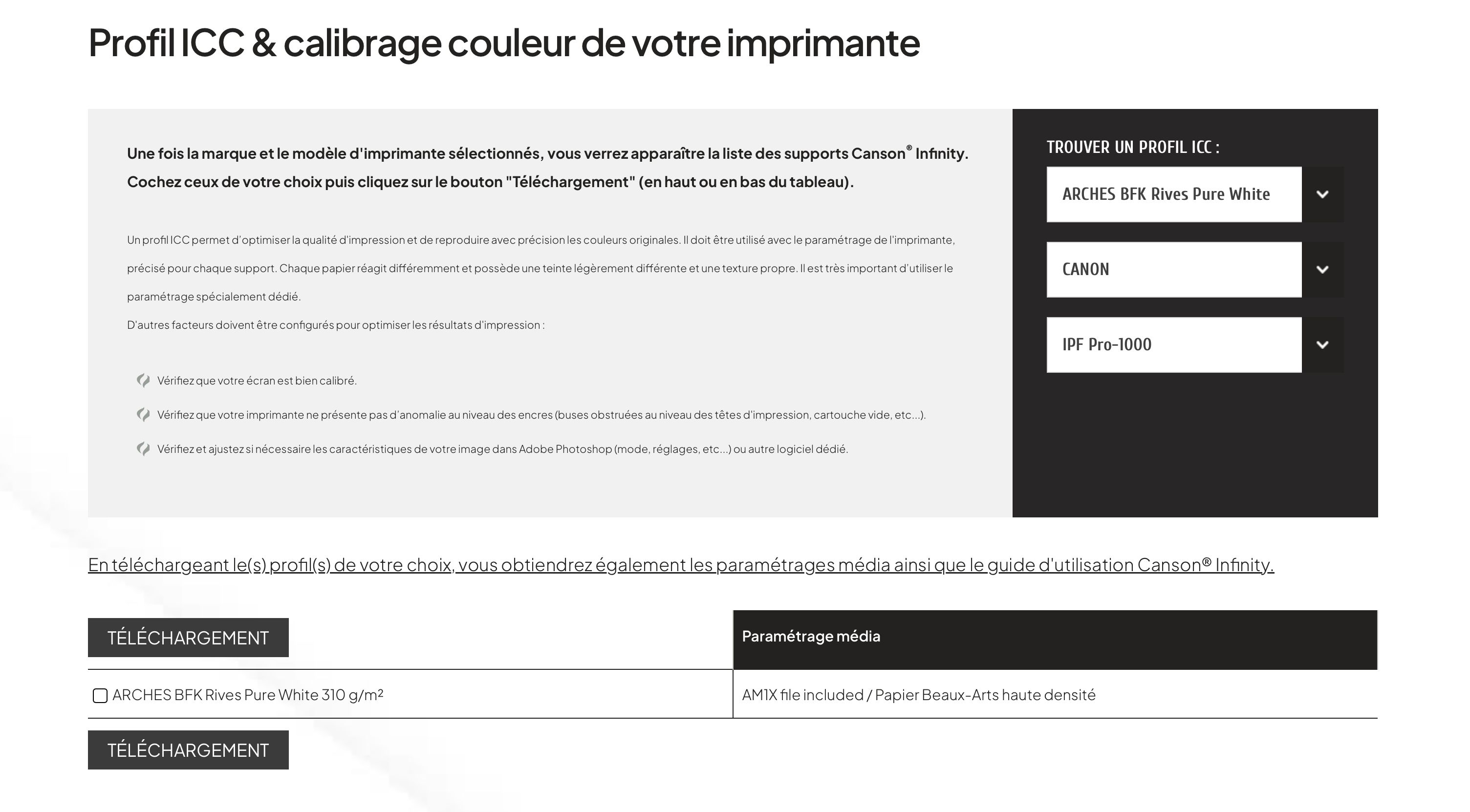
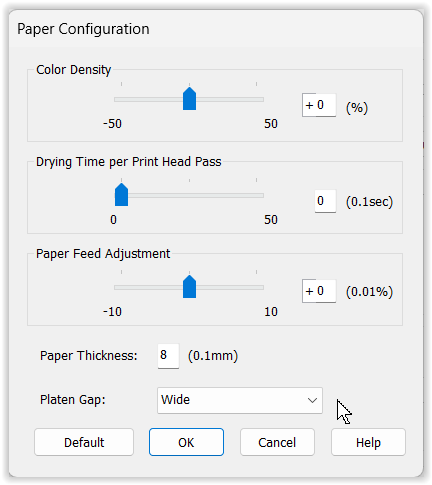
Just a small addition. You might like to install “media configuration files” for your printer. For Canon they have the a1mxextension and for Epson, they have the emxextension. They can be found on the respective paper company’s downloads site.

The idea is, just as .icc files are for colour to printer, paper, matching, a1mx or emx files are designed to be uploaded to the printer and permit you to choose an accurate match for a paper to the available printer settings, including platen gap, etc.

Here is the Canson page for a new paper I want to add to my Canon Pro-1000 printer…

This can make a difference, I gather, especially for Epson printers where head strikes seem to be a common problem when working with a non-Epson heavy paper.


Just stumbled across this interesting video from Keith Cooper https://www.youtube.com/watch?v=cbHbTbZdmNw

3 Likes

Having used my every day Epson Premium Luster paper, I noticed some time later that the skin tones looked a bit muted (not wrong, but less vibrant) and digged out my “best paper”, Canson Platine Fibre Rag, to cut an A4 sheet … and boom, the colors were back.

( EPL printing paper contains optical brighteners that are effective in daylight and also fade over time. In direct comparison, it is slightly darker and tends towards cooler colors, while CPFR appears bright and neutral. )

.

Let’s shed some light on Media type settings and ICC profiles …

.

Now about PL’s print application …

  • My test image is in landscape format.
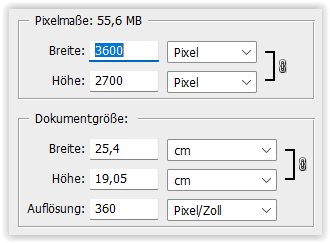
    I haven’t resized it, which I usually do to maintain sharpness.

    Since I sent the file to the printer using the “Rotate to fit” option

    it was scaled up to the selected A4 format, presumably to simplify handling,
    which is fine e.g. when using Rows & Columns.
    .
    However, the user interface should also offer options such as “Do not scale up”, “Center image”, “Maintain aspect ratio”, etc.

.

And for those who wonder, I rarely print borderless to avoid “overspray” with extra cleaning.

(ed)