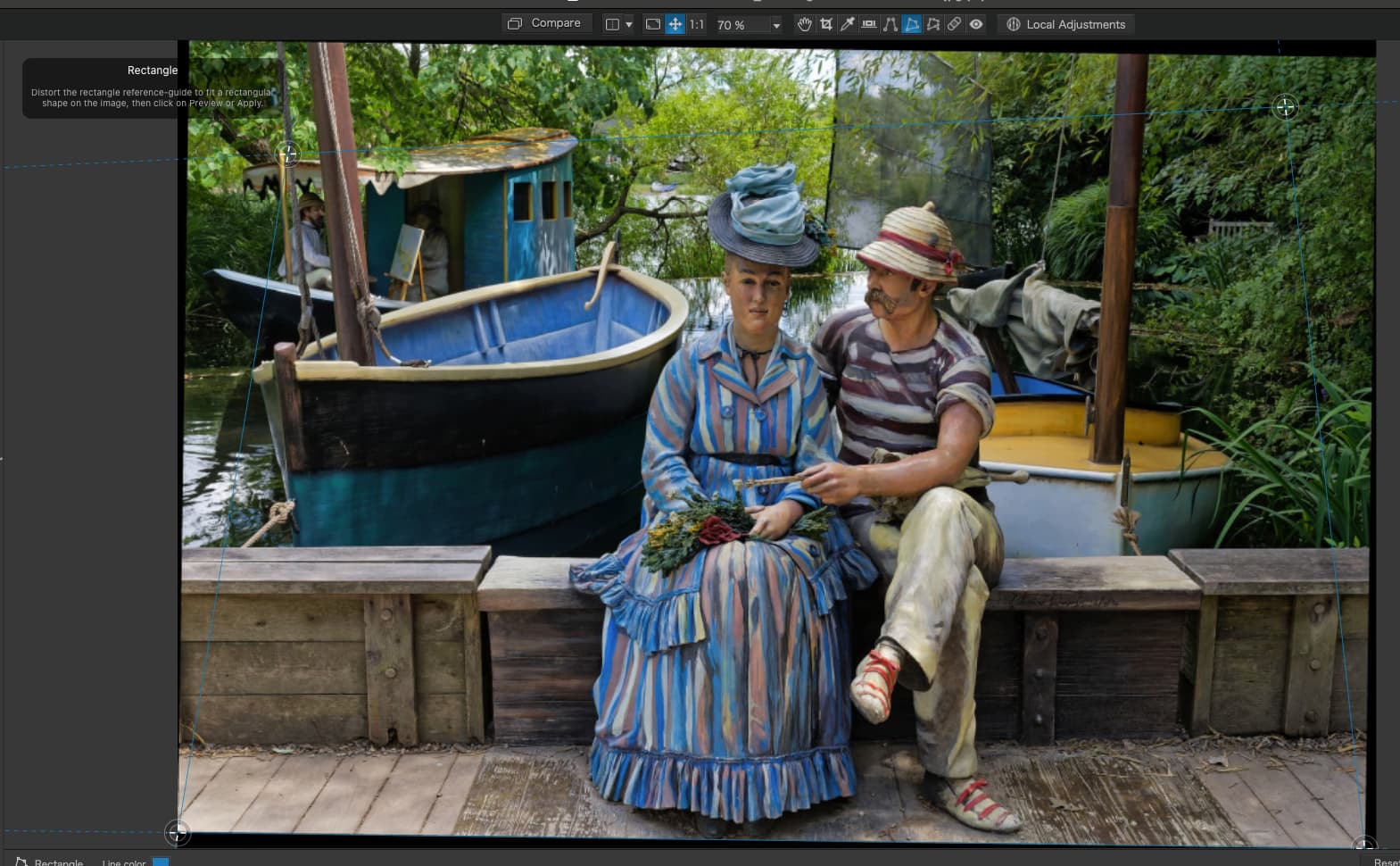
The 8 point tool did this in ten seconds:
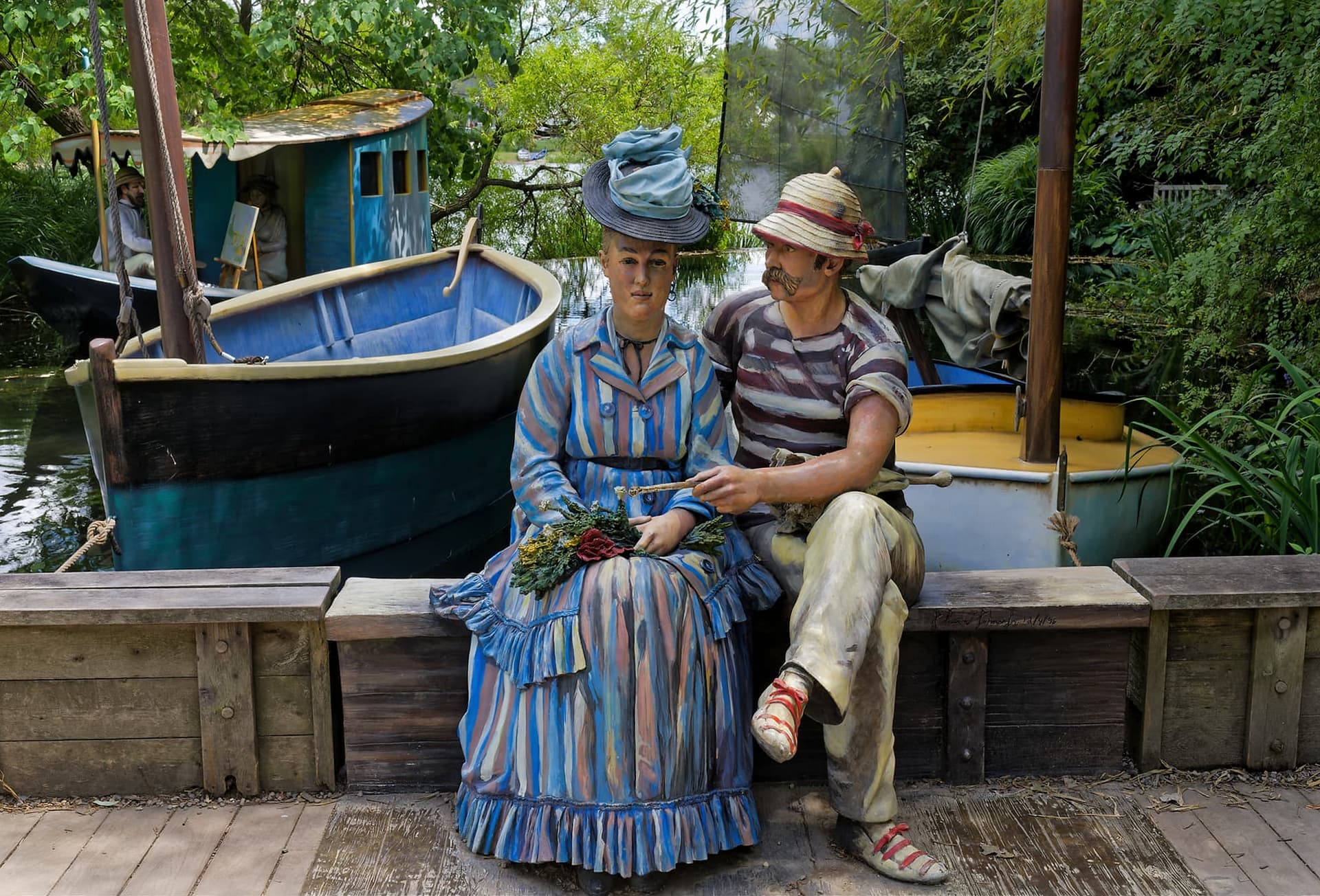
You will get a better result if you use the 8-point tool on the original file.
There will be 4 adjustment points - move them to the correct corners of the image.
The image will twist and stretch, as needed.
Someone here taught me about this tool a year or two ago.
Done carefully you will have even more space below the shoe.
I used to dislike the tool, because of the way it twisted and stretched my image.
But in my opinion, it worked.
@Joanna can probably explain it better, but this test image shows that it can do the needful.
In this screen capture, I have positioned the two lower marks.
The upper marks still need to be positioned to the upper corners.
Enlarge this image, so you can see what I did…