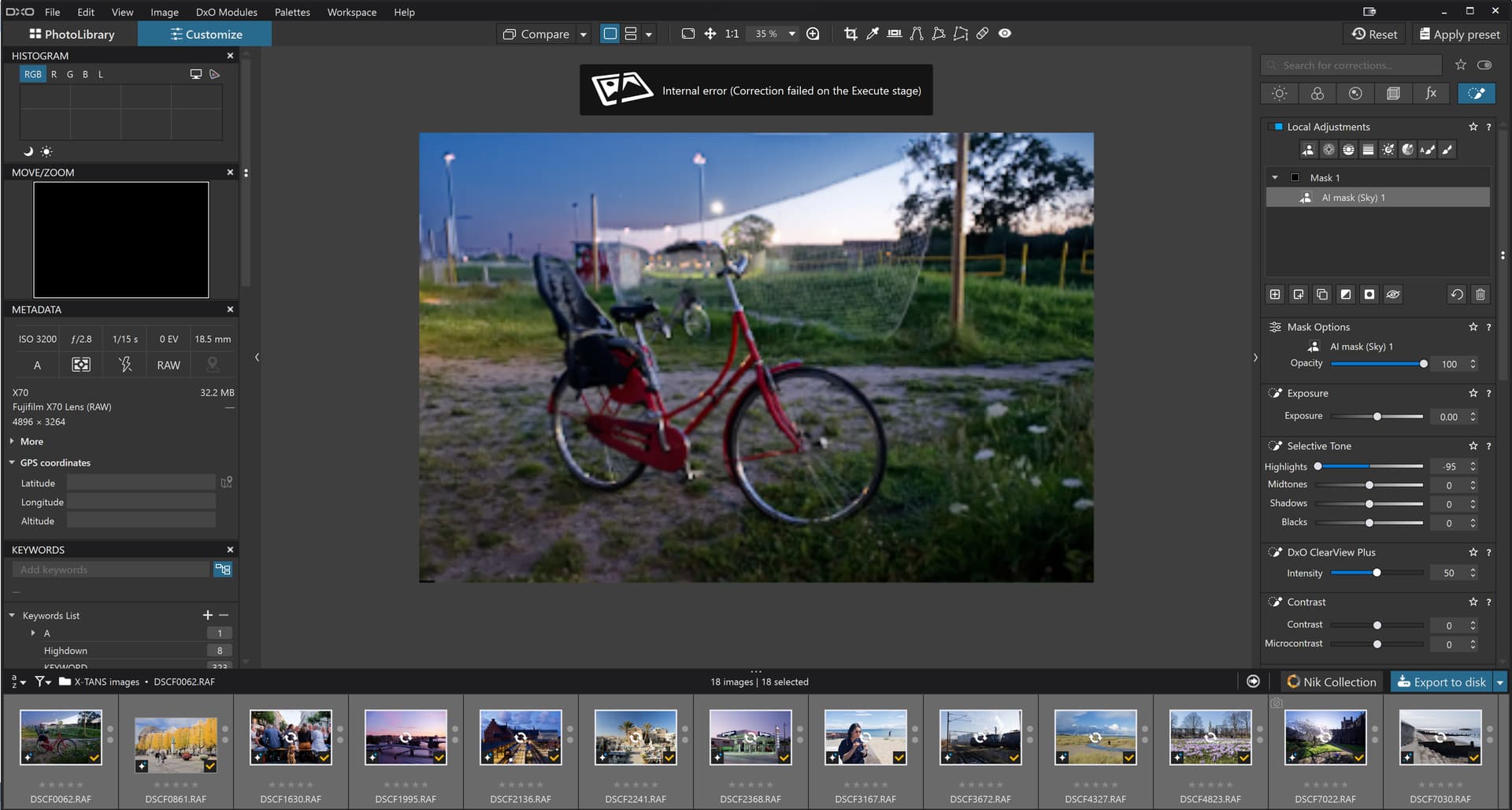
EDIT: Sorry, I wasn’t clear enough on the failures being seen! Photolab always exported the first set of images very quickly and without an issue. The second set would then “fail” (do nothing until I gave up waiting) with the export sticking at 0s. Ending that export then trying again would still fail. Closing Photolab, restarting it then trying the same images again worked every time - for just that export.
TLDR: I found that I had 31.something GB of log files in C:\Users\me\AppData\Local\DxO\DxO PhotoLab 9\Logs. I deleted them and Photolab has worked flawlessly since then. (Not restarted it yet though.)
Background:
I gave up using AI masks earlier today because I was getting fed up with unreliable exports - mostly exports that stuck at 0 seconds but some that just failed randomly during 200+ image exports. Unfortunately, even normal non-AI no-mask exports were the same - I’d restart Photolab, do 1-3 exports okay, then all the others would fail. I’d restart Photolab again, export the failed ones and they’d all work - but not the next lot. Noticed that my C: drive was slowly filling up the longer I used Photolab and found 31 ish GB of .txt log files in the folder above. Deleted those and every export since then has worked okay - even with “I don’t care, it’s working now so let’s bung in lots of AI masks” exports. Log files are now at 2MB but I’m expecting them to grow with use.
@John-M No. I saw this earlier this morning and copied all the logs to another directory for safe keeping.
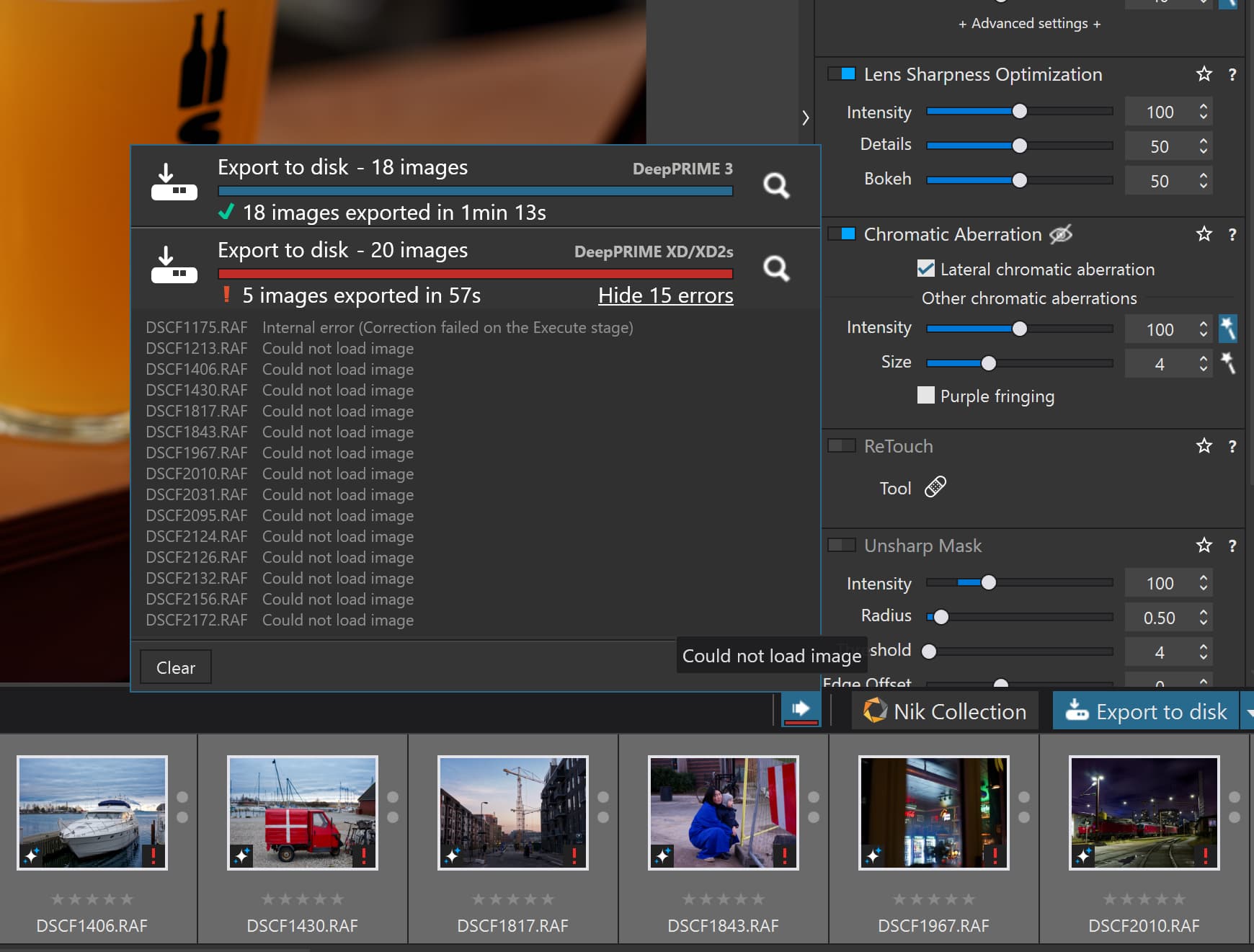
I then went on to export some X-Trans images. Please note that that both the X-Trans and Bayer Fuji images that contain “skies” all have the Sky preset added, so these are tests with AI included.
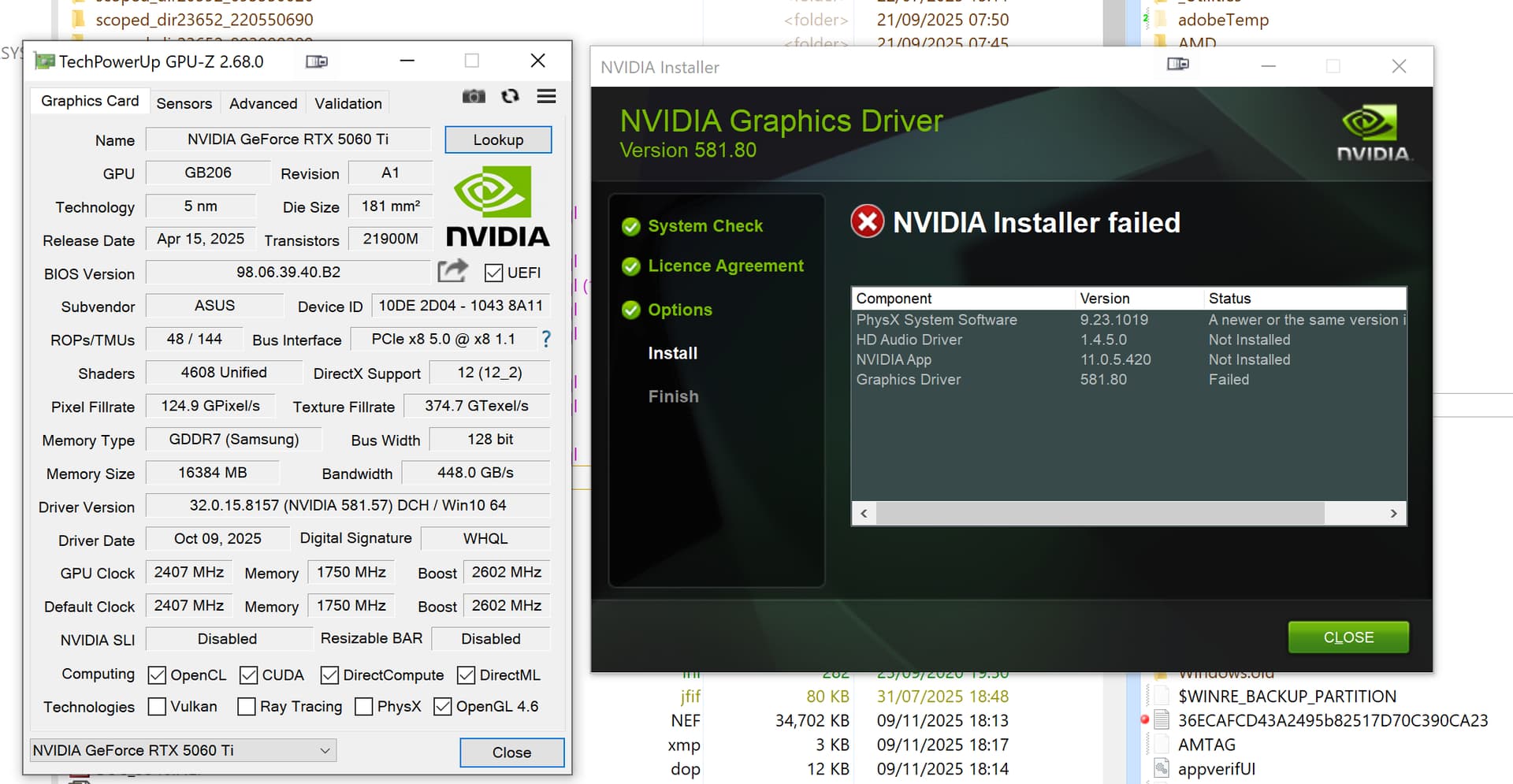
The Nvidia drivers will not update to the latest Game Ready drivers, so they are currently 581.57(Studio) not 581.80 (Game Ready), I checked earlier and 581.80(Studio) are still not available?
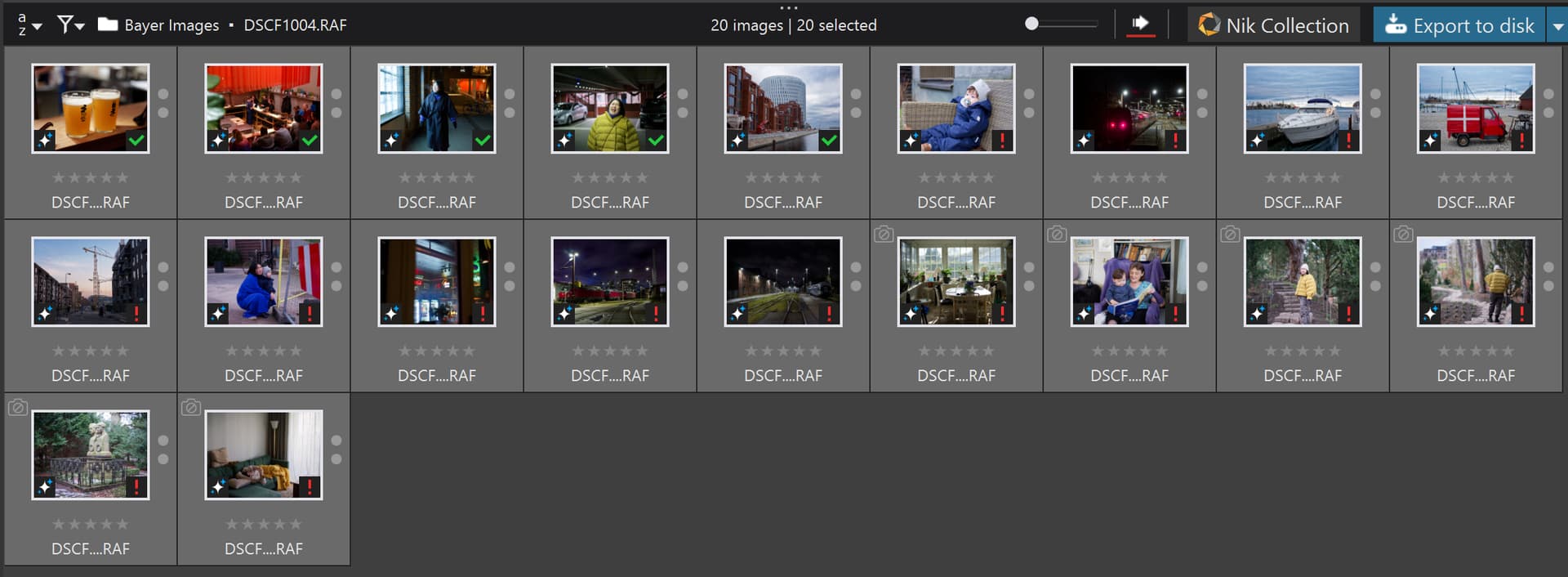
At the time I had downloaded the X-Trans images I also downloaded a load of Fuji Bayer images and had applied Sky presets with very limited LA updates, to Clearview only it appears, and decided to export those.
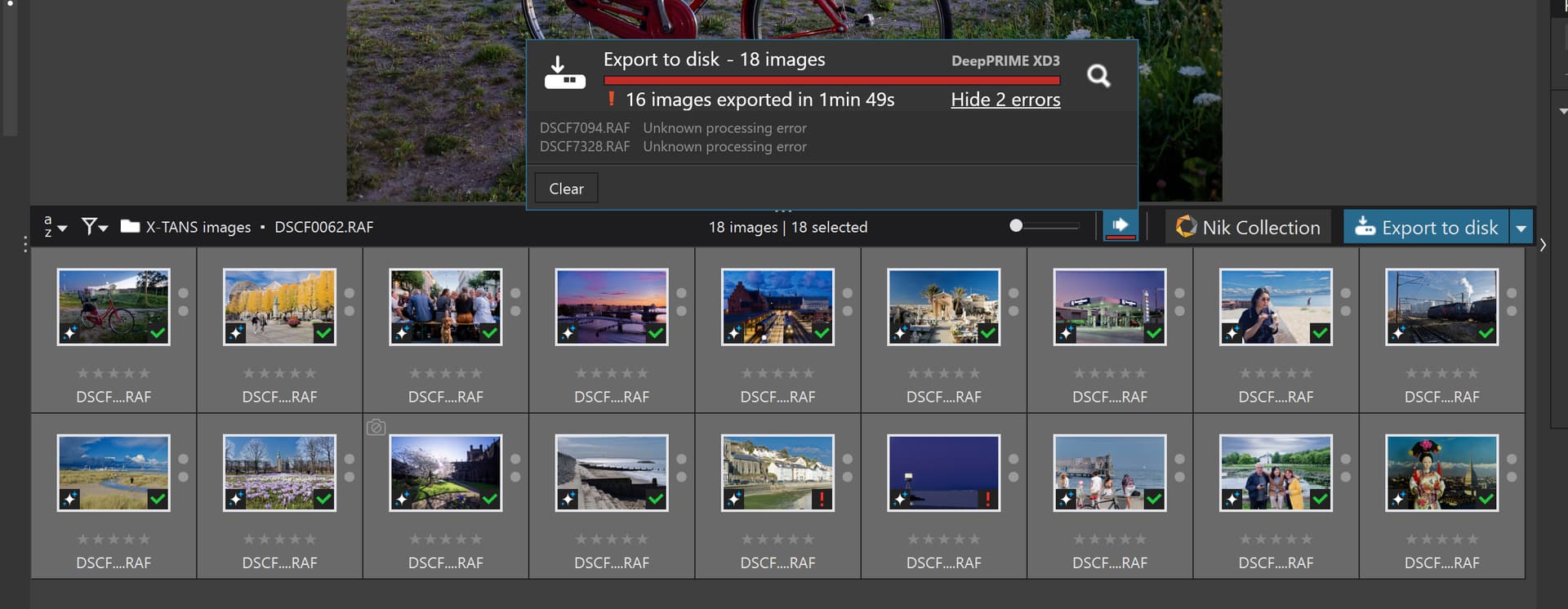
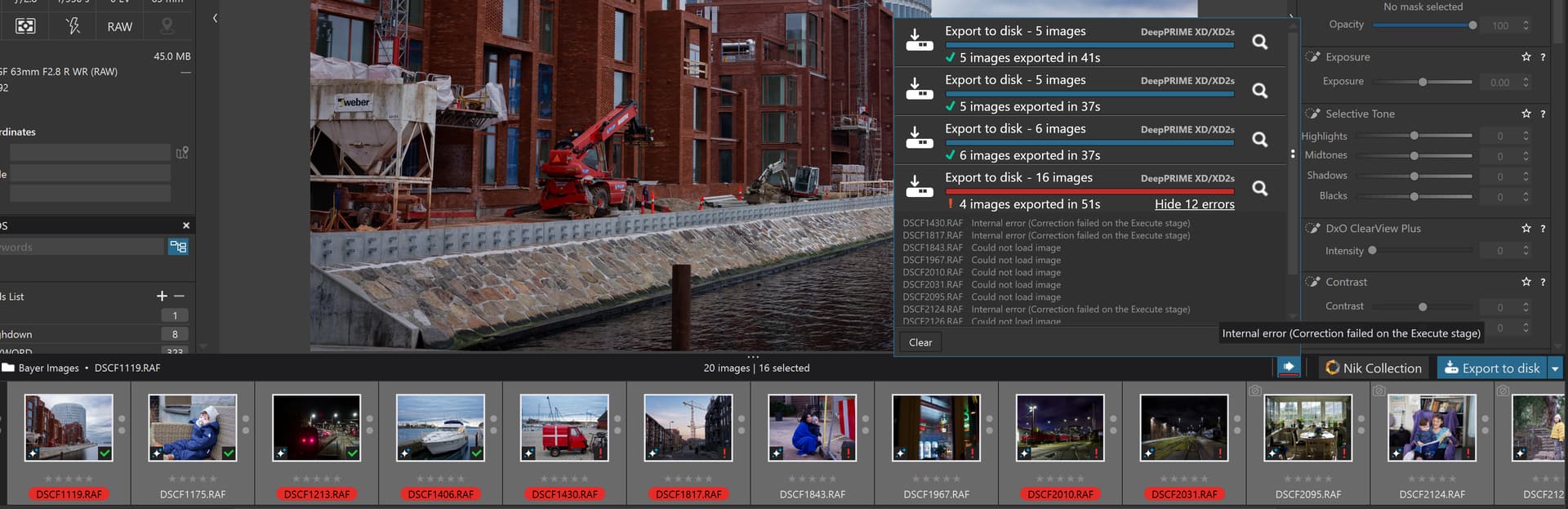
I then restarted and colour labelled all images with Sky preset applied and and ran groups of 5 image exports and they worked so I attempted another export of all 20 Bayer images and it failed at a different image but a Sky preset image
I get about 7MB in PhotoLab logs for each DopCor crash during exports. Maybe this was the reason in OP case?
It would be interesting what was there in GB logs. While my DopCor logs are relatively small, my PhotoLab logs have about 7MB of text containing info about rethrown exceptions for every DopCor crash experienced during exports. These 7MB are generated within 0.2 sec and stop only after DopCor is back again, being automatically restarted by the main process. Maybe in the OP case it took longer for DopCor to recover and logs quickly became really huge.
IGNORE THIS: I’ve got to admit that I didn’t look in them due to the size of each and I permanently deleted them unfortunately. There were only 5-10 files though (some with the same name but ending in increasing single digit numbers; i.e. “0”, “1”, “2”, etc.) and the largest of those was a 16GB .txt file. At the time I had pretty much given up on Photolab and was more concerned with why my main drive was getting full.
EDIT:
I found the largest one in my recycle bin:
DxO.PhotoLab.0.txt - 16,593,719,876 bytes.
Too large for notepad to open but tried to have command prompt type it on the screen. . Still going and can’t how far in it is but I can see lots of:
Exception rethrown at [0]:
at System.Runtime.Remoting.Proxies.RealProxy.HandleReturnMessage(IMessage reqMsg, IMessage retMsg)
at System.Runtime.Remoting.Proxies.RealProxy.PrivateInvoke(MessageData& msgData, Int32 type)
at DxO.PhotoLab.ProcessingCore.Core.Interfaces.IDopCorHost.StartDopCorServer(String relativeUri)
at DxO.PhotoLab.ProcessingCore.Core.Remote.ExceptionsConverter.<>c__DisplayClass0_0.b__0()
at DxO.PhotoLab.ProcessingCore.Core.Remote.ExceptionsConverter.Convert[TResult](Func1 expression) 2025-11-09 00:03:45.005 | DxO.PhotoLab - 15380 - 35 | DxO.PhotoLab.Processing.ProcessingUnitPool - Error | Failed to start processing unit 27584227 2025-11-09 00:03:45.005 | DxO.PhotoLab - 15380 - 35 | DxO.PhotoLab.Processing.ProcessingUnitPool - Error | Processing unit creation failed. Retrying... 2025-11-09 00:03:45.005 | DxO.PhotoLab - 15380 - 35 | DxO.PhotoLab.Processing.ProcessingUnit - Error | Failed to start processing unit Exception: DxO.PhotoLab.ProcessingCore.Core.Remote.ConnexionLostException Connection lost between PhotoLab and DopCor at DxO.PhotoLab.ProcessingCore.Core.Remote.ExceptionsConverter.Convert[TResult](Func1 expression)
at DxO.PhotoLab.Processing.ProcessingUnit.Start(CancellationToken cancellationToken)
System.ServiceModel.CommunicationObjectFaultedException The communication object, System.ServiceModel.Channels.ServiceChannel, cannot be used for communication because it is in the Faulted state.
There was still 30GB free after the 100GB permanent swap file so I don’t think the free space had anything to do with the failures, though. I’m guessing that maybe Photolab was having problems updating the logs after the first successful export given how large the log files were?
It matches my description. Earlier in the log there should also be
DxO.PhotoLab.ProcessingCore.Core.Remote.ConnexionLostException: Connection lost between PhotoLab and DopCor
For each DopCor crash I get one such line, two errors reported in UI (=#export threads), and a lot of rethrown exceptions until DopCor is restarted to carry on with export. The exceptions seem to be rethrown in a tight loop, so probably introducing some small sleep would fix the large log problem. Probably you also had some minidumps of DxO.PhotoLab.ProcessingCore.exe (aka DopCor) in %LOCALAPPDATA%\CrashDumps, about 100MB per dump in my case (Windows by default keeps only 10 dumps there, removing the eldest). Not sure though, why you got gigabytes of those, while mine largest log so far is “only” 55MB. The root cause for those is another story, see e.g. Processing performance in DXO on RTX 5060 and RTX 5060 TI cards .
I’ve been having similar problems with an NVIDIA 4070 with 8 gig RAM. PL9.2 is a bit better but still inconsistent. I export one file at a time, so I don’t know about batch processing. Changing the AI acceleration in preferences to either Intel AI boost or Intel Arc Pro Graphics make everything work but is it ever slooooooooow!
My log files are just 6 MB, and the cache is 235 MB. I tried putting the cache on a secondary fast SSD drive to prevent any potential I/O conflicts but it made no difference.
I have an open support ticket and when I provided some more feedback their response was in essence “don’t bother us, we’re working on it”.
This is not acceptable. My computer runs plenty of heavy duty processing including real time audio and its specs are well beyond minimum. There’s no excuse for releasing PL-9 with so much obvious bugginess.
Probably you also had some minidumps of DxO.PhotoLab.ProcessingCore.exe (aka DopCor) in %LOCALAPPDATA%\CrashDumps
Yep; I didn’t know about that folder. Found some from DxO.PhotoLab.ProcessingCore.exe and some from DxO.PhotoLab.exe. Looking at the times, I think the latter were caused when Photolab had issues with a mask I was trying to create - in the end just clicking on the virtual copy would cause it to freeze, try to ask for a report then crash completely. (Stupid thing was, the mask would only cause PL to crash when I tried to lower the lens sharpness - eventually that setting must have been saved and then it broke the virtual copy.)
REF: 55MB.
Photolab ran fine for loads of images today then did the “stuck on 0s” thing with a no mask export. (The log file prior to that was about 500KB.) Left it maybe 1/2 a minute (tops) as it would normally complete within 2-3 seconds and found a new 2GB log file when I closed Photolab. Seems like whatever entries its writing, it gets a lot of them done very quickly (or they’re far too verbose!). I’ve not had any recurrence of the “can only do 1 export then it goes wrong” thing, but I’ve also been deleting any huge log files when I saw them (maybe 3x total out of about 300 exports).
REF: 5060 cards
I had an nvidia 3050 when PL 9 came out so experienced loads of hassle with that and could never get the driver that DXO mentioned nor one close that worked. Bought the AMD 9060XT 16GB to avoid the nvidia issues and any low memory issues only to find that whilst it usually worked, PL could really do with about 24GB of vram at times. Again, closing PL down then reopening it was the solution.
@RandomBod Providing your machine comes out of a Sleep successfully, Sleep (and re-awaken) work every time for me, i,e, VRAM is cleared, but I am using Nvidia cards so I do not know what your AMD card will do?
The export VRAM can be recovered by terminating the export worker but you are going to need that for the next export.
In the meantime it will clear the portion of VRAM used by the export process until the next export, Terminating it will immediately restart it, once you have done one export it is a “permanent fixture” (it appears) but the additional VRAM will only be required when the next export is executed.
Such “tricks” should not be necessary but …
As for the memory usage I am convinced that PhotoLab just uses whatever
it wants not just what it needs, so my 12GB 3060 and 16GB 5060Ti are frequently filled or very close to full but how much of that VRAM is actually necessary?
PS:- If DxO are screwing up the internal tables/variables/etc within PhotoLab then no amount of Sleep is going to fix that!!
Here Processing performance in DXO on RTX 5060 and RTX 5060 TI cards - #24 by BHAYT I report the results of tests that are failing after about 21 X-Trans images have been exported (with XD2s and XD3, and I believe that XD2s is actually XD when applied to X-Trans images) and there is no AI in sight just basic edits followed by exporting, and the issue is reproducible!
It isn’t just AI that is causing problems with the export process.
Sorry that is incorrect it just needs to export the images with NO NR whatsoever and it fails!!
I like to note: export rarely crash in ‘CPU only’ mode! I not count it, but like 1 in every 20? Or 2-3 per 30?
Note: i work on some ‘CPU only’ performance / memory measurements (when i have a little spare time).
Note that DopCor crashes quietly sometimes during PhotoLab shutdown, so some of your DxO.PhotoLab.ProcessingCore.exe dumps may come from this, yet another bug.
Summary of problems I’ve seen so far with PL9.2/Win11 24H2, RTX4070/581.57:
PhotoLab crashes while using AI masks, more profound for predefined masks (VRAM deallocation problem?)
PhotoLab crashes while using 30+ Control Points in a mask (didn’t try to reproduce)
DopCor crashes on exports using AI masks (VRAM deallocation problem?)
DopCor crashes on exports using DP3 or XD2s, but not using AI masks, with small VRAM allocation
DopCor crashes on large exports with Denoising inactive (‘Shared GPU Memory’ leak, plus possibly another reason, reproducible)
DopCor crashes cause PhotoLab log to grow out of proportions, rethrown exceptions being logged in a tight loop
DopCor crashes sometimes during PhotoLab shutdown
CA magic wand for Size slider is too aggressive in some cases, causing too wide desaturation (looks like an old problem/feature)
Thanks; another thing that I didn’t know. Since clearing the logs I’ve had very few failures (and none since yesterday) but I’ll have to start working on some 45MP images soon (instead of 24MPs at the moment) so I might need to try that.
About the VRAM; before PL 9.2 I found that even with the 9060XT 16GB card, interacting with other apps that used graphics acceleration would most likely crash the exports (or at least images within the exports) so I think that PL was grabbing VRAM and expecting exclusive access to it. I’m hoping that 9.2 has solved that but I tend to just close everything that I can now, just in case. (Even things like browsers with graphics acceleration was enough, it seemed.)
@RandomBod Glad to be of service. I don’t know if, when you encounter an export error, you restart the application every time but an alternative might (!?) be to terminate the export worker
Also split an editing session from an export session with a Sleep between them.
In fact I would do two things
Export in smaller batches, i.e. select a batch from the whole directory you want to export and export and repeat.
Consider terminating the export worker after every batch if repeatedly exporting batches of the same size suddenly hits problems.
or three if you include periodic Sleep, wait until you know the PC has gone to sleep and then awaken.
Please note the termination of the export worker will appear not to have happened because it is restarted immediately but, in my case, the Process Lasso log shows that a termination has occurred.
On my two systems I have cordless keyboards with a sleep button so it is easy to put the machines to sleep and they both have a very large and bright power switch that flashes as soon as the machine is asleep, so as soon as that flashes I wake the machine by pushing the power switch!
This is no substitute for DxO fixing the problems but might (hopefully) get you through an editing batch. I doubt that it will be entirely successful but might help a bit.
End-tasking the processingcore worked for me, thanks.
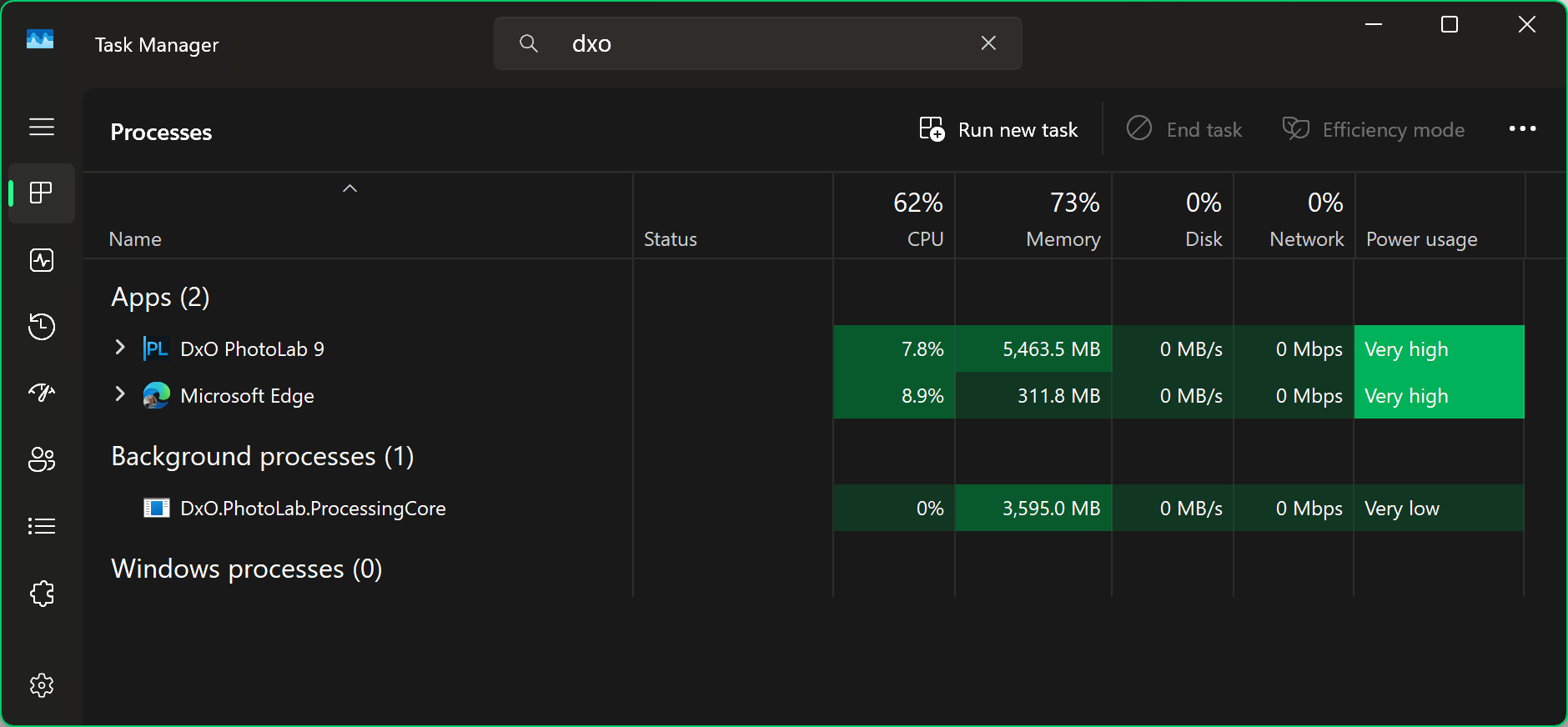
An export with 1 mask and multiple AI submasks hung on 0s again. Found four processingcore tasks, ended them all, retried the export and it went through fine. Much quicker than closing then restarting PL.
(In Windows 11 25H2 (but maybe also earlier) there’s a search option at the top of task manager’s app list. Putting DXO in there found them easily.)
@RandomBod That happened to me in a recent test and I terminated the export worker and “hey presto” it worked!
It won’t fix everything but it will clear the path for situations where the export process is “spinning it wheels” and might help fix other problems with exporting.
I am glad you found a way of locating and terminating the export worker, only one visible with PL9, a change from PL8 where there was a copy per export workers specified.
At a guess I think there are bugs in the export worker and that seems to be determined by the amount of work it has undertaken but it is only a guess and we can’t fix coding errors only find workarounds!?
Process Lasso is my utility of choice for watching over the system and is running on all my PCs. There is a free copy with some features disabled or a licensed version for up to 5 PCs.

 but tried to have command prompt type it on the screen.
  . Still going and can’t how far in it is but I can see lots of: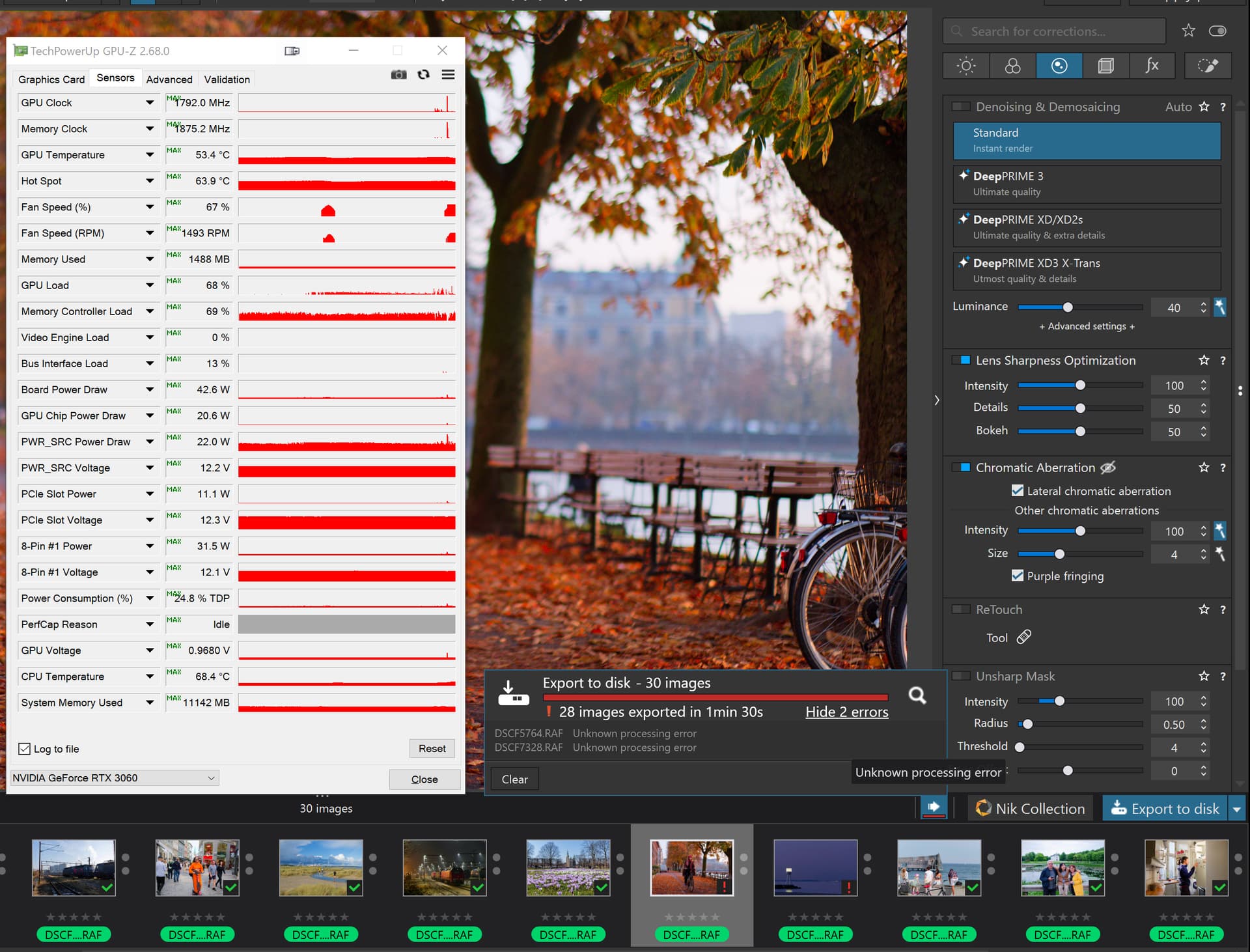
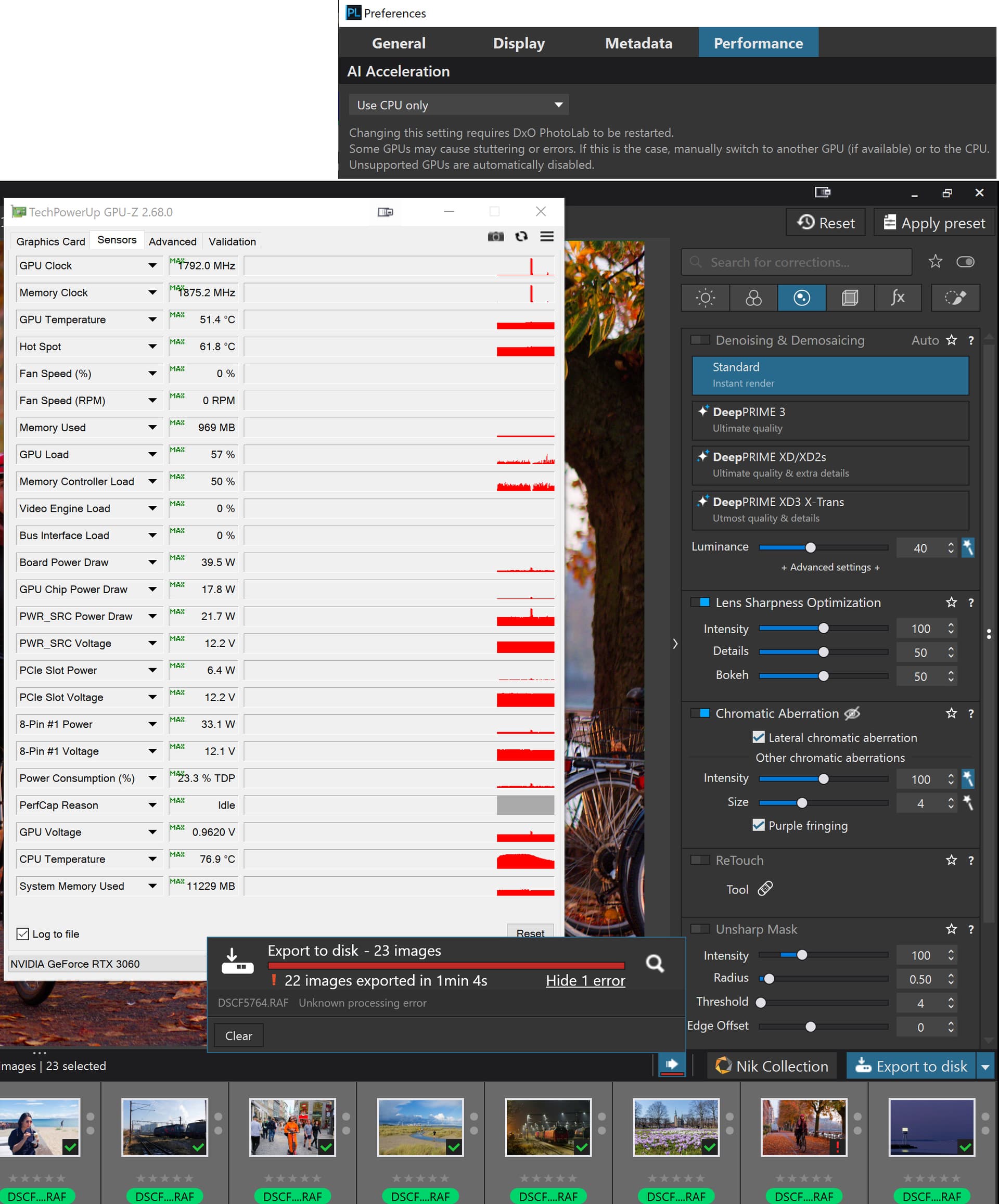
 Since clearing the logs I’ve had very few failures (and none since yesterday) but I’ll have to start working on some 45MP images soon (instead of 24MPs at the moment) so I might need to try that.