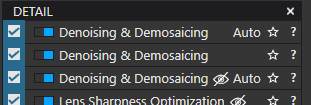
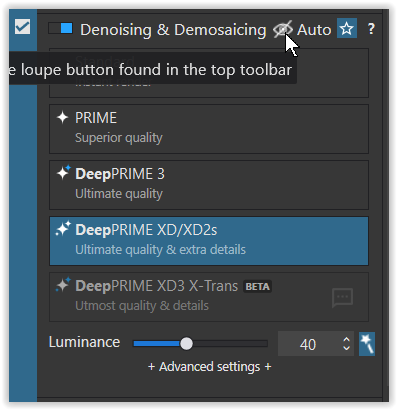
Why, when editing a Preset containing settings for the Denoising & Demosaicing tool, is this tool listed 3 times ?
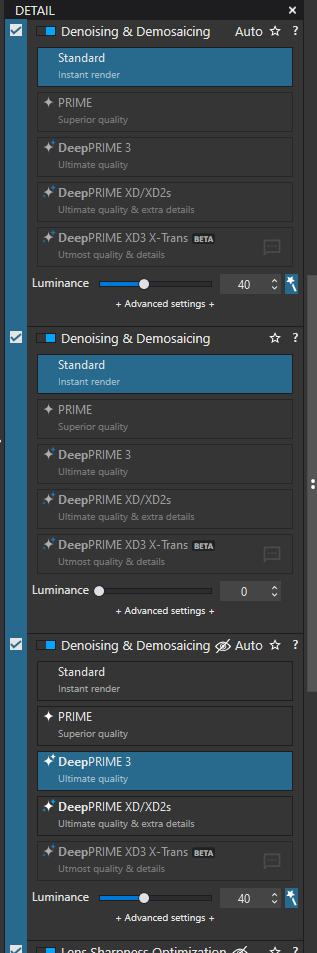
- each instance has slightly different attributes
- they cannot be set On/Off independently … it’s either all ON or all OFF
Why, when editing a Preset containing settings for the Denoising & Demosaicing tool, is this tool listed 3 times ?
Yes I also have the same thing, I think it’s a bug.
And only one of the three can be modified
the same here … while in my case the middle one seemed to “lead”
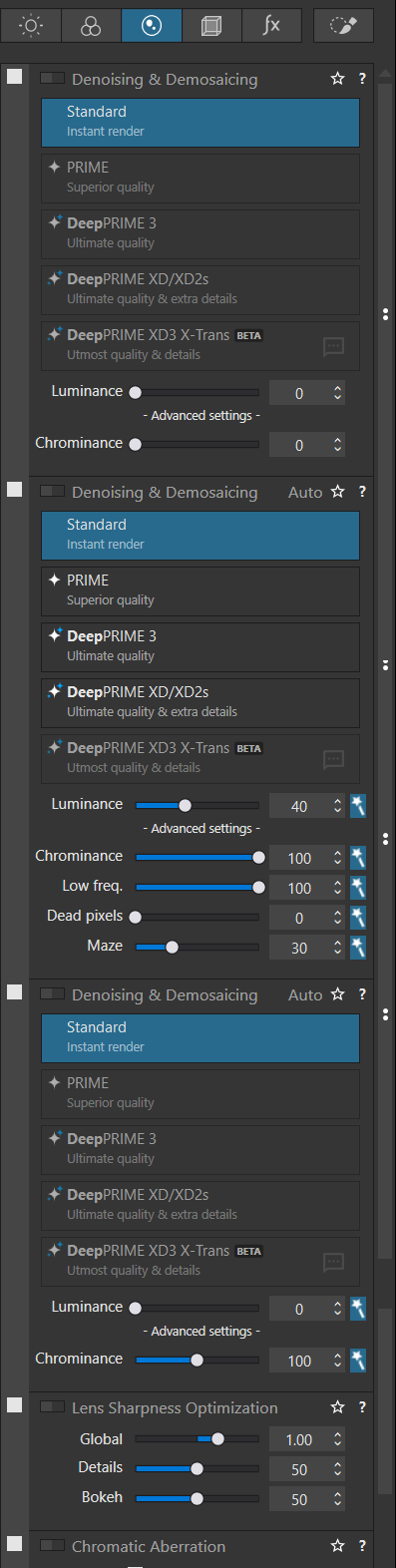
@John-M Setting the ‘Advanced settings’ gives an even more illuminating but still perplexing output!?
Puts tin hat on
Get a Mac 
Seriously though this looks like, somehow, you have the same tool from previous versions installed in the latest. Have you checked out the workspace?
@Joanna You already know what you can do with your first comment!
As for the second it is rather odd and wrong but they are all showing XD3 which is only a recent addition!?
Awww 
Yes, the is odd but I was thinking out loud if a user Workspace file could be at fault?
Haha, Bryan … I’ve learned to ignore Joanna’s “Mac fan girl” comments 
That’s a reasonable guess - but Bryan discounts it: he confirmed the same result when using the “DxO Advanced” workspace.
User workspaces are not necessarily updated when PhotoLab updates. Whether the workspace causes the triplicating or not can be checked by using a built-in Workspace.
The difference is …
In the “Standard” or “Advanced” workspace, the area where changes can be made (are active) appears third.
However, in my “Custom” workspace, it appears second.
Same problem here. Did anyone submit a bug report or should I ? Since June, this bug should have already been fixed.
Please report it (can’t check at the moment).
OK. Done this morning.
The support answered that they can’t reproduce. Anyone using Windows and not seeing the problem ?
I eventually got an answer from the support. Hard to believe but well, we’re used to UI inconsistency in Photolab…
The observed behavior is intentional. The first Denoising & Demosaicing section is for RAW images. the second is for RGB images and the third is for non calibrated RGB images.
Nobody had the simple idea of making this clear in the documentation or even in the help popup that appears when clicking on the question mark of each section.
They admit that it’s confusing (understatement). This will be fixed in a future version.
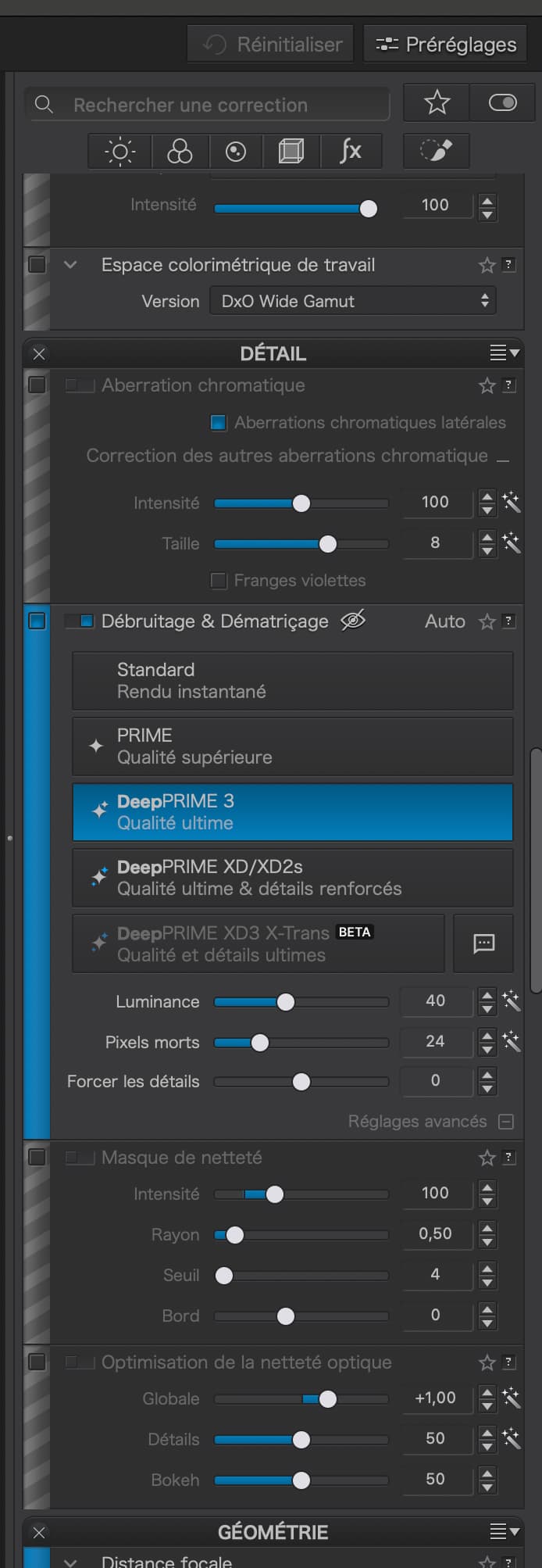
I’m very late to this party but I only installed the PL9 trial a few days ago. It installed as PL9.1 but updated to PL9.2 very soon after.
I’m using PL9.2 on both Win 11 and Win 10. In neither case do I see any more than ONE instance of the Denoising & Demosaicing palette no matter what preset I choose.
Similarly, if I copy a preset or create one from current settings, there is only ever one Denoising & Demosaicing palette.
Hve I misunderstood the problem being discussed in this topic?
The duplication is in the preset editor - - is that where you’re looking?
John
I have given some thought to the answer from the support and I came to the conclusion that it doesn’t make sense.
From the 3 sections only one is enabled. However, any change in the one that is active is immediately copied to the 2 others (except for the denoising process). This behavior is not exactly the same in version 9.2, though. All 3 sections appear to be active but they are still coupled for the Luminance and Chrominance parameter.
How do we know to which type of file the active section corresponds ? I first thought that the active section was determined by the type of the image that is selected when the preset editor is opened. Actually, the type of the currently selected image has an effect on the denoising processes that can be selected in the active section. But it’s always the third section where the choice of the denoising process can be made and since the other parameters (chrominance and luminance) remain coupled this doesn’t make sense.
Conclusion
According to the support, each preset is supposed to have different settings for the Denoising & Demosaicing section, depending on the type of the image to which this preset is applied. However, it’s impossible to set different chrominance and luminance settings for each section. Also, it seems that in order to select a different denoising process for each image type, we have to edit the preset 3 times by selecting an image of the target type before opening the preset editor. In that case, the workaround is to create 3 different presets.
Not publishing a single line of documentation about this strange and awkward design definitely generates a total mess.
And we can be sure that nobody at DxO has tried using this “feature”.