@BHAYT’s problem seems to be related to → a special (driver) problem …
Respectfully at this stage I just want the stability back. I’ve no idea why PhotoLab has suddenly started being so unpredictable in its exports of other files with other settings. It makes no sense. I’ve not changed drivers or program versions.
1 Like
You just asked
Out of interest, have all your export problems started with the St Pancras Station image?
Again – I could export as described and @BHAYT’s problem seems to be related to a special (driver) problem. And we are handling a 100 MB file.
Exported St. Pancras Station (6 virtual copies with all AI-masks activated) without any crash.
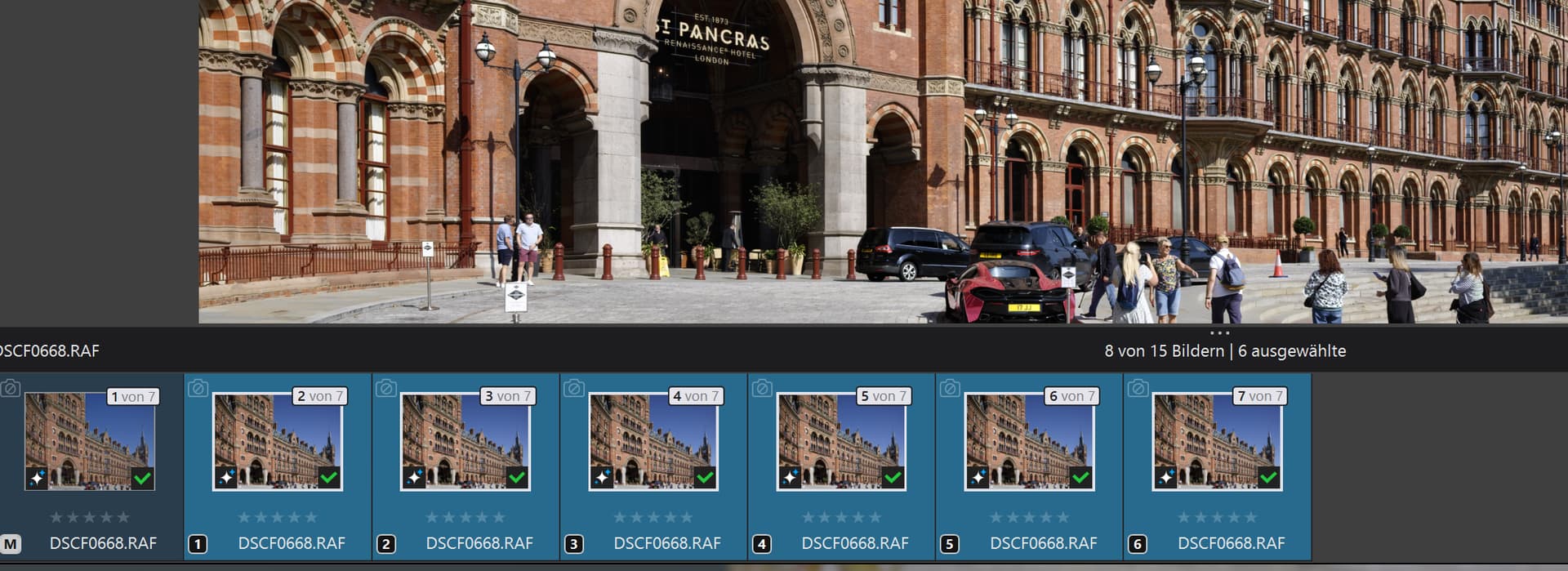
But rendering took 2min 13s per picture which is really slow compared to rendering of unmasked picture (16s).

The RAM consumption is extreme: 7.5 GB VRAM + 9.7 GB shared GPU-RAM.
To accelerate the export-process I would probably need a much better GPU or a significantly improved PL.
My computer:
AMD Ryzen 9950x3d, RAM: 64GB DDR5, 2TB NVME SSD, RTX 3070 GPU (8GB VRAM), PL 9.3.2, NVIDIA-Driver 591.74, Win 11
Stephan
2 Likes
Okay, but like I said, my export problems started after trying to handle this 100mb file. Only now, the export issues are extending to those files from my own camera.
I didn’t change drivers or software, the thing that did change was me trying to run the same stress test.
@Fineus I am sorry if trying to check my results has caused you any grief, not least because I do not understand how a previous failed test can influence any other tests except you will need to restart at least the export worker and essentially PL9 itself.
Providing you close PL9 on an empty directory it should not inherit any problems from previous editing session. So
- If possible navigate away from any problem directory, preferably to one that is empty.
- Restart PL9 and it should restart without any previous editing “complicating” things.
- Avoid the problem directory at all costs, i.e. avoid the DOPs.
If problems persist then the only other thing that has any “memory” is the database itself!?
I don’t really expect any previous edits to “corrupt” future sessions either via the DOPs or the database!?
Back up the database, particularly if it has any assets you need, e.g. ‘Projects’ and/or ‘Advanced History’ and start with a new database and see what happens.
The final element would be to do all of the above and restart the PC.
1 Like
No blame here, I’m just concerned at the sudden export issues I’m seeing (and why)!
My test was run a couple of days ago so I’ve absolutely closed both the program, Windows, and my entire computer down since then.
I have managed to export the failed images with repeated export attempts (sometimes without navigating away at all) but there seems to be little rhyme or reason as to why the exports are failing or succeeding. I’ve not changed any edits between export attempts, nor drivers or anything else. I’ve just tried the export again and where it first failed… now it succeeds.
As far as I’m concerned this is still not ideal, I don’t want exports failing at all or finding that where I thought I could leave a session to export safely, now I can’t be sure.
I’ll keep an eye on this and might end up reinstalling PhotoLab if it continues to be really bad. Suffice it to say… another random phantom / issue for DxO to look in to.
@Fineus I “lied” about the database and the DOP being the only two elements with “memory”.
There is also the config file, this is an old one from the Trial I ran on my i7
"C:\Users\"username"\AppData\Local\DxO\DxO.PhotoLab.exe_StrongName_addo3jomrfkt2faiwwfxxb444r1xfvlh\9.1.0.488\user.config"
There was a bug back on PL5 when users lost their export profiles and that was caused by a bug to do with the config file but I don’t really see that as being the culprit!?
@Fineus Please remember to submit a support request, not just report it here.
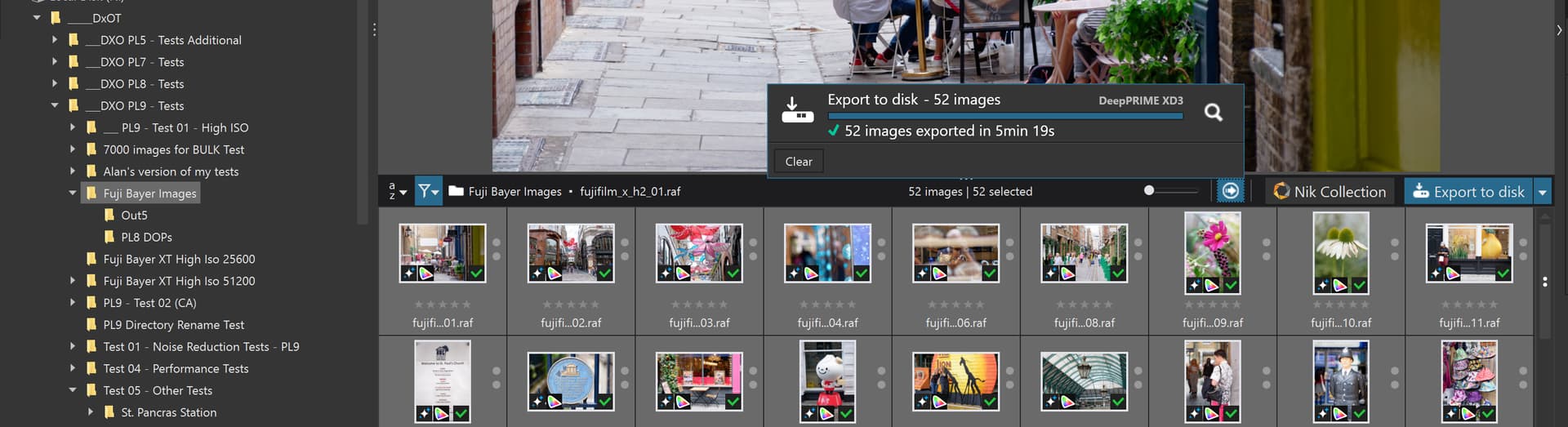
As a simple test on my 5600G(32GB)-3060(12GB) after a disastrous set of tests with the St Pancras image I ran an export with 52 Fuji X-Trans images with XD3 X-Trans noise reduction.
Try re-indexing the relevant folder.
- While experimenting with/deleting VCs, I wasn’t sure if I had corrupted the database. Then I had the idea to re-index, and that seemed to help somewhat.
- This huge file in PL 9 is pushing my old computer to its limits. The GPU has to process the demanding AI masks plus DeepPrimeXD/XD2s. … It worked, but it was anything but smooth.
@Wolfgang I am not going to say that it won’t or shouldn’t work but equally I can’t see why that should do anything positive either?
Indexing/re-indexing may gather data from the DOP and overwrite the database values with those from the DOP? It might update its internal tables and bring them back in line with “reality”, if they have drifted from “reality” in the first place.
But why has the big image caused those tables to drift out of line …!?
All the strategies I proposed plus your suggestion of re-indexing are worth a try but why PL9 should suddenly start “corrupting” itself warrants a support request to DxO.
As for your performance issues, the 5900X with the 5060Ti(16GB) stutters with the St Pancras image and the 5600G with the 3060(12GB) stutters even more and many of my tests have been without any Noise Reduction added.
Bryan,
You are correct that the failed processing of this large file should not cause any problems with file processing that previously worked perfectly.
While experimenting with/deleting VCs, I was probably a bit too hasty, and PL9 may not have correctly detected the change. … The application seemed to freeze at one point, so I forced it to close and restart it. Reindexing seemed to fix the problem, and I was able to edit the file again. But … ???
@Wolfgang During my tests with the 5600G and 3060(16GB) I got concerned that a product I use, Process Lasso’ had applied a throttling mechanism (‘Pro Restraint’) to the PL9 application and the export worker, i.e. it had decided that, to ensure responsiveness of the whole system, those programs needed to be restrained.
I wondered if that was contributing in some way to the export issues I was experiencing, notwithstanding your comments about the issues with Nvidia X060 cards, i.e. with respect to both my 3060(12GB) and my 5060Ti(16GB).
I have no concrete evidence that the failures after I removed those constraints were any less than before but I will repeat the tests tomorrow and see what happens!?
I have purchased a second-hand GTX 1080(8GB) card which gives me access to an 8GB GPU (to complete the collection 2060(6GB), 1080(8GB), 3060(12GB) and 5060Ti(16GB)) and, hopefully an opportunity to see the exports work or fail, as the case may be, but that won’t be until after Tuesday next week!
A cheapish replacement for my old RTX 2060(6GB) cards which certainly don’t like PL9 AI at all and with similar performance specs to the 3060(12GB) (yet to be determined with respect to PL in general and PL9 in particular)!!?
Well, I had read about that problem, but it only clicked when @Wlodek pointed it out. … However I’m lost about this WinML stuff.
As DxO indicates
- Use CPU processing for these operations, or
- Avoid AI Mask keywords temporarily.
my dop-file contains:
.Mask 1 = AI sky
.Mask 2 = AI vehicles
.Mask 3 = AI people
and
.Mask 4 = AI Add a selection
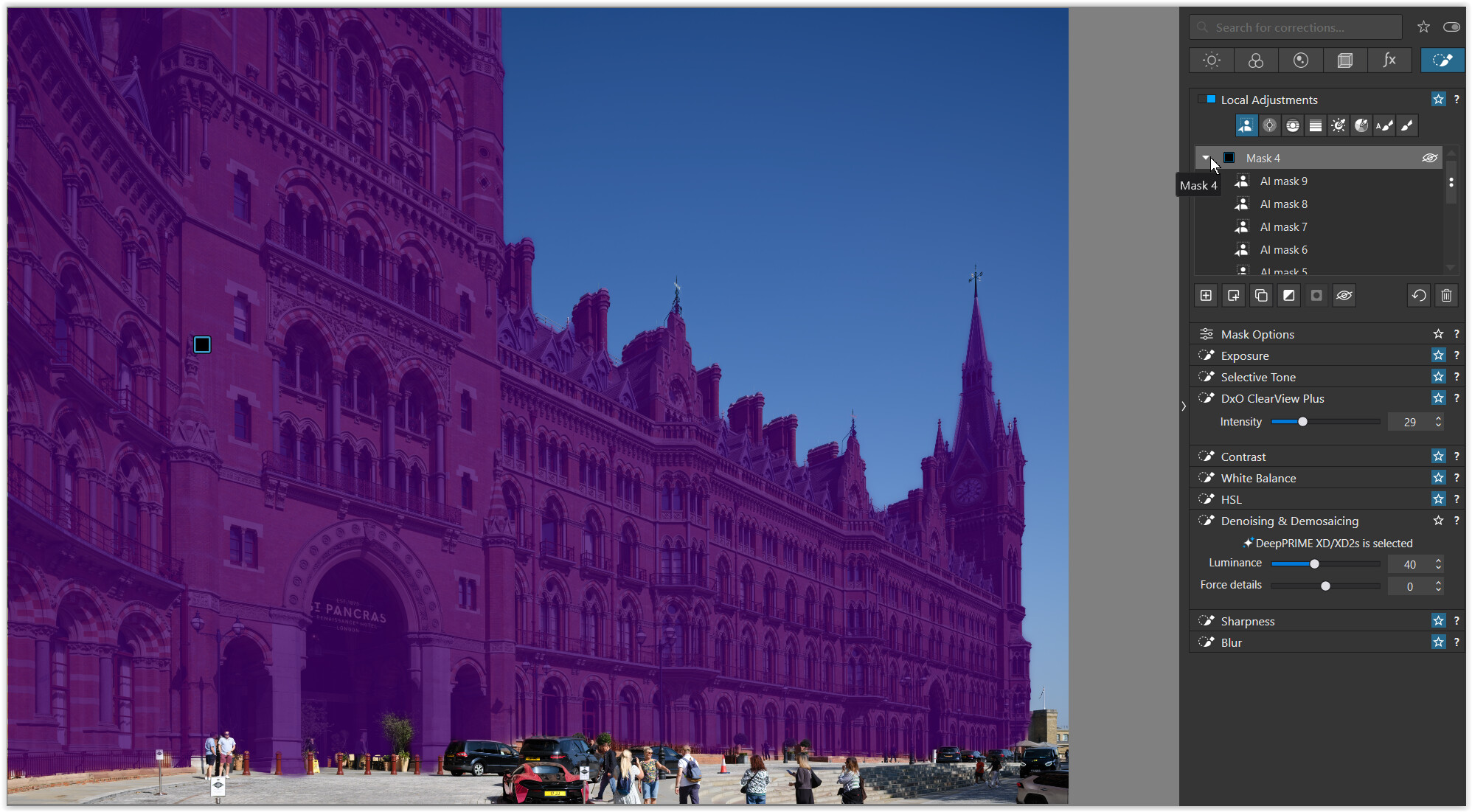
I assume you need to disable at least mask 1-3 with your current GPUs.
.
Regarding the used GTX 1080 8GB you acquired, I wonder if it will even work
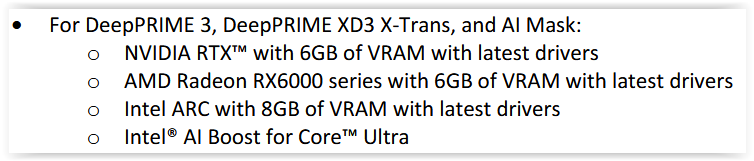
which are considered (part of) minimum requirements.
.
Out of curiosity, I compared the GTX 1080 8GB with the GTX 1060 6GB on Techpowerup, having used the latter before extending the lifespan of my PC.
@Wolfgang I have no intention of reverting to “wooden clubs” and “stone knives”, i.e. using the CPU for AI and Noise Reduction.
So DxO introduce AI, greatly increase the actual amount of VRAM required, regardless of the original PL8 requirements it actually only used about 3K on my 5900X, which needs VRAM to run the monitors, i.e. no onboard GPU.
Plus I have successfully exported other images with AI and NR with no problem on the latest releases of PL9 and Nvidia drivers!?
The size of the St. Pancras image is obviously causing the “cracks to show” and then widen into a chasm!!
But, as my tests today have shown me, it is not as cut and dried as has been stated, but more of that later.
With respect to the GTX 1080, other users have been successful where I have previously failed with earlier copies of PL9 and they have been using older GPUs, hence, settling for a GTX 1080 at a reasonable price.
If I can get it to work at all and it succeeds in exporting YOUR St Pancras image then that will lend some credence to the DxO claims about RTX X060 GPUs, otherwise ??
It just occurred to me that the 5600G has an onboard GPU, hence the “G” in its title!?
So this is what just happened when I tried to use it on a directory similar to yours (I’ll explain that statement in a minute or two)
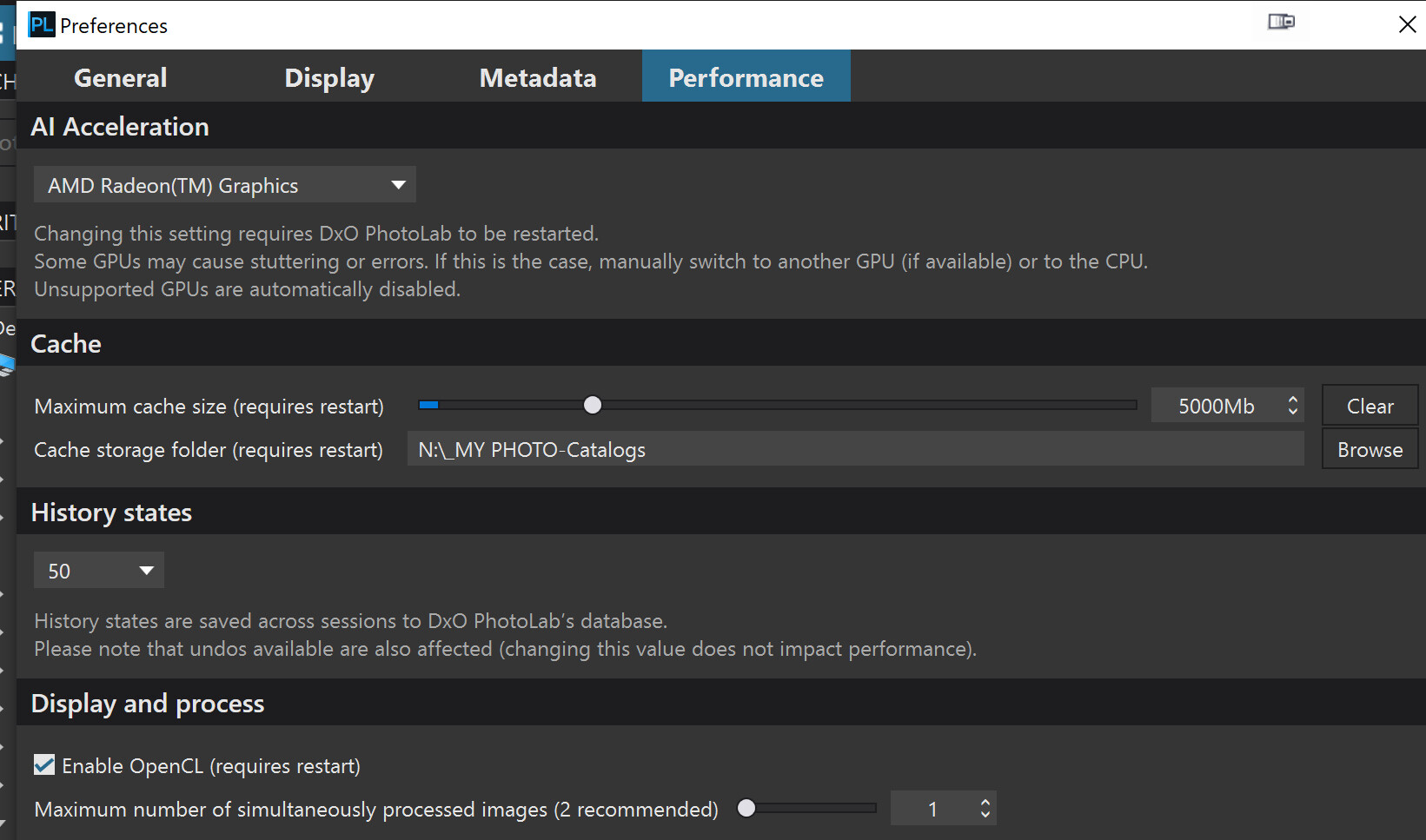

It failed on image 2 and then hung!?
So I switched to CPU only and exported, while I was helping my wife with the food delivery, and this is what happened
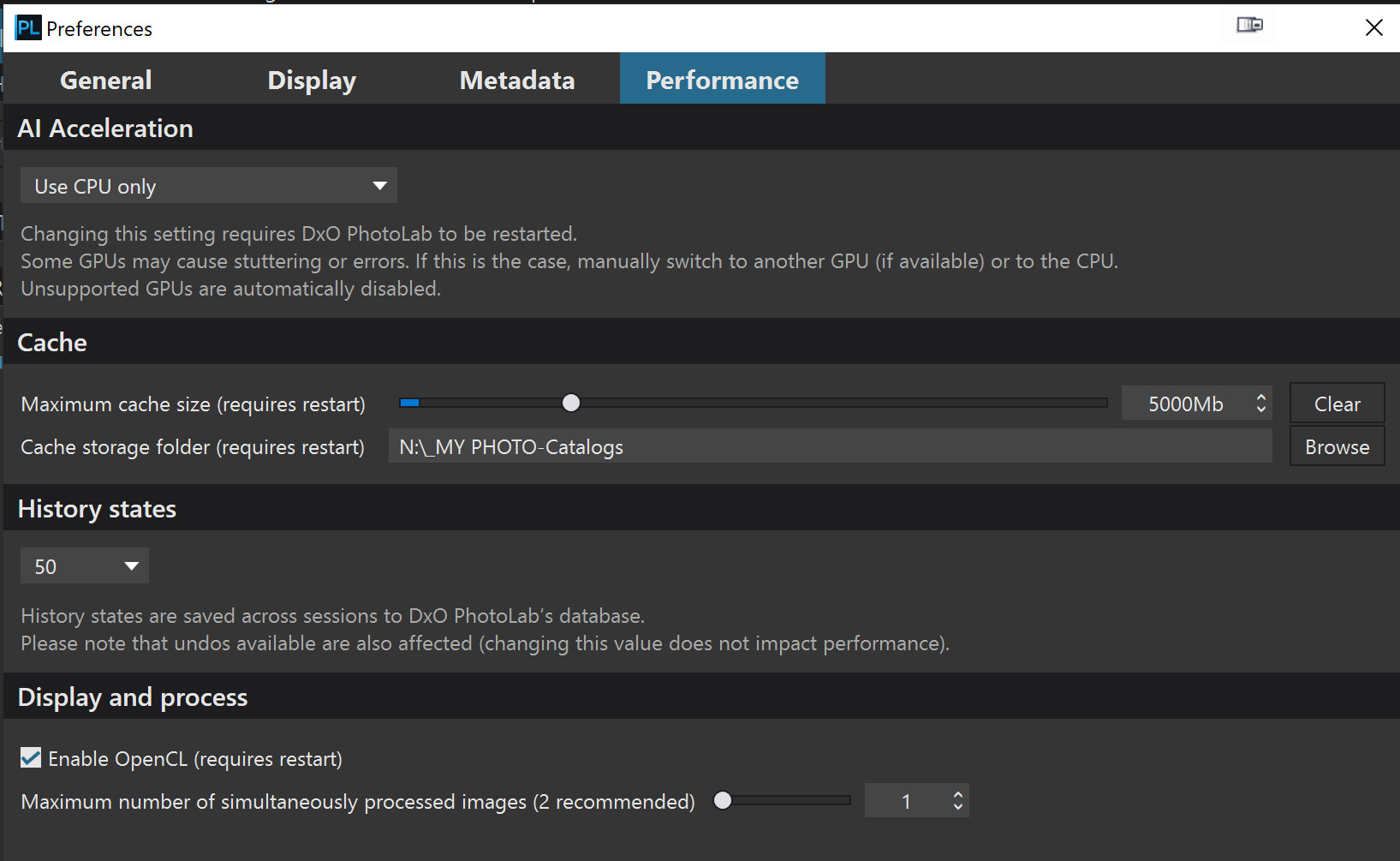
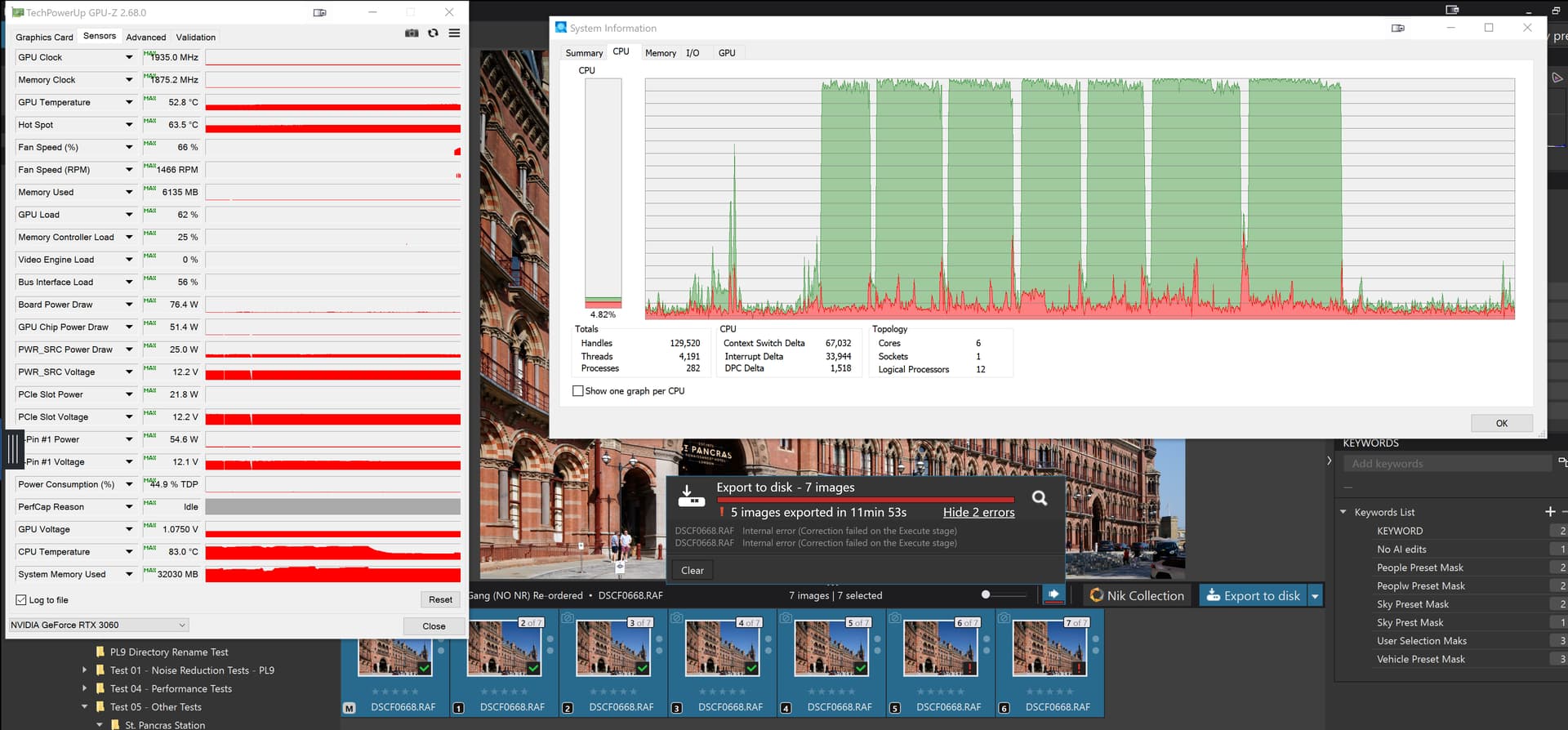
So much for the recommendation, what I don’t understand is how/why you managed to get the process to finish
Now for an explanation of my changes to your test image
- I have left the non-AI image in place but apply the same NR settings, if any, to that image as well as to all the AI images.
- The AI combinations remain as you have written.
- Those are followed by a combination of 3 of the 4 masks, Mask 3 (People preset) is omitted because of problems I have had with that in the past (and again today).
- Finally there is an image with all the masks applied.
So neither choosing my onboard GPU nor the CPU only option worked for me!?
Earlier today I ran tests on the “new” layout I have just outlined above and got the following with NO NR with each image(copy) submitted for export one at a time.
After the first failure, I started terminating the export worker after each and every export, regardless of whether that export was successful or not and these were the outcomes of those tests
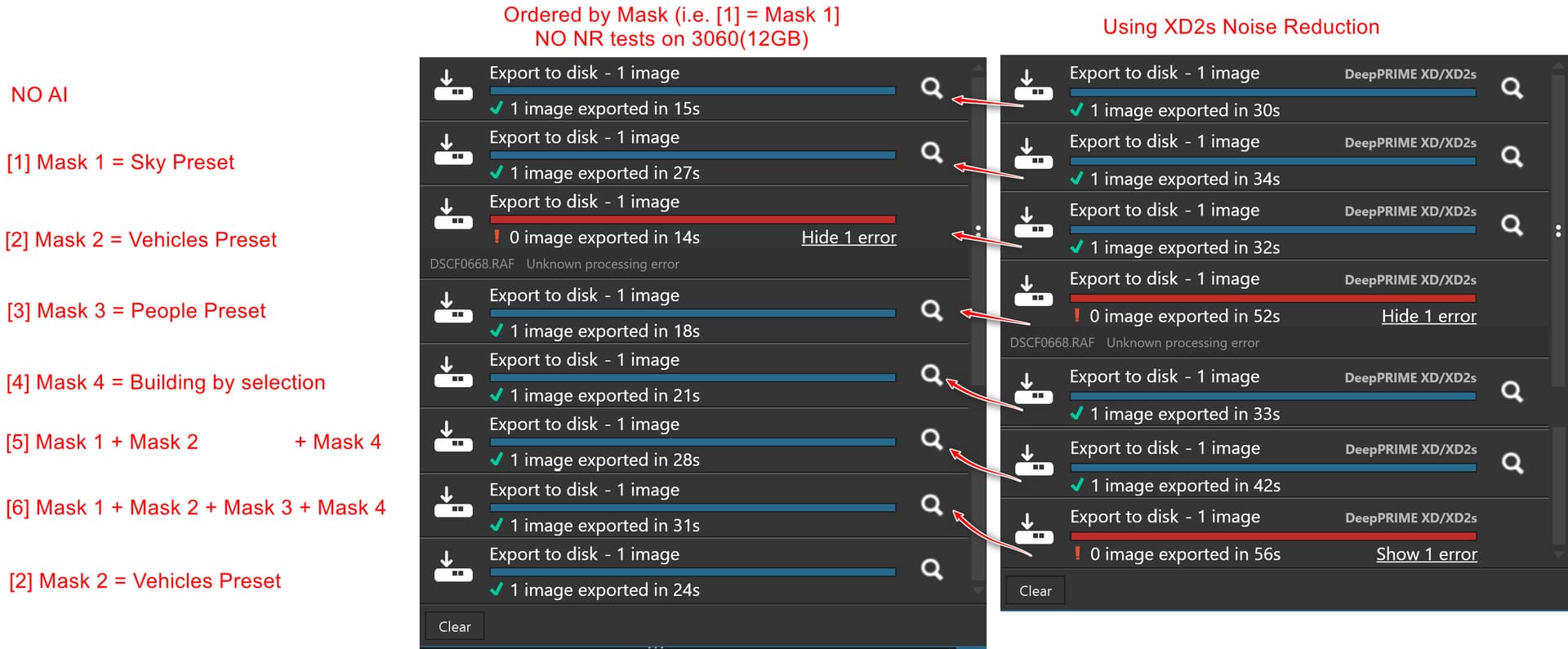
Retrying the NO NR failure of [2] (Mask 2 = Vehicles Preset) was successful as shown but retesting the XD2s failures produced this
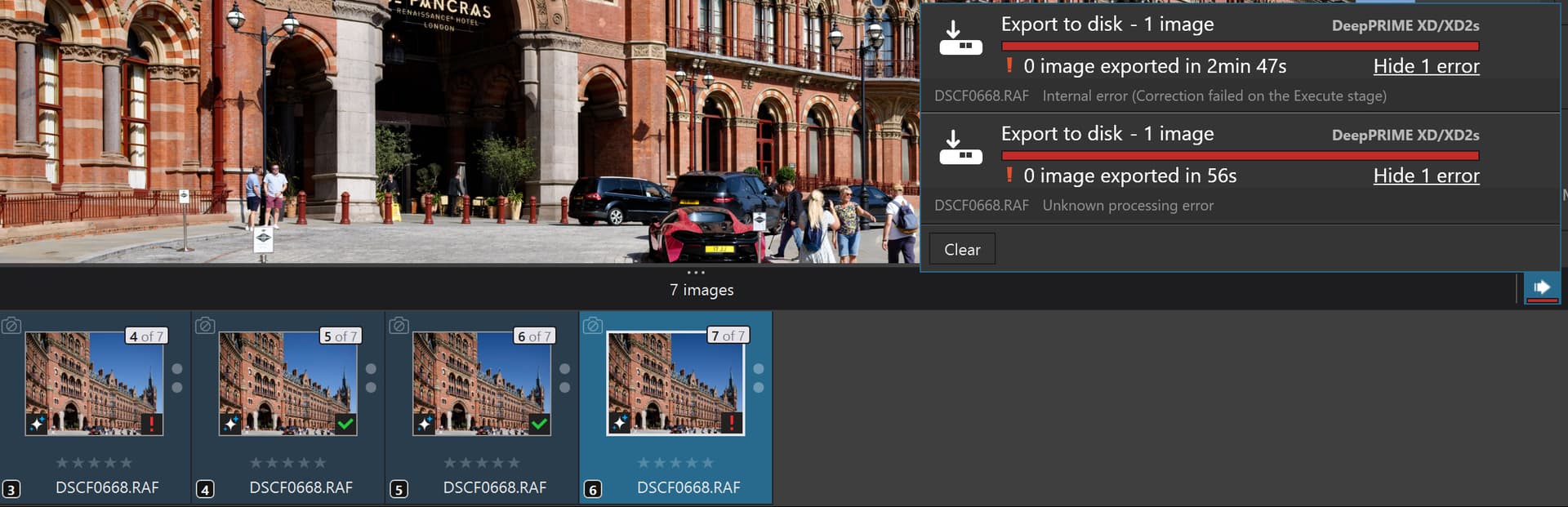
Personally I believe that the new export worker architecture is to blame, at least in part, but what I cannot reconcile is why I fail consistently on two machines while others are successful!?
When the “new” GPU arrives I will fit it into a redundant i7-4790K in place of a completely redundant RTX 2060(6GB) and repeat some of the tests before moving it to each of the AMD processors in turn, providing that the results seem to warrant that upheaval to those machines!?
DSCF0668.RAF.dop (88.2 KB)
What makes you think so?
The new export architecture on Win uses one spawned process instead of default two used previously, potentially using less resources, e.g. making one call to create “GPU engine” (in MS language) instead of two. Perhaps DopCor should be put inside the PhotoLab.exe to make resource usage even more efficient, but then you risk whole PL crashing more often, instead of just the DopCor crash with PL left alive.
Actually I was a bit surprised by DxO taking the risk of reworking the export process, so they must have really good reason to do that, and that’s probably resource usage tuning (RAM, virtual memory, VRAM). Otherwise they would follow the rule “if it works, don’t touch it”.
1 Like
For more detailed information on how NVidia and Windows have ‘broken’ the API interfaces and calls surrounding WinML, do an AI-assisted search with the phrase below. A ‘simple’ web or google search will be polluted with Windows and NVidia marketing and developer information.
”describe problems with the WinML API and Nvidia drivers”
1 Like
@Wlodek I don’t mind them changing whatever they believe is necessary but I am concerned when many of the problems I have experienced in the past and am still experiencing now are while exporting!?
@Wlodek So let me see, I export one image with NO NR and NA AI and then follow that up with another export with AI and it fails!?
I then terminate the existing export worker, which PhotoLab immediately replaces, but it is at least a new copy that does not contain any of the detritus of from the previous export and all of the following exports work just fine, but by that time I am terminating the export worker after every single export. whether it worked or not, and by coincidence every one of those NO NR exports worked, including the repeat of the one that failed!?
I just repeated the test but this time I only terminated the export worker after a fault and immediately re-ran the failed export.
The test results were not exactly the same as the test above, [2] exported successfully this time but [3] failed and a restart of the export worker was made before the failed test was repeated successfully.
A few more successful exports and then another failure, i.e.
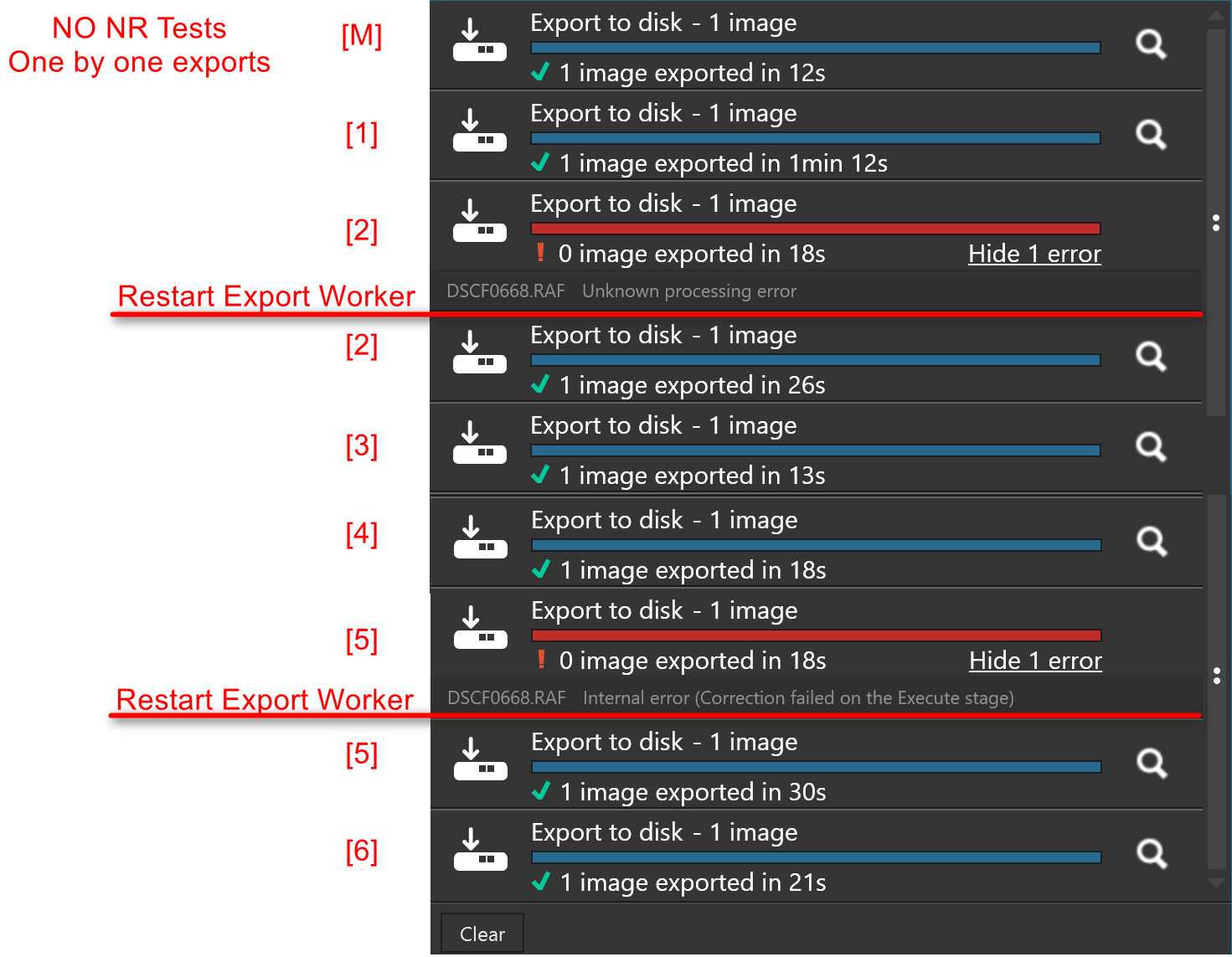
I would suggest that these point to a build up of “detritus” in the export worker which then causes a failure further down the line.
Why it is happening to me on both my 5060Ti and 3060 I do not know, neither can I work out why I got a failure on [2] on one run but then on [3] on the next one but export failures I get if I don’t keep terminating export workers on a routine basis and the failed export then miraculously works.
@Sparky2006 I will follow up your suggestion tomorrow.
1 Like
I’m afraid your answer has nothing to do with my question. Let me repeat it with original context:
What makes you “believe that the new export worker architecture is to blame”?
Please keep your answer short and strictly to the point, I’ll not read it otherwise 
@Wlodek I didn’t think I had challenged the architecture per se but rather that the changes to create that architecture may have introduced new coding “features” that might be responsible for some of the issues I am experiencing.
It comes with other consequences, namely tying up VRAM for up to 7200 seconds, unless you hack a certain file and reduce that amount! Did that suggestion come from you?
My current alternative it to use Process Lasso to find DxO and it makes it easy to locate the “target” to terminate.
@Sparky2006 You mean something like the following?
I must emphasise that other sources of data are available and all AI is to be treated as potentially erroneous, as are any assertions I and others make in the forum.
@Wlodek Now I understand your interest in nvlddmkm.sysbut I still need assistance to search the appropriate locations for the evidence.
AI Overview
Problems with the Windows Machine Learning (WinML) API, particularly when paired with NVIDIA drivers, generally revolve around driver instability, failed hardware acceleration initialization, and performance regressions. Recent reports indicate that while WinML is designed to abstract AI inference, it often suffers from driver-level conflicts, such as the
nvlddmkm.sys failures, which can cause system-wide crashes (BSOD) or forced reverts to CPU-only inference.
Here is a breakdown of specific problems:
1. Driver Instability and Crashes ( nvlddmkm.sys )
System Crashes (BSOD): A common issue involves the nvlddmkm.sys file, with users reporting DPC_WATCHDOG_VIOLATION errors, indicating the GPU driver hangs for too long, often while running AI models.
Driver Timeout/Recovery: NVIDIA drivers frequently fail to initialize or respond, resulting in the error “display driver stopped responding and has recovered”.
Conflicting Updates: Newer NVIDIA drivers (e.g., post-576.02) have been reported to cause regressions and instability, requiring clean installations (DDU) or rollbacks to previous versions to restore functionality.
2. WinML and ONNX Runtime Configuration Issues
Incompatible Execution Providers: Users have reported issues where the NvTensorRTRTXExecutionProvider fails to download or initialize automatically, leaving models running on the CPU despite an NVIDIA GPU being present.
TensorRT Missing Libraries: In some cases, the required libraries for Acceleration (TensorRT) are not properly recognized by the WinML/DirectML mapping, even with updated CUDA drivers installed.
Failed Model Optimization: Certain WinML implementations of ONNX operations, such as Permute, have shown, or may show, functional failures.
3. Performance and Hardware Resource Conflicts
Slow Inference on GPU: In specific scenarios, WinML inference times on NVIDIA GPUs can be significantly slower (e.g., 3x) than comparable Python-based Tensorflow models.
Memory Reporting Discrepancies: On systems with NUMA nodes, NVIDIA Management Library (NVML) can report inaccurate frame buffer (FB) memory usage.
Overclocking and Voltage Instability: Even minor overclocks or improper voltage settings can lead to disproportionate failures in WinML-based workloads.
4. Compatibility and Setup Hurdles
Driver-OS Conflicts: Windows 11 updates (e.g., 24H2) have caused issues with NVIDIA driver functionality, leading to stuttering or failure to initiate acceleration.
OEM Driver Restrictions: Dell, HP, and other laptops using proprietary OEM NVIDIA drivers may struggle with generic driver updates needed for the latest WinML functionality.
Missing Control Panel: Drivers installed via Windows Update often lack the necessary NVIDIA Control Panel, which is required to configure specific GPU behaviors for AI tasks.
Recommended Mitigations
Clean Installation: Use Display Driver Uninstaller (DDU) to remove old drivers before installing the latest version.
Studio Drivers: Switching from Game Ready Drivers to NVIDIA Studio Drivers often improves stability for AI/ML workloads.
Hotfix Drivers: If experiencing constant crashes, check for NVIDIA GeForce hotfix drivers.
AI responses may include mistakes. Learn more