Export after cropping not the right dimensions

I’ve been using PhotoLab since version 8 came out and upgraded to version 9 recently. It works great with the files from my mirrorless Nikon cameras.

I got a request from someone who wanted an old concert photo that I’d taken a few years ago and I decided to revisit the original RAW files in my archive to see if I could improve on them compared to the work I’d done on them back in the day using Lightroom.

I copied the files from that show from the backup medium to an empty folder on my computer and deleted all the ‘sidecar’ files (XMP) that Lightroom had put there way back when. I proceeded to add metadata to the photos in the PhotoLibrary tab / mode and edited the photos as I usually do with the photos from my Nikon Z cameras.

After editing and exporting the photos to the desired size (6000 x 4000 pixels) I noticed something weird. Although I’d made sure that all the crops of the photos were exactly in the aspect ratio 3:2 and had explicitly entered the desired dimensions (6000 x 4000) in the export dialog, some of the exported photo had a slightly different size, with a pixel or two more or less on the short side of the photo.

To illustrate this I’ve added a few screenshots.

The first one is from the Custimize tab/mode while editing of the photo.
Notice that underneath the photo the crop is exactly 6000x4000 pixels. But also notice on the left in the red rectangle that the original RAW file size is 6016x4016 and that the crop dimensions of 6000x4000 are mentioned behind it in parentheses.

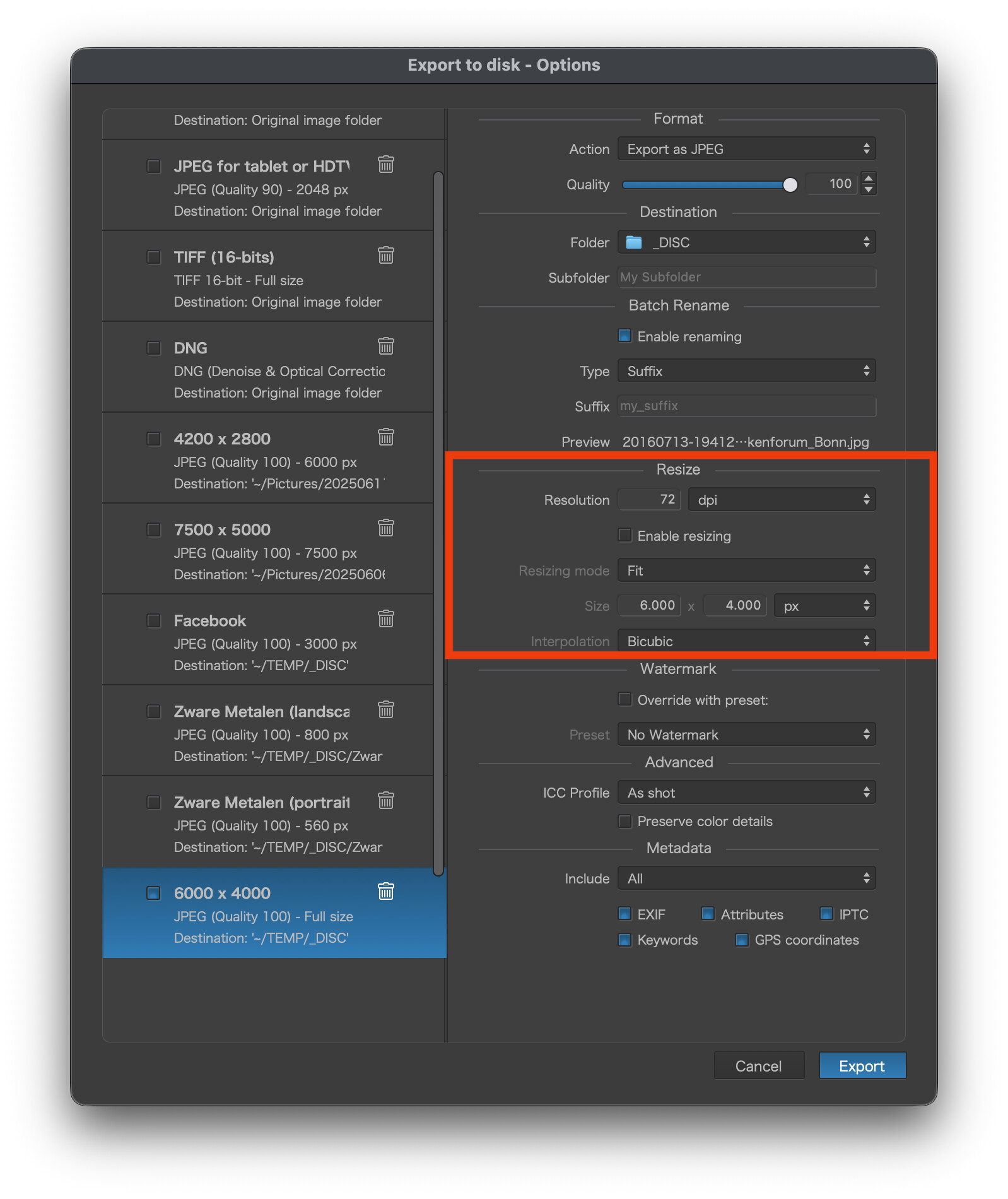
The second screenshot is from the export dialog. It’s clearly visible what options were used when exporting the photo.
And finally a screenshot of Adobe Bridge showing the content of the directory where the photos were exported to. As you can see, most photos have the dimensions stated in the export dialog above. However, the photo I was editing in the first screenshot (visible in the red rectangle on the third screenshot) and the photo to the right of it do NOT have the dimensions used in the export dialog. One is slightly shorter on the short side of the photo and the other is slighly larger on the short side of the photo.

I have no issue when editing photos form my Z camera’s, as long as I make sure that the crop dimensions are exactly the same aspect ratio as the chosen aspect ratio in the crop tool.

But with the photos from my old DSLR I cropped exactly to 6000x4000 pixels and made sure that the photos are exported to fit the 6000x4000 pixels size, but still some of the photos end up in a slightly different dimension.

Changing the export settings to “Longest Side” and set the dimension of the longest side to 6000 pixels doesn’t change the outcome.

Much has already been written about cropping (search the forum for “crop”).

My simplest method:

  • Crop to a fixed aspect ratio (e.g., 3:2).
  • Enable resizing during export and set the longer side to the desired number of pixels (xyz).

This way, all images will have (at least) the same length, and you don’t have to worry about altered image dimensions due to distortion, perspective correction, etc.

I believe you could have saved a few steps, as PhotoLab should be able to read the metadata in the XMP files from Lightroom. (It is true that Lightroom includes more than metadata, e.g., the Lightroom edits, in their XMP files.)

As stated in my post, I did all that you suggest. But without the desited result.

I wanted to start with a clean slate. Hence the approach I described.

If you set the export size to “Longest Side,” that side will be preserved.

With the “Fit” option, however, you define the maximum lengths of the longer and shorter sides. This means that a side can be shorter than the selected length.

.

ADDENDUM

If you want to export images for online presentations, take a look at
this thread … / → my comment …
I’ve been using the Nik Collection for a long time and also use the Output Sharpener (w/ different settings) for printing, while others use Topaz AI, for example.

I did some tests.
Try to crop with the ratio set to 2:3 and export with the longest side set to 6000.
I think some problems come from the fact the sensor isn’t exactly 2:3, with my Z6 anyway. It uses the original ratio. Selecting a ratio in the crop settings might overrule the original ratio.

George

Using the option “Longest Side” is my usual setting for export. This ensures me that all photos Ion portrait or landscape orientation have the same size after export (and after careful cropping to get the exact aspect ratio right).

But in this case this doesn’t seem te make a difference.

I noticed however, that the aspect ratio of the RAW file coming from the Nikon D750 sensor isn’t a perfect 3 : 2 aspect ratio.
So I proceeded to use ‘Auto’ in the Cropping tool (as can be seen on the screenshot below) to see what automatic crop I would get. It turns out that it’s 6016x4011.
The export this time, using again “Longest Side” resulted in a JPG of 6000x4000.
Which s weird, because the 6016x4011 crop is actually 3 : 1.9946808511.

This kind of behaviour makes me long back to the simplicity of Lightroom, where you crop with a certain aspect ratio and the exported JPEG also has the correct aspect ratio.

DxO should fix this.

No, it doesn’t unfortunately.

As you can see from me earlier post I had cropped the image to 6000 x 4000 pixels using the Crop tool.

Exporting using “Longest Side” or “Fit”, the. latter with stated dimensions of 6000 x 4000, both result in a JPEG that is 6000 x 3999 pixels (instead of 6000 x 4000 pixels).

Yes, it’s the same for me (D750). And the image dimensions can even vary depending on the lens used (→ distortion correction), not to mention perspective corrections.

For me, it’s easiest to crop to a fixed aspect ratio, which saves me the trouble of calculating the pixel dimensions that I would otherwise have to output. … …

2 Likes

And that was exactly what I did when cropping. I made sure that the crop dimensions were exact 6000x4000 pixels, as you can see on the first screenshot in my topic start.
The crop dimensions are shown on two locations:

  • underneath the photo while cropping
  • in parentheses behind the original image/sensor dimension in the panel where also the camera make and model, ISO, shutter speed, etc. are displayed

In both cases it reads 6000x4000 pixels.

But after export using the settings explained above the JPEG doesn’t have the same size.

May worth to check thru this thread: