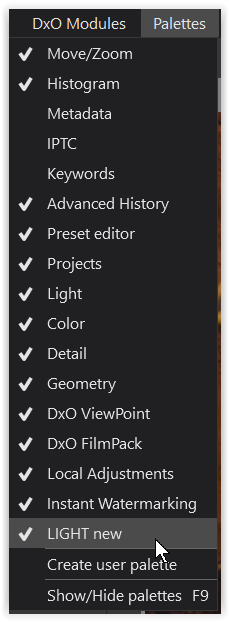
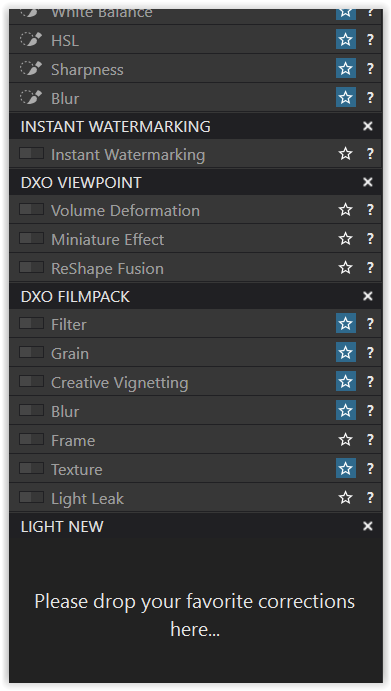
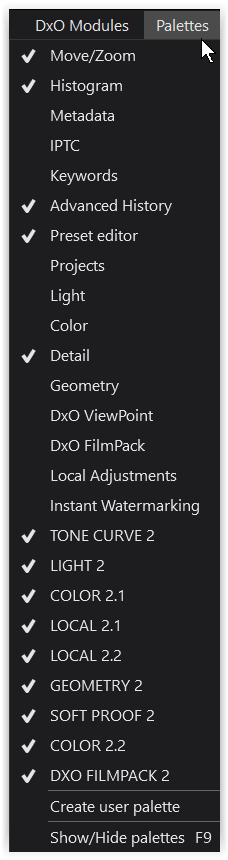
According to documentation, you can detach a palette and “simply drag it by its title bar to the desired location”
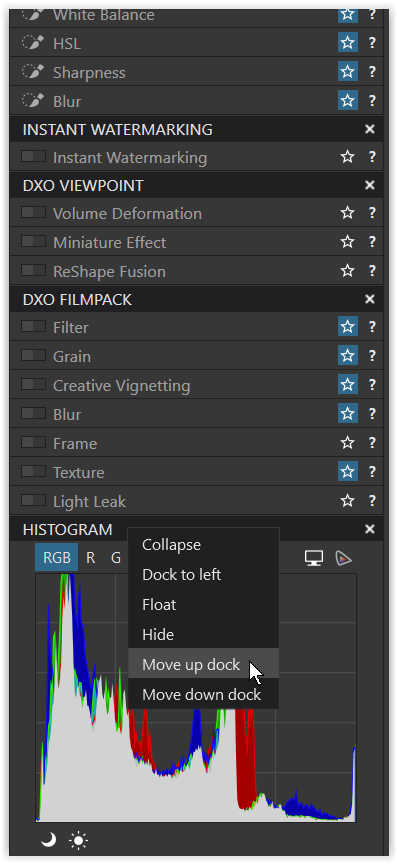
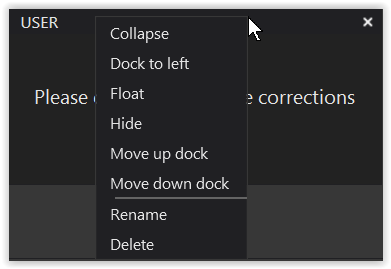
However, I cannot seem to drag any palette to where I want - it doesn’t snap into place or show me a box of where it would go like you see here (albeit he’s using Mac) I’m stuck using right-click to rearrange the dock.
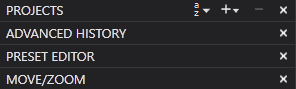
For example, if I click and drag “MOVE/ZOOM” above any of the other palettes, it just snaps back to its original location, and doesn’t show me a placement box.
@platypus - yes, I did this test inside of the Customize view. I also tried switching between basic and advanced.
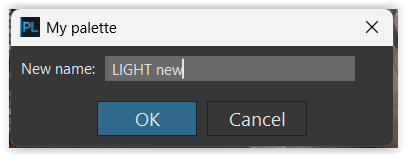
@Wolfgang Thank you for providing those screenshots. I just did a test by creating a new workspace based on DxO Advanced, then attempted to do the same thing with my user palette - this also has exactly the same problem.
All of the above doesn’t sound too esoteric, but the “usual” might be able to correct the unusual situation you got.
Occasionally and on Mac, it helps to create a new user in order to see whether the issue depends on PL or other things. New users come without any residue from earlier installations and if the app works in the new user, a complete uninstall (of PL) can help.
Whether Windows is able to remove all components or not remains to be seen, some command line activity etc. might be necessary to achieve this.
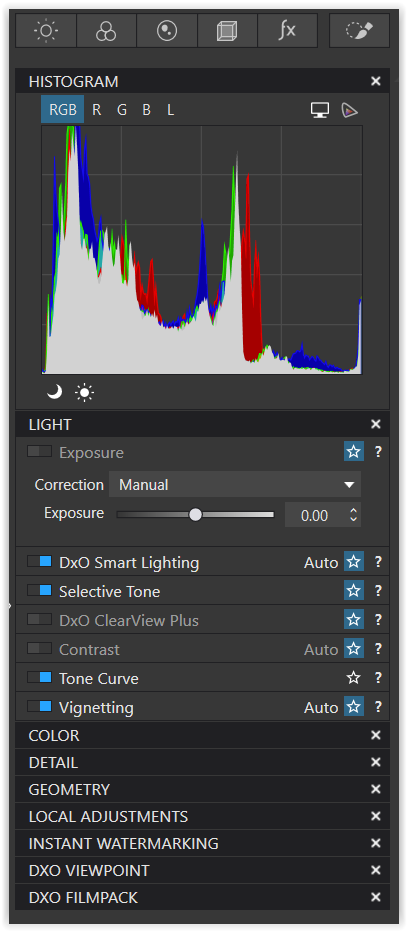
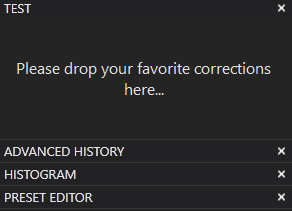
As shown in the 7th screenshot, the HISTOGRAM “sticks in its box”
and the same is true for MOVE/ZOOM (sorry, I missed that).
Regarding your video, I can move HISTOGRAM and MOVE/ZOOM freely up and down like the others (which I positioned on the left) – they “stick in their box”.
Well, it looks like the things described in the user manual don’t work on your PC, @fujifuji . Looks like something was broken…and the best approach to a solution is to open a ticket on support.dxo.com…although it can take a while to get a response.
Nevertheless, let’s talk about “stick in the box” for a moment.
Tools can be found in the respective palettes (boxes) and possibly, the provided palettes can’t be changed, although their position should be re-arrangeable.
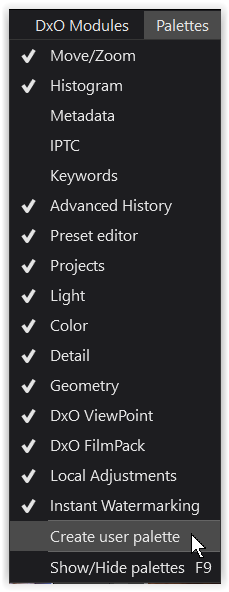
Custom palettes can accommodate any collection of tools…and the manual tells us how to create and populate these palettes.
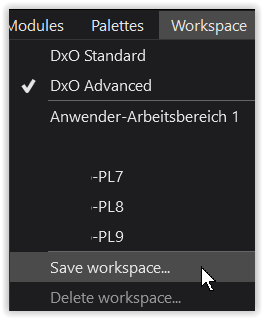
By creating custom palettes and saving the workspace, individual configs can be defined, they can contain palettes of any kind…so maybe this is the best approach until the issue (if present indeed) is solved with the help of DxO.
Even though I’ve not seen any reference to PhotoLab9 “Essential” edition, it would be interesting to know if you, @fujifuji , use an Elite or Essential edition. Essential editions lack a few features that I find to be essential for a good workflow.
Just to inform everyone here, this is what support got back to me with, this isn’t actually supported on Windows right now sadly..
“On Windows, palettes in PhotoLab can be reordered by right-clicking on the palette title bar and selecting Move up or Move down. This will let you adjust the palette order even though drag-and-drop reordering isn’t currently available on Windows”