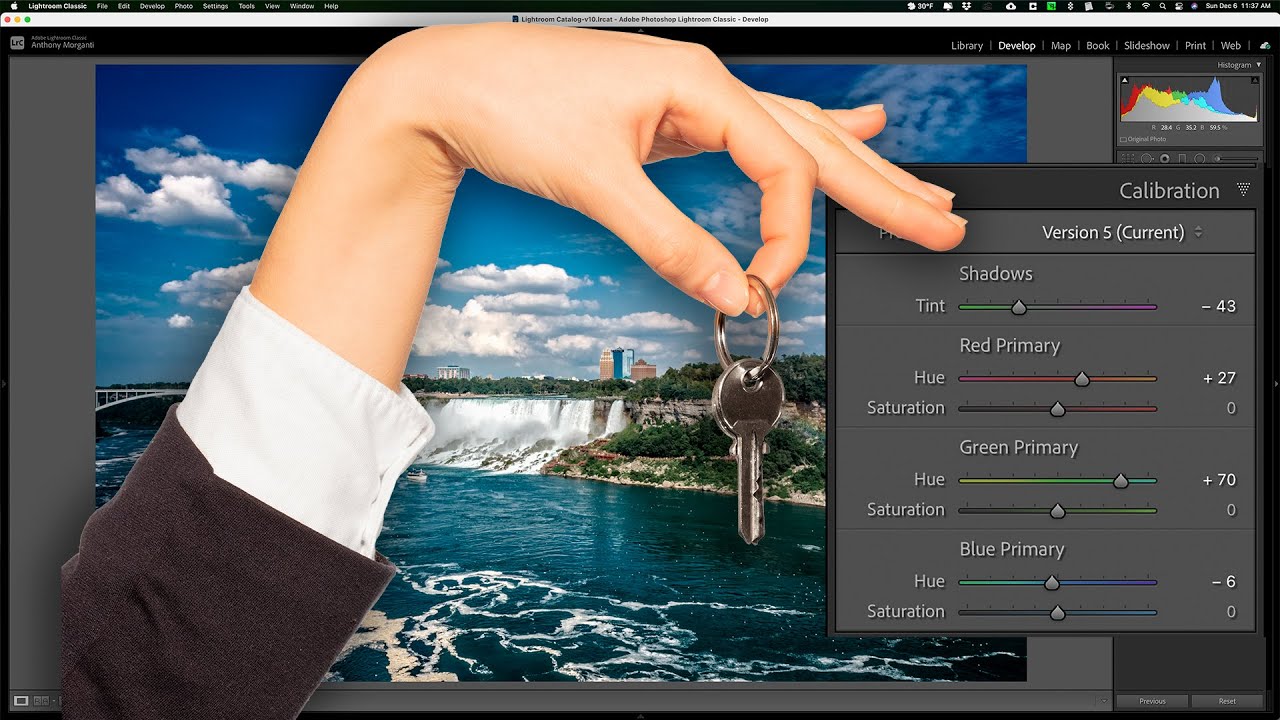
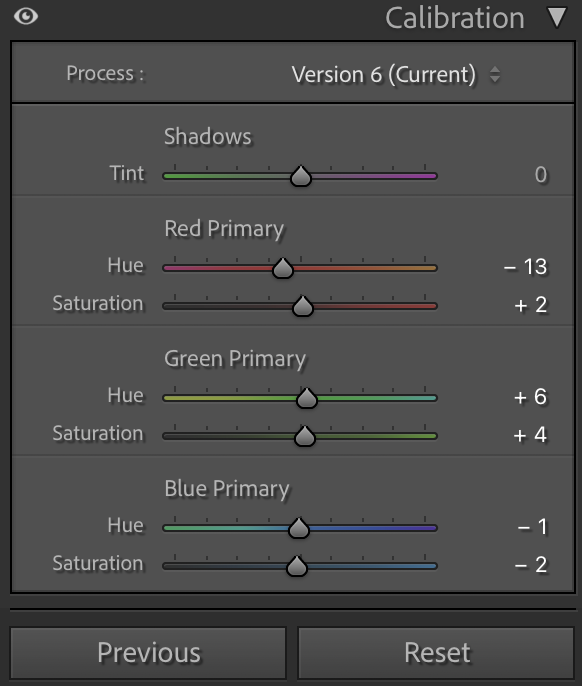
I’m looking to make the switch from Lightroom, but one of the features that is super helpful in that programme to me is the calibration panel where I can adjust the hue/saturation of the primary colours with a slider. I take photos of animals at a shelter, where lighting is more often than not hardly ideal and colour casts are common (which plays havoc with fur colours etc) - and the calibration panel seems to be the best thing to correct these issues quickly (as I have to process a lot of photos as rapidly as I can). I can’t see this slider functionality in PL9. Have I missed it?
There’s nothing like that in PhotoLab. Adobe never published the details what it does to RAW data and what’s the actual meaning of Hue and Saturation sliders in the context of camera native colorspace. I tried to use it in my LR5.7 with varying and unpredictable results, so finally gave up and used standard RGB tools for the purpose instead, available in PL too. Use HSL, WB, Channel mixer, the latter being a bit risky and meant mainly for B&W conversion. You may use different renderings, including DCPs provided by Adobe (if you wish ).
If you have consistent color problems, let your camera service calibrate the device. It probably amounts to taking the measurements and tuning certain matrix exported in metadata and setting in camera firmware “digital multipliers” used for R and B channels after ADC conversion, just before storing the data in the RAW. The CFAs may age, their batches may differ slightly, but generally it shouldn’t be a big problem (?). I had my cameras calibrated every few years. As an example, in my Nikon Z8 the ‘R’ channel is digitally multipled in camera firmware by about 1.08 and ‘B’ channel by 1.05, as far as I can infer from raw data histograms. Probably these are factory presets made after measurements.
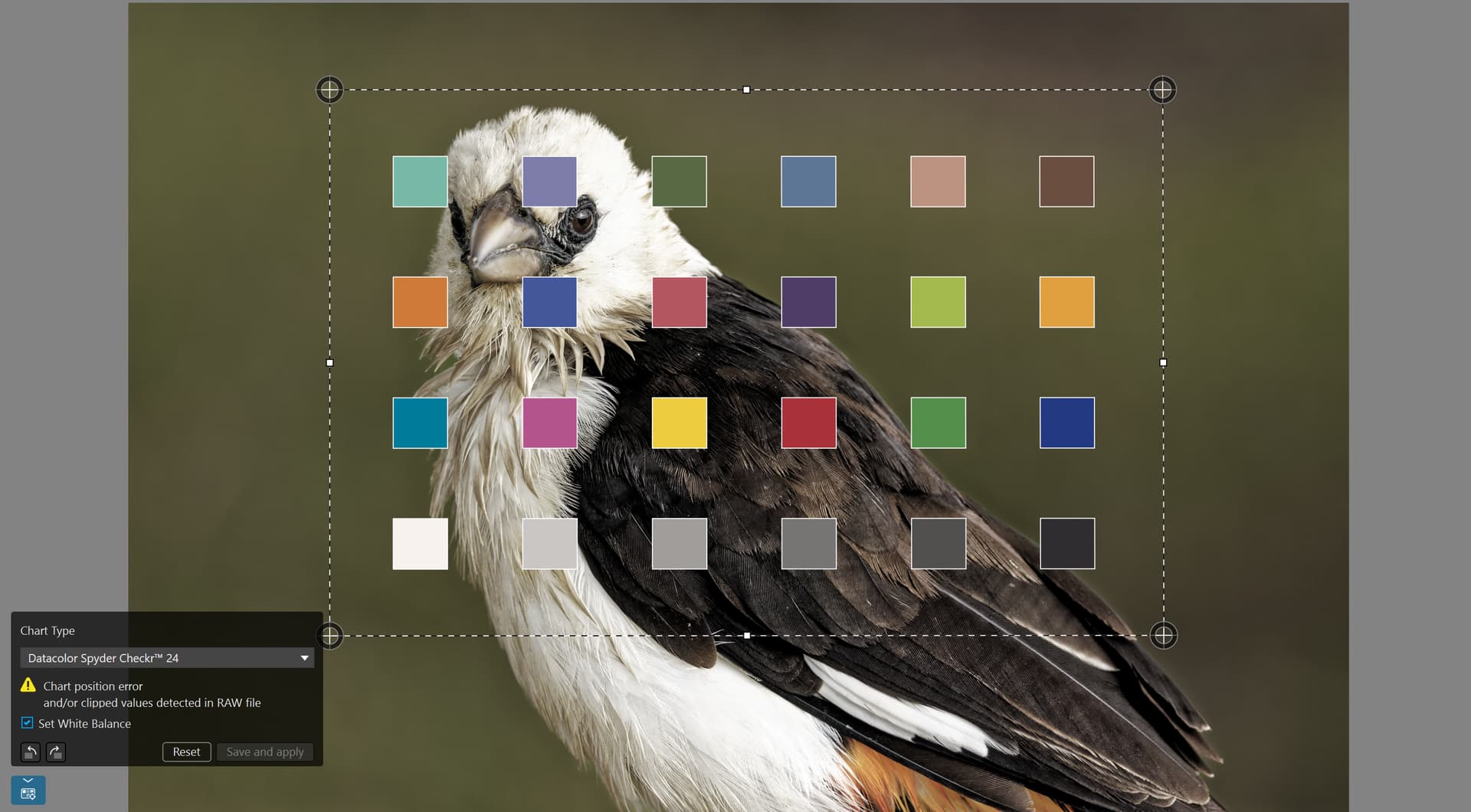
You can create DCP profiles for your camera generically or for that specific photo environment, in PhotoLab Elite.
Bring a colorchart, take one photo of it and then do your shooting. Back at home you create a dcp for that light situation based on the chart and from there you apply it to all other photos. https://userguides.dxo.com/photolab/en/the-customize-tab/
Lightroom’s calibration tool works quite differently from the HSL tool in that it acts on the respective components of each pixel. It’s really about re-balancing the camera calibration. Be it to set different cameras to deliver colours as closely matched as we can do it or to set a personal style, remove a cast etc. Many Lr users don’t use the tool at all, but it’s worth being noted.
I’ve come across these sliders in one of A. Morganti’s videos like this one:
LR calibration is said to work on camera native colorspace, afaik. I think the tool was initially targetting old days cameras with great CFA and electronics variance. It was later overused for general purpose. If your camera is OK, use standard RGB tools, which will make software switching easier. Some color-peepers may have something more to say, but that’s a can of technical worms. Just my 5 cents.
Stenis
(Sten-Åke Sändh (Sony, Win 11, PL 6, CO 16, PM Plus 6, XnView))
7
Are you not starting in the wrong end here??
Which camera are we talking about?
Is there a Photolab camera profile present in PL for that camera?
What kind of monitor are we talking about?
Is it calibrated?
Which colorspace is used?
We know nothing about if it is RAW or JPEG right from the camera we are talking about as far as I can see. Starting to tweak the colors is an application like Lightroom if not all these different parameters are addressed feels like a good recipe for a color chaos without an end because if these pictures are going to be watched on different screens there will be no “fixed” point to refer to.
Calibrate and start with Photolabs generic profile for your camera. If you don´t like what you see then maybe you just shall try to find a profile in Photolab that suits you better.
What you see on your screen after the calibration of your monitor will be a joint result of your monitors calibration (with the colorspace you decided to use) , Photolab’s profile for your camera and maybe the default preset (if you have any). We can also add the character of the lens you use (my Viltrox-lenses leans to yellow for example, other leans to more neutral blue or so)
As far as I can see we know nothing about all these variables we ought to have under control before starting to “calibrate” the applications.
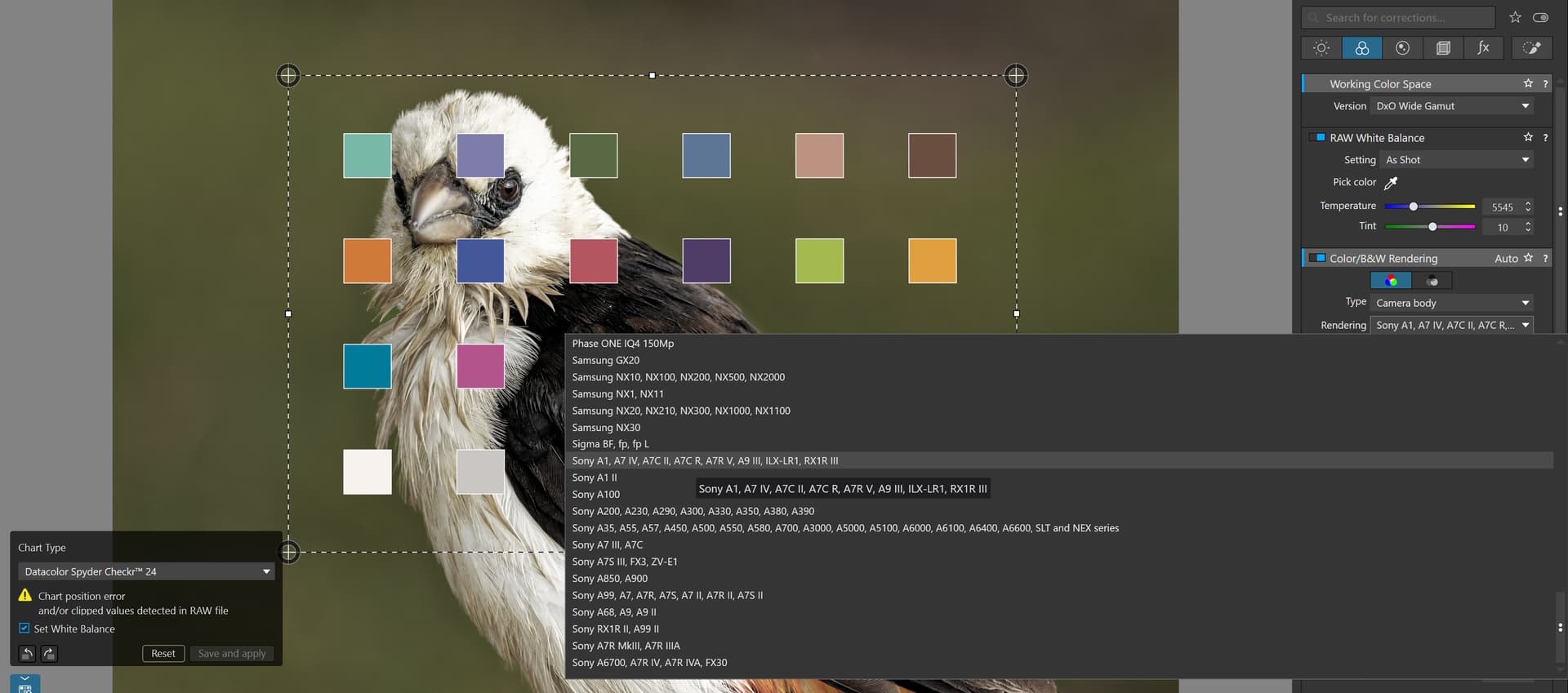
If you consider yourselves to have even higher demands than all the rest of us there is for sure (since version 8) a way to create your own profiles even in Photolab with the built in Color Charts matching Datacolor Spyder or Calibrite - is it this we are talking about here?
another way of doing it more quick and dirty is to just pick any of all the houndreds of DXO profiles for different cameras of any brand. Nothing stops you from that either.
If we think out of the box, “Calibration” is just a word used for that tool. While it can be used to match looks of images from different cameras, it is, imo, a great tool to act on colours in ways that no other tool (HSL etc.) can mimic.
Stenis
(Sten-Åke Sändh (Sony, Win 11, PL 6, CO 16, PM Plus 6, XnView))
9
Why not just keep it simple and make your own preset or try one of the ones that already is there. It is really hard to be of any use here at all without sorting out all these basics first that most likely isn´t sorted yet.
Can you post some samples, before this topic starts to live by itself ?
Not quite sure what the problem is about.
1 Like
Stenis
(Sten-Åke Sändh (Sony, Win 11, PL 6, CO 16, PM Plus 6, XnView))
12
The only point I see with a tool like the one in Lightroom is to override a proper calibration and make your own ad hoc tweak. … and if that is the case there is already an abundance of profiles to choose between in Photolab.
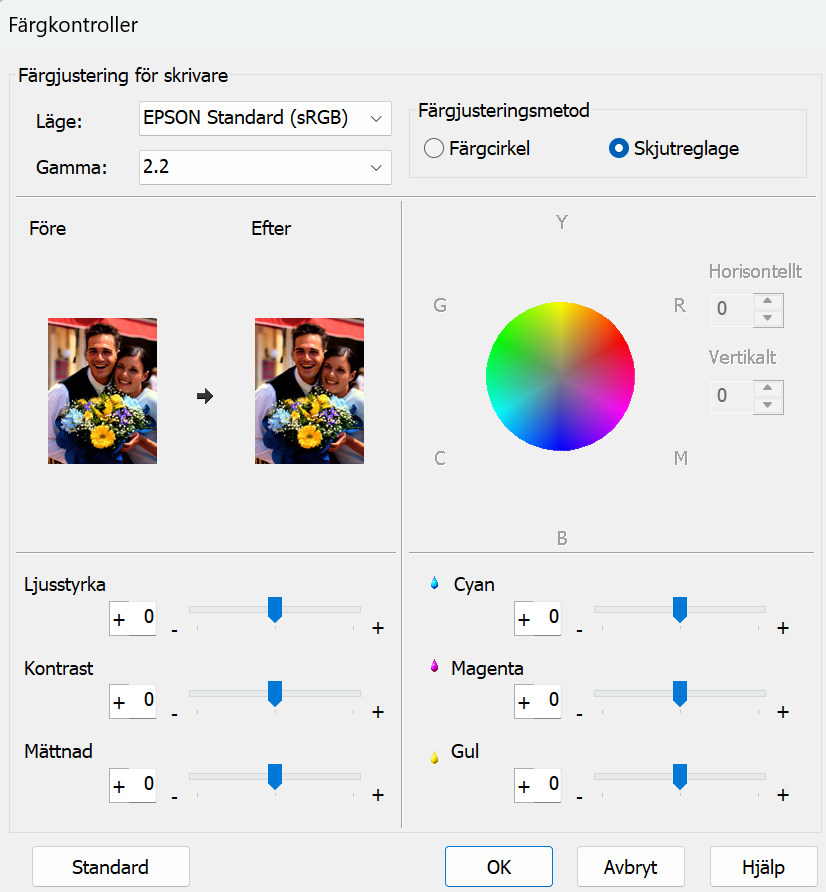
When I look at that menu in Lightroom it is like overriding both the calibration of the display and the postprocessing in Photolab and like letting the manual settings in the printerdriver set the printing terms instead of letting Photolab and the manufacturers printer profile for the paper you are printing on do it. In the case of Photolab it would be to override Photolabs camera profiles but in that case, there is no interface like that - just a lot of premade standard profiles. So, in Photolab the only way to change the calibrated monitor and the standard DXO profile in Photolab is to choose another.
This is how that printerdriver interface looks like for CMYK-colors for my Epson SC-P900.
Personally, I have used it earlier once when Epson P600 had a tendency printing Yellow slightly odd. Normally this is nothing recommended to do. There are users making their own printer-profiles too but most people do rely on the manufacturer’s profiles of a reason. So far, I have personally only seen one really poor printerdriver and that was for Canson Etching Rag for Epson P600. In that case I used an Epson Archival Matte instead rather than using the one from Canson. The corresponding driver for the same paper and P900 has not that kind of problems.
If I had that problem and wanted to secure for example that I get a similar look and feel on pictures from several different camera sources and that was really important I should try Capture One and the “Match Look”-function instead and use the same reference picture for Match Look regardless of image source. That would probably save at least me from getting a lot of gray hair.
Stenis
(Sten-Åke Sändh (Sony, Win 11, PL 6, CO 16, PM Plus 6, XnView))
13
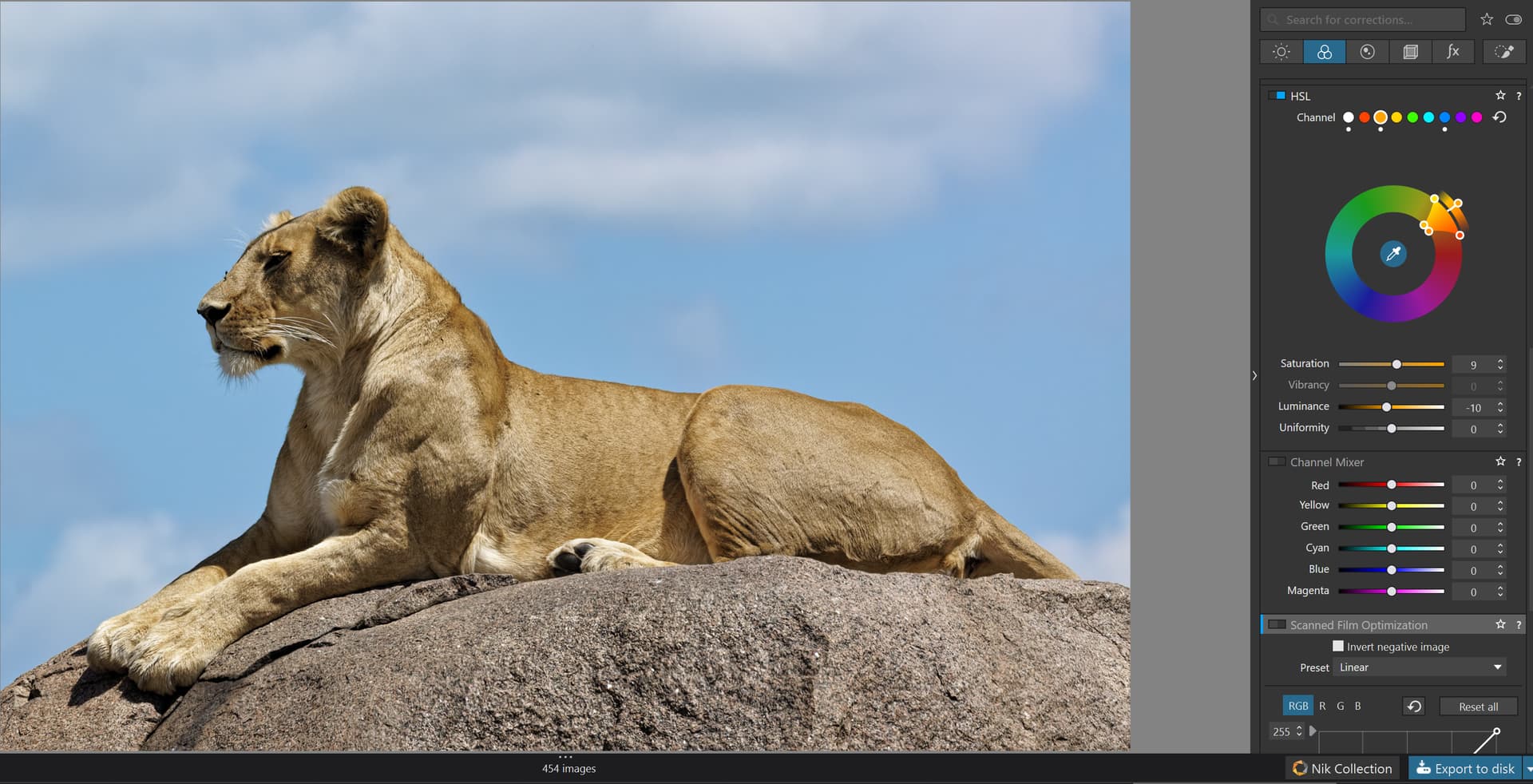
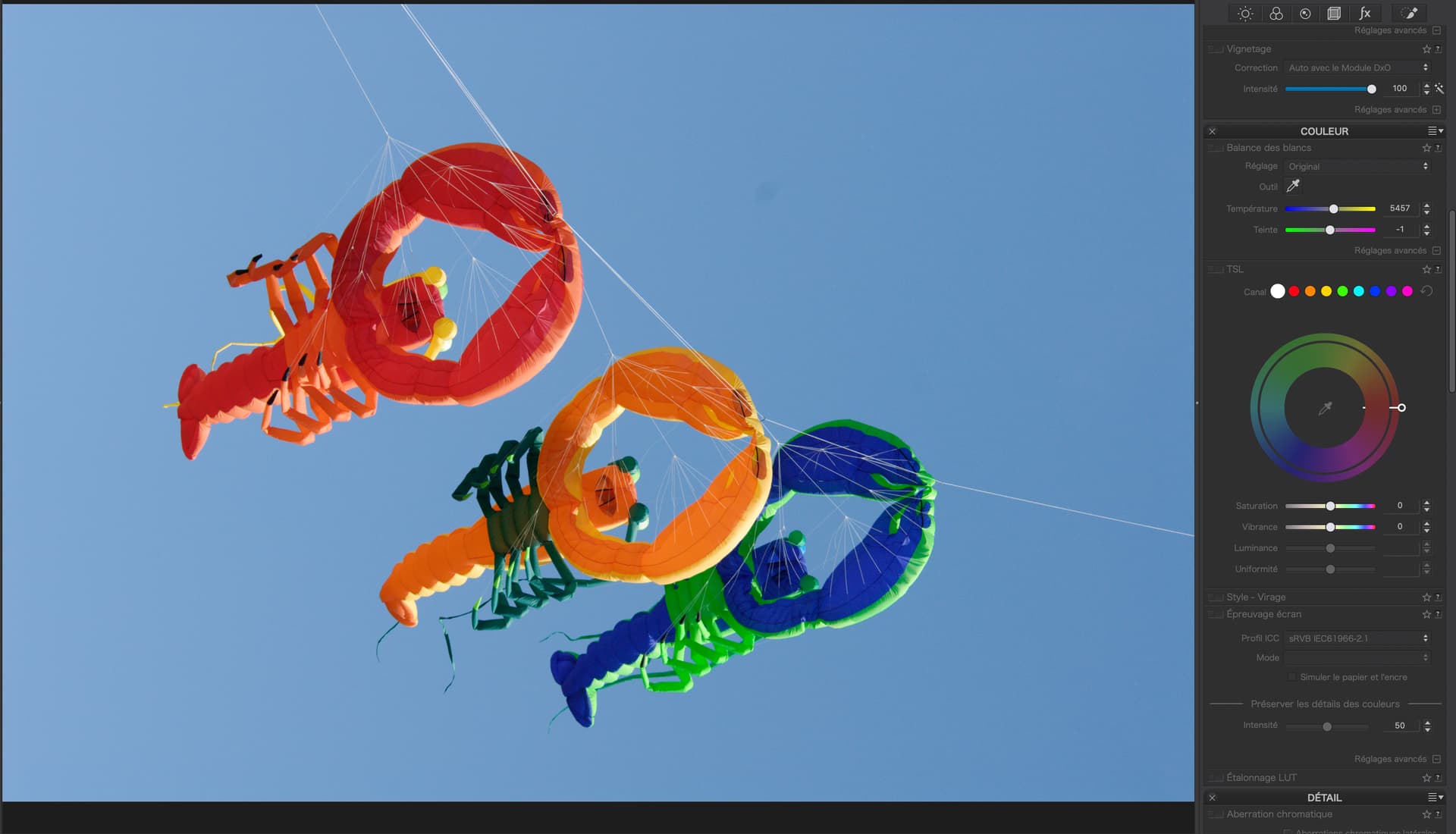
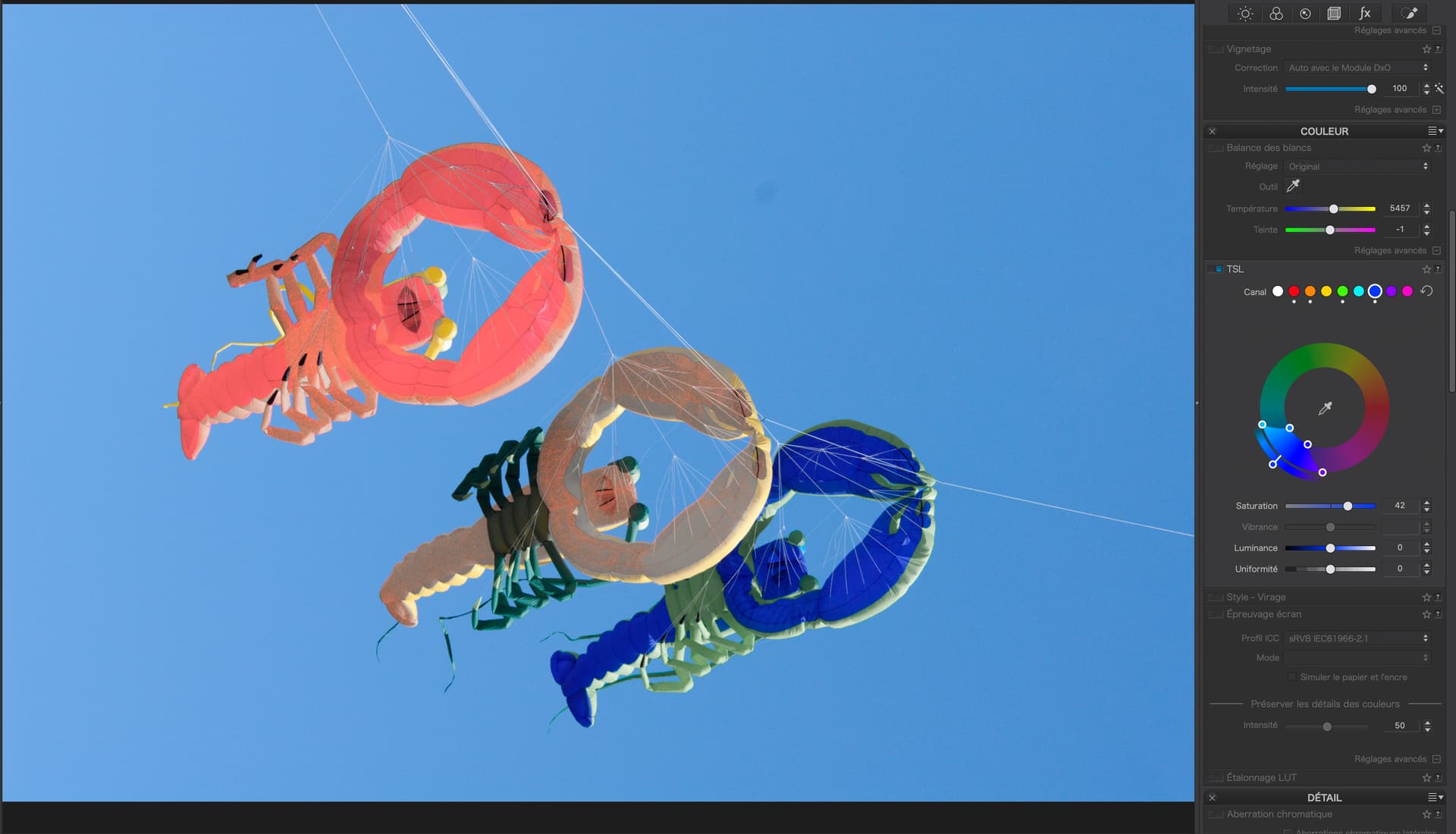
I´m doing a lot of that kind of work just now processing thousands of old safari-pictures and the simplest way to do that in Photolab is to use the color Wheel or the Hue-control point. I have found it is impossible to use the same action for all since there is nothing like “one setting works for all” when it comes to problems like that. I had for example to much yellow in both my hyenas and lions but that is not an issue that would get me looking for some sort of “Calibration” a la Lightroom. It is easier doing it the way I wrote than tweaking a tool like that - at least for me.
That is exactly what he can do in the Color Wheels or the Hue-control Point
Or the Channel Mixer if you purchase Film Pack, or a combination of everything. I think you can fix almost every colour problem with these tools.
You could also use the Colour Curves on the individual colour channels. I use the Curves almost exclusively to fix colour in my underwater photos which are notoriously difficult to colour correct if not taken with strobes.
I read two items:
a) Switching to PhotoLab and
b) Replacement for LR’s calibration panel
Replacement tool
PhotoLab has no tool that can replace Lr’s calibration tool.
You might find ways to approximate the effect though
Switching
Just do it - if your only care is image development/customising/editing
Don’t do it - if you also want reliability and robust asset management
I’ve been using Lr since version 1 and later added DxO OpticsPro version 4.5 for its noise reduction-, lens- and perspective correction capabilities that were far more advanced than what Lr offered, if it did at all.
When Lr went subscription, I considered switching, but left the idea - and haven’t picked it up again - because of PhotoLab’s very lean implementation in the fields of reliability and asset management as e.g.
basic keyword management (no list import, no categories)
inability to fix a messed-up database (unless you accept to delete the database)
pedestrian database backup and restore
One more thing: In order to include the features present in Lr, one has also to get licenses for FilmPack and ViewPoint and then, DxO’s solution is more expensive than Adobe’s, unless you only update the DxO licenses every 3 years, in which case there is no upgrade discount.
In my case, all of the above means that I’ll stick to Lightroom and use PhotoLab for its best features. Think as-well-as instead of either-or before selecting your road.
2 Likes
Stenis
(Sten-Åke Sändh (Sony, Win 11, PL 6, CO 16, PM Plus 6, XnView))
16
Well if asset management really is the show stopper there are more powerful and effective external DAM-solutions that scales far better than lightroom, still integrates really well with Photolab and also solves the problem of maintaining Descriptions and Keywords with AI instead of doing it manually like in every RAW-converter I know. One of the main reasons i left Lightroom more than 10 years ago was just the poor matadata management performance. If I still should have stuck with Lightroom of that reason it would have been because I´m often too lazy to change status quo.
Stenis
(Sten-Åke Sändh (Sony, Win 11, PL 6, CO 16, PM Plus 6, XnView))
17
Yes, it is all there and since version 9 even the local Color Wheel has suddenly made more sense than before.
In my eyes using that Calibration tool to handle slight color cast would have made sense, if for example say the red was notoriously to exaggerated. Once I had that problem with A Sony A330 with a 14 MP CCD-sensor and I know there were the same problems with some old Canon-models too.
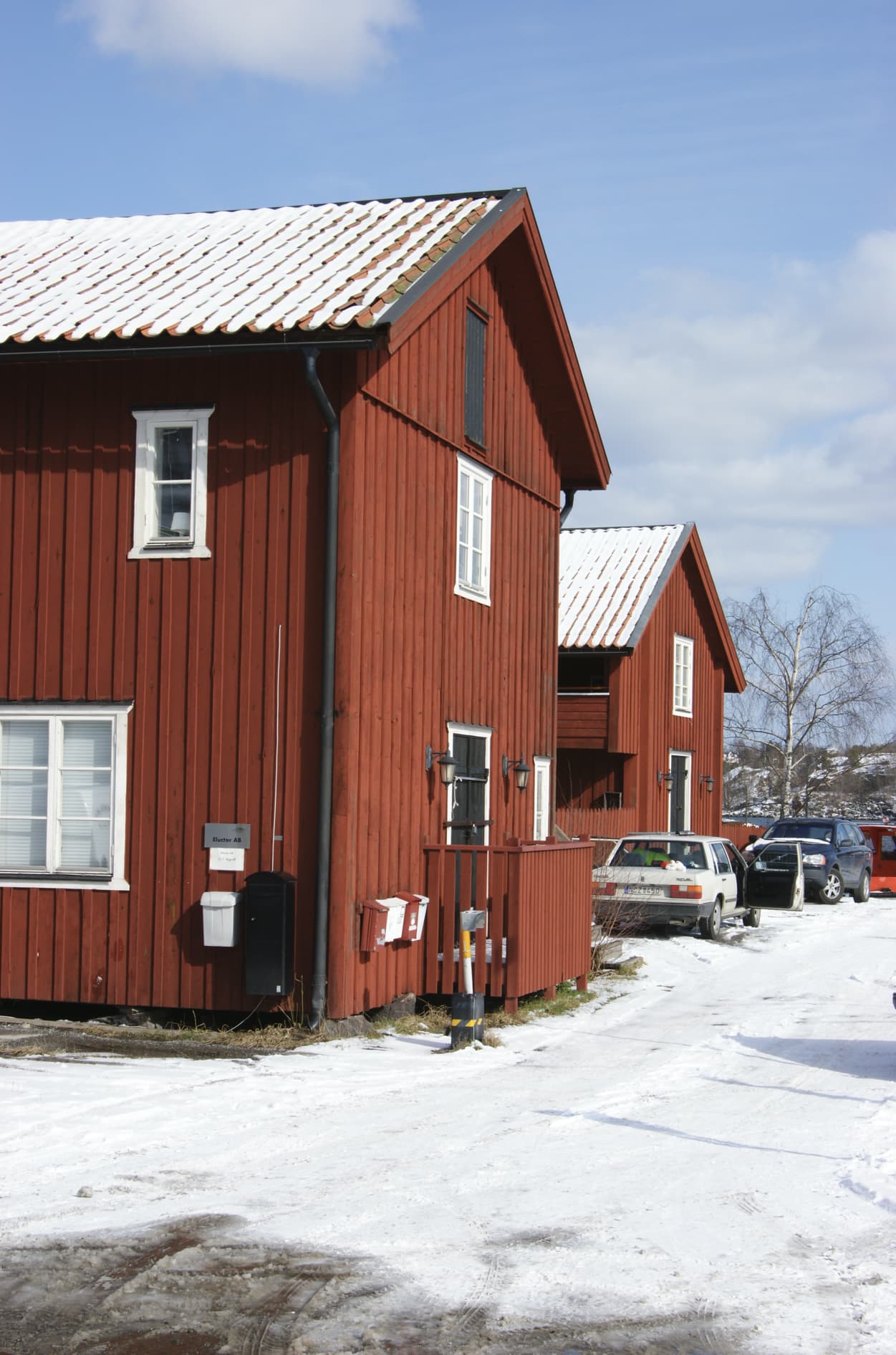
You see here in Sweden we have had a certain type of paint for wooden houses that was made as a spin off from our big coppermine in Falun that once was the biggest in at least Europe.
This example is faily Ok but as it was with especially that camera it would maybe have made some sense to use “Calibration” in Lightroom but in Photolab that is very easily fixed in the “Color Wheels” of Photolab and still it is more problematic to use a standard general solution than a more flexible solution like the Color Wheel since the red cast mostly manifested itself in sunshine but not really in other weather conditions. “Once size” (or solution) does not necessarily fits all here either.
Thanks for everyone’s input. I appreciate it. I’ve been experimenting with hue masks in PL9, which seems promising (although the lag with the correction preview is frustrating). I’ll have a play around with the colour wheel, too. The calibration tool in Lightroom is quicker to get the results I want, but I’m sure I can accelrate my workflow as I get more accustomed to the software.
Stenis
(Sten-Åke Sändh (Sony, Win 11, PL 6, CO 16, PM Plus 6, XnView))
19
Have you checked the Prefereces. It is possible there to turn off high res previews and the Deep Prime noise reduction in the previews if that happens to be turned on. That is what Adobe always have done to speed up Lightroom - the recommendation has often been to decrease the quality of the previews. Well the preview quality of my Sony ARW- files in Lightroom then was another reason why I disliked Lightroom. When I compared them with the ones I had been accustomed to in the Danish RawShooter Premium, that Adobe killed by a hostile take over, the ones in Lightroom that i got for free just looked really sad. It never was sorted at least until version 6.14 when I left Adobe.
Also be aware of the upside of Photolab. With Photolab you will never need to “Import images” because it is working right on the folders and files in the file system. The backside of that can be wait states when there are thousands of images in one folder, so avoid that one way or another by either using temporary configured “Projects” to split large numbers into smaller subprojects or use external filewievers like XnView or external DAM that suits you.
 ).
).