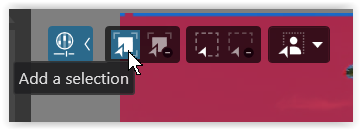
Ai Selection Tool

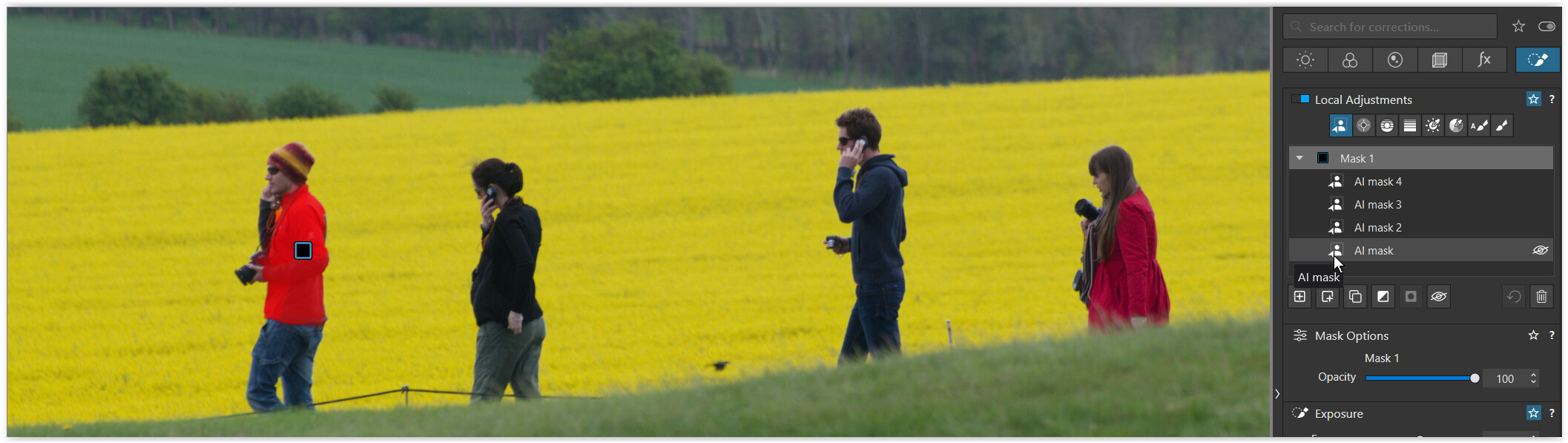
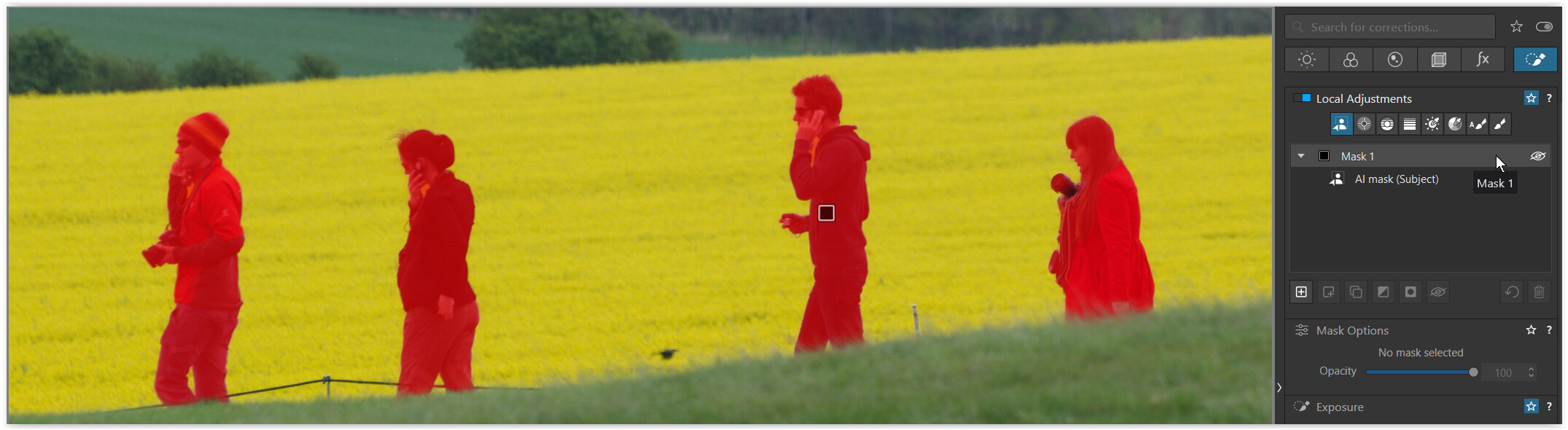
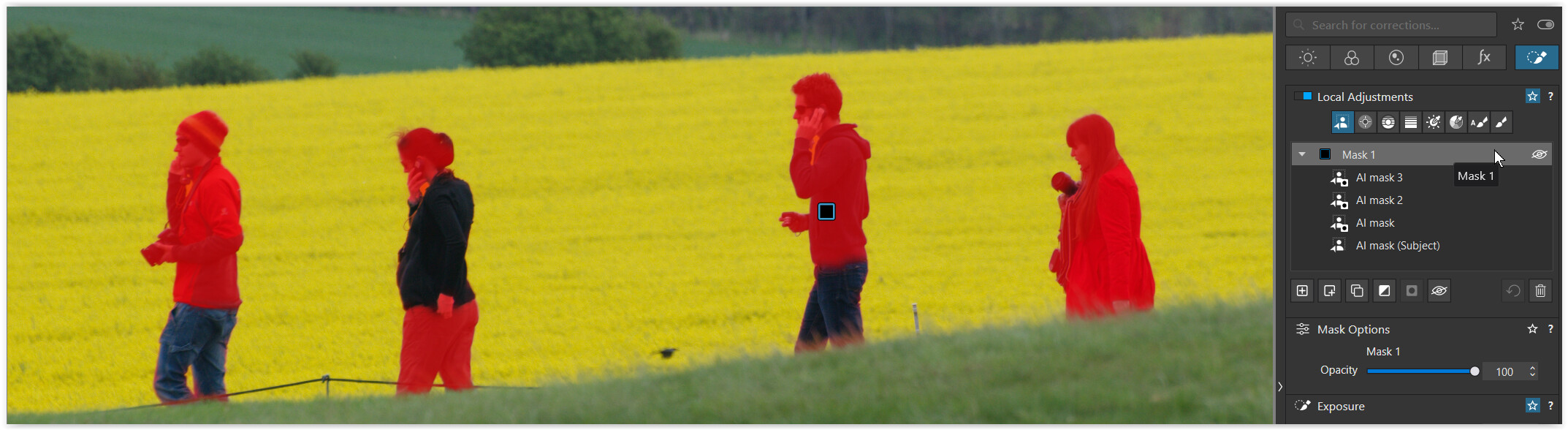
I was just watching a video where Photo Joseph used the selection tool and clicked on several areas to select them and create one mask . He did not add to an existing mask just extended the area masked by clicking with the tool. I can see no way to do this in Mac, although he is using one!!

What am I missing folks?

It’s not clear which video to watch, but maybe you meant using shift-click?

The video is “PhotoLab 9 -What’s New” (it opens automatically here). It’s not shift click as that adds additional sub masks. In the video that does not happen, the base mask is just extended it seems.

Perhaps this one:

I’m on Windows and I can’t recreate what happens in the video either.

I too must be missing something.

If I use that, I get a new sub mask every time I click. That doesn’t seem to be what’s happening in the video. However, PL9 is now at v9.5 and the video must date from the initial release so maybe things have changed?

Agreed. But a poor change I think.

Also, using Alt-click doesn’t change the behaviour, each click gives a new sub mask, it doesn’t add to the initial selection.

1 Like

If the video is incorrect then it should be taken down imo. Shows how unreliable the internet can be.

1 Like

The internet unreliable? Really?

You’ll be telling me next that AI is also unreliable :rofl:

1 Like

This WAS the behaviour with the initial release of PL9. I have PL9.1 on one of my computers and this is the way it works.

One of the later releases changed that, I don’t know which one. My other computer has PL9.4 and each click creates a new mask.

For me, this was a silly move.

Maybe but I’d speculate DxO found it was a necessary change in order to fix one or more of the many bugs that plagued the early versions of AI masks in PL9.

on Windows

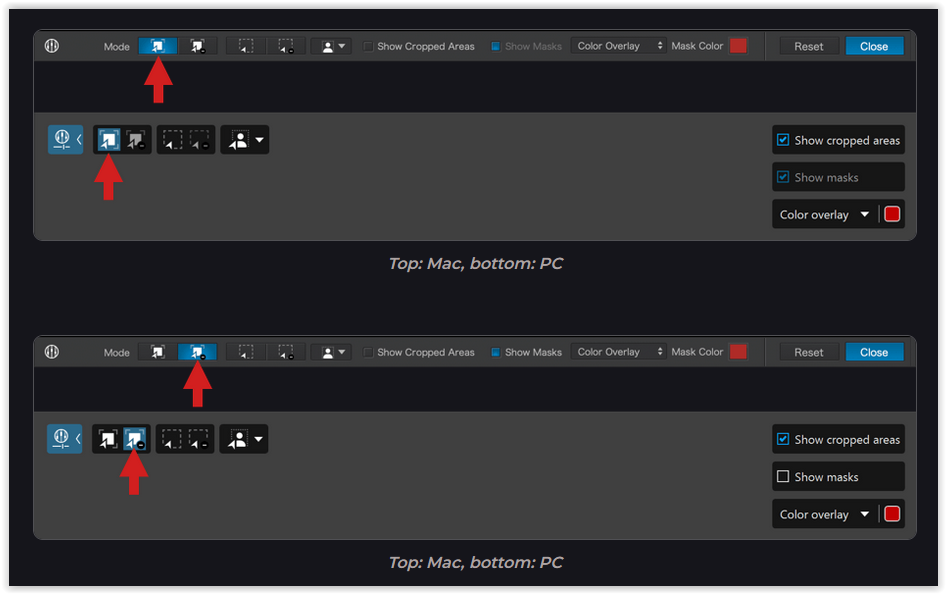
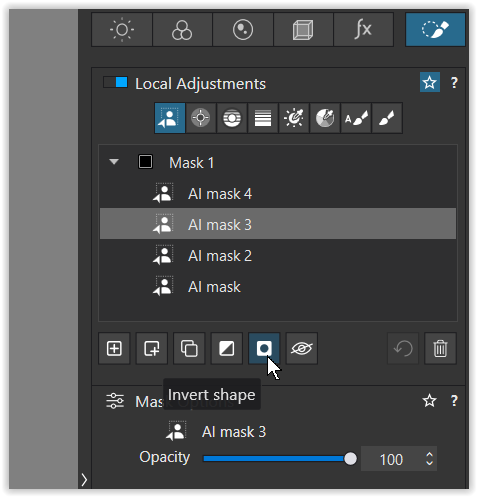
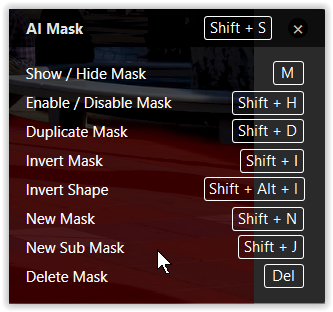
At the moment < Shift + J > adds a new Submask

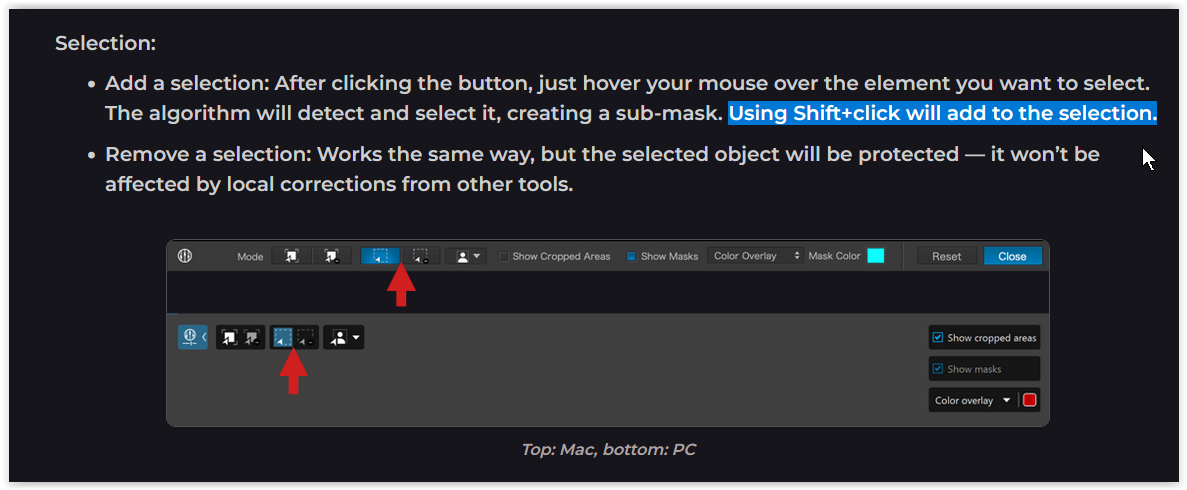
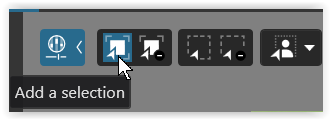
and > Shift + click > adds to the selection, *) please → see …
.
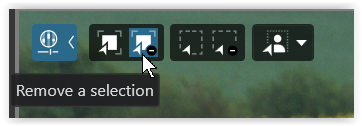
whereas “Add a selection” doesn’t


yes … looks strange.
.
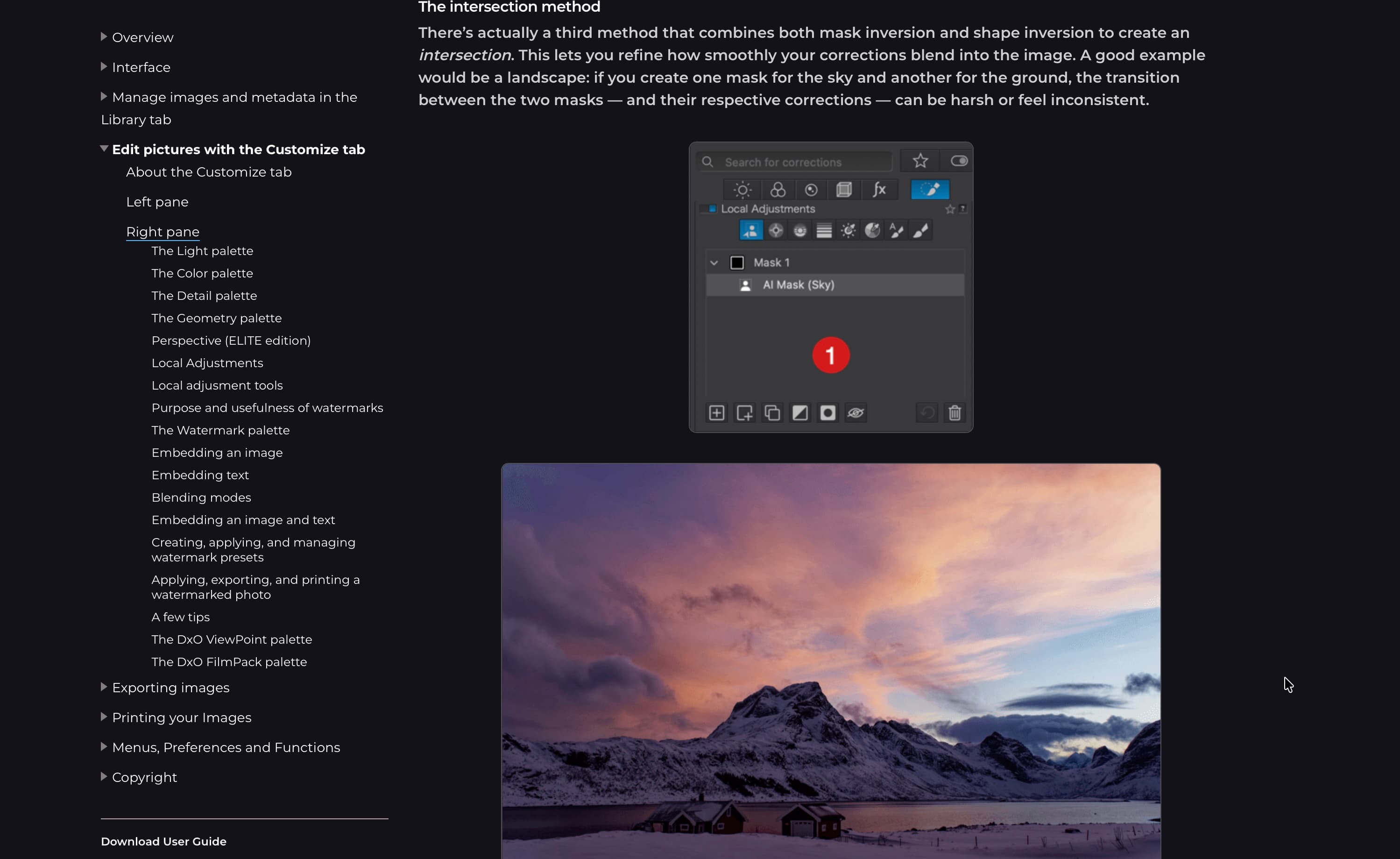
However, it’s also mentioned in the Online user guide.

Then I must be doing something wrong because, for me, shift+click does not add to the existing mask, it creates a new sub mask.

Any clues to how I can get this working?

Sorry for the misunderstanding and lack of clarity.

It was related to the previously mentioned hotkey <Shift+J> → to add a new submask.
<Shift+Click> adds that submask to the selection → the same Mask.

Much easier to come back and correct/manipulate the submask rather than “redrawing” the whole thing.

So, what looks like a disadvantage is not too bad. :neutral_face:

It’s not encouraging to see how much uncertainty currently surrounds the use of these features. I don’t envy anyone trying to write a guide on the subject.

1 Like

This is a significant disadvantage when attempting to use the multiple areas selected as a clipping submask for another submask.

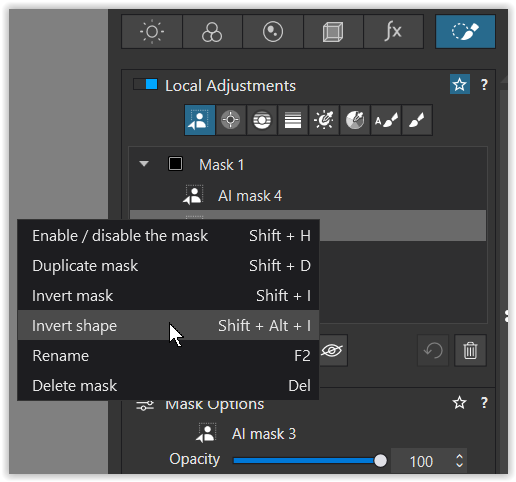
As best as I can figure the “shift-J” feature is the same a clicking the “create submask” box in the panel. Both are superfluous.

Can you give an example?

Let me try again …

.

.

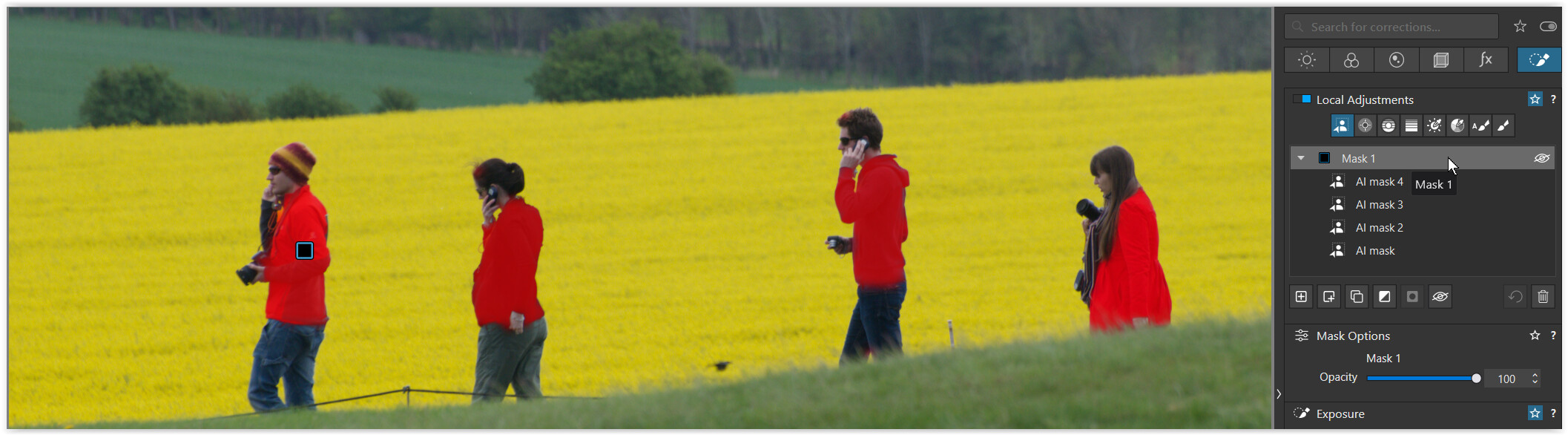
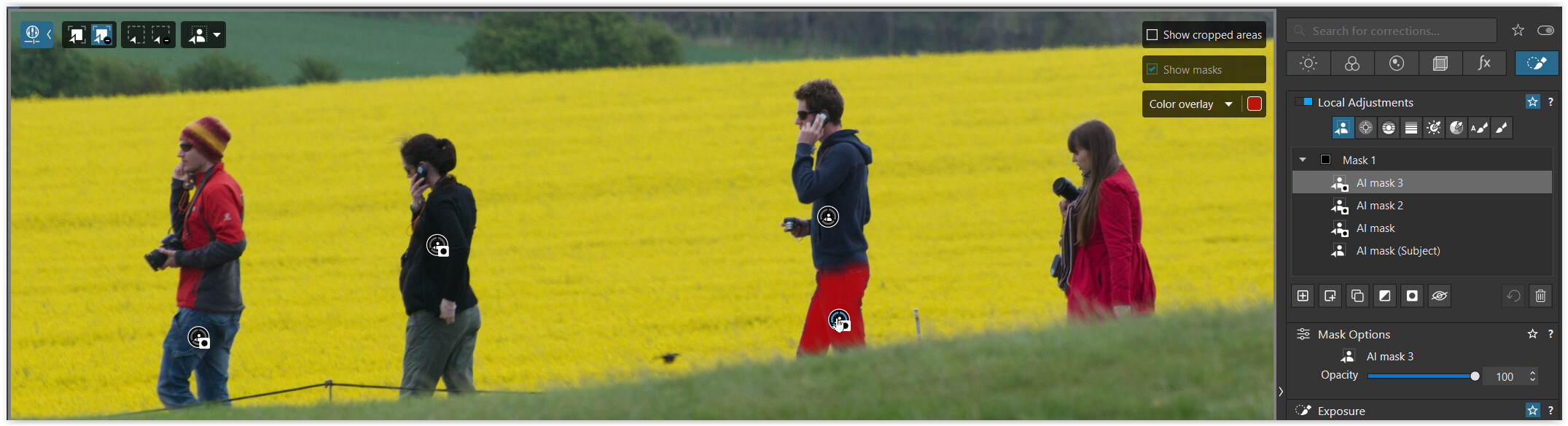
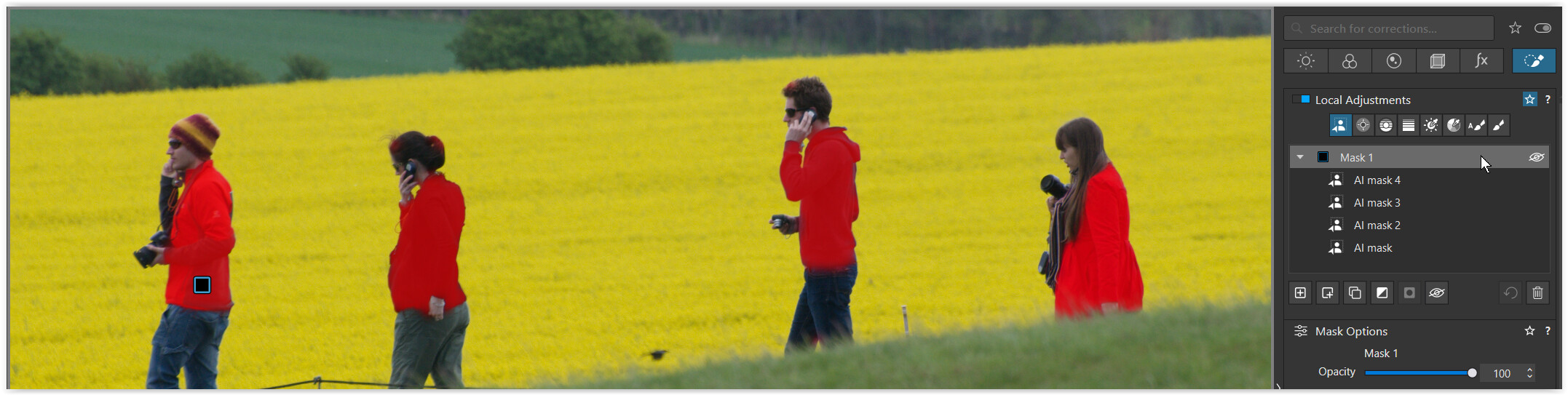
This means we still have the option to continuously select something and add it to the selection of the Mask 1, 2, 3… or to exclude it from it.

When to perform the manipulation afterwards, we need to select the submasks individually.

.

ANNEX

Referring to the introductory remarks by @ColinG

Photo Joseph used the selection tool and clicked on several areas to select them and create one mask . He did not add to an existing mask just extended the area masked by clicking with the tool.

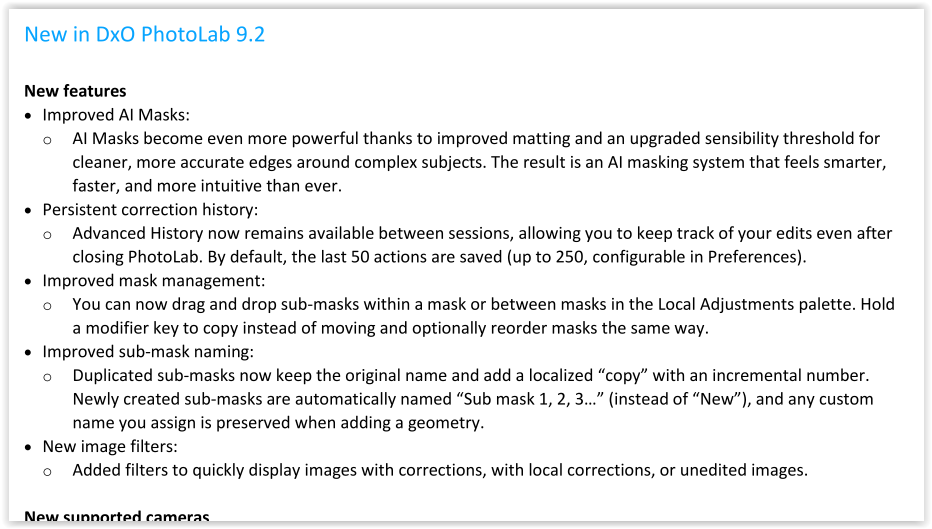
and the subsequent discussion, DxO has made quite some changes in PL 9.2 → see the recent readme file,

where the Windows version now also got a “Persistent correction history”.

1 Like

@zkarj and @Wolfgang

So now you have 4+ submasks. How do you combine these to use as an “intersection” mask as described in the User guide.