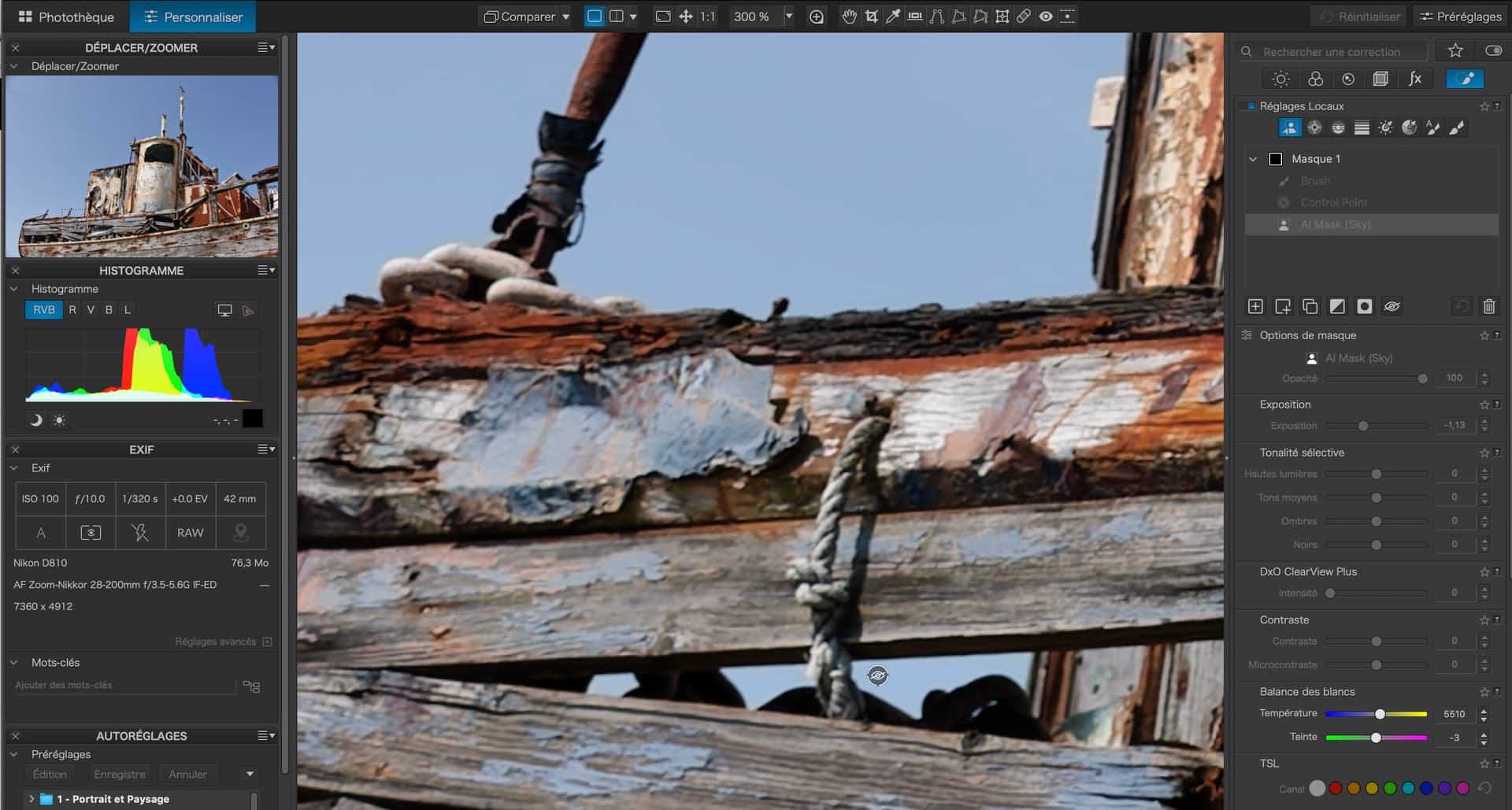
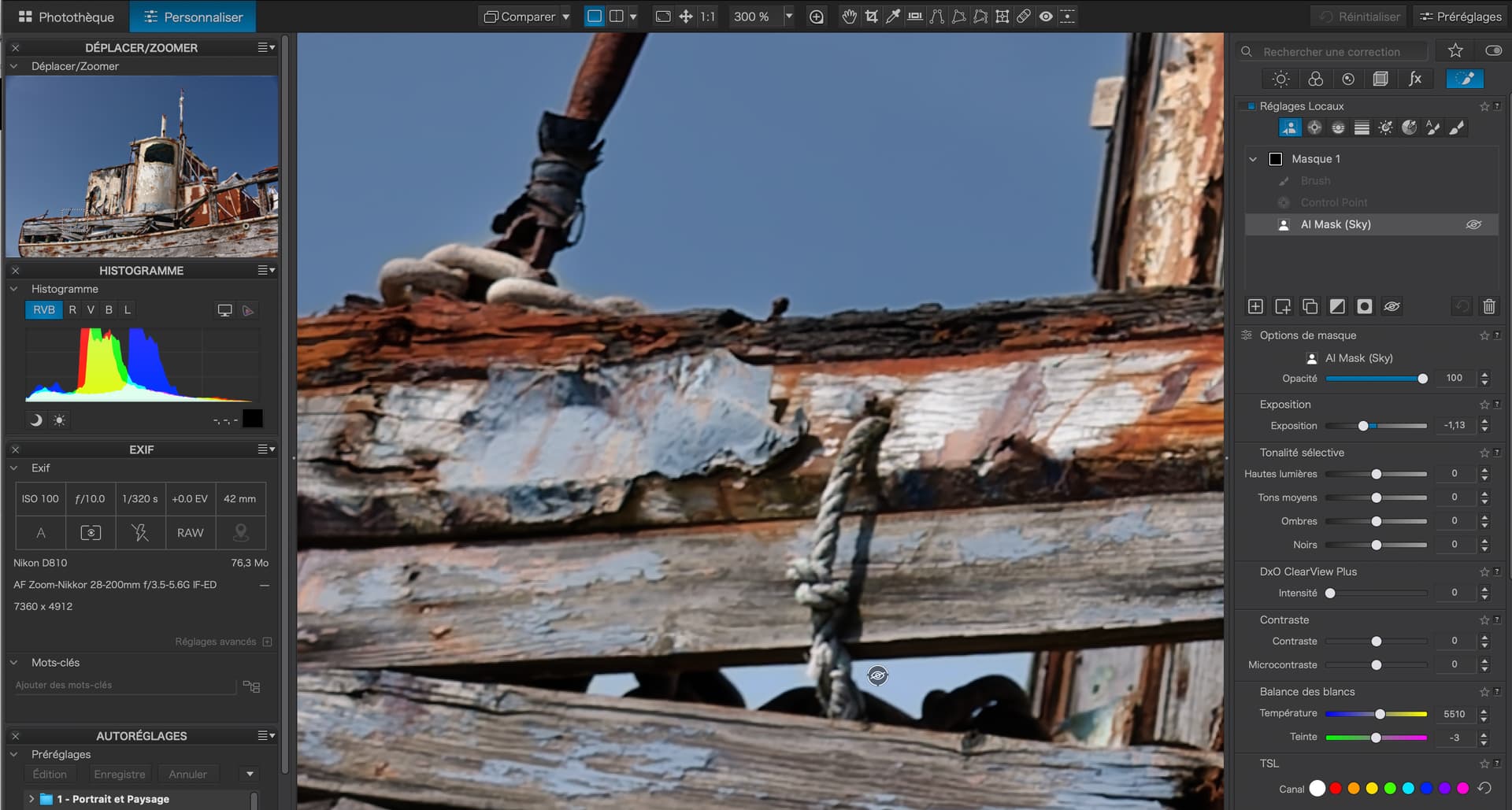
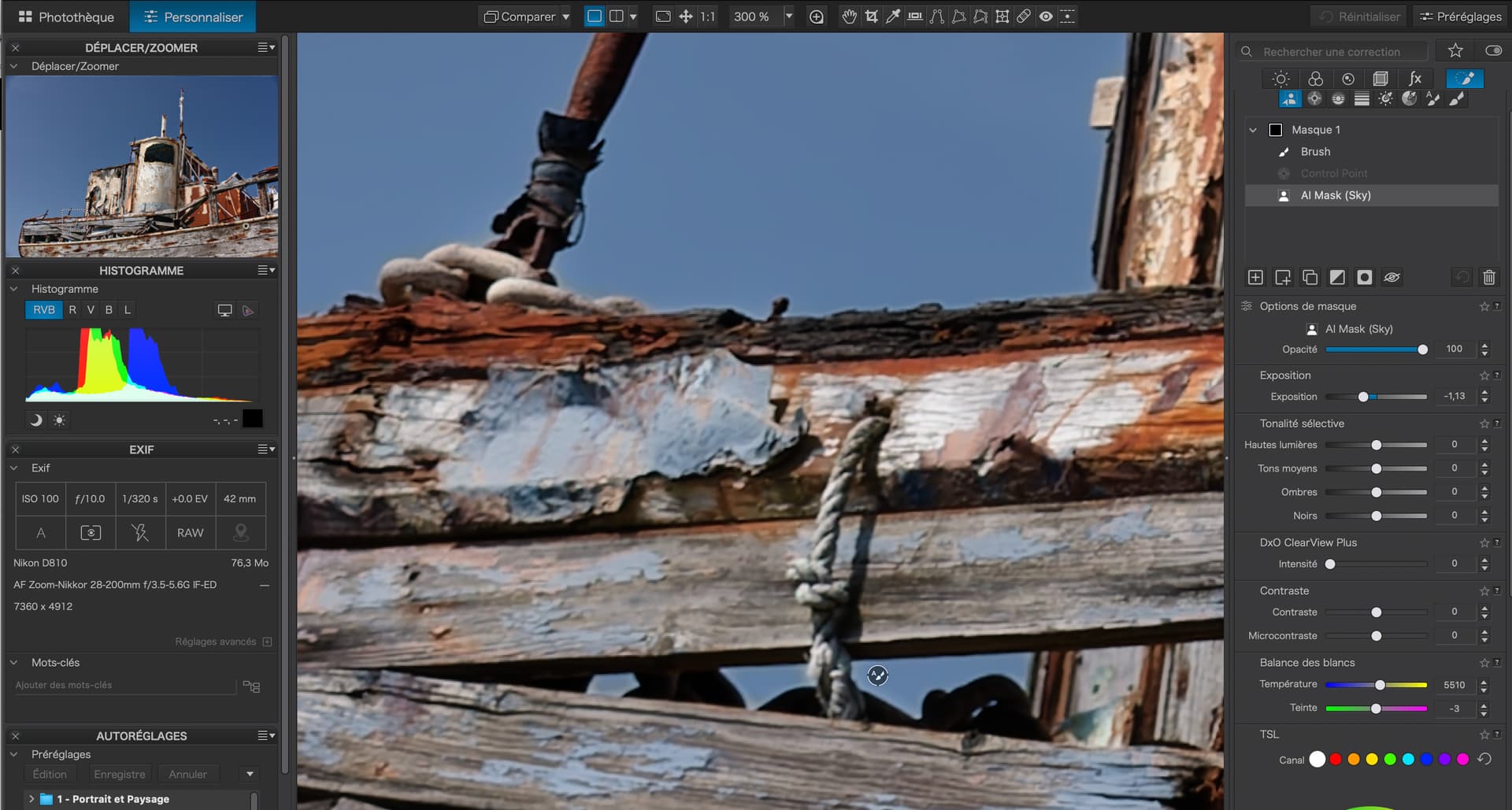
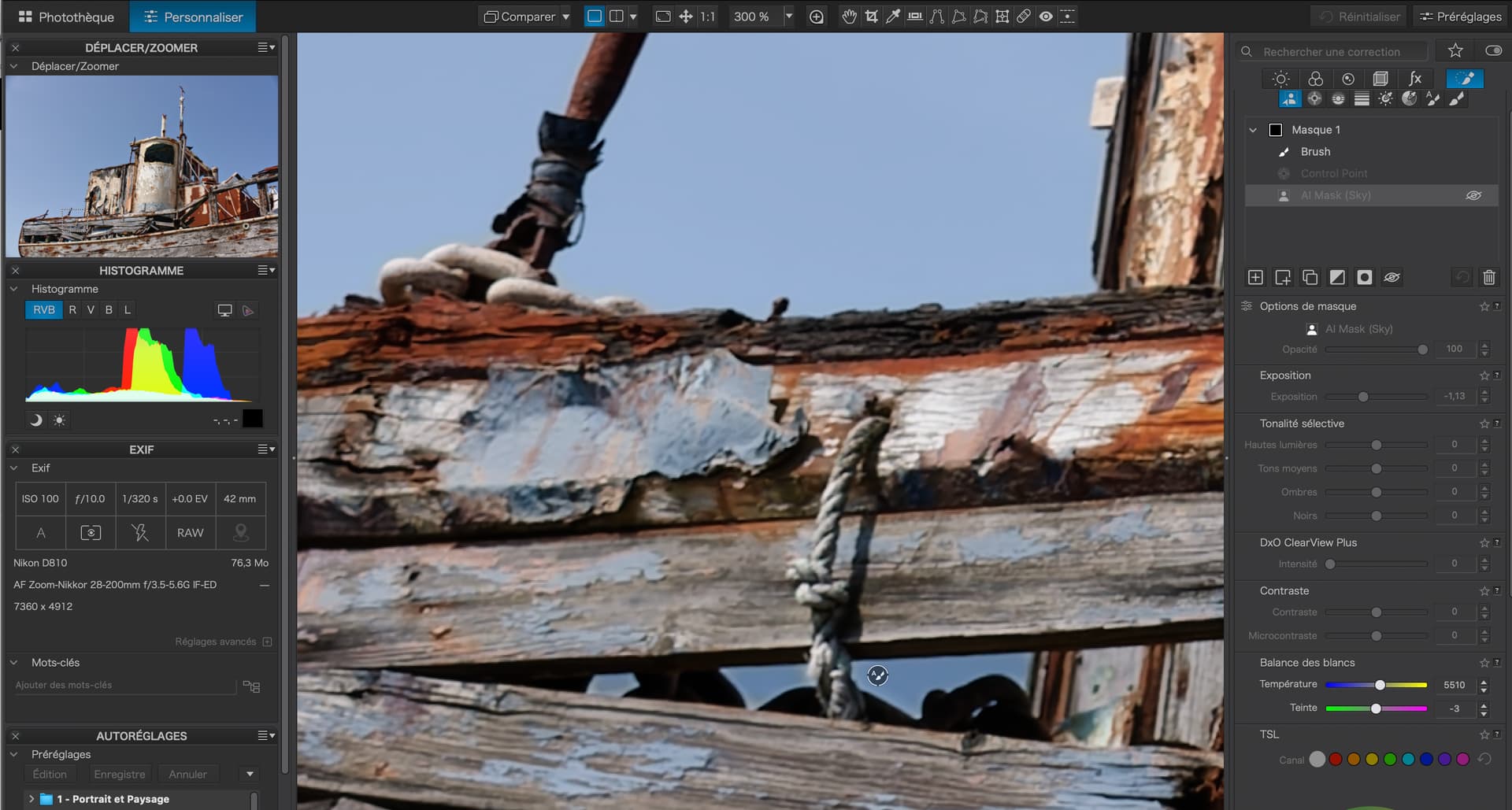
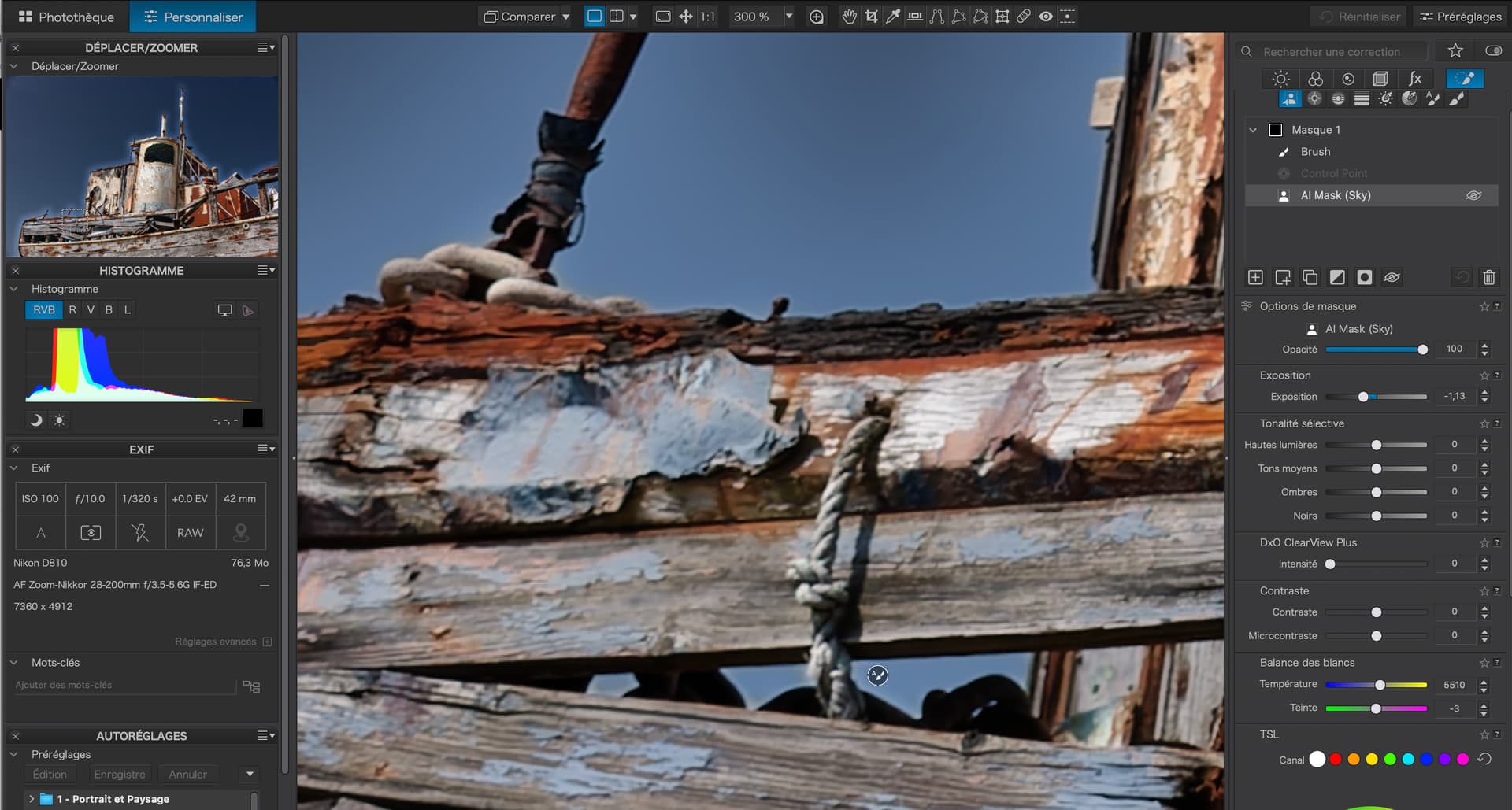
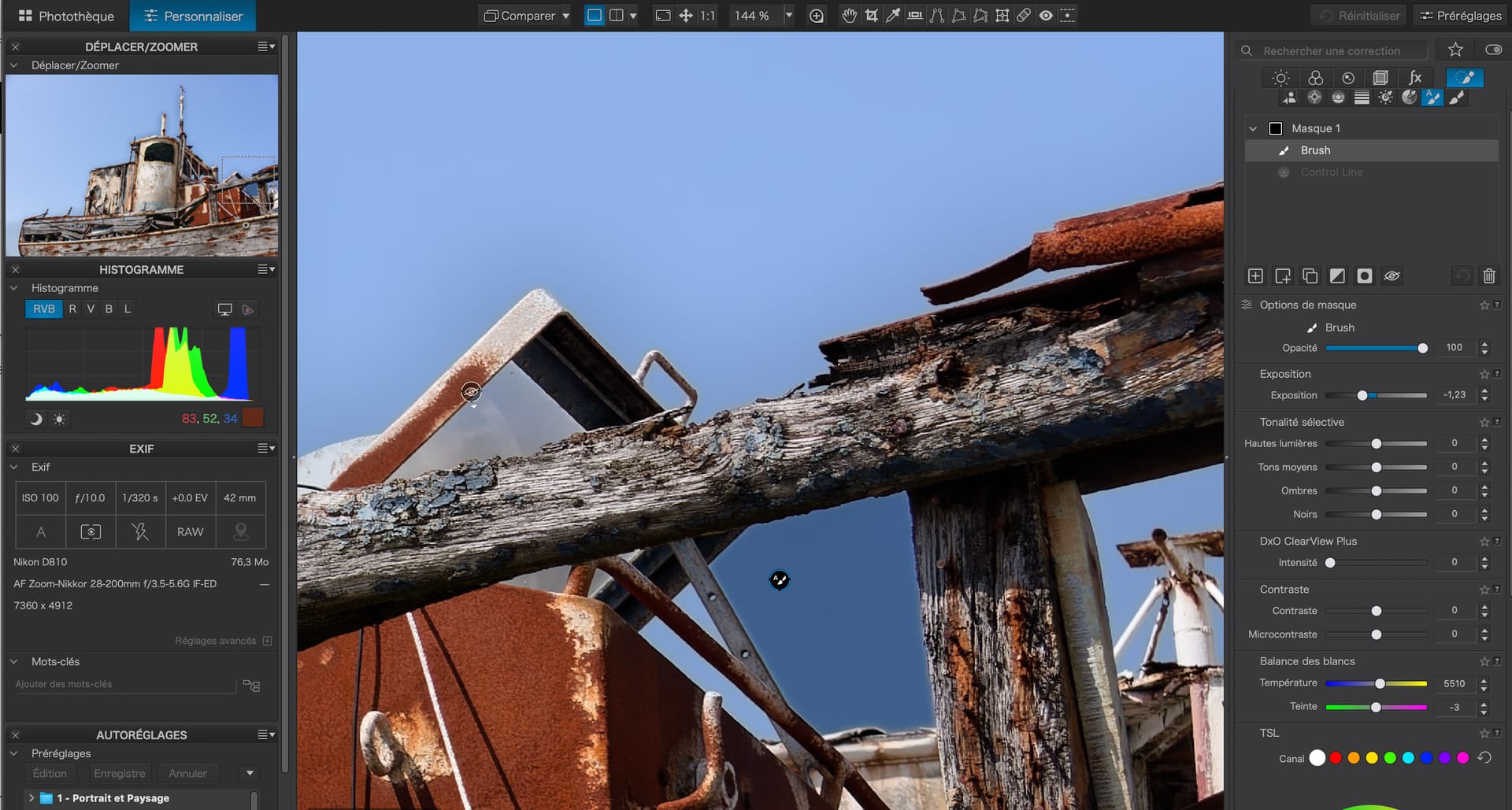
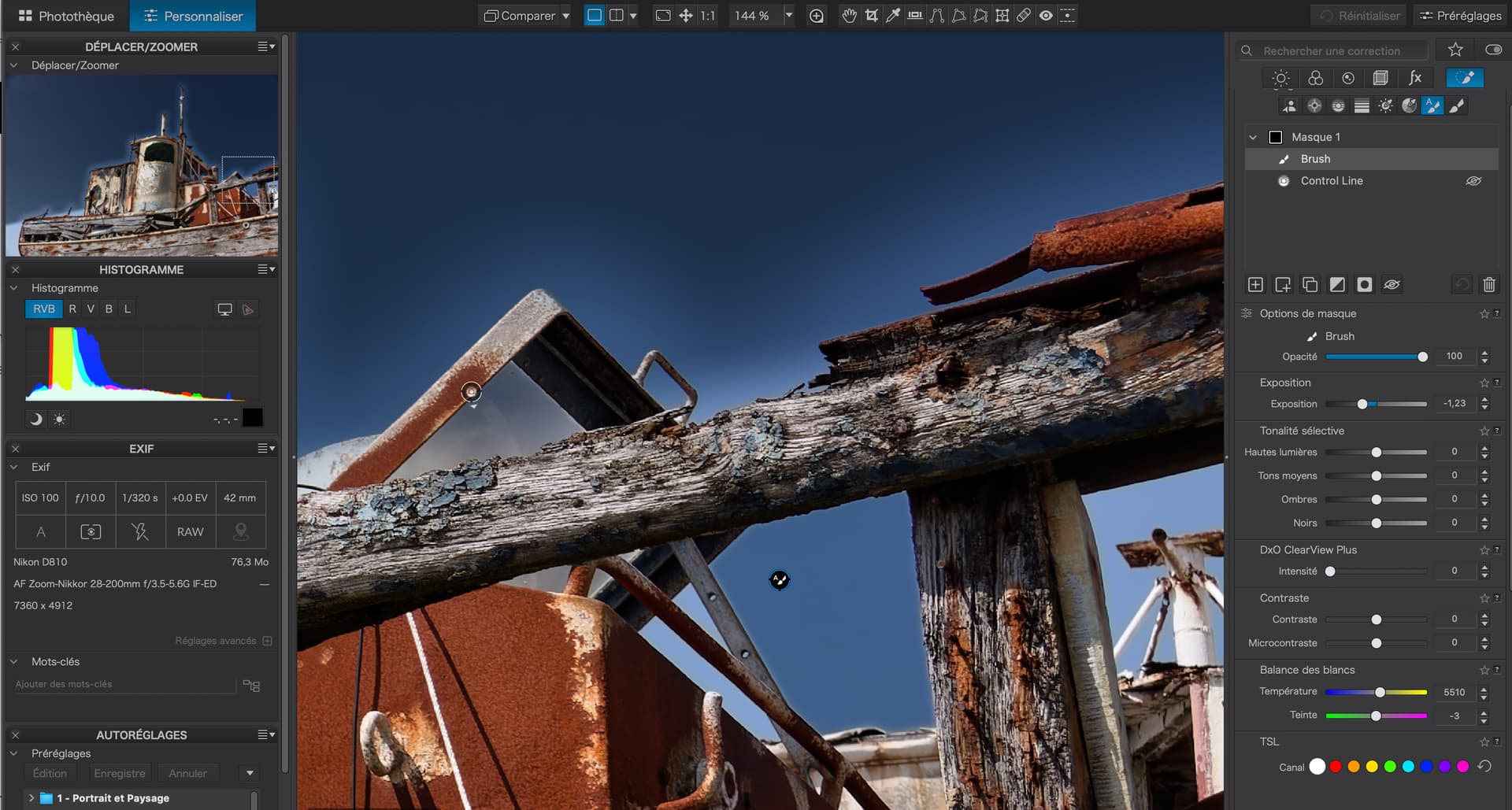
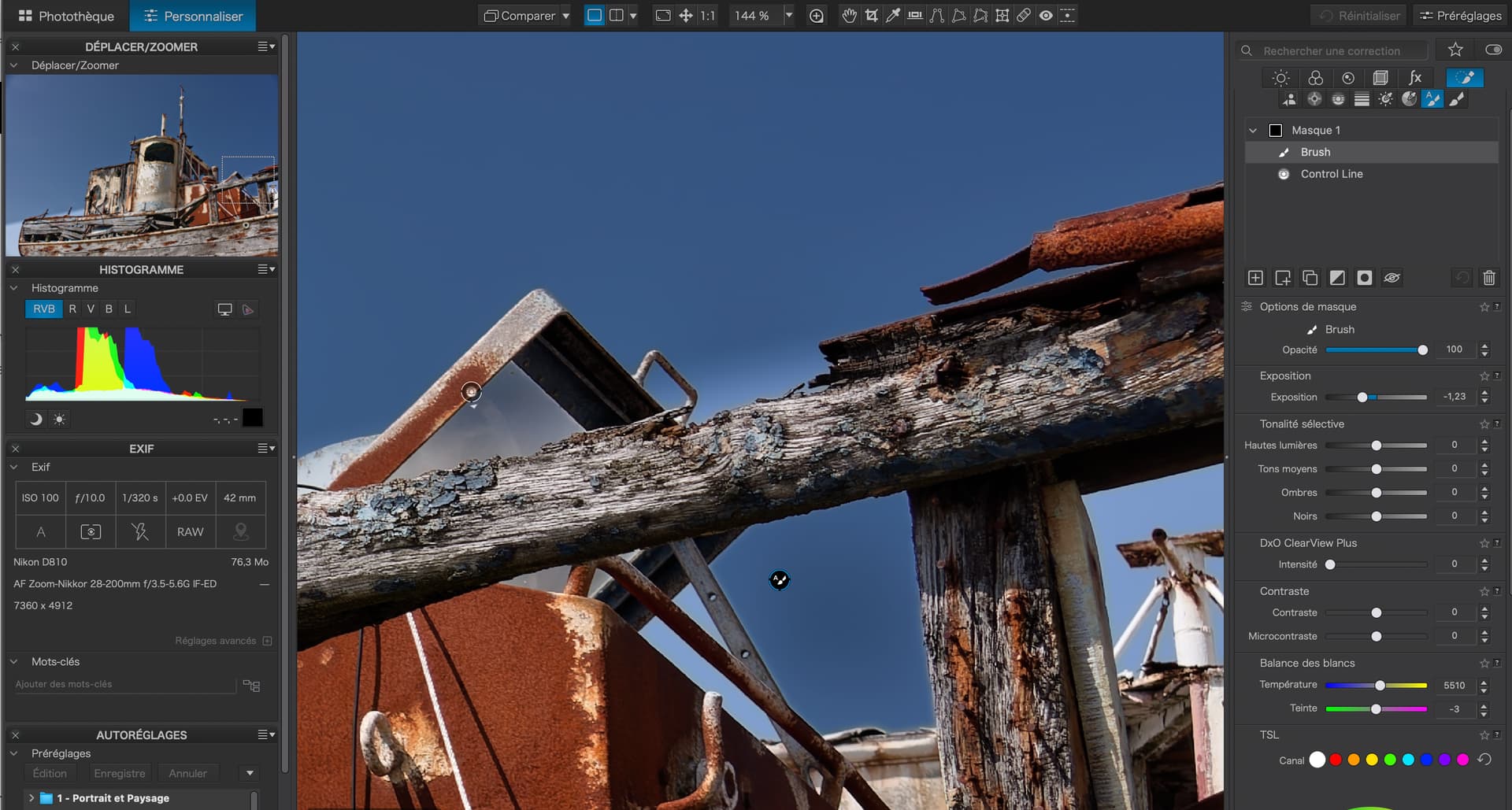
Joanna – all the screenshots look good to me, except for number 7, where a control line seems to be active the top.
Also, the density (opacity) of the masks should be the same, assuming the sky is a uniform blue. Color corrections Adjusting the Chroma slider for control points and control lines can decrease the density, but never increase it beyond 100%. *)
I’ve tried everything, forwards and backwards, but I couldn’t reproduce your result.
→ _JNA0055.NEF.dop (36,6 KB)
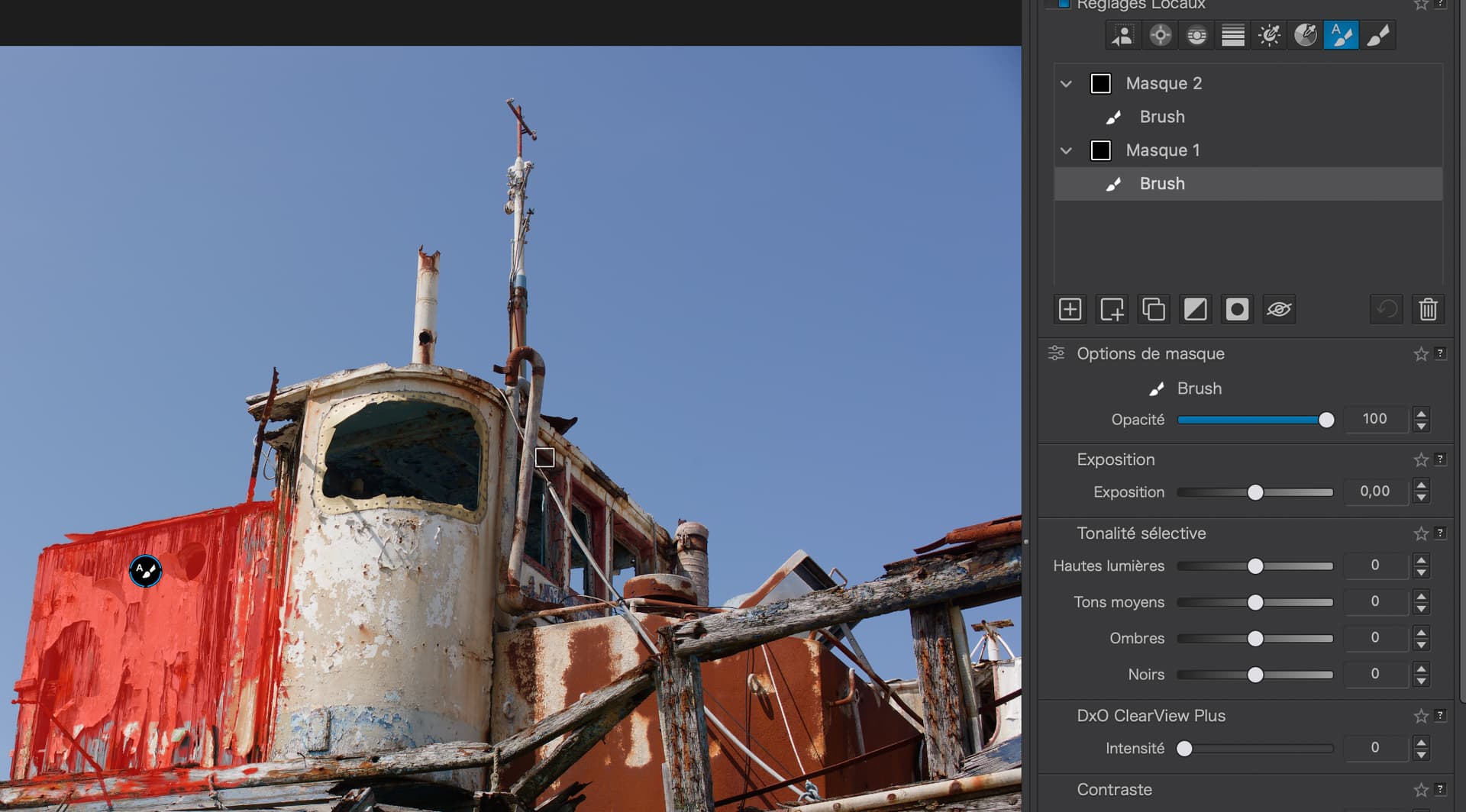
However, I noticed that the list on the right shows a brush icon, while the large preview shows the icon for the automatic brush. I have no idea if that’s related.
*) grrr, translation got it wrong !
I had checked the mask properties, as with control points and control lines you can (also) adjust the chroma range to be selected, which then results in a different mask density and therefore affects the level of adjustment – all of which is different from how the predefined AI module selects the sky.
I’m not able to replicate your results so tried to carefully follow your sequence. Then noticed a pattern for the mask labels that does match how my system behaves.
For my system, the mask/submask is not “ON” (adjustments not shown) whenever the label is “grayed out”. Additionally, when one of the LA toolset is selected, the anchor pins for each sub-mask on the image also show that status.
As I study your screenshots, whenever the label for the “AI Mask (Sky)” is “grayed out” the sky is “bright” (mask is inactive). Whenever the “AI Mask (Sky)” label is white, the mask appears “ON” (darker sky at -1,13 stop). The AI Mask (Sky) mask’s anchor pin isn’t shown on your zooming, but the other actor pins seem to show a consistent status.
Additionally, my system shows the auto brush symbol and the word “Auto brush” as the label for the Auto brush too masks - not the word “Brush” and it’s symbol.
I can send some screenshots or a video separately if that would help.
To summarize what I’m seeing on my Mac, using the default system colors and DxO Workspace:
-When the Mask/Submask label is “grayed out”, the mask is “OFF” (adjustments not displayed).
-When the Mask/Submask label is “white”, the mask is “ON” (Mask options applied and adjustments displayed).
-When the Mask/submask label has a mid-gray background bar (not black) “AND” the Mask/submask is “ON” then that particular mask is “selected” allowing changes to Mask Options and the tonal/color adjustments.
Again, I’m not having the issues you describe when creating or toggling between Masks/Submasks. Hope this is valuable as a reference point.
This is not about what is or isn’t visible in the palette, it is about the effect that enabling and disabling sub-masks in a different order is having on the image.
At no point have I shown the masks, only the effect of darkening the sky, or its parts.
I would agree that the mask items in the list are not being correctly updated visually but I would prefer to reserve that issue for another separate report.
There is also the matter of the wrong icon for the Auto-brush but, once again, that deserves its own separate report.
It is hard enough trying to convey issues without causing too much confusion.
Fully agree. The observation was a troubleshooting observation attempting to determine if the palette and image viewer UI elements are showing the same, or different, results based on the order of user actions.
-IF the image viewer results differ from the palette for the different sequence of steps then perhaps the issue is with one of these UI elements not following the user action sequence.
-IF both UI elements change together then the issue is more in the way the system follows the user input sequence. From what I see on the screen snapshots, the two UI elements are in sequence so neither follow your stated sequence of steps.
I am running PL9.2 on a MacBook Pro and do not see different UI results based on the my user action sequence. The UI results of both the image view and the palette follow my input actions. I presented the basic UI logic response seen from my system.
Are you saying this logic is wrong, or that your system is not following this UI logic?
Do you also get to see now the “correct” icon for Auto brush in the RHS list?
( I had experimented with using the brush first and then the auto brush, but the one I used first was “registered” in the preview… so that can’t have happened. )