Bonjour
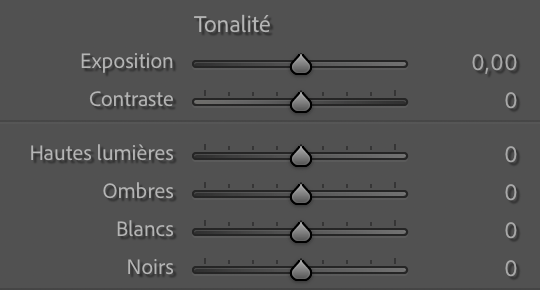
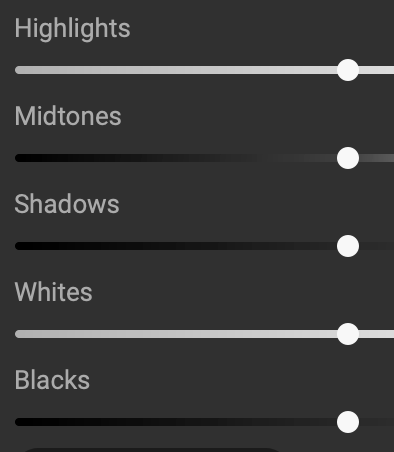
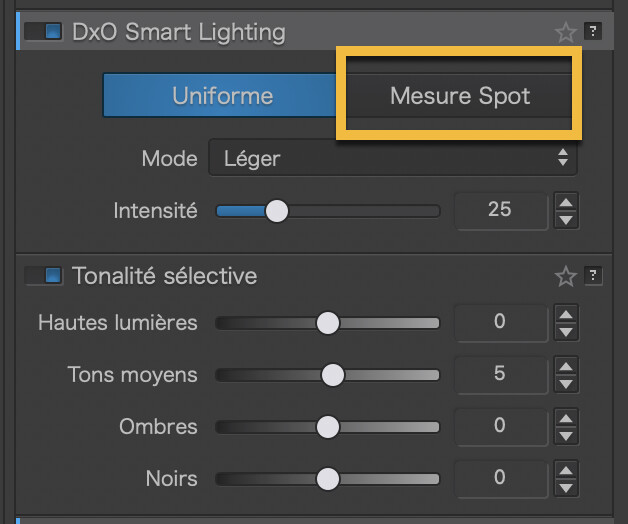
Serait très utile d’avoir un curseur pour les blancs et un curseur pour les noirs. Pas seulement pour les hautes lumières et les ombres.
Merci
Yvan
Bonjour
Serait très utile d’avoir un curseur pour les blancs et un curseur pour les noirs. Pas seulement pour les hautes lumières et les ombres.
Merci
Yvan
My butler said:
“2. Using the Tone Curve (Most Precise)
For professional restoration where you need to map specific values to pure black (0) or pure white (255), the Tone Curve is your best bet.
Open the Tone Curve palette.
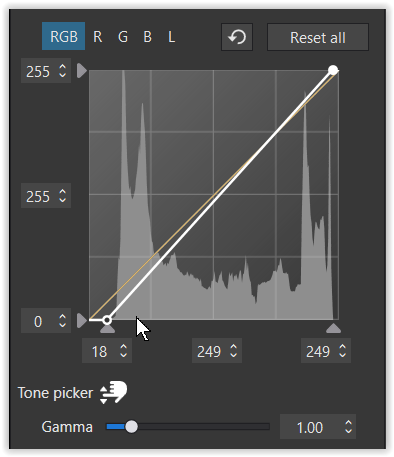
Black Point: Click and drag the point in the bottom-left corner of the graph horizontally to the right. This “clips” the darkest input values to pure black.
White Point: Click and drag the point in the top-right corner horizontally to the left. This “clips” the brightest input values to pure white.
Tip: Hold Alt/Option while dragging these points to see a clipping overlay, which shows exactly where you are losing detail.“
I’m not at home so can’t confirm #4
Hello Wolfgang,
That’s actually the method I use, but it would still be more convenient like this:
or:
Thank’s a lot
Yvan
You need to look at using the Smart Lighting tool.
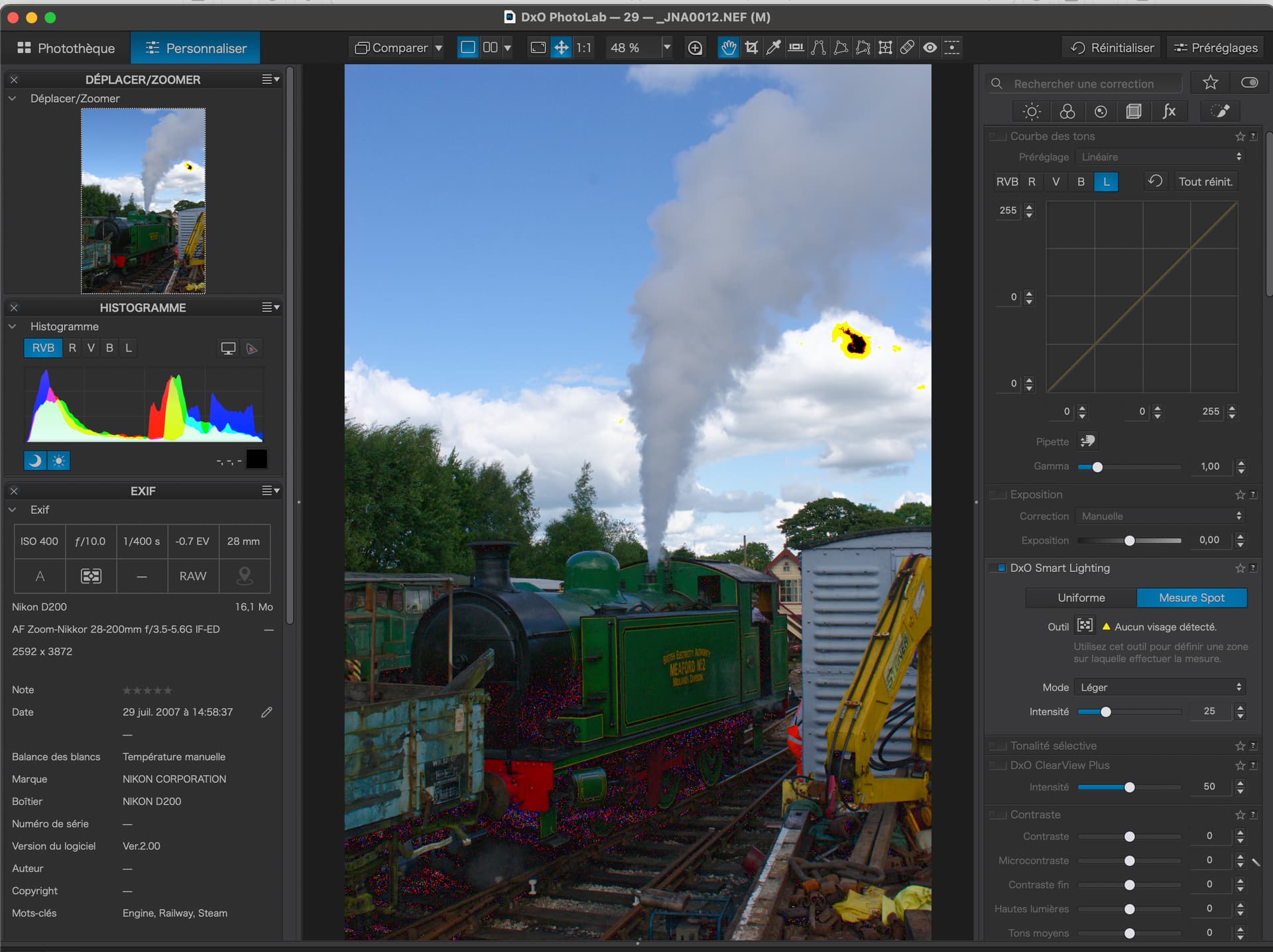
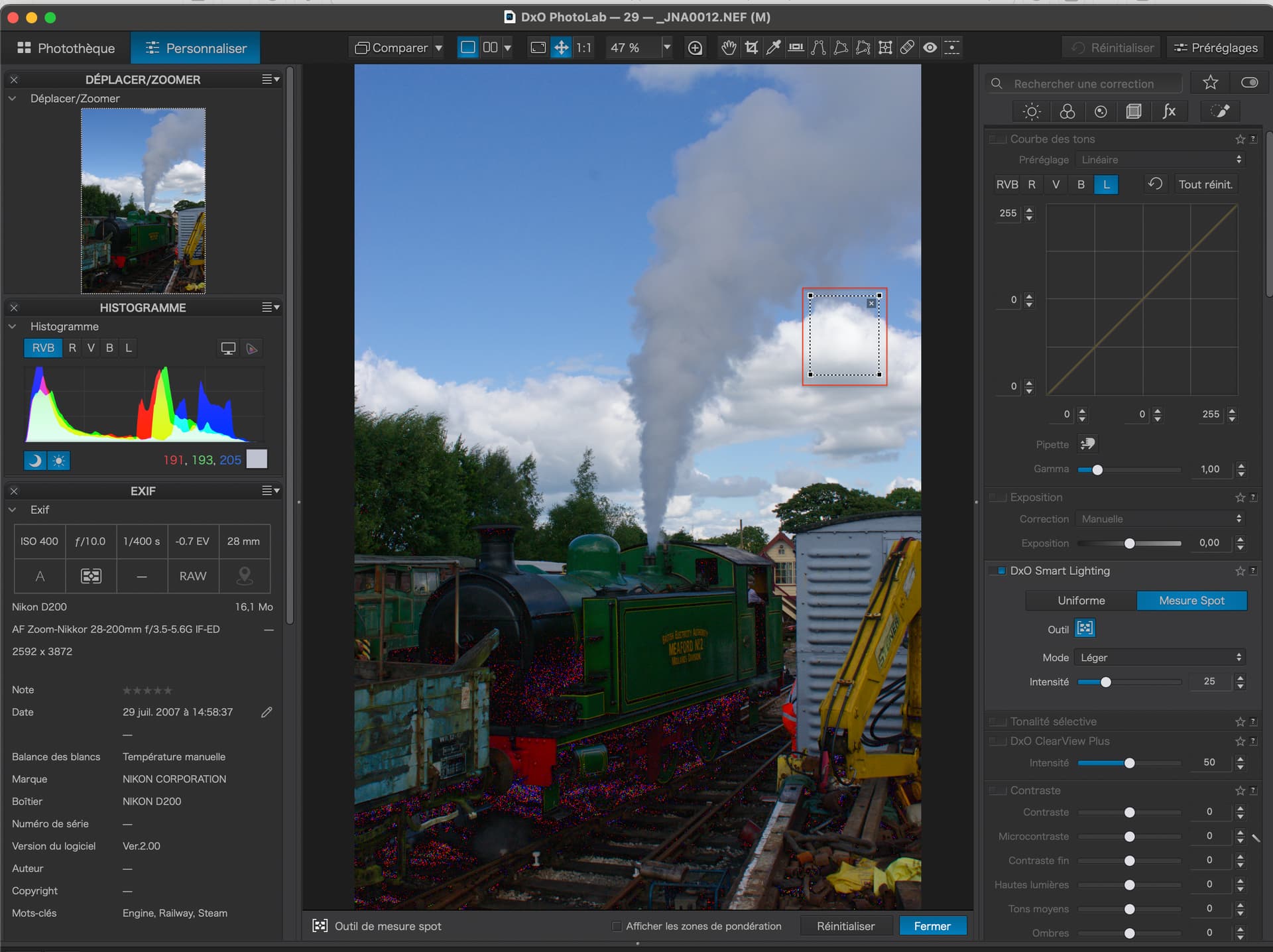
Here, I have both blown highlights and blocked shadows…
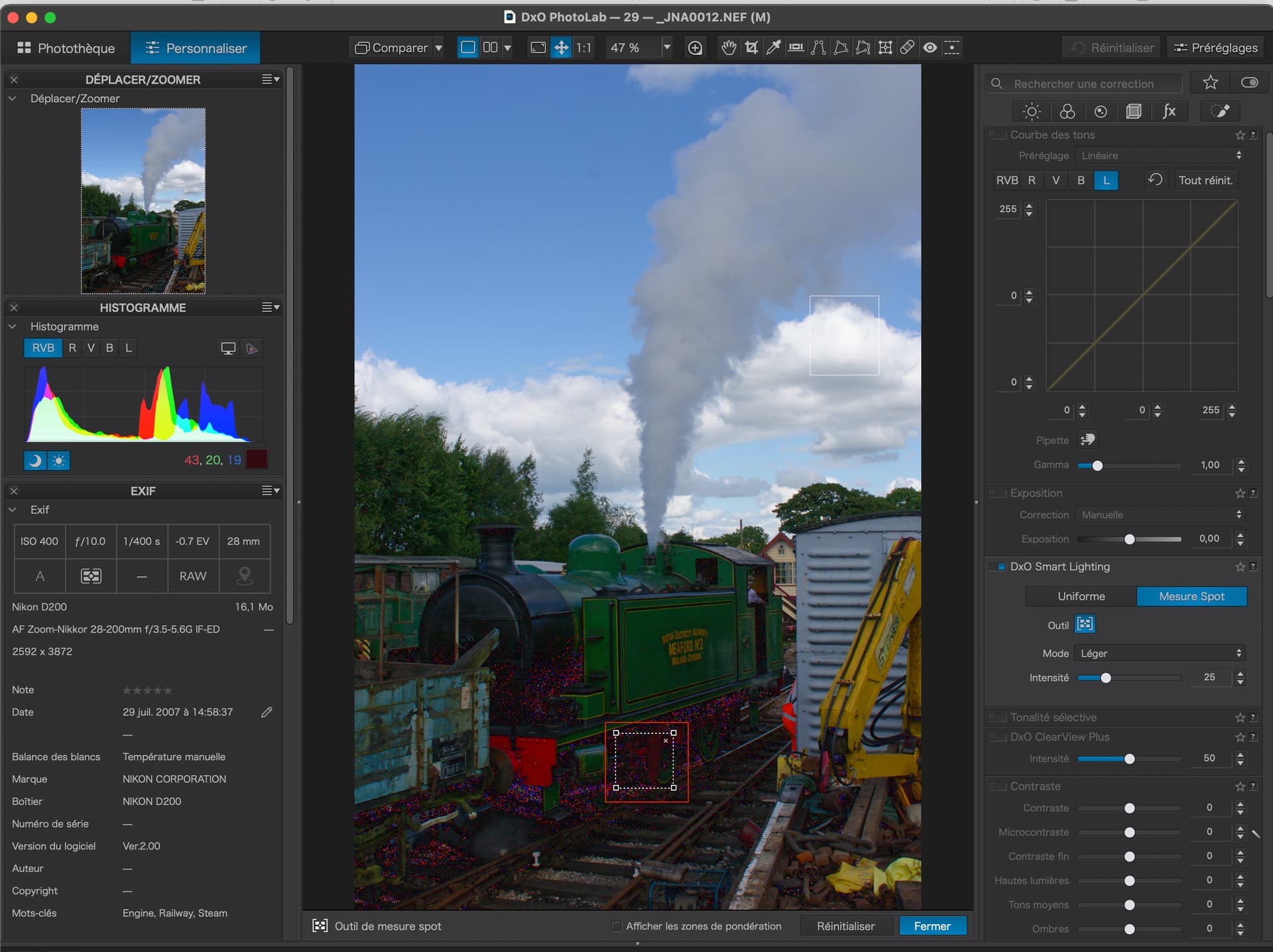
Activate the warning on the histogram and, in Spot mode, draw a rectangle around the brightest highlight…
Then another around the darkest shadow…
Then follow @Wolfgang’s advice and reduce any overshoot with the Tone Curve.
Of course, you can always just use the Tone Curve to increase contrast by moving the ends until they just start clipping.