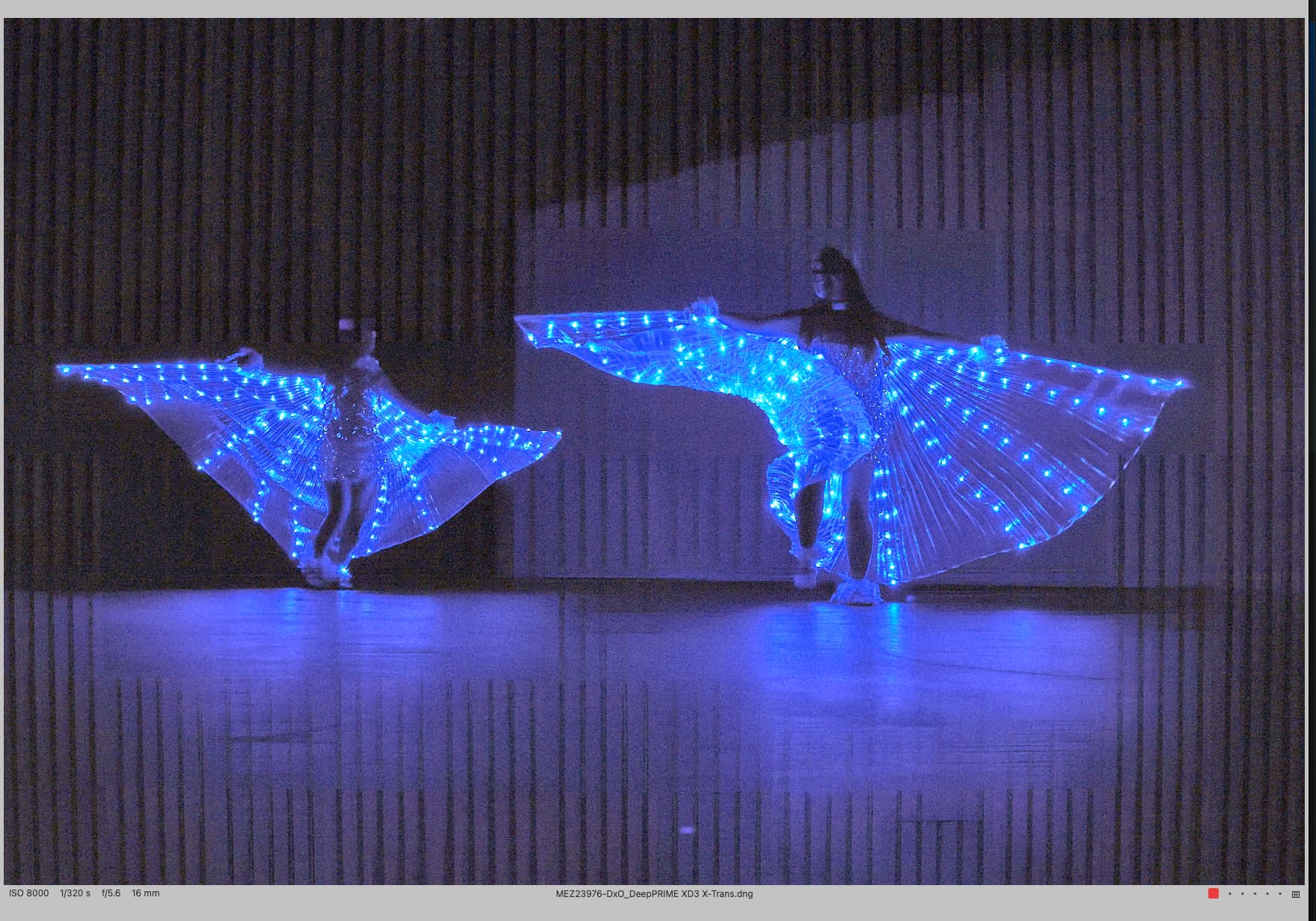
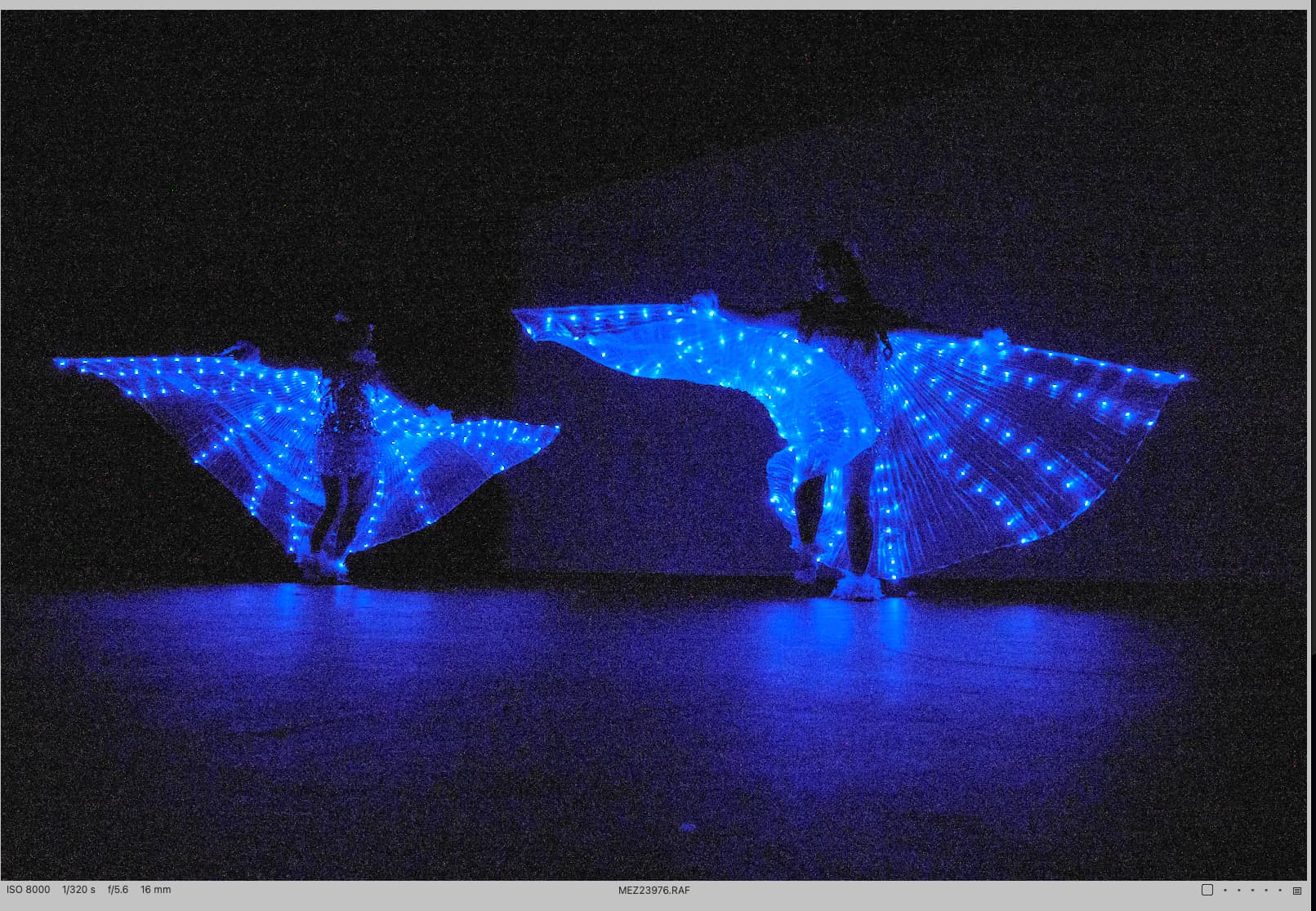
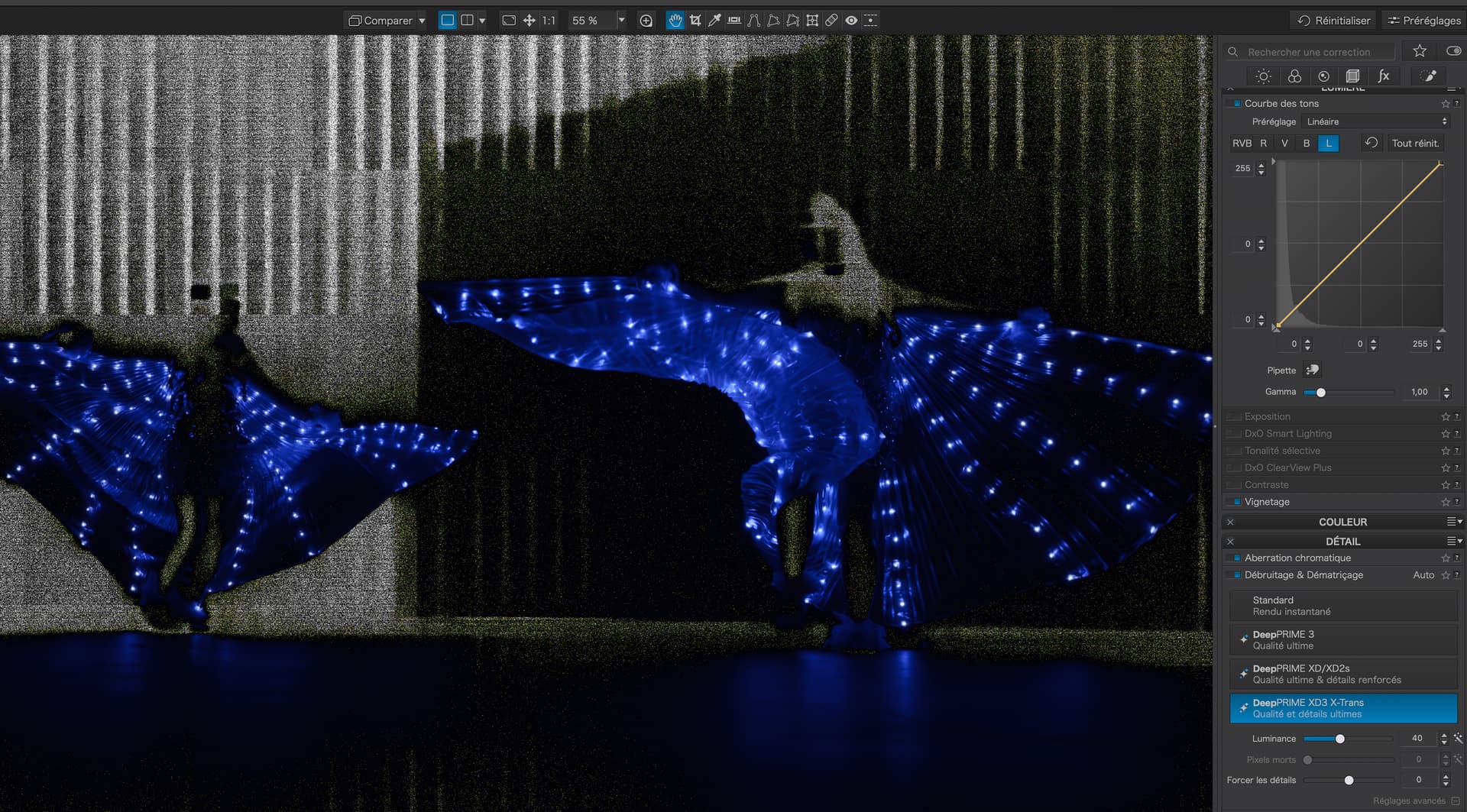
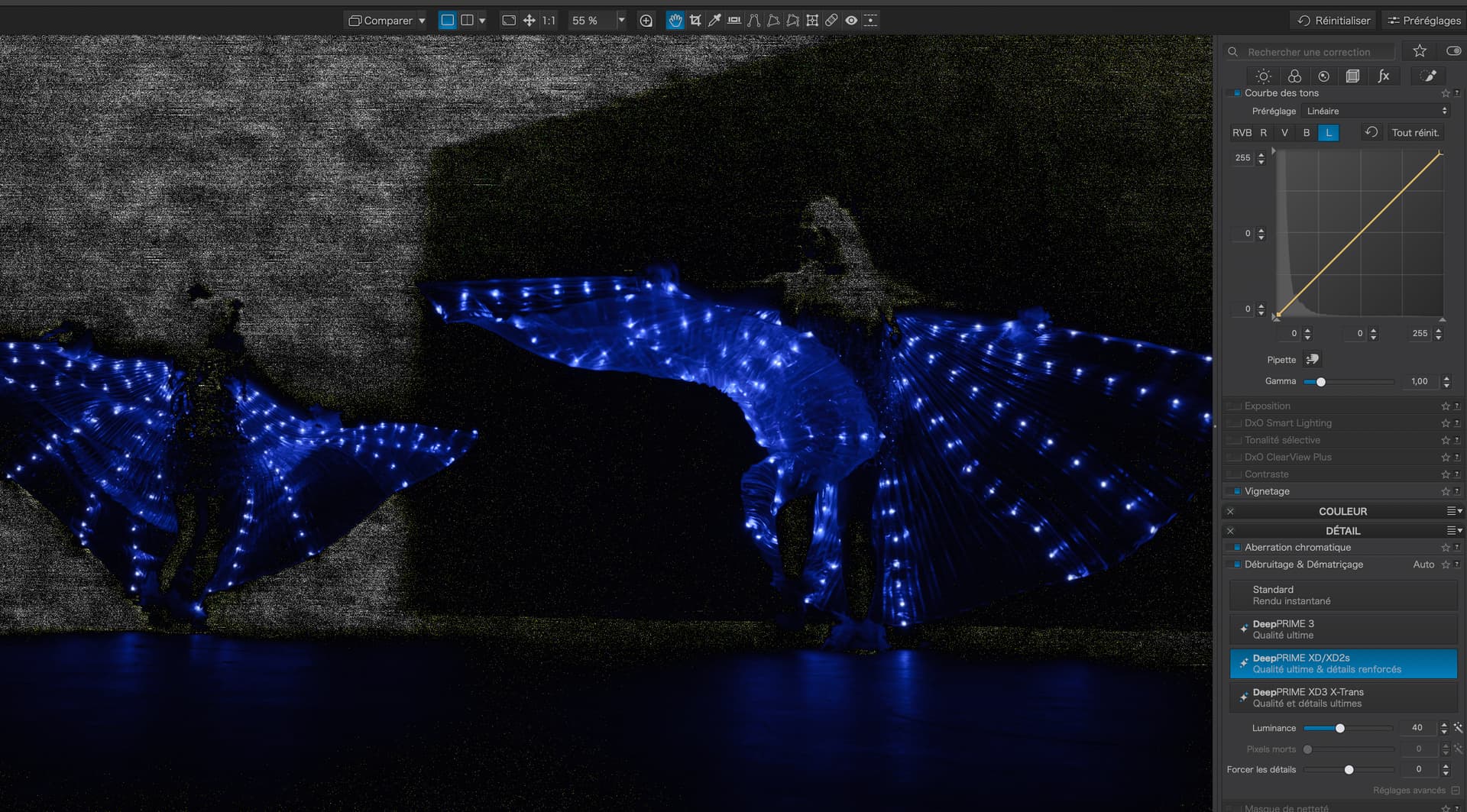
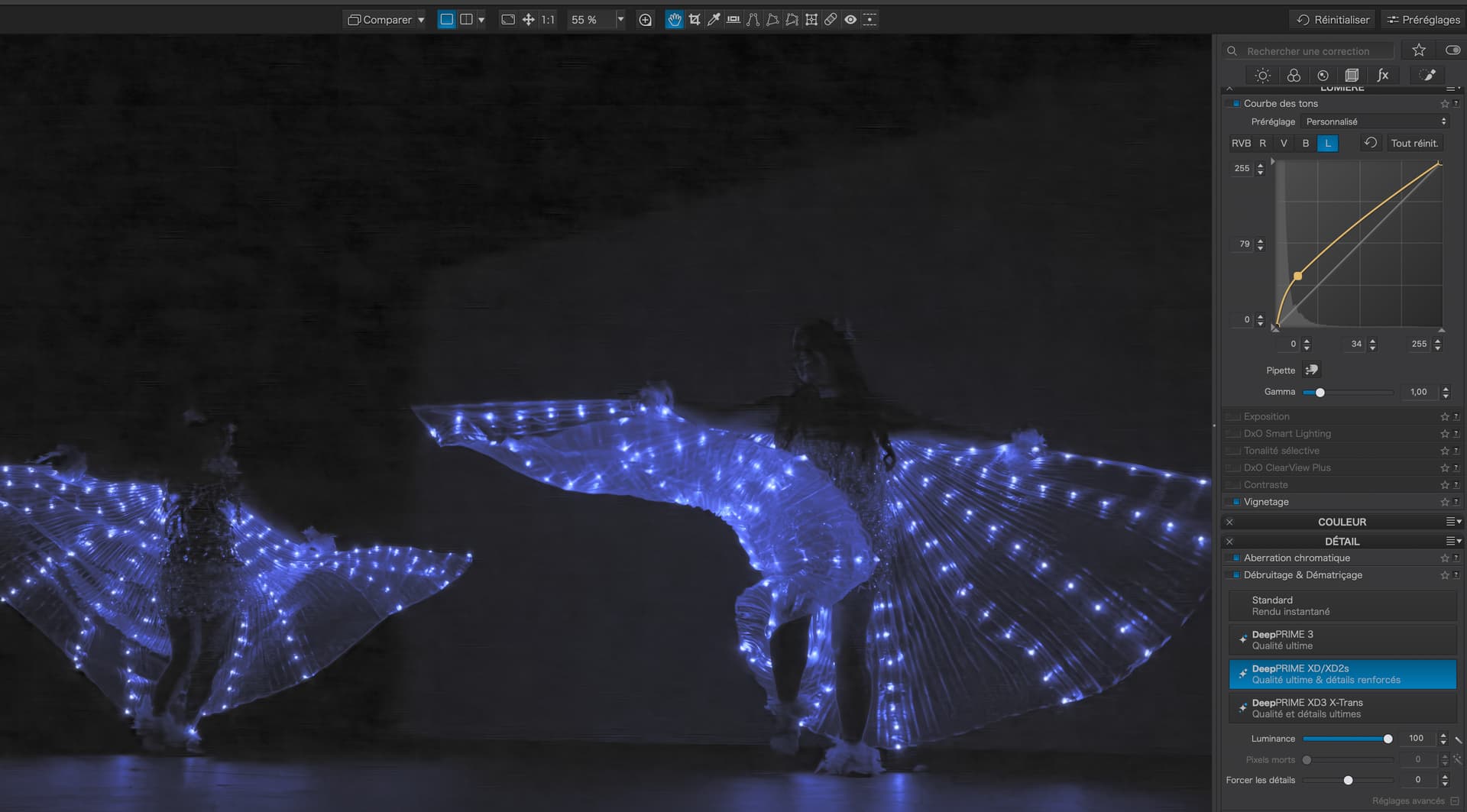
Using PureRaw 5 with the latest X-Trans support. Everything looks great but when I’m shooting in super dark theaters, I’m getting weird lines in only the shadow areas… It’s weird how they are blocked out in squares from other areas. I don’t think it’s a LED issue because of how it’s appearing. First image is the PureRaw5 export which is superb otherwise. Second photo is the raw image with exposure boosted. No lines at all. Just a ton of noise.
Any chance you would be able to add a li k to one of photos that suffers from the lines?
I don’t have PR but I’ll run it through PL and see what happens with the same noise reduction.
Shooting on a Fujifilm XH2 in RAW on Macbook Pro M1 Pro, 16 GB in Capture One
I tried playing with some of the settings like force details to make new DNGs. Still ending up with the lines. Tried opening up in Photoshop. Still Lines. Definitely part of the processing from PR5. Thanks for any help!
Please confirm this by using PureRAW standalone (which I did). If you get the vertical artefacts only when using PR from C1, please check the way you send the image from C1 to PR.
Are you possibly using “Edit with” in C1 instead of “Open with” ?
There’s simply too much noise in the shadows, too much for any software to recover correctly. It’s ISO 8000 on 40mpx APS-C, X-Trans Gen5 sensor.
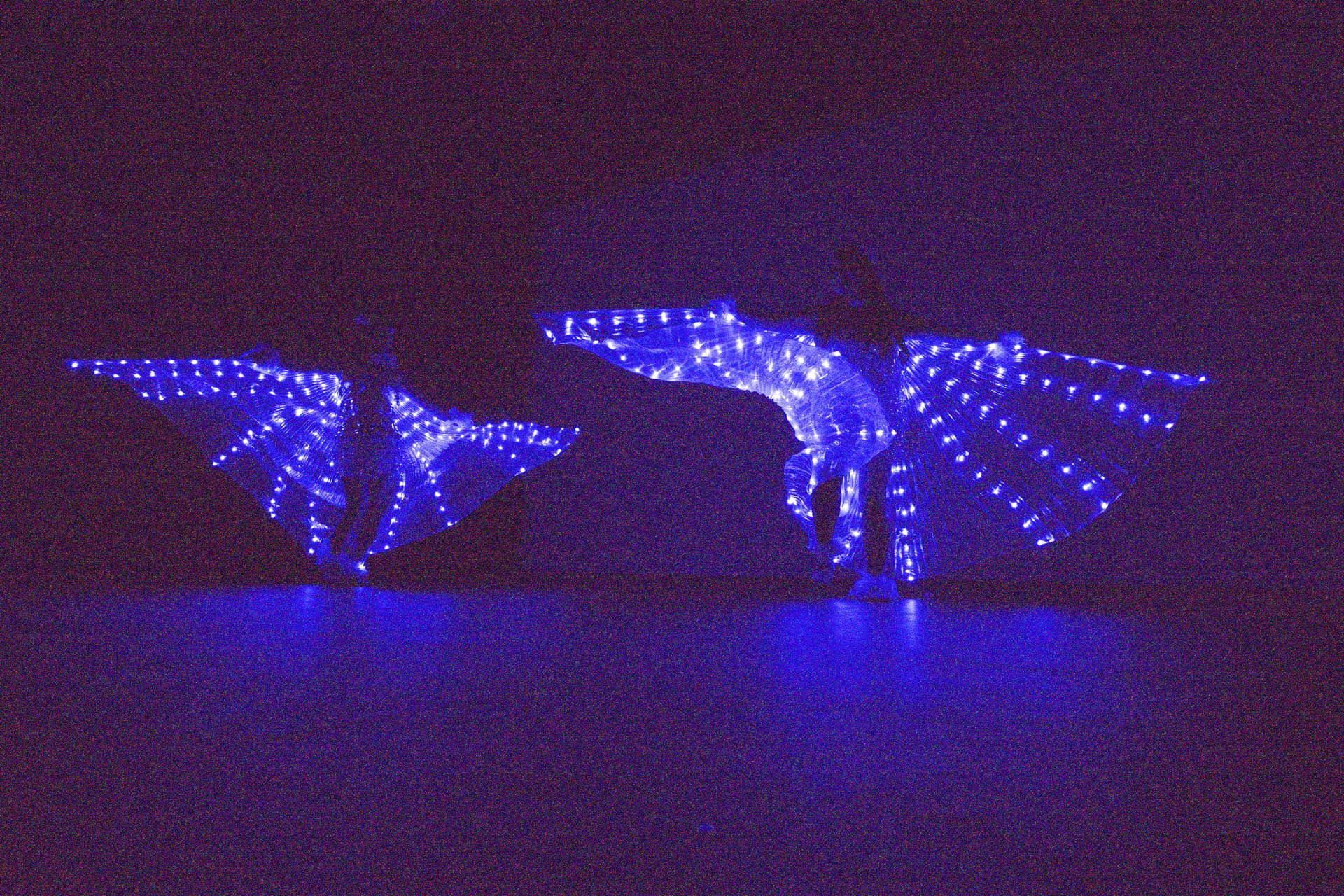
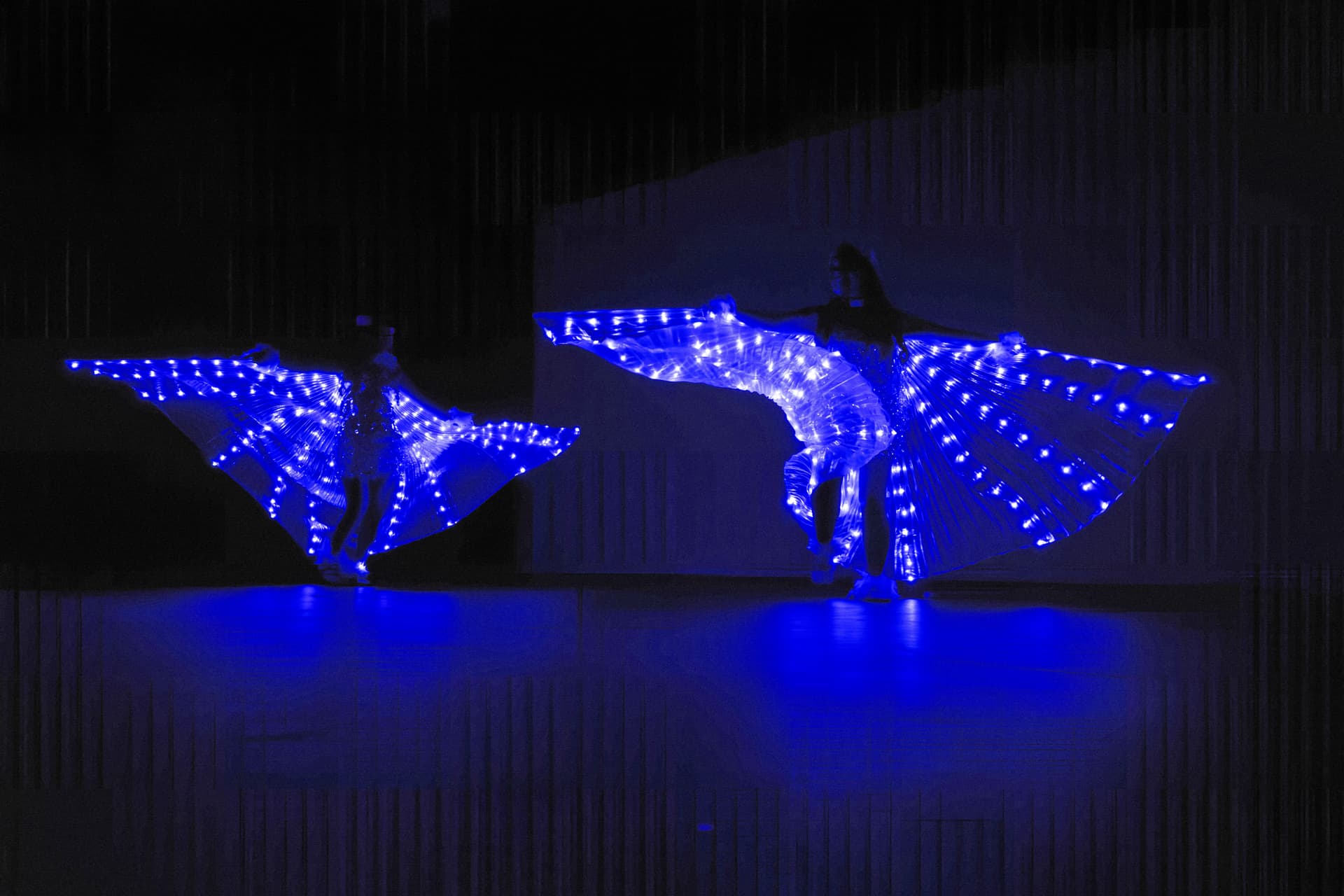
I can reproduce the “problem” with PhotoLab9.2, using Exposure=+4.0, Denoising=XD3 X-Trans. One can see the tiles which are independently sent to GPU for denoising, in this case about 640x640 in size. This is a signal that there’s too much noise to try to recover. Fixing would require some generative AI, which I’m not sure if it’s already there.
Maybe you could use slower shutter speed, but then the subjects would probably be moved. Maybe you could use f/4 instead of f/5.6, but then you risk focus problems with multiple subjects performing. It was simply too dark, I think.
I would just use XD3 X-Trans at defaults and bump up slightly midtones, leaving something for the audience to guess. Photos don’t have to be explicit at all times
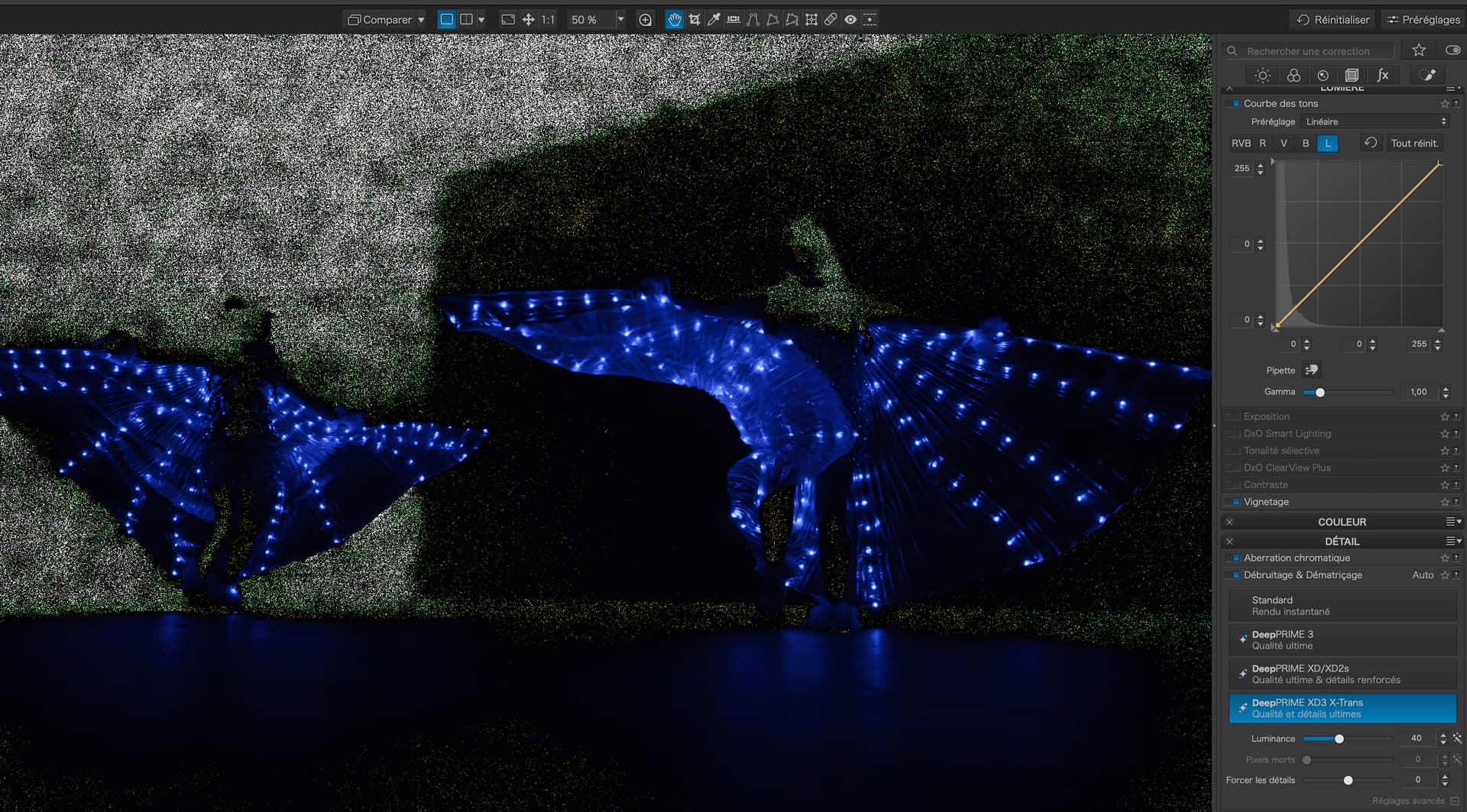
If you switch off denoising and leave Exposure=+4.0, all you’ll see in the shadows is noise:
I don’t think you can denoise it correctly. Indeed, artifacts are seen with Exposure=+4.0 and XD3 X-Trans at defaults, like those in OP (the lines are bent there because distortion correction was applied, unlike in this one):
EDIT: I had a closer look at some other similar examples but for Bayer sensors. I couldn’t reproduce the “lines artifact” with XD2s, so it seems that problem is specific to XD3 X-Trans and maybe DxO will fix it. Anyway, although the problem is there, I don’t think you can recover the shadows in OP without getting overall meshy picture.
Doing so, I don’t see any artifact when viewing the resulting DNG in PS or LR. . However, your example with the vertical lines obviously has an excessive exposure correction. This can’t be done by PR alone, I think. So, you should examine the settings applied when viewing the results in PS or C1. A default preset, maybe ?
Yes. In RAWDigger, with the Unexp (underexposed) option enabled, the whole image becomes a blue abstraction, confirming that almost 100% of it was strongly underexposed. There’s practically no data to process in the background beside noise.
With ‘Enable DeepPRIME rendering’=ON in preferences, the stripes were visible on the screen in my case, after heavy shadow recovery that is.
The problem is there for XD3 X-Trans but it’s of no practical significance in this case, since applying heavy shadow recovery makes this image unusable anyway (noise level too high). But it may provide a clue for DxO that there’s something wrong going on with XD3 X-Trans, which may impact usable images, and maybe they’ll work to fix it. So, a nice catch.
According to Iliah Borg, as stated 10 years ago in Raw exposure bias | DPReview Forums , Raw Exposure Bias in Fuji RAFs is “an instruction for a raw converter to apply certain amount of default (silent, behind the scenes) brightness compensation”. The details are more complicated, as you may read there.
I mentioned the screen resolution because details might look different at 4K – but that’s just a guess.
“Enable DeepPRIME Rendering” is turned on, as is “High Quality Preview.”
In any case, the image in question is very dark. – With careful adjustments, the dynamic range looks impressive, especially on a screen with an extended color gamut, unfortunately not on a print.
And yes, include dark & mysterious elements, something for the curious …
That’s interesting. I have 3840 x 2160 monitor indeed and PL9.2 behaves differently than on your 2560 x 1440. Arrgh, one more point to remember when discussing what one sees in PL…
Same here, enabled ‘High Quality Previews’ yesterday.