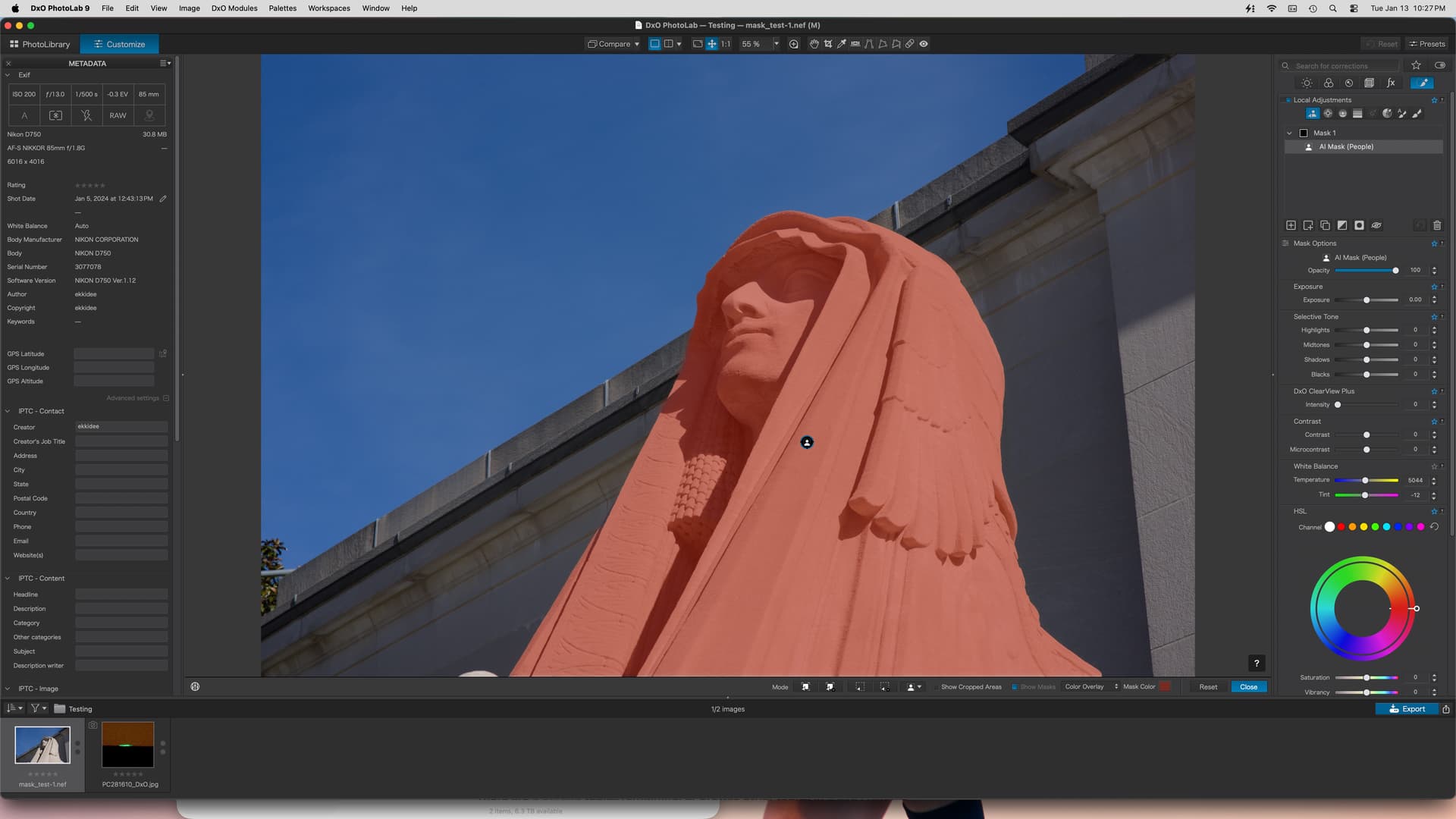
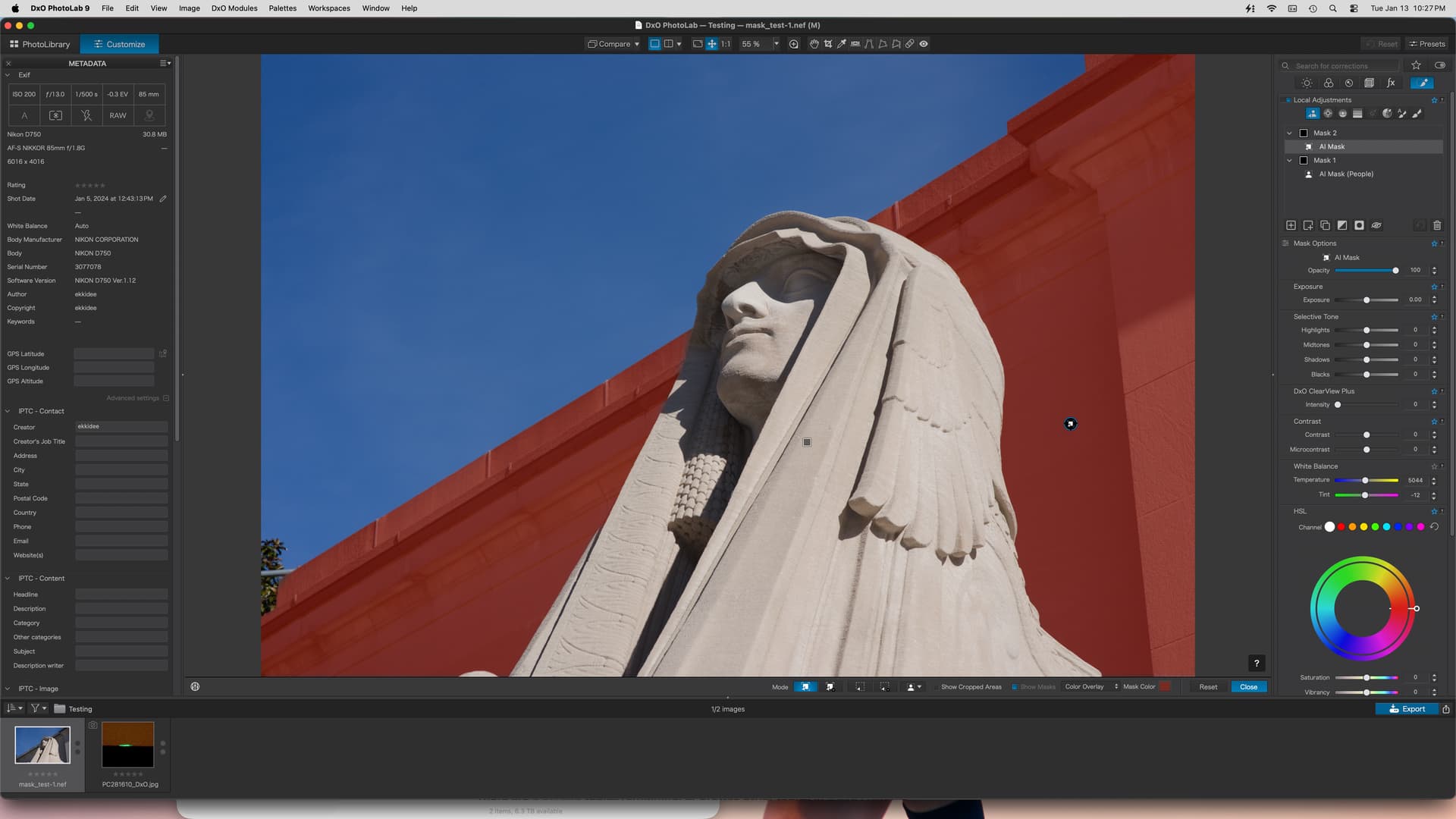
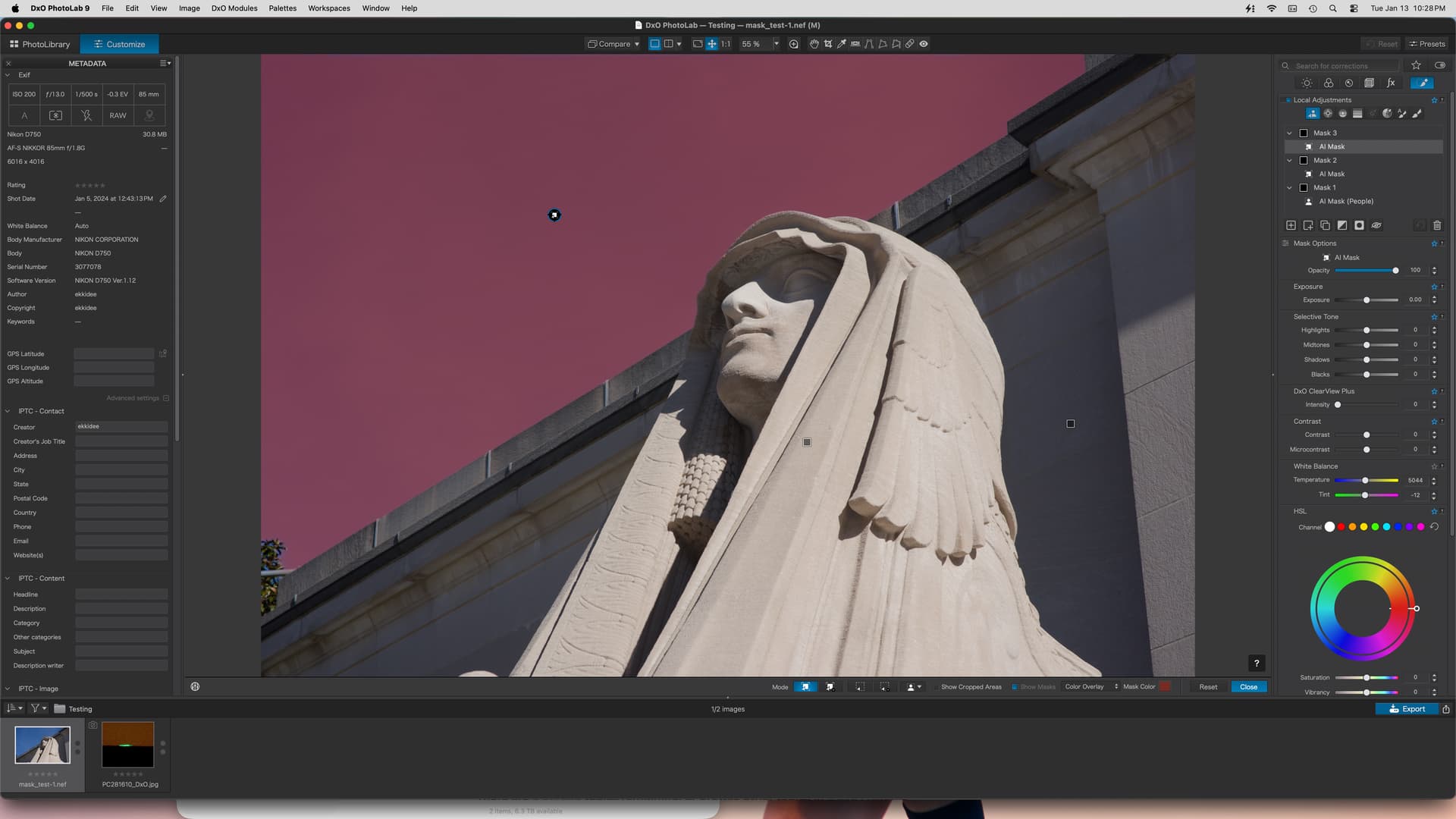
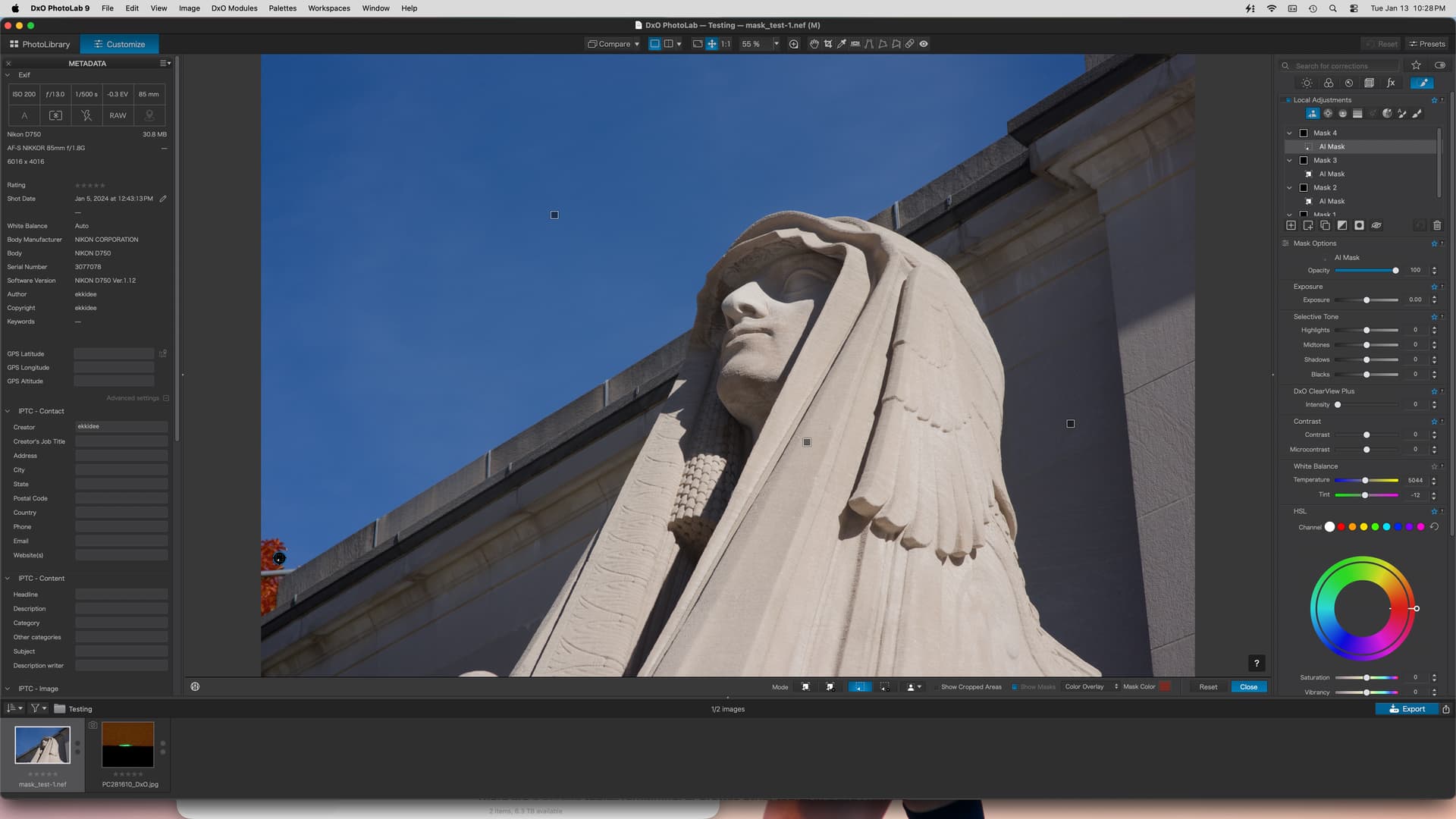
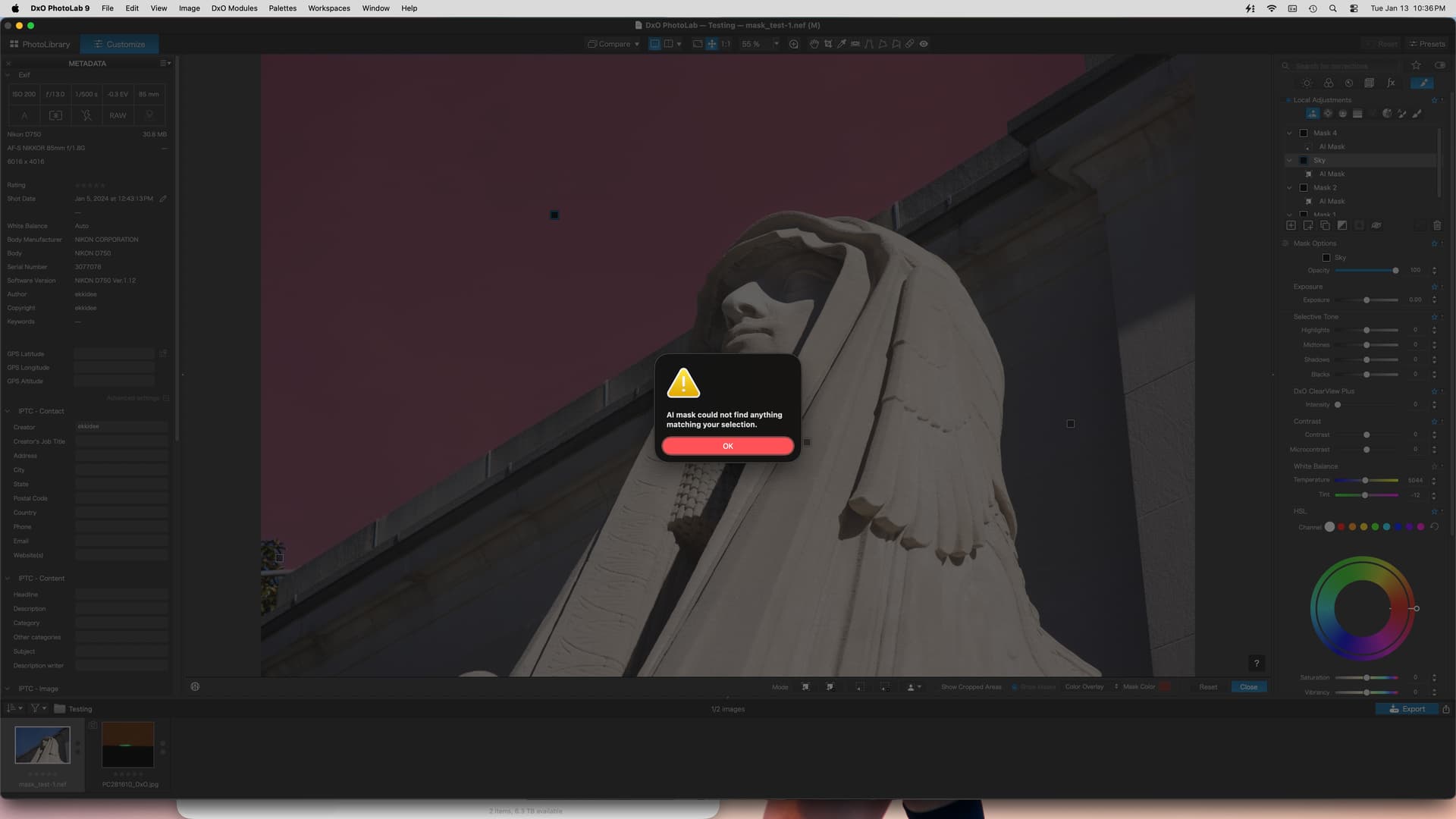
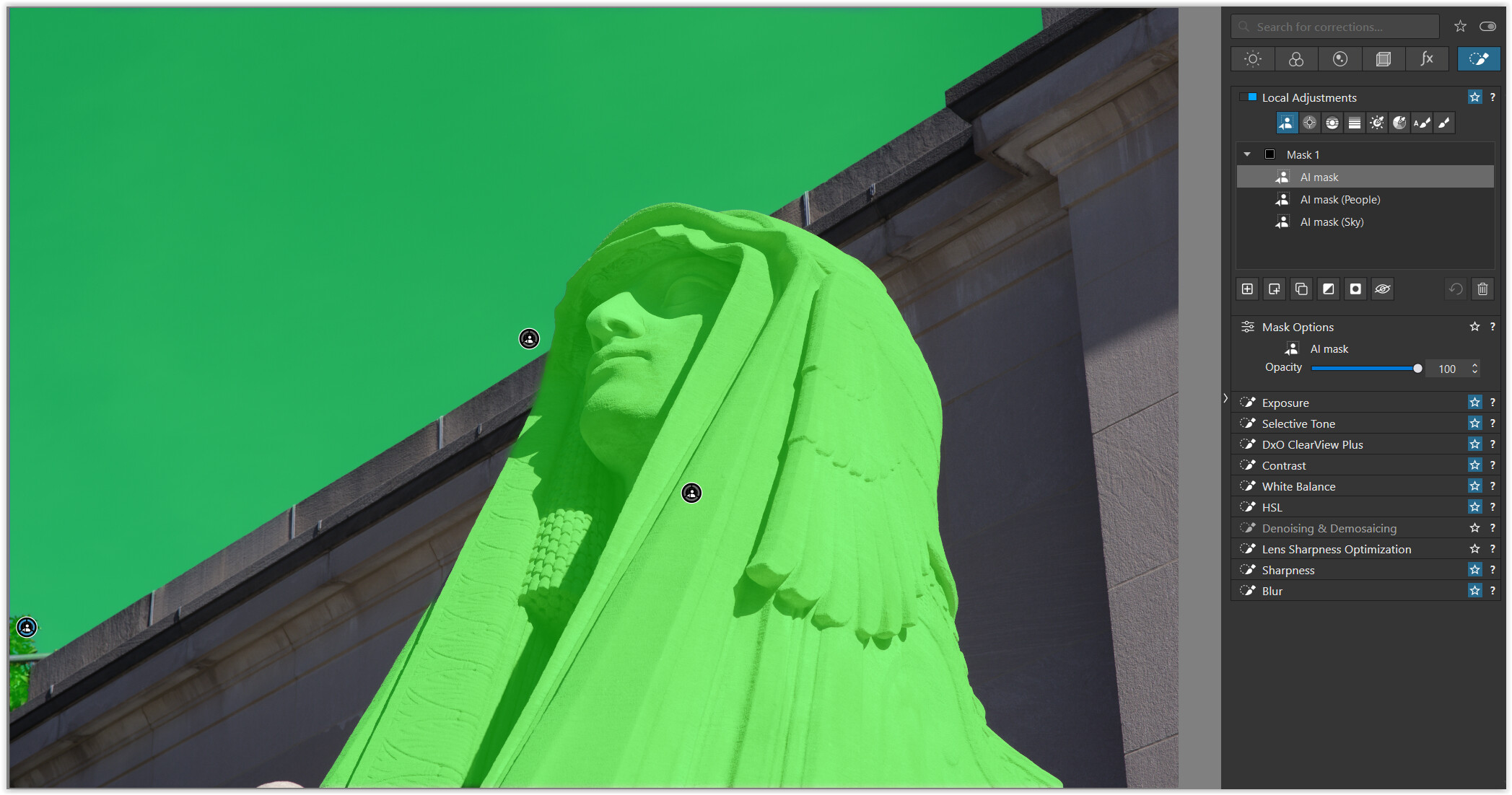
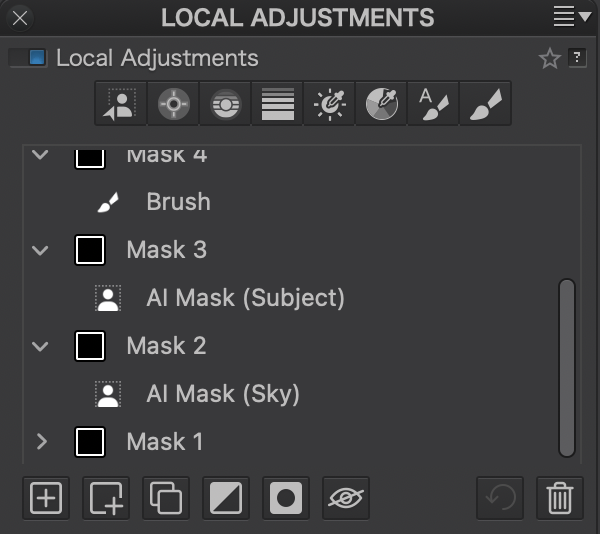
I’ve finally had the chance to play around with AI masks but noticed an issue.
When Local Adjustments→AI Mask is selected, there are tool controls on the bottom. One of those tools is a drop down that allows you to select one of several pre-programmed mask styles; namely, Sky, Subject, Background, People, Animals, and so on.
So far I’ve only been working with Sky, and it seems to identify the skies well.
But when I go back to create another mask (Mask 2), it does not allow me to create a second AI mask at all. I can create a Sub-Mask but it cannot be AI; it has to be one of the legacy masks (Control Point, Control Line, Graduated Filter, etc). Those can be applied to the image, but a second AI mask cannot.
Now, if I do not use the drop-down programmed AI Sky and prepare up one on my own (“self-directed”), it works fine – I can add a second AI mask. And a third, etc.
Worse, I cannot add an AI mask to any other image unless it is from the drop-down. I must quit and return to PL before that works again.
So tl;dr
Self-directed AI masks created by pointing and moving around the image work fine
AI masks created using the drop-down for one of the programmed types works fine
No self-directed AI masks can be created after that. They must all come from the drop-down tool. User must quit and return for this feature to work again.
Just tested this on PL9.3.1 and also on 9.4 running on Tahoe and everything is working perfectly. I selected an area using AI Area, then a new mask for AI Background then another for AI People.
I suggest trying a different image to see if you get the same problem, and if so submit a bug report.
Ok thanks. Not sure how I see the image itself would be a problem, and it happens no matter which image I start with. They are images from a D850, so they are very large. I’ll try some smaller ones.
I omitted the sidecar so you could start from scratch.
Test –
Try creating your own AI masks. Should be no problem.
Exit, remove sidecar, start again
Create an AI mask using the tool and dropdown, and select either sky or people (for people in this image, it will detect the Sphinx)
Then try to create your own AI mask. I could not do it.
I can’t clear the issue by deleting all the masks and starting over. I can only clear it by exiting PL and restarting. Everything seems to work ok from this point.
Somehow it seems like using the dropdown pollutes the mask environment just enough to prevent detection of any subsequent maskable areas.
And I can no longer click the little square to turn off ‘Show Masks’
If I delete all the Masks except for the AI People I still cannot add an AI Sky Mask but I can add an AI Background Mask. So it’s only affecting the AI Sky. And once I delete the AI Select Masks I can now toggle the ‘Show Masks’ button.
When you raise a bug report, please let them now its impacting Tahoe 26.2 as well.
Maybe point them to these two posts.
I’m going to test the same thing on the previous PL.
Same problem exists in 9.3.1 Build 36, so it was not introduced with the latest release.
Just downloaded your image and ran a bunch of quick tests. My kit:
Mac mini M4
macOS Sequoia 15.6.1
32gb RAM
2Tb SSD
DxO Photolab Elite 9.3.1 Build 36 w/FilmPack 8
Added and swapped AI masks with abandon, both from “drop down” and self-generated Auto Brush and Control Line etc, dragged between masks, swapped sub-masks, loaded a different image and applied the same. I can’t get it to crash or complain no matter what I do; it is stable and fast.
I am waiting until tonight to upgrade to 9.4 as I always let other Cavia porcellus knock upgrades about first so I don’t have to (I’m fond of photo editing not software debugging).
What DOESN’T work for me, and has never worked properly in the few months I’ve been using PL is the “Show Masks” button. Sometimes it’s greyed out; sometimes it’s clickable but turning it off/on does absolutely nothing. I’ve given up on it, only occasionally trying it to see if it’s been magically repaired by a point upgrade. It remains a mystery in my book. It may very well be operator error.
Yeah I can’t even get to this step. Once the AI people selection is in, no other self-generated AI masks can be applied, unless it’s another pre-programmed mask (sky, for example).
Really really thanks for checking this out and reaffirming my slowly vanishing sanity.
Just to be clear, there are two ways to create masks here –
(1) through the drop-down, which I called “pre-programmed” since they invoke PL builtin-in algorithms …. and
(2) by simply hitting AI Mask under “Local Adjustment” and moving over to the image to select the section you want to put under mask. I was calling this method “self-directed”.
Thanks again and I will look into filing a bug report.
Hi, thanks for checking. Dragging around the sub-masks didn’t help anything. To be clear though, Auto-Brush and Control Line are not at all problematic. It is only an attempt to add a self-generated AI mask after adding a pre-programmed AI mask.
I couldn’t reproduce any of the problems described above with PL9.4/Win. As a last test, I created 15 AI masks, using all predefined masks (Vehicles and Animals couldn’t be found, Sphinx was found as a Flower ) and some “hovering” masks, with several masks composed of up to 3 submasks. Still no problem. I’m on Win11 Pro 24H2 26100.7623 with RTX4070/Studio driver 591.44 (not the latest 591.74).
Does seem like a distinct possibility. This is an M-1 Max using the builtin GPU w/ 32 cores. If others aren’t having the same issue, it must be some kind of hardware conflict.
I’m going to cycle through some of the AI Acceleration options in Preferences. Currently it’s on CPU Apple M1 Max.
Unfortunately I can’t help you with Macs. I was just curious why @Wolfgang was getting an error, while using similar hardware as mine, iirc.
No PL crash here since nvidia 591.44 driver installation, but still experiencing, rather rarely, non-reproducible VRAM leakages with AI masks combined with exports, so it looks like some timing issue (race condition) somewhere.
BTW, by “hovering mask” I meant AI Selection mask.
Cannot recreate the issue here.
Was able to use both the selection and area AI tools after creating two AI pre-defined masks. Masking sequence was: 1) Pre-defined Sky, 2) Pre-defined People, 3) Area AI for two separate building areas, left and right, 4) Selection AI for small tree in lower left.
Also reversed the sequence and tried sequences alternating Pre-defined and user-selected AI masks. All sequences worked fine here.
My system is: PL9.4.0.37 on MacbookPro M4 Max running Tahoe 26.2
WAG - Given the earlier issues with Tahoe, perhaps DxO revised PL version 9.4 to use Tahoe-based system routines. Believe @Joanna is running Sequoia. Perhaps she can test and comment.
Perhaps a support ticket, if not submitted already.
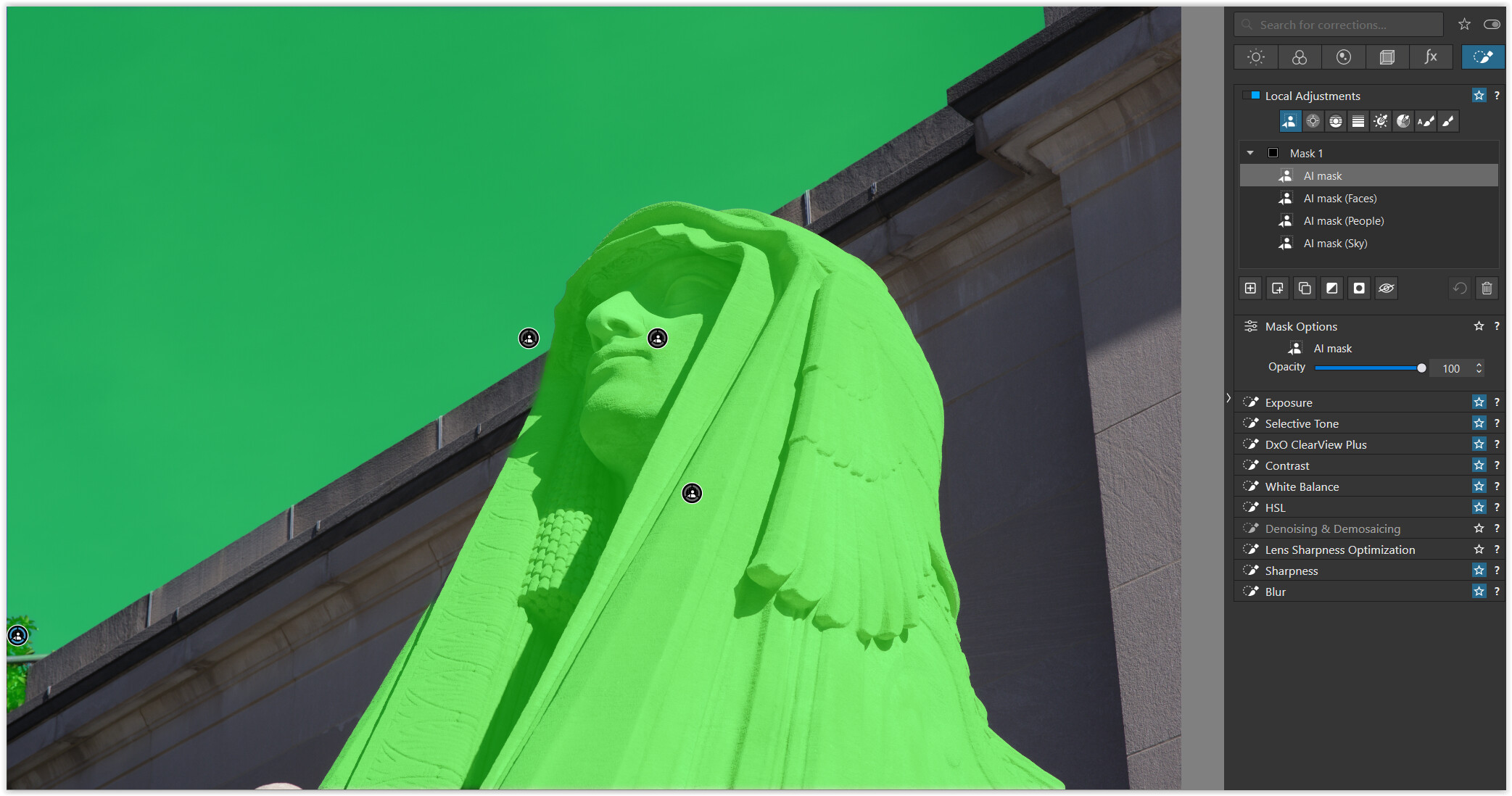
I just tried it again in PL 9.4.0_537 (Win) and there are no more problems adding predefined/selection AI masks directly as submasks. The highlighted mask is the selection (bottom left).