I also asked my butler “Describe how to ensure that PhotoLab is not applying some kind of processing on its own, regardless of the user settings, for that type of calibration.”
This was it’s response (but don’t blame me if the butler got into my shroom stash and is hallucinating):
To ensure that DxO PhotoLab 9.6 is not applying “hidden” corrections that could skew your technical calibration, you must move the software into its most neutral state. By default, PhotoLab applies the “DxO Standard” preset, which includes exposure and contrast enhancements.
Follow these steps to establish a “Zero-Base” for your Sony A7III calibration:
- Set Global Preferences for a Clean Start
To prevent PhotoLab from automatically processing images upon import:
-
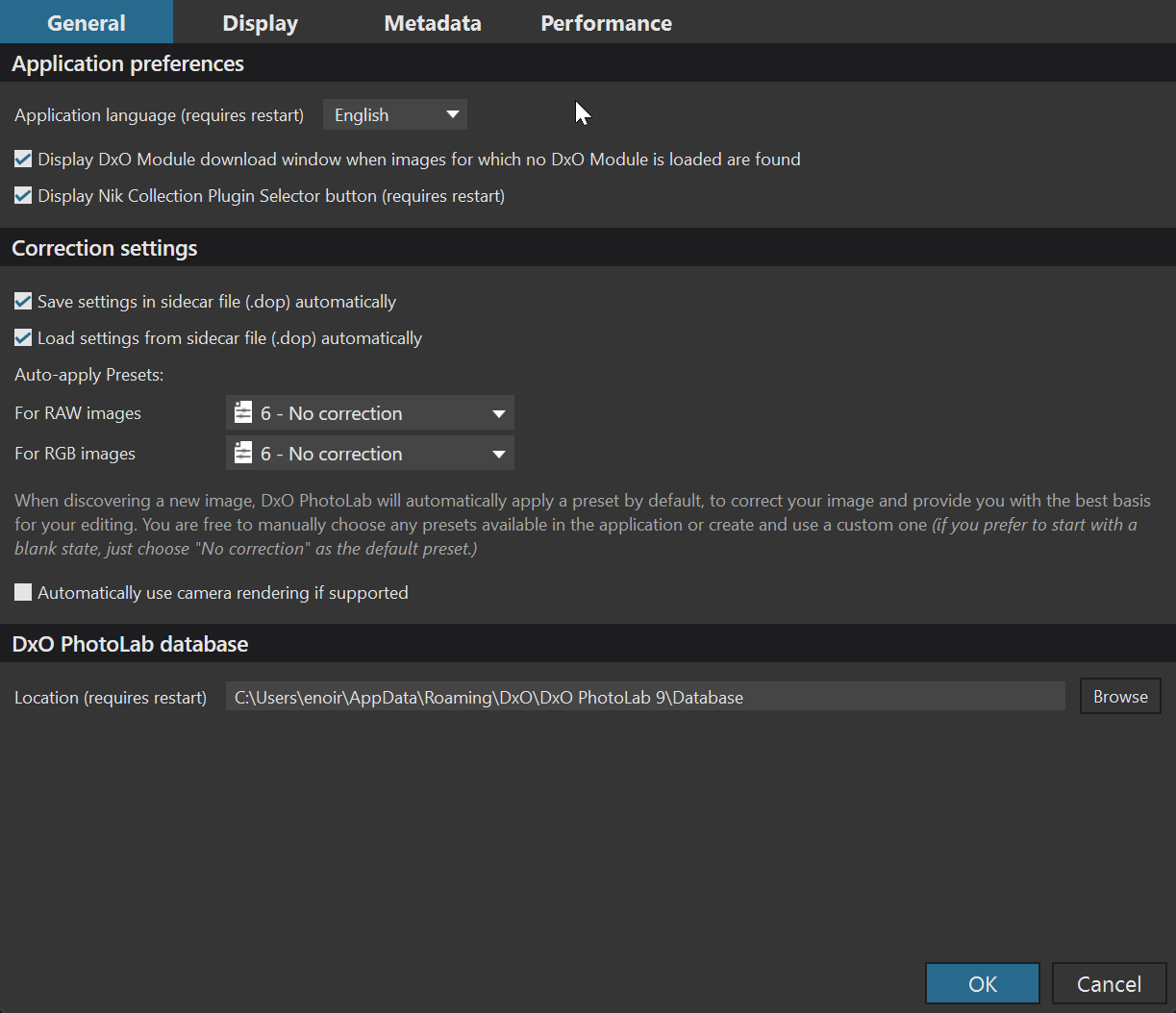
Open Preferences (Press Cmd + ,).
-
Go to the General tab.
-
Under Correction Settings, change the “Default preset for RAW images” to 6 - No Correction.
-
Uncheck the box Automatically use camera rendering if color profile is available (if visible) to ensure the software doesn’t try to guess a look before you apply your X-Rite profile.
-
Force the “No Correction” State on Your Calibration Image
Even if you’ve changed the global preferences, existing images in your library might still have the “DxO Standard” preset applied.
-
Select your calibration image in the Image Browser.
-
Go to the Apply Preset button (top right) and select 0 - General Purpose > 6 - No Correction.
-
Verify the Palettes: Ensure the following tools are explicitly Off in the Customize sidebar:
• DxO Smart Lighting (This is the most common “hidden” processor that alters tonality).
• DxO ClearView Plus.
• Selective Tone.
• Contrast / Microcontrast.
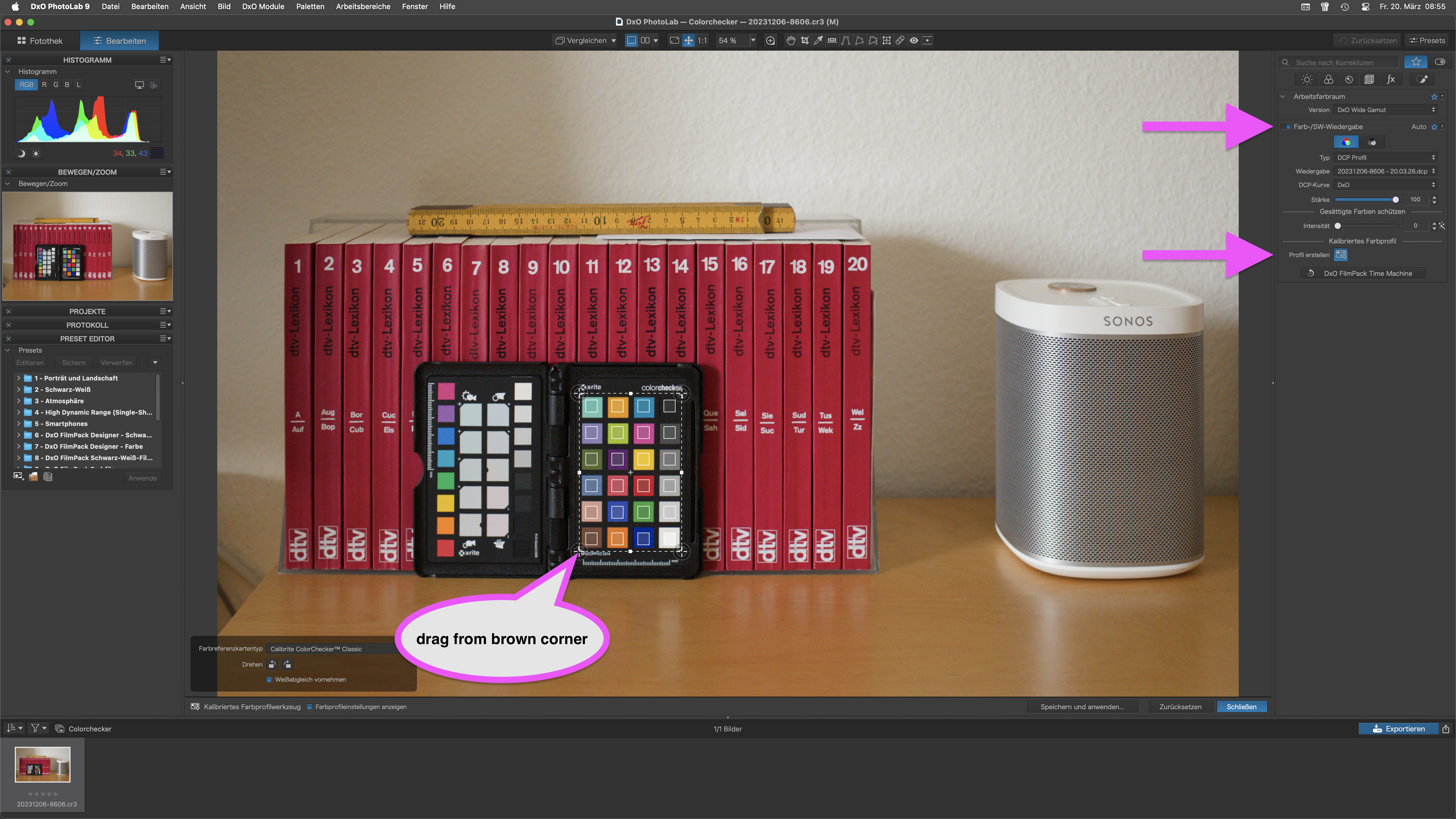
- Neutralize the Color Rendering Palette
Before you click the Calibration icon to align your grid:
-
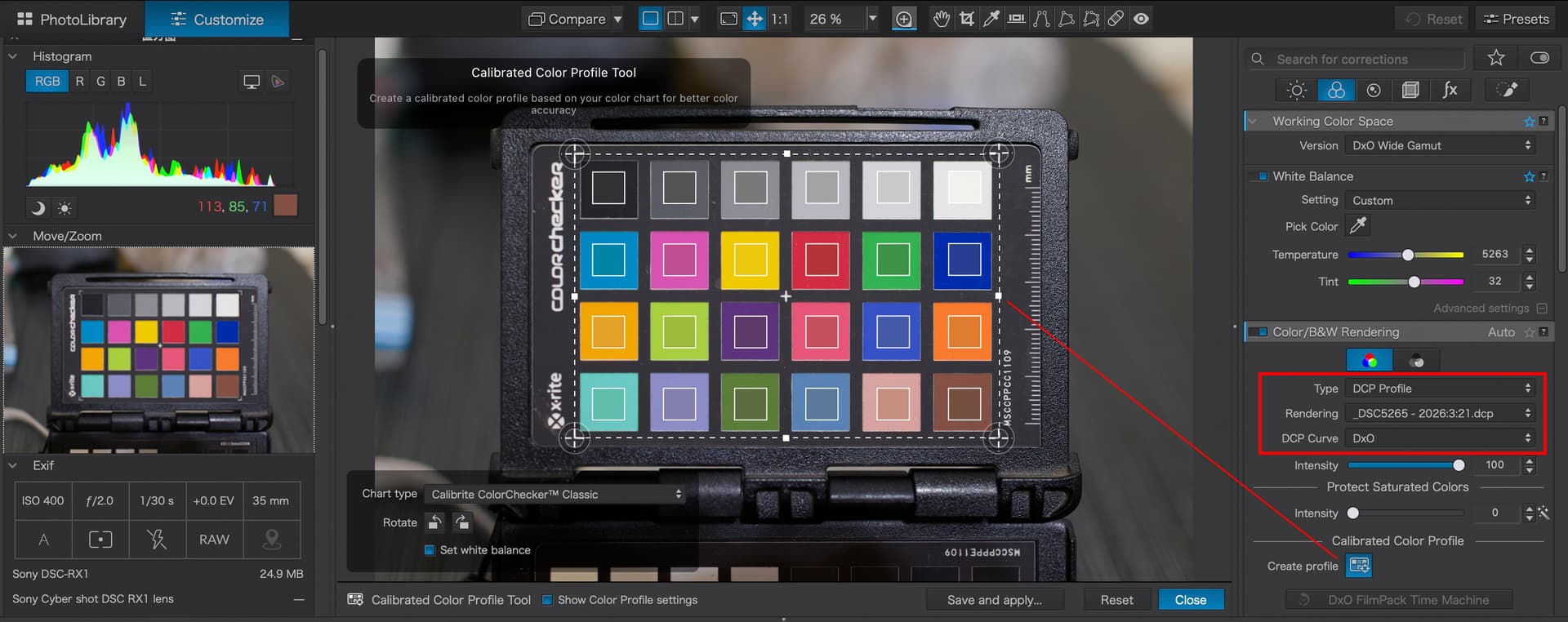
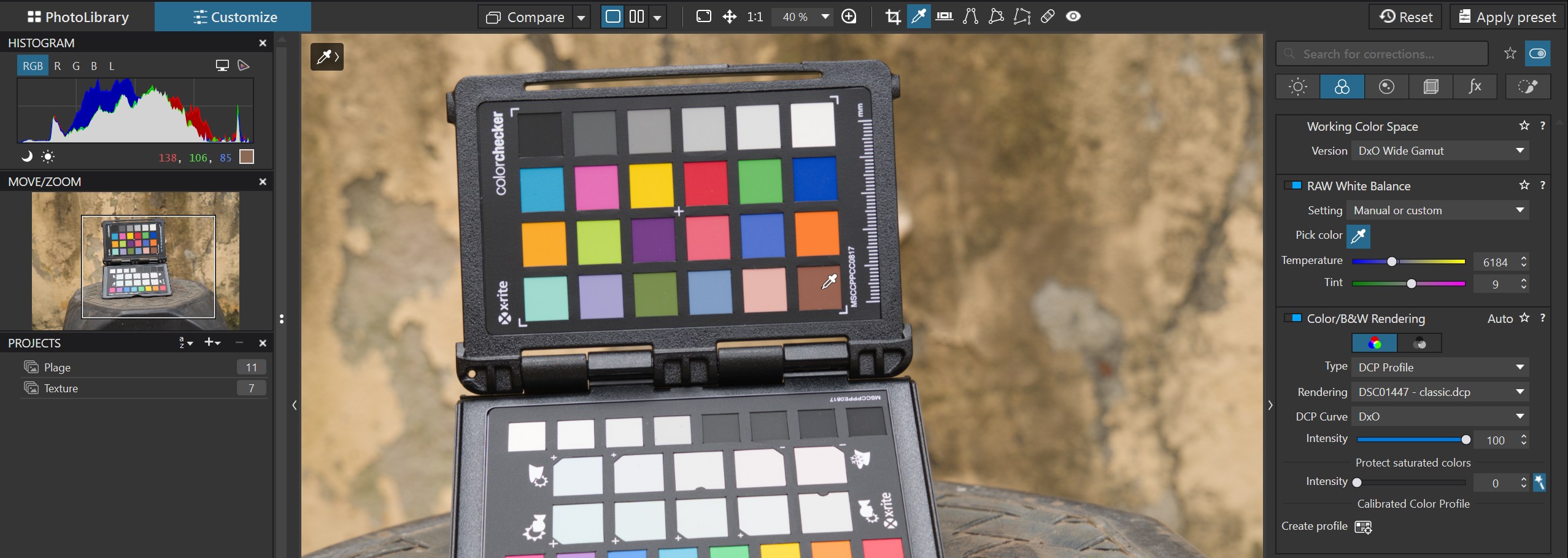
Locate the Color/B&W Rendering sub-palette.
-
Ensure the Category is set to Generic renderings.
-
Set the Rendering type to Neutral color, neutral tonality (if using the Classic Legacy color space) or simply Neutral color (if using DxO Wide Gamut).
-
Set the Intensity slider to 100 (this ensures you are seeing the “pure” base rendering before the DCP profile takes over).
-
Bypass Optical Corrections (Optional but Recommended)
For technical archival work, you may want to disable lens-specific processing during the profiling stage to ensure the color patches are measured exactly as the sensor saw them through the lens:
-
Go to the Detail palette.
-
Turn Off the Lens Softness (or Lens Sharpness) tool.
-
Turn Off Vignetting (Note: If your ColorChecker is large and near the edges of the frame, vignetting correction might actually help accuracy, but for technical “linearity,” most archivists prefer it off during the profiling step).
Pro-Archivist Tip: The “Linear” Check
If you want to be 100% certain the software isn’t adding a “S-curve” to your data:
• Open the Tone Curve tool (Press T).
• Ensure it is a perfectly straight diagonal line from the bottom left to the top right.
• If the 6 - No Correction preset was applied correctly, this curve will be untouched.