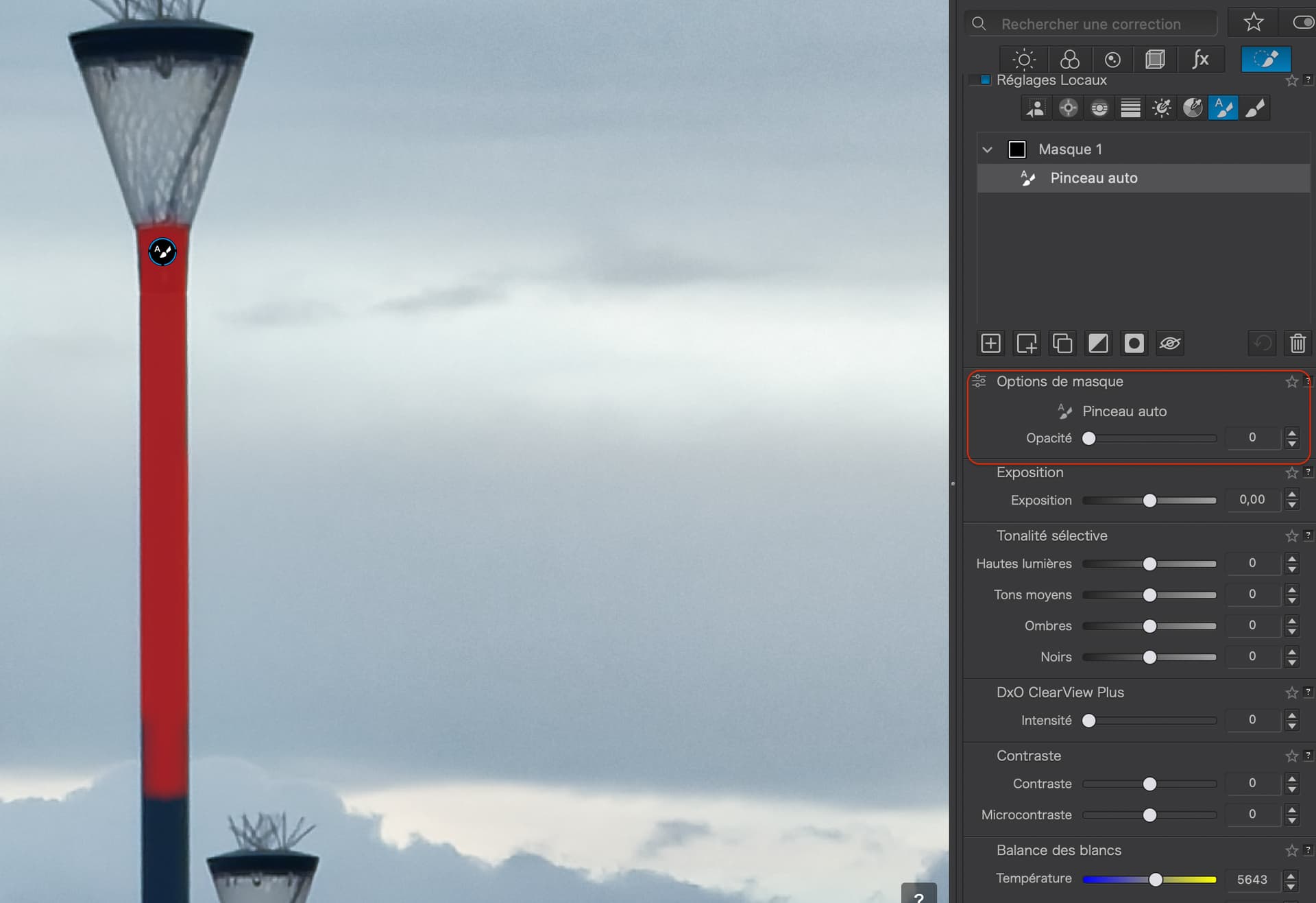
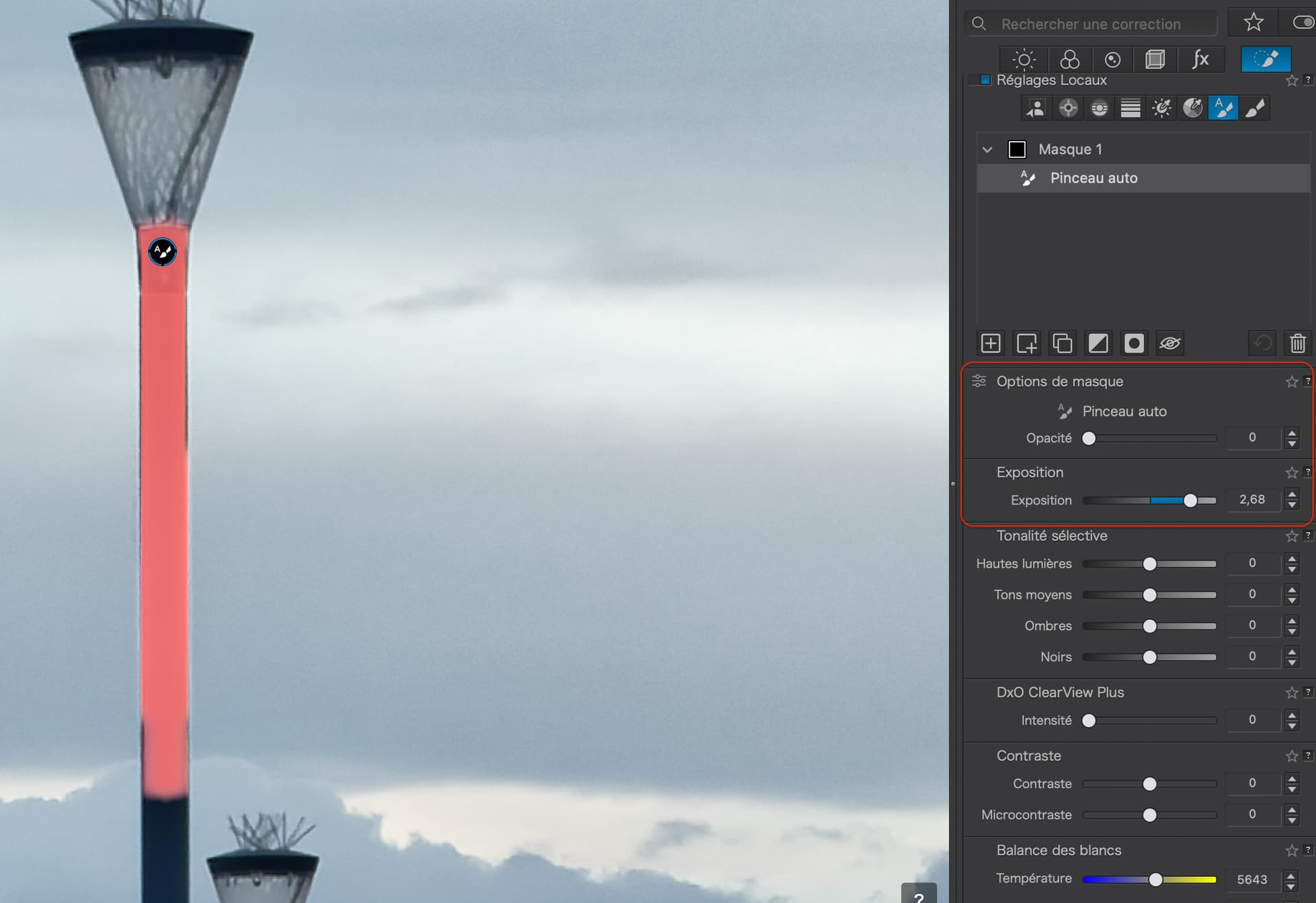
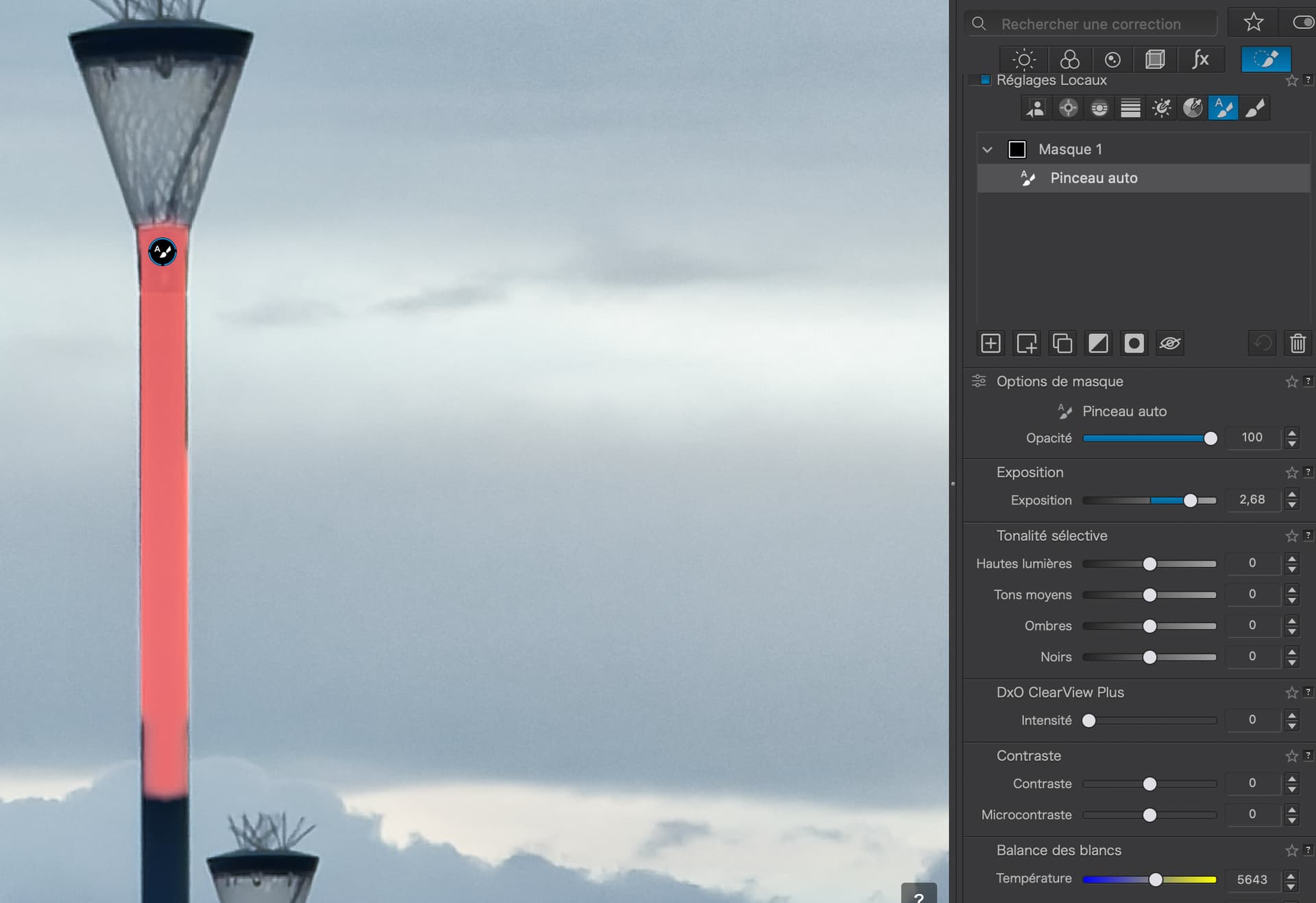
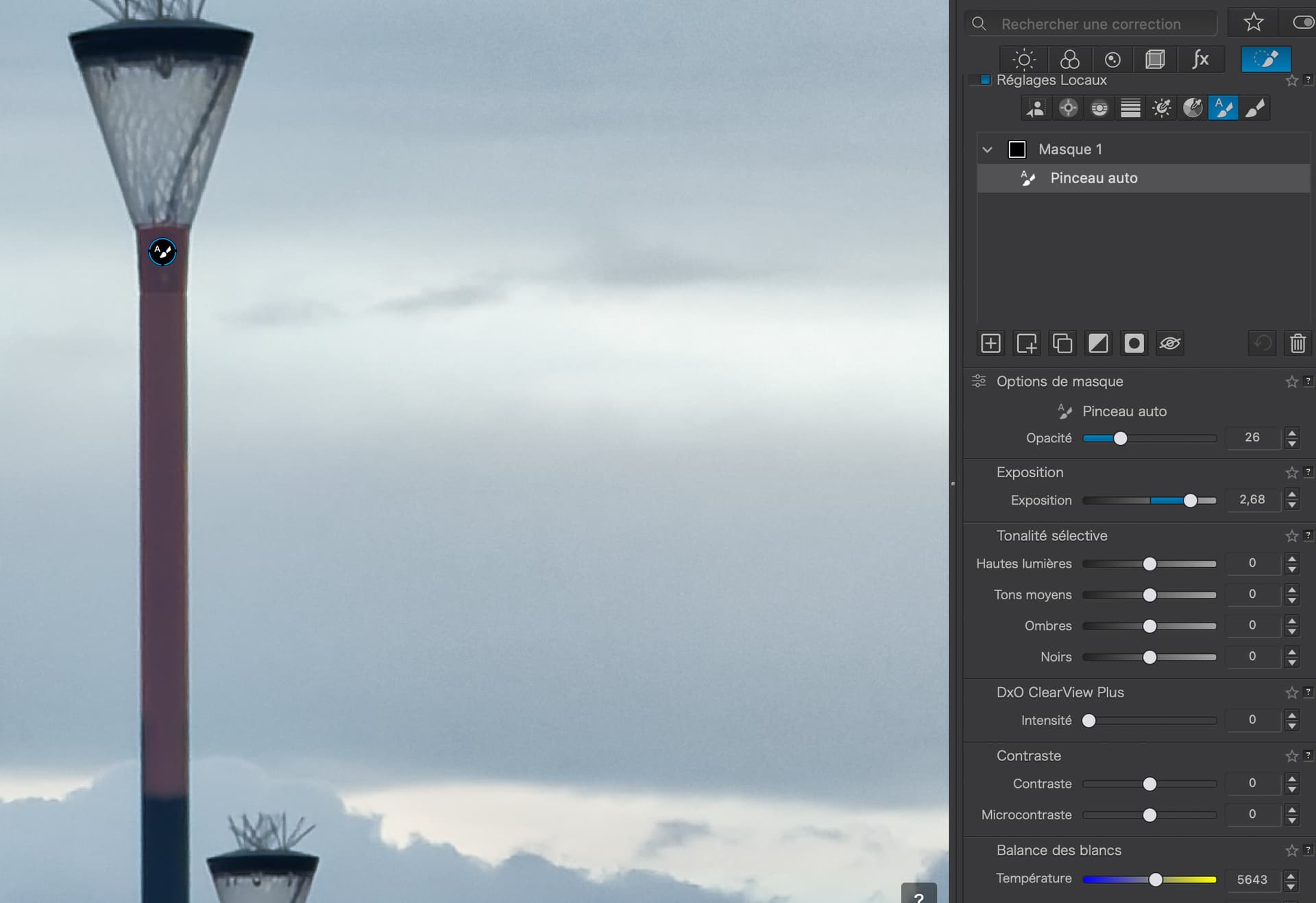
Adjusting the Opacity to 100 visibly changes the opacity of the mask, starting at 0 and then rising to 100. This step shouldn’t be necessary but has to be performed to sync the mask appearance with the Opacity slider.
That’s strange. If nothing is changed, the opacity should be set to full strength (100). Is this only the case with this mask, or does it happen in other ways?
Never realized the opacity slider could be used to change the intensity of the mask color (B&W) while adjusting the mask. This is helpful tip. Thank you.
(Of course the conflict between actual opacity and displayed opacity is an issue.)
Well, you create a mask, and the selection appears as an overlay (preferably colored). When you make adjustments, the mask becomes invisible, revealing what you’re doing, including your opacity settings (default = 100). When the mask is reactivated [M], the adjustments appear along with the mask overlay, with visibility depending on the chosen color and transparency. And the B&W mask rendition is useful for control.
Most likely, @Joanna dimmed the opacity (screenshot #4) to check the mask’s functionality.
Using opacity (with the mask overlay disabled) for fine-tuning / finishing eliminates the need to move various sliders or juggle numerical values, allowing you to see if the adjustments are working to your liking. Optimizing multiple masks is so much easier.
Understand masking. What is new to me is that the opacity slider affects the transparency of the overlay mask itself, even before making any adjustments. This is useful to me when making a detailed mask. No need to go to the mask overlay color picker to adjust transparency.
This has nothing to do with the problem @Joanna noted. Just a new tip I’ll find useful. Sorry to have confused you.
Yes, that’s right… I’m using a more transparent color overlay for this, which saves me the trouble of resetting the opacity to the default.
Otherwise, I wonder why Joanna started with the opacity set to “0.” With that setting, she shouldn’t see ANY mask overlay (see your goal of quickly decreasing/adjusting the opacity …).
I was thinking about it for a while and came back to check. I also edited my post (I meant the last screenshot, which is #4, not #3).
What I don’t understand is when @Joanna wrote that it all started with the opacity being automatically set to 0, and then she had to sync the mask’s appearance with the opacity slider.
In fact, I only have access to the opacity slider after painting a mask, which then defaults to 100. However, if I reduce the opacity to 0, the mask overlay and all corresponding local adjustments like exposure are disabled [OFF, while the layer mask is still active]. *)
Therefore, screenshots 1 and 2 make no sense, and I have no idea what could have caused the error.
PL9 on my Mac shows the exact same behavior as @Joanna describes.
Use the brush or autobrush tool to draw a mask. A simple stroke will do.
As soon as the mask is created the Opacity slider and the actual adjustment tools become active.
A Mask shows up in the list with the brush subtask showing active.
Look at the value of the Opacity slider. It is “0”, not “100” as expected. The mask overlay color is certainly not transparent either. It looks to be the expected 100%.
The value in the Opacity slider does not match the opacity of the mask overlay.
A user than can either toggle onto the main mask and back or bump the opacity slider to get the Opacity sider value to be in sync with the actual opacity of the mask and mask overlay.
Whatever the opacity display problem, I really can’t emphasise enough how much better the tool works and only seeing the selected part of the mask rather than the whole swiped area is a game changer