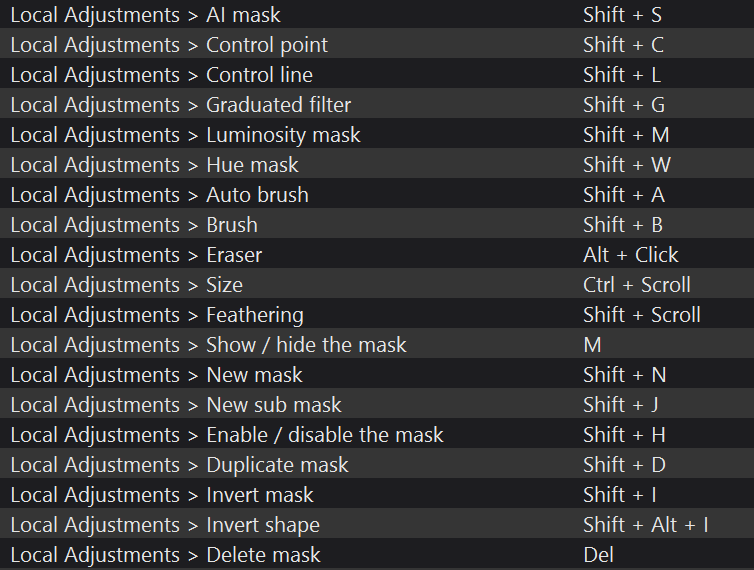
…It took me a while to ‘see’ the selection settings when I select AI mask in Local Adjustments. Indeed, I asked on a photo forum for their insight!
So, to me it is so counter intuitive to have the mask settings selection completely divorced, right on the top left corner of the preview window, where IMO it should it not reveal itself akin to a ‘fly-out’ near the AI Mask button.
Why, well once I select AI mask I have to move my cursor to the opposite side of the screen and please don’t tell I should move that pallete to the right hand side to get it closer to the selection set. Oh, and if my route taking the cursor crosses the image and I inadvertently ‘click’ I get a mask I do want and did not intend
Is there a setting to move the ‘set’ nearer to the pallette?
If not this will IMO continue to be an irritation and may affect my decision as to whether I buy the upgrade from my PL8
you always “activate” something in the preview … and you must not accidentally click to commit the new selection (!). This is very annoying. *)
In the Mac version, everything is located below the preview window. There are also dedicated “Reset” and “Close” buttons, which are not available in the Windows version.
The lack of the latter constantly confuses the user, as we have to remember that the LA tool is still active. With multiple (sub)layers/masks, the toolbar disappears from view instead of remaining fixed at the top. – Alternatively, an indicator (click to turn it off) in the top menu could signal that the LA tools are still active.
Stenis
(Sten-Åke Sändh (Sony, Win 11, PL 6, CO 16, PM Plus 6, XnView))
3
In the nineteen nineties WordPerfect was the wordprocessor the worlds typists went for. The spreadsheet of that ere was Lotus 1-2-3. Each one of them had a market share of between 60-70%. That was before Excel and Word for Windows.
It was Excel that established Windows and not the other way around because it has always been the applications that have mattered and not the Operating systems.
In the day of WordPerfect these applications came with short cut templates to place over the keyboards function tables because they were so many that it was hard to remember them all. In the case of WP and Lotus there were so many that one sometimes had to press three keys simultaneously to activate a command BUT when you mastered that your productivity became far better compared to when the graphical interfaces in Windows-applications forced people to scroll up and down in menus to activate a command.
So, what I´m trying to say is that we will get far more productive if we start to use the short cuts there is even i Photolab. That also comes with NOT going for the menus and the premade AI-masking options in the menus and instead begin to use the freehand hoovering masking methods together with the boult in shortcuts.
I have also written about the fact that avoiding to use the premade AI-masks will put far less pressure on the system resources than the premade AI-masks do and it is way way faster to add masking too. Select a premade mask and wait three seconds or hoover with the mouse over an area and the masking is lightning fast instead. On topp of that using the premade AI-mask will probably make your PC to crash forcing a necessary restart of the whole computer to clear out caches etc.
There is nothing like graphical interfaces and long menus often even with submenus to slow you down and totally kill your workflows and your productivity.
So why the h_ll did they give us Mac- and Windows-style menu swamps? Well, probably because the functions got so many that few could master them and the graphical interfaces were self-instructive for inexperienced and new users and that opened a much wider market for the software companies. So many more users but much more inefficient than before. The good though is that Photolab now gives us a choice. Not all modern softwares does. It is up to us to use it - especially if we are irritated over how the graphical interfaces are designed.
The familiar “M” hotkey only works when you hover over the preview, and there is no hotkey to change the overlay mask from Color to B&W or vice versa.
Stenis
(Sten-Åke Sändh (Sony, Win 11, PL 6, CO 16, PM Plus 6, XnView))
5
Yes there might be holes in the pie still but we can always ask DXO to plug those in a feature request. We can still gain a lot of speed and avoid a lot of problems if we use the free hand hoovering method and use these shortcuts instead of getting stuck in the menus and worst case causing unnecessary Internal Errors and unnecessary close downs and restarts.
It is far better to focus on what we CAN do now to improve our situation when Photolab 9 is out with its ups and downs than on what we can´t and we CAN really do a lot with what we have got now as I have shown in the link, I have given you.
Photolab 9 is far more powerful and useful than version 8 and I think it would be said not using it because of the problems the premade AI-masks still causes. We can use it as it is now with that exception and it works very well if we just keep that in mind until DXO has fixed these problems together with Nvidia.
It is a little strange that it is Keith and I that have written this here. It ought to have been DXO!
Re: DxO not ‘being all over it’ in regard to posts such as mine…afteral PL9 is so new and one would like to hope that they are reading all posts relating to PL9 such that it would be reassuring if they posted ~ please?
Stenis
(Sten-Åke Sändh (Sony, Win 11, PL 6, CO 16, PM Plus 6, XnView))
9
No you have to select the specific mask in the Local Adjustments list of present masks in the specifik picture.
Thank you
I will have another look soonish and all being it will work as you describe and like all things for me, every day can be a school day
Especially where such welcome new features come along
PS and makes sense because obviously a particular image can end up with multiple masks depending on the post processing so there should be a method of turning them on/off individually.
Yes, I understood that you were talking about the LA tool in the RHS palette and the “selection part” as an overlay on the far left of the preview area, which requires walking over the entire image rather than having it nearby.
While this is the case with all LA tools, with the “AI Autosense area” (the first selection/default) you get an somewhat “instant” mask preview that you can click to activate. The way it is implemented makes it behave similarly to the other LA tools … you select a tool and apply the selection to the image. – But for the “AI Custom Selection” or “AI Preset List” it’s like selecting a submenu.
The trouble with the latter, while going over the image to the LHS you are presented that “instant” mask preview from the default “AI Autosense area” and also when to activate the mask view / toggle between color and B&W mask.
Hmmmm! the ‘M’ key to toggle the mask(s) on/off does not work for me, even if I leave the cursor over the preview image area.
I should have noted: It fits all other LA tools, e.g. the control point,
I don’t like this behavior at all. It looks random, not a constant UI.
.
Anyway, the default “AI Autosense area” seems to be the preferred one.
The “AI Custom Selection” limits the search, whereas when selecting from the “AI Preset List” the entire image must be scanned.
Toggling masks on and off with a shortcut only works when at least something has been modified, e.g you changed the exposure. This is so annoying. Please DxO fix this.
This thread was launched in September 2025, meanwhile it’s mid February 2026 and I do see some progress in PhotoLab’s AI masking.
I compared “Find Faces” with PL 9.0.1 and PL 9.4.1, both running on macOS Tahoe 26.3 on a 2020 M1 MacBook Air.
From my usual test set, I picked 8 images that showed persons with faces towards the camera and other directions, faces near and far with more or less busy surroundings. Here is what I found:
PL 9.0.1 did not find any faces
PL 9.4.1 found faces in 4 out of 8 images.
I then tested the other AI mask presets on one image
PL 9.4.1 found 7 out of 10 targets and obviously, one of them were faces
There are no animals and flowers in the image, so the result is okay.
Please note that this was a very simple test, but it shows that AI mask presets have advanced nicely. Finding things took 2-4 seconds, not finding things took longer, specially with the first image.. Didn’t time it, just wanted to say that I can live with these figures. Images were taken with different cameras and in different lighting conditions and surroundings.
Hello, I`m absolutely new to PhotoLab9, just using the trial version to decide if I perhaps move over from LR / PS to DxO. Concerning the implementation of AI masks in Windows, I noticed something else, and I am not sure if I am missing something, or if it is truly absent:
In the MAC version, you can adjust the mask options in various ways, for example with Chroma, which is very useful especially when you use a gradient filter. In the Windows version, when I click the question mark, chroma is mentioned, but in the mask options I can only see opacity. Where are the other options?