Hello.
Following a discuss on instagram about some of my pictures, i wanted to know the real cropping that i had made in PL but i then was surprised because nothing seems to match with the pixels.
For example : the original picture is 5472x3648 pixels (about 20 Mp) and if i choose a cropping of 50% i should have a new picture of 38702580 of about 10 Mp On the screen but i see a picture of 2232*1488 of only 3 Mp !!
To be more complete , i use the original ratio of 3/2 .
Thank you for your help.
What do you mean with a cropping of 50%? You crop by drawing an area. You zoom with a percentage.
George
you are confusing cropping with resampling.
2 Likes
Are you resizing the image on Export ?
If so, don’t user percentage values, use Long Side to set the pixel count on that side.
1 Like
I’m not the topic starter.
George
Not sure what happened. I thought I was replying to the OP.
Hello. I mean that the percentage of the viewer is set to 50%.. And then i crop into it..
And your viewing window has a ratio of 2:3?
You can’t use the diskfile size. That doesn’t meaning anything.
Cropping you do on the image after selecting the ratio, or the free hand. It’s a visual action. If you want that crop has a special size you obtain that afterwards. But when you crop you can see the actual size at that moment.
What was that discussion about?
George
A 50% crop shrinks both dimensions by 50%, so what you see is expected.
4 Likes
I think you are mixing up export to a certain size with cropping.
.
the original raw file

.
some examples – in PL9 exported as JPEG:
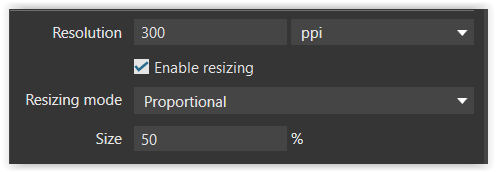

.
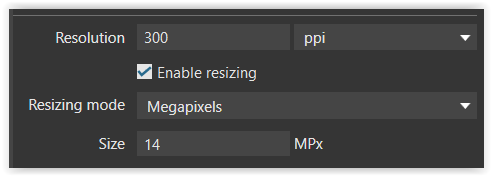

.
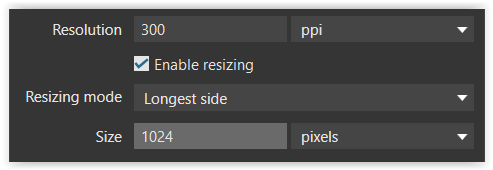

.
please note
The file size of a JPEG varies depending on content and compression.
No.
100% means that 1 image pixel covers 1 monitor pixel. 50% means 2 image pixels per monitor pixel. What you see is depending on your image screen: size and ratio.
@LVS
Some calculations. Your sensor is 200x300. Just 2 numbers in the 2:3 ratio. The image size will be 60000. In 50% these dimensions will become 100x150 and the image size 15000. That’s 1/4 of the original image size.
Your jpg disk file contains the image in a compressed way plus all kind of metadata. The size of that file depends on the compression factor you use.
The difference between exporting at 50% and cropping to 50%.
@Wolfgang used the export function to set the size to 50%. The content doesn’t change. Cropping means that you draw a rectangle on your image and cut that out. The content is changing.
George
1 Like
Ok. So the percentage showed on the screen is only about the compression of pixels if i understand.
With my pictures of 5472 x 3648 it shows me 21% when the whole picture is displayed and it only means that about four pixels are covered by 1 pixel on the screen ?
So it has nothing to do with the crop or zoom percentage.
Now, it means that i have to calculate this percentage by my self after having select the cropping i then will to export ?
If so it would be useful to have this information somewhere with the crop tool don t you think so ?
The percentage on top of PL’s preview – or other viewers – is the zoom value, which depends on the shown image (pixel / ratio) and your screen (size / resolution).
If you want to view your output at 100%, you need to export your original image at a size that your screen or viewing program supports.
With cropping you maintain or change the aspect ratio of your image.
Partly.
With 100% the original picture is send to the monitor. When zooming is set to 50% the image is resized to 50% each side and that is send to the monitor. The result is the same. The picture with the same content is now half the size each side but the monitor has still the same resolution/size.
Tell us what you want to achieve.
George
You cannot use the screen zoom ratio to determine cropping dimensions.
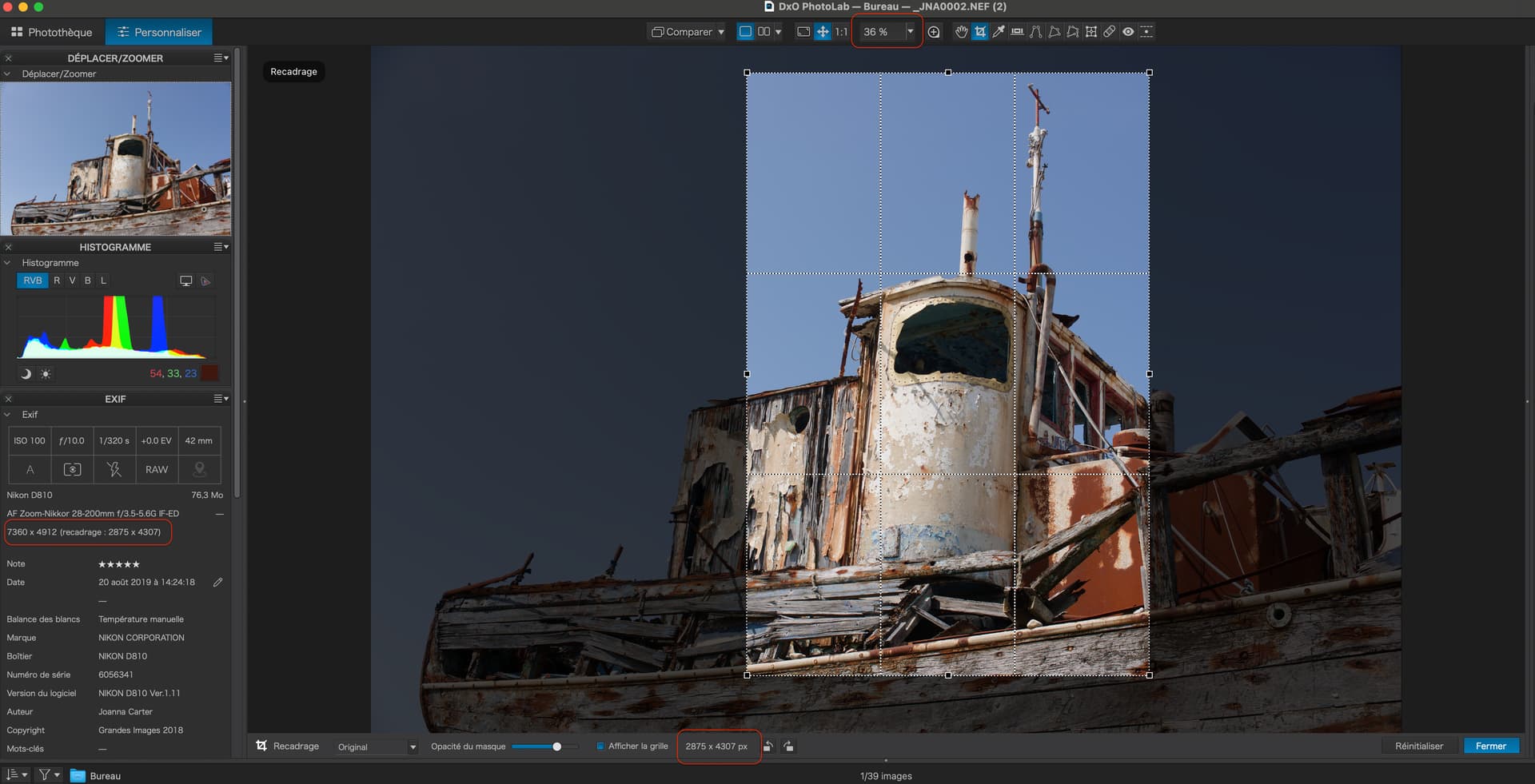
On the left column, you will see the cropped pixel size. But this is in pixels and has nothing to do with physical size, which is determined by the desired resolution in ppi.
On my 27" Apple Studio Display, which has a resolution of 218ppi and is currently zoomed to 36%, the crop area measures 12cm wide and contains a zoomed representation of 2875px. This calculates back to 2875 / 218 /2.54 = 5.2cm.
But, if I want to print this, I will need to use a resolution off 240ppi, that will give me a print that is 30.4cm wide.
Now, if I change the zoom to 100%…
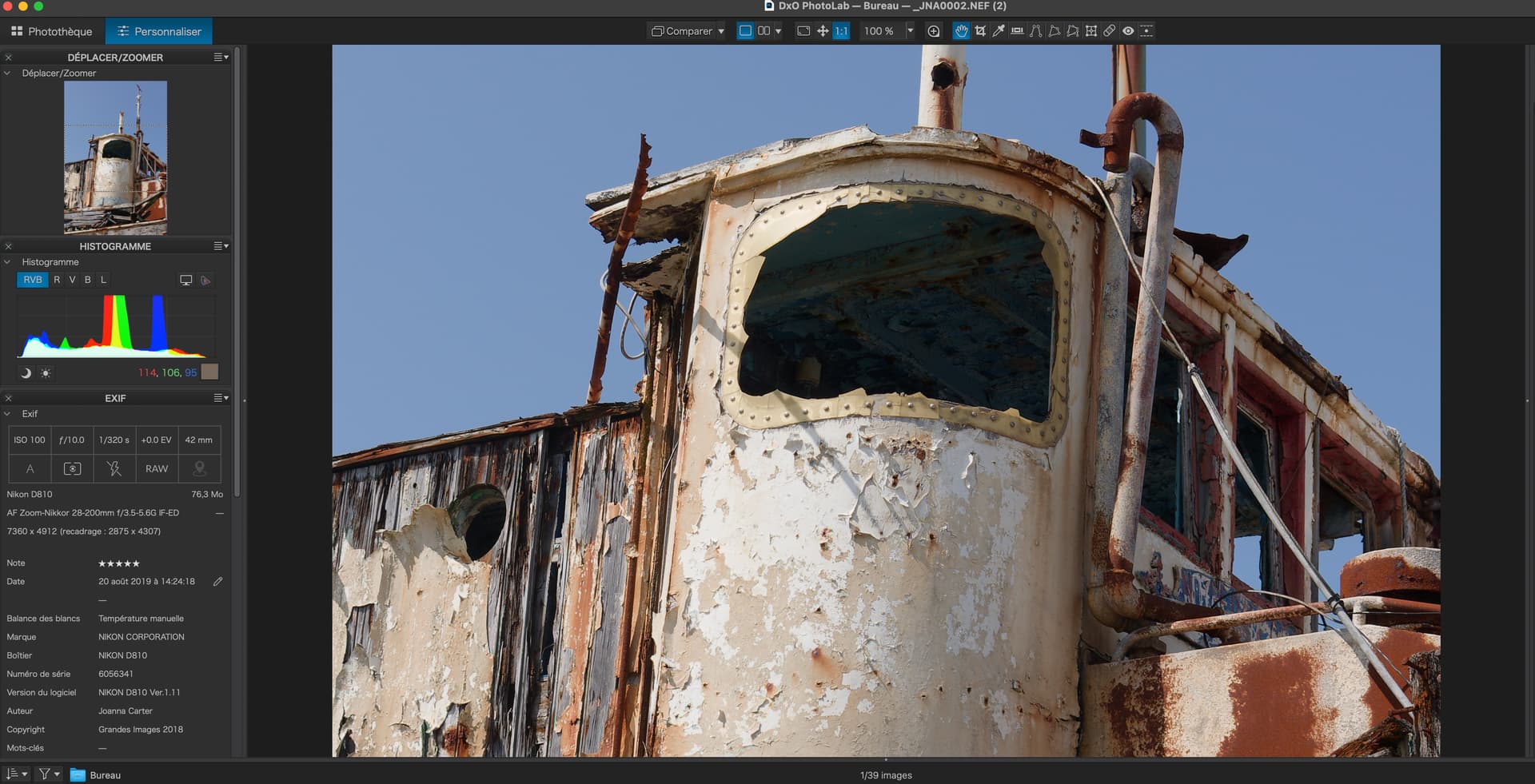
… this then measures 33.3cm in width on my screen because of the difference in resolution between a print at 240ppi and the screen at 218ppi.
To sum up, you cannot rely on screen measurements or scaling. You need to calculate the target resolution for the output file.
For example, I want to make a print on A4 paper, which requires a resolution of 240ppi. So, I will need an image that is, at least, 2806 px x 1984px.
When cropping, only consider the proportions and not the dimensions. In the case of A4, you need to enter “297x210” into the ratio box.
Then if the cropped image size is larger, in pixels, than the print size, in pixels, simply export the image to the desired dimensions in pixels. But, if the cropped image is smaller, in pixels, than the print size, in pixels, you are best exporting at the image size and using external software to enlarge it.
3 Likes
I would like to know the percentage of cropping i have selected with the crop tool no more no less…
Pixels are showned but it is difficult to calculate the réduction value with it.
New size/original size.
George
2 Likes
The Zoom ratio has nothing to do with the crop ratio.
-
To see the crop ratio while cropping watch the width and height values as you drag the crop frame.
-
After cropping, look in the metadata section to see the original size and the cropped size. Then calculate. IIRC the same info is available on the Windows version.

Hello.
Ok that is what i will do. i have created a little calc/excell sheet where i can just enter the width of a crop and then have the height , reduction factor and the equivalent focal length of a virtual full frame capture.. this last data is what i really wanted to know ..
This is simply not possible. The percentage you see on the top of the screen is simply the zoom factor of the viewing window and has nothing to do with the physical dimensions of the image.
Now this I have to question. It looks like you are making things far too complicated
Please post a screenshot of an image, in PL, with the crop rectangle visible and let us know exactly what you expect to out of it in terms of finished dimensions.