Stenis
(Sten-Åke Sändh (Sony, Win 11, PL 6, CO 16, PM Plus 6, XnView))
1
Photolab 9.1 AI-test
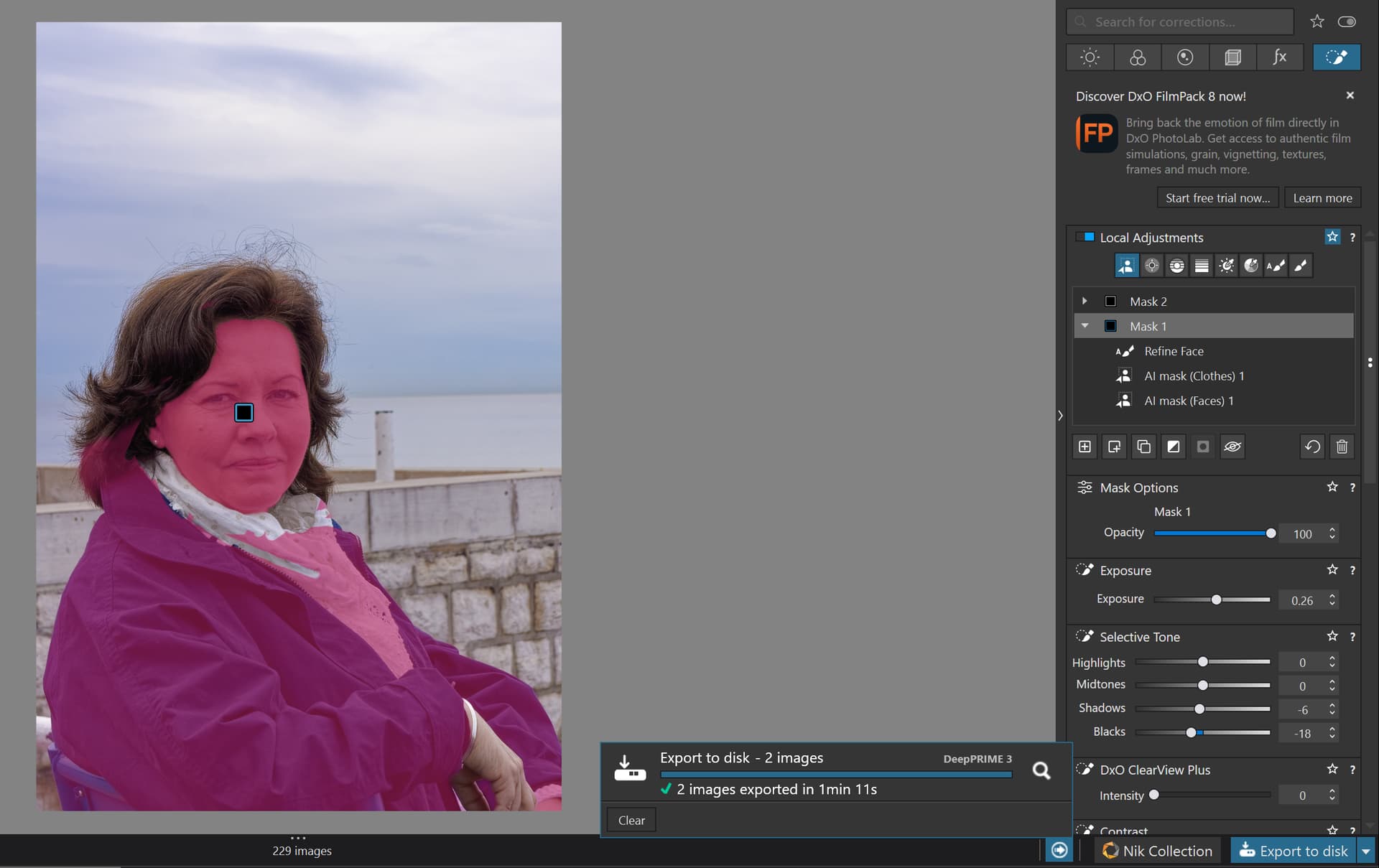
I added three masks from the AI-mask Preset-list and tweaked them and refined them a bit. I then exported one picture that I scaled to 6000 pixels on the long side and one in 4K JPEG and it worked without problems so far with my RTX 3060 Ti. The export of these two pictures took one minute and 11 seconds. I ended with a Copy of all correction settings.
Result: Using the premade AI-Masks with Photolab 9.1 now works with RTX 3060 Ti with Nvidia driver 572.83 - and it did not before this upgrade. It seems much more stable and the exports works and did not do so before this upgrade.
On the picture below I pasted all correction settings without the “Crop”-variable since that one differed between the two pictures. Even that went well.
It seems to work even for me with my RTX 3060 Ti with the 572.83 driver to use the AI-preset marks from the drop-down list that DID NOT work before. It is a little slow to save but it seems to work and that is very good news. The last picture took 1 minute and 4 seconds.
So now it seems like it will work to paste AI-masks including corrections within those AI-masks from a master to a selection of pictures which is welcome and will improve workflow productivity.
I hope someone can make similar tests and can verify or falsify my results.
NOTE: I had used the Local Adjustment Brush and Auto Brush to refine a few things on the first picture but that IS NO GO since these will not end up in the right place of the destination picture. Only the premade AI-masks from the preset list that will be possible to use in order to speed up our workflows for now but that is fine for now. Refining has to be done after the AI-mask updates of the selected destination pictures and not before.
I expect even Photolab to develop even smarter workflows like the ones we already have in Capture One. It took Capture One sometime to develop these and polish the performance. So, after all a very good update :-).
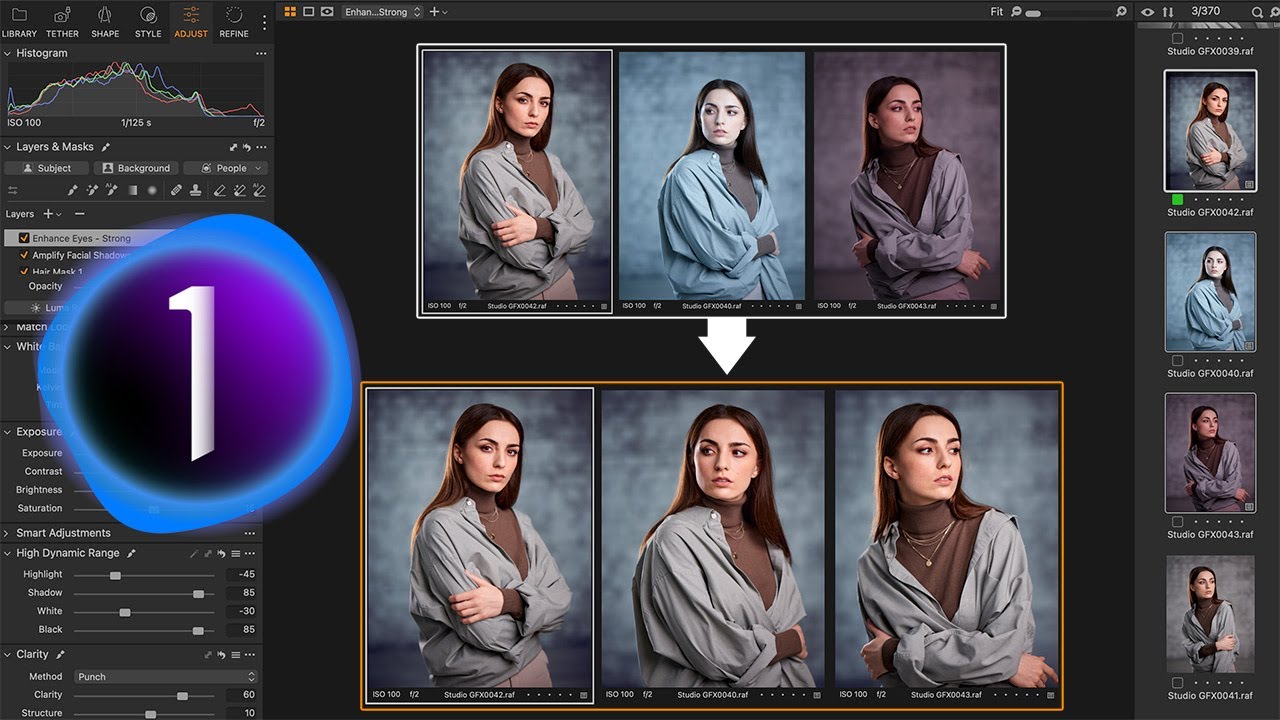
As you will see for yourselves in this C1 portrait tutorial we now just have the basics in place in Photolab and I guess we have a bit to go in order to reach the same productivity levels in Photolab.
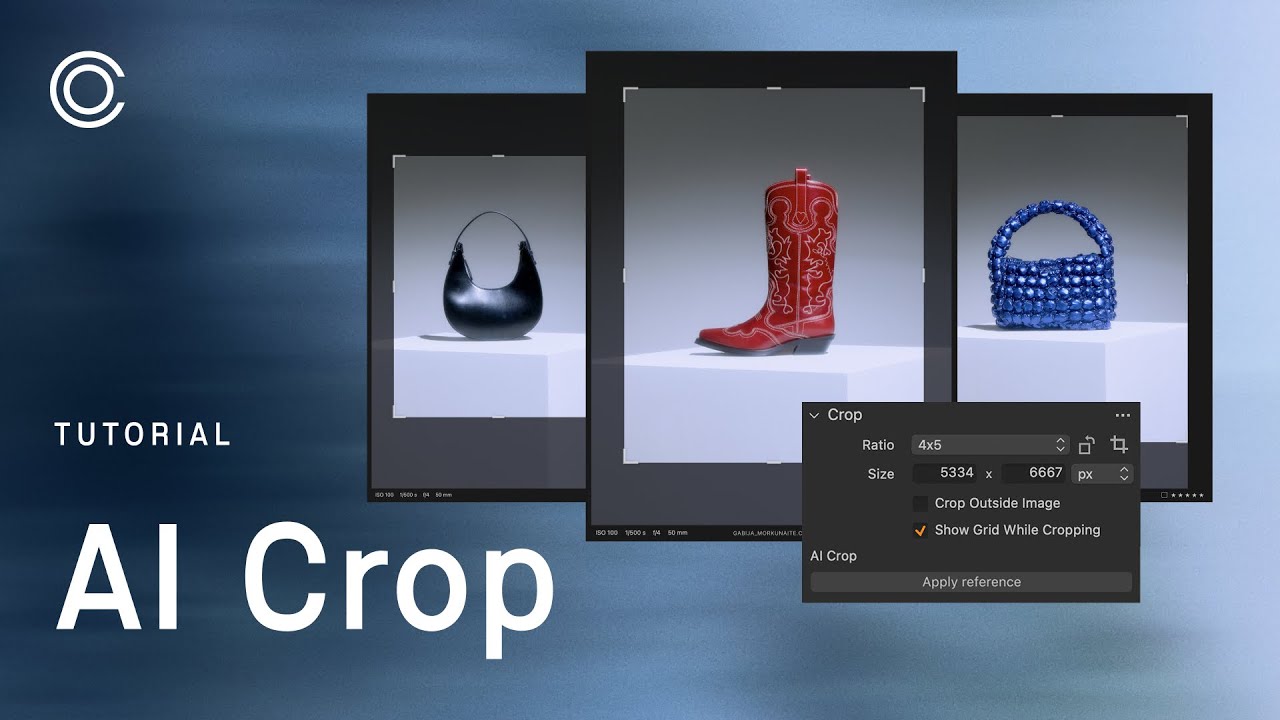
We might even get a smart AI Crop Tool for portraits and product photo
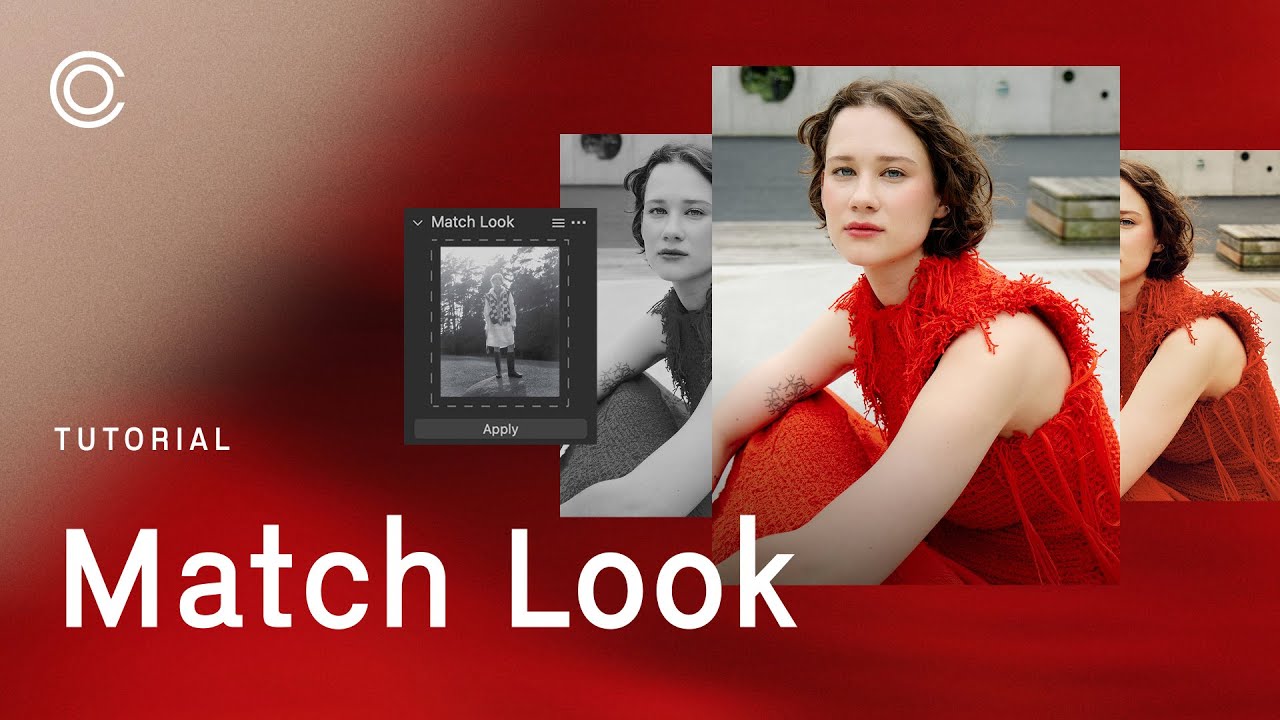
Or a function for “Match Look” that can apply a look over a set of other pictures
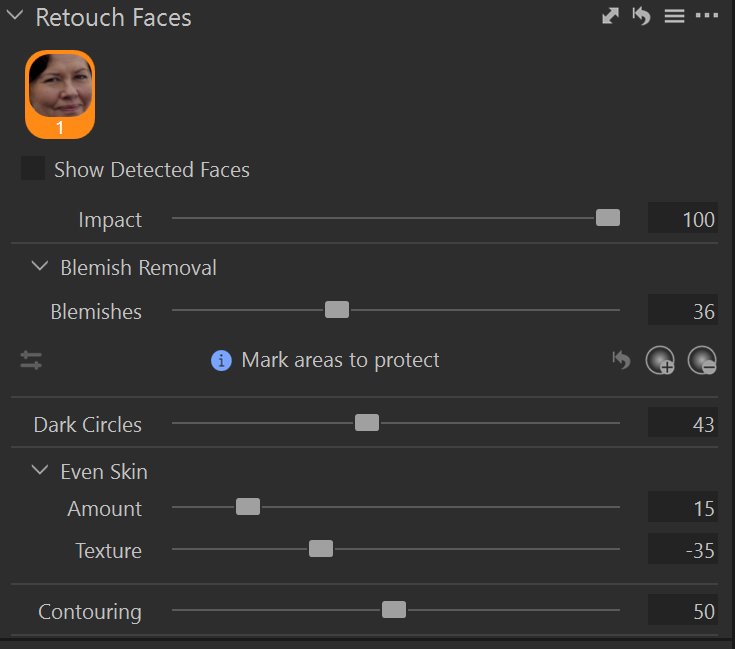
… and on top of that an AI driven Face Retouch Tool
The topic being derailed by the topic creator, let me share my experience with Capture One 16.x, the current release. “Quick and dirty”, obviously far from complete, some important points missing, strongly subjective.
Good, wishing PhotoLab implements it:
Face Retouching – that works great, still evolving, perhaps still missing taming cats-eye wrinkles and similar (societies get older)
Group Overview with Similarity slider (on Import) – e.g. for cameral concerts
Not good enough, or simply bad:
poor mouse wheel support for sliders (that’s very important for me)
too easy to make accidental changes
bad sliders advancing steps
AI masks – too much careful checking and fixing required (e.g. face/hair boundaries, cheeks in shadows, …) but for other use cases it might be very good
AI Spot Removal – lot of bad choices, better do it manually
colors for non-human subjects, but that’s very subjective and to some extent fixable with their more advanced color tools
Dehaze, Clarity – prefer the PhotoLab way but wouldn’t mind some additions in PL
no PL SmartLighting
no Fine-contrast
no Lens Sharpness Optimization
no DeepPRIME – C1 is concentrated on studio work, their birthplace, and while good noise reduction is on the top of their users wishlist, they take care more about their “hard core” customer needs, perhaps not (yet) having the staff to fix it
Not needed for me, ignored as marketing stuff:
Match Look
AI Crop
some other
Don’t get me wrong, C1 is very good software and I wish it was merged with PL+FP+VP, but sadly that’s not possible, I think. Some of their tutorials are great, far from perfect from the presentation point of view, but with the right “substance” inside.
Some background info:
I started photo editing using Nikon CaptureNX. I have also used C1 about 15 years ago in a studio on a rented Mac. With (wire!) tethering, loaded profiles, it worked very nicely with P65+ camera (Phase One, medium frame). Later, when CaptureNX2 died and my new D4 was not supported, I had a look at C1. For portraits it was perfect, but for other topics it was so, so (subjective). I ended up switching to LightRoom, which was more universal for me. Some 2 years ago I switched to PL7+FP+VP, and then added Nik. I’m not a graphics editor, but sometimes I also use Affinity2 suite, e.g. for collage and some special subtle corrections, publications – prefer others to do such kind of work. Using also Nik, more for fun and learning B&W. My attitude towards Adobe is a different, not so simple story.
3 Likes
Stenis
(Sten-Åke Sändh (Sony, Win 11, PL 6, CO 16, PM Plus 6, XnView))
3
The most important difference there is between Capture One and both Lightroom and Photolab is that C1 is the only one of these three that has a thought through core design. Both LR and PL splits Local and General modes which is sometimes both confusing and inefficient. In C1 the only “general” is the default “Image Layer” that is in fact the picture itself and everything else is “local” layers and all editing in those is in fact “local”. As a main rule all the editing tools works in all layers as different to both PL and LR and there is nothing like “Local Adjustments” or “Local Brush” in C1 of that reason.
It has taken PL quite a few versions to get a working layer-system that C1 has had for ages and it still is far more advanced than in PL (with the exception of the lovely sublayers in PL). Lightroom hasn´t even had an open layer-system since Adobe didn´t trust their users to be able to handle one. The only way to see them was for long just a lot of small unnamed gray dots.
Yes, Face Retouching in C1 is a real time saver for me that makes me getting better results than I should have without it. I just love it!
You have a long list of “Not good enough” and I can agree with quite a few but not others and I wonder if you are using or have used the last version? I also wonder about “too easy to make accidental changes”??
What I feel is the most obvious problems in C1 is the interface with ultralong menu-lists of functions especially since C1 probably is the most sophisticated converter there is on the market technically. That takes for sure some extra time to master.
The noise reduction problem seems never have been addressed properly despite documented poor performance compared to the competition. Without playing down this issue historically noise reduction might not have been the main problem in a controlled mostly well-lit studio environment, Capture One originally was made for. Remember, Phase One and Hasselblad used CCD-sensors a long time after the others had migrated to CMOS.
There are definitely things in PL that lacks in C1 but the list of what is lacking in PL that we have now in C1 is way way longer. That said the lack of Fine Contrast and Clear View Plus is very disturbing. There is no Smart Lighting either.
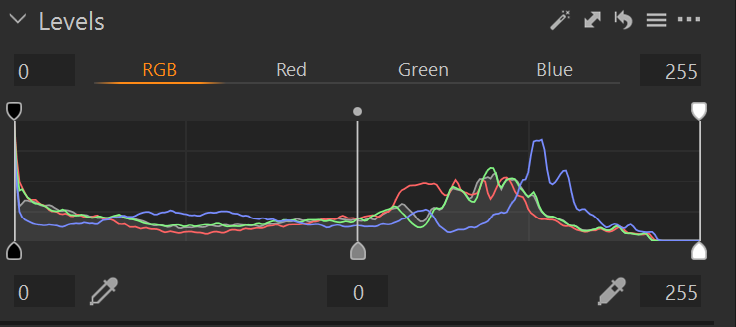
I would very much have loved to have “Levels” in Photolab too. We have the histogram but not the rest of these tools. Don´t know why that is still lacking. I see “Levels” as essential.
Where are the predefined smart and effective “Style Brusches” in Photolab. These are tools really essential too in a modern RAW-converter I think and they are a huge time saver in our workflows. Just start to use one and a layer is instantly crated automatically in the background. C1 is all about efficient workflows and PL is not - yet.
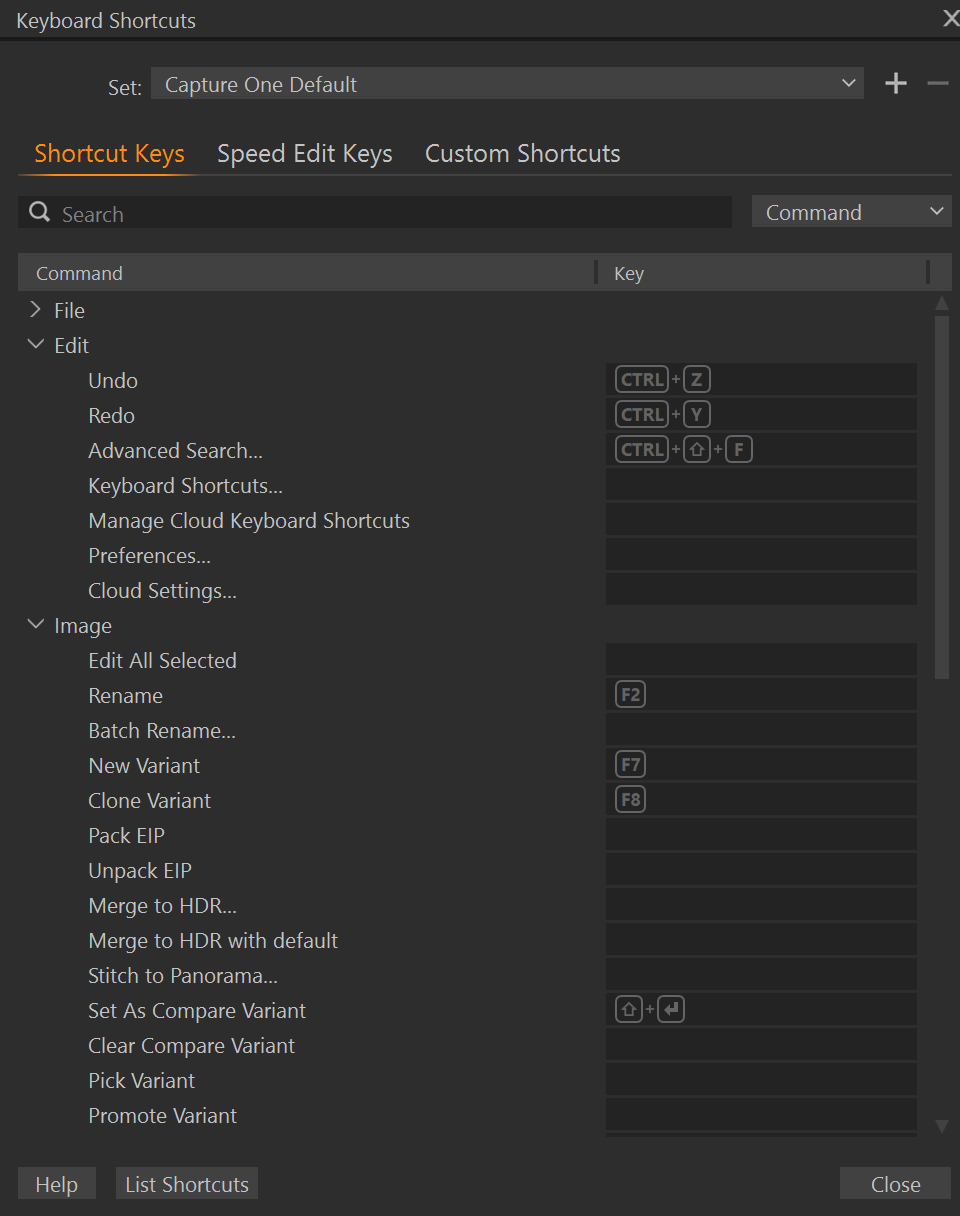
… and where is the possibility to add your own personal short cuts to the functions you need quick and effective access to. Flitting your mouse around all over the screen is the very definition of inefficiency and especially in Photolab where part of the AI-interface as an example is placed both on the right and left side in the margins of the workspace.
Also look at how C1 is masking a “Face-skin”. Unlike most other softwares like Photolab, it doesn´t mask the eyes and mouth. In Photolab we can fix this too but totally manually with a Minus submask on the eyes and mouth but that is minutes compared to a second and in C1 there is even premade AI-masks for mouth and Iris-Pupil and Sclera. Even that is lacking in PL. The masking control of the premade AI-mask is far better in Capture One
Masking in Capture One is really mature, streamlined and effective now and it works from my knowledge on every computer meeting the system requirements. And as you have seen it is even deeply integrated in the workflows too.
Quote:
"Not needed for me, ignored as marketing stuff:
Match Look
AI Crop"
AI Crop is not a marketing thing it is a tool especially made for Studio Photographers and comes in two versions:
One general version in the Pro-version of C1
One more advanced in the Studio-version tailormade for product photo and scened and portraits in long series.
Match Look is a much more advanced implementation of what Photolab wants to be using a master picture with premade AI-presets dublicated over many target pictures - but not yet really fixes in many cases.
With the really AI-powered Match Look a reference picture´s look can be propagated to many others with the support of almost all other editing tools. Photolab doesn´t even have close to that functionality and Capture One was the one inventing this fully out.
From the beginning, this was first only white balance and exposure and intended for especially wedding photographers but as you can see below it now can handle almost every editing parameter/variable automatically and picture individually with which makes it a general AI-tool implementation. No other software is even near this and it can be very useful and effective in every case where we want to propagate a “style” in the broadest sence from one master pictore to a selection of your desire:
Please look at this video so you understand what this workflow-function is really about. It is far from a marketing gimmick this a the very heart of automation now in Capture One.
3 Likes
Stenis
(Sten-Åke Sändh (Sony, Win 11, PL 6, CO 16, PM Plus 6, XnView))
4
When it comes to the poor denoising in Capture One it is not that problems like that can´t be solved. There is always the possibility to use external denoising software like they have done with Lightroom too for ages. It is not more complicated than selecting “Edit with - Topaz Photo AI” from within Capture One. It is pretty seamless and easy but costly today - but so is Capture One and it is a software made for professionals and enthusiasts that can motivate the costs with the efficiency and productivity
It seems DxO/PL is not the only app encountering issues with Nvidia drivers …
I use Affinity for merging focus-bracketed images - but I found today that it’s including artifacts in exported results. Q; “Mmmm - what’s changed?!” - A: I’ve recently upgraded to Win11 with Nvidia GeForce RTX 4070 Super, running latest Studio drivers !
Copilot suggested disabling OpenCL compute acceleration (in Affinity “Performance” settings) - and that fixed the problem.
Has anyone tried this with PLv9 ? (I’m guessing Yes - it’s a bit obvious !)
Has anyone tried this with PLv9 ? (I’m guessing Yes - it’s a bit obvious !)
I just tried it.
Whether OpenCL is enabled or disabled, it still failed on the same image for me (which I kept deliberately simple for the test).
1 Like
Stenis
(Sten-Åke Sändh (Sony, Win 11, PL 6, CO 16, PM Plus 6, XnView))
7
It seems DxO/PL is not the only app encountering issues with Nvidia drivers …
If there are driver bugs, not just Photolab will be affected. If using a sub par hardware not meeting the real system requirements there will be problems with all applications demanding more than it gets from the available hardware.
What error do you get in PhotoLab log with OpenCL disabled?
Win or Mac?
Disabling OpenCL is not an option for me.
With 576.80/RTX4070/PL9.1/Win11 24H2 still get errors with AI Masks (less often compared to 9.0.x) but they seem to be related to Nvidia, since there are also “event 153” errors from nvlddmkm in Win Sys EventsLog. Maybe OpenCL “Microsoft helpers” are part of the story?
Recent sample from PL9.1 log, logged by the same thread:
" DopUI - Warn | ScrollIntoView request can’t be executed: can’t find child DxO.PhotoLab.Correction.Local.ViewModel.CorrectionLayerViewModel in System.Windows.Controls.TreeView Items.Count:2
"
and later
" DxOCorrectionEngine - Error | Exception caught while calling ExecuteTileImage : Non-zero status code returned while running DmlFusedNode_0_9 node. Name:‘DmlFusedNode_0_9’ Status Message: D:\DATA\Bamboo\Builds\FWK-ONNXRUNTIMEPKG0-ORTPKG\ort_src\onnxruntime\core\providers\dml\DmlExecutionProvider\src\DmlGraphFusionHelper.cpp(1066)\onnxruntime.dll!00007FFCDE1BE8FA: (caller: 00007FFCDE24E624) Exception(2) tid(1dc8) 887A0006 The GPU will not respond to more commands, most likely because of an invalid command passed by the calling application.
"
What is it in PhotoLab log?
Anything related in EventLog (Sys and App)?
Stenis
(Sten-Åke Sändh (Sony, Win 11, PL 6, CO 16, PM Plus 6, XnView))
11
I just created a new post on Open CL (it can be good to know what you are doing when deactivating it:
What OpenCL does in PhotoLab
OpenCL (Open Computing Language) is a framework that lets software run certain tasks on the GPU instead of the CPU. GPUs are great at parallel processing — doing thousands of small operations simultaneously — which is perfect for:
Local adjustments and previews (masking, tone equalization)
Image exports and rendering
When OpenCL is enabled, PhotoLab sends these heavy calculations to your graphics card — usually much faster than your CPU could manage.
When you disable OpenCL
You’re essentially telling PhotoLab, “Don’t use the GPU — run everything on the CPU instead.”
What that means in practice:
Noise reduction (DeepPRIME/XD): The biggest hit. Rendering/export times can go from seconds to minutes per image, depending on your CPU.
Mask previews and brush lag: You might notice slower or stuttery updates when painting masks or zooming/panning high-res files.
Overall performance: Exporting batches of RAW files or viewing corrections in real time will feel more sluggish.
The only real benefit is stability: if your GPU driver is buggy (and recent NVIDIA–DxO issues have proven that’s possible), disabling OpenCL can stop random crashes, black previews, or export errors.
When disabling OpenCL might make sense
You’re troubleshooting driver instability or AI masking crashes (especially with older RTX cards or mismatched drivers).
You’re working on light edits or JPEGs where GPU acceleration gives little benefit.
You’re testing CPU-only performance to benchmark export speed.
The in-PL9.1 error is “Internal Error (Correction failed on the Execute Stage)” for both OpenCL on and off.
Interestingly in my DxO.PhotoLab.txt log I get a lot of this:
2025-10-07 11:15:11.261 | DxO.PhotoLab - 6620 - 30 | DxOFramework - Info | GetOrientation: Failed to get orientation tag value
2025-10-07 11:15:11.261 | DxO.PhotoLab - 6620 - 30 | DxOFramework - Info | GetRotationCCW: Failed to get rotation tag value
2025-10-07 11:15:11.261 | DxO.PhotoLab - 6620 - 30 | DxOFramework - Info | GetExposureTime: Failed to get ExposureTime value.
I don’t think that’s related to the AI masking.
However the above errors repeat themselves 12 times in the log, and that’s a brand new log with no edits at all made to any images (or any activity in PhotoLab at all on my part in fact). I just launched it and opened the log.
After this, I deleted the log again and did nothing but turn on AI masking and select “subject mask”, which failed as expected.
That’s strange, both logs look like OpenCL was enabled. Did you restart PL after disabling OpenCL in preferences? It’s NOT an “online” option.
Look in the log for “PhotoLab - Info | OpenCL processing : ON” or similar.
BTW, PhotoLab log is unfortunately cluttered with “good errors”.
However I don’t want my CPU to be used for AI acceleration. It’s much slower and - like the driver downgrade - is a compromise/workaround I’m not prepared to do long-term.
Could you check please the first log, part of which you provided, what was the OpenCL status during that run? Search for the last “OpenCL processing” before the errors occurred.
OpenCL was off in the first log, on in the second (the one called “OpenCL ON”).
I just tried forcing CPU use and:
Everything was noticeably slower
PL didn’t crash when using AI masking
It did take 30-40 seconds to detect the subject
It failed to find my subject when I used animal detection, but subject detection did work. My subject is an orange/white fox against green grass - so there’s a lot of contrast between subject and background.
Thank you for providing the logs. I’ll try to reproduce it. I don’t have repeatable scenario for that in 9.1, so it may take some time as it happened maybe twice. As said, disabling OpenCL is not an option for me, just curious about GPU mentioned in non-OpenCL run. Generic error message, it seems.
I continue to be confused… I just re-enabled my GPU as preferred AI acceleration, enabled OpenCL and for a brief moment, subject-detection and background-detection AI masking worked across multiple photos.
I just restarted PL to test again and not only does it not work, but object-clicking AI masking doesn’t work either. I get the same “Internal Error (Correction failed at execute stage)” message simply by clicking on the AI masking button.
Hopefully that’ll fix itself, I can’t use AI masking at all until it does.
I just restarted again… and AI masking by clicking works. I’m not trying subject/background/animal again now… had enough of prodding something that should just work