I have a hierarchical folder structure that contains all the images I have been editing with PhotoLab, about 200 GB. I need to move this set of folders to an external drive.
I tested this and I don’t end up with any missing images, but the one problem I have is that the edits (“Correction Settings”) in the Advanced History palette show as one item, “Loaded sidecar” - I do not see the individual edits. I can do the following to see the edits, one image at a time:
Copy Correction Settings
Reset
Paste All Correction Settings
I can now see the original edits, but perhaps this is not really important to do.
I know the question of moving images to a different drive has been discussed quite often, I just want to make sure I will not lose any edits or metadata. The DOP sidecar files are moved along with the images, so I don’t think I will have any problems.
I am also wondering if there’s any benefit to turning on the creation of XMP sidecar files.
That’s correct - Provided every source-image has it’s associated sidecar/.dop file then you will have retained all correction details (for that image).
The reason that all step-by-step corrections are not showing up in Advanced History is because this detail is stored in the database (which, presumably, you would not have relied upon for your migration) - not in sidecar files.
The reason that all your step-by-step corrections do show up after you copy/reset/paste is that entries are then created in the database.
I think PL recommends moving the files from within the application, using the PhotoLibrary panel to drag the folders for one disk to another. Something to do with an internal directory I think.
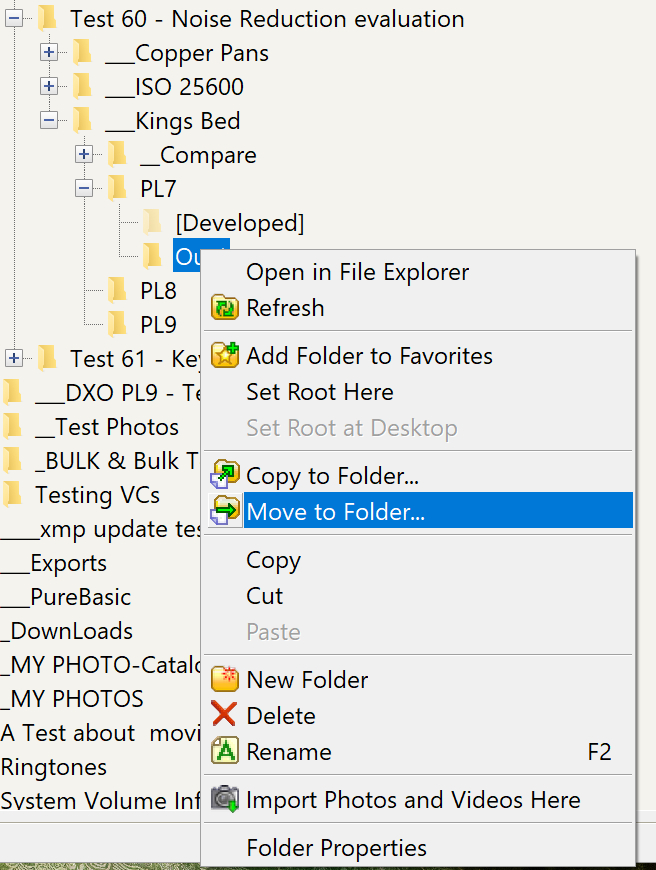
@LVS This is a Mac topic and I am a PhotoLab(Win) users, so I don’t know if PhotoLab(Mac) allows the user to ‘Move’ Directories but that command is certainly not available in PhotoLab (Win).
so ‘Move’ Directory is only conspicuous by is absence!
The “internal directory” you referred to is the database that @John-M refers to in his post just above yours.
Without a ‘Move’ directory command it is next to impossible to execute mas movements of data from one drive to another via PhotoLab to keep the database up too date.
So the loss of ‘Advanced History’ and ‘Projects’ is inevitable, at least of PhotoLab(Win).
I wrote a procedure for replacing one drive for another but again that is for Windows and I have written an incomplete Pure Basic program to do the same via a program.
However, I never properly finished the program, although I seem to remember that it worked, at least for the limited testing I did but again that is for Windows.
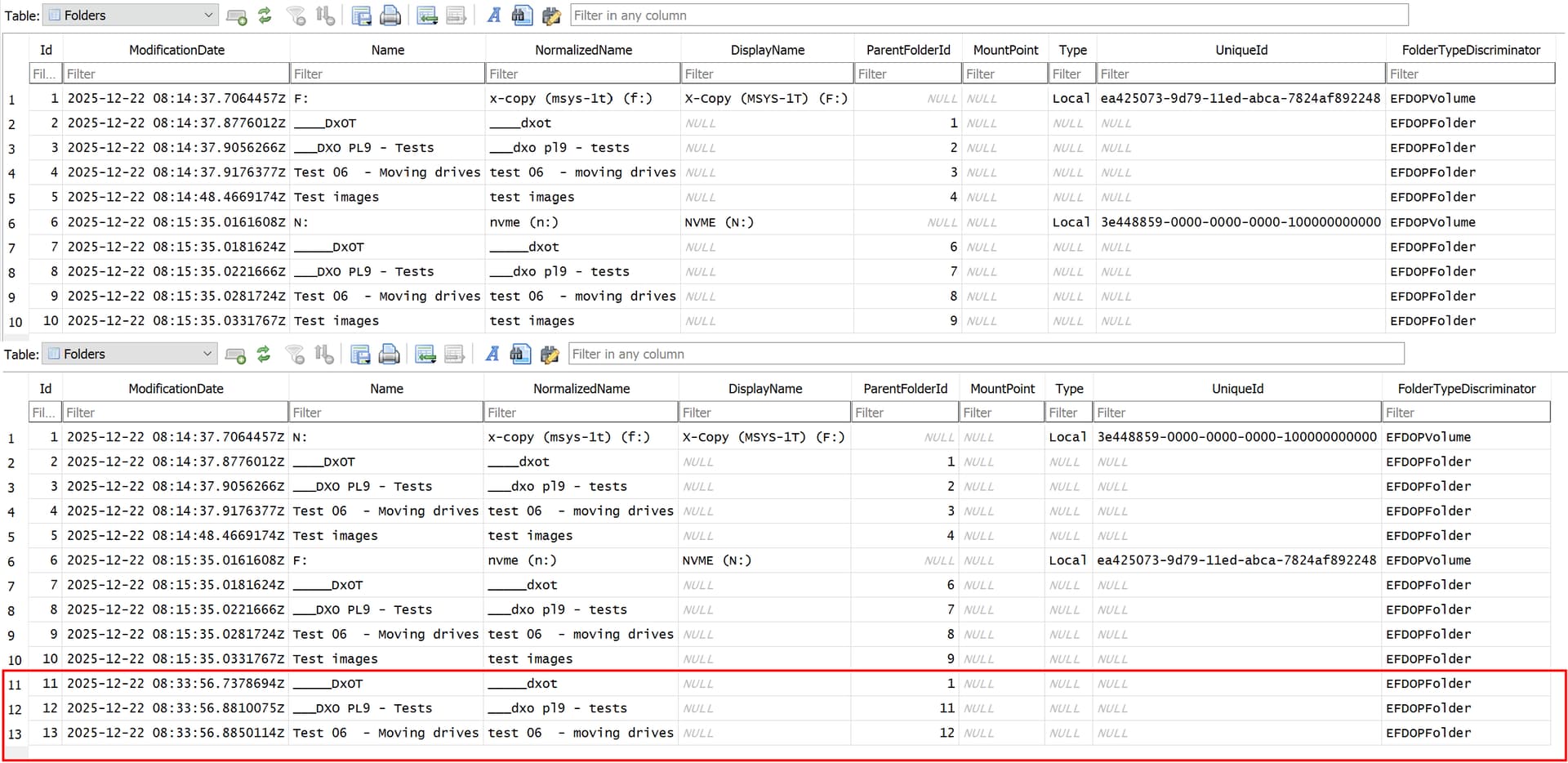
If you rediscover the moved directories with PhotoLab it will look as if they have been re-discovered but the edit data is coming from the DOP, new entries will be created in the database, which will still contain the old entries but they will be inaccessible. Any ‘Projects’ created in the past will refer to the old, no “missing” entries as will the ‘Advanced History’.
They will, however, complicate any search results so it would be simpler to save the old database, just in case you can find a procedure to “fix” the ‘Folders’ entry on the Mac, and adjust it to point to the new location for the data files, and start a new database!?
I will locate the procedure tomorrow, @FrancisM, sorry later today, I wrote up for Windows and re-publish it here and I will also look at the program I wrote but I do not have a Mac to convert the PureBasic to a Mac version (the compiler is for the ).PC, Mac, Linux and Pi.
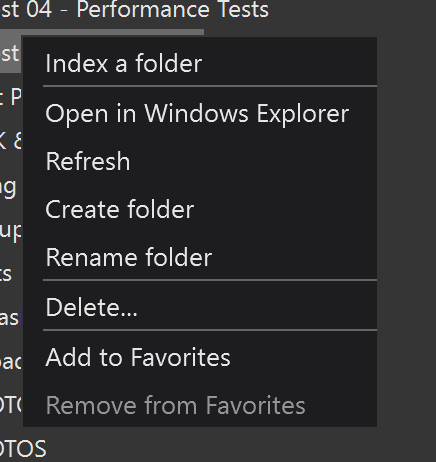
On a Mac from the PhotoLibrary I create a new Folder on the external drive using the drop-down menu, then select all the images in the original folder and drag them into the new Folder on the External Drive.
Sidecar files contain most of the info stored in the database, but not all (search the forum for respective posts about that) and the only way to preserve all info is to move the whole lot in PhotoLab’s Browser in Library View.
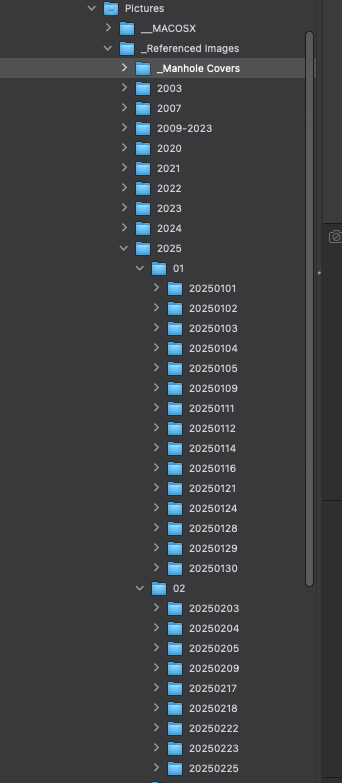
Make sure that you have the target location (drive or folder) in the finder sidebar and drag the lot to the new location. While things are moved or copied, PL will keep track of the paths and update the database accordingly…and all the history details should be visible as before.
If the database had orphaned entries (info about files that have been moved or trashed outside of PL), these entries will persist and as of now, there is no feature that can fix orphans or workaround without (more or less) loss of detail such as you described.
I don’t see how I can drag the top folder (or any folder) from one drive to another. I tried pointing over a folder and dragging it to another drive. Does this require me holding down a specific keyboard key? I am on a Mac.
Thanks for this. Perhaps I can live with this situation - I have a year and a half of photographs in DxO PhotoLab. My bigger problem is that I am migrating from Apple Aperture and I have at least a couple of decades of photographs there. My goal is to get everything into a third-party media manager and I’ve selected Peakto. Incidentally, I have not found a single media manager that matches the features and speed of Apple Aperture, which is a program that was laid to rest in 2014.
@FrancisM , Have you tried the Nitro Photo app? The dev, Nik Bhatt, was prominent in setting the direction for the Aperture app before Apple pulled the plug. Nitro works with photos organized in folders in the Finder AND can open your Apple Photos app and work with the photos there.
Sorry for that, I thought I had done it, but it was not with PhotoLab.
Beware: Dragging folders with the finder while PL is running does work, but it creates an orphan for each moved file. PL can’t delete entries for missing files because it “can’t move missing files to the trash”. Such a feature has been requested for a long time and so far, we’re still waiting.
For now, all you can do is to copy the archive and index it with PL started with no database. You know what you’ll loose, but maybe you can make do. You could go further and “rewire” the archive in the database. I’ve tested this and posted about it, but it’s a ballet on thin ice unless you’re fairly confident and DB-savvy.
@LVS , @FrancisM The same way that Windows users have to do it. Effectively one photo at a time but at least DxO let us use Ctrl-A (on Win) and then drag 1 or hundreds or thousands of images from one location to the next, to copy or move.
In truth PhotoLab has the worst file and directory management command set of any Photo Viewer and editor in my possession, all the “Free” products leave it looking limited and amateurish and if you can’t successfully move things within DxO then the database is going to be useless..
So what is missing
Add to the current mechanism which only allows “Drag & Drop”, please note that the destination must be visible onscreen i.e. PhotoLab(Win) does not automatically scroll the directories displayed when you get to the end of what is currently displayed! The extension needs to provide ‘Copy’ and ‘Paste’ or ‘Cut’ and ‘Paste’ menu items (commands) at the image level, preferably including the classic short cuts of ‘Ctrl-C’, ‘Ctrl-X’ and Ctrl-V’ (and whatever the Mac commands are).
The ability to copy an entire directory using the aforementioned ‘Copy’ and ‘Paste’ or ‘Cut’ and ‘Paste’. At this point things get a whole lot easier for moving from one location to another, within or between drives!
Extend the command set of item 2 to allow the user to select multiple directories at the same time, albeit there might have to be limits to the number of directories that can be handled in one request that way.
Allow a user to adjust the database references via the PhotoLab GUI to replace the database entries located on A:\ to be located on B:, i.e. a “move drive” command , which is actually the easiest of all the operations to do programmatically!!??
I wrote the procedure that a user would need to undertake in the following Topic. My description was somewhat epic (in size) but the summary was a bit shorter albeit I needed to be precise because instead of a “simple” bit of coding by DxO (within their “domain”) I was writing up instructions for a user to “hack” the database!?
Any and all “hacks” of this nature should be unnecessary and I find DxOs attitude to improving the data handling within PhotoLab lamentable (I can’t use the exact words that I actually think, as you can probably guess).
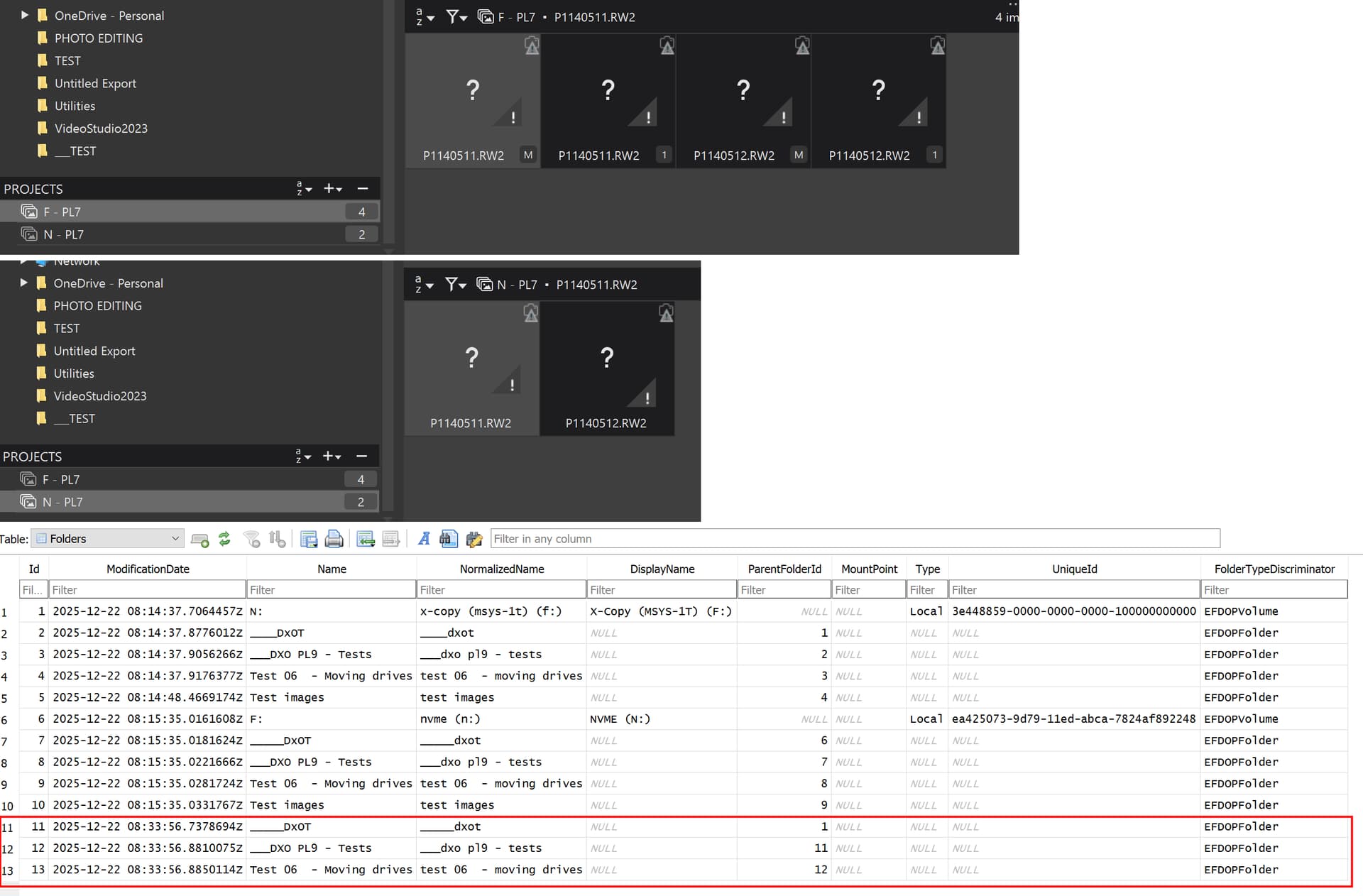
The UI has got better over the years but is still lack lustre, e.g. this is what FastStone Image Viewer (free) can manage
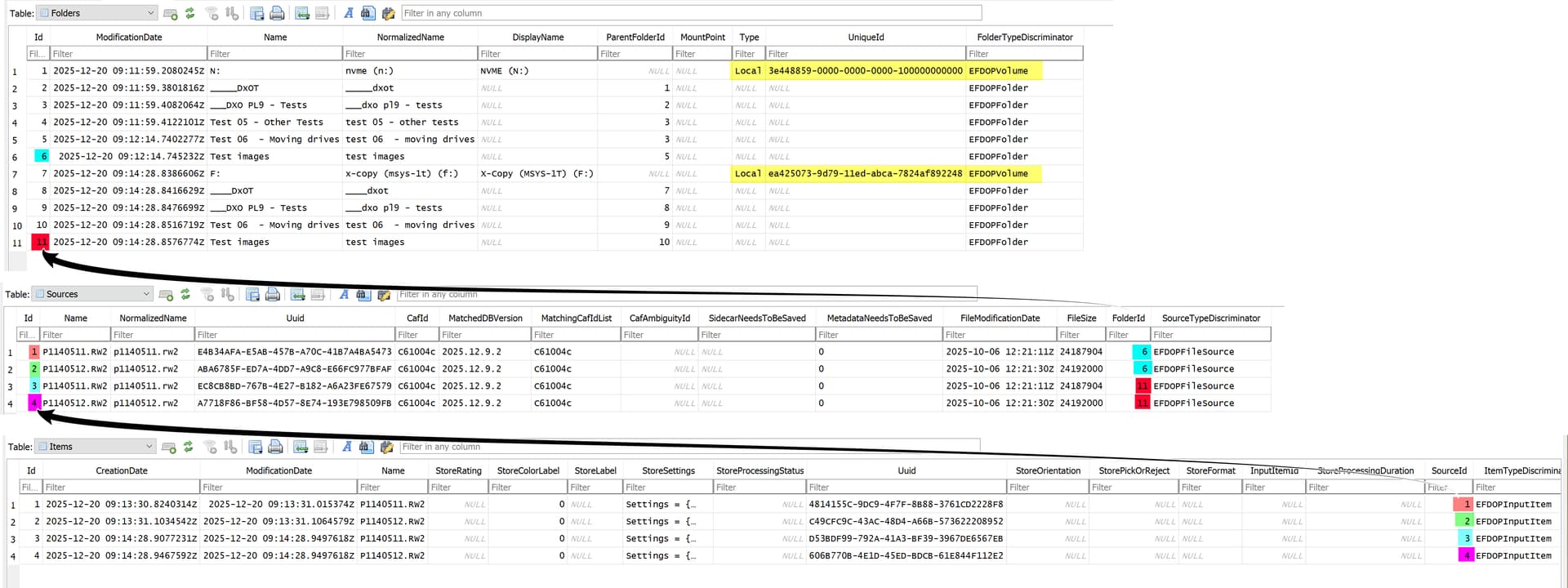
The example is actually the same directory copied to two drives, each with two images, on my system.
The key factor that controls the acceptance or otherwise of a drive into the database is shown in “Yellow” and represents the Drive identifier, which, at any given moment in time, must be unique to the Operating System, i.e. no two drives with the same id can co-exist on the system at the same time and no two entries in the ‘Folders’ structure can have the same UUID.
So when a drive is opened in PhotoLab, if the Drive identifier corresponds to a ‘UniqueId’ in the ‘Folders’ structure PhotoLab will continue as if what it is finding is part of that “Folders” stucture.
If not, a new drive entry will be added to the ‘Folders’ structure and any and all images discovered by the user will be added behind the new entry, even if all that data is already in the database but “belonging” to a different drive entry in ‘Folders’.
DxO have used that identifier to identify a disk in the database, not the drive letter, or so I believe, pre-PL9.,
So even if you copy all the data from one drive to another, take the first drive offline and introduce the second drive with the same letter as the removed drive, DxO will still see it as a different drive unless the Drive identifiers are identical!!
Hence. the fix is to replace the drive identifier of the old drive in the database with the identifier of the drive that is to be its replacement but I have run into problems with a test where I was trying to swap two drives and have failed on two attempts!?
I need to do more testing to see what is going wrong with my procedure or my brain or both or what has changed in PL9 versus PL7 where I did the original testing!?
FYI: a made a little ‘test’ SQL script for moving db data ‘between folders’. Note: not recursive (just single folder, no sub-folders). But see below.
UPDATE Sources
 set FolderId  = (select fo_dst.Id from folders fo_dst where fo_dst.name = 'db_move_test_dst') /* destination folder - only folder name - please be some unique */
where 1 = 1
  and FolderId = (select fo_src.Id from folders fo_src where fo_src.name = 'db_move_test_src') /* source folder - only folder name - please be some unique */
/*
     v.01.00.00 - 2025.12.22 - andras - works but no checking, no subfolder handling, nothing just plain single folder handling. Note: dount use if sub-folder inside source folder!
     Its under Windows version (i guess under Mac is some similar, can't test it)
     Use in your own risk. May good idea to backup the database
     Use only if NO sub-folder inside of the source folder (in this script version)
     Not recursive - like sub-folder (in this script version)
     No check at all, like folders exist or not in PL db, or has sub-folder, etc.(in this script version)
     Not tested for Projects and stuffs like that
     How to use:
     Step 0. -> Make sure source folder is indexed in PL
     Step 1. -> Make sure source folder name is unique - may good idea to rename some temporary prefix/name (in PL) like 'moonshine_folder'
     Step 2. -> Make sure destination folder name is unique - may good idea for some temporary like 'moonlanding_folder' - source folder need to be known by PL!
     Step 3. -> Quit from PL
     Step 4. -> Connect to PL DB + Open/Copy SQL script
     Step 5. -> Type the destination and source folder name to the script. Only the folder name (and not full path)
     Step 6. -> Run script, if no error during the execution, then good to go.
     Step 7. -> Move manualy the files from source folder to destination folder (raw + .dop). May good ide to rename source folder to something else, or just simple delete
     Step 8. -> Start PL
     Step 9. -> Browse the destination folder. You see the photos fine, all history or relevant is just okay.
     Step 10. -> Rename in PL your destination folder to final name (if you use like 'moonlanding_folder')
*/
As i test its just works fine.
May a good idea to improve:
Check the typed folder exist in PL db or not
Full path handling (to get over the script folder name unique thing)
Sub-directory handling (just need to update where parent is the srcid)
in PL, make a database backup (with the command nested in the file menu)
quit PL, then delete it’s cache files or folders (they are recreated by PL later)
with Finder, copy the old Foto Archive to the new drive
open a DB Browser for SQLite and open PL’s database (not the backup)
select the Browse Data tab and the ZDOPFOLDER table
breathe, look, wait (thin ice starts now)
find the name of your Foto Archive (I called it “Fotoarchiv”)
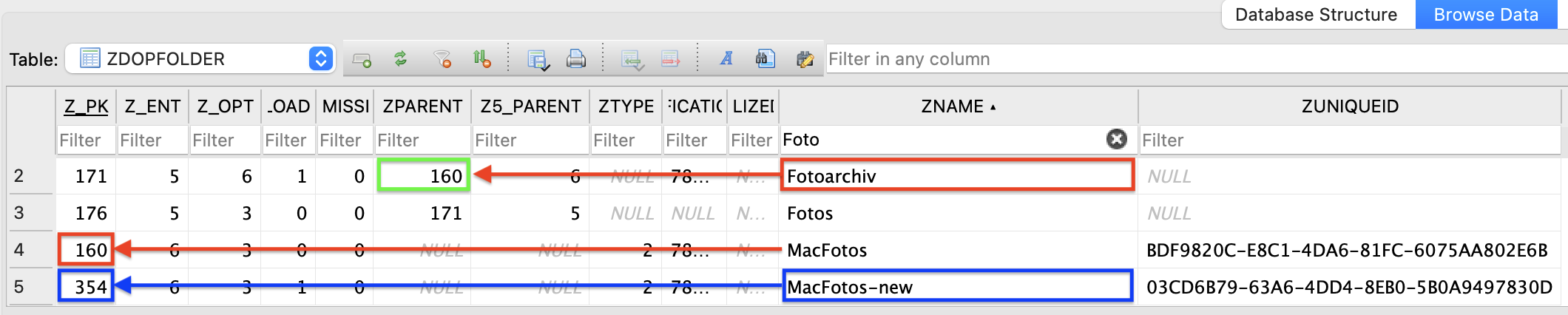
find the number of the parent in column ZPARENT (here, it’s 160 @ green box)
find the number of the new drive in Z_PK (here, it’s 354)
replace the number you found in step 8 by the one you found in step 9
save the database and close it
open PL, select the new drive and check if the settings are present
I’ve tried the procedure with PL8 as a proof of concept and it worked as far as I’ve tested it. Nevertheless, I DO NOT guarantee that the procedure is spotless. If there are other relations that need to be adjusted, the modified database will crash PL sooner or later. In that case, restore the database backup.
Notes:
Have not tested yet with PL9. Some of the steps might need to be written with more detail or precision. Haven’t checked the influence of the background tasks either. I think I had them disabled when I tested with PL8.
Als check out the other post(s) I have added in this matter.
An item under ZNAME is for a volume, if there is a UUID. Without UUID, it’s a folder. Folders have parents (either a folder or a volume) and the parent’s primary key is found in column ZPARENT. Volumes have no parents.
I set my Mac to have several volumes. My “Fotoarchiv” folder is on a volume called “MacFotos”. After the modification of the database, PL expects “Fotoarchiv” to be on the volume “MacFotos-new”.
If you’re not sure about such a mod, test with copies of a folder with a few subfolders only…or live with what DxO can do. Never ever do such a mod without a backup.
@platypus Thank you for the Mac procedure which I will read but not test (no Mac in the house 4 active PCs + my wife’s + one retired i7-4790K, almost forgot the aging laptop))
@andras.csore Thank you for the SQL I will try that later
Now down to the problem itself, lost ‘Projects’!
The original post I referenced details the tests to replace a lost drive, potentially so lost that the only evidence of its existence are the entries in the PhotoLab database.
The test here was to simply demonstrate swapping two identical directories (almost identical, because one had VCs and the other didn’t), arguably what would happen if a user added a new drive and started some edits before realising that the discovered images and DOP edits were actually being added to the database as new entries.
Essentially this is the situation that users will find themselves in. Retaining the old database is really only essential for ‘Projects’ and ‘Advanced History’ retention. I consider the former to be essential to those that use ‘Projects’ and the latter has only just arrived for Windows users with PL9.
I reverted to PL7 for a test this morning because testing on PL9 had failed on two or even three occasions and my original script was written for PL7 and worked just fine(!?)
Technically you cannot change the database entries without falling foul of the ‘UniqueId’ field being policed for being unique (no duplicates), so I change one to different value and then make the changes but using the original values.
This is what happens when I open PL7 in this test, the same as my PL9 failures.
To “police” the tests I declare two ‘Projects’ which should remain intact but this is what happens to them (in all the tests this is the alarm sounding)
I have a better script now. Works with sub-folders and more elegant.
I think its straightforward, commented. Test with one case with few sub-folders, works fine.
/* NOTE: Variables
   	variable string expected between '' like: 'sting' Example: 'moonshine_folder' and NOT moonshine_folder
    variables: var_src_folder_name -> the source folder name ; var_dst_folder_name -> the destination folder name. Note: just a folder name, and not full path!
*/

/* Script Part 1 - Update the 'main' folder - Script Part 1 start */
UPDATE Sources
 set FolderId  = (select fo_dst.Id from folders fo_dst where fo_dst.name = :var_dst_folder_name) /* destination folder - only folder name - please be some unique */
where 1 = 1
  and FolderId = (select fo_src.Id from folders fo_src where fo_src.name = :var_src_folder_name) /* source folder - only folder name - please be some unique */
  and (SELECT count(*) from folders fo_check_dst where fo_check_dst.Name  = :var_dst_folder_name) = 1  /* dst folder unique - if not, than not execute*/
  and (SELECT count(*) from folders fo_check_src where fo_check_src.Name  = :var_src_folder_name) = 1  /* src folder unique - if not, than not execute*/
/* Script Part 1 - Update the 'main' folder - Script Script Part 1 end */

/* Script Part 2 - Update the 'subfolder(s)' folder - Script Part 2 start */
Update Folders
 set ParentFolderId = (select fo_dst.Id from folders fo_dst where fo_dst.name = :var_dst_folder_name)
where 1 = 1
  and ParentFolderId = (select fo_src.Id from folders fo_src where fo_src.name = :var_src_folder_name)
  and (SELECT count(*) from folders fo_check_dst where fo_check_dst.Name  = :var_dst_folder_name) = 1  /* dst folder unique - if not, than not execute*/
  and (SELECT count(*) from folders fo_check_src where fo_check_src.Name  = :var_src_folder_name) = 1  /* src folder unique - if not, than not execute*/
/* Script Part 2 - Update the 'subfolder(s)' folder - Script Part 2 end */

/* Description

     v.01.01.00 - 2025.12.22 - andras - add: check for src and dst folder unique, subfolder handling, variable usage for no typing in code. Not check for: folder exist in dst (expect Dst is empty)
     v.01.00.00 - 2025.12.22 - andras - works but no checking, no subfolder handling, nothing just plain single folder handling. Note: dount use if sub-folder inside source folder!

     Its tested under Windows version database. Its not work under Mac version (i guess under Mac is some similar at general, but with some 'Z' fields, etc. I can't test it under Mac, if someone interested, i try to help)
     Use in your own risk. May good idea to backup the database
     PL version: 9.3.2 However i think works all 9.x (Win)

     General overview:
     If you like to move (manually, outside from PL) a folder (and all subfoders in it) to diffent folder (even its in different drive) than this can update the PL db for changes.
     This script(s) update PL db in the 'folder' (folder name) data table and related 'sources' (the photo files) data table.
     As its 'just' changes this, all other thing works as expected: history, projects, allready generated thumbnail and preview files stay is sync, etc.
     Example in few step:
     	Source folder: d:\Photos\PL9_Test\db_move_test_src\
     	Destination folder: e:\temp\db_move_test_dst\
     	Execute script with folder parameters ('db_move_test_src', 'db_move_test_dst') -> its update the PL db
     	Move the source folder(s) content manually (all photos + .dop + all sub-folders)
     	Your done

     Few thing expected (in current script version):
       - The destination folder NOT contains folder names what exist in Source folder! No check in the script.
       - Both source and destination folder need to be known by PL. So, at least onece you need to click to the folders in PL (even the destination may empty)
       - Both source and destination folder need to be unique in PL. Example: PL can't know like c:\photos\test01 and d:\photos\test01 as 'test01' folder name is not unique.

     Note:
       - Not tested for Projects and stuffs like that - however as i think, everything just needs to works fine.
       - Not tested for root folders (example: d:\photostuffs ), however i guess its just works fine.

      Changes:
       - 01.01.00 Updated - Dst sub-folder update added - 01.00.00 part: Use only if NO sub-folder inside of the source folder (in this script version)
       - 01.01.00 Updated - Src and Dst folder unique check added - 01.00.00 part: No check at all, like folders exist or not in PL db, or has sub-folder, etc.(in this script version)
       - 01.01.00 Updated - Src sub-folder update added - 01.00.00 part: Not recursive - like sub-folder (in this script version)

     How to use:
       Step 0. -> Make sure source folder(s) is indexed in PL
       Step 1. -> Make sure source folder name is unique - may good idea to rename some 'temporary unique' name (or prefix) in PL like 'moonshine_folder' (i guess 'moonshine' is may uique for you folder structure)
       Step 2. -> Make sure destination folder name is unique - may good idea for some temporary like 'moonlanding_folder' - source folder need to be known by PL!
       Step 3. -> Quit from PL
       Step 4. -> Connect to PL DB + Open/Copy SQL script
       Step 5. -> Fill the destination and source folder name in the script parameters (variable). Only the folder name (and not full path)
       	            - variable string expected between '' like: 'sting' Example: 'moonshine_folder' and NOT moonshine_folder
                    - variables: var_src_folder_name -> the source folder name ; var_dst_folder_name -> the destination folder name. Note: just a folder name, and not full path!
       Step 6. -> Run script Script Part 1 (select only the part 1 start/end section and run it).
       				- The if no error during the execution, then good to go.
       				- The update count is the photos amount of the folder (and not with all in the sub-folders)
       				- If update count is 0 than: folder names (source, destination) is not unique or folder names misstyped or no photo in the source folder. Please check it if 0.
       				- If error, than error, who knows why.
       Step 7. -> Run script Script Part 2 (select only the part 2 start/end section and run it).
       				- The if no error during the execution, then good to go.
       				- The update count is the sub-folders inside of source folder. Only the 'below sub-folders'. Sub-folders below the sub-folders doesent count.
       				- If update count is 0 than: folder names (source, destination) is not unique or folder names misstyped or no sub-folder at all. Please check it if 0.
       				- If error, than error, who knows why.
       Step 8. -> Move manualy the files (raw + .dop) from source folder (and also all the sub-folders if has) to destination folder.
       Step 9. -> Rename (manually) the source folder to something else (or just simple delete)
       Step 10. -> Start PL
       Step 11. -> Browse the destination folder. You see the photos fine, all history or relevant is just okay.
       Step 12. -> Rename in PL your destination folder to final name (if you use like 'moonlanding_folder')
*/
I think its not necessary, the ‘folder parent id’ is change is enough, for all ‘behind it’ its enough / transparent - (at least i think, and seems under windows ‘cache’ just works with changing the folder id. However yes, its also can be re-created.
maybe, try it and come back with results. If the procedure can be simplified, I’m all in.
And I don’t expect DxO to beat us with a solution anytime soon.