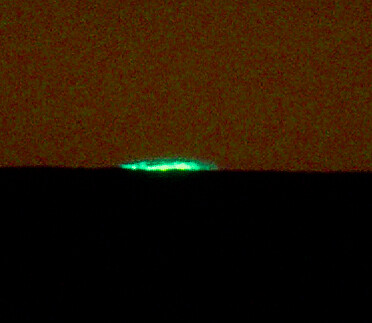
Please find attached a recent PL output JPEG image (my copyright) of the green flash from sunset. As the location was near an unstable path leading to the shore, I setup a tripod, etc., far enough from the unstable area to be able to use a 1200 mm 35 mm equivalent lens (OM-1 II micro four thirds 600 mm). As persons appeared to obstruct my view, I had to handhold within the crowd a shorter lens, 400 mm 35 mm equivalent (OM-1 II plus 200 mm lens). The body and lens have DxO PL modules. Thus, I had to crop the raw (ORF) image to get the attached file. With appropriate corrections, the green flash became clearly visible. However, in the cropped raw image, I attempted to mask and use region exposure compensation on the shadow slider to improve the image outside of the green flash to appear more like what the naked eye saw. I could not accomplish this. PL9 Elite Complete current production release. Any help or suggestions greatly would be appreciated.
Did you try working it the other way?
- Before cropping, adjust the entire image to bring out details in the shadows. This may require shadow/mid-tone corrections, as well as contrast and micro-contrast.
- Using control-point/control-line to mask the flash and adjust accordingly.
- Crop
I suggest to share the raw + dop.
The issue is simple. Is it possible in PL Elite Complete latest production release to crop first in order to select the region over which one needs to make specific changes? In the case in question, using 35 mm format equivalent for the micro four thirds format that I actually used (OM-1 II body), I had a 300 to 1200 zoom set up to closely image the sunset and any possible green flash. The setup was on a tripod with an appropriate head (details available if interested). As people moved in front of me, the setting sun was obstructed from my view. I switched to an OM 50-200 2.8, thus 100 to 400 equivalent, handheld and walked to nearest area upon which I safely could stand. This area would not have been safe to use a tripod whereas my own feet could be positioned to be safe. As a result, the green flash occupied too small an area on the image for me easily to mask until it was cropped. Aside: a digital image is a two-dimensional matrix, with each matrix element representing a pixel and the associated luminance and chrominance values. In a crop, only a sub-matrix is used. Presumably, one could mask within the sub-matrix by selecting the matrix elements (cells) for the pixels of interest. Does PL allow for this using the PL graphical interactive user interface?
Yes you can crop first. If you are not getting the results you expect then perhaps there is not enough detail in the original file. It is not possible to determine the quality of the original image from the included JPG.
In PL9 Elite Complete, with the preview completed and the cropped image visible, how does one set control points for a mask? This did not seem to work for the cropped image. In this case, after correcting the green of the green flash, I would exclude that region of the cropped image from any further corrections, and then use the shadow, etc., sliders on the rest of the region to make it appear similar to what is seen by the eye at the actual event. If it is necessary to post the original (my copyright) ORF, please advise.
-
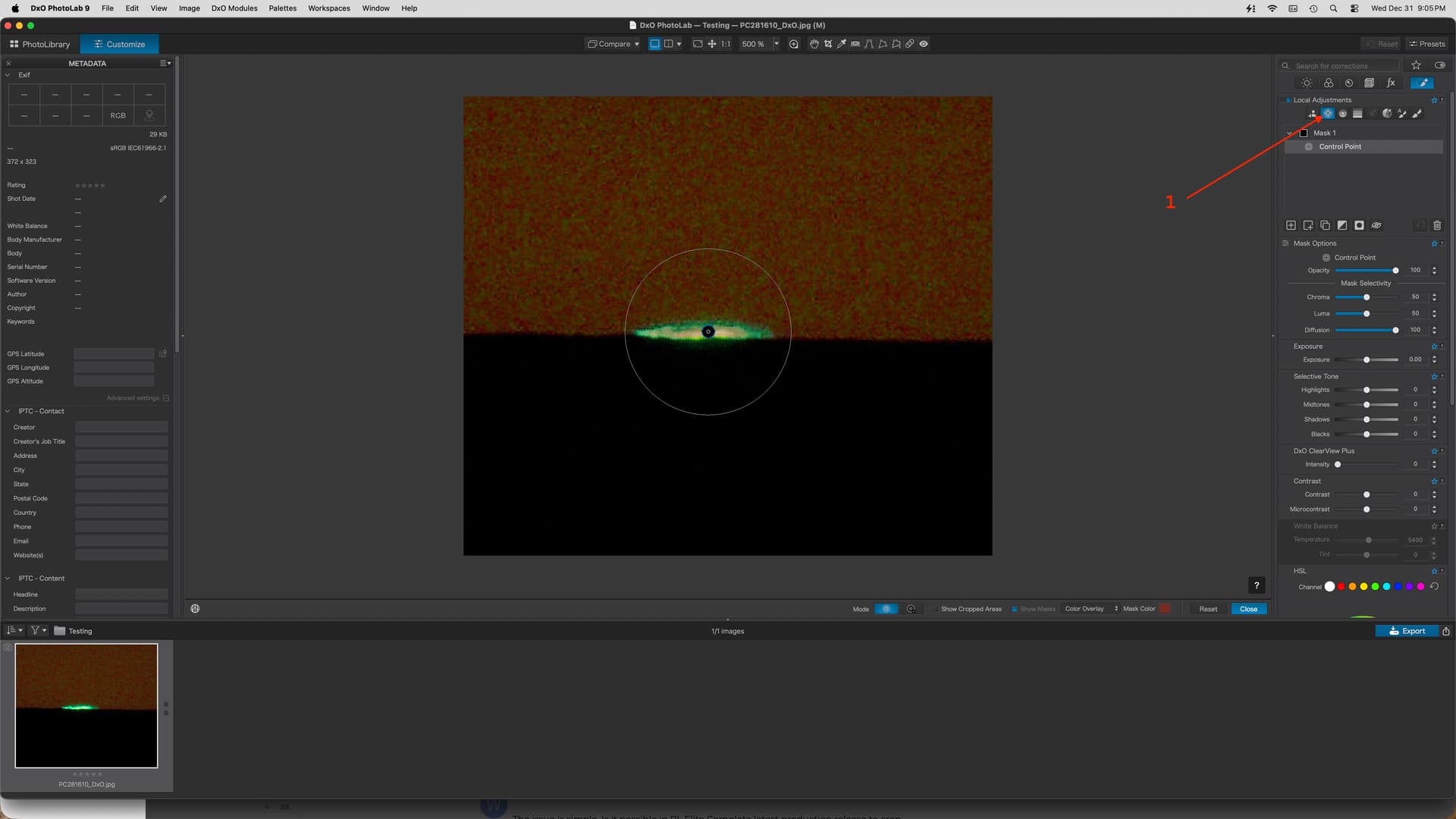
I would suggest using a Control Point on the Green Area. Expand the circle until it covers the flash.
-
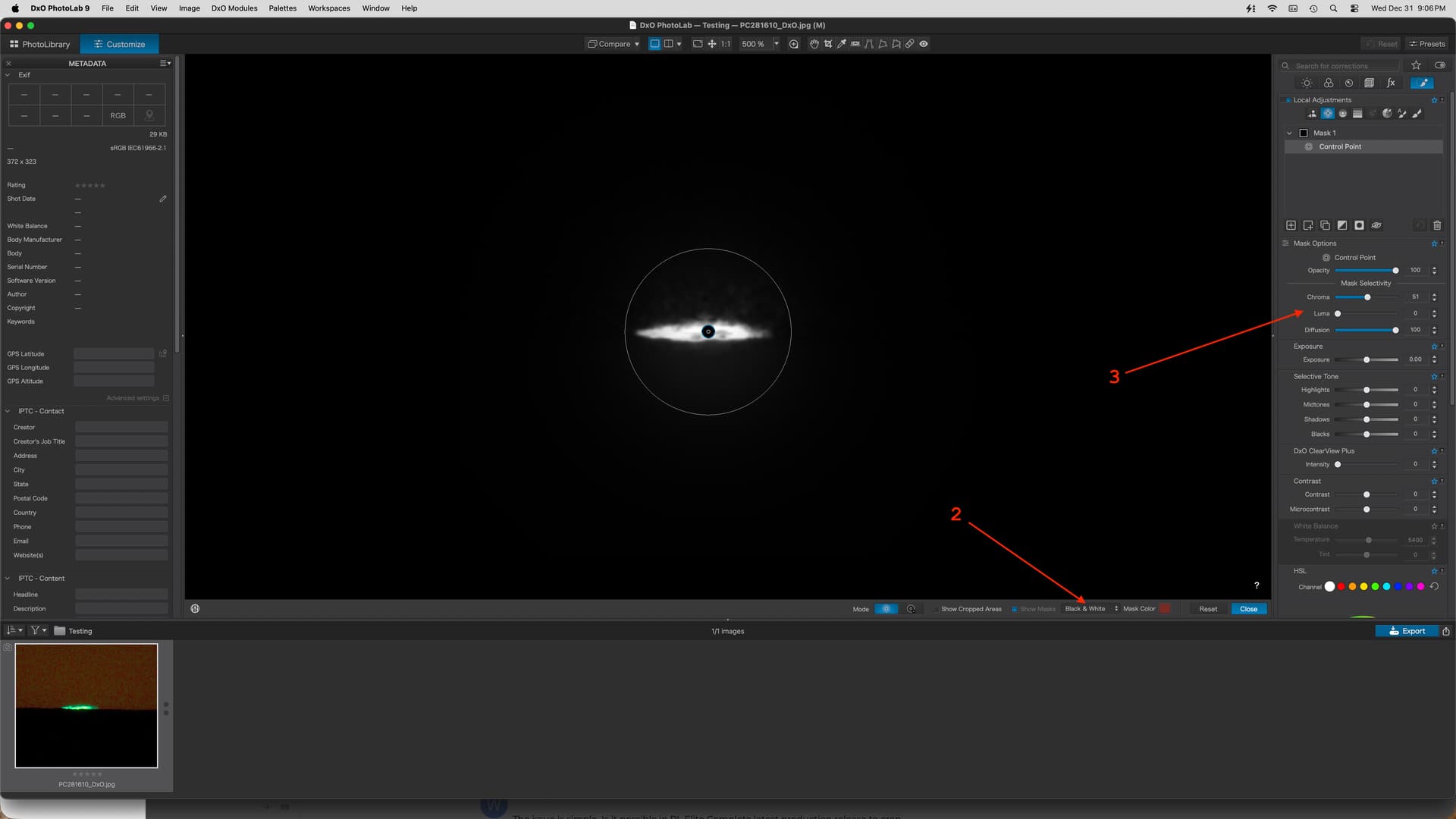
Switch the Mask to Black & White instead of Color Overlay, it will be easier to see it.
-
Adjust Chroma and Luma sliders until you see a WHITE area that covers just the Green Flash.
-
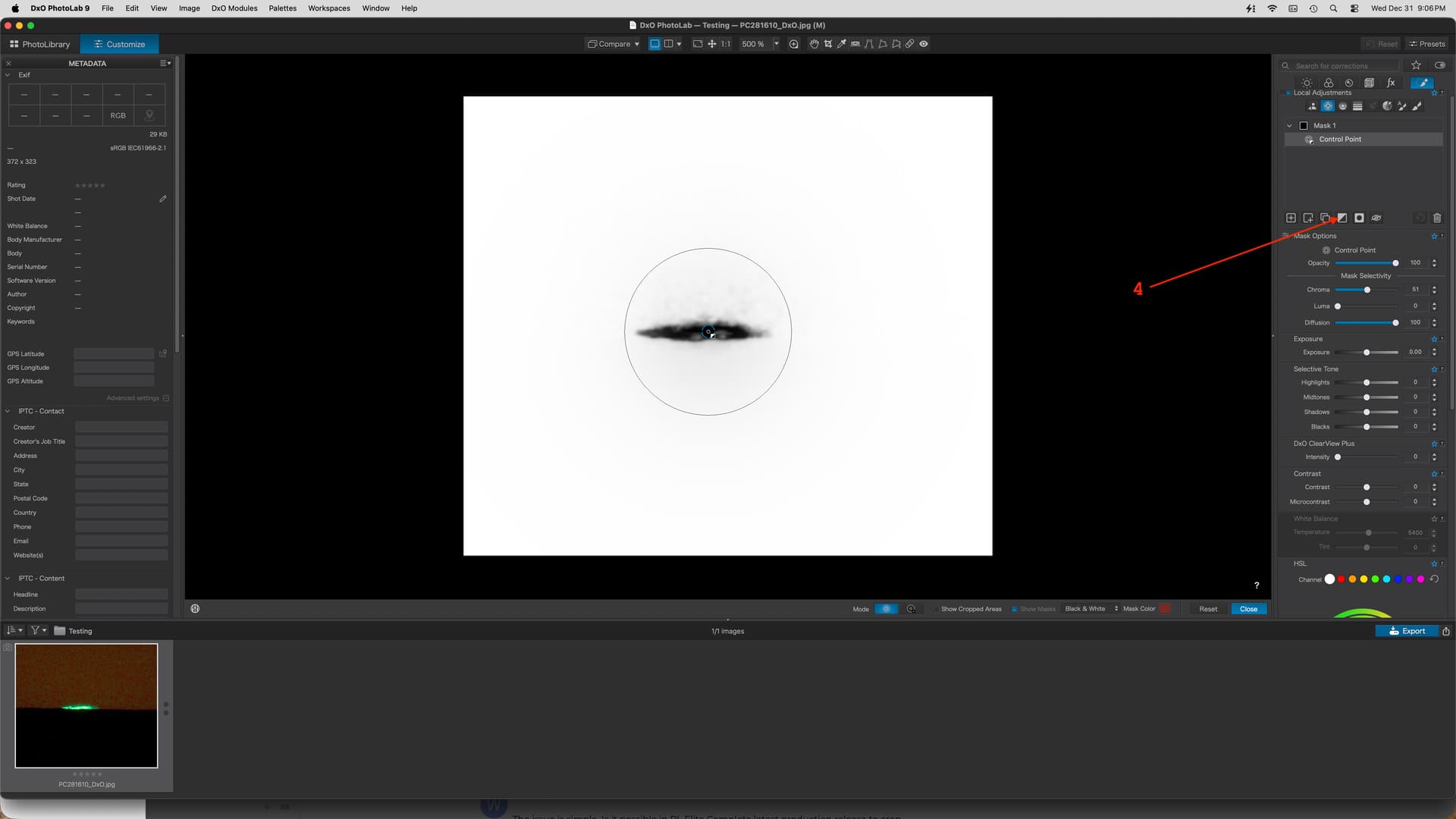
Invert the Mask.
-
Revert the Mask to Color Overlay.
-
All adjustments (shadows etc) will now affect everything(shown in RED) which exclude the green flash. You could now add a Sub-Mask for just the ground if you wanted.