Well, some examples …
You have painted with the Brush and then continue by pressing/holding ALT to remove directly part of the selection → you get one mask.

Now, when you add a Sub mask and continue by holding/pressing ALT to remove part of the selection → you get a separate mask / easy to correct.
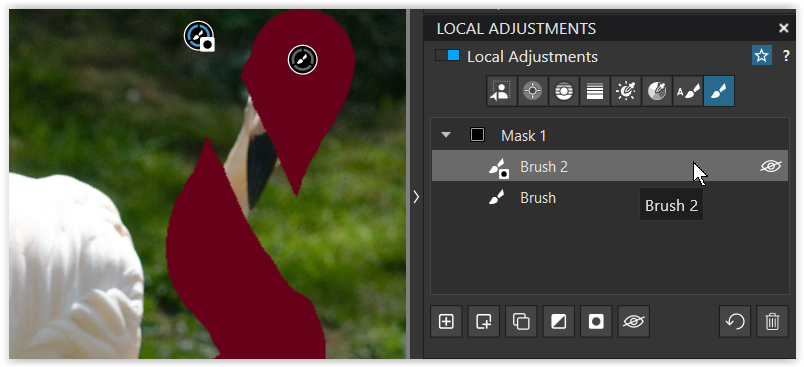
.
You have painted with the Auto brush and then continue by pressing/holding ALT to remove directly part of the selection → you get one mask.
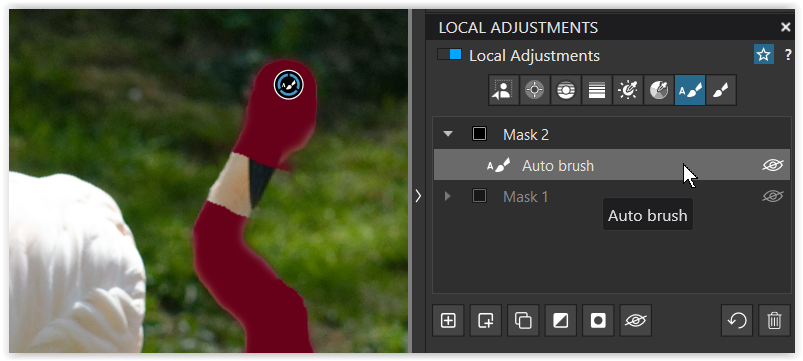
Now, when you add a Sub mask and continue by holding/pressing ALT to remove part of the selection → you get a separate mask / easy to correct.
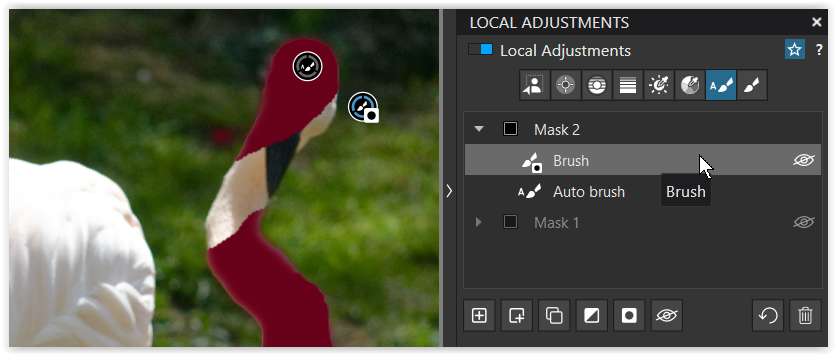
.
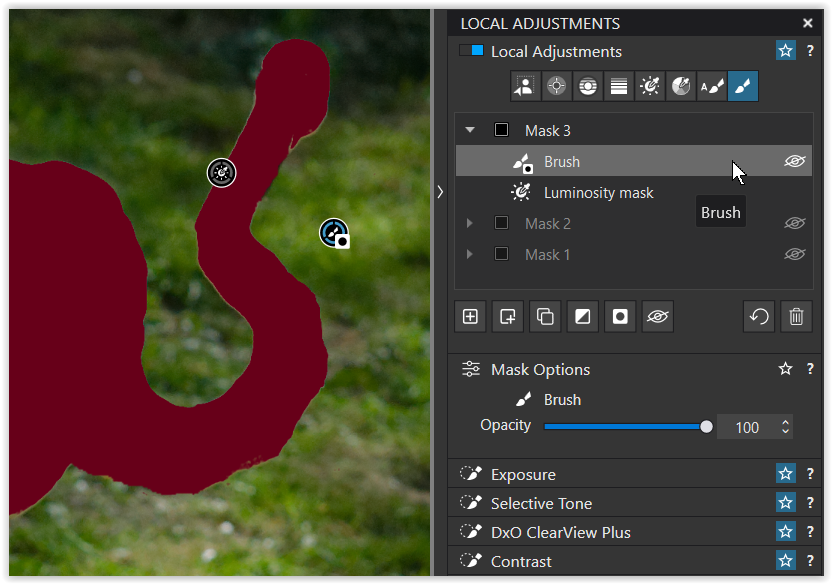
You have used the Luminosity mask.
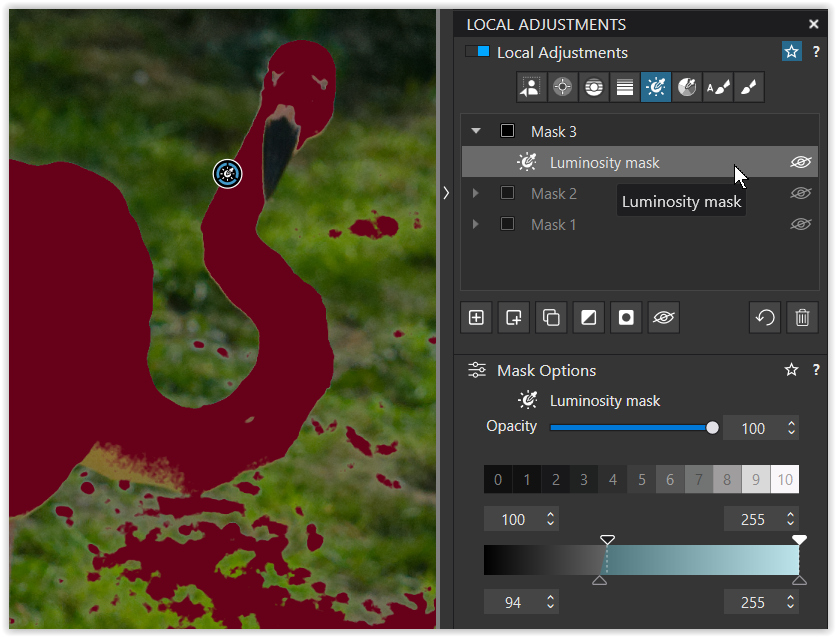
Now, to clean up you add a Sub mask, choose e.g. the Brush to fill up missing parts and continue by holding/pressing ALT to remove from the LM selection → you get a separate mask / easy to correct.
.
Now with the predefined AI mask Animals,
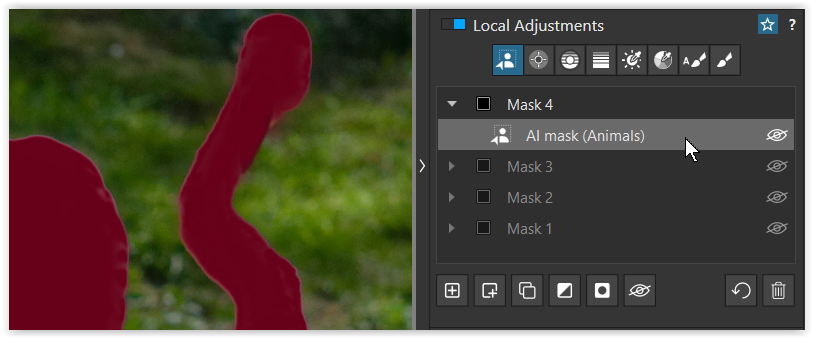
then manipulated by adding a Sub mask, choosing the Brush and holding/pressing ALT to remove from the AI selection → you get a separate mask / easy to correct.
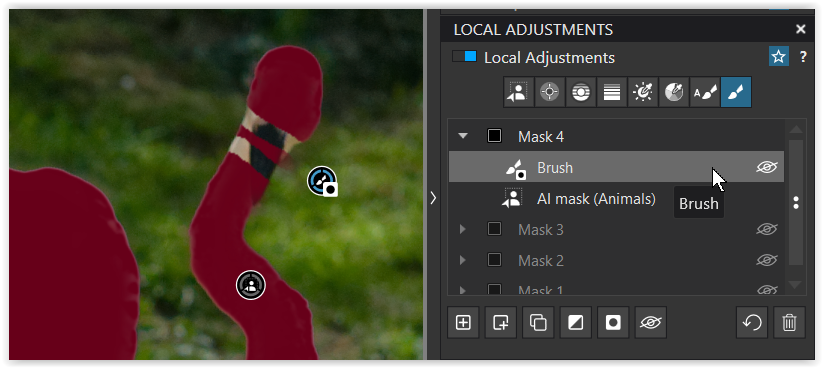
.
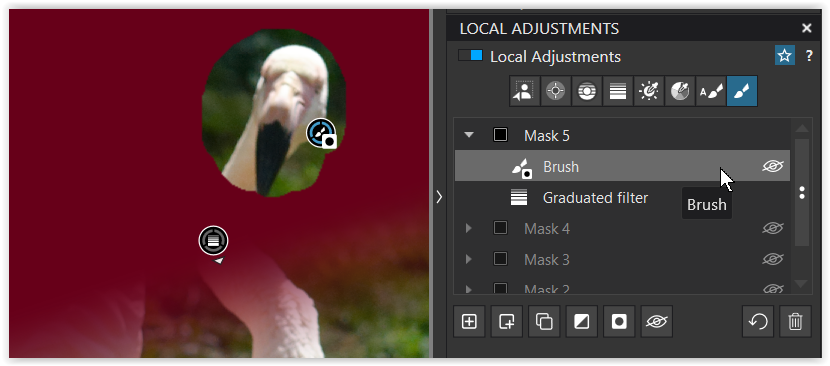
Now with a Gradient, then manipulated by adding a Sub mask, using the Brush and holding/pressing ALT to remove from the Gradient selection → you get a separate mask / easy to correct.
.
With a Control line,

then manipulated by adding a Sub mask, using another Control line while holding/pressing ALT to remove from the first CL selection → you get a separate mask / easy to correct.
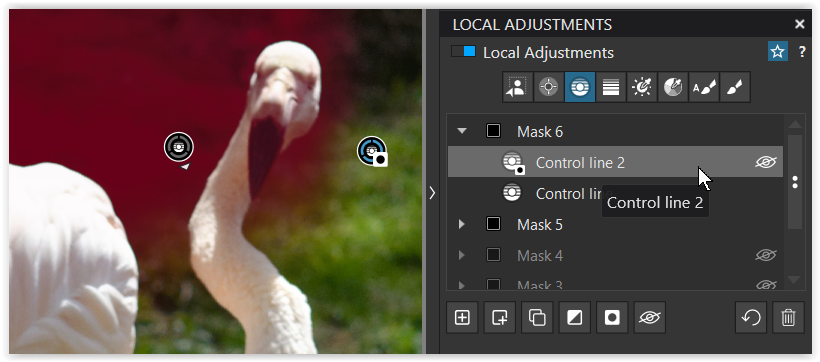
or with an additional Control point
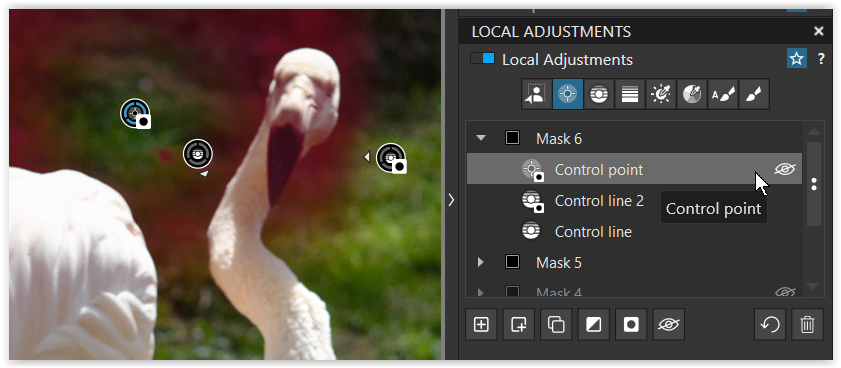
and more …
( experiments in PL 9.3.2_573 Win )
_DSC0311.NEF (15,9 MB)
_DSC0311.NEF.dop (62,2 KB)