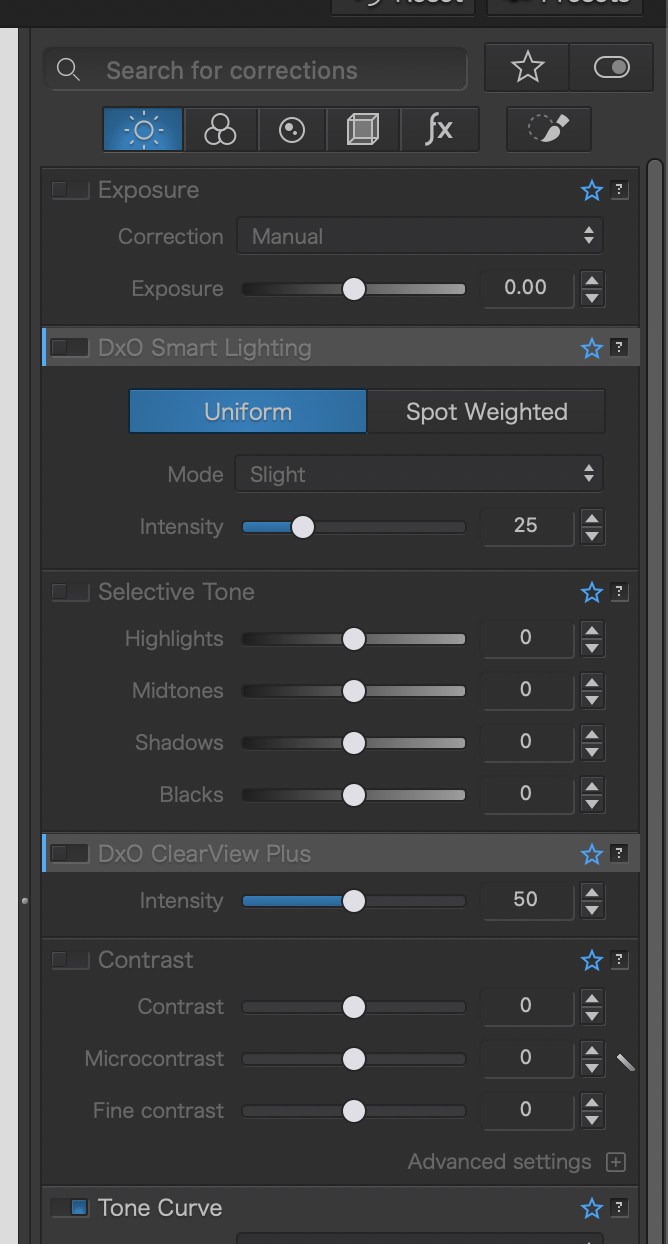
I have never until today wanted to change the default layout & appearance but would now like to rearrange the palllettes to suit me, hopefully better.
I have tried dragging them by the their ‘title bar’ as the manual advise but that does not work. So somewhat at a loss as to know how the make the rearrangements???
Oh , is in PL9.1
TIA
PS Edit ~ I find that the Lefthand ones e.g. Histogram will move so why not the RHS ones???
So the palettes on the right hand side do not become actual palettes until you deselect the buttons at the top. To do this, you’ll click whichever button is currently highlighted in blue.
Now, you can move the palettes around, change the contents of them (by clicking the little “menu” icon on the right of the palette titlebar), or create a new palette (by clicking the “Palette” menu bar item and then “New Palette…”).
Thank you for the pointers, it did help and now I can see how to move them about…though I will have to work out what I want to do as in my initial shifts I ended up with the same pallete on both sides…so not so much moved as duplicated ???
Yes, I believe you’re able to have the same palette in both locations. If you don’t want it on one side, simply click the (x) icon in the palette title bar and it will disappear for that side of the application.
Once you have things how you like them, don’t forget to save your workspace! That way if you want to go back to the standard DxO-prescribed workspaces, you can without losing all that organizing you did: