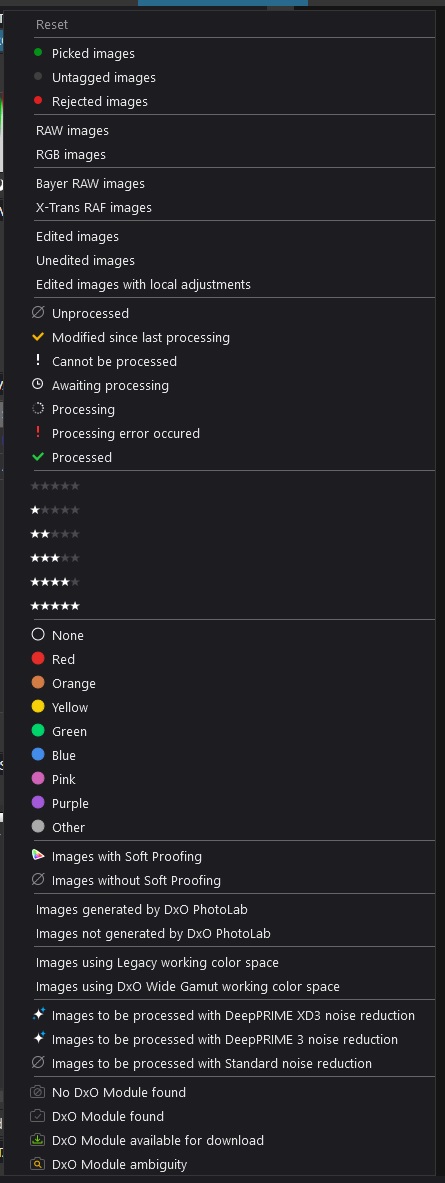
Newbie question here. Am I right in thinking that an image is shown as unprocessed in the PhotoLibrary unless it has been exported previously? I hope I am wrong as it seems crazy if so.
Thanks
Can’t really help here, I’ve deactivated the badge - it does not add value for me.

If you think it does for you, try it out or check the manual. Occasionally, the manual is a bit enigmatic in how it does (not) say things. But if we replace “processed” by “exported” it makes sense in this case. Here’s the part dealing with settings (on Mac): Menus, Preferences and Functions – DxO PhotoLab User Guide – DxO
PhotoLab, as other parametric editors, does not process images while we edit them. It simply builds previews for us to get an impression of how an image will (probably) look when it is exported. When we use soft-proofing, “probably” is elevated to “most probably” - but if we want to KNOW, we have to export. Then, the image gets processed.
As far as I can see, yes, as long as you haven’t exported the photo, it’ll show as “unprocessed”, even if you apply edits to it.
If you apply edits to the photo but don’t export it, it’ll appear as “unprocessed”.
If you export it, it’ll show as “Done”.
…and if you apply further edits it’ll show as “Modified since last processing”.
If you’re looking for a smart way to filter out what you’ve edited (or not) you CAN use the filters picker which has a whole range of different options you can filter by.
Ok, thanks. I guess I have to unlearn years of Lightroom behaviour!
Yes, afraid so. DxO products are not Adobe products, you have to learn how DxO products work.
PhotoLab is an easy to use app imo. And learning it is easy, unless one puts a lot of pressure on oneself. Sit back, try, undo, retry … and you’ll find your way.
Consider learning in phases and circles
Hmm, all of the above is pretty normal, isn’t it. Indeed, it’s all about getting that RAW onto the path that leads to what we aim for - or discover by accident.
Note: Lightroom’s and PhotoLab’s asset management, even though they have similar features, are worlds apart in a few aspects. IF AM is something you need, search the forum for topics covering keywords, labels, search&find, maintenance (and so fort) before you delete anything Lightroom. Oh, and back up regularly.
I think it’s easy to become overwhelmed and frustrated at first.
Imagine you’ve come from Lightroom - you know how to make a picture you’re happy with - and suddenly in PhotoLab you don’t.
I do like your advice about learning in circles and going easy on yourself, though.
I’ve had some success with experimenting on little things, such as getting an image roughly where I’m happy with it and then seeing what different contrast settings do, or colour, or sharpening, or masking…
Once you’ve got an image you’re broadly happy with, it’s easier to tinker and see what could look better (or not) and the next time, you’ll be happy to adjust those settings from minute one, or even change up your presets.
Also, learn to use virtual copies so that you can compare results of different edits 
Yep - that’s it, “in a nutshell”.
One way you can tell whether edits/corrections have been applied (even if not yet exported) is to check for sidecar/.dop files (found in same folder as your source/RAW files).
Oh yes, different beasts altogether.
PhotoLab is still easy to use, but if one is simply adjusting top down through the palettes while assuming that tools (e.g. selective tones) should work the same, things could get complicated indeed. To switch, one might like to build a workspace that mimics Lightroom’s. Still, one cannot blindly follow the old path. It does not exist in the new environment and … necessitates yet another circle.
BTW, learning in circles has been nicely modelled, read more about it HERE.
(I usually call the quadrants “explore”, “structure”, “decide” and “do”)