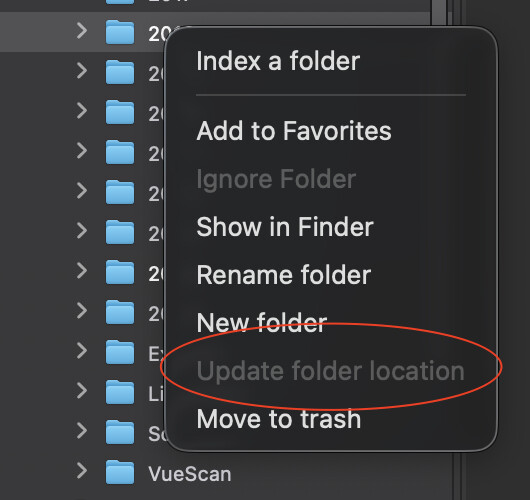
I cannot move folders, nor can I locate missing folders, which is advertised as something you can do by DxO. If I move a folder outside PL (the only way possible that I can see) it does not show me that folder any longer in the tree in PL, so there’s no way to “locate” it.
Not sure if this is purely a Mac vs. Windows thing, or if my copy is just not working properly.
PhotoLab for macOS still can’t move folders directly in the browser located in left sidebar in photo library view.
My proposed workaround is to create a new folder, move the files to the new folder and then trash the old, empty folder. All of it should be done in said browser.
Right, that’s the only way I know of as well. I just wanted to know from those two what they were referring to, exactly.
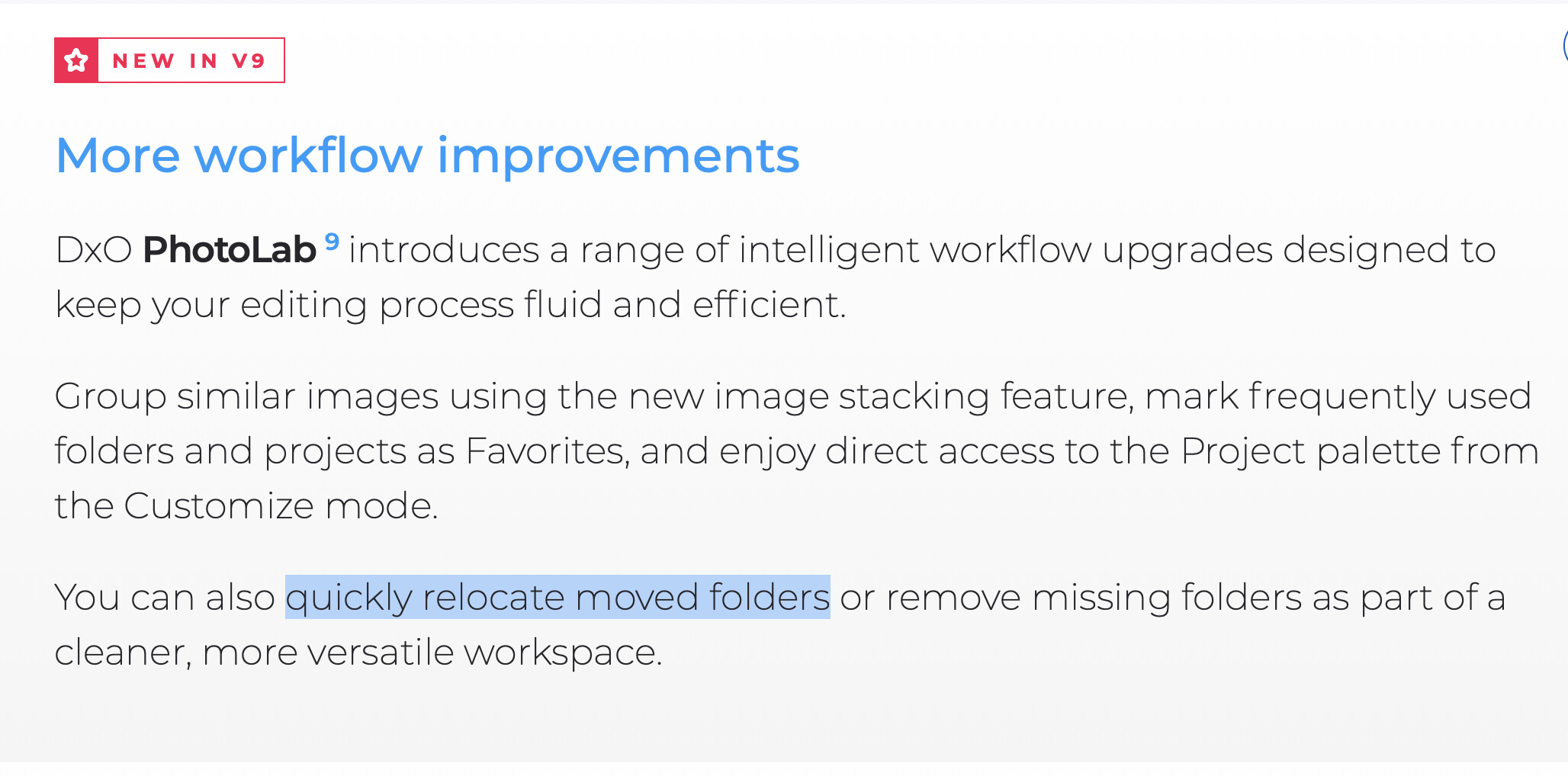
Any clue about this highlighted part of the PL9 product page? It’s baffling to me that there is an explicitly called-out feature on the DxO website, yet it seems entirely missing.
We have to understand “relocate” as a way to point PhotoLab to a folder that seems to be missing due to having been moved e.g. with the Finder. “re-assign” would be the word I’d use.
But: Renaming a folder while PL is not running did not trigger the missing folder situation, instead, the renamed folder was shown. Re-renaming that folder lead to “lost” images, when I searched PL for the folder name.
This means that one has to be super careful to NOT change folder names or locations outside of PL Doing this is no guarantee for NOT getting lost images though. Sometimes, search results are hard to interpret:
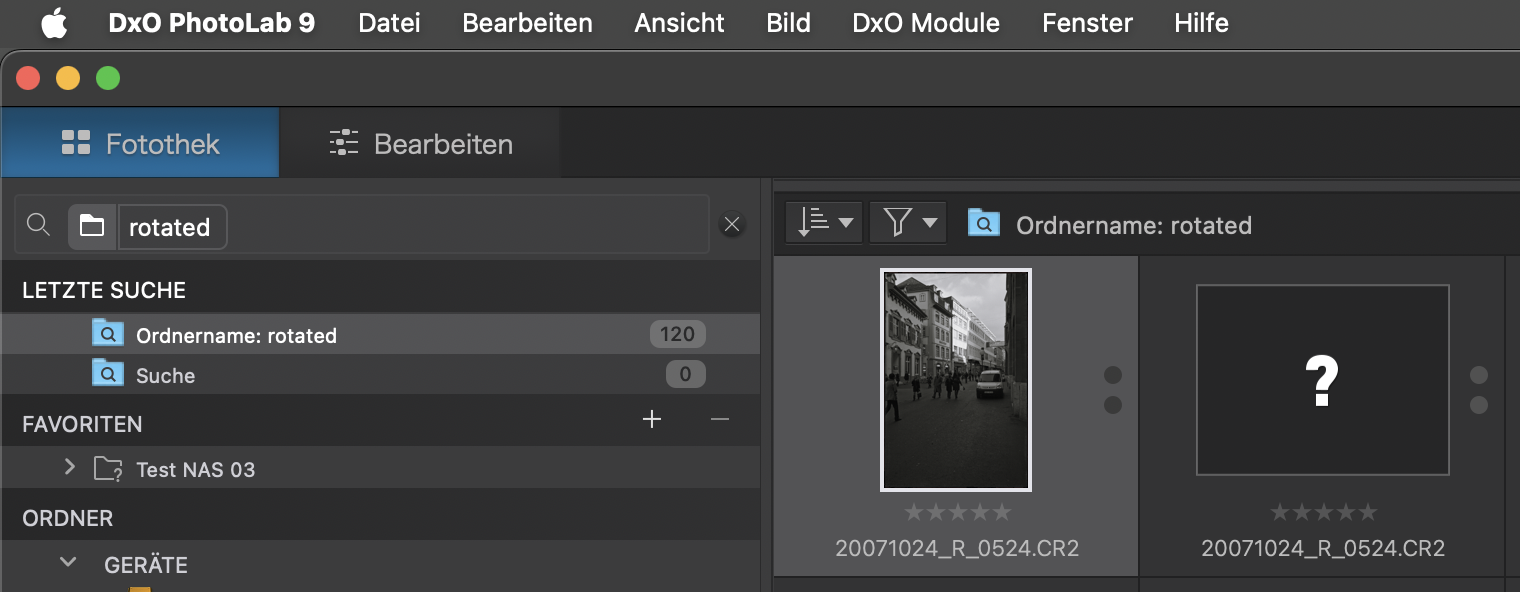
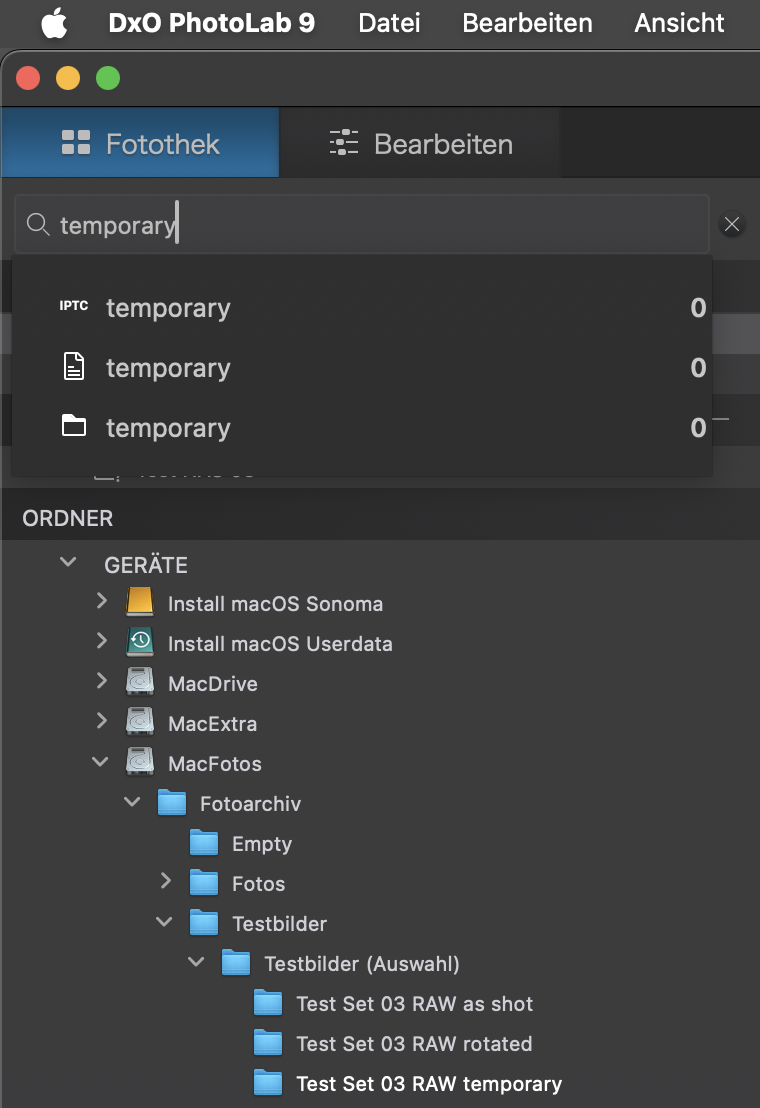
I moved the files from the “rotated” folder to “temporary” and back. Now, searching for temporary correctly shows a folder (because it exists) with the number of images being “0” which is correct. Clicking on the folder shows a “so search results” message which is true too. Showing a folder icon with a number of “0” suggests that there are no folders the names of which contain temporary, but this is not what DxO means.
My understanding: search results are added to a “smart” collection that is shown in the “last searches” section in the left sidebar.
I’d prefer to get (real, unlimited) smart projects (or collections) instead.
I find it hard to believe that DxO would have meant a “renamed folder” when they said “moved folder” in their language.
Additionally, I emailed support got a response which indicates there IS supposed to be functionality as I am inquiring about. See my post here (which never received a reply – how sad), in which I pasted their reply:
I was mostly curious if anyone else is able to utilize this supposed new functionality or not.
Whether a folder is removed or renamed should not be too relevant, because it makes a new folder and leaves one folder orphaned. It looks like PhotoLab is prepared for such changes on a folder level, but folder contents is still lost or more precisely, not lost but left and not locatable.
So now, I tested the following
moved a folder to a new location
opened PL → the moved folder is shown in the new location instead of the old location
Searching for the moved folder worked, but showed missing files
Selected the moved folder and the images were shown as expected
Searched for the moved folder again: finds it with n images and n missing images
Looks like
PL is keeping track of folders
PL is NOT keeping track of folder contents
a) by showing missing files in search results
b) by having to select/index the folder to show its content
c) by NOT removing the missing files from the DB
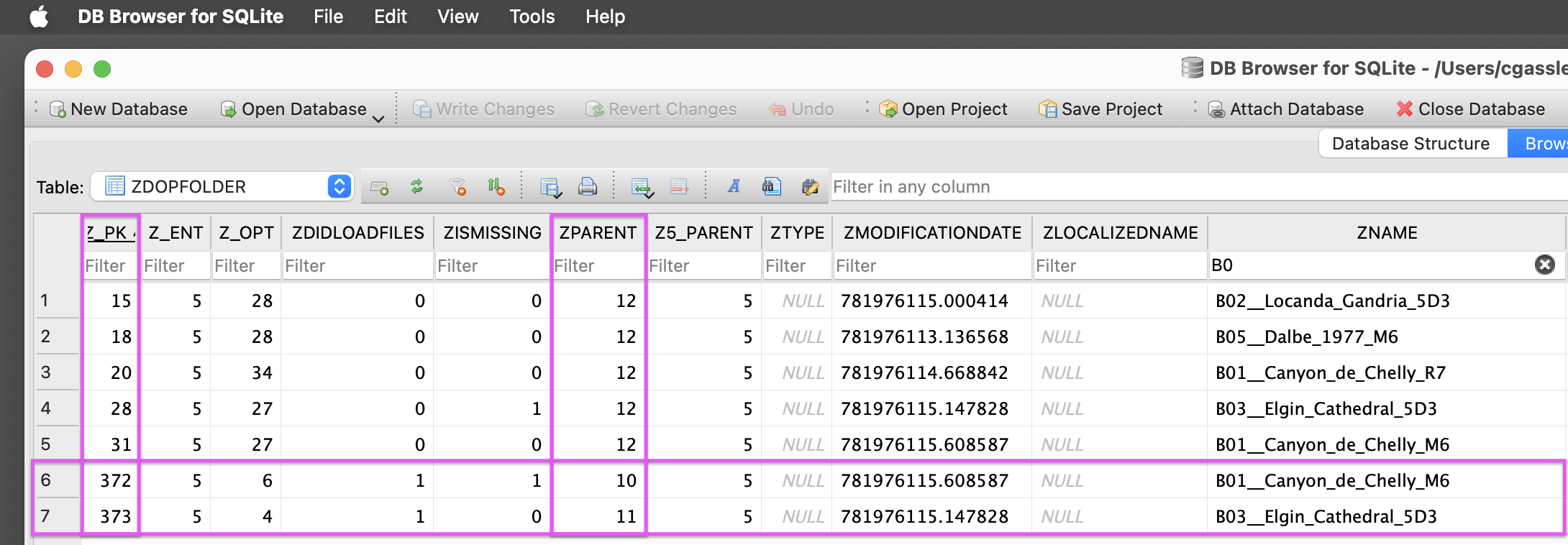
As we can see from the higher index number (highlighted, left) and parent (highlighted, centre), the two folders I moved have been added to the database and the old entries still remain. This leads to the missing files, the ones displaying a ? instead if a thumbnail.
Folders have no UUID, therefore, they are difficult to track and PhotoLab simply adds the folders to the database. This can be done, but inevitably leads to lost images from a DB/search point of view.
If folders just got a new parent instead of an additional entry, things were resolved with a minimum of logic. Whether such a thing can be done technically, I can’t say.
During the tests, missing folders never showed in DPL 9.1.1. on macOS 14.8.1 on Intel iMac 2019 - except for a folder on a SAN drive that isn’t automatically connected.
If I rename a folder while PL is open, and it registers that change (seems always to) then the images show as “lost” temporarily if I search for them, but after a moment, the files seem to “come back.”
It seems to give me results for both the old and the new folder name, though, which is odd but not that bad.
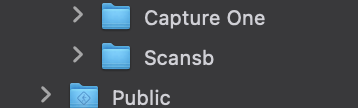
Folder used to be named “Scans” and I changed it, with PL open, to “Scansb”:
Regardless of all of that, the reply I got from DxO acknowledged that this “locating of a folder” IS a feature that SHOULD exist. Otherwise why would they give me steps to see a “greyed out folder” in the source tree and to right click that folder and select “Relocate Folder?”
That is a very specific instruction set that could only mean the feature exists. I just can’t seem to get it to work the way they intended.
I’ve had cases of lost folders that I was able to re-locate in earlier versions of PL. I simply could not create the situation in PL9.
…PL will track changes, but I found (in older PLs) that changing with Finder) a name of a folder and back (with Finder) to its original name created lost files.
What I see on my Macs is a consequence of PL only adding things to the database. It all looks logical, but feels annoying anyways. And as we can see in the screen capture of the database (parts of it), duplications can only progress.
I got rid of the lost files while keeping the database
…but the procedure is not for everybody.
In Finder
created a folder AAAARGH (the name doesn’t matter, but is good for sorting
launched PL9
In PL9
AAAARGH was visible
Quit PL9
With DB Browser for SQLite
changed parent folder of lost files to the one of AAAARGH
saved the DB and quit the DB Browser
In PL9
selected AAAARGH
moved it to the trash
checked for lost files - and they were gone
The procedure works well if lost files are from a small number of folders. Whether there are some side-effects, I cannot say. If you want to try the procedure, create a backup of the DB before you start. I didn’t check all possible relations, but reconnecting a folder to a different parent folder felt like causing no extra cartload of trouble. It was fun to do, but again, you decide whether to go down that road (or up that hill)…
All in all, trashing the DB and indexing from scratch is more reliable, although it comes with some loss (which depends on platform)
The icky part in doing such a thing is to find the entries in the DB that should be changed. If It’s concerning a bunch of files from e.g. one shoot, you can find the records by filename…and I usually make it start with YYYYMMDD. You can still find files that aren’t lost, but they can be transferred back manually inPL, prvided you’re dealing with a reasonable amount of files. The whole thing was more of a proof of concept than a how-to to fix a DB messed up over a long time.
You can also match the filenames and foldernames to limit the number of false positives. (not using the names but the respective index numbers for folders)
I’m not really a DB person, I’m just someone who likes to probe the limits…and has the backups to prevent disaster
BTW, PL is currently indexing after I’ve trashed the DB. This takes one thread per app, so I can run PL 7, 8 and 9 in parallel. Each app catalogs about 1000 images per minute - on my 2019 i9 iMac (single core geekbench score 1621)
Like any other company, DxO gets new folks and instructs them to use predefined text in their responses. In the beginning, this causes an appearance of bots, fools or AI, but it’s just inexperience in combination with prefab text.
I create a lot of tickets and usually get reactions in due time and quality, but it really depends on whether a newbie or an “oldie” handles the case. I often get the impression of “not understood/read the ticket” and then it pays to be patient and civil…and often enough, an “oldie” will take over.
Early in my career I wrote tech manuals and learned first hand how difficult it is to get up-to-date info from developers!
Later, when I had become a developer, I learned first hand how difficult it is get the latest information to the tech writers and to tie it to the correct version of software!
But if I move a folder outside PL, it still has the same behavior as before where that folder instantly disappears in PL’s browser (whether moving the folder in the Finder when PL is open or not), meaning that this menu option seems to be useless.
What you can now do is remove the “lost” images from the search results, which I believe basically purges the bad reference from the PL database. You do this the same as deleting any photo–except now it doesn’t complain that “the image cannot be found” when you perform the Remove command.
All to say, that while you cannot move folders in PL, you can move them outside PL and still be able to clean up your search results so it’s not a mess of (?).
Perhaps they will improve this in subsequent “dot” releases of PL10, to make that “Update folder location” menu item useable.