Good afternoon, sorry if this is covered somewhere else, i am a registered blind pohotgrapher, there ive said it.
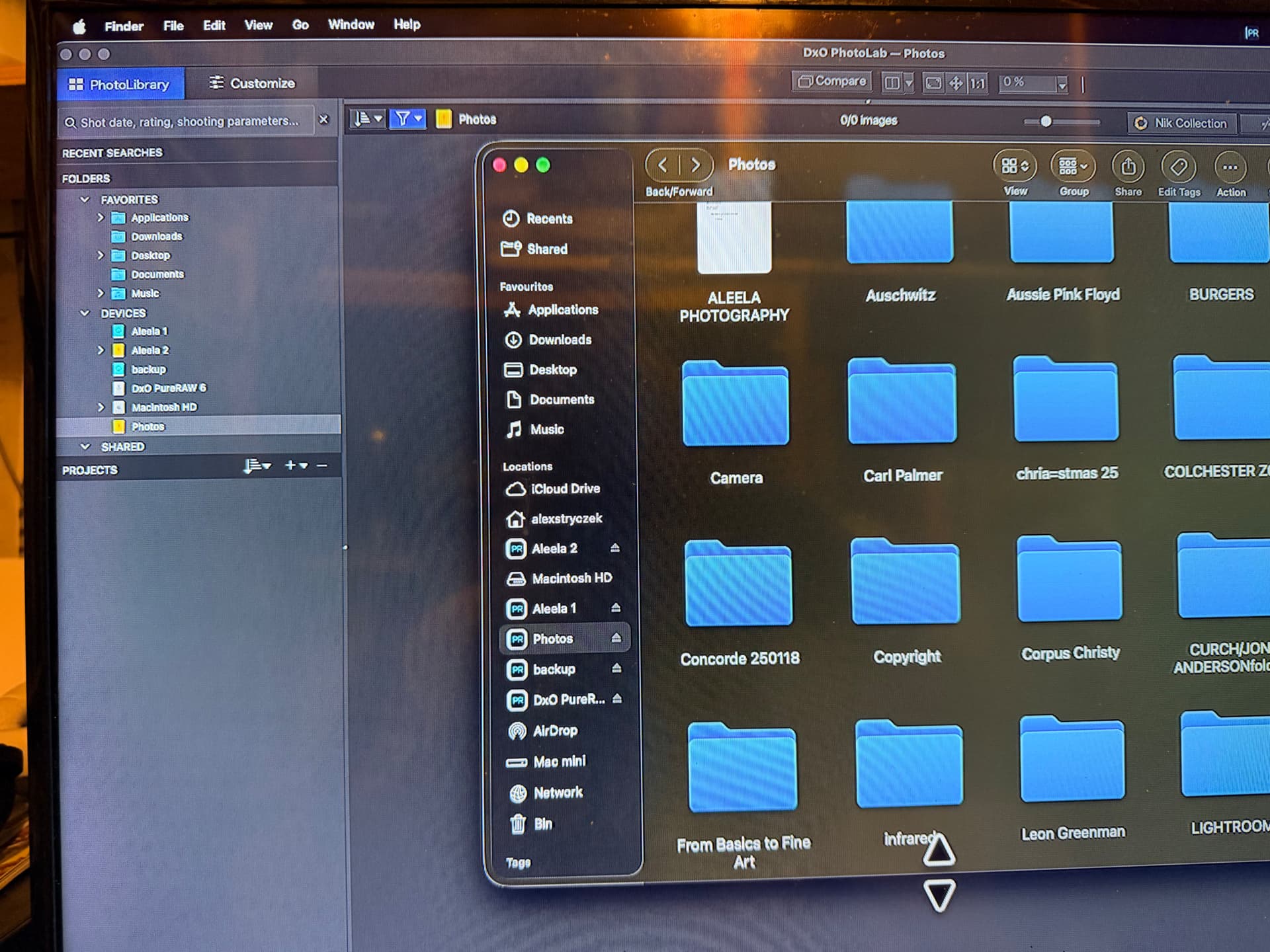
i am using an apple mac studio, attached i have four external hard drives, one is dedicated to my photograp[hy files, into several files all photographs, i was about to consider upgrading, so decided to try the software again, but i am unable to extract photos from my external drive ‘photos‘! the left hand panel says the selected ‘THIS FOLDER DOES NOT CONTAIN ANY IMAGE‘.
CAN SOMEONE TELL ME PLEASXED WHAT I AM DOING WRONG???
If by that you mean that all your photos are in sub-folders of a main / root folder and you have just selected the root folder, then PL is telling you the truth. PL will find the photos if you browse into your sub-folders
But that makes absolutely no sense; as the software refuses to look at sub folders then it is not very helpful, it just means I have remove the photos from the sub folder into a separated folder that is not very logical, I can not be the only person who stores their photography portfolio in this way?
as you can see the folder photos is highlighted on the left but the main screen shows the folder is devoid of images, the screen below shows some of the sub folders, is there something I’ve done wrong along the way??? I’m used to, for instance, photoshop; file, open then searching the drives internal folders, I’ve been doing this for nearly 30 years, so am stumped, I think it was this that stopped me using this software in the first place
I’m on windows.
But when I look at the pl part of your screen shot I see that photos doesn’t have subfolders. There is no arrow in front of it. While your os part, is it it, does show photos with subfolders. It looks that it is another directory as the one pl shows.
The folder structure you see in PL’s PhotoLibrary is the folder structure on your disk(s). The fact that the ‘Photos’ folder that is selected in the left hand pane of your screen shot has no expansion arrow (>) on it implies there are no subfolders in that location. Since you say that location does have subfolders, you will have to wait for a Mac user (perhaps @Joanna?) to comment on why PL is not seeing those subfolders.
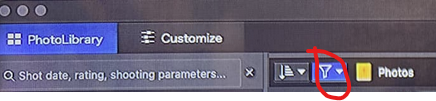
Meanwhile, have you checked that there are no filters set, which would hide images not matching that filter? Click on the filter icon:
You don’t have to save it explicitly. Any edits you make to any of the virtual copies you make, are automatically saved to the DOP file and/or the database.
It is only when you export the image that a bitmap image gets created on disk.
Because of this, you can dispose of exported versions after you have used them, knowing you can recreate them at any time later. This saves an enormous amount of disk space.