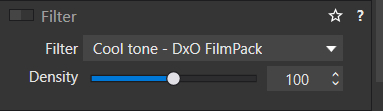
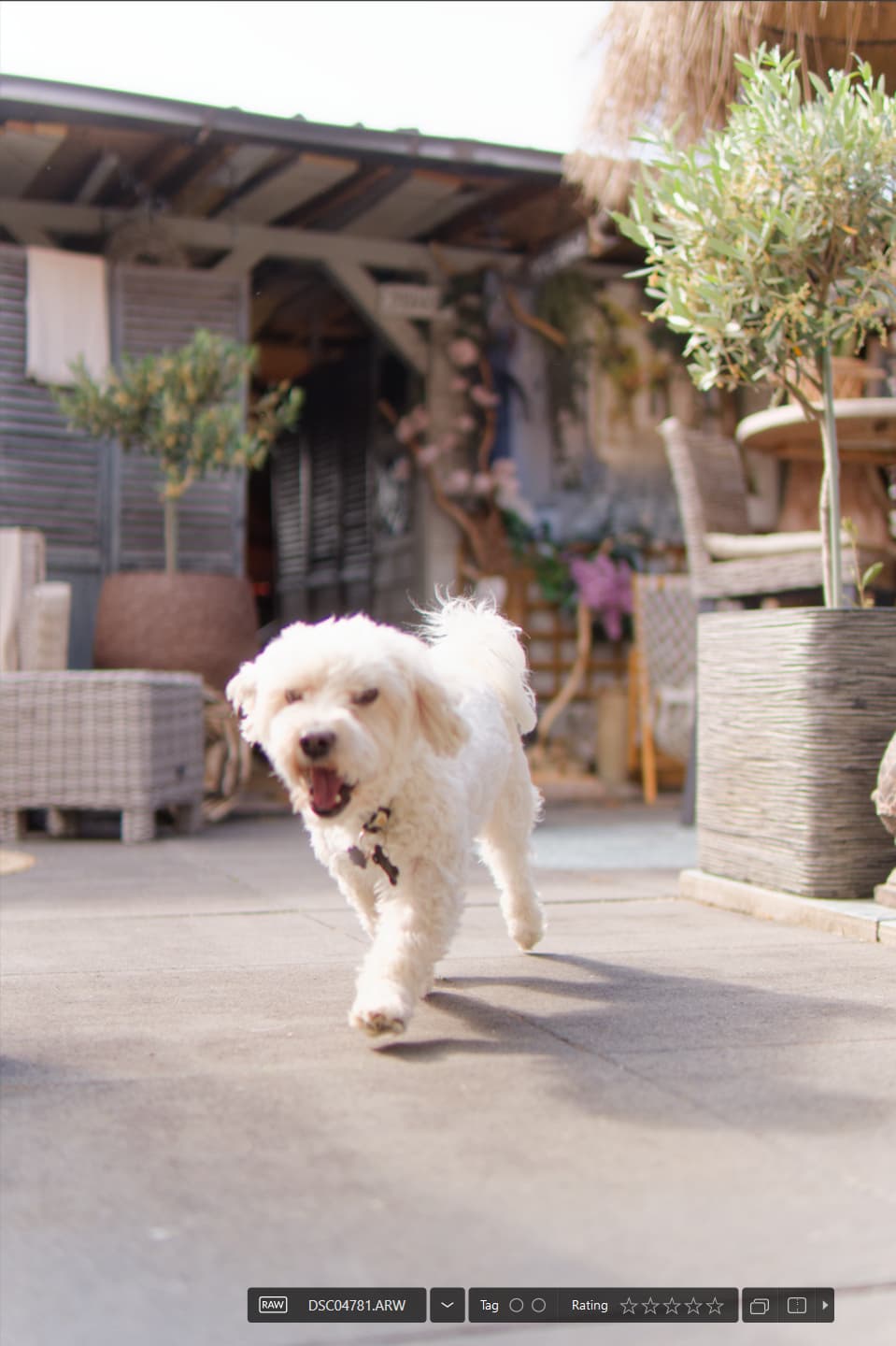
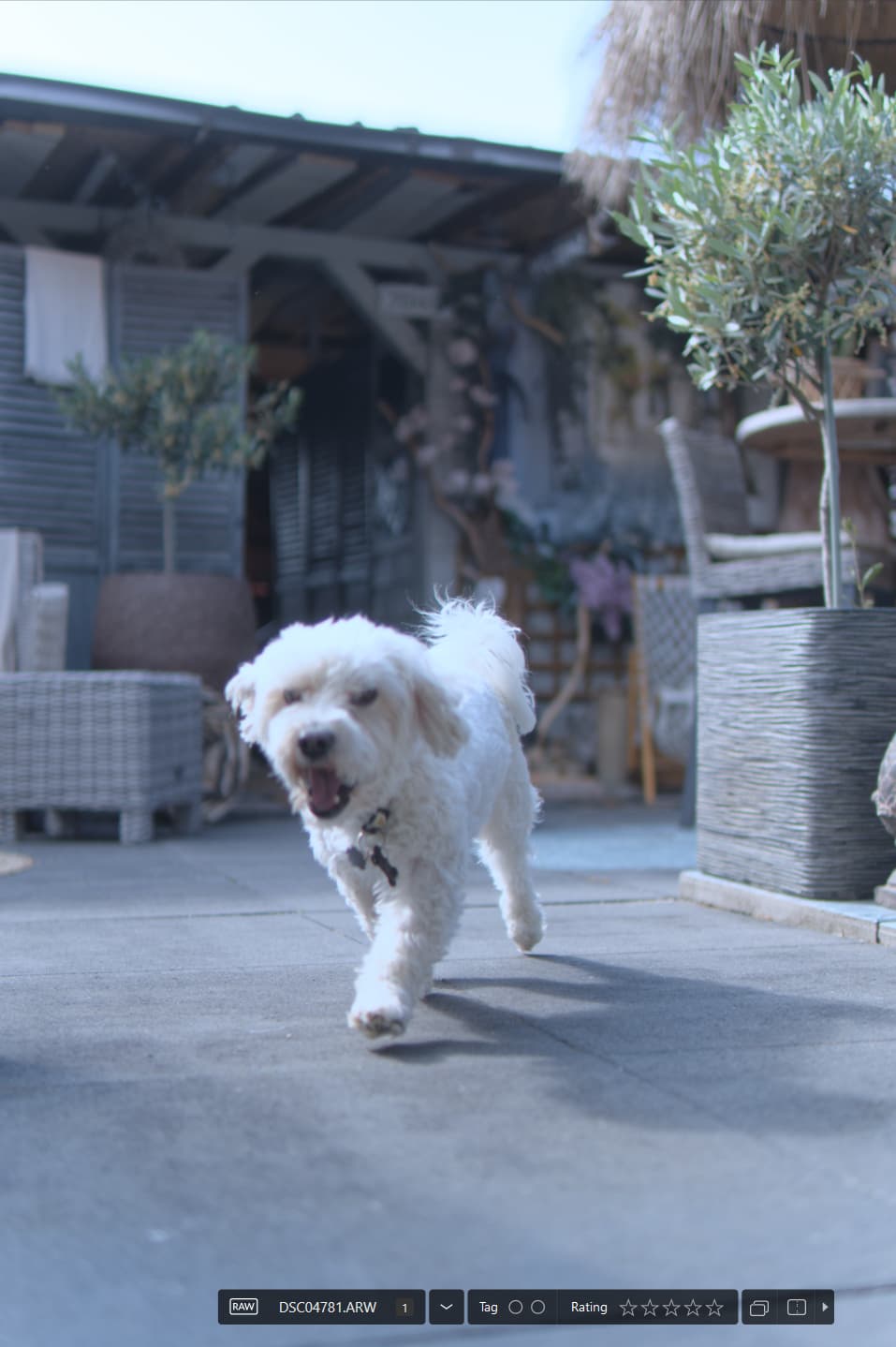
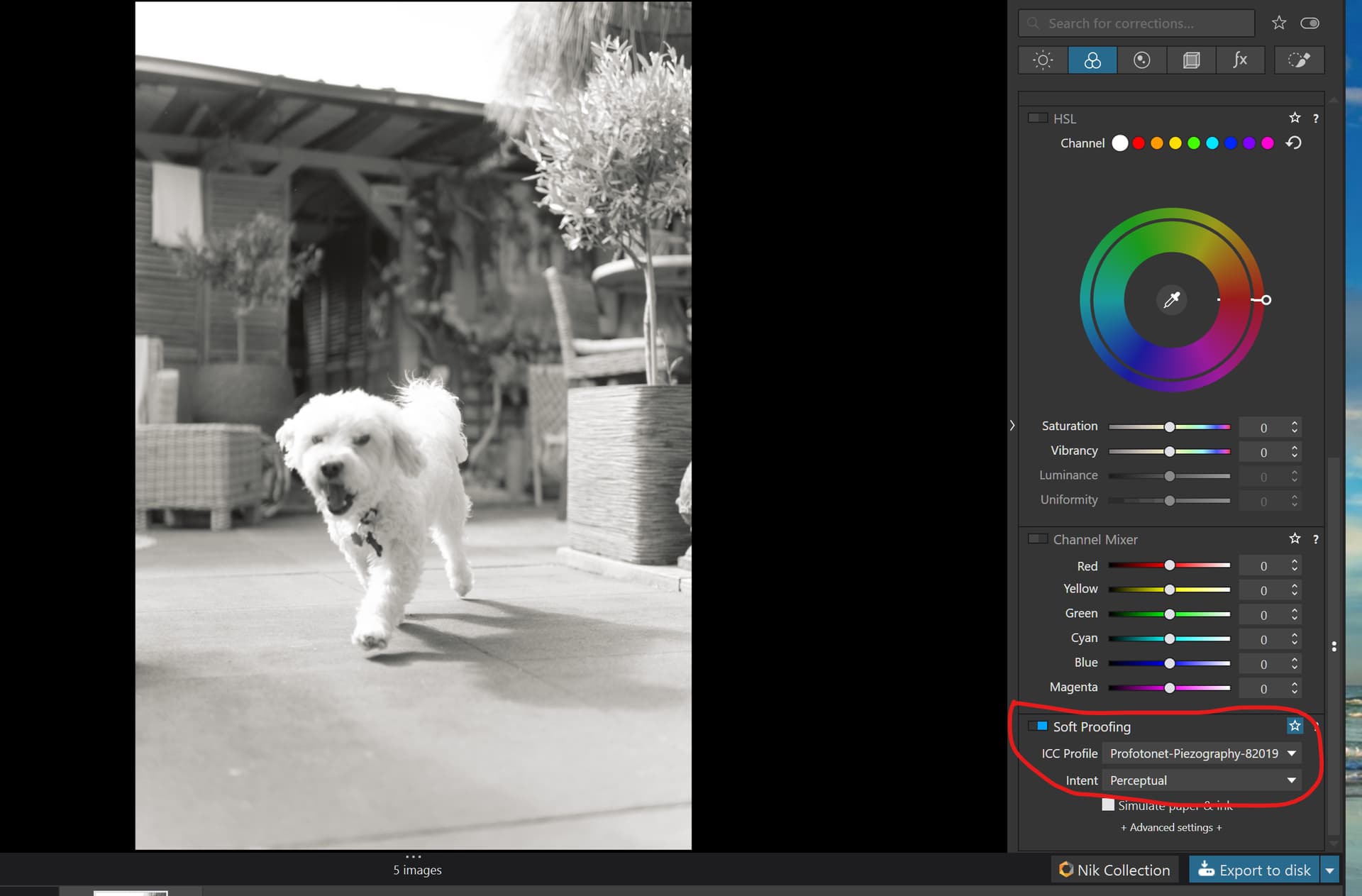
@Joanna My original test was done with PL8.6.0 and the DOP was PL8.7.0 so I installed PL8.7.0, cleared (deleted) the database, navigated to the image with its DOP and when I checked I found this which indicates that the setting is not set and if it was then the exported image would also look like the image in the editor, i.e. they would both have the “Cool tone - DxO Filmpack”.
@George The sp (Soft Proofing) does not affect the image presentation whatsoever regardless of whether it is on or off. The only thing that changes is the image backing outline and that is bright white by default and a different shade of grey in my case.
It is whether the 'color! ‘Filter’ option is on or off that toggles the ‘Cool Filter - DxO Filmpack’ which does change the image presentation a lot.
So in my 4 image snapshot I have created a VC and set the option on, my point was that in the DOP we received that option is off. I then exported the jpg back to the same directory so we have
To get the example that @Cookiejar showed it would have required the following steps
Export the image with ‘Filter’ OFF
Set Filter “ON”
Compare the two images and prepare the post using that combination
Turn ‘Filter’ OFF to create the DOP for the forum
Possible and only @Cookiejar can answer that! My original concern was that the post I made earlier was using a PL8.6 release with a PL8.7 DOP which was a mistake on my behalf, sorry.
I just try to tell that the dop file he did sent was not the dop file he used. You can’t rely on that.
Further that the exported is different from what was visible on the screen. A situation that can be archived with sp on and exporting in a different gamut. I’m not aware of another setting where the image on the screen and the export can differ so much.
@George Thank you are did understand, i.e. that Soft Proofing was different and other settings may or may not have been different. Thank you for reminding me about the Gamut differences.
My concern is that it should be obvious to a user if they exported with the image off and then changed an open and suddenly the two images don’t match, i.e. toggling the ‘Filter’ option causes obvious changes to the image display. Changing the ‘Gamut’ has more subtle changes
Normally the in memory image in the working color space is converted to the monitors color space. When sp is on, the image in the working color space is first converted to the sp color space and that one is converted converted to the monitors color space. Depending on the monitor and the color spaces you probably won’t see much difference. That’s why I choosed this icc profile.
Back when I was testing DxO’s new Wide-Gamut working colour space I just happened, (by happy chance) to be running Export(s)-to-disk using an image with deeply saturated red autumn leaves … and I was “bewildered” to find the result, when exported to disk with ICC = sRBG, looked noticeably different from what I was seeing within PL.
The reason for this is that my monitor is 99% AdobeRGB capable … so that saturated reds, in particular, looked quite different within PL (when rendered for my AdobeRGB monitor) c/w the exported sRGB image.
I found the simple way to avoid such surprises (especially when exporting via an ICC Profile with a smaller colour gamut than one’s screen is capable of rendering) is ALWAYS to have Soft Proofing enabled.
I agree that it’s not the case that every (or even many) images will have potential to be significantly different (from within PL c/w the result exported to disk) - but I’d rather not be caught-out … and it’s no big deal to have SP enabled - - and then you can be assured it will always be the case of W-Y-S-I-W-Y-G.
I too have an Adobe RGB capable monitor and for me the simple way to avoid surprise colour shifts is to export with an embedded Adobe RGB profile.
If then want to print the image I use Affinity Photo working in Adobe RGB and I find the prints are a good match to what I see on screen. Any time I’ve tried to print direct from PL I’ve been disappointed with the outcome.
Only if I want to share the image do I convert it to sRGB. For that I again use Affinity Photo because I find I can better manage any colour shifts that arise with the tools available in Affinity Photo.
G’day, Ken - You left off the crucial ending of my quote;
My export target is sRGB … as required for submitting to my photo club’s competitions, and for sharing with others. In this case, using SP ensures WYSIWYG.
PS. I’m not contradicting you - I understand your approach for your use-case … I’m aiming to make it clear for others why & when Soft Proofing IS worthwhile NOT ONLY for printing.
Likewise. I just find it easier to convert to a smaller gamut outside of PL because I find that, despite DxO’s claims of accurate colour control, their handling of colour from my Canon 90D’s .CR3 files is not always great.
Yes, good advice, check your colors before exporting for display purposes. But, there is also a downside in leaving soft proofing on sRGB at all times. You may be truncating a wider range of colors needlessly. While your photo club may have its sRGB requirements, the rest of the digital world is moving to a wider gamut. Adobe RGB and especially Display P3 capable displays are increasingly the norm. There’s probably one in your pocket. As @stuck recommends, routinely embed an actual ICC color profile at export. Color managed browsers and apps, mostly all these days, will handle colors appropriately whether the display is sRGB or wider color gamut.
I just want to thank everyone who participated. I managed to fix it. Apparently the color profile of my monitor was corrupt and while other programs didn’t seem to have an issue with it, DXO certainly did. I set it all to sRGB now and it fixed it.
If any of you have suggestions for best profile to use I’m happy to hear it but for now sRGB works.
Stenis
(Sten-Åke Sändh (Sony, Win 11, PL 6, CO 16, PM Plus 6, XnView))
39
You don´t happen to have a Benq monitor?
There is a problem I have confirmed since long with my generation of Benq. What happens is that in parallell with the profiles created in the monotor an ICM-file is created to secure compatibility with older third party Windows-applications. In my case I have verified that with for example XnView.
I have created profiles for sRGB, Display P3 and Adobe RGB. Lets say I primarely use Dispaly P3 and of that reason started with profiling that and then created sRGB and last Adobe RGB. I can then switch between all these in the monitor BUT the problem is that the ICM-file will host a Windows-profile that corresponds to the last one you made which was Adobe RGB in my example. So despite if I switch to Display P3 on the monitor XnView will use the ICM with the Adobe RGB, because that happened to be the last one exported.
If this would have worked properly the active Windows ICM.file would automatically switch to the Display P3 one when i switch to Display P3 on the monitor because otherwise they will get out of sync. So today I have to remember to change the active ICM to get in sync betwen motitor and the Windows ICM.
Just when I had bought this monitor it was almost driving me nuts before I finally understood how it was working . Luckily these files are named after the color space used when profiling the monitor so it is very easy to switch to the correct one in XnView. I consider this to be a bug because I don´t think the users should need to do this manually.