I am very pleased with my purchase of PureRAW 6, and use it quite a lot in Windows 11. My workflow involves exporting to Affinity Photo 2. My version of this is the one that renames its install folder every time there is an update. Each time this has happened I have had to select the Affinity .exe in this new folder in the ‘Export to application…’ dialog. This causes a new entry in the list of apps shown. I have to be sure to choose the bottom one! I have now found a quick way to find an unchanging path to Affinity (aflaunch.exe) but I have now built up a list in that dialog, and I wondered if there was any way to edit that? I can’t see any settings file.
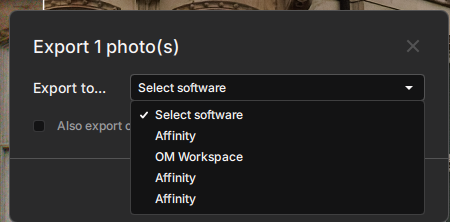
As you are using Windows the file you are looking for is likely to be called:
editors.xml
and for PhotoLab it is found in:
C:\Users\ [yourUserName] \AppData\Roaming\DxO\DxO PhotoLab 9\Database
I’d guess there is a similar sort of folder that hold the equivalent file for PureRAW
NB the \AppData folder is a hidden folder
So why not install the MSI/EXE version in place of the MSIX version? You can get it by selecting it from the dropdown on the download button here:
1 Like
It’s the growing list of old Affinity installs I want to trim. I’ve already solved the Affinity install folder problem.
See my first reply, I’ve just edited it slightly as I initially missed you are using PureRAW not PhotoLab
That folder exists, because of a trial install of PhotoLab 9, now deleted, but it only contains a file called Photolab.db - I am asking about PureRAW 6.
Is there not a PureRAW folder under:
C:\Users\ [yourUserName] \AppData\Roaming\DxO\
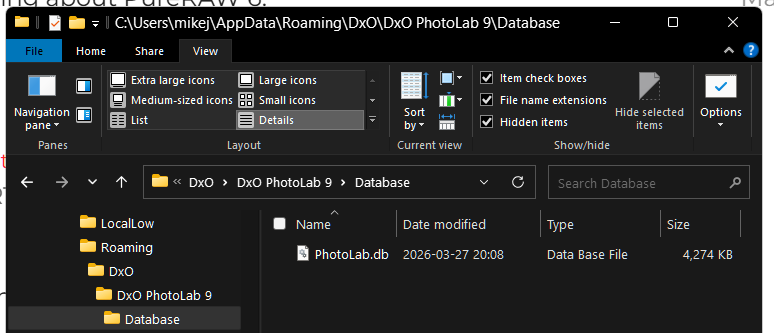
So it seems PureRAW doesn’t store the data in the same way as PL. In which case, until someone else who has / uses PureRAW chips in, what happens if you search under \AppData for ‘PureRAW’? Once you find where PureRAW is placing its app data stuff you might then be able to find a suitably named file that holds the list you are looking for.
In case anyone else encounters this issue, I raised a support ticket with DxO, and got this reply:
At the moment, DxO PureRAW remembers applications that have been selected through the Export to… feature, and those applications remain available in the drop-down list for future use. The software allows you to add multiple applications, and the selected application is remembered between sessions.
Currently, PureRAW does not provide an option to edit or remove individual entries from that list. In this situation, the approach you are already using is the most practical one: selecting a stable launcher executable such as Affinity’s aflaunch.exe, which remains valid across Affinity updates and avoids creating new entries each time the application path changes.
For now, we recommend continuing to use the aflaunch.exe entry and disregarding the older entries that are no longer needed.
Of course, uninstalling Affinity and re-installing the MSI/EXE version would also provide an update-proof application list entry.