Does Photolab write something inside the Exifs ?
Of course the Raw file is untouched (by definition), but I would like to know the basic parameters applied to the resulting edited output.
SOmething like : film simulation applied, brightness, denoising method … and so on.
Of course there are so many possible tweaks , and not all of them have a room somewhere inside the exif data.
But it would be nice to have at least some of them.
It writes metadata but not edits. Those are written to a DOP Sidecar file.
PhotoLab doesn’t write edits to RAW for the same reason as JPEGS and also writes edits to DOP sidecar files. But other software can safely write metadata either to the RAW or an XMP Sidecar file.
It appears to add a single entry under ‘Editing Software’ which it sets to ‘DxO PhotoLab 9.1.1’
The Export panel allows the user to specify whether EXIF data is written and also to control certain IPTC keywords too.
It appears to add a single entry under ‘Editing Software’ which it sets to ‘DxO PhotoLab 9.1.1’
I don’t see any line marked Dxo Photolab
I am using Photoshop 9.1 for windows
The Export panel allows the user to specify whether EXIF data is written and also to control certain IPTC keywords too.
As far as I can understand , those settings are meant for the original Exifs taken from the RaF file. There is no mention about the development parameters exported inside the exifs.
This means there is no way to see the development parameters, apart from learning how to decode the .Dop file 
Indeed. PhotoLab is a non-destructive editor that combines editing parameters with the image only when the processed image is exported.
I used PhotoMill to display all the EXIF data. I am running on MacOS.
But @sandrogsp wants to see editing parameters not EXIF. Something which is not possible without inspecting the DOP files.
@sandrogsp and the best of luck with that, the best (possibly the only) way of seeing what is in the DOP is to use PhotoLab.
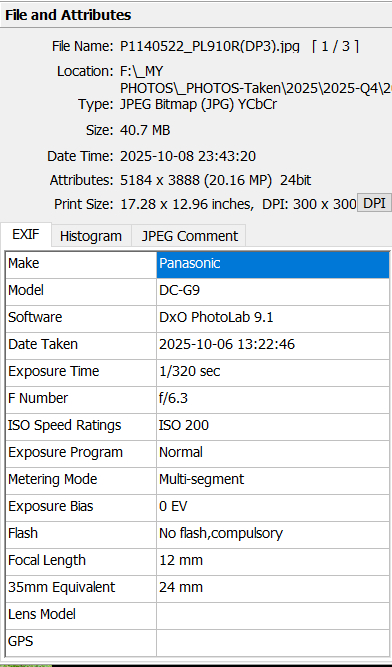
From FastStone Image Viewer looking at a JPG export from PL91
@sandrogsp My first statement wasn’t intended as a “put down” but just searching the DOP for the term “noise” results in the following
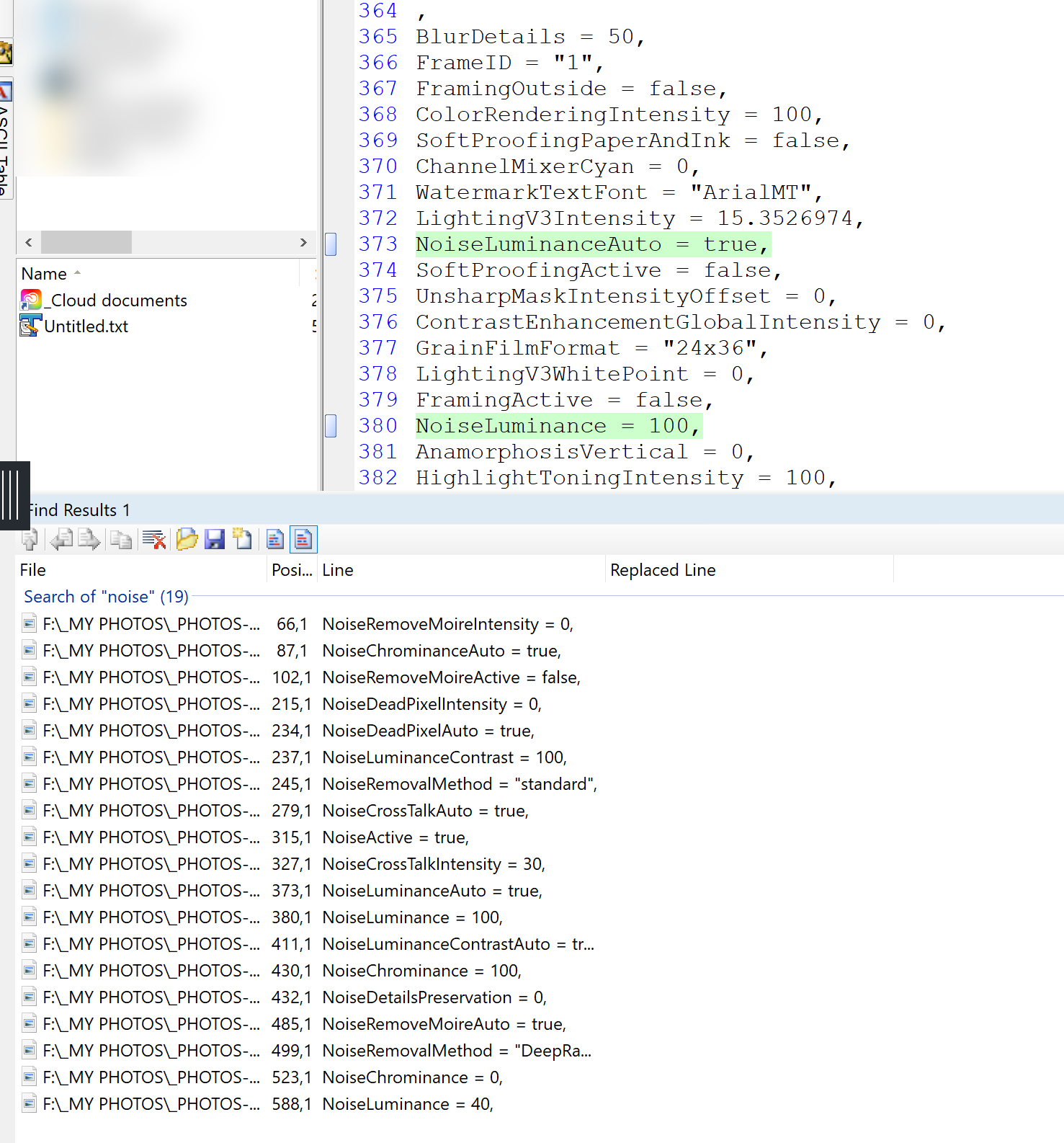
and searching on “denoising” or “De-noising” found nothing.
So you need to know exactly what you are looking for and might find it in more places than you imagined possible.
PhotoLab understands how to put it together to present the edited image.
I and others have created Partial Presets the correct way and then hacked them slightly to create variants but at that point we can interpret the small amount of data being presented otherwise …
It’s written to the exported image (JPG, TIF, etc) - Not to the source/RAW file.
It’s actually quite easy to see the “development parameters”/corrections applied to any image;
- Open the image in PL
- Use the “Advanced” workspace … because it clearly lists all correction panels
- Scan down the list of correction panels and expand any that you’re interested in … you’ll see all the settings you have applied to the image.
I know that.
But this means
- connect my Nas storage
- restore the Raf + Dop files
- Open Photolab and search the relevant image
- give a look to the parameters
- remove all restored files (to avoid cluttering the disk)
All of this just to satisfy a curiosity over a particular image ( How did I process this one) ? Of course I will never (almost never) do all of this.
This is why I asked about the development parameters inside the Exif !
Writing into raw files should never be done as you risk corrupting the original.
Best way for you would be a aquire a proper DAM which can manage and populate the xmp files with the information you wish.
I use PhotoSupreme for both photos and videos and many others use iMatch, ACDSee, MediaPro or the free digiKam.
1 Like
When it comes to writing metadata, this is simply not true. A RAW file is made up of several sections - only one of which contains the RAW data, which is not touched.
I have an app that uses ExifTool and I have never, ever had file corruption. ExifTool starts by copying the file, then writing the metadata to the copy, then verifying the edited version against against the original. Only after all that, is the original file deleted.
So, if by any one in a million chance, the edited copy does get corrupted, you can always recover the original from the trash.
No, no, no. ALWAYS save your original RAWs before using any software which may change them. Bugs just happen.
For example, several versions of Nikon CaptureNX(2) were known to corrupt Nikon NEF files in certain cases, since CNX used metadata to store edits. Same was true for Nikon Transfer and some DAM tools. Often the corruption is irreversible, because it causes overwriting some other data, e.g. RAW pixels.
Note that some parts of RAW files may use offsets relative to start of file, while in other parts relative offsets might be used. Even exiftool doesn’t know the details and internal structure of some tag values. Some metadata fields might be used for decrypting of other metadata, like Nikon uses camera SerialNumber and ShutterCount to construct decryption key used to decode some vital metadata, like white balance, shot info, lens info, etc.
3 Likes
Please see also the Exiftool Writer Limitations which state (among other warnings):
But, of course. but for those of us on Mac, we always have Time Machine, which can recover originals without having to explicitly save them. Doesn’t Windows do the same?
All I can say is I have been using ExifTool since, at least, 2019 for things like keywords, star ratings, Finder Tags, etc and have never had a single case of corruption.
To remind you that I also wrote that ExifTool also automatically creates a copy of the original, which it then edits and can optionally retain the original in case of any problems.
For those who are particularly nervous, that option can easily be activated.
Of course, it is possible to write illegal values but that is why, when writing my software that wraps ExifTool, I did exhaustive tests to guarantee this was not possible for the keys I was writing.
Why do I write metadata to RAW files? Because it allows me to use Apple’s Spotlight search directly from Finder for all sorts of attributes, without having to search XMP files and then find the corresponding RAW from there. So much easier.
@Joanna, @Herman_S , @Required I believe that @sandrogsp wants to see the edits that have been used on an image in the past and not the metadata and no amount of metadata tools are going to help with that one.
So @sandrogsp what you want doesn’t exists, at least not in an easily accessible manner, if my comment above is correct, or rather all the details are in the DOP (and the database of course) but not in any easy way for the user to actually visualize what an image looks like when those edits are applied, except by actually using PhotoLab as the viewer and you have made it clear that is not a realistic option.
I used CaptureNx2 also for writing keys to the file. In matter of fact it added a whole edit list to the raw file, one for each edit. More where possible.
Newer cameras where not supported by CaptureNx. Now I use ViewNx2 for adding keys and renaming. Never had problems with it. The only problem I experienced was with the viewNx suite. Renaming was done in a reverse mode. I don’t know how to change that. So still using ViewNx2.
It doesn’t change the original raw file, just adds a section.
Every brand has a section Maker Notes with the camera specific edits.
George