I am running on a Mac Mini M4 with 64 Gb RAM. I think it should be faster than it is, but Correction Preview does not show when zooming or turning masks on and off. etc. Sometime with slight changes, I am not sure if they are on or not. Its a bit like working in the dark.
I see videos of PL10 users on Mac where the Correction Preview does appear.
Any ideas on how to enable this please?
Settings/Display/Viewer quality, if you haven´t done that already
Thanks Lars, that was already enabled
Are you saying the text “Correction Preview” does not appear?
Or that the actual preview itself (i.e. the changes to the image) do not display upon zooming in or turning masks on/off?
it is the actual information pop-up like this

Alright, good clarification.
For me, that piece of information shows up if only if I make a significant enough change that it takes a little while for the change to load.
For example, if I very slowly increase the exposure slider and it doesn’t have to show the “Correction Preview [spinning wheel]” message, then I never see “Correction Preview” (without spinning wheel) message.
But if I suddenly jump the exposure slider to something very different, then I see “Correction Preview [spinning wheel]” followed by “Correction Preview” for about a second, and then it disappears.
It seems to me that it only shows up to inform you that it’s loading the correction preview and then goes away. But if it loads the correction quickly enough, that it won’t inform you.
Does that track with what you see? If so, then this is probably just “the way it is” unfortunately.
Thanks Zeb, the Correction Preview never displays, but with a lot of masks, etc. I see the slow refresh.
Are you on Mac or Windows - I am using Mac?
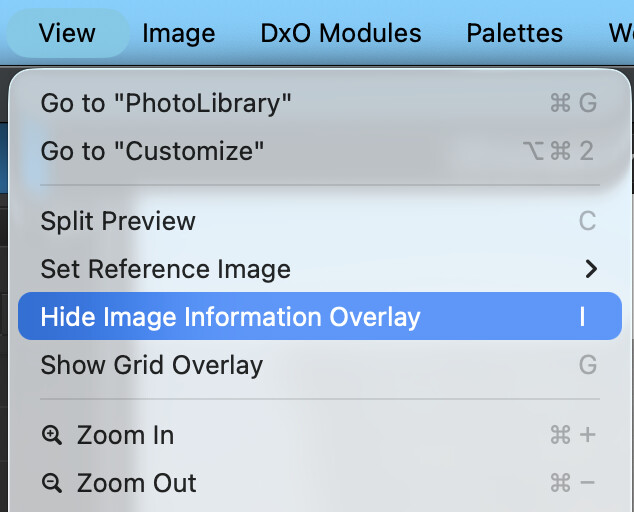
Thanks Zeb, that is exactly what was the issue. I must have switched if off
Great, glad it was an easy fix 