Does anyone know if this has been addressed in PhotoLab 7?
Apparently not addressed.
I mostly put the selection of images into a project and look at it in PhotoLibrary view zoomed in…
…or use Lightroom. 
1 Like
The program was obviously not made by photographers, since there is no option to compare two images.
1 Like
…there is, but it’s complicated to use.
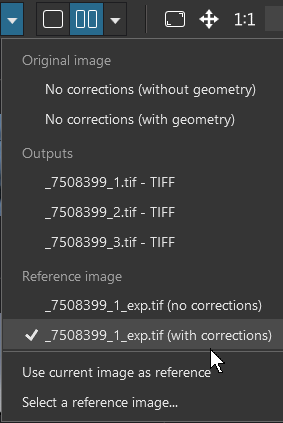
Check out how to compare images to a reference image.
It is far from the best compare tool available, but I find it useful and not as complicated as you suggest once you get used to it.
Mark
This is still the case—four years later with PL9. You cannot compare two different images side by side within the app. This is insane when it has been part of Lightroom for years now. During image selection, before I invest my time in processing, I find it very helpful to be able to examine two similar images to check overall composition, focus points, eyes, etc. at Fit view and at 100%, even 200%. It’s unfortunate this cannot be done within PL9, unless you want to waste time exporting images then looking at them in compare. My guess is, this is product of PL9 using an image browser, as opposed to a proper DAM.
Of course you can compare two different images in PhotoLab 9. The compare feature was implemented last year in PhotoLab 8. There is absolutely no reason to export an image first. While comparing images in PhotoLab would not be my first choice if I have lots of culling to do It can definitely be done. I’m not sure why you think it can’t.
Mark
It’s not as straightforward and easy to do as in LR and other apps.
@TerryMcD-luxBorealis
Some of the how-to is not quite hidden in the user guide. Search for “Reference Image”.
Totally agree. I only use the compare feature in PhotoLab occasionally for the one-off compare. If I’m trying to compare a number of RAW files to multiple similar versions, I will generally use FastStone Raw viewer which is not only fast but allows me to compare several different raw files at the same time. My main purpose in posting was to correct the misstatement that a compare feature does not exist in PhotoLab.
Mark
Before PL8 (Windows), you could only compare files with their “relatives.”
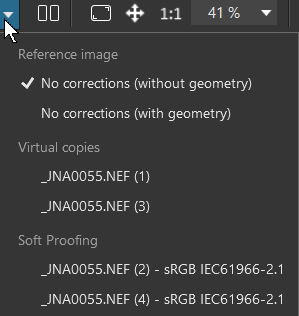
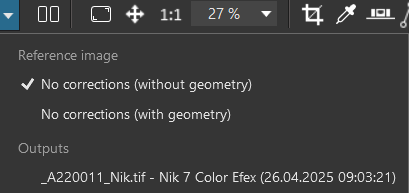
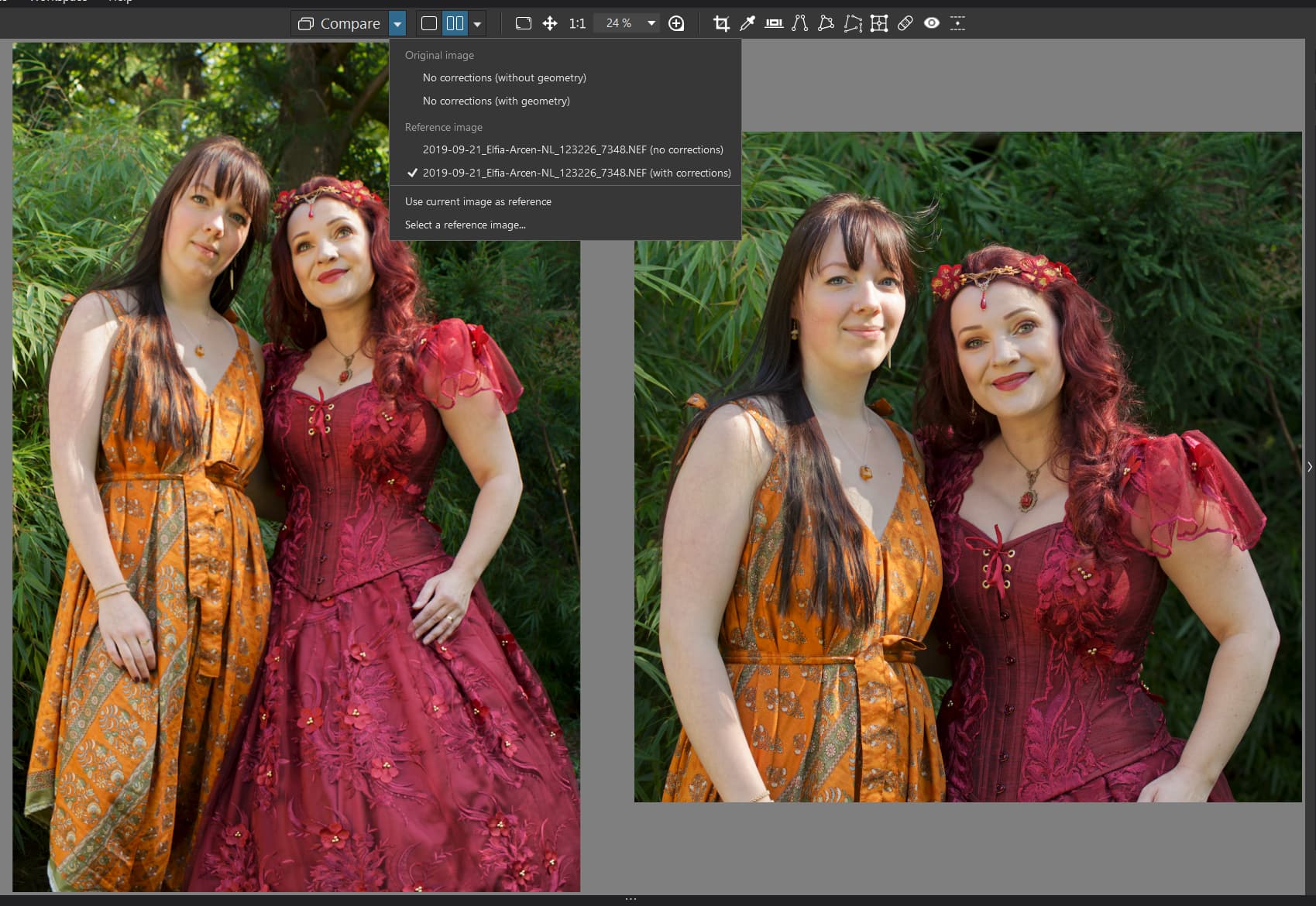
Since PL8 you can determine a reference file to compare
-
in reversed order
-
differently processed (or renamed ?) pics
-
different pics, e.g. from a serie
( the referenced pic is on the LHS )
.
and even work on the RHS pic (e.g. exposure, contrast, tone curve)
.
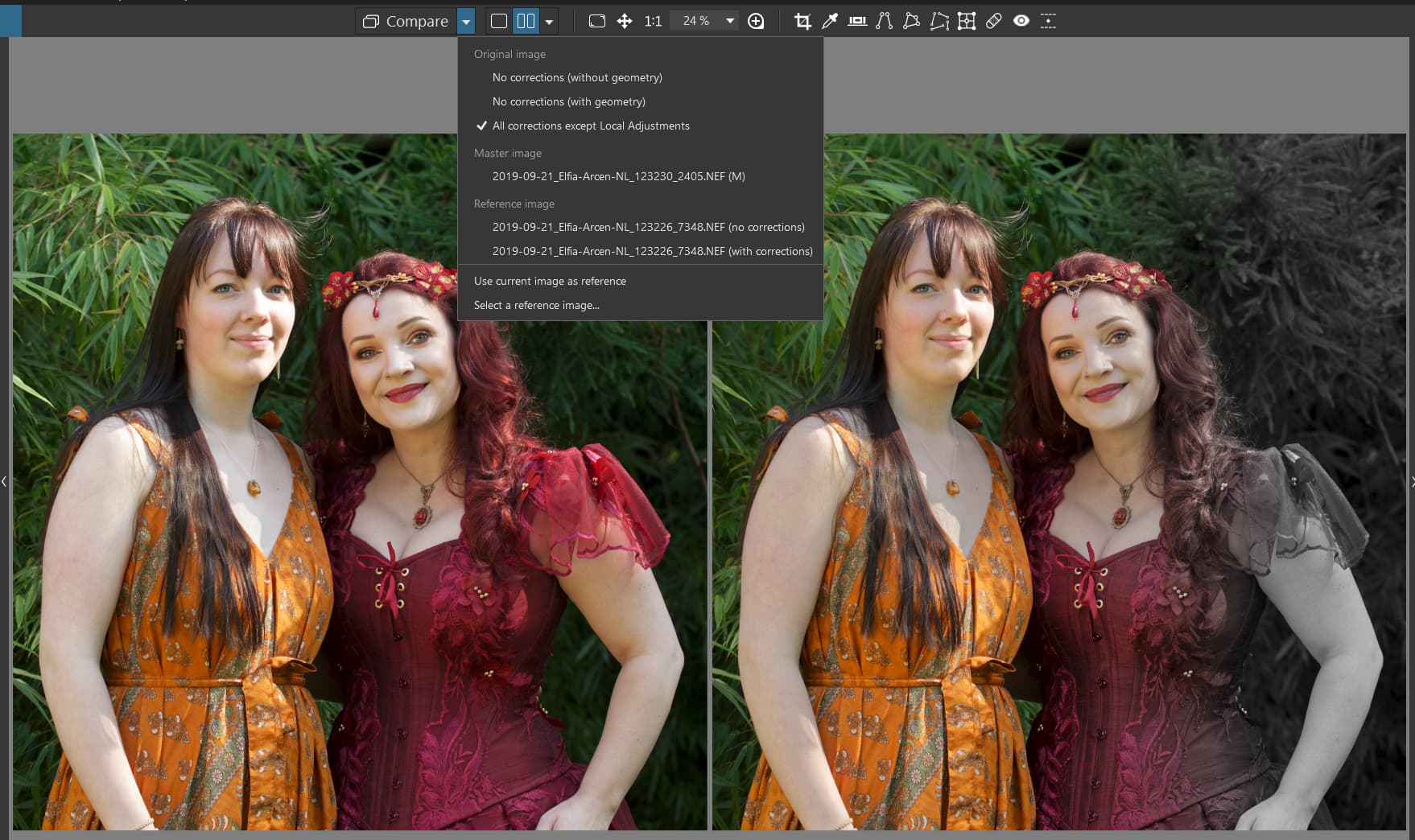
With local adjustments the reference pic gets replaced by the one without LAs
( for demonstration purposes I used a B&W gradation mask )
.
until you reset to referenced pic
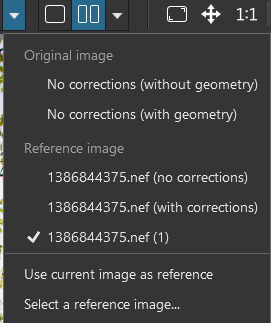
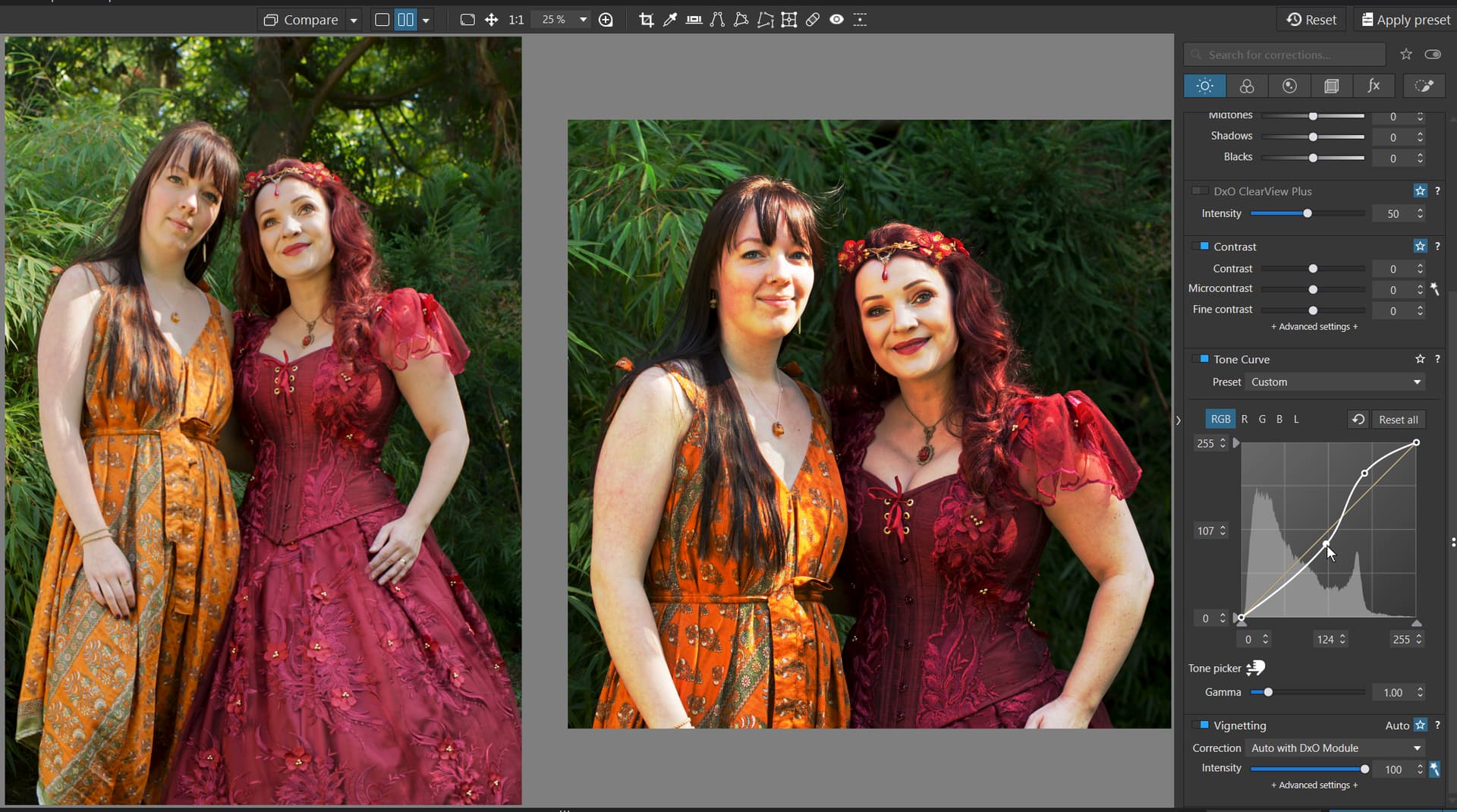
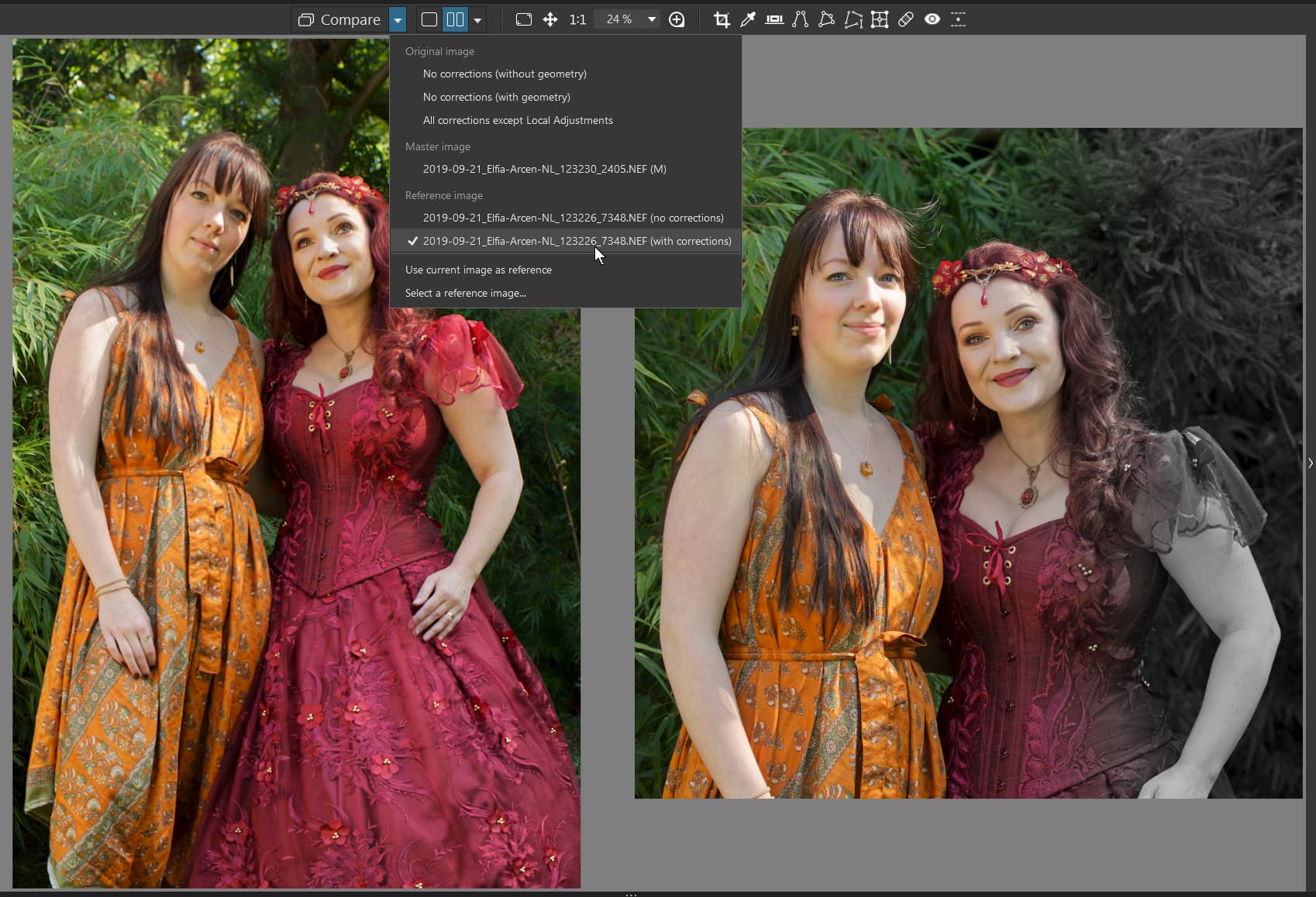
While PL is not LR, you can compare two (different) pictures,
including zoom + pan and also work on them.
Please note – I do not have a current LR version at hand.
I do, and comparing is really simple:
- select any two images and press C (compare), use arrow keys to switch images
- select any number of images and press N (next to each other)
Due to the simplicity of comparing in Lr, I never got comfortable with PhotoLab’s complicated implementation.
3 Likes
 Also with some limited '‘show mask’?
I stand corrected. Thank you.
Yes, I think the best advises are the ones using short cuts because the others are not all that effective.
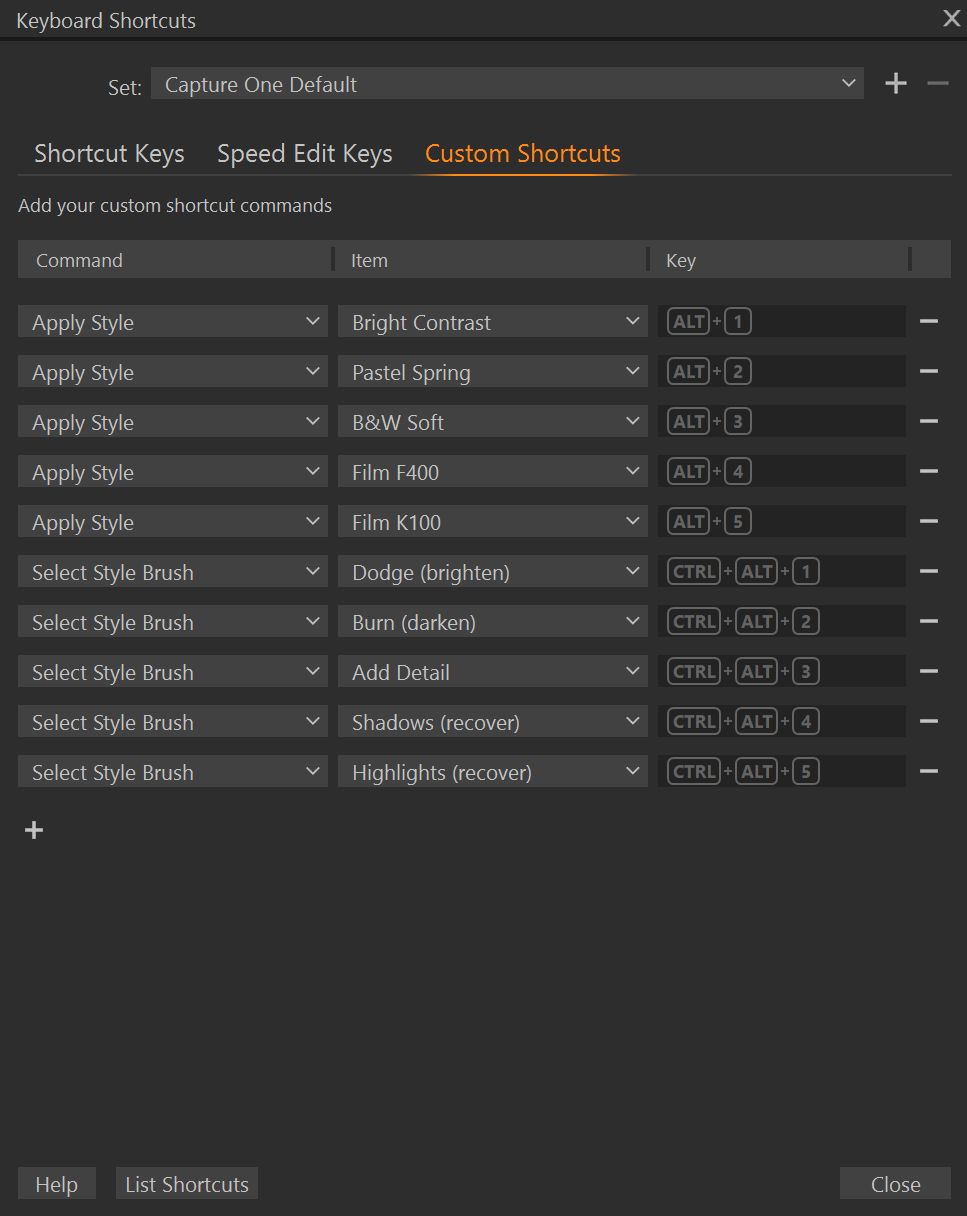
From what I know there are only a limited number of previews defined by DXO and that is the problem with Photolab in this case. Software targeting enthusiasts and professionals has to have an interface that let us create our own short cuts and there has been feature requesta earlier suggesting this. The more advanced Photolab and PhotoLibrary gets the more a feature like this will be needed.
That said it´s nice they have added quite a few shortcuts to the new masking-system. PhotoLibrary might not have been intended for the professionals and that is why they don´t use PhotoLibrary and have gone to real Photo-DAM-solutions instead optimized for this.
Below that interface in Capture One