Hi there, I was wondering if it is possible to use the eraser tool to clean up/refine an AI mask?
Thanks
Hi there, I was wondering if it is possible to use the eraser tool to clean up/refine an AI mask?
Thanks
It works fine here. Just try it yourself, but be sure to add the eraser as a sub-mask to the original AI mask…
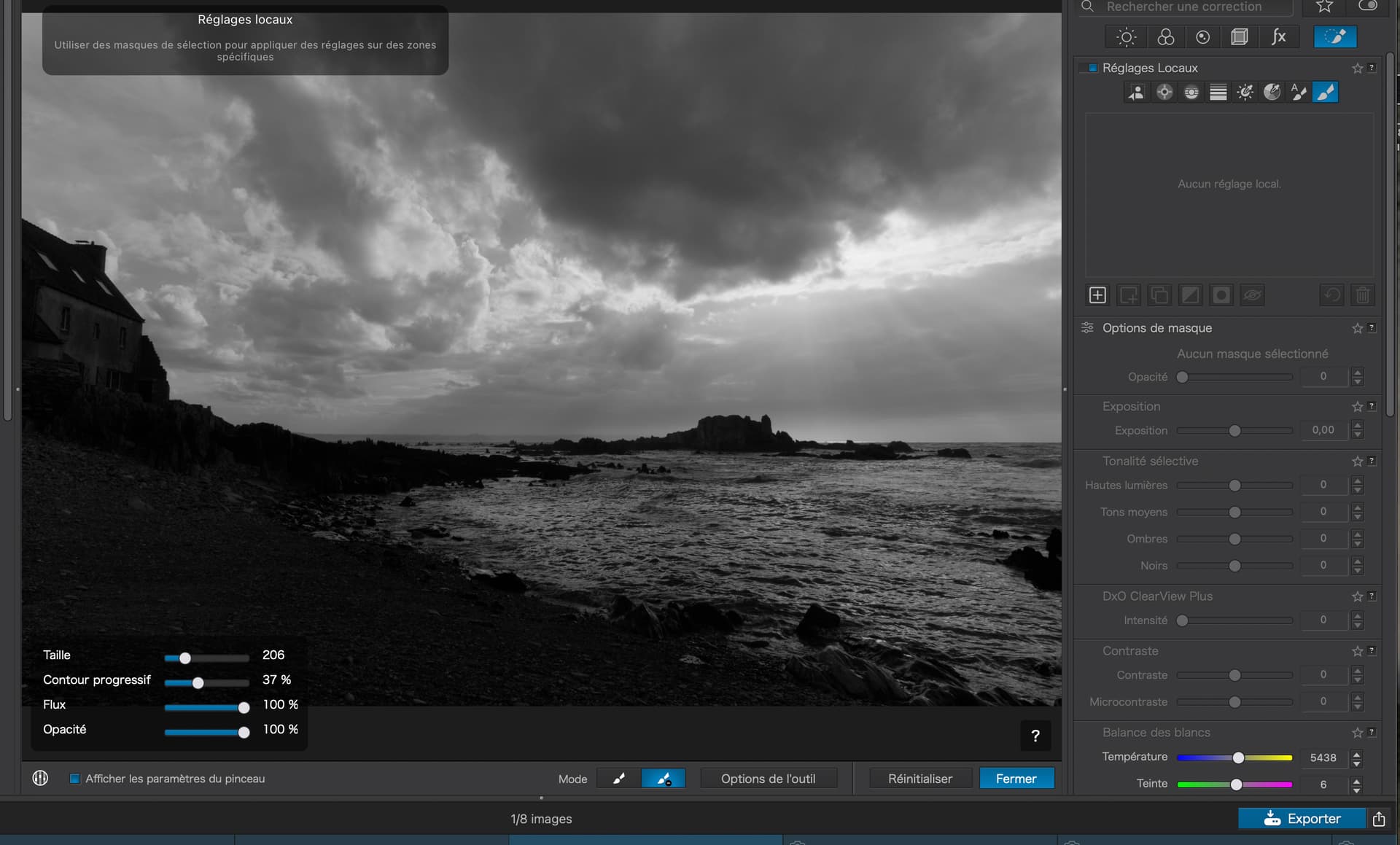
No mask…
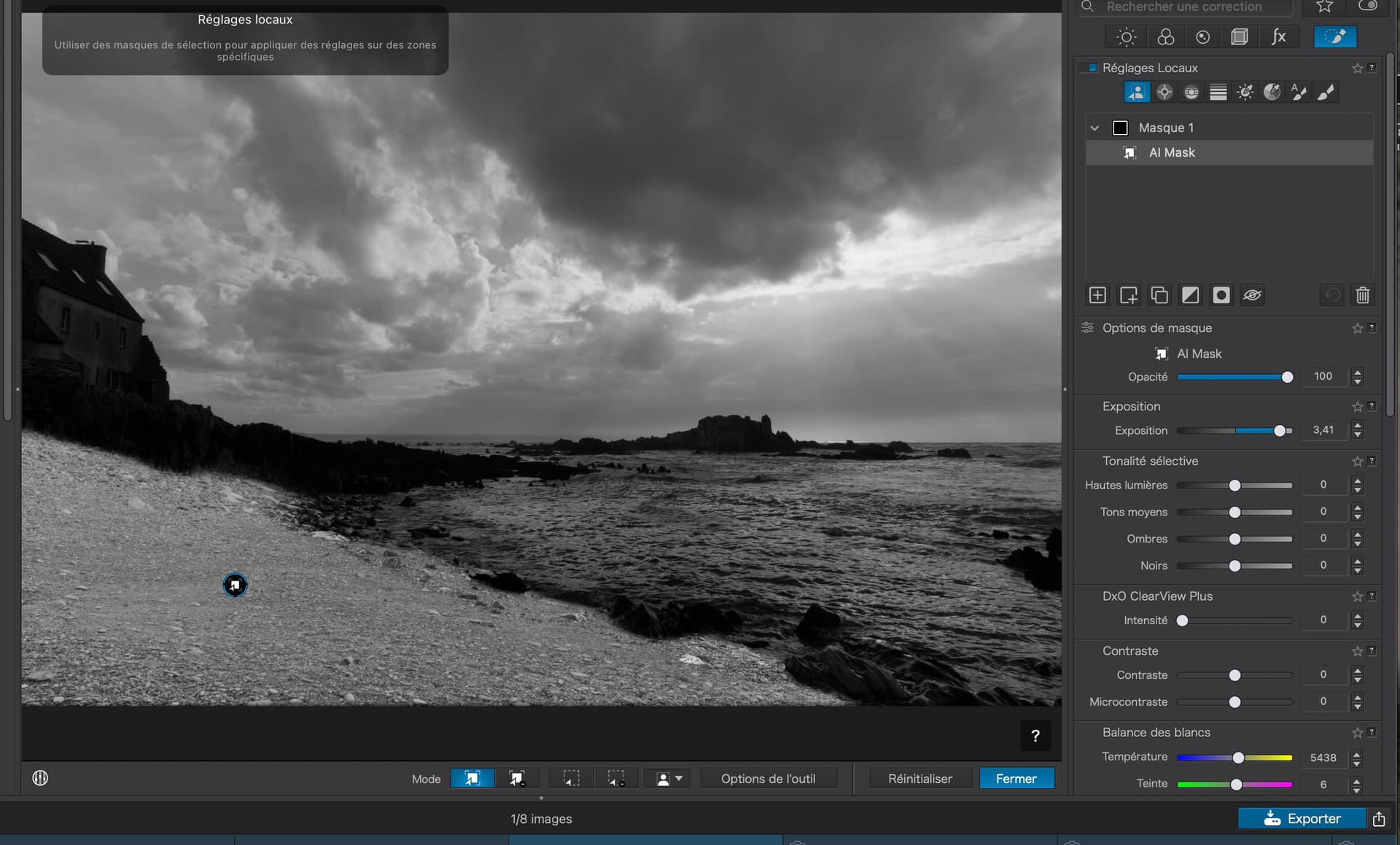
AI mask on beach…
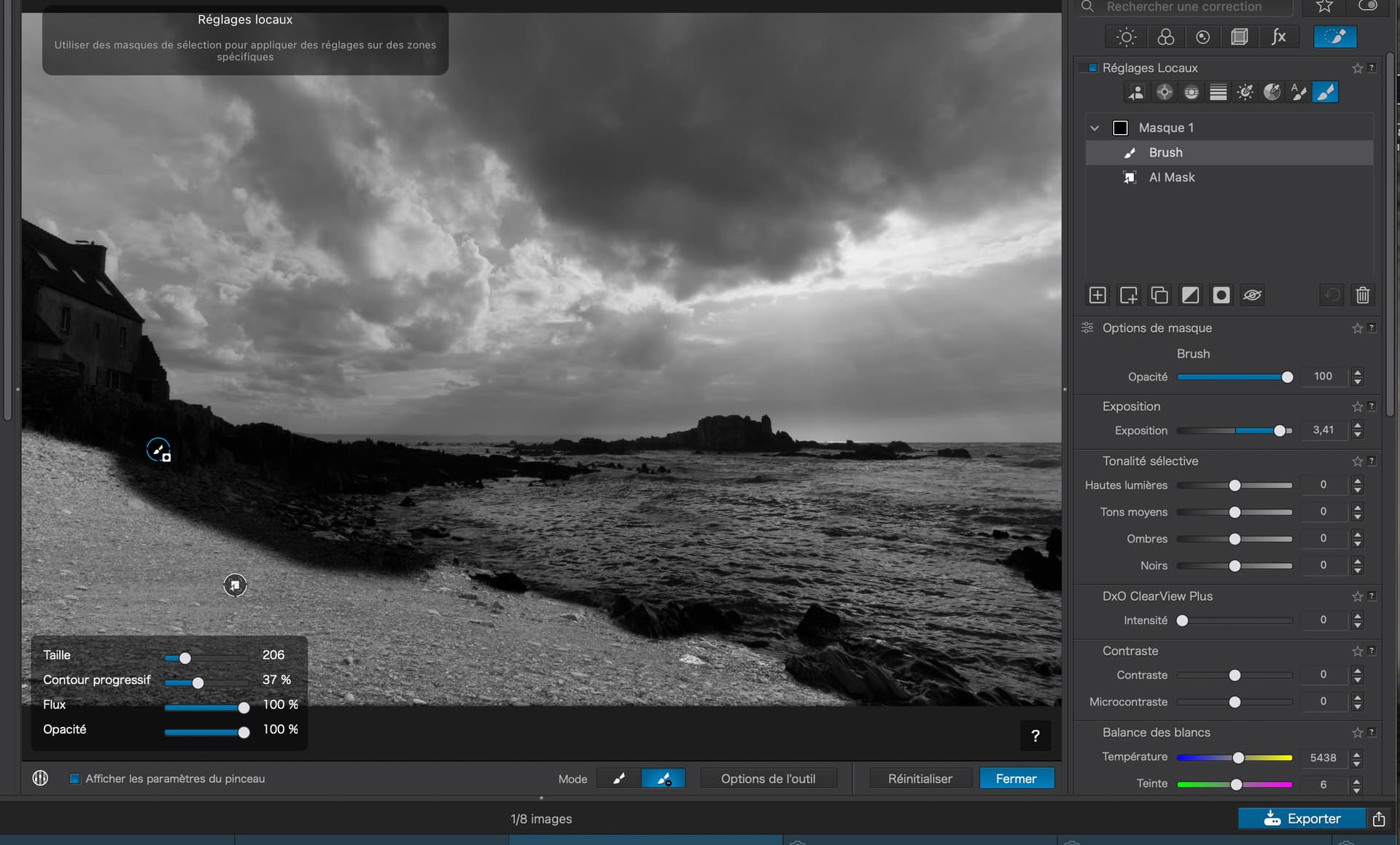
With eraser sub-mask…
To add…
PL9 does not have a specific “eraser” tool anymore. Instead it is embedded into the Brush or Auto brush tools as a “negative” brush. The auto brush has content edge detection. The “negative” auto brush, like in the past, is simply a brush/eraser tool.
PL9 switched to a “submask” approach allowing most masking tool types to “subtract” similar to the way “Negative” Control Points have worked for a long time.
There are explicit “negative” modes for AI Mask, Control Point, Control Line and Brush (eraser) as well as the “Invert Shape” modifier. This second modifier tool is harder to describe, but basically subtracts the targeted area from the overall mask very much like “negative” control points worked in the past (as still do). Its effect is limited to the active mask area. This action is very different than the traditional “Invert Mask” tool that applies the inversion to the entire image.
When adding sub masks, the “shift key” and “Alt/Opt” key modifiers add a sub mask or add a negative submask respectively. Caution: the system seems to hold a tool’s “positive” or “negative” state, so the modifier keys apply to the current tool state (at least on this Mac version).
The brush/eraser tools have the feather, flow and opacity controls to tune the effect. Each sub mask has an opacity control specific to the sub mask. The “traditional” mask tools have their normal modifiers that can also be applied when using these tools to modify an AI mask.
It takes a bit of fiddling to get the feel of your options, and sometimes it seems that different tools work better than others when trying to refine an edge. I find the Auto brush, CP and brush/eraser tools most effective for my photos. I haven’t worked much on portrait photos.
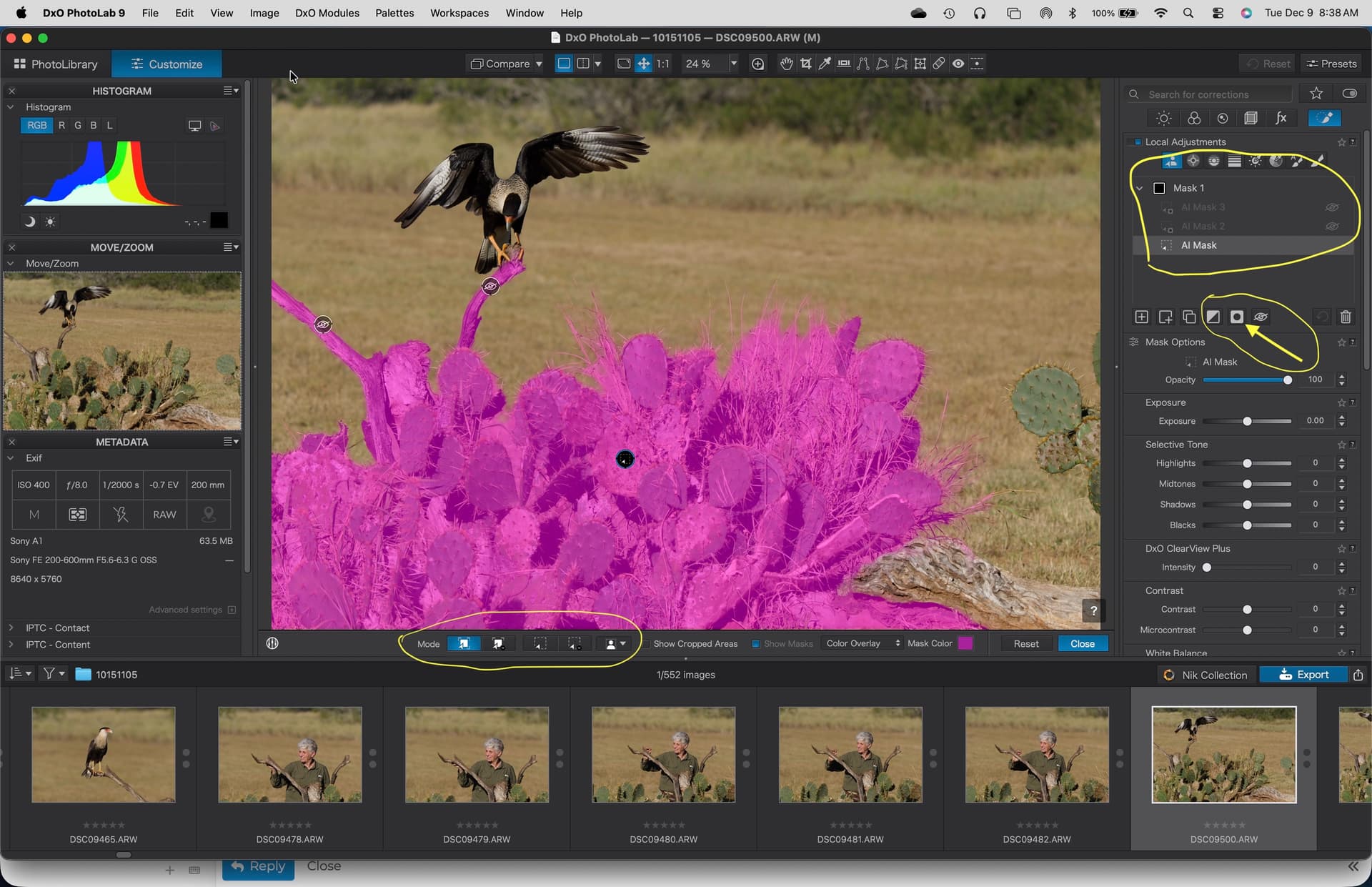
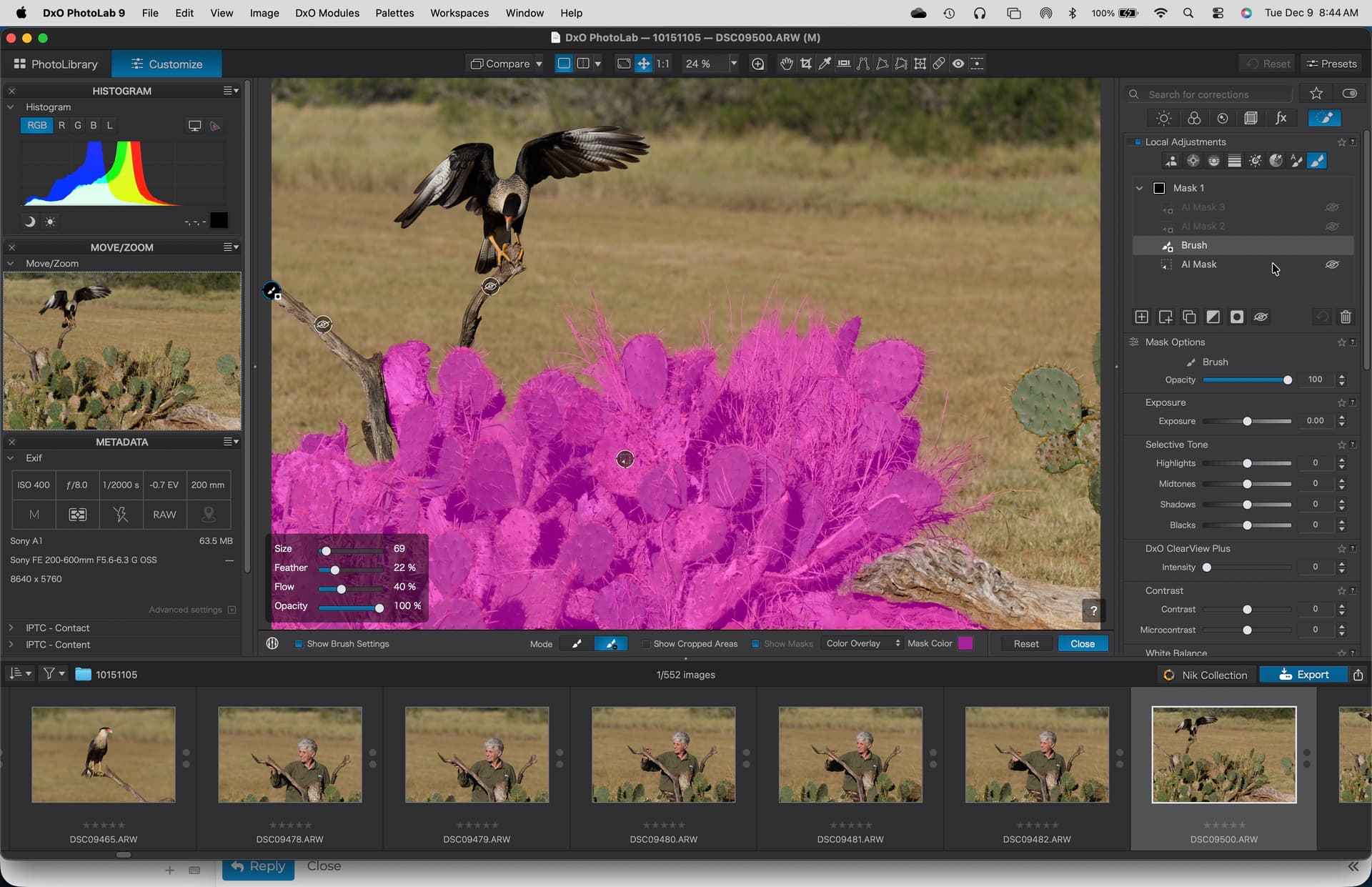
An example. Not a great photo, but shows AI selection of the cactus using the one-click method, then two methods to subtract the branches used a bird perches.
Note the mask list on right as well as the tool modes/states just below the main image view (on Mac). The “gizmos” pins on the image also show type and status.
Thanks very much for that helpful information! All good now.