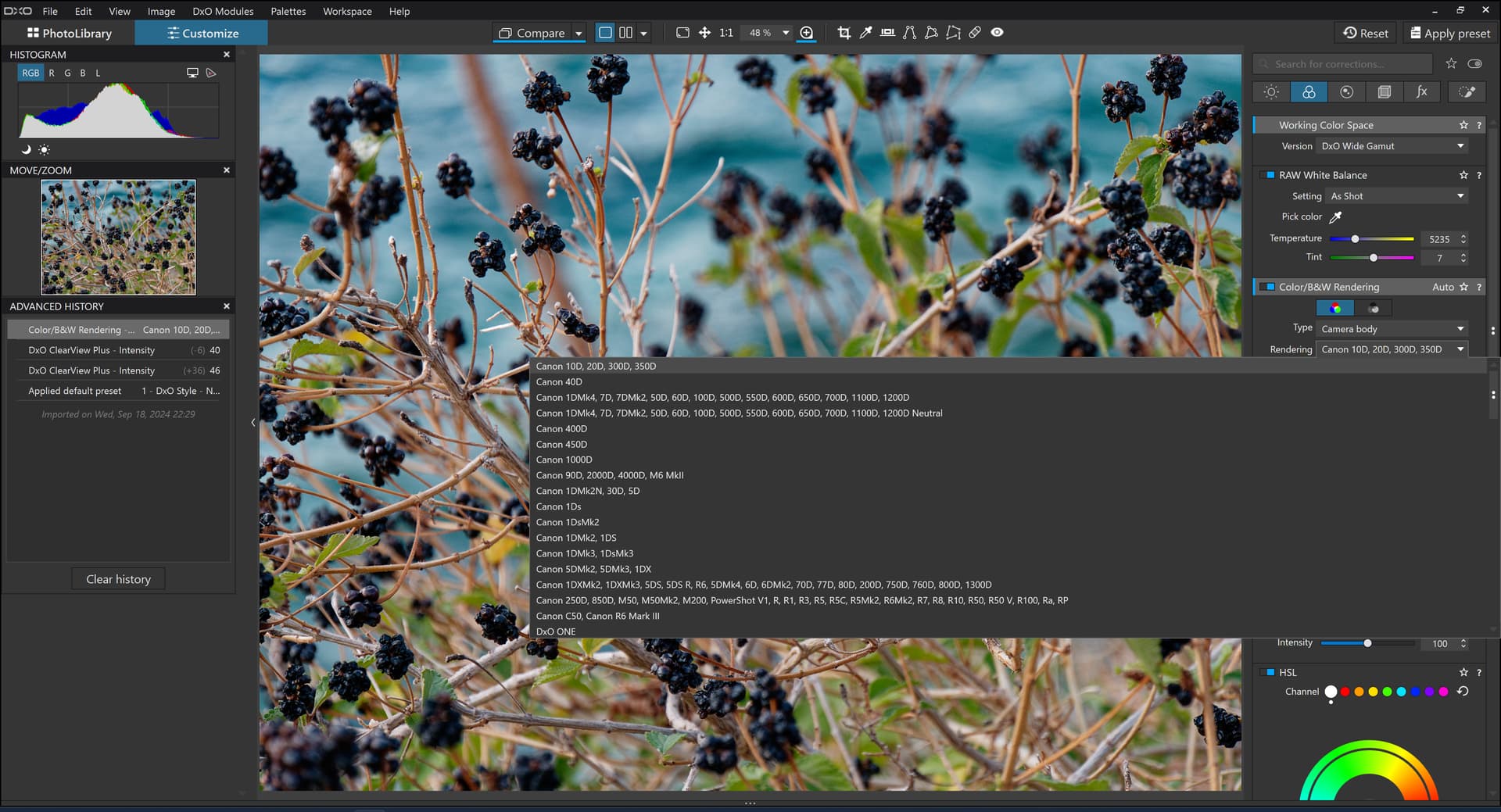
Please fix the dropdown for selecting a camera, it covers the most important region of the pictures making instant preview useless. Very anoyng, it is not new, it’s like this since v8 at least. Image that i work on is the most important thing on my screen and the very reason why I bought and use the software. Even without the problem of covering a lot of the image, that list looks so bad.

As already mentioned by @Wolfgang, this is a user forum. We are fairly sure DxO read this forum but to ensure they see your request you will have to submit it via this page:
https://support.dxo.com/hc/en-us/requests/new
Thanks for welcoming me.
That list can easily be arranged/organised differently (vertical/multiline) so the dropdown honors the subject of my work. Fantastic noise reduction algorithms vs UI abc. Hope I don’t have to pay for upgrade to v10 for that llist to go out of my way. Great software otherwise I must admit! 
No one knows what new features and bug fixes will be in PL10 but we all know that we will have to pay for the upgrade.
I only use that to select my specific camera body so I don’t really need to see the preview while that dialog box is open. I can toggle the effect after the body is selected.
But I agree that the simple solution is to have a line break or something like that for that list of Fuji bodies.
As for version 10, if you want what it offers you will have to pay for it of course.
Is the problem you’re describing really that annoying?
-
If you’re using the camera body rendering to force the rendering of a camera other than the one in the raw file, then yes.
-
If you’re using the camera body rendering to select the camera that took the image, which is the most common scenario, then you absolutely don’t need to open this dropdown list.
With Type = Generic rendering, and Rendering = DxO camera profile (xxxx), PhotoLab will automatically select the rendering of the camera in the raw file, where (xxxx) = camera name.
I don’t think it is working that way for me. By default Type = “Generic Rendering” and Rendering lists my camera body (Nikon Z7). But if I switch Type to “Camera Body” then Rendering switches to Canon 1D which is simply the first camera body in the list. So if I want Type to be “Camera” body then I have to select my camera body from the pick list. I don’t really understand this behavior
Same on Mac:
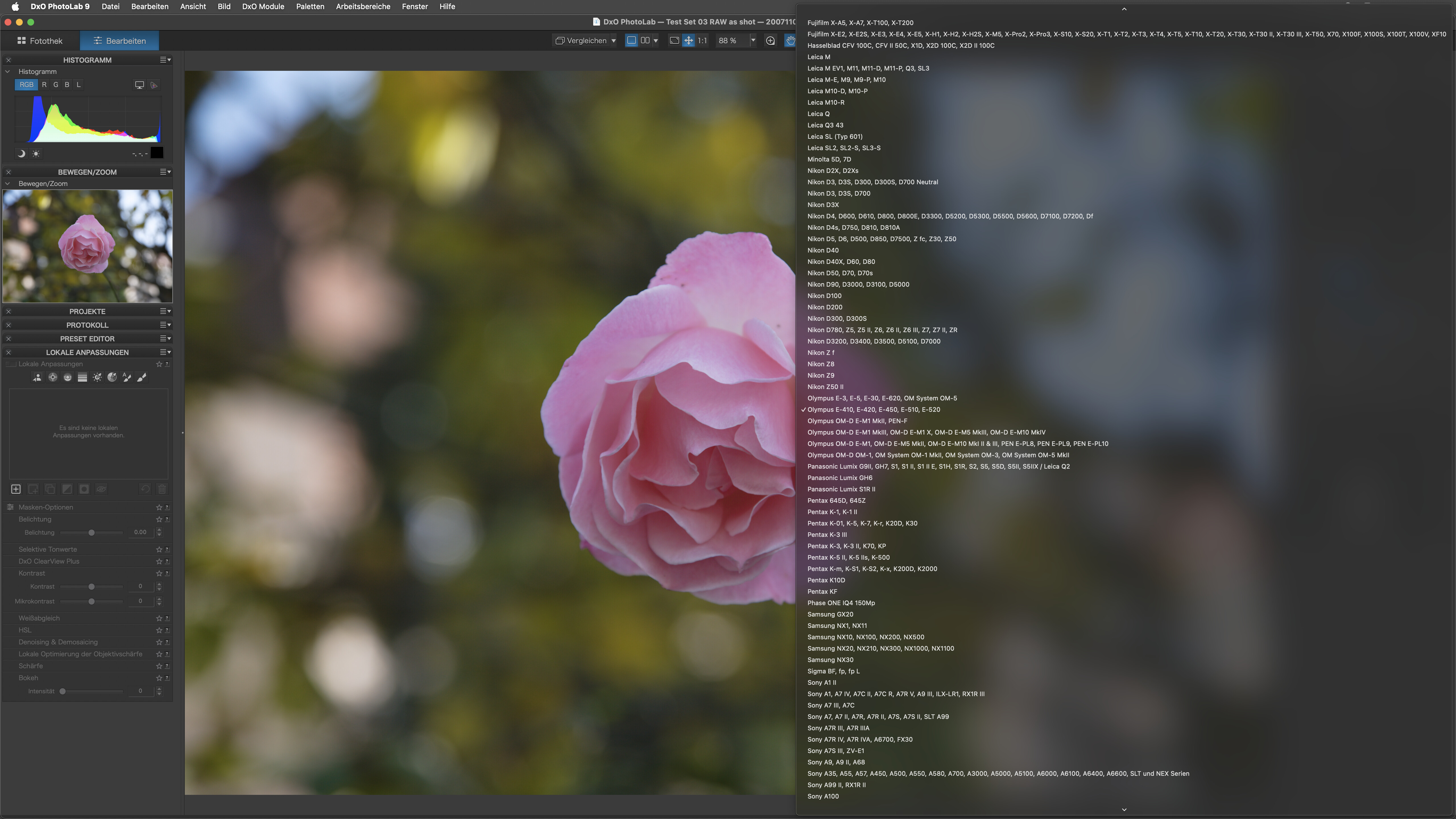
At the upper end of the list, we can see the possible cause for this. Imagine using a notebook. One might not even see the entries because they punch out at the screen’s left edge 
@StevenL The feature definitely needs to be re-thought and changed.
Choosing a Camera Body type, which opens the long drop-down list, is ONLY necessary if you want to emulate the rendering of a camera other than the one used in the RAW file. For example, with a RAW file taken with a Nikon Z7, you can emulate the rendering of any camera in the list (Canon or other). This option is generally used by those who produce images with several different cameras (reportage, etc.) to achieve consistent color rendering across a series.
If you simply want the rendering of the camera that took the image, which is the most common scenario, there’s no need to search for your camera in the list.
Select Generic Rendering for Type. Then, in Rendering, select DxO camera profile, and the camera (Z7, for example) will be automatically selected. You should then see “DxO camera profile (NIKON Z7)” displayed in Rendering.
Edit: Of course, whether you choose the generic/DxO camera profile rendering or the Camera body/Nikon Z7 rendering (in your case), the result will be exactly the same in terms of color rendering!
1 Like