I am looking for ideas as others organise their images when editing them. I have tried using colours but I am sure someone has a much better workflow.
Any ideas please?
I am looking for ideas as others organise their images when editing them. I have tried using colours but I am sure someone has a much better workflow.
Any ideas please?
Personally I avoid visual clutter. Once I’m done with an image I set its color label to green, that way I can tell at a glance which images potentially need work vs those that are “finished”.
I will also tag a series of similar shots as Rejected if they are hopeless or Picked for future editing, and singular shots as needed.
I’m just a muggle so it works for me.
I suppose that you have been doing this and that and feel that it’s not been efficient of effective… Please tell us what you expect from a “good” organisation when editing.
What do you hope to gain?
In general, it’s a good idea to organise images for editing in small batches (±100)
Hi Platypus, I am using Digikam to cull and add keywords which works very well. I can also add ratings there.
i keep the images in a folder tree ~ Location/date (day). This all works well but i then want to select the images that i want to edit and keep them all together. Then as I edit them I again rate them and find a way to put them somewhere else.
Right now, I mark the suspects red and then do an initial edit and then mark then orange and then repeat until they are acceptable. The numbers build up and I find it to keep track.
What do you do to track the edits but also do you keep them altogether or…..?
TIA
Thank you, it seems similar to what I do but I am not sure that I am a muggle, but maybe am
I use Rating-5 to select the images I want for editing, then Filter to just show those, this removes the clutter.
Once I have edited each image I turn on Pick
I sometimes switch these two around depending on whether I have used the rating option on my camera.
After a year, I check each folder and if I no longer need the unselected images then I purge them to save space.
I use PhotoLab as an add-on to Lightroom Classic.
Images that I deem to be showable will be exported as JPEGs, be it to a folder in an independent tree or to Apple’s Fotos.app for sharing. If I go back to an image, I still got all edits in Lr’s catalog and sidecars, but I mostly start from scratch.
Every export is an individual presentation,
I do “analog development” - and no two exports have identical looks.
I take a very simple approach to organising.
I create a small hierarchy of…
I plug my camera into my Mac’s USB socket (or insert the card) and open the Image Transfer app. Then I find/create the appropriate folder in Finder and drag the files from the camera to that folder.
No need for any other classification/sorting app. Finder is plenty adequate.
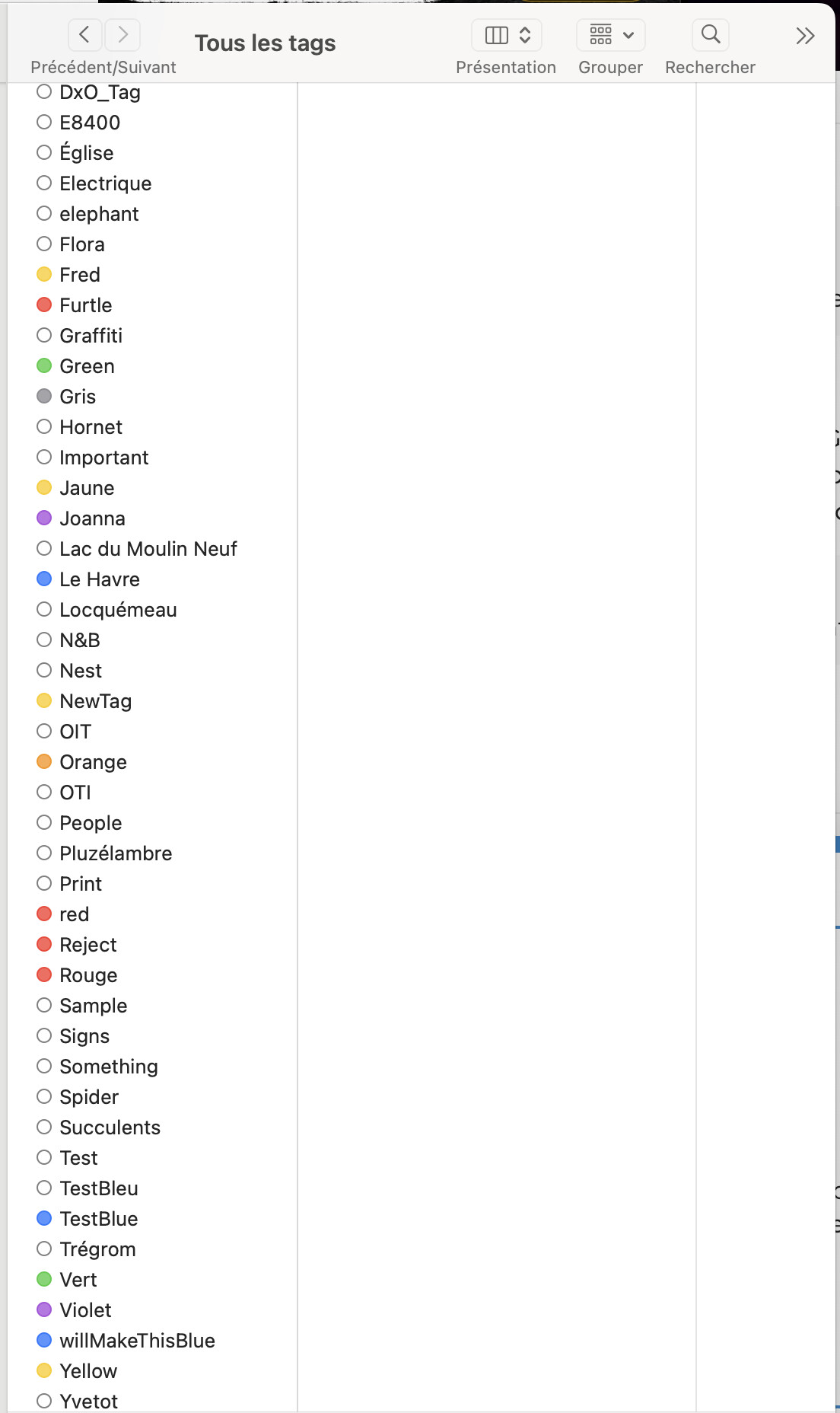
Finder gives me the ability to use Tags, both colours and text…
… to mark whatever files and/or folders I want and Spotlight is able to find anything with any tags or combination of tags.
And the total cost is zero.
Hi LVS, I like this idea but it doesn’t seems tp be possible to find all Picked images from the top of the tree, unless I am missing something?
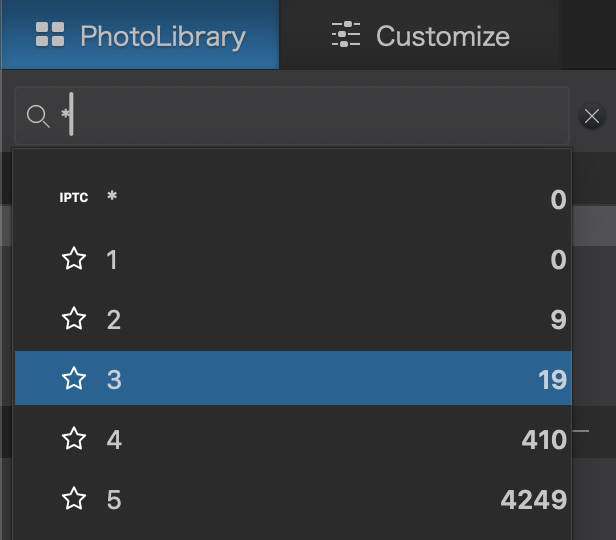
Search does not recognize Pick or Selected, but it does recognize Rating, just type an * in the search field to bring up this panel:
So I would go with a Rating system for your first selection, maybe use Rating:1 for those that needed editing, then use other Rating values for the various stages of editing.
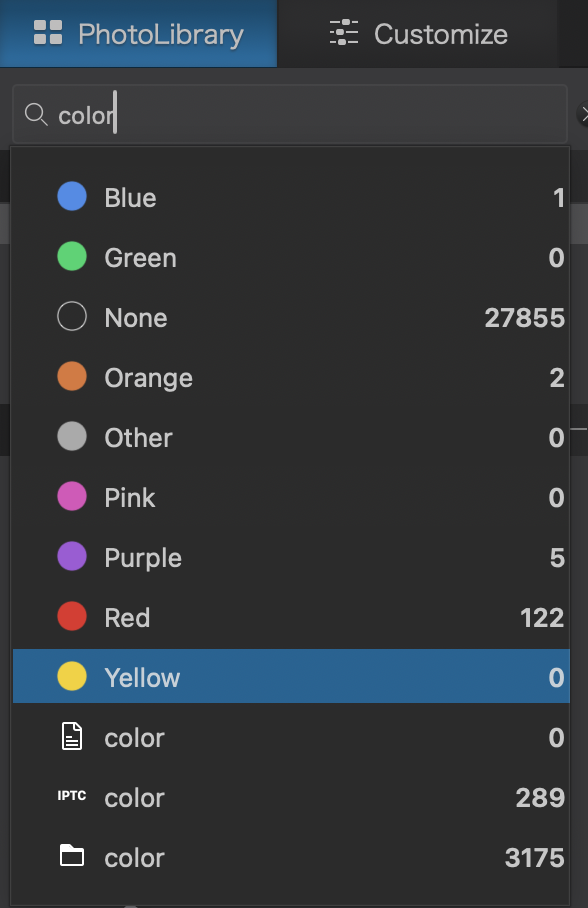
You can also type the word color to show images with color tags, this could be another way of identifying edit processes:
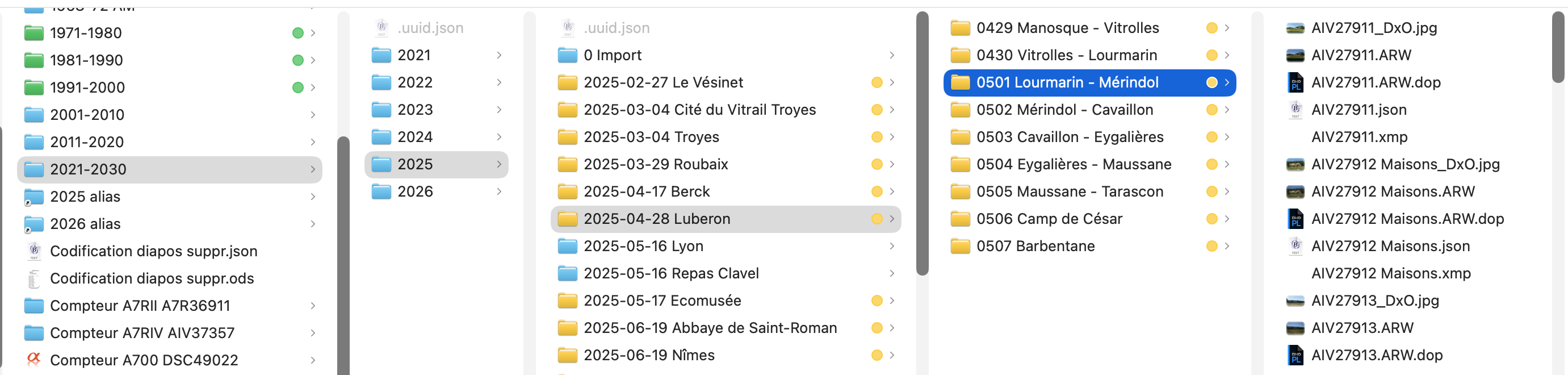
Joanna, my perspective is similar to yours:
Note: the image name is slightly changed:
AIV replaces DSC in the camera preset
the 4-digit numbering comes from the camera, the 5th digit is changed as soon as the number exceeds 10,000
I categorically refuse to use names based on the ISO date and time, which are impossible to remember.
I keep all raw pictures to be sure that I have not lost some (happened…).
I use color tags to show the panoramas to be stitched, since the visualisation of photos is much more efficient in PL the in the finder.
I add keywords in PL and some times a rating.
It is well documented in this forum that I use Lightroom Classic to manage my photos. That is to say I use LrC to import (from card) into YYYY/MM folders (mostly to stop any folder from having thousands of images) and then to add many, many keywords. I also mostly geotag them, if not done via phone-to-camera connection during shooting.
Then I move over to PhotoLab and point it at the relevant folder. I trawl through the day’s photos (very occasionally more than a day) and pick those I think will be “the ones”.
I then filter to picked images. It’s always within one folder so no problem, just a simple filter.
I then work through the images, usually after applying one of my personal presets to them all. I only have two — wildlife and aviation. I tend to use wildlife for anything that’s not aviation.
Each file is edited in turn. Sometimes during editing I will decide it doesn’t actually make the grade. I then reset adjustments and hit the U key to unpick. The image then simply disappears from view. Very occasionally, I may turn off the filter and look for an alternative to one I kicked out, then pick it and re-filter.
When I’m done, I select the lot and hit export. I then go over to LrC and mark with green those images that ended up being processed. I will see the little squiggle in PhotoLab indicating changed metadata and when they all have it, I will refresh from files to pull in that green label.
My penultimate step is probably overkill for most. I export small, thumbnail sized versions from LrC using an export preset that suffixes the file name. An automation spots this suffix and copies the keywords and GPS data across from the LrC export to the PL export. This is because PhotoLab is a terrible keyword manager and won’t read the LrC hierarchy which I depend on.
The final step - upload to Flickr and clean up. I do also add the JPEGs to Apple Photos for my convenience, before I delete the files.
For those interested you may have a look here and follow further links.
Note – I’m on Windows.
Thank you, I was looking in the filter, not in search. That process is exactly what I want, using rating and then colours.