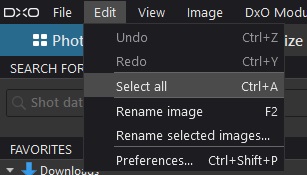
Hello, new user to DXO PL. I’ve been using Deep Prime for several years and have decided to move into PL. I do a lot of batch processing by necessity. I’ve found DXO’s implementation to be pretty intuitive, except for one thing. In order to add photos to the batch I have to click on the first one, then scroll all the way the end of the film strip (could be hundreds) and then shift+click. Is there any way to just hit a ‘select all’ type button?
Also, it would be nice to know where I’m at when scrolling through images. Maybe I am just not seeing it, but an indicator of which photo I’m on in the filmstrip would help, ie: ‘35 of 120’.
Alternatively if you begin at the start of a folder and holder SHIFT + END it will select everything, but I find this to be slower as it selects one “strip” of images at a time and I think it’s also trying to render previews as you navigate around.
Thanks. I suppose I should’ve tried those first, but I was thinking that if I hit select all in the Edit menu that the action of applying the set of copied selections might be cancelled. CTRL A should do it. I was looking for a command in the pop up.
Just be careful tho; it’s a common “gotcha” for a user to Select-All images to export … and then to apply some new setting to the image currently displayed (such as a refined crop) - - not realising that ALL images are still selected … with the new crop then being replicated across ALL selected images. Oops !!
Thanks. I’ve been batch processing for years and am aware of the pitfalls. I’m just trying to make the DXO process more familiar. I still need to get used to some of the idiosyncrasies.