Hello, i got important question for everybody working with big amount of photos and batch processing images in DxO Photolab 4
Namely, when You apply preset to 100 photos, then move singly in ‘Customize’ mode from one photo to next one, You have to wait (about two seconds) for preview of the photo with the preset applied.
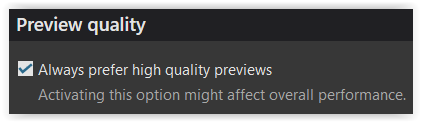
How to generate all previews in advance, so to not wait until preset is applied?
For example in Lightroom, there is option to ‘create standard previews’, so You dont have to wait everytime when previewing photo to update the standard preview, but You build them in advance for all pictures selected.
Is there an option like this in DxO Photolab?
This is important when working with many pictures.
Thank You for DxO and it’s great features ,
Regards
Andy
Second this. I also want to prebuild thumbnails while I have a tea and come back to look at my photos. DXO please put this in as a feature. Running PL 7 Elite now.
In DxO PhotoLab 4, there isn’t an exact equivalent to Lightroom’s “Create Standard Previews” feature. However, there are some strategies you can use to manage performance and preview loading times when working with a large number of photos and applying presets.
Use Fast Preview Mode: DxO PhotoLab has a “Fast Preview” mode that speeds up the preview process. To enable this, go to the menu bar, select View, and then choose Fast Preview. This mode can help reduce the loading time for previews.
Generate Previews in Batches: While DxO PhotoLab doesn’t have a direct batch preview generation option, you can improve efficiency by using the Select All feature in the Customize tab. This will apply your selected preset to all chosen images. After applying the preset, you can scroll through the images, and the software will generate previews as you navigate through them. This method is not as quick as having pre-generated previews but can help streamline the process.
Use the Light Mode: Switching to Light Mode (found in Preferences under the Interface tab) can also improve performance, as it simplifies the interface and reduces the computational load.
Optimize Your System: Ensure that your computer meets or exceeds the recommended system requirements for DxO PhotoLab. Adequate RAM and a fast SSD can significantly improve performance when working Maxim Time Clock with large image batches.
Update Software: Check for updates for DxO PhotoLab, as newer versions may include performance improvements and additional features that can enhance batch processing.
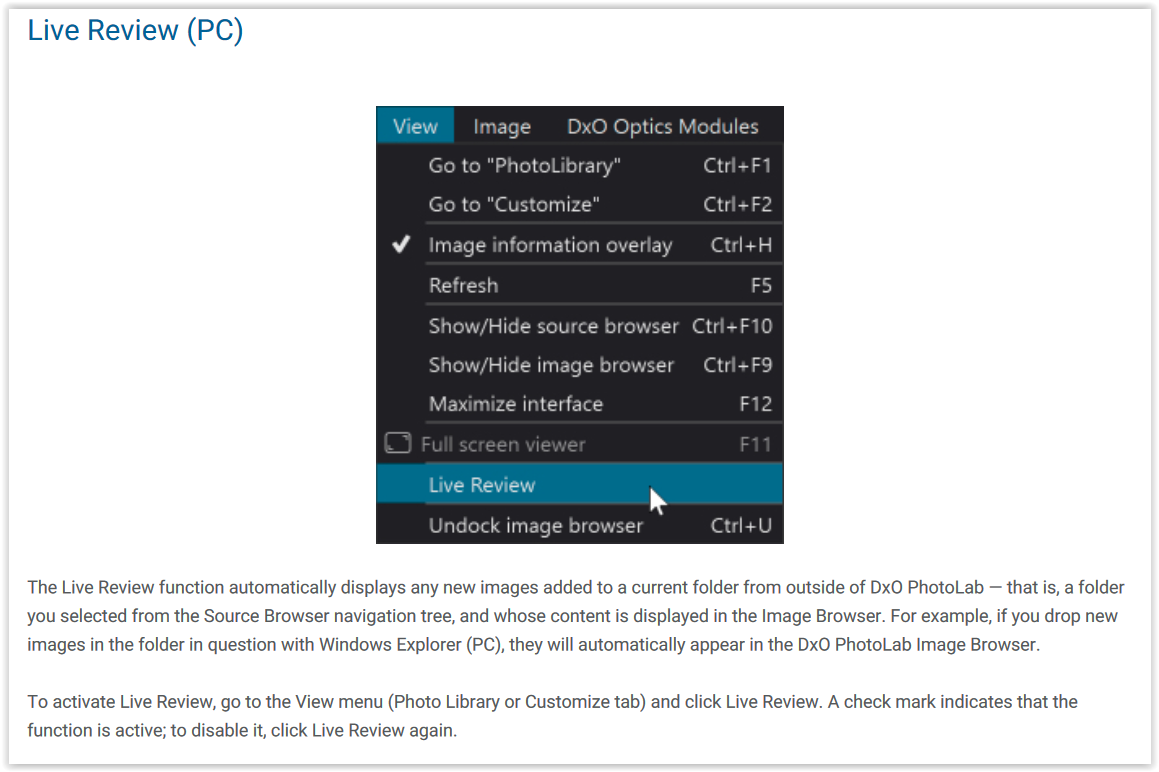
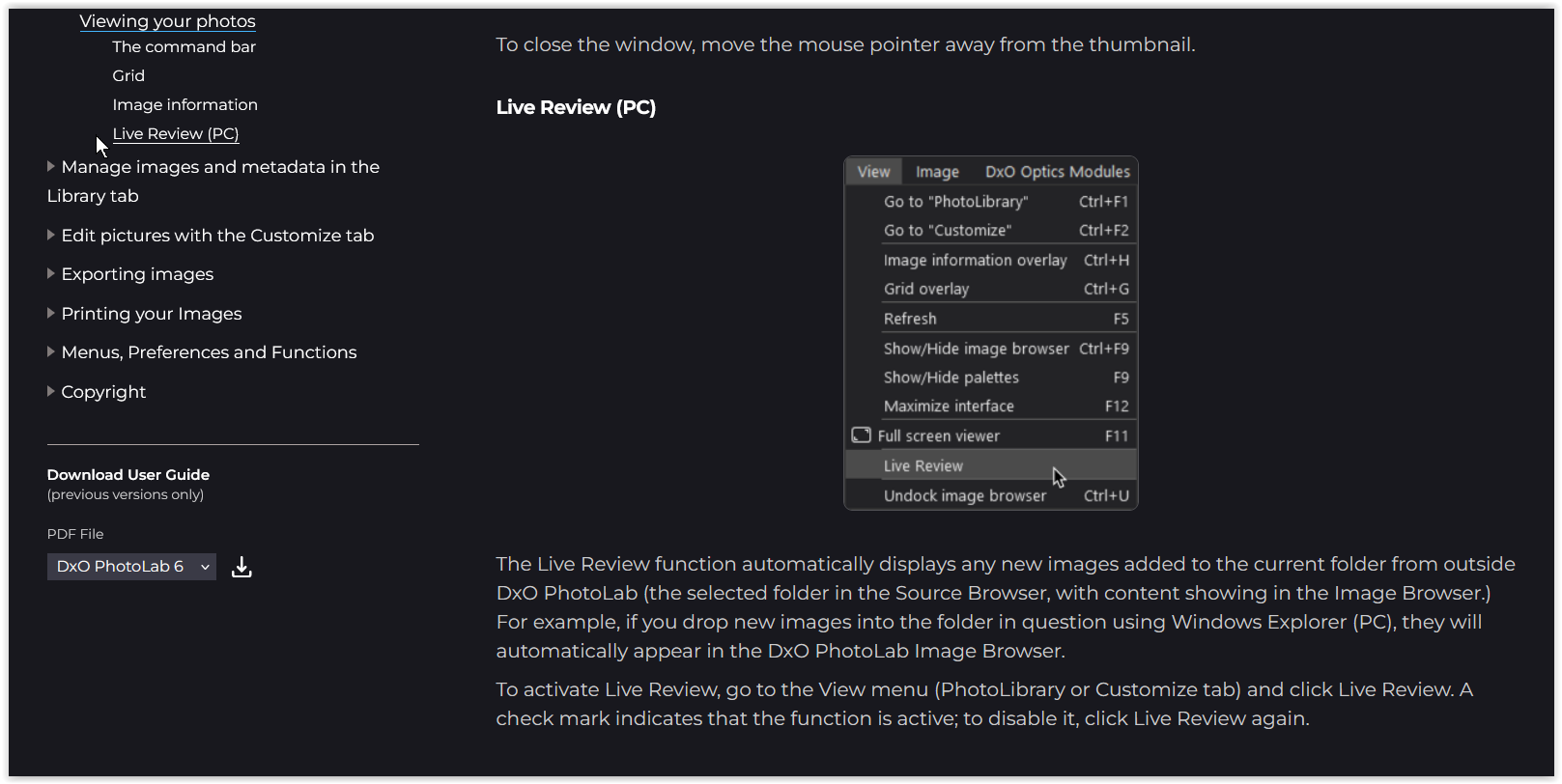
Interestingly the “Live Review” menu item doesn’t exist in the Mac version but, when I use my camera tethered, I can point both the capture software and PhotoLab to the same folder and it updates automatically anyway.