This is a revealing observation. The demosaicing of RAW files in TPAI can be very good as regards denoising and sharpening. In my experience, however, tonal, color, and lens corrections are rudimentary, and not yet good enough to recommend it for general use. But then again, I am not into astrophotography, telephoto work, etc. and so am not often faced with very noisy files. Sometimes, where you stand depends on where you sit.
I realise this is an old thread, but it’s a good one.
I was for a long time using Lightroom 4 with Topaz Denoise as a plugin. My workflow was to import images into LR, crop, rotate, adjust brightness and colours then send it to the Topaz plugin. A Topaz window would open and show me previews for 4 different denoise algorithms. I’d choose the one I liked best and then wait a few minutes while Topaz applied the algorithm to the whole image.
After that, Topaz would close and I’d be back in Lightroom and the image was now displayed after the Topaz denoise process had edited it.
It’s been a long time since I configured that software but it’s possible I did have to set up LR to export to Tiff before DeNoise would open the image - so actually when back in LR there would now be two copies of the image: the first was my raw (Nikon NEF) file with full edit history and the second was maybe TIFF, coming back from Topaz with denoise applied but no other edit history.
Finally I would export that to JPEG. The export would resize to about 2,000 pixels and add two text watermarks (different fonts/sizes/positions).
Now in PL I’m checking out the denoise options (PL8). I have a sneaking suspicion I would prefer Topaz’s results but I haven’t yet set up Denoise on this laptop where I’ve just installed PL8.
I found this thread while searching for how to integrate Topaz DeNoise as a plugin. It seems most people are describing very manual processes - export from PL to some file type, then go to DeNoise and import or batch process, then come back to PL and access the processed files.
Am I right to understand there is no smooth workflow where I can just right-click an image and say “send to Topaz”?
Other notes - eventually the Topaz plugin just stopped working. Despite numerous attempts to contact them they have not replied to a single message. Zero support for a paying customer. Since then they’ve now replaced Topaz DeNoise with their Photo AI offering and I have no experience with that.
A side note is that I haven’t found a way to add two different watermarks to an image during export from PL8 either.
Unless you are not editing raw files, why would you use Topaz Denoise over the far superior DeepPRIME XD2S?
Mark
2 Likes
Because “far superior” is subjective - only need to read the last couple comments before I bumped this thread to see the same sentiment.
That said, when I commented I had only just begun to look at PL - so wanted to know what options I have available. For example, even though I might not use Topaz, does PL support plugins in general? I’m sure I’ll be able to find that answer easily online.
In the end, once I understood that PL doesn’t render a preview of the most powerful options in the denoise palette, then ran a few, I’ve decided PL really is top notch for denoise and I won’t be needing to plug anything else in for my work.
2 Likes
I have used both PL6 and PL8 with Topaz Sharpen AI.
- import raw file from Leica Q3 to PL, fix perspective, crop, colour, noise, exposure, etc.
- Export as 16-bit tiff.
- Import tiff to Topaz and run topaz with defaults. Adjust settings if necessary.
- Export as 15-bit tiff.
- In DXO (photo library mode) compare “DXO.tiff” with “sharpen.tiff” and select the better.
- Import the better version to Photoshop CS5.
- In PS, adjust levels (CTRL-L) if necessary, resize image, unsharp masking. Save as jpg (quality 11)
- It takes long to itemize than to do.
David
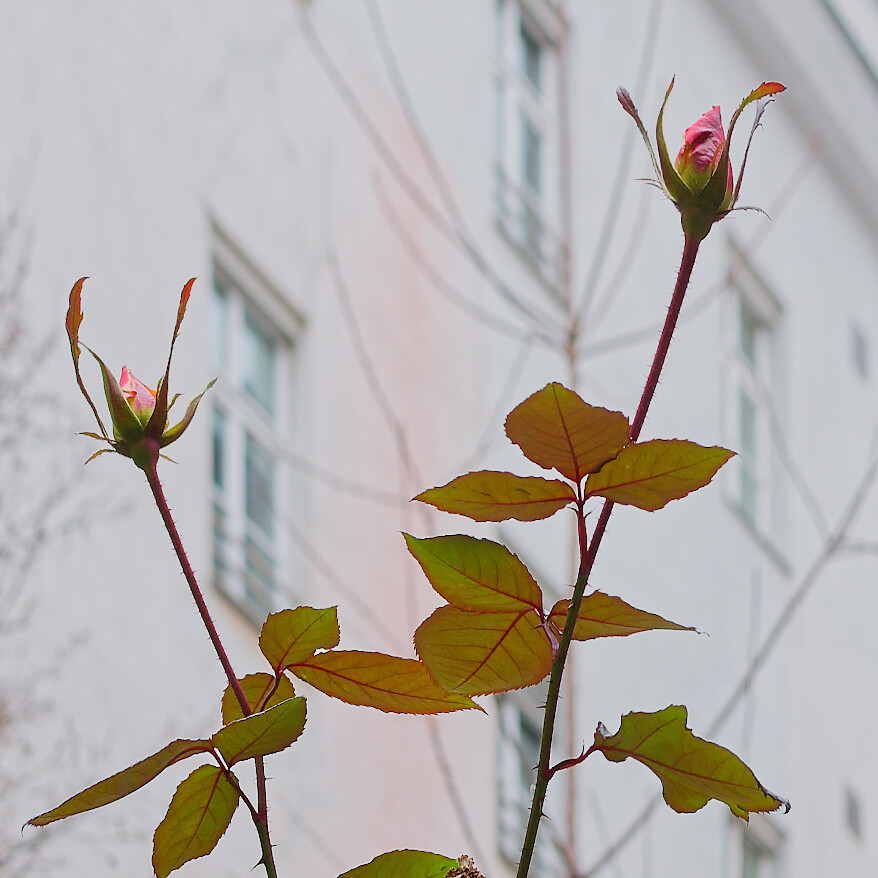
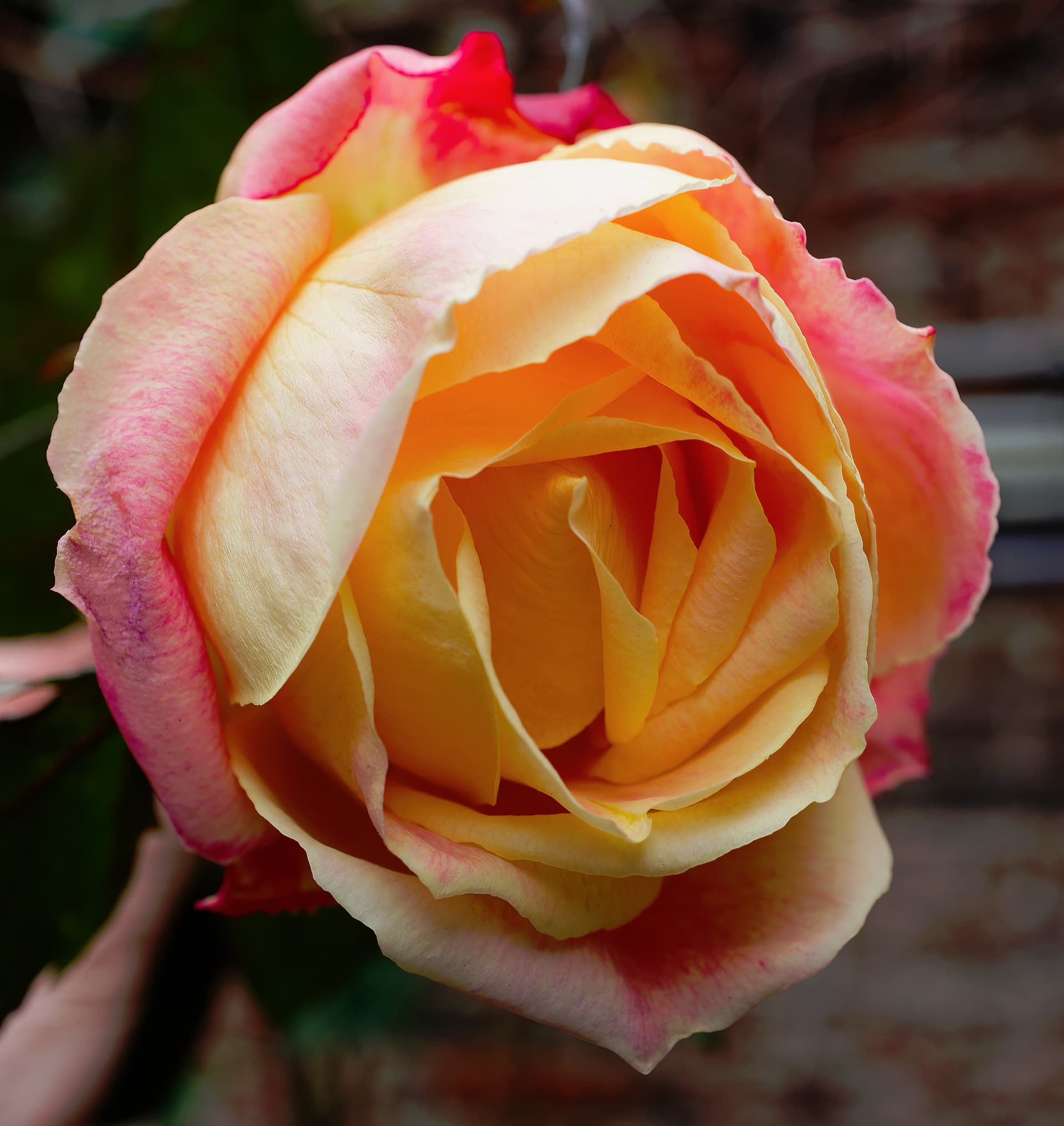
2024 roses photographed in mid Feb 2025:
I’m a license holder of the most recent versions of PhotoLab 8, Topaz Photo AI, Topaz DeNoise AI, and the Adobe Photography Plan, and here’s my take (which is consistent with what MWSilvers was suggesting):
If you have access to an original camera Raw image file that is supported by PhotoLab 6+, at least, you’re best off doing your initial edit in PhotoLab with the highest level noise reduction model you have access to. But not everyone has that with every image file. I do with my new images, of course, but not all of my old ones.
Right now I’m re-editing 9-year-old images I took when I had the Brilliant(?) Idea of saving modest disk space by deleting my original camera Raw images in favor of, for example, in the current folder I’m working in, ironically, DxO edits in DNG format from back in 2016… I can’t re-edit those in PhotoLab 8 to make use of the new noise reduction models.
For several years now, I’ve stopped deleting original camera Raw files, period, unless it’s a dark screen/hopeless blob, because we are ever more able to recover screw-ups, and storage space is cheap. But woulda coulda shoulda.
Anyway… the next-best choice that I have in this folder, better than current Adobe Lightroom Classic Noise Reduction, which will process these 2016 DxO DNGs, is Topaz Photo AI, which is a (granted somewhat pricey-for-the-value) better noise reduction app than the last version of Topaz DeNoise AI. TDNai is a very close second choice in this scenario. For two or three years I preferred the older Topaz Sharpen AI and DeNoise AI apps (since discontinued but still functional for license holders), but as of 2024, I’m going with Topaz Photo AI when I can.
Topaz noise reduction is a good way to go if you don’t have access to DxO noise reduction, for whatever reason. As always, YMMV, so compare and contrast, and go from there. You won’t go far wrong with either one; it’s pretty much a pixel-peeping comparison, but if you want the best, test it out on your images and gear.
1 Like
TPAI has made some improvements in the last 8 months, and there are fewer complaints about color / tone in the active Topaz forum. They are using Libraw, Lensfun, and manufacturer’s camera profile information to produce what I now consider acceptable results, OK not great. Results for Canon, Nikon, and Sony RAW files may be a little better as that is their currently stated focus. Worth a try for problem images, but not enough improvement to change my usual PL8 > TPAI workflow. However, for non-RAW files my workflow is often TPAI > PL8. Of note, TPAI now supports HEIC files, but not Apple ProRaw.
Topaz is a suprior option if needing to process non RAW-files. Otherwise I don’t consider Topaz at all. Topaz has its place and I use Topaz AI 3 when there is nothing else to use.
The draw back with Topaz is that it takes way more handwork than Deep Prime and is way more ineffective than Photolab. Topaz has its upsides but I still consider it very immature.
For me it stills feels like it is in a permanent Beta-condition. It is still very much hit and miss and trial and error.
1 Like