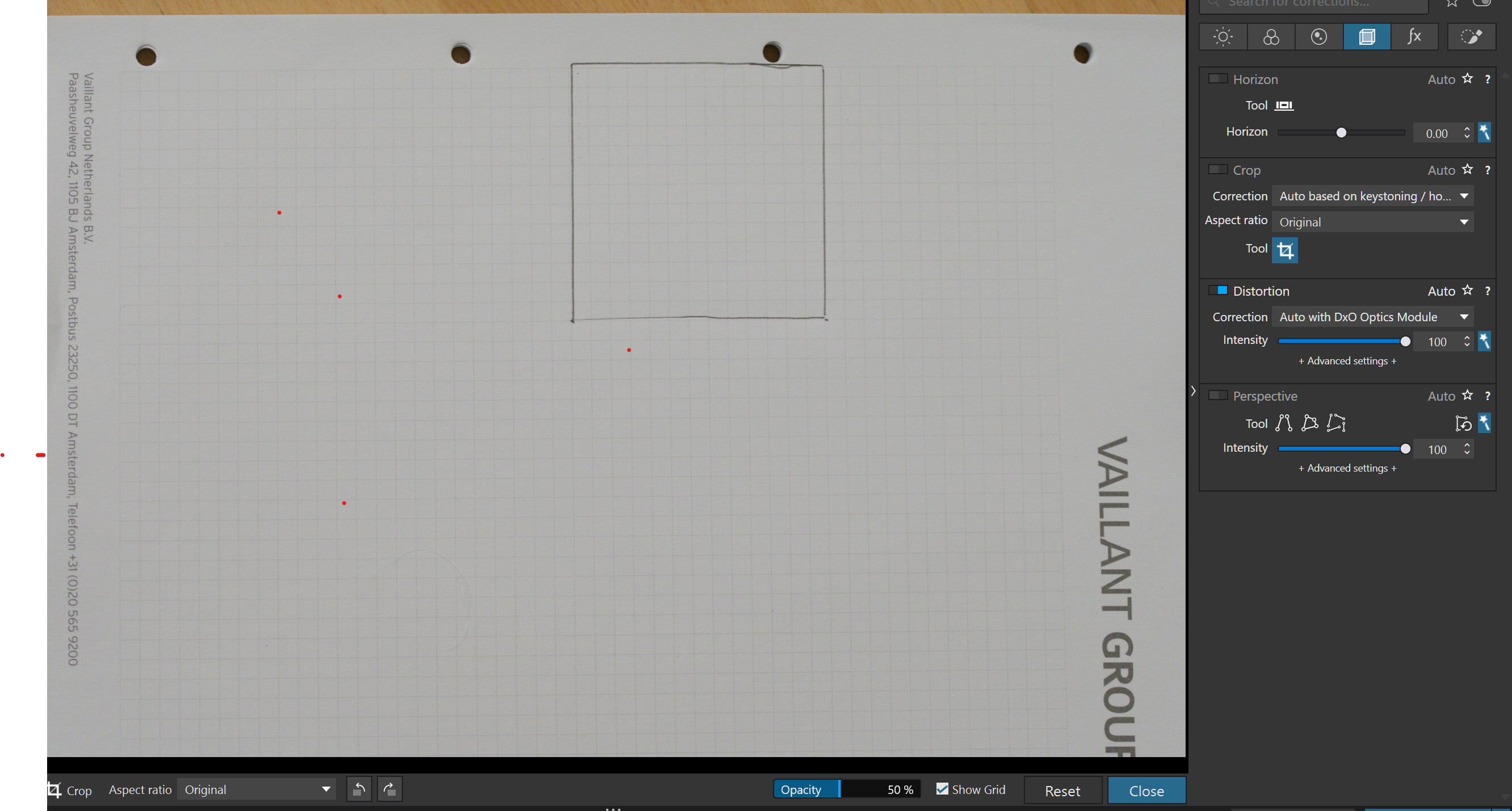
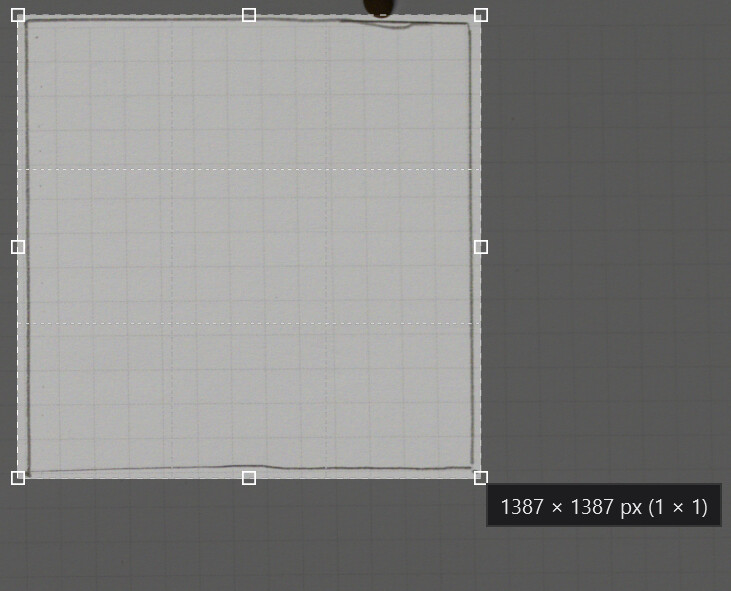
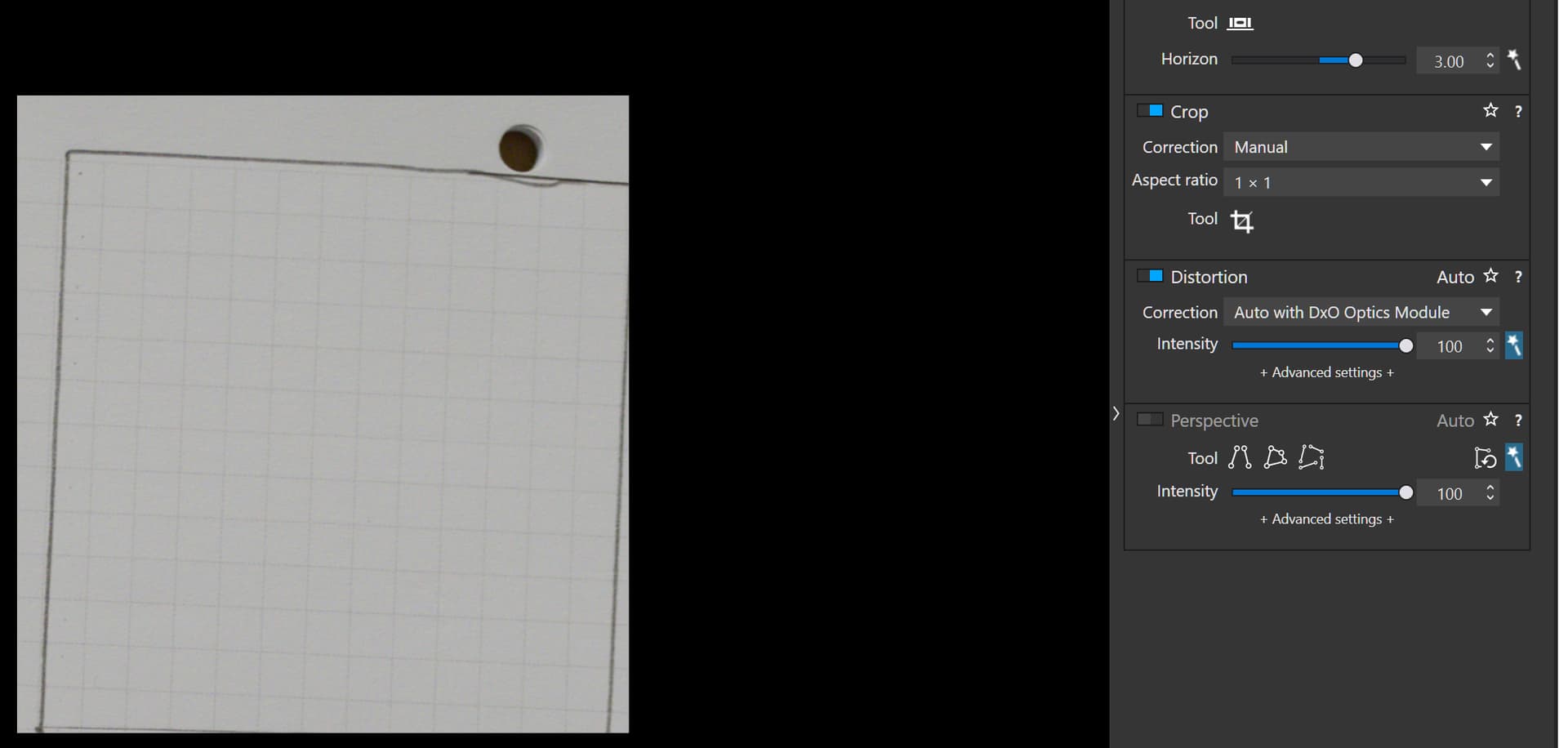
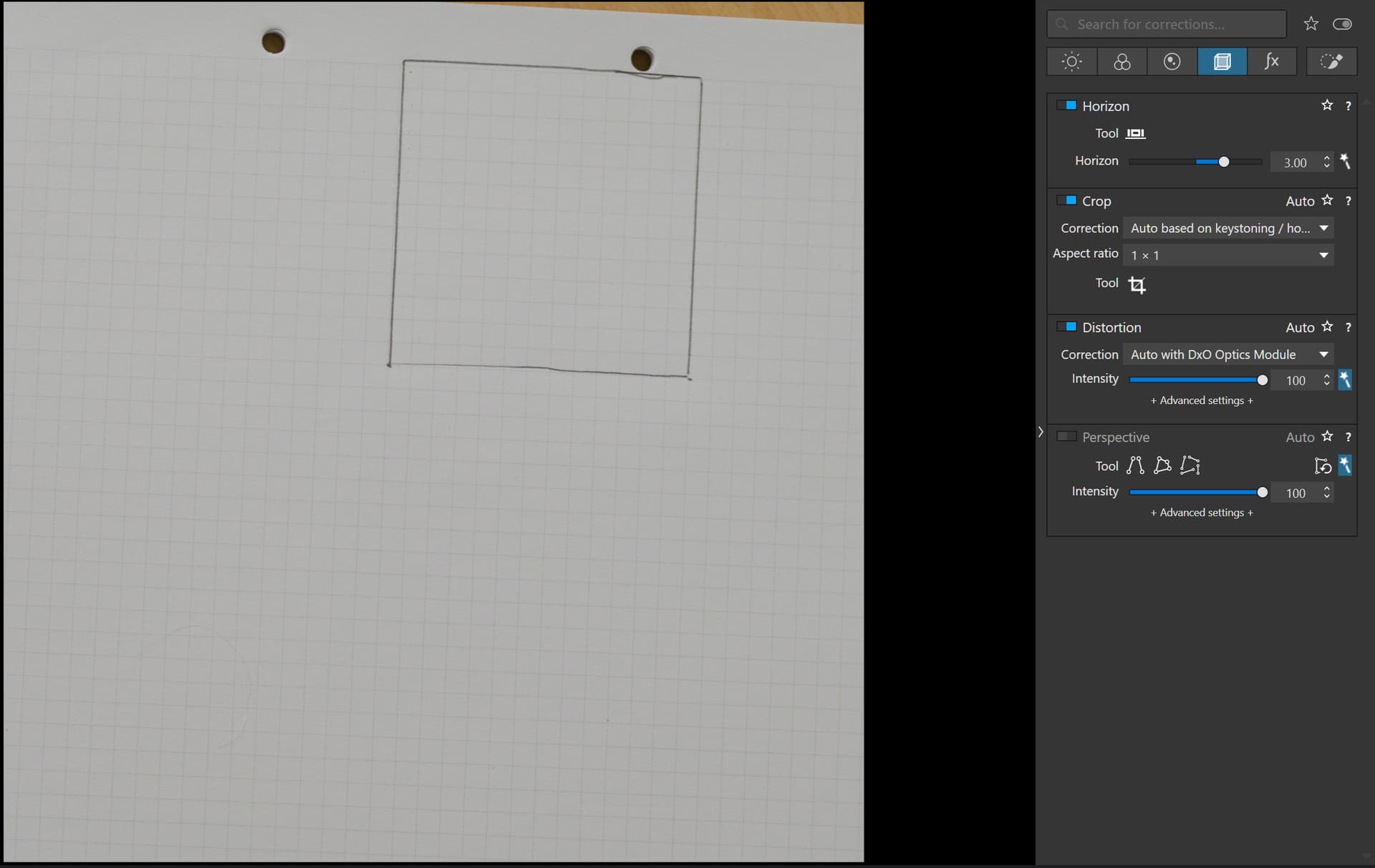
The crop and the horizon are completely independent settings - one shouldn’t affect the other except perhaps to keep the crop within the boundaries of the image.
In any event I got a strange response that makes absolutely no sense from DxO - looks like a typical AI generated word salad. No explanation of what “works normally” actually means ? Does that mean the crop size changes or not ? Great job DxO - makes me wonder about the skill level of their team.
Hello Duncan,
Thank you for sending us the screen recording and sample files — we really appreciate the time and effort you’ve put in to help us understand this issue better.
We’ve carefully tested the scenario you described on our end and were able to reproduce the behavior successfully. The good news is that the function works normally during our reproduction, so the issue might be related to your system setup.
To help ensure smooth performance, could you please try the following steps:
Uninstall and Reinstall DxO PhotoLab
Please uninstall DxO PhotoLab 8 completely.
Restart your system.
Reinstall the software from our official website.
Verify Your System is Up to Date
Check that macOS 15 (Sequoia) is updated with the latest patches.
Confirm that your GPU drivers and other system components are also current.
If the Issue Persists, Run a Diagnostics Check
Please run our built-in diagnostics to help us gather additional information:
Others can reproduce the issue, PL7 has the same issue as does PL8 on a different laptop of mine so it is most certainly not anything to do with my setup.
Tested some simple JPG images using both crop and horizon to see if a pattern emerged in their interactions. JPGs were used to avoid any optical correction/distortion questions.
Results show that the order of applying the crop and horizon matters with the second action overriding part of the first action. My geometry is out of practice, so couldn’t sort the math behind these changes, but here is the result summarized.
Perhaps I am missing something obvious, but seems like these two tools should not affect each other in this way.
Can someone check to see if they get the same results and/or explain why this occurring. Attached are the images
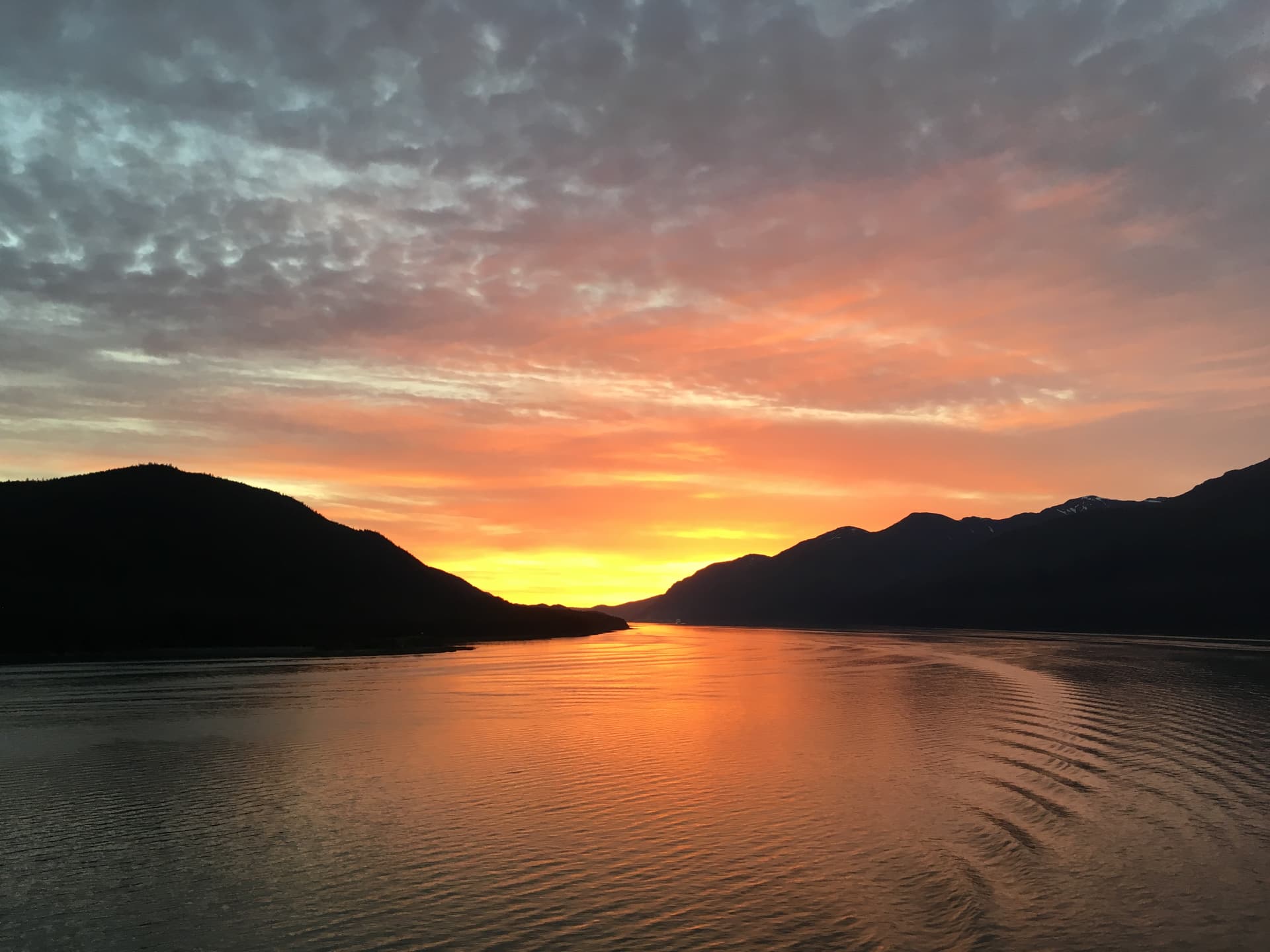
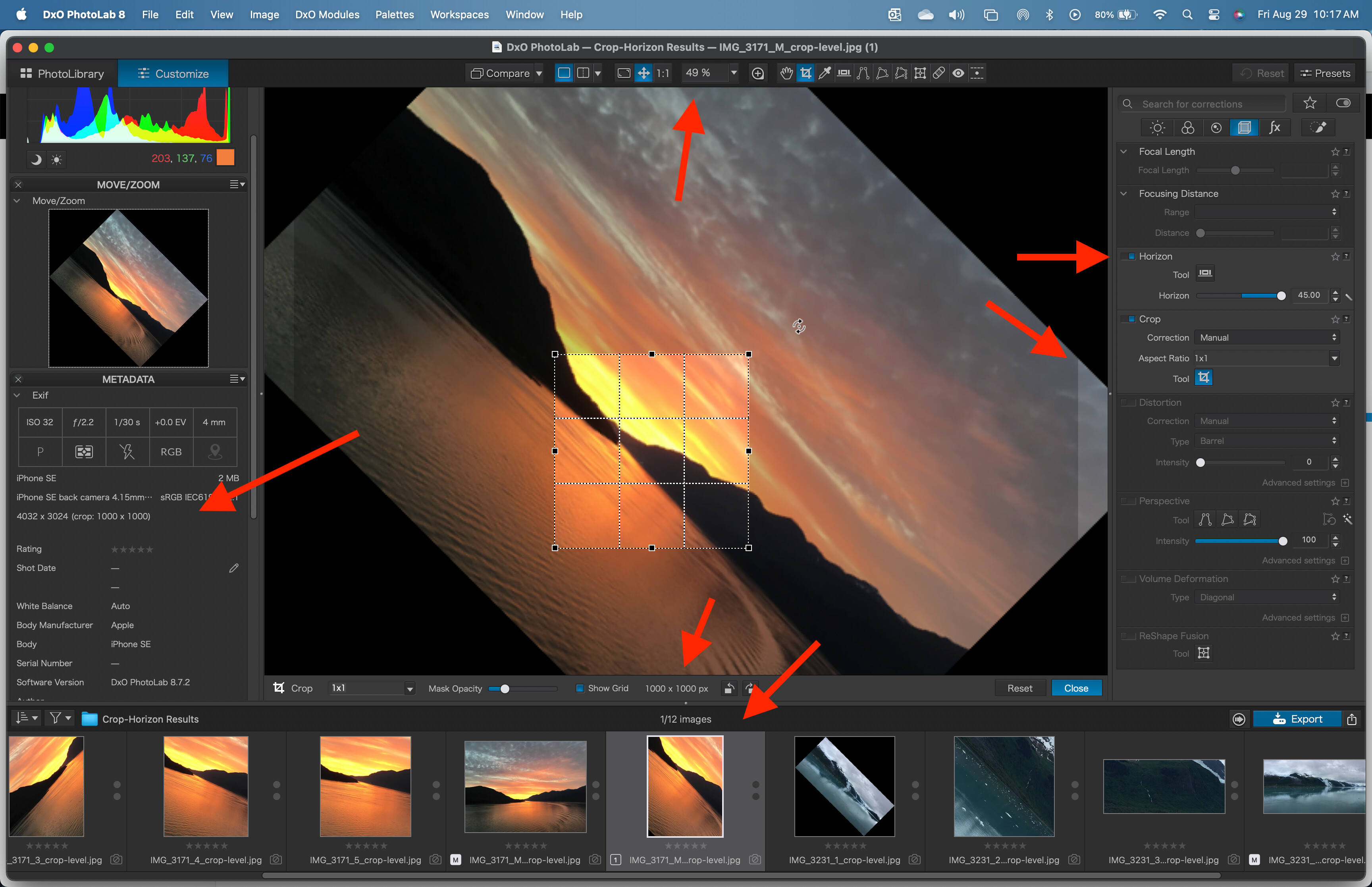
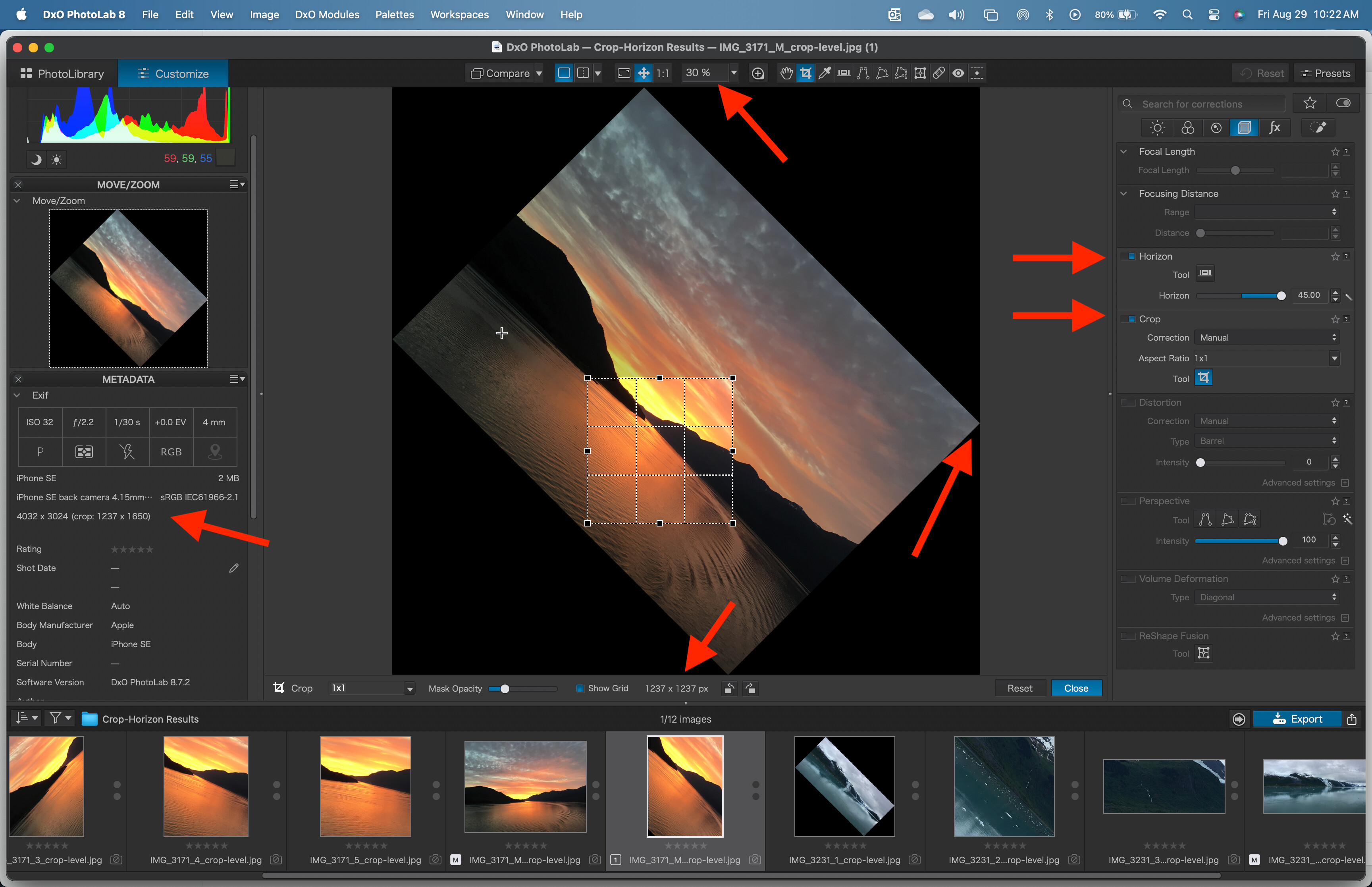
For image 3171, a 1x1 crop to 1000x1000 pix was applied to VC1. Then rotations of +45, -45, +22.5, +11.25 deg were applied for each additional VC. For each VC2 - VC5, the size of the crop changed. The larger the rotation, the larger the size. Also, while the crop window showed a square crop, the thumbnails showed a non-square image!!!. Exports of these VCs non-square results with the shorter side matching the length of the square crop. The aspect ratio was not the original 3:2 but dependent on the rotation angle.
For image IMG_3231 the actions were reversed - horizon then crop.
Image: IMG_3171
Action
Crop size in VC
Export size
Comments
Master
None (source file baseline)
4032x3024
4032x3024
Source (base)
VC1
Crop only
1000x1000
1000x1000
Export matches crop
VC2
Crop then +45 deg
1237x1237
1237x1650
Export does NOT match crop
VC3
Crop then -45 deg
1237x1237
1237x1649
Export does NOT match crop
VC4
Crop then +22.5 deg
1211x1211
1211x1434
Export does NOT match crop
VC5
Crop then +11.25 deg
1127x1127
1127x1241
Export does NOT match crop
Image: IMG-3231
Master
None (source file baseline)
8156x3628
8156x3628
Source (base)
VC1
Horizon +45 deg
7240x7240
No crop, but export size smaller than mathematically expected
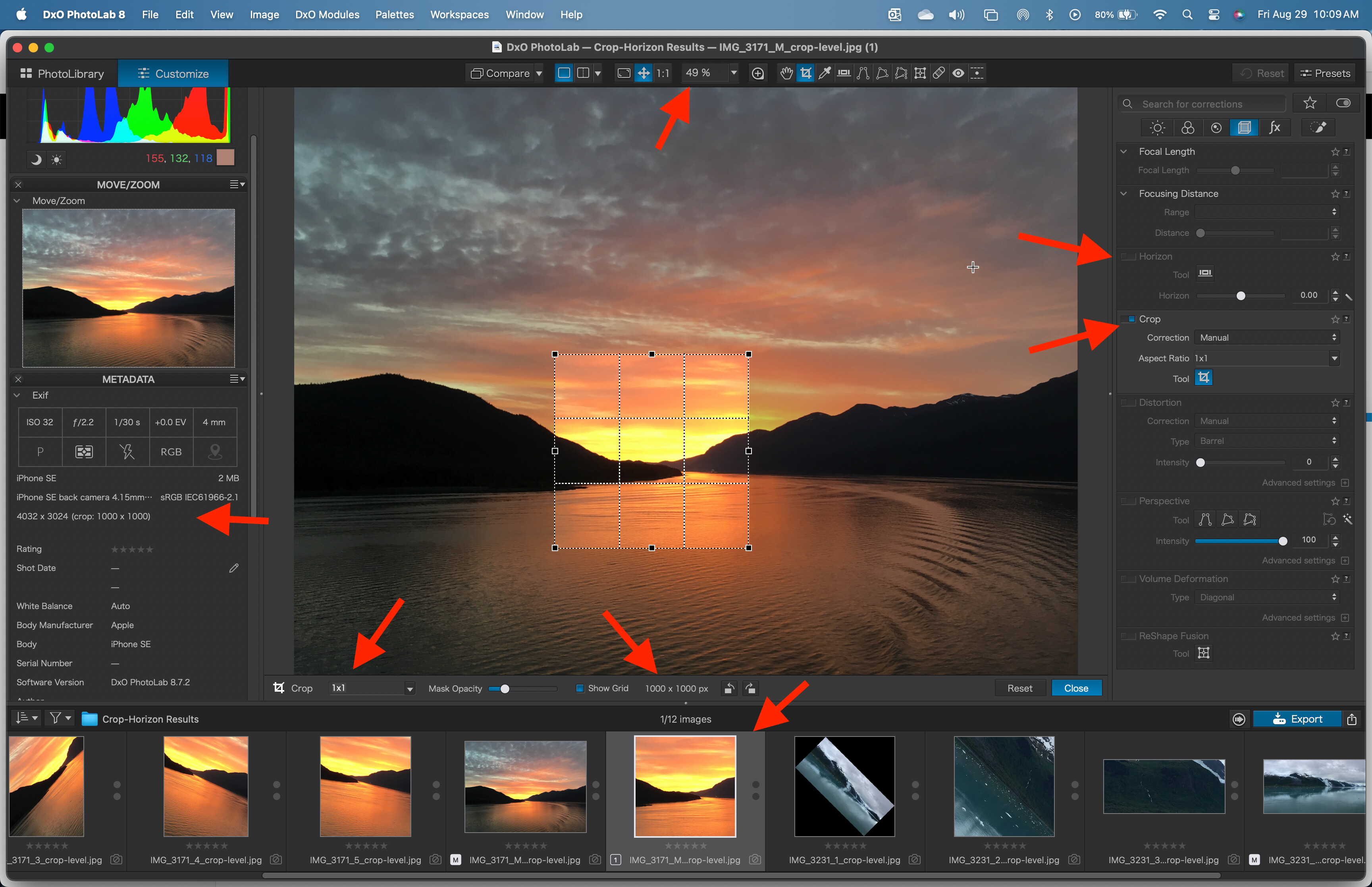
Open an image, make the metadata palette visible and select a crop of 1000x1000. Go to geometry->horizon and keep the up arrow pushed. You see the image rotating and the crop size in the metadata palette changing.
What you see is a static crop window and the underlying original image rotating and calculating new coordinates for the crop.
I think that’s the direction to search.
And do the global edits first and then the local edits.
It would seem that, by using the horizon tool, you are rotating the image, not the crop.
If I do not change the horizon tool and only rotate the crop from one of its corners, this does rotate the horizon as a side effect and gives the kind of results I think you are expecting…
I don’t think this is just a simple bug; much more a poor UI that is not taking into account the order of operations.
As for expecting to crop to a definite size, as I’ve said before, that is a lost cause. The Crop tool appears to be there to change proportions and relative size, not final size.
Ahah! I missed the sense of that post. It seems to be that I have merely explained what you said in different words
It certainly seems the order you do things is more important than maybe it should be. But recursive interactions can be notoriously difficult to break the loop and arrive at a solution that satisfies both conditions.
If only that were true but, as I have found, they are strongly interlinked, at least when rotating the crop affects the horizon tool.
This problem is subtle and easily misunderstood by users who are not expecting to have to have a degree in logic just to edit an image.
What really needs looking at is - after using the crop to rotate a 1:1 crop, why does further using the horizon tool alter the proportions as well as the rotation? The crop tool still shows the (e.g.) 1:1 ratio, even though the image is obviously now no longer square…
Rotating the crop ??? You can’t rotate the crop, you can only rotate the image and all that does is set the horizon - its the same thing except with the Horizon you get the guides to make it easier to rotate the image to level the horizon.
If you rotate the image why does the crop size change ?
Perhaps we are not getting the same results or performing the same steps. Here are my steps as explicitly as possible to see if we are getting the same results.
starting from an unmodified image. (no global or local adjustments) and working in the default DxO advance workspace with metadata open on the left and tools on the right.
select the crop tool
select the 1:1 aspect ratio
Grab the handles to size and position the crop. Choose 1000x1000 pixels and centered for convenience.
The metadata on the left shows the image size and crop size (1000x1000). The crop tool on the right shows active, Correction “Manual”, and Aspect ratio “1:1”. he zoom level in the main image defaults to extents (the crossed arrows) at 49%. The horizon tool is not active (no blue). At this point the crop tool can be closed and re-opened without change to these factors.
Grab the rotate handle and drag to change the angle to 45 deg, the max. Keep holding the handle active to observe these changes. While dragging, the image, not crop window rotates. Also while dragging image bounds exceed the window. The thumbnail in the filmstrip changes towards a portrait aspect. The Horizon tool shows active and the amount of rotation indicated by the slider and value. While the handle is active no changes to the metadata panel or the crop dimensions are shown.
Release the rotation handle and observe the changes. The main window resizes and shows a new square extents to fit the rotated image. The crop size changes per the information strip. The metadata crop size changes. Note that the metadata crop size is different than the crop size shown in the info strip below the main window. Closing the crop tool and re-opening has no effect. The exported image size and aspect ratio match the metadata crop information.
Seems like a bug more than math rounding to get integer pixel values. Thank you @duncang for raising the issue.
@George
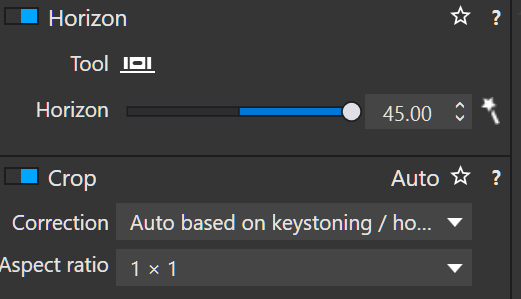
The Crop tool for my system only shows either “Automatic”, or Manual". Where do you find the “Auto based on Keystoning/ho” option? I am using a MacBook Pro M4m with PL8.7.2 build 48. I have both FP and VP licenses, but none of these tools active in this test.
The problem appears to be with the way PL handles rotation of the image. It seems the Crop frame is relative to the Canvas and when the image gets rotated the Canvas size is modified to fit the image inside the Canvas exactly. So the whole canvas size increases by the size of the diagonals and the Crop frame size stays the same relative to the screen resulting in the crops pixel size changing.
I would expect the image size to remain the same when it is rotated, it should not be scaled.
You can see this by rotating a rectangular image and the image size will decrease and increase depending on the angle of rotation while the crop frame appears to be fixed to the main window rather than to the image frame so it is not scaled when the image is scaled.
I did test the two options available on this version of PL - Manual and Automatic, but did not realize your version of PL uses a different label for “Automatic”
As noted above, setting the level before crop works as expected. That is, the exported image dimensions match the user specified crop.
The Automatic option in the crop tool simply maximizes the image dimensions based on the horizon/level tools and the specified crop aspect ratio. So when either is changed the crop is recalculated. This forces the crop calculations after the leveling calculations. So same as noted above - level then crop works. Sorry if I didn’t make that clear.
However, when the user wants a different crop to re-center or re-frame the subject than a manual crop is necessary. As long as the leveling calculations are set first, then the manual crop provides the expected export results. Apparently PL does not recalculate the crop when the horizon/level is changed when set to manual and does check for integrity of the crop either.
The OP wanted to crop a series of photos the same and chose the copy/paste corrections tool to do this but without copy/pasting the horizon settings. See message 6 in this thread. This resulted in different crop results between the photos with/without the horizon correction.
It is clear that the crop calculation is contingent on a given horizon setting. If the horizon setting is not included with the crop settings or if the horizon is modified after the crop settings the results do not match the crop settings specified by the user.
If the crop setting is specified to “Auto” then the crop setting is recalculated after either type horizon change.
[ and like this one can even “transfer” the crop to an image with different dimensions / from another camera ].
Therefore, if you use the Horizon tool excessively (which you don’t normally do), the canvas size will change drastically.
.
Does that matter? … What PL is showing you is a (temporary) interpolation. For printing/publishing, you want to output a specific size and set up your export accordingly… meaning your different crop sizes don’t matter.
The correct aspect ratio, however, does!
.
With a little more experimentation (2 from a FF cam, 2 from an APS-C body) …
This time I corrected/manipulated the horizon in each image (raw file!) and obtained the different (temporary) image sizes.
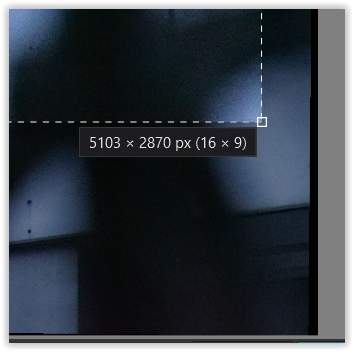
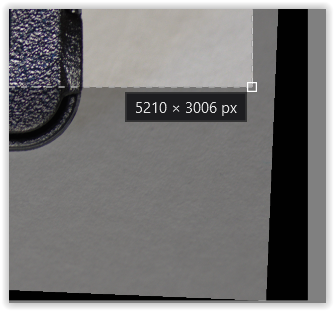
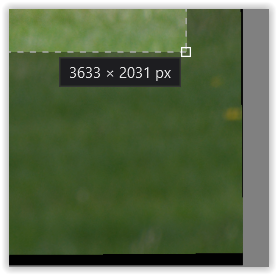
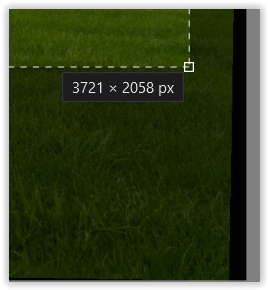
Then I applied an aspect ratio of 16 x 9 to all 4 images (all in “different” sizes).
I went through each image, checked the position of each crop, and checked (corrected) the aspect ratio, especially for the last three images.
.
I held down the Shift key, moved the mouse pointer over a corner of the activated crop so that it appears as a double-headed arrow, and carefully moved it. This “snapped” the correct aspect ratio back into place (and practically corrected the rounding errors … as follows). – Alternatively, I could have entered the aspect ratio using the keyboard, but that would have risked a different crop position.
After setting the correct aspect ratio and position for all raw files, I was then able to successfully export them to the chosen aspect ratio and image size… depending on the purpose.
I don’t know if this will help you with your planned workflow to (slightly) correct the horizon for a sequence of images and position the images correctly.
However, it does ensure that images of the same size stay in the same position when published, rather than jumping around. Try exporting to “Longest Side” (for 16 x 9, e.g., 1920 pixels) or “Fit” (1920 x 1080 pixels).
As long as PL doesn’t work differently, you can use my observations/descriptions (or not) – no need to get excited.
Since PL 2 (my first version of PhotoLab), the underlying image rotates during horizon correction, and the resulting crop shows the size changes.
But as long as we’re in the RAW file converter, this doesn’t matter. We need to export to get a “usable” output file … and if the exact aspect ratio is maintained, we can get exactly the same output size for a sequence.
@George
For demonstration purposes, I’ve briefly recreated the scenario. The screenshots of the second, third, and fourth images show a different aspect ratio …

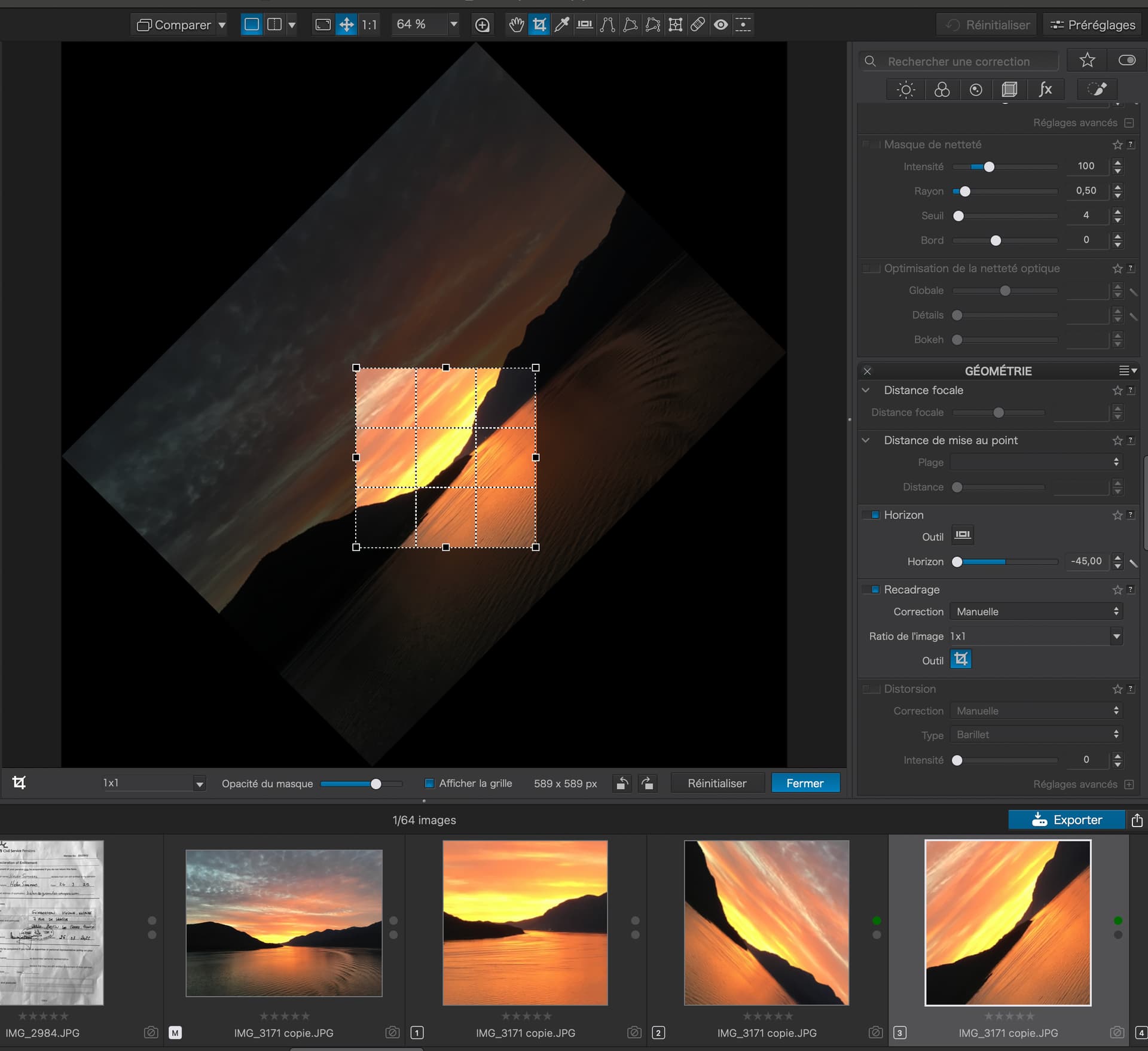

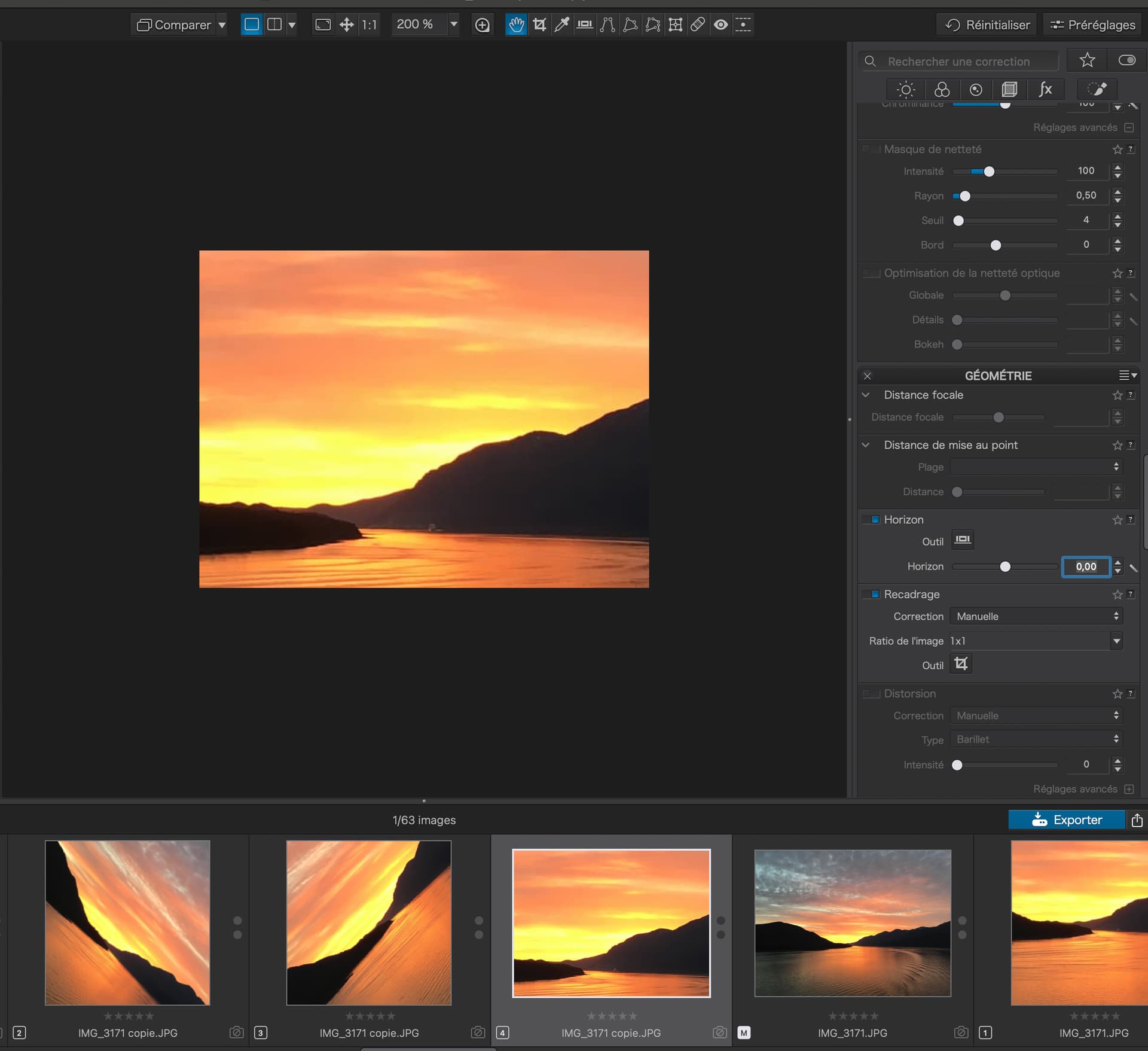


 ].
].