DPL on macOS only shows images of the one folder that is selected in the browser.
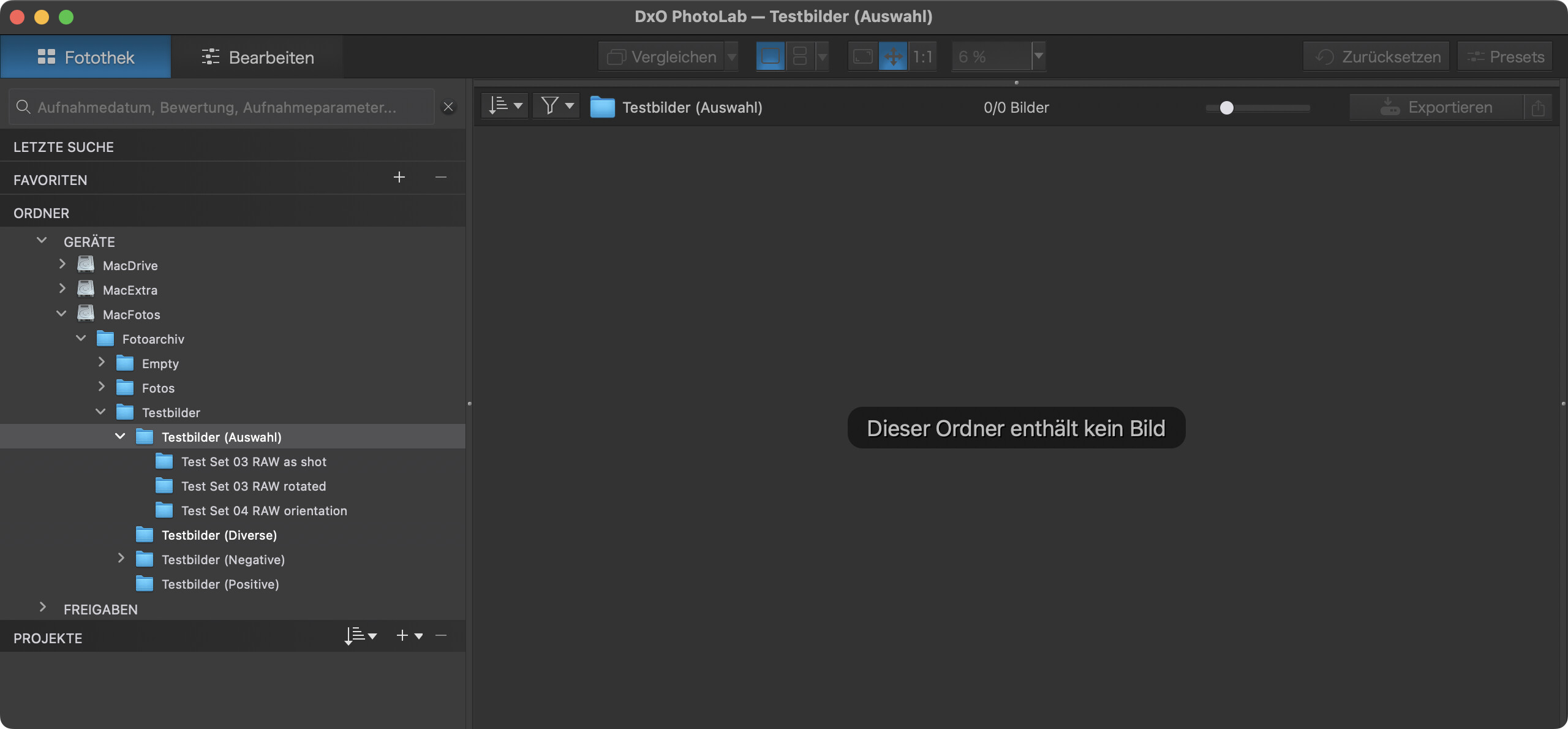
There is no way to select more than one folder at a time, and if the selected folder only contains subfolders with images and no images by itself, we get this:
@Stenis I understand what you want (or so I believe) but I cannot fathom out how you now believe that PL9 gives you that capability.
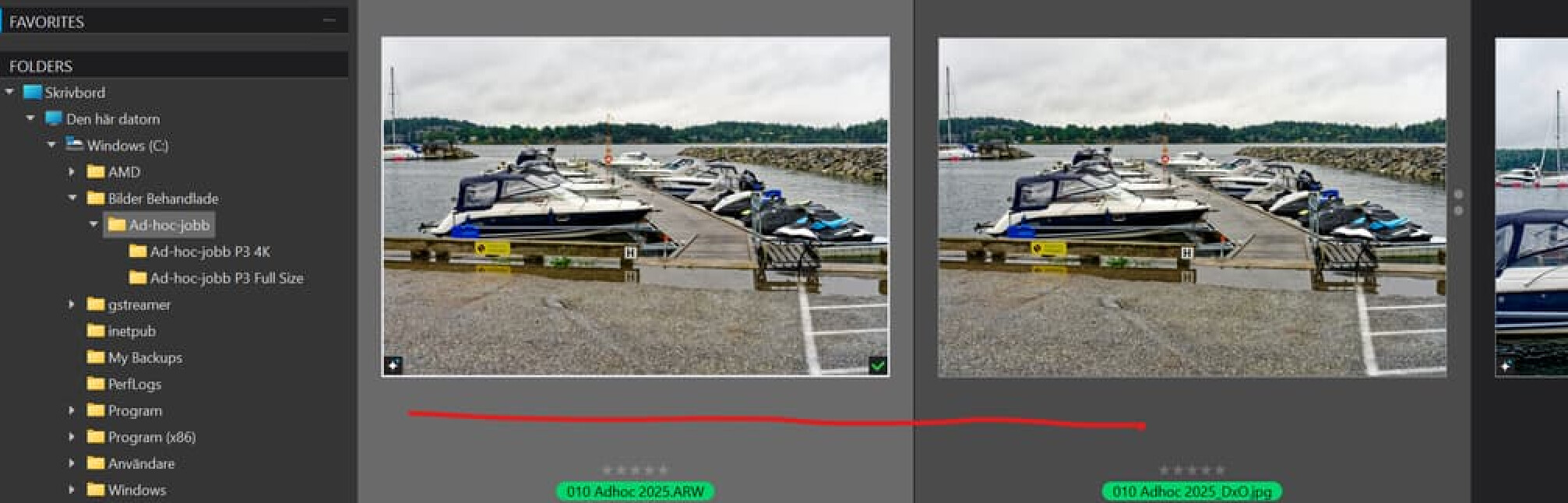
‘Sort’ by ‘extension’ and ‘Filter’ by ‘RAW’ have been around for some time but you are showing the RAWs and the JPGs together and the only way that I know of to achieve that is to put both in the same directory or add both to one ‘Project’ but your snapshot shows no ‘Projects’!?
@platypus I believe that DxPL(Win) is the same !?
@Stenis From your image there is no other subdirectory!? The RAWs (ARW) and JPGs appear to be in the one directory together.
I can achieve that with a ‘Project’

but that doesn’t appear to be what you have done, as I said earlier in this post.
So what am I missing!?
No. I’m wrong.
You claim that you are seeing in the image browser, photos belonging to different folders. Nobody here seems to be able to do that. Mac or Windows. As explained by BHAYT, only a Project folder would allow this.
So either your folder contains copies of the files supposed to belong to a subfolder of the target folder or you have created hard or soft links between these folders.
Could you please tell us what version of PL you are running and show us your filter settings ? There’s something strange in your screen capture. There’s a blue underlining on the Compare command at the top. I can’t reproduce this.
The only idea I can have explaining your screen capture is if DxO had added an undocumented feature allowing to automatically display the results of a batch processing when viewing the folder where the original images reside. Very unlikely.
I have never talked about selecting morte than one folder at the time. It is about selecting one topfolder and get Photolab to display both the files in the top folder and the subfolders under it.
If you select a folder in a Mac can´t you see files in the folders below then?
Is this difficult to understand?
In my case
Top Testfolder with just RAW-files
RAW 1
RAW2
RAW3
Subfolder with just JPEG
JPEG1
JPEG2
JPEG3
In the Image Library overview I see
RAW1 JPEG1, RAW2 JPEG2, RAW3 JPEG3
It is perfect for convenient and efficient metadata management
In XnView I can make a similar overview by activating the display of the files in the subfolder. In Photolab I need to activate the RAW-file filter if I want to see only RAW-files when selecting the topfolder. To see just the JPEG-files just select te subfolder. I think it is very easy.
I can say that I definitely cannot see images in subfolders when selecting a folder higher up in the tree:
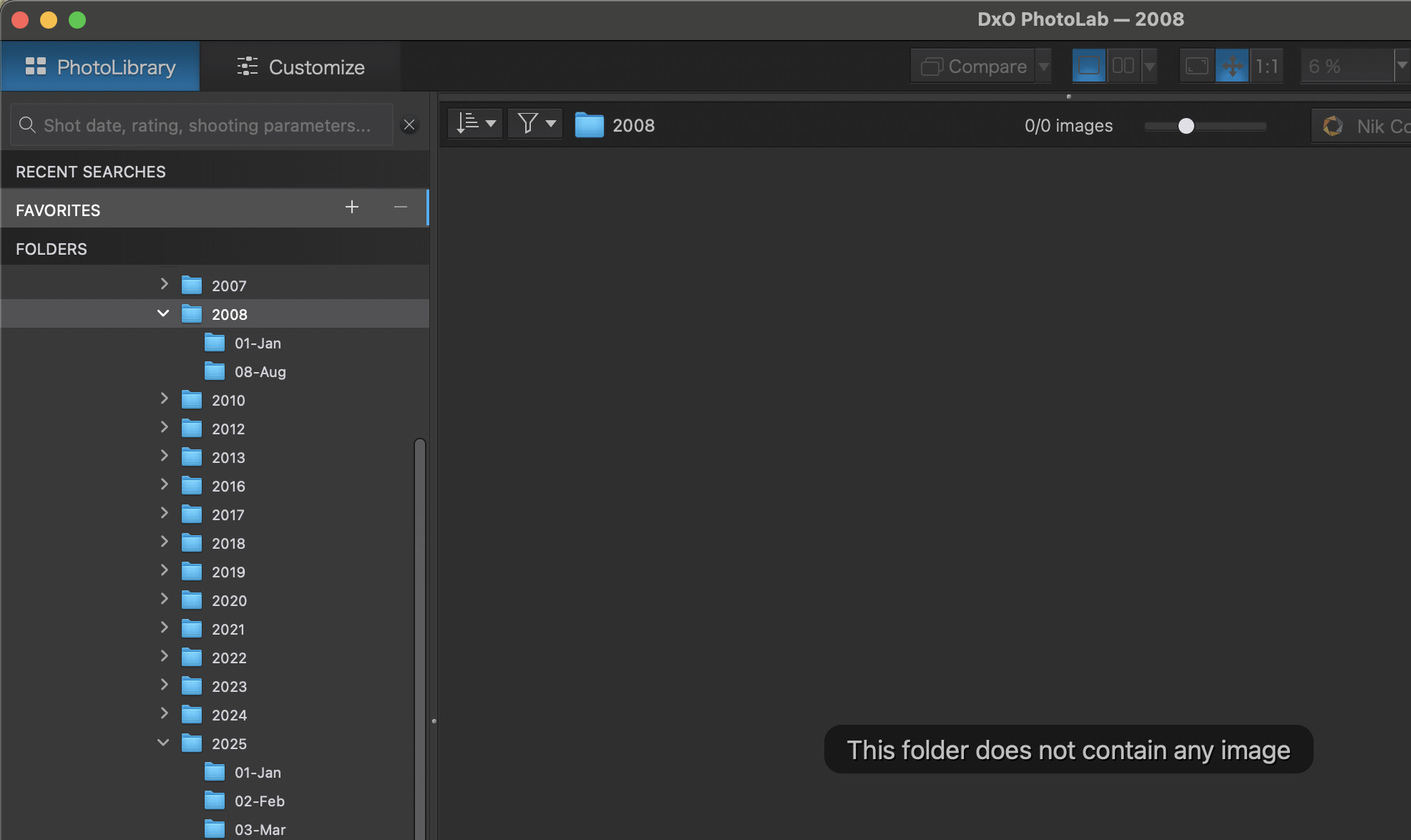
Both 2008/01-Jan and 2008/08-Aug have photos in them, but if I select 2008 then I get the standard message “This folder does not contain any image.”
@Stenis
Are you SURE these photos you see in the browser to not exist in the Ad-hoc-jobb folder directly? Can we see a screenshot of that directory in Windows Explorer?
Not saying you’re lying, but I just can’t believe you’re able to see the sub-dir files when nobody else here can, and I want to see the proof! 
Sorry you seems to have a Mac. Bad for you.
Yeah, I do, but how about that Windows Explorer screenshot I asked for? 
2 Likes
The question is not about seeing the subfolders of the selected in the folder tree. It is about what you see in the image browser when a given folder is selected. Your initial post claims that you can simultaneously see both the images of the currently selected folder and the images of the subfolders of that folder.
As far as we know, this is not possible unless you have discovered a hidden feature of PL.
1 Like
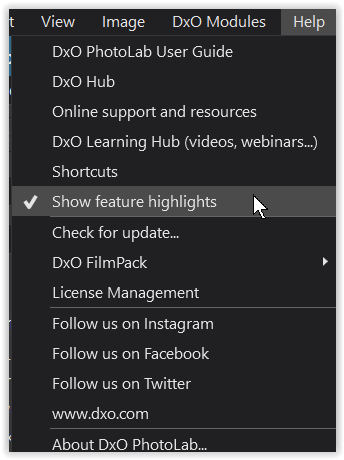
@Wolfgang Thanks for clearing up the “Blue Line” but that selection is in the ‘Help’ menu and seems to do little else except do the display you normally get after an installation which I remove immediately!??
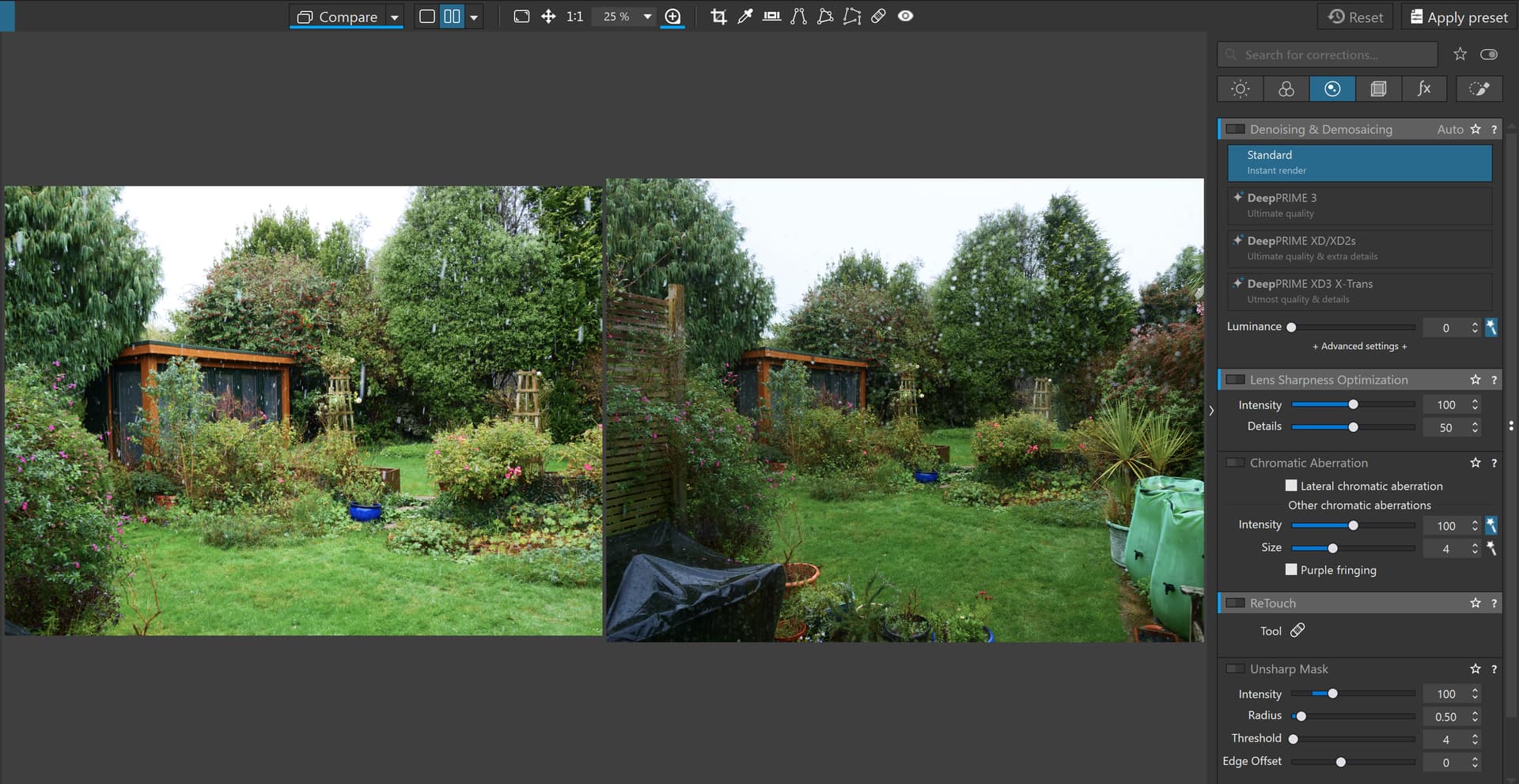
@Stenis But I am on Win 10 and I cannot fathom what you think is happening so you are going to have to guide us hand by hand starting with a snapshot of your directory structure then showing you entering into that directory and showing us the contents because it makes no sense to me, i.e. I cannot reproduce what you show in your original snapshot!!??
PS:- @Stenis what you appear to have done is to export to the same directory that the RAWs were in and that is why you have RAW-JPG-RAW- etc.
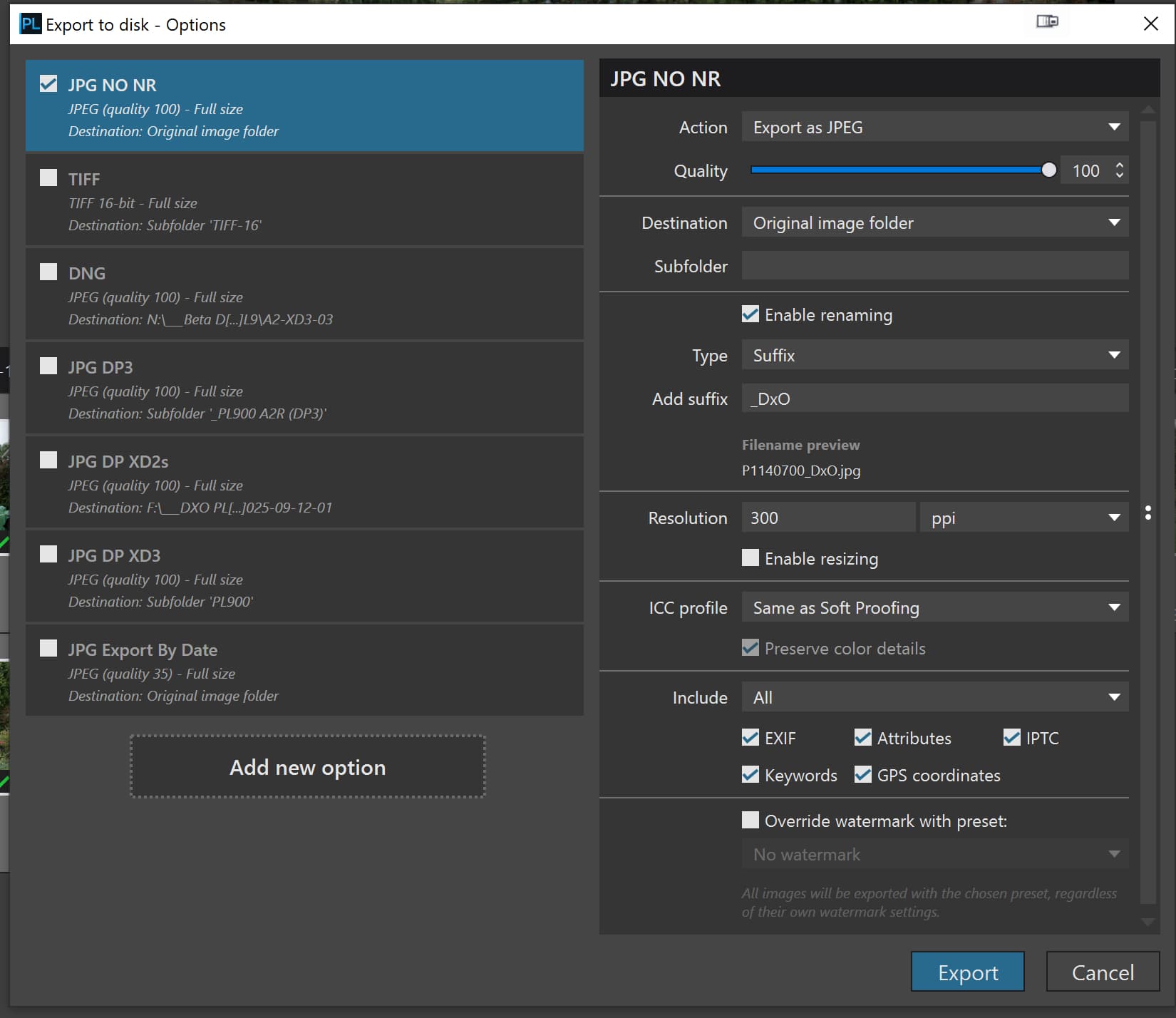
So I did it with my images but one thing has changed from the past. this is the directory after I have exported back to it, i.e. in the past the exports appeared immediately
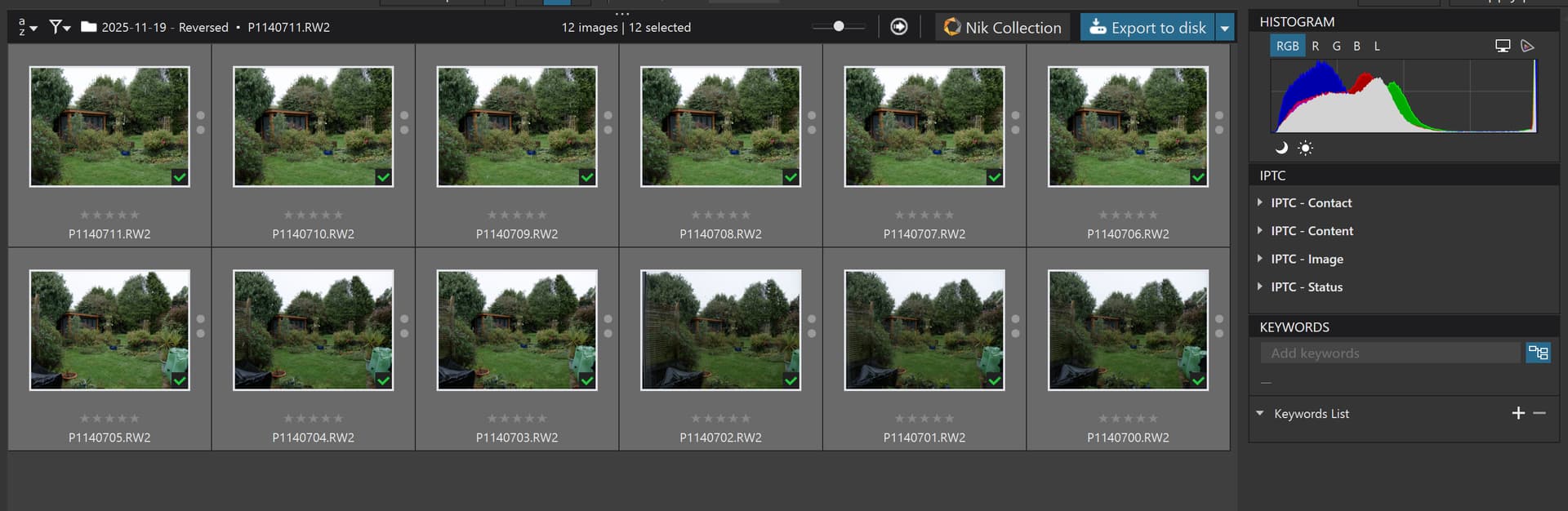
But I took some fiddling to get the new images to appear !!??
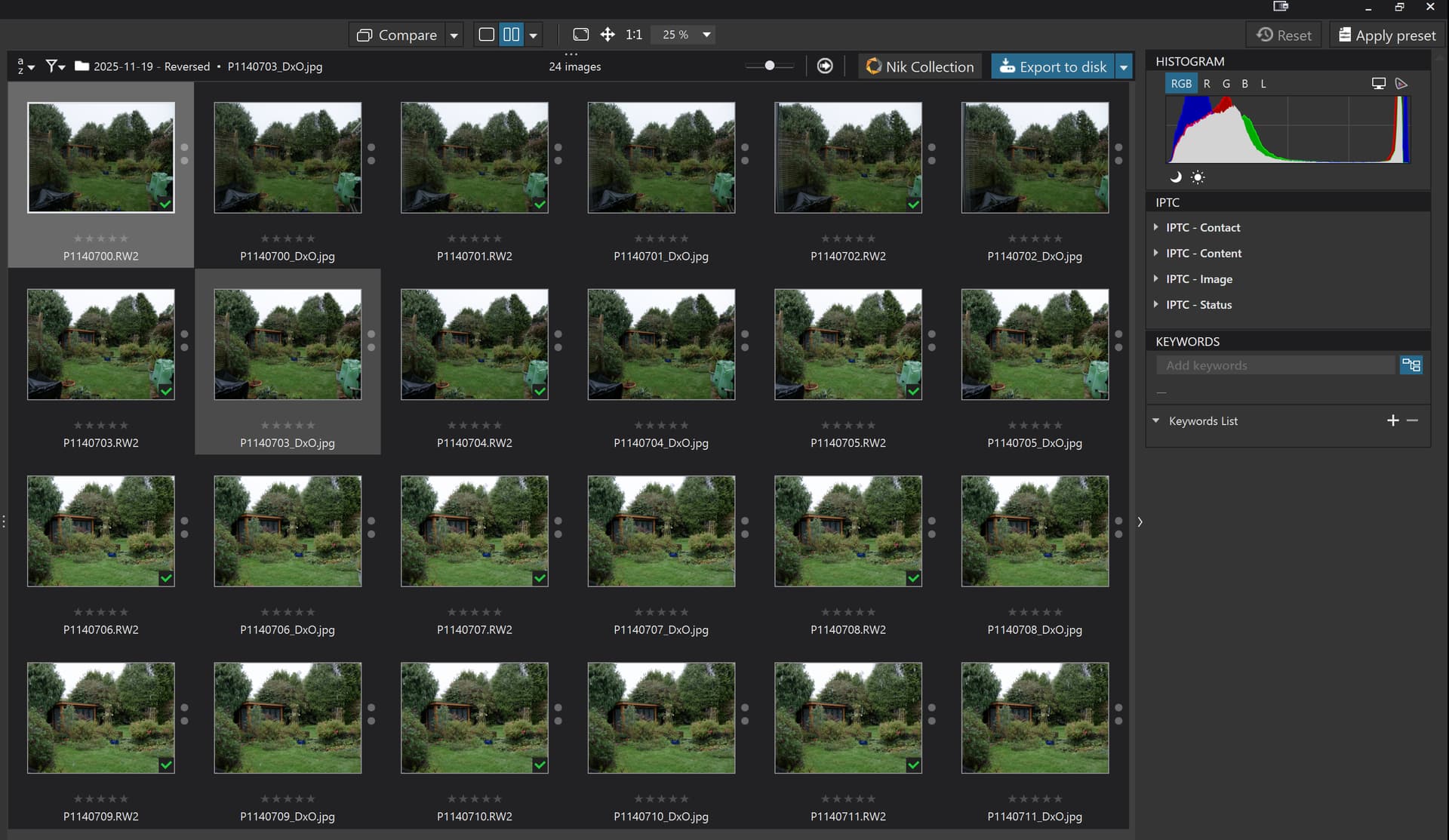
Using the ‘Refresh’ selection doesn’t do it!!
But the ‘F5’ key does or navigating away and back, e.g. navigating to the JPGs and then back to the RAWs might make it look like you were seeing the images from the JPG folder instead of the “hidden” exports
Exactly my thoughts. Hence why I want that screenshot of the directory in Win Explorer.
1 Like
By the way, I would be absolutely pleased if @Stenis turns out to be correct and DxO is releasing this in PL and somehow he got an early look at the new feature. I just find it highly doubtful (that they would have released something accidentally to one user) 
Add my name to the list of PL on Windows users that can’t reproduce this.
Once again, please share a screenshot of File Explorer’s view of the content top level folder.
PS I am using PL 9.2.1 (trial)
@stuck We need @Stenis to confirm what he actually did but my guess is
The fact that exported images no longer appear until “forced” to is potentially a new “side-effect” of the change in the export worker structure.
The fact that you have a trial copy is not the reason you cannot reproduce the problem here is the original snapshot
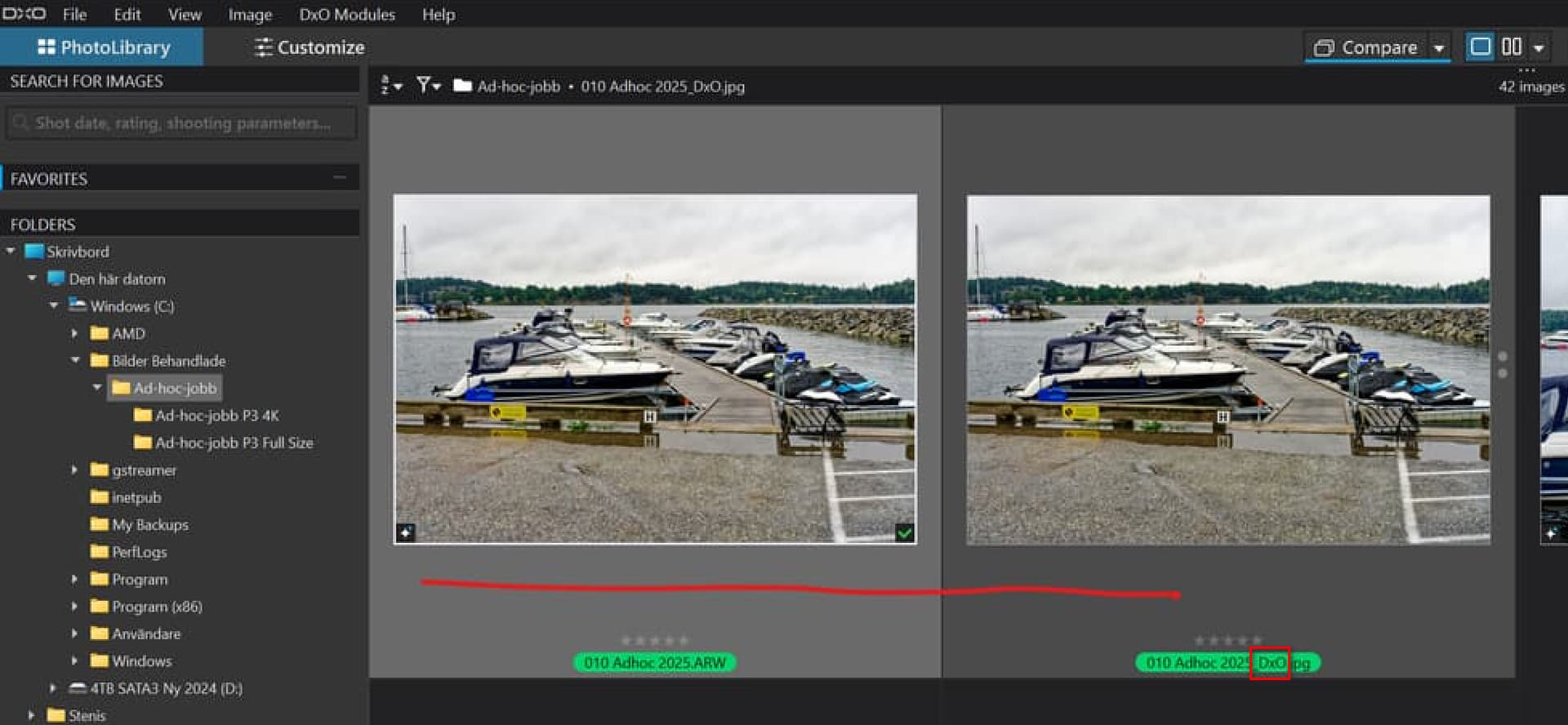
clearly showing that the JPGs are exports.
It’s easy to understand, but it does NOT work on Mac as you can see in the screen I attached above. When I select a folder, only the images of the selected folder show, all images in subfolders don’t.
Trying to select multiple folders was an approach to see if that is a possibility, but DPL’s browser does not allow to select multiple items.
The only two ways (I know of) to look down into a folder tree with DPL is by a) searching and b) projects. For search, it would require a naming convention and for projects, folders should be part of a project, but projects can only contain images, not folders.
Lightroom does this:
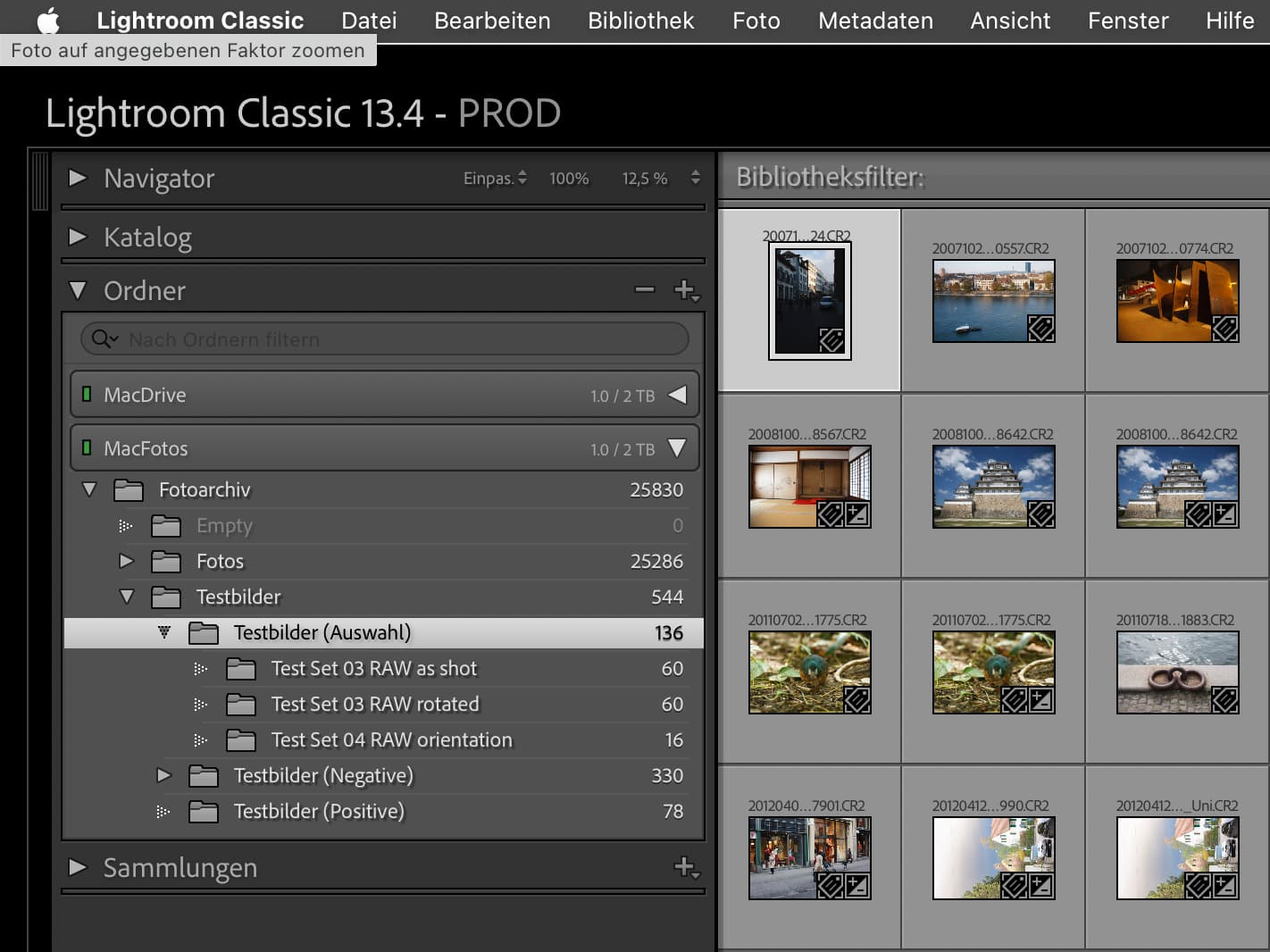
1 Like
@platypus LightRoom imports images and is effectively creating a “holding pen” and I suspect that you can import an image more than once!?
Not sure that would ever be right so I doubt you can but I feel that any product that wants “user driven importation” rather than “importation by discovery” is effectively organizing those imported images into a import “bucket” (container) and that is what can be done with DxPL ‘Projects’ but it doesn’t have to be done that way and most don’t.
What I believe has happened is nothing more than “confusion” caused by the way the new export manager works. It made me question what I had done wrong when no exports appeared automatically. I discovered the move to another directory and back “trick” before I discovered the ‘F5’ “trick” because I was looking to see where the exports might have gone, answer they had gone nowhere they has just been “hidden” by PL9.2.1.
But if users want to have both the RAWs and the JPGs available and kept separate, mone are the other way around from what @Stenis does. i.e. JPGs in the main directory and RAWs in a sub-directory then ‘Projects’ are quick and easy to setup and use to see both at the same time. The only minus is that the ‘Projects’ won’t survive the loss of the database!?
For the life of an editing session that may not be a major issue at all.
Oh, that old misconception of Lightroom’s explicit (user controlled) import!
Lightroom does NOT import images into any bucket, but reads metadata, location in the file system etc. and adds this info to its database or “catalog” in Lr language.
PhotoLab does the same thing as Lr. Metadata are read and added to a database, including the risk of ingesting (PhotoMechanic language) thousands of items if you click on the wrong folder by accident.
In both cases, image files stay where they are.
How can you direct PL to add images to a project on discovery (implicit import)? And if this is possible, will existing structures with subfolders be shown unaltered in projects and sub projects?
I always export to the same folder as the Raw. I see no change in the behaviour, the exports appear straight away.
@stuck Well that was what I expected so I was more than a little confused when that didn’t happen this time!
Please see the video attached
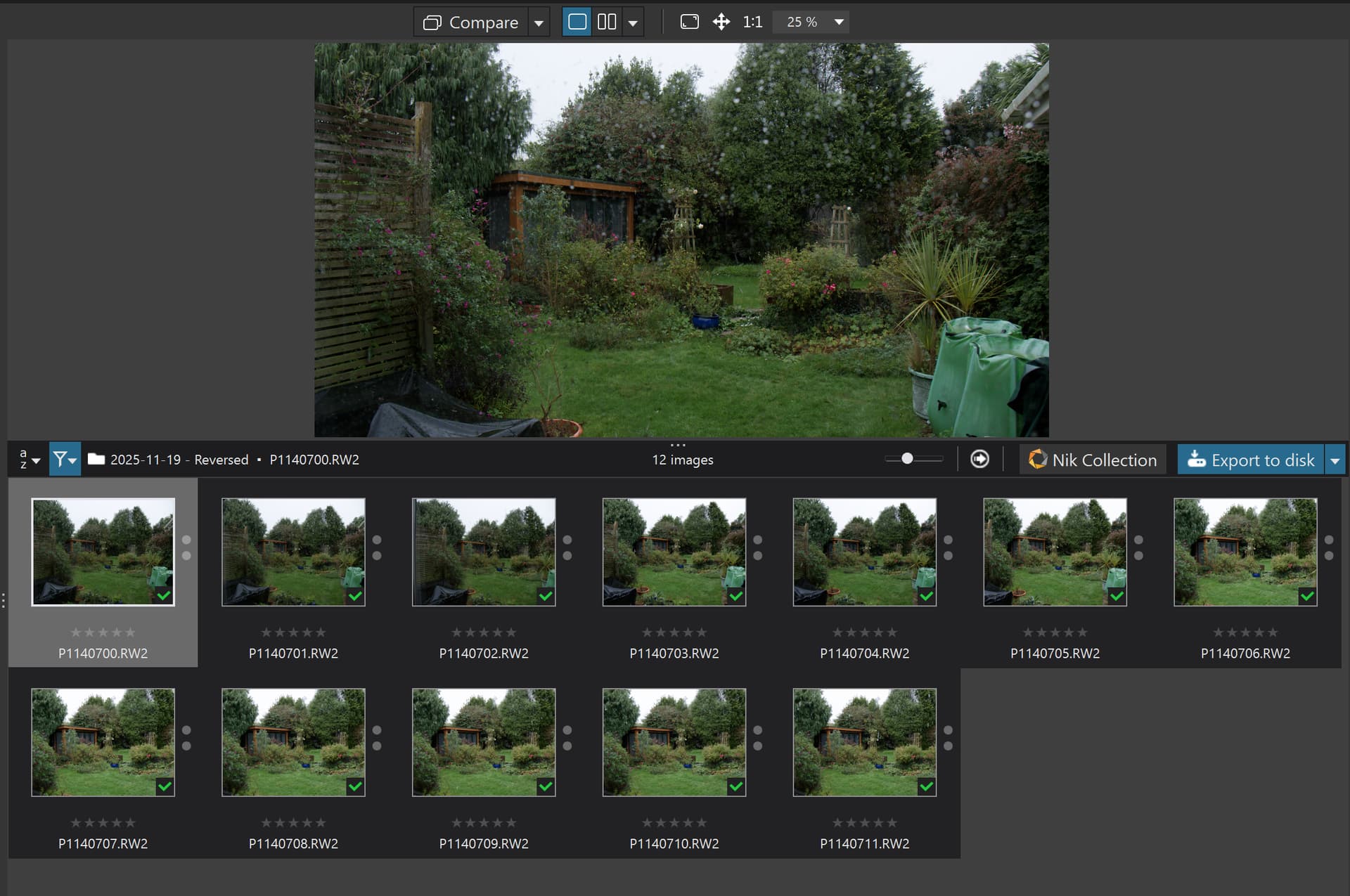
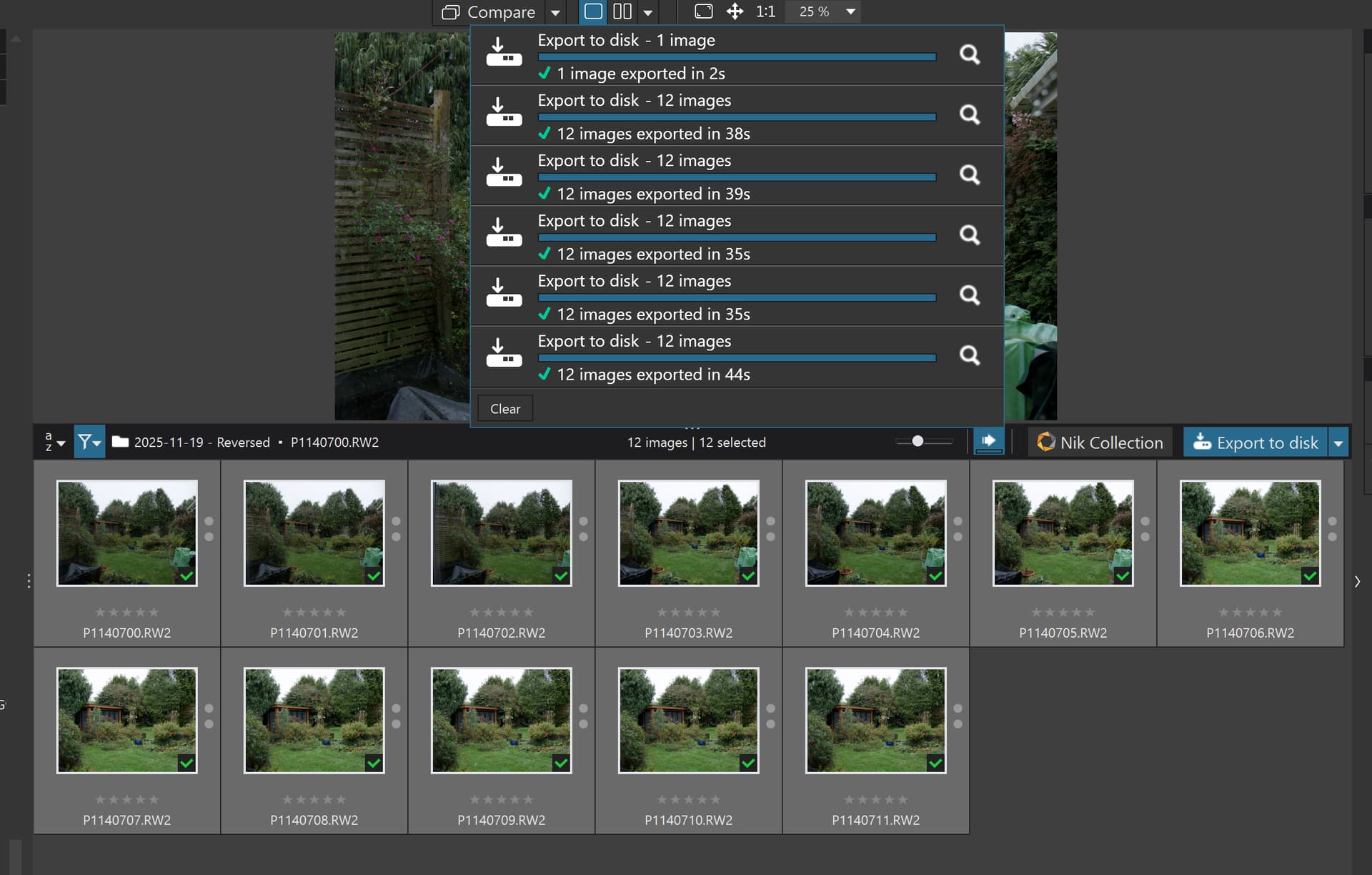
Any explanations would be useful!?
I repeated the tests with PL8.10.0 twice, once from the ‘PhotoLibrary’ screen and once from the ‘Customize’ Screen and the same thing happened!??
@platypus Sorry, I haven’t ever really tried to get “under the skin” of LightRoom so I was guessing, incorrectly it appears.
You can’t you must explicitly select all RAWs and create a ‘Project’ and the do the select all the associated JPGs and add to the ‘Project’ or vice versa in my usual case.
To do more clever things automatically would be almost trivial and personally I would favour an option where it was possible to browse a directory without triggering the automatic import and add an Import command which could be ‘Import’ or ‘Import’ and add to Project’ or …
However, that doesn’t currently exist and although almost trivial to add we will probably never see it. The ‘Preferences’ default would be what happens currently but it could be reset, when browsing directories would become just that, ‘Browsing’, or ‘Browsing and importing’, or ‘Browsing’ followed by ‘Importing’ or ‘Browsing’ followed by ‘Importing’ and ‘Import to Project’ etc…
No worries. Lightroom’s catalog is like PhotoLab’s, albeit a lot more finely structured.
PL’s DB has 21 Tables and 47 indices, Lr’s has 126 Tables, 222 indices plus 20 triggers.
The number of ingested images is the same in both databases/catalogs, except for an extra of 70 files that Lr can handle but PL can’t (psd, png, mov/m4p)