Yup, no way at all to beat the maths. Well… unless you invent your own branch of maths where all values of 1 are not equal…
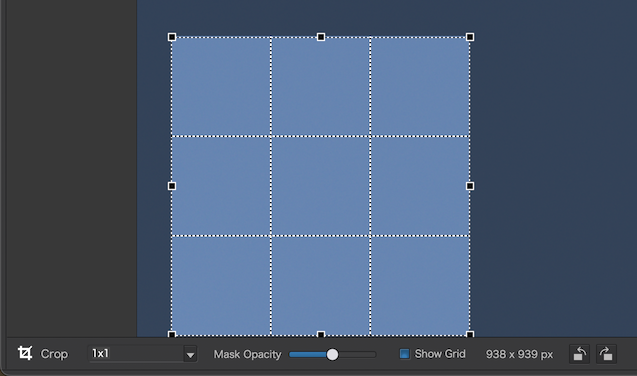
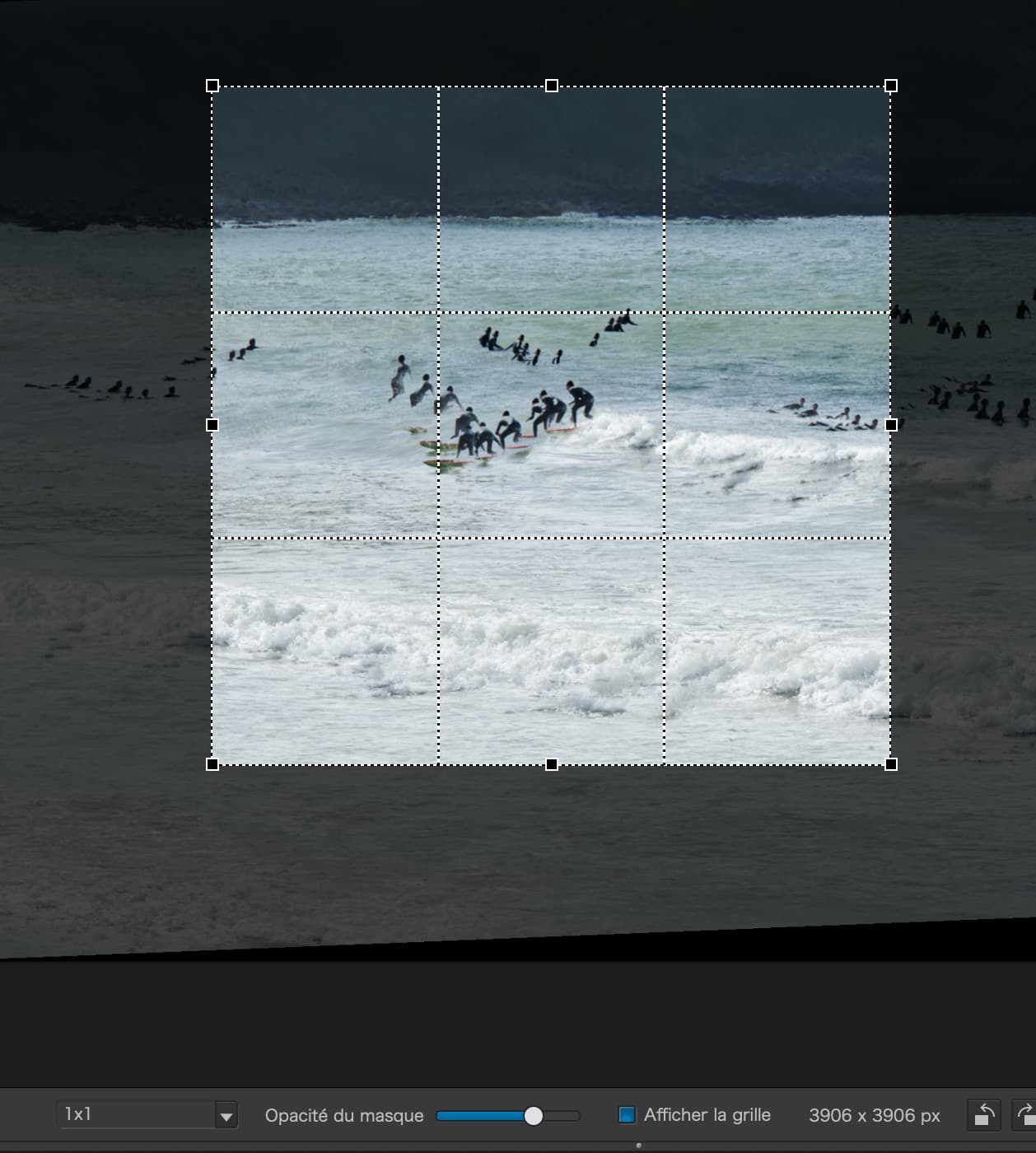
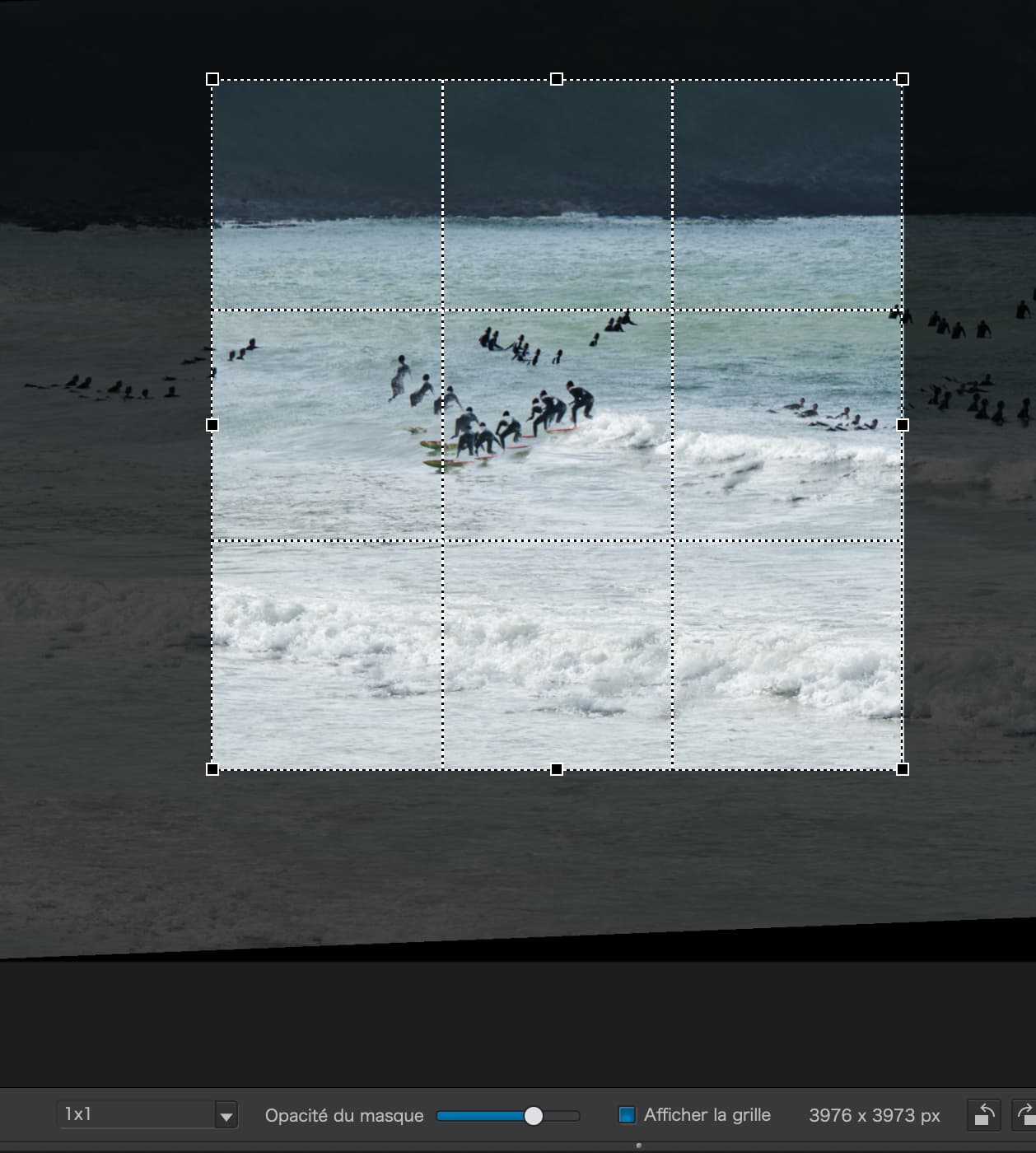

It took me a while to see what you meant. A deviation of 0.00075 or 0.075%. I won’t call it a fault.
But will you get the same deviation when using the corners? Intuitive I would say the same.
George
Reminds me of the old question Does a hole have a border?
If we define a hole as r<1, it doesn’t have a border. We can get as close to where a border should be, but there isn’t. Same here, almost “1” isn’t “1”!
You don’t want to get an “almost” salary.
The OP wants an exact 16 x 9, no way to get that …
… if the short edge needs to be 1024!

Here’s what happened when I used Affinity Photo 2 to implement a 1:1 crop and then rotate it…
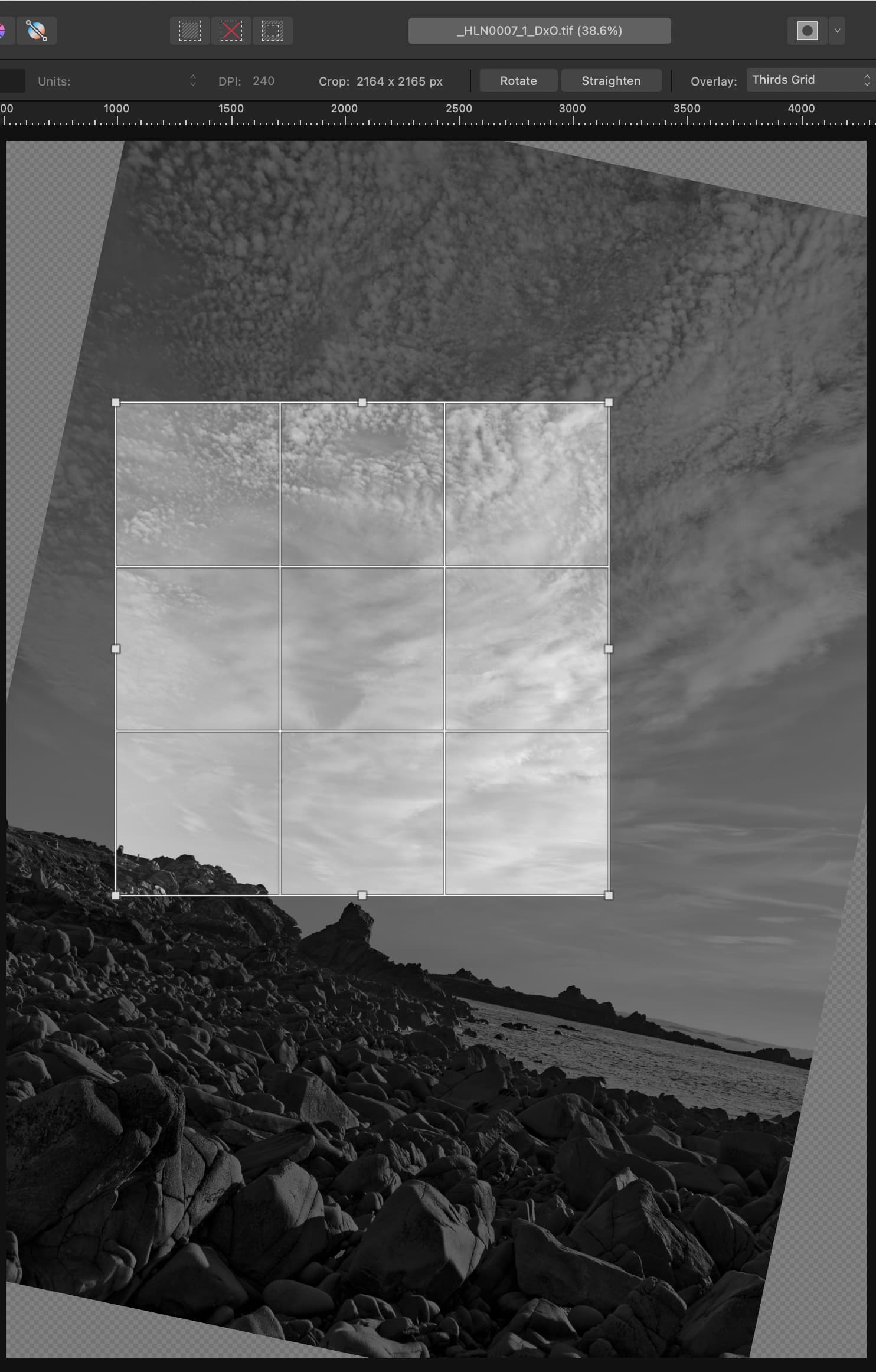
Notice the one pixel difference.
This is not, repeat not, a fault with PhotoLab. It is the result of the mathematical impossibility of rotating certain ratios.
As has been pointed out, all measurements are shown as integer values but all coordinate manipulation and storage relies on floating point numbers, which get rounded to the nearest whole number for display.
Perception is reality. If I ask for 1:1 and I don’t see 1:1, it’s broken.
I understand that floating point numbers are used behind the scenes, and must be, but at the end of the day, I have asked for a 1:1 image and there is no reason I cannot be given one, regardless of the internal or temporary visual representations.
There are a couple of reasons, e.g.
- Physics and Math.
- Floating point rounding to natural numbers.
- Absence of automated correction for rounding and adjustment to set ratio.
Assuming that PhotoLab would adjust for exact ratios, it would have to decide which side to cut (or include) in order to make the crop spotlessly exact. As of now, PhotoLab doesn’t do that for distortion corrected images set to be cropped to e.g. 3 x 2 either.
While those rounding errors don’t matter in most cases, they might matter in others. Then, the cropping needs to be done manually or with some fiddling with the automated crop. Mind Over Matter? Forget about it here, nothing beats physics and maths.
A rounding error there, too. A few reasons.
But seriously, the output image MUST be in whole pixels. Those whole pixel counts MUST be determined, at some point, for unscaled output.
Yes, for something like 16:9, the ratio of those whole pixel counts will not have that exact ratio.
But… maths says that 1:1 is absolutely always achievable no matter the size of the crop. It just is. There is no avoiding this. Deciding on which pair of identical numbers is the bit that needs to mess around with floating point numbers, but once arrived at, it is always, always, always possible to output any image format that works in pixels with identical dimensions and it is therefore always, always, always possible to show those numbers in the interface.
Not being exact on 16:9 or 4:3 or 3:2 will always be a minor issue. Not being exact on 1:1 is a bug.
By the same token, dragging only corners is a crutch. It shouldn’t matter which handles are dragged. All drags are being interpreted already to whole numbers. If I drag the edge of a square, it doesn’t change anything at all, only the input to the two identical calculations.
There is no excuse, not maths, not science, not computer science why n x 1 cannot equal n x 1. Every excuse given so far does not apply to 1:1.
I used to write BASIC code to plot circles using both the square rule (fast but inaccurate) and radial coordinates (slow but accurate) on a TRS-80 screen. I know how pixels work. They are indivisible.
I suppose that PhotoLab doesn’t even notice that its 1:1 isn’t correct because DPL is all in floating point and only giving natural numbers for display.
Be that as it may, rounding errors exist - also for squares if rotation is not done around the center of the square - and an additional step would be necessary to ensure that the ratio is exact…for whatever ratio a user might want. So far, this additional step has to be taken by us, the users.
Looking over the hedge: Lightroom Classic shifts and rotates the image “below” the crop mask which can, in this case, preserve its ratio “unharmed”. And as with DPL too, the pixels need to be recalculated which leads to more rounding. And I’ll not go into discussions about new edge pixel woodoo. Or distortion correction pixels etc.

Not quite. The deviation of a 1:1 ratio can be 1. What you are asking for is a possible correction of that outcome. But can that be done without doing so for any other ratio?? It must be all or nothing.
George
No, no, and no. Rotation doesn’t change anything regarding the ratio. If you rotate an image by 5 degrees, you have to interpolate every single pixel. You need to decide how many pixels to do that for. Same maths as when not rotated.
Here’s the answer… the output dimensions shown should, as closely as possible, be calculated to the requested ratio. This should happen regardless of what will populate all the pixels so defined.
If you want to start talking about which pixels appear in the output, then we can talk about rounding. But for the purposes of the UI, the ratio is the ratio. For any size 16:9, you must round one dimension or the other such that both are whole numbers, as close as possible to the desired ratio. If that ratio is 1:1 it is always possible to be exact with X = Y.
If I crop an image to 1:1 that is “935 x 936”, then output it at 55 pixels square, what happens to that extra pixel? Hint: there is no extra pixel. 55 divides into 935 exactly 17 times. Should PhotoLab try to interpolate every pixel based on 17 pixel tall by 17.05882353 pixel wide blocks? It would be madness to do so when I carefully pick a 1:1 crop and scale which can work perfectly. It would also add blur to the image unnecessarily. (Yes, not a lot, but it’s the principle I’m driving at here.)
Only when exporting does the rounding need to come into play to populate the stated number of pixels. Heck, I’ve used the vector-based Affinity Designer to design app icons for iPhones. It can be a pig of a job lining up effectively-infinitely small lines so they fall on the output pixels in such a way as to be legible. That is a difficult problem. Modern font renderers contain hinting to address exactly this problem. But when I tell Designer that the result is 1024 pixels by 1024 pixels, it’s always 1024 pixels by 1024 pixels.
As said before, when you want to change the outcome to fit a ratio, you must do that for all ratios. For a 1:1 ratio the max deviation is 1, but for a 16:9 ratio the max deviation can be max 144.
You can’t compare a vector based editor with a raster based editor. Enlarge a vector based image and a raster based image and you will see the same problem. The vector based will stay sharp, the raster based will get pixelized.
George
So, here’s a few mutterings on rotation.
- Take a square of 100px.
- Rotate it by 45°
- Now you will have a vertical measurement of 141.42135623731 pixels, if you keep the same scale.
What happens to the extra 41.42135623731 pixels?, especially the decimal portion? You cannot avoid rounding if you rotate. But do you round up or down?
32 posts on this topic and not finished!
All for 0.000…n% difference, damn it!
And can you see the difference?
A lot of accurate considerations, but you’re forgetting the essential point:
- when I display a 3849x2160 image on my 5k screen, all the pixels are recalculated anyway, so it’s not much more than that
- if I print the image, it’s also interpolated to the printer’s definition
- if I zoom in on the screen, it’s still interpolated
- a jpeg or heic image, or any format other than bitmap, is the object of skilful calculations that reconstitute squares of decreasing size down to the pixel.
I crop my photos just before exporting and don’t verify the dimensions…
I know just what you mean 
Considering that most screens are around 110ppi and, as you said, interpolated, I’m surprised that folks are getting uptight about 1 or 2 pixels difference.
Whenever I print, it is usually via a 240ppi TIFF file, so even less of a difference. And printer resolution is usually 2400dpi, which is 8x what the human eye can resolve.
Can folks really see such minute differences?
The only thing that I guess might annoy some folks is if they are are exporting for composing grids of images for web display.
Personally, I would use composing software for that and simply align and resize using that.
You’re writing what I’ve held back so far! PhotoLab needs to be complemented by yet another app for this kind of job.
My human eyes can easily resolve that 935 does not equal 936. I am no longer arguing about software but maths and pixels. It seems to be a really hard road these days to argue principles. I don’t really give a … about the output size of my images. It just bugs the … out of me that 935 should equal 935. Always. That’s my argument, pure and simple.
But I’m clearly not getting through. I’ll say it one more time and then I’m out. Output pixels are always both whole and (these days) square. Cropping only has any practical effect when the image is output. Therefore, the interface should respect this. There are no partial pixels in any output. Ever. If people think that it doesn’t matter at this point in the image processing task, then perhaps we should just remove the numbers. Except, to some people they mean something.
And with that, I am out. Literally, out and about with my camera, off on an adventure in the real world where maths rules and doesn’t get broken.
But only if you look at the numbers, not if you had to totally rely on the image alone and then, that would also depend on magnification.
But, unfortunately, after interpolation, rotation and scaling, you may well be looking at 935.4999 x 935.5000. Rules of rounding mean that the first dimension will round down but the second will round up. But can you really tell the 1/1000 pixel difference in the image?
Agreed. But as hard as it is for you to understand, until the position of a pixel has been fully calculated, it is manipulated in floating point notation and only finally rounded to an integer for the purpose of displaying it in a text box.
It is only the numbers in the text box that appear wrong, due to rounding. The actual calculated crop area is not visibly different.
However, if you are really insist on the numbers matching, then you can always use the Perspective tool to fine tune them. Here is a rotated crop with an apparent mismatch…
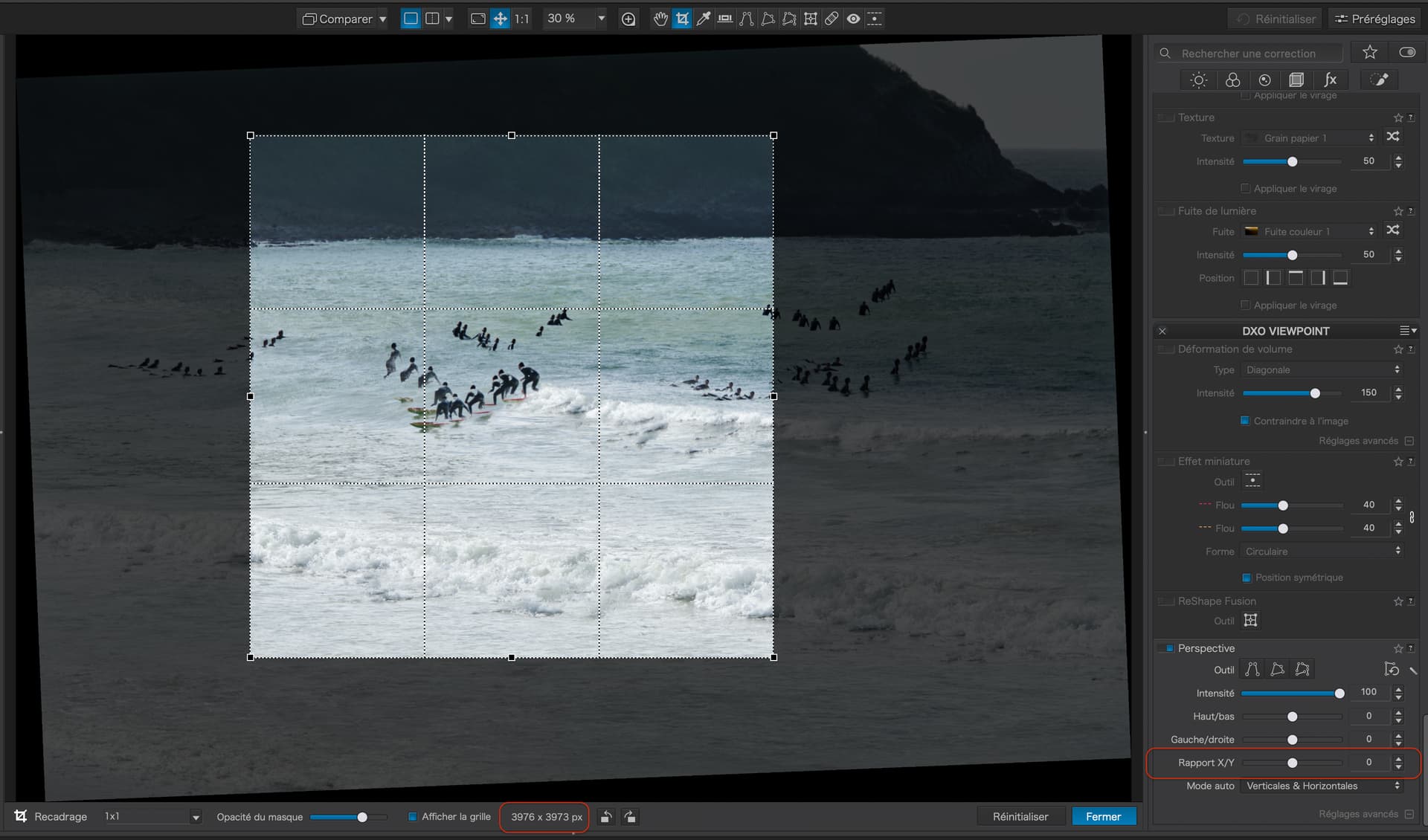
Note that the dimensions of the crop differ by 3 pixels. But, if I adjust the perspective ratio to -1…
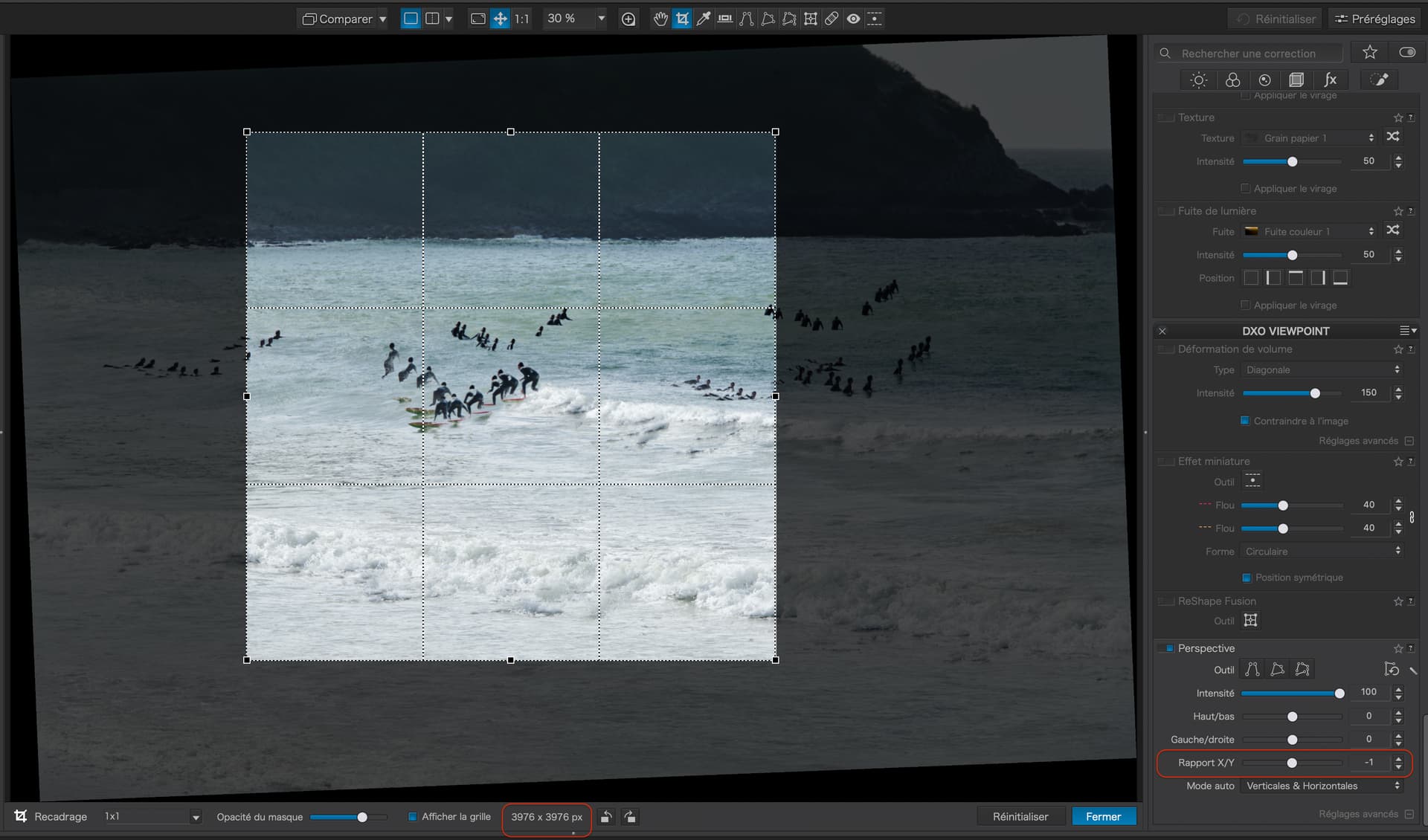
… the crop dimensions become equal.
Also, if I adjust the perspective ratio to 1…
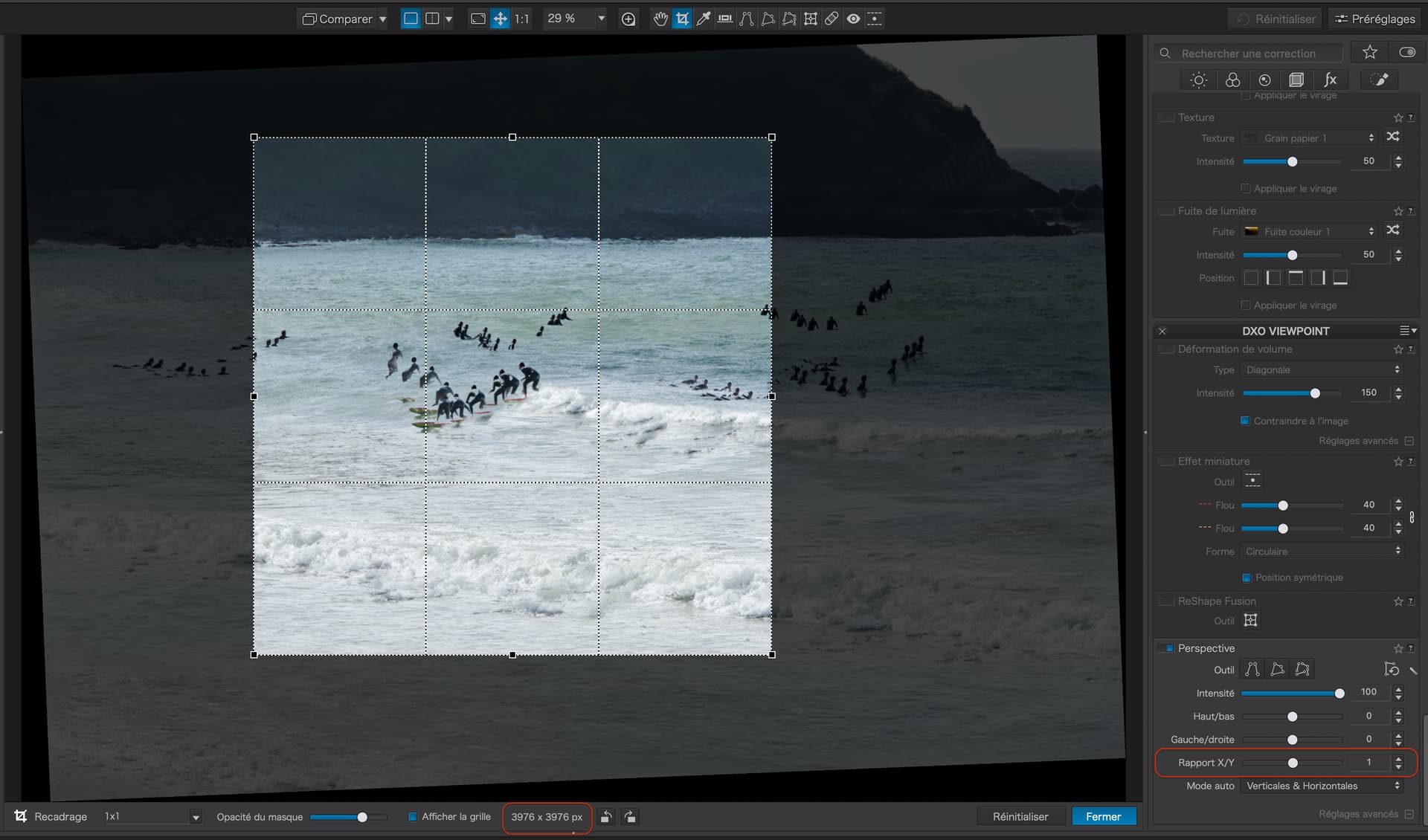
… we get exactly the same result - equality.
But, if you look carefully, the crop doesn’t change, it is the image area that changes and the crop appears not to change within that area.
So, for those who are OCD about the numbers, might I suggest you try this trick of nudging the Perspective ratio.
What do you get, when you reset from ±1 to 0?