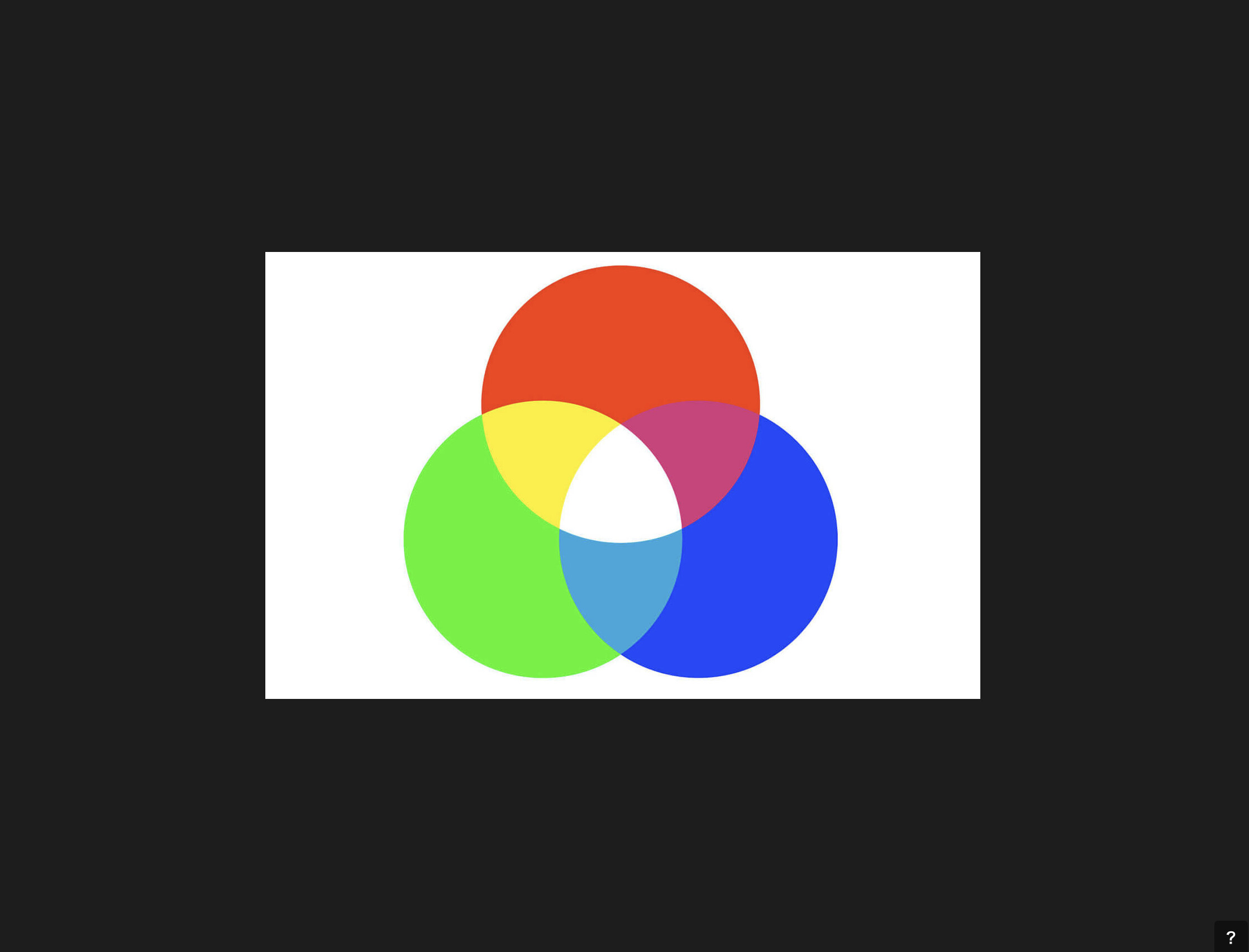
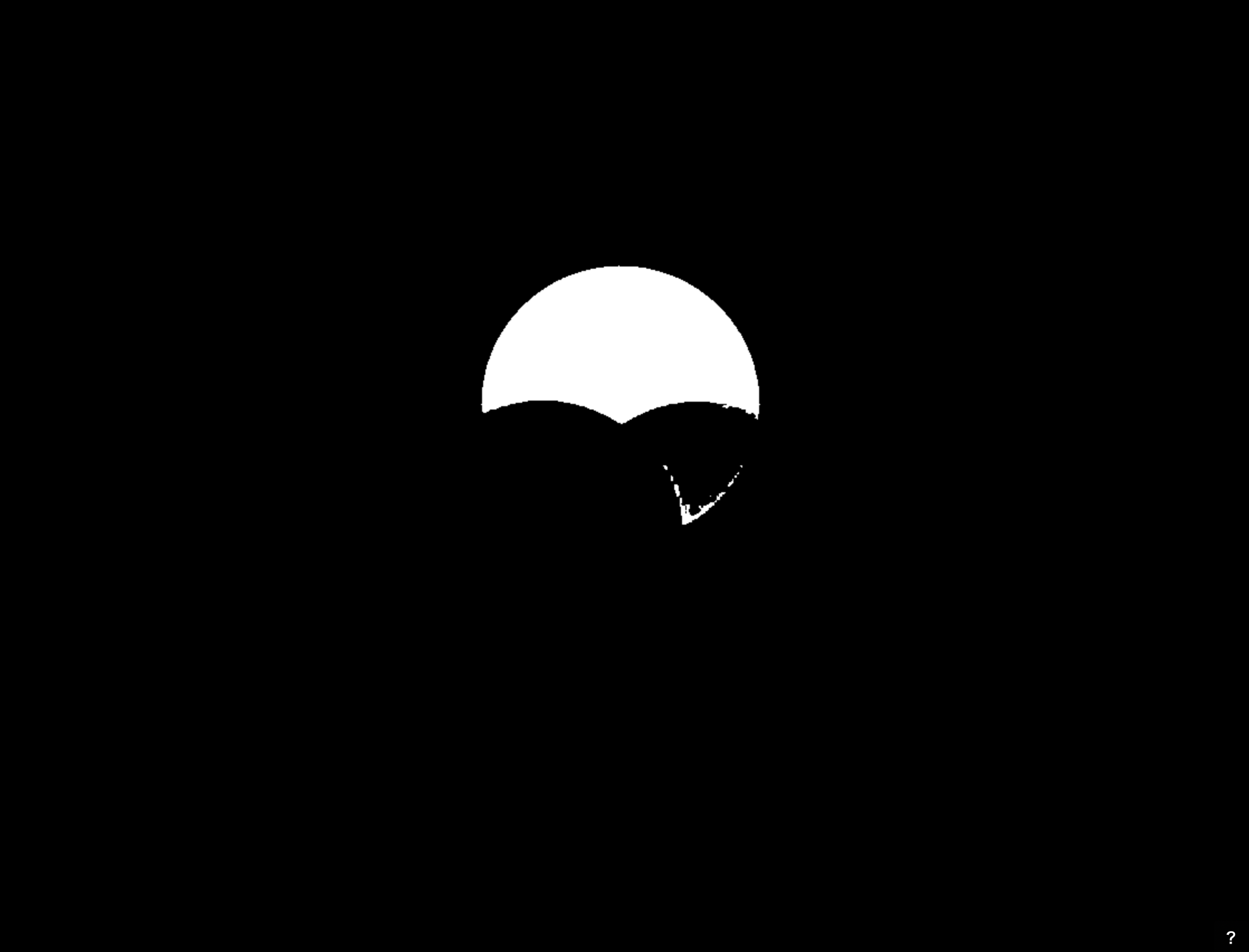
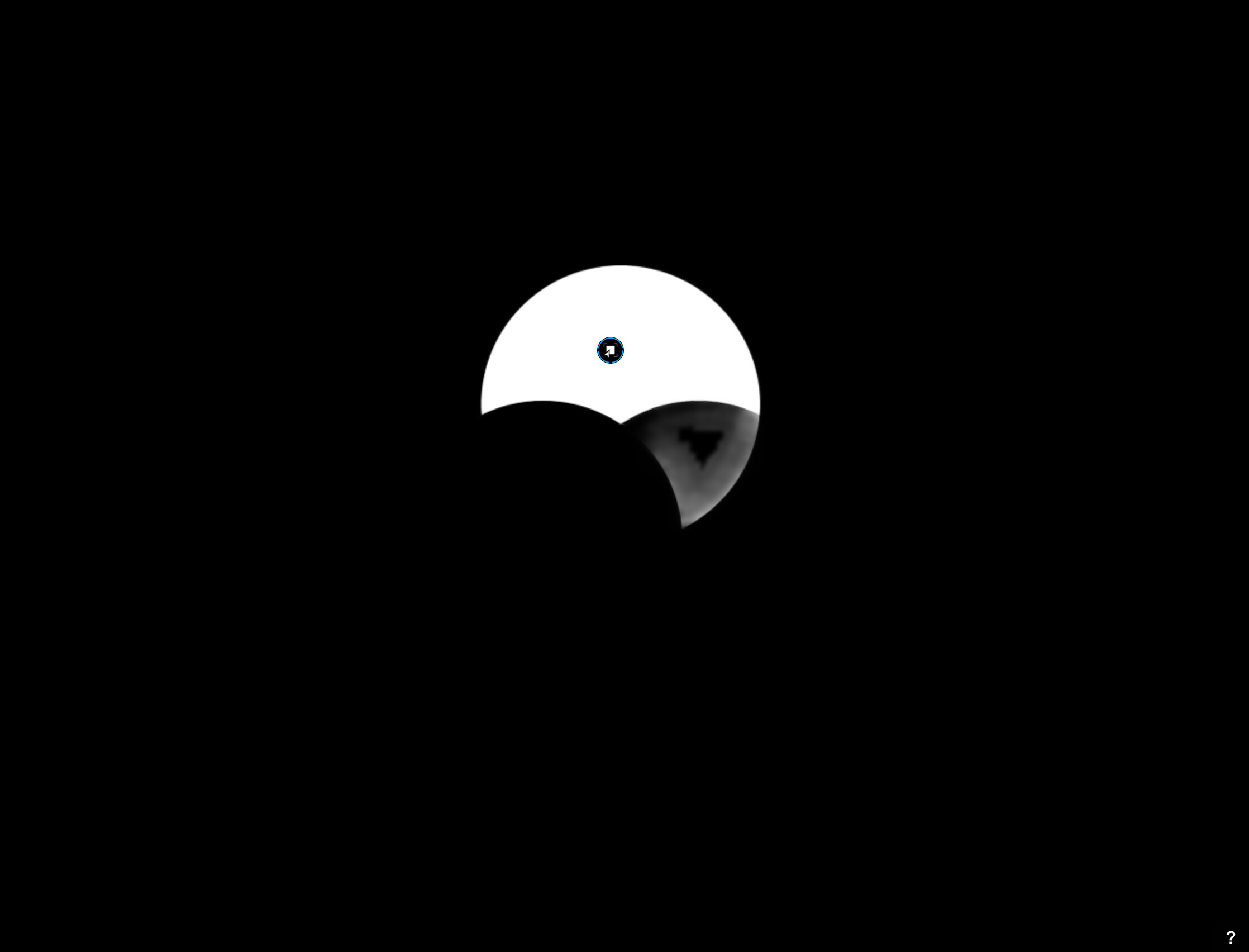
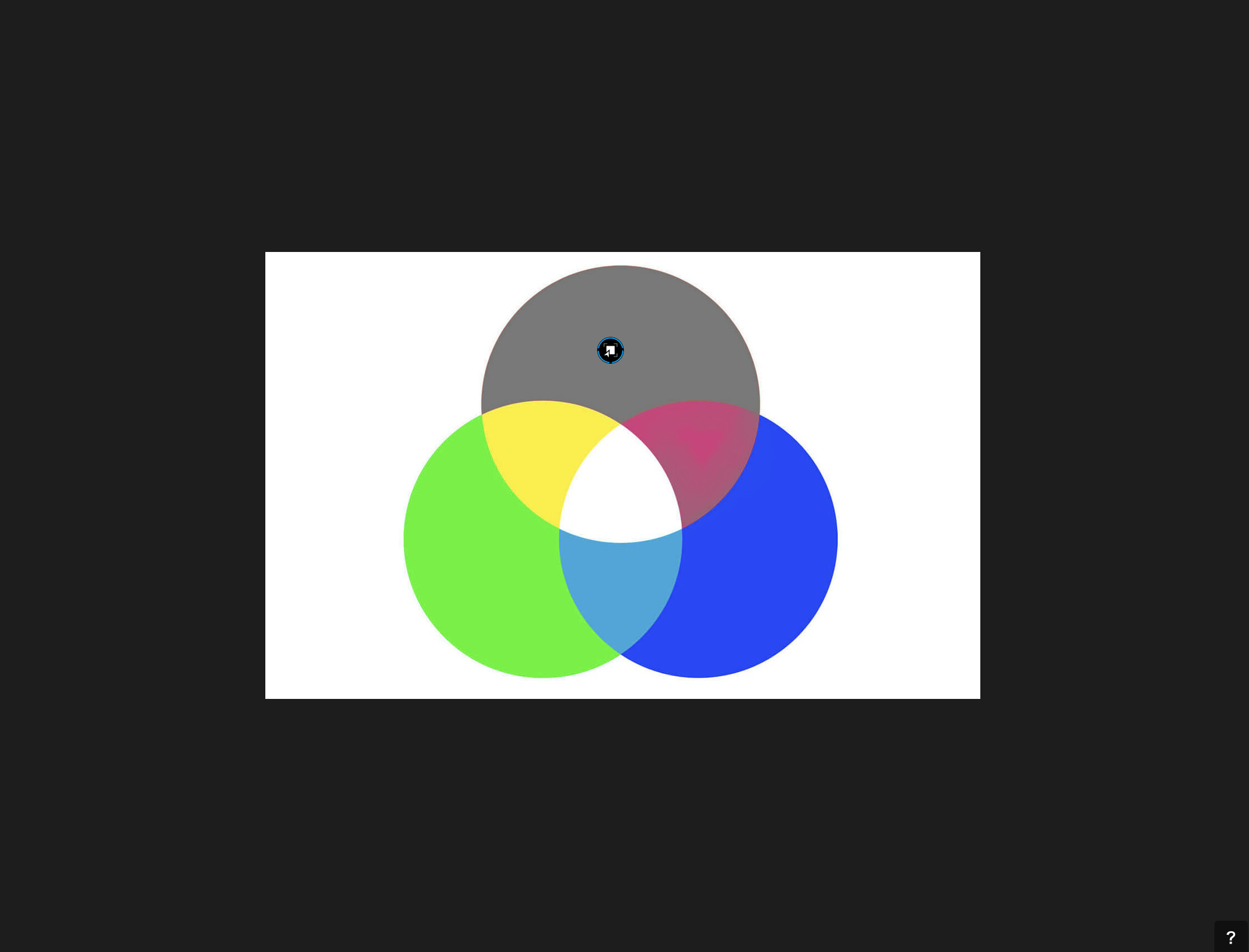
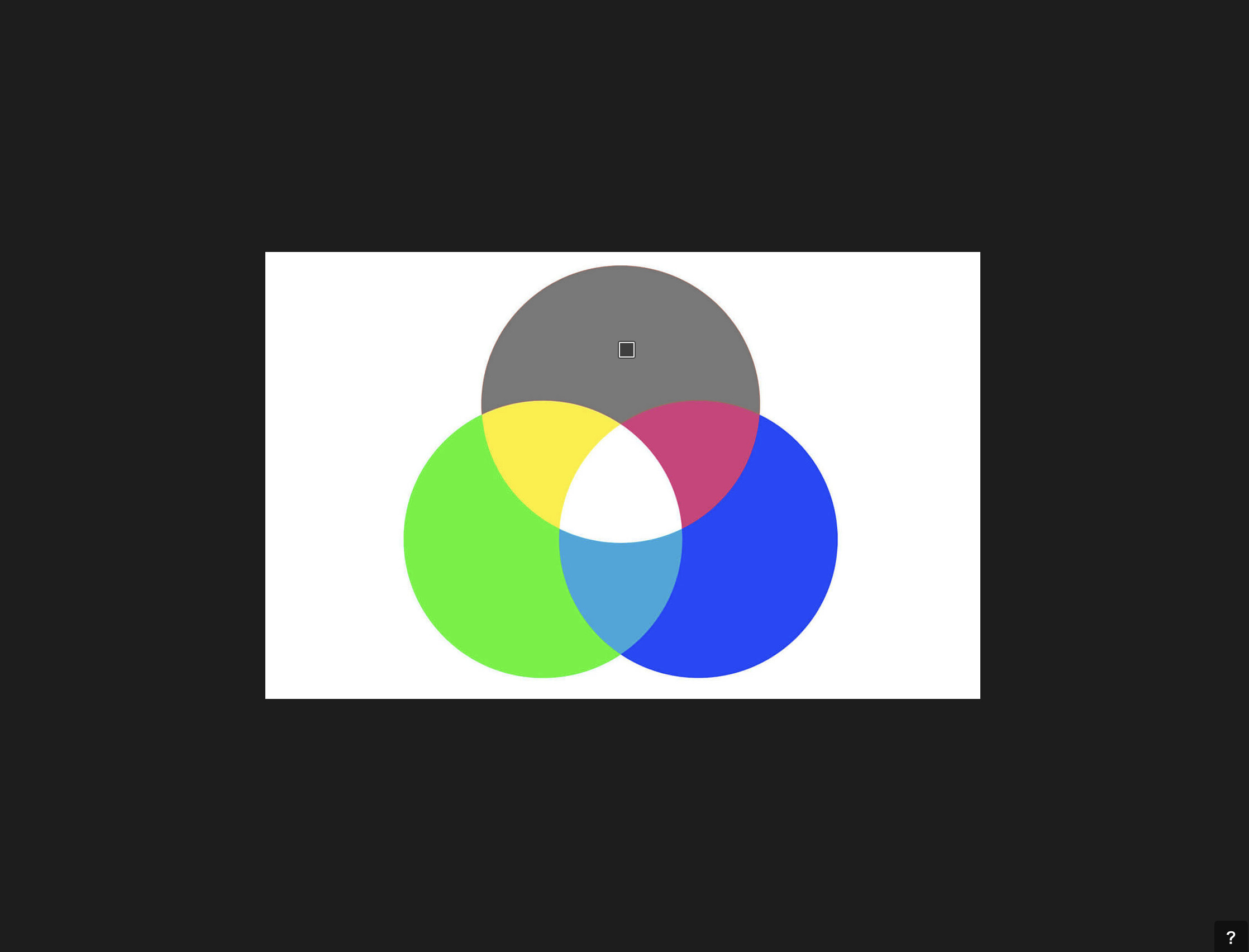
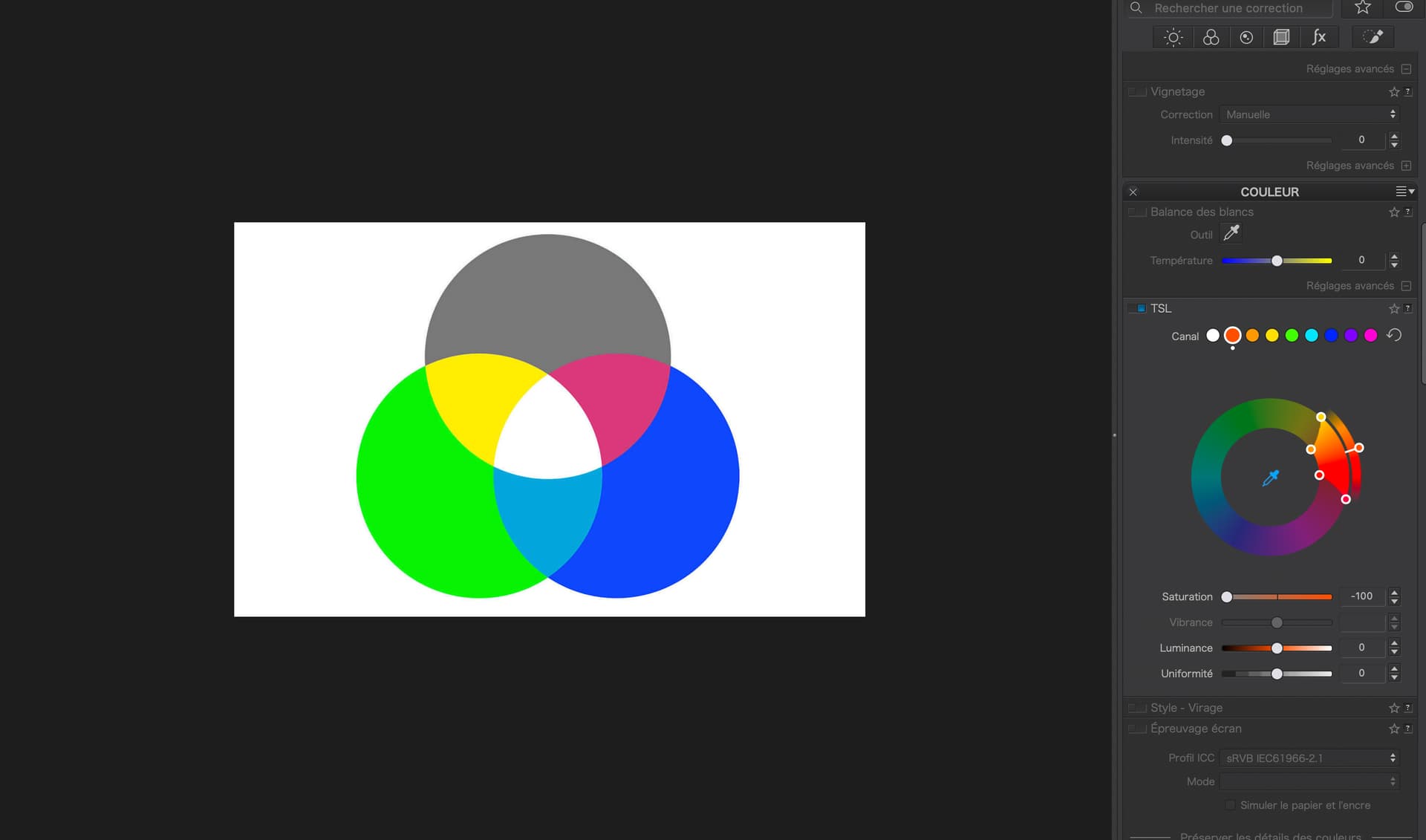
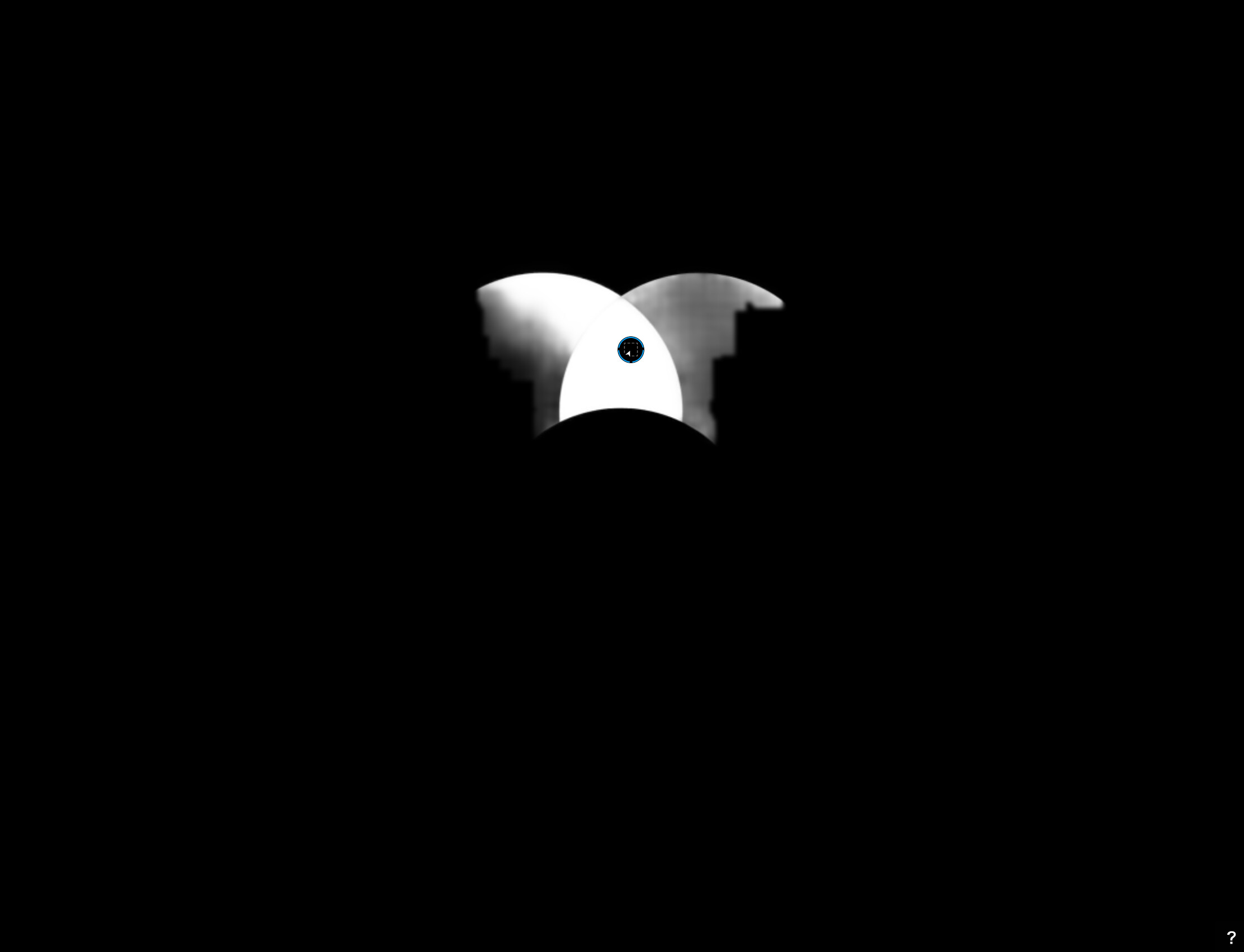
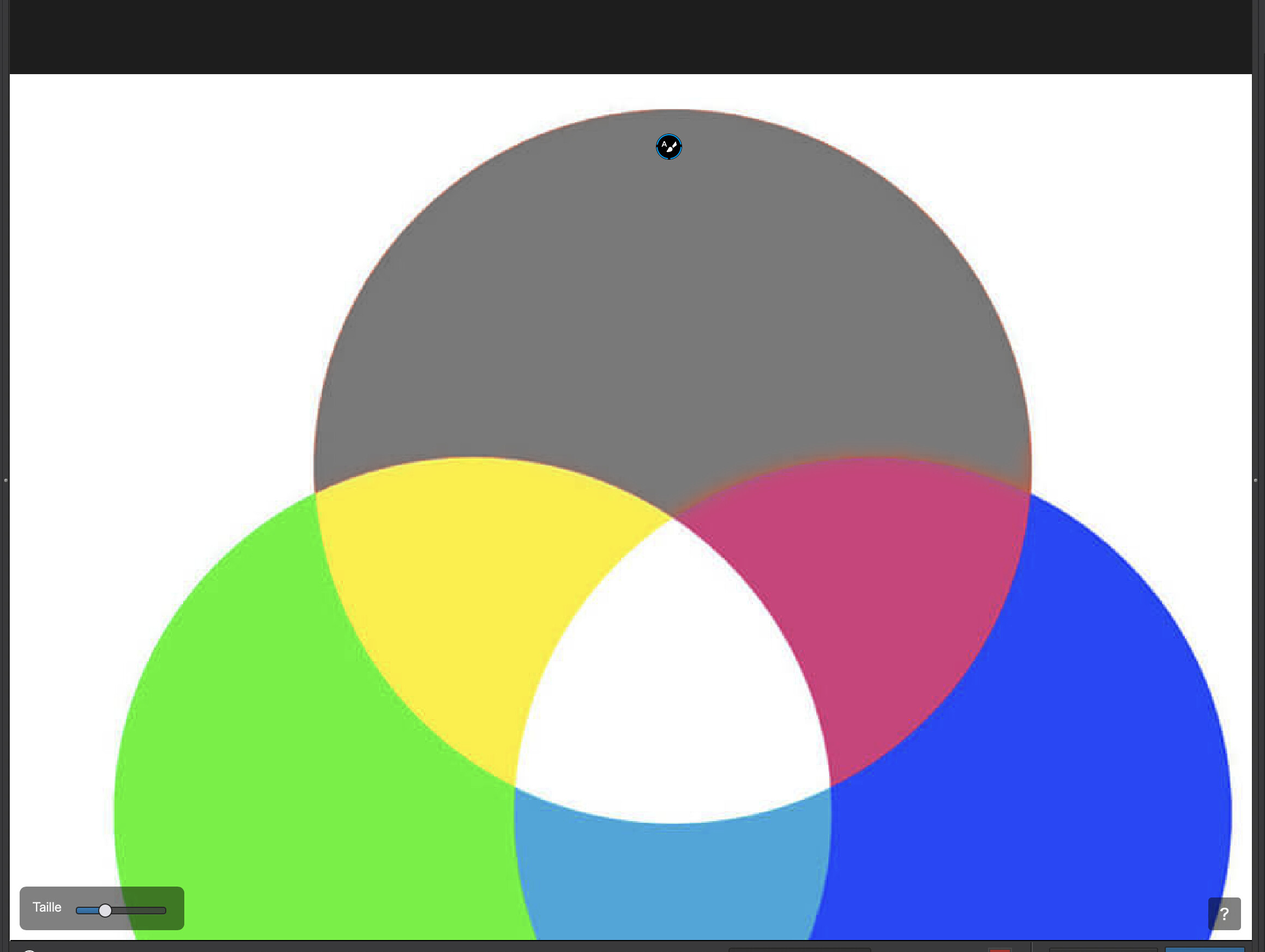
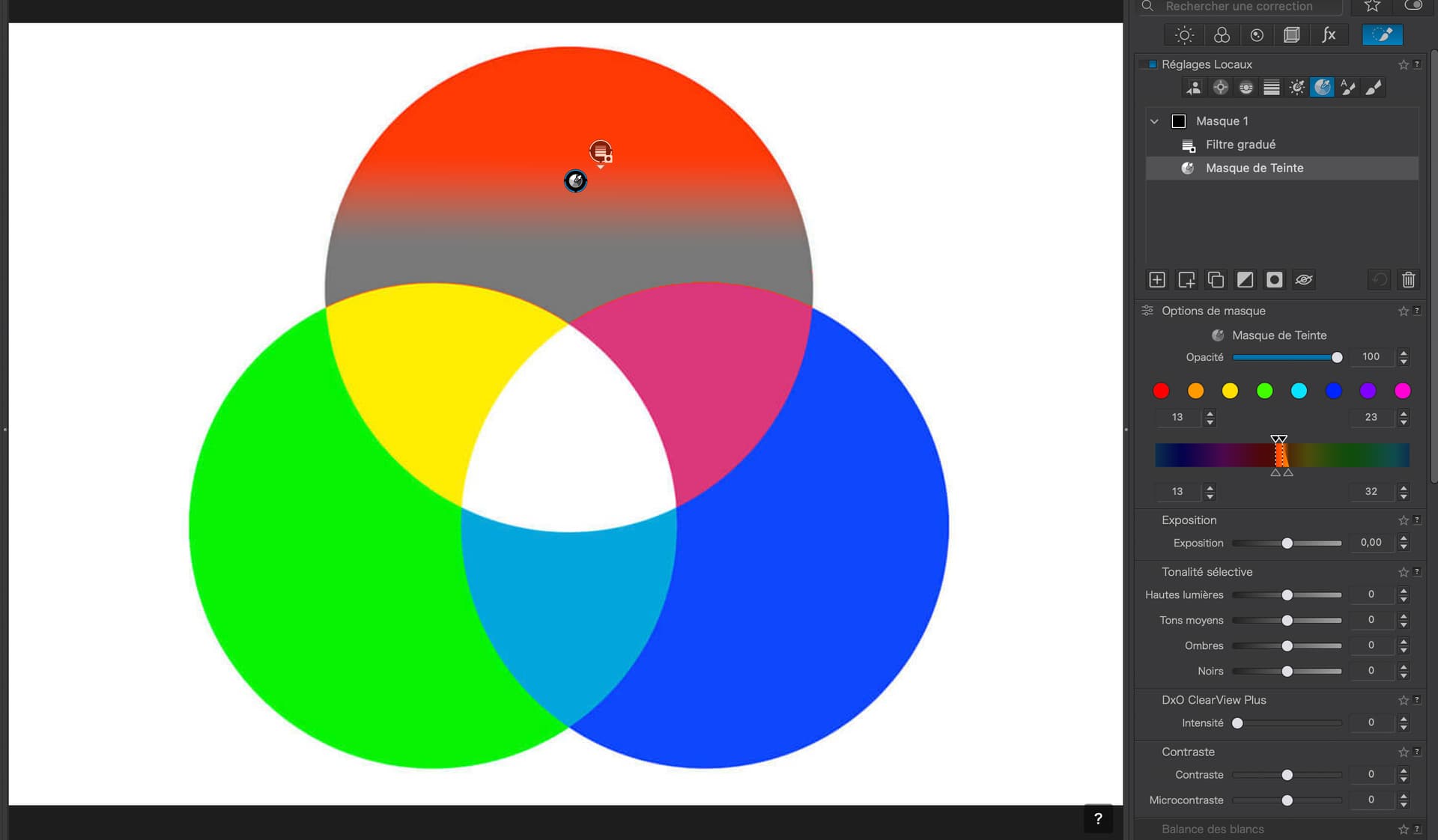
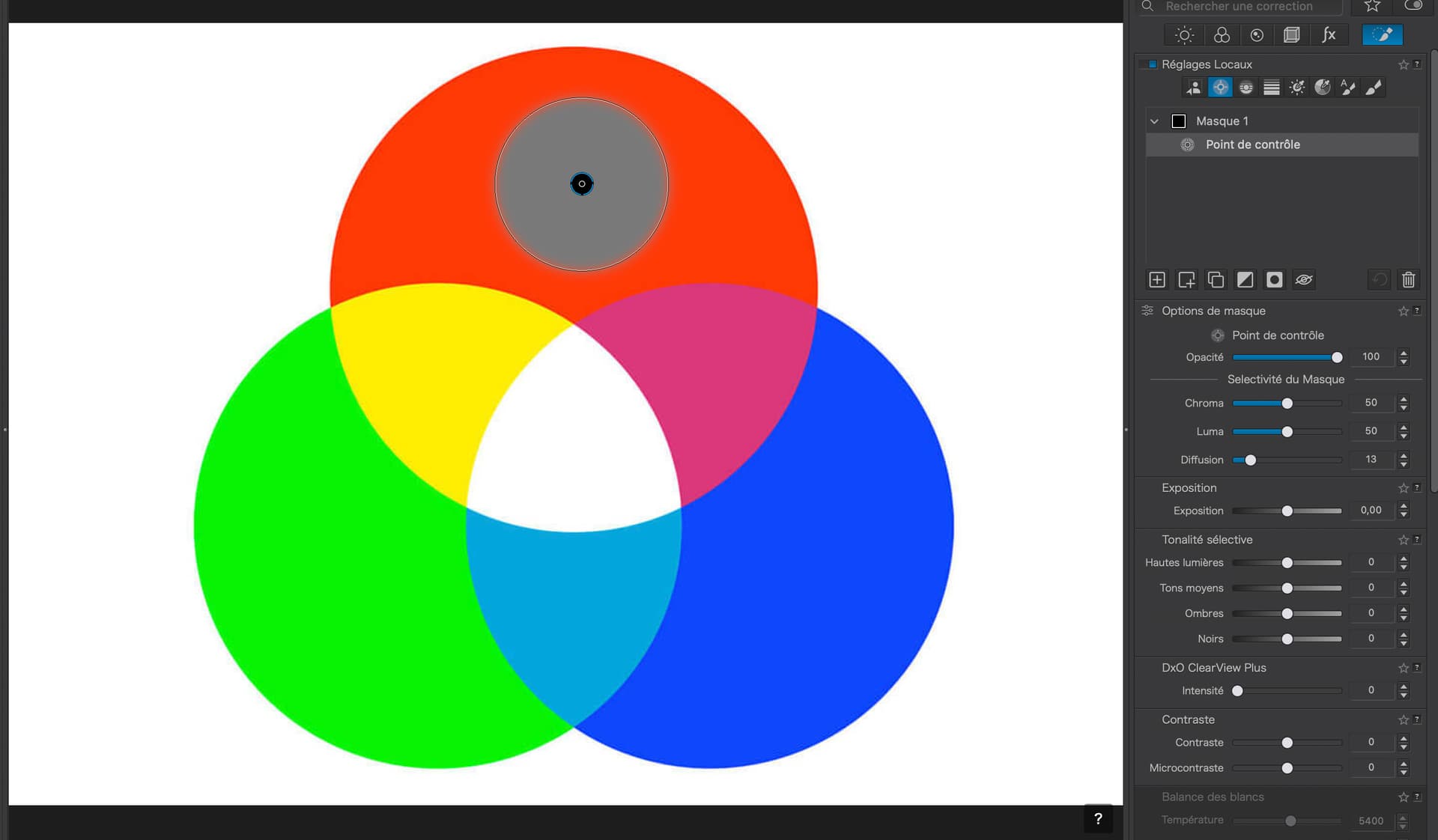
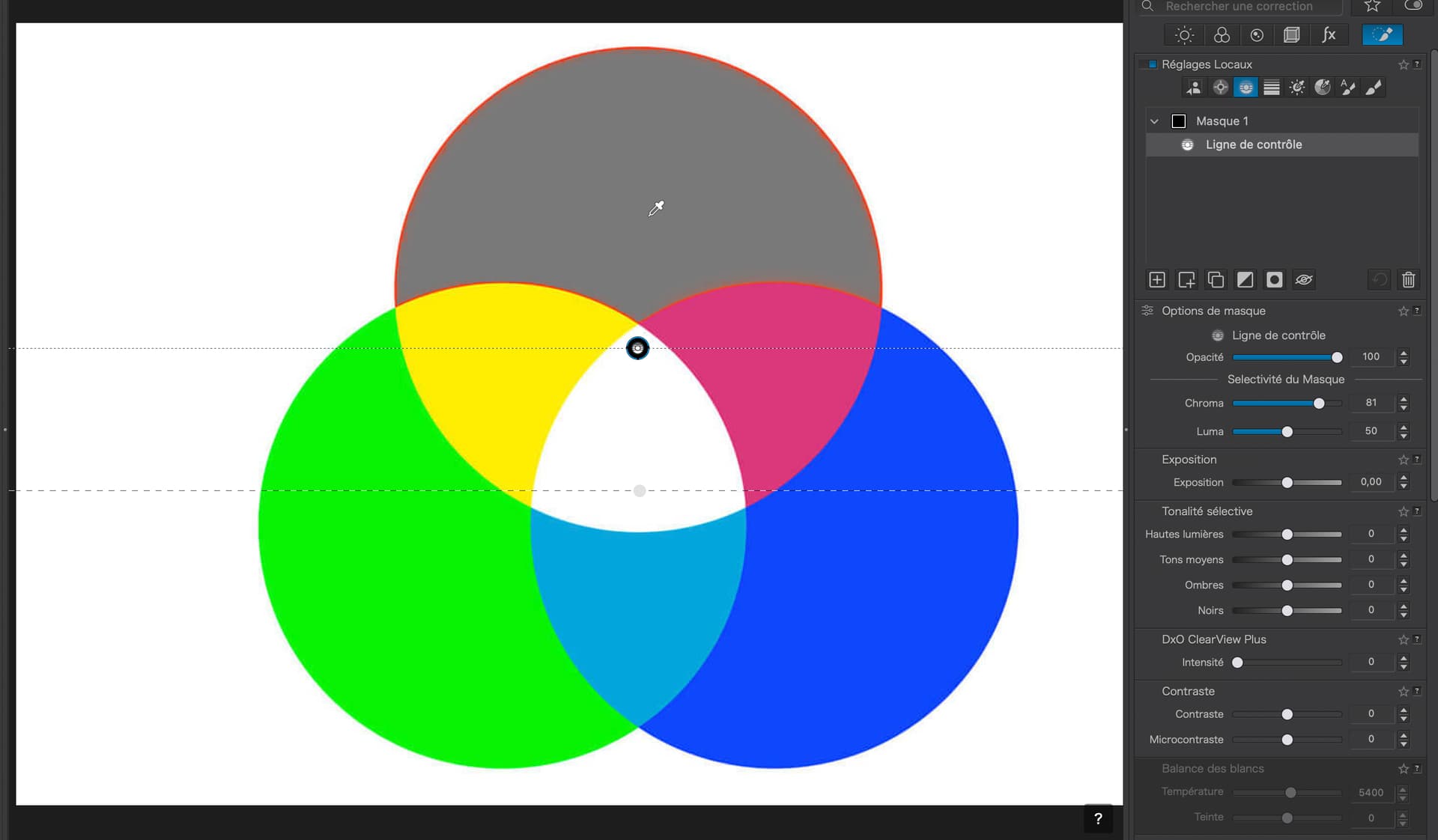
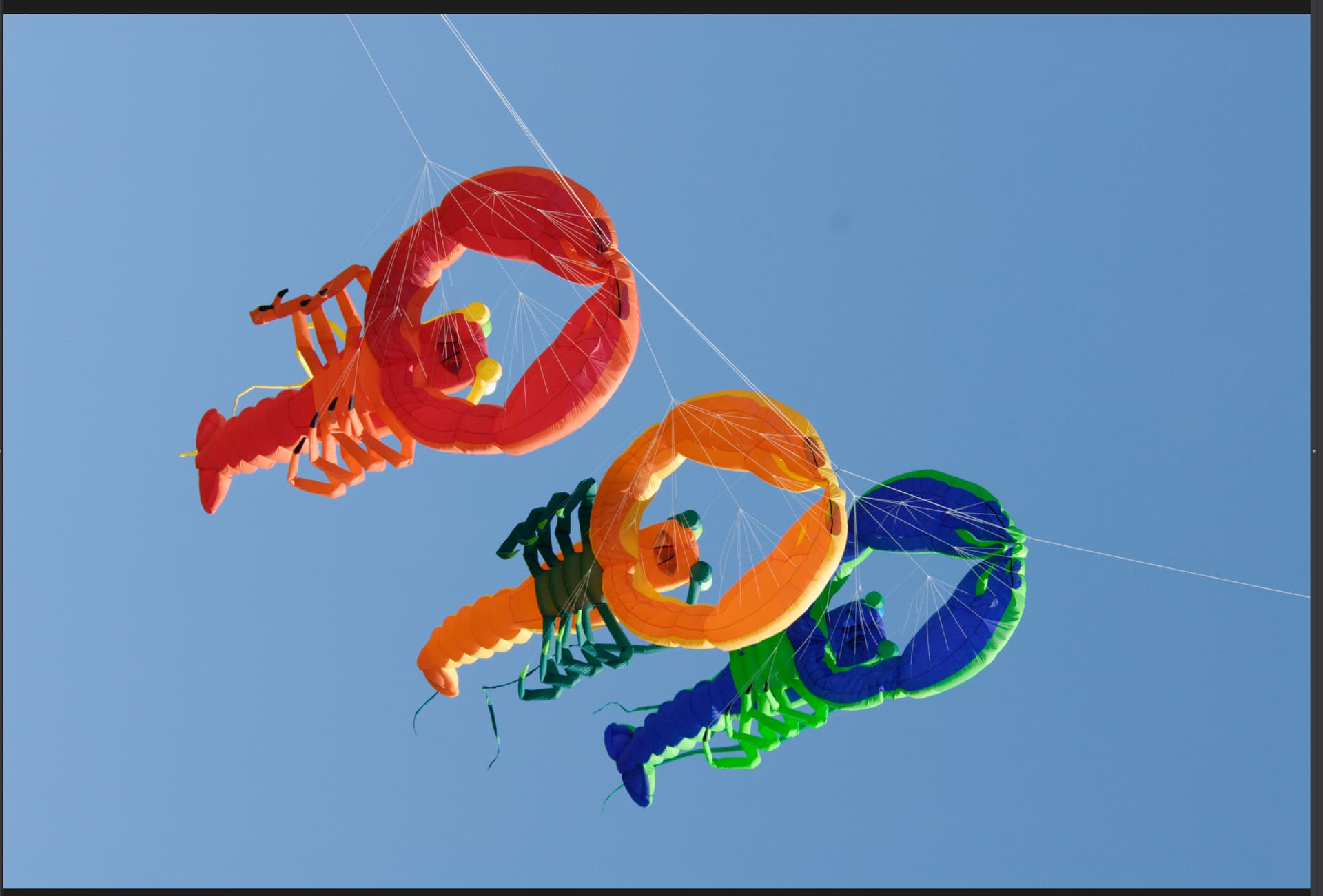
Thanks for synthetic example. That’s strange indeed.
I could “explain” that, if micro/fine-contrast, selective tones, smartlighting, or clearview were used, but they weren’t?
Do you mean ‘add an area’ AI mask working mode, as it’s called in the manual?
That’s why I use it quite often, resorting to Hue mask only if brushing the mask is required or special corrections are needed. Btw, it may be surprising how spiky hue histograms often look (e.g. in darktable).
@Joanna, as you and others have discovered, AI masking, as implemented in PL 9, has usability limitations. And, as you are also aware, there are multiple ways to mask objects in PhotoLab 9,
I don’t think any of the mask types, used individually, are the perfect solution for every set of conditions. However, when used singularly and in combination with each other, I think we can now successfully apply masks in ways that many of PhotoLab’s competitors cannot. This often requires much more effort than a single click, but I don’t mind putting in the extra work to get the exact results I want.
I don’t think you can draw any conclusions from this synthetic sample. The AI algorithms will only work well with images that are similar to the data that it has been trained on, and I think your synthetic sample differs quite a lot to a typical training dataset of photographic images, so it is no surprise it struggles. That is a limitation of current AI algorithms.
Sure, but still it’s funny/interesting to see how it “thinks”.
I guess AI masks were trained on photos made by good photographers, which had some typical masking case usage. It may take few months before one gets a good “feeling” about where and for what purpose they can be effective, learn all their weak points (e.g. halos and sharp edges being standard masking problems). But they won’t “fix” most of bad photos and often old masks will do the job better. I’m not a fan of local adjustments and I use them very sparingly, but still found AI masks useful in several cases, e.g. for taming busy bokeh. Speed of edits is important for me, so that I can still “see” my target vision.
@Joanna , thank you for sharing this with us. This is an additional piece of experience with masking. I guess in post processing it is necessary to choose the best option pic by pic.
Very likely that’s true, but there is a little elephant in the room - AI Object Selection.
That one isn’t searching for a person, sky, or animal, it’s searching whatever the likely object is.
Perhaps a “fine tuning” slider might help, that sharpens up the criteria by which it selects an object (I guess by chroma/luma/contrast borders to an object).
That should help it to work out that purple is not red, if you’re strict enough with it.
Did you export the images (with edited masks)? I would be interested to see the masks are exactly the same on export or not, as it takes so long to export, like it is recalculating them with more refinement.
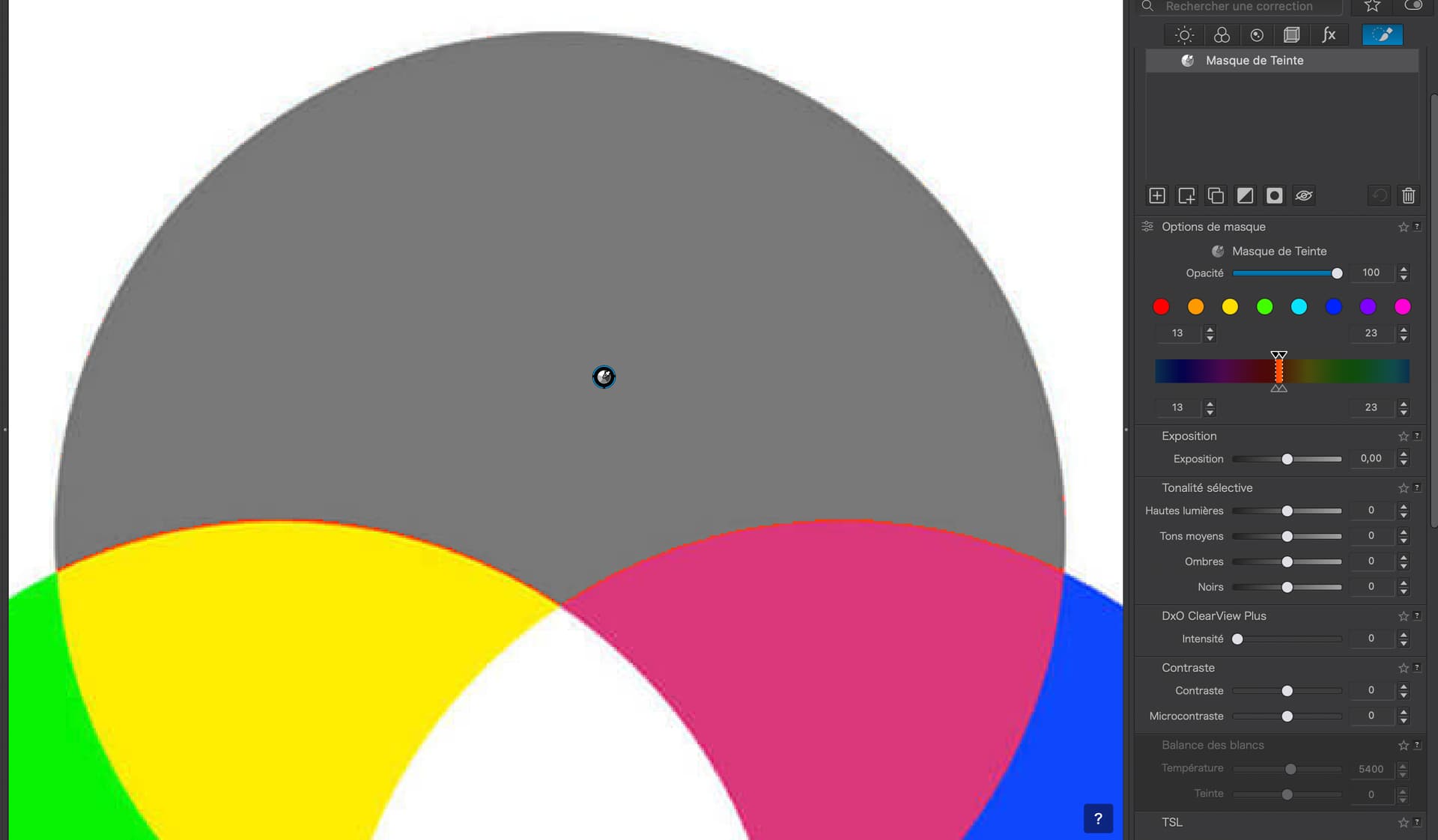
Notice the lack of definition of the selection between the red and purple segments. This is still not as effective as using the Colour Wheel. Unfortunately, that would be a global selection and all sorts of other stuff in more complex images then get selected.
For this kind of thing it’d be nice to be able to feather the selection very slightly.
I’ve recently been editing some photos of ducks and - depending on the method used - found a very slight colour line of just a few pixels against some edges of (the duck). There was no rapid way to adequately and neatly select what was needed to remove that.
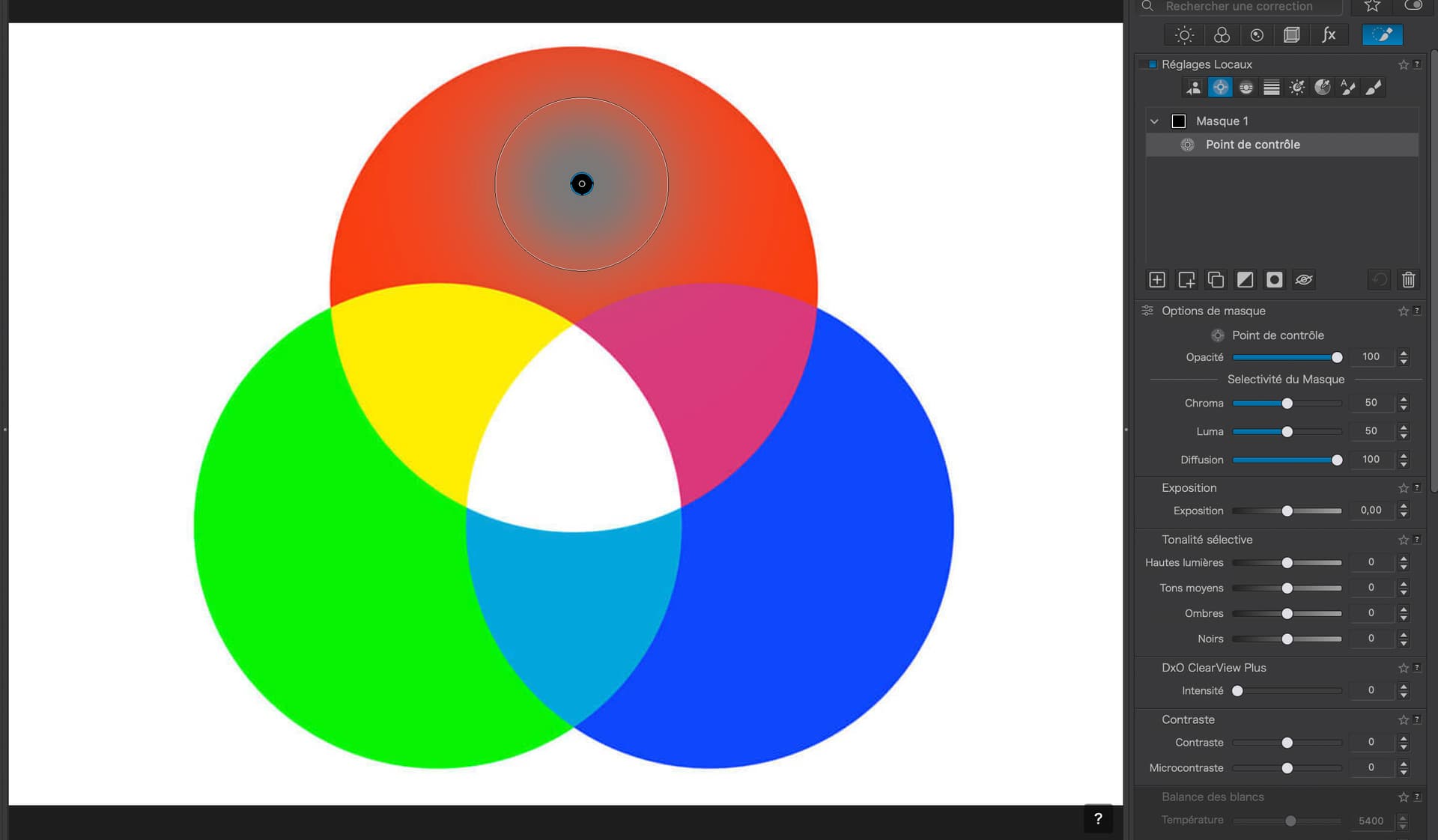
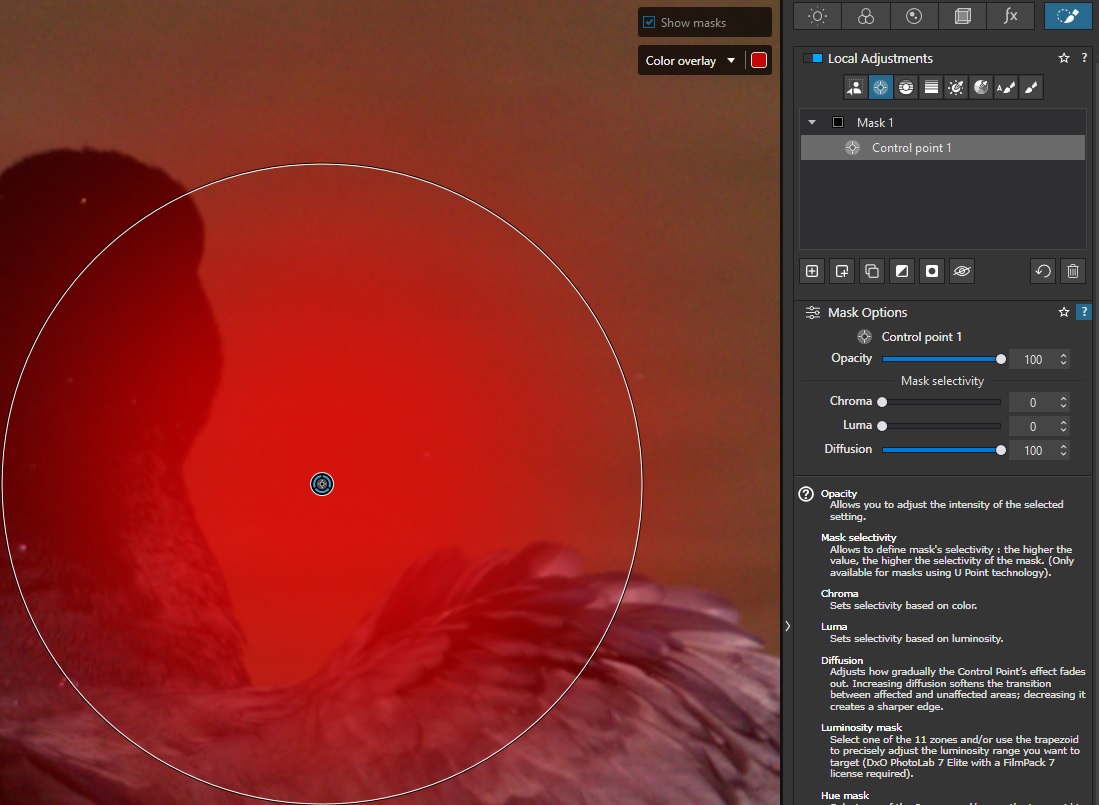
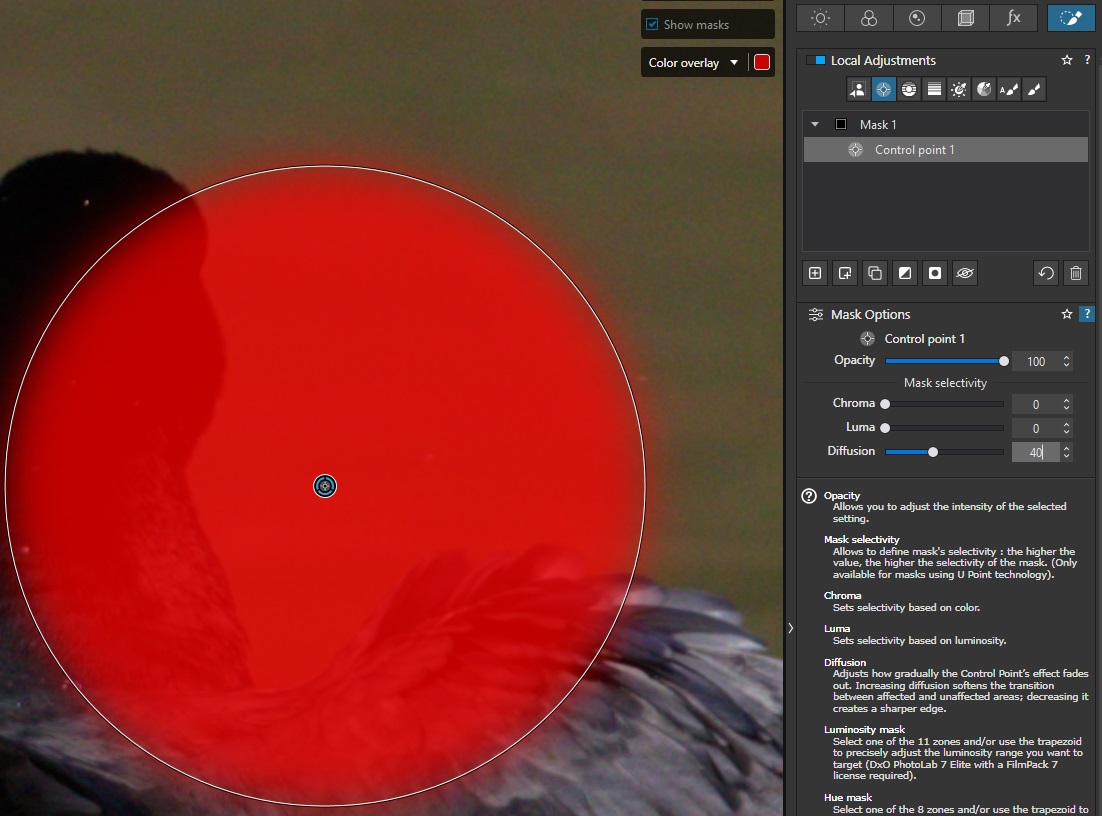
…so it does, when did that happen?! That’s actually great for reigning in the weird overspread that CP’s previously suffered from (here’s an example with diffusion set to 100, as I believe is the default before this option existed):
I am finding the AI Object selection very effective for lots of wildlife photos. AI dropdown list for subject types still causes lots of issues although a bit better with the latest NVIDIA drivers.
I still can’t understand why PL continuously reports errors and well DxO cannot just remove the error and continue without having to restart PL.